Connection method
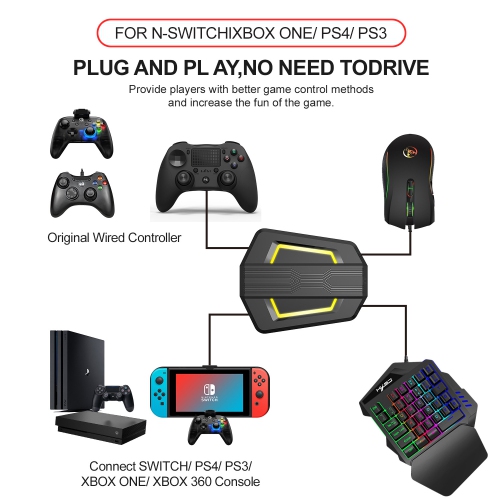
1) Start the host, connect the adapter via the USB-TYPE C data cable (USB interface connects to the host, TYPE C interface connects to the converter), and the LED light is white.
2) Insert the original wire control, the LED light is yellow. Insert the keyboard, the LED light is red; insert the mouse, the LED light is green. After the connection is completed, the LED light will flash in a cycle, and the colors are yellow, cyan, purple and pink.
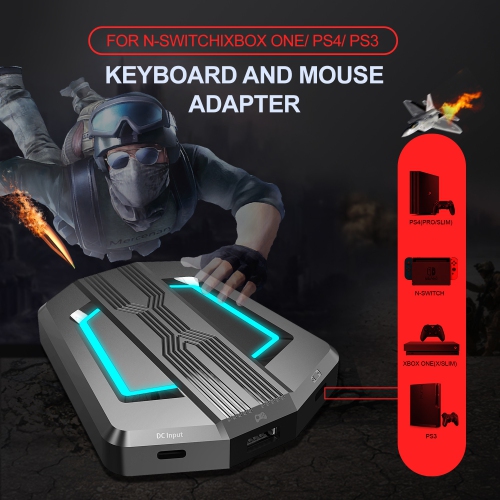
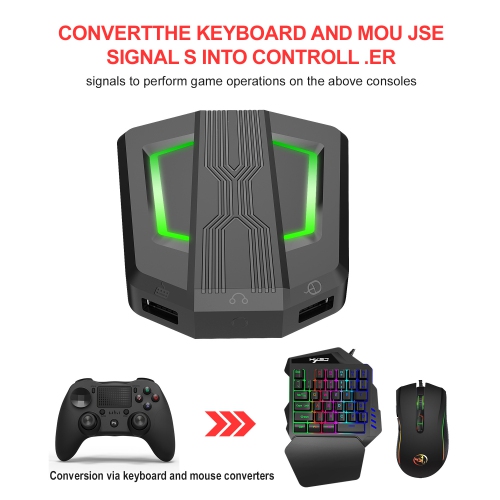
Applicable game consoles: PS4, Xbox One, PS3, Xbox 360, N-Switch
Precautions for using various game consoles:
1: N-SWITCH keyboard and mouse connection diagram
Note:
① When using this product, the SWITCH host can use the controller normally without connecting the original cable. Only when you need to modify the buttons, you need to guide the original controller. (Before using this product, please turn off the controller.)
②If the current is greater than 650mA, you need to connect an external device.
2: PS4 keyboard and mouse connection diagram
Note:
①When using this product on a PS4 console, please note that the original controller needs to be turned off. After inserting the connection cable into the keyboard and mouse converter, the orange indicator light on the controller lights up, and then press the PS button to connect successfully. (When using the keyboard and mouse converter, do not disconnect the controller, otherwise it cannot be used.)
②If the current is greater than 650mA, you need to connect an external device.
3: PS3 keyboard and mouse connection diagram
Note:
①When using this product on a PS3 console, please note that the original handle needs to be turned to gear 0. After inserting the connection cable to connect the keyboard and mouse converter, the handle indicator light flashes 1-4, and then press the PS button to connect successfully. (When using the keyboard and mouse converter, do not disconnect the handle, otherwise it cannot be used.)
②If the current of the external device is greater than 650mA, you need to connect the power supply.
4: Xbox One keyboard and mouse connection diagram
Note:
①When using this keyboard and mouse converter on an XBOX ONE console, do not disconnect the handle, otherwise it cannot be used. (Before using this product, please switch to 0 gear.)
② If the current of the external device is greater than 650mA, you need to connect the power supply.
5: Xbox 360 keyboard and mouse connection diagram
Note:
① When using this keyboard and mouse converter on the XBOX 360 console, do not disconnect the controller. Otherwise, it cannot be used. (Before using this product, please turn off the controller.)
② If the current of the external device is greater than 650mA, you need to connect the power supply.
6: Set the keyboard and mouse function
1) Press ESC + SPACE (space bar) on the keyboard at the same time to enter the function mode of setting the keyboard and mouse buttons (the LED light is blue).
2) Press and hold the function button to be set on the original controller, then press the keyboard or mouse button to be set, and finally release the original controller button and the keyboard or mouse button.
3) After the setting is completed, press the ESC + SPACE key on the keyboard to save the current setting and exit the setting mode.
4) For example: press ESC + SPACE (space bar) to enter the setting mode, press and hold the original SWITCH handle A button, and then press the keyboard F button to release the original SWITCH handle A button to restore the function of the original handle A button.
7: Notes on keyboard and mouse setting functions
1) During the setting process, if the original handle function key is not pressed or the joystick is pressed all the way to the bottom, the previously set keyboard or mouse function will be cleared.
2) When setting the left and right joystick functions of the original handle to the keyboard, the joystick direction must be pushed to the bottom, and only the joystick can be set in four directions: up, down, left, and right.
3) When setting the mouse, the original handle direction must be pushed to the bottom, and the mouse will slide in the corresponding direction. The mouse only supports the functions corresponding to the left and right joystick directions.
5) The original handle cross key supports 8 direction settings
8: Mouse speed adjustment
1) This product supports mouse movement speed adjustment, with three gears by default.
2) Axis speed adjustment: ESC + CAPSLOCK + A/ S/ D/ F/ G
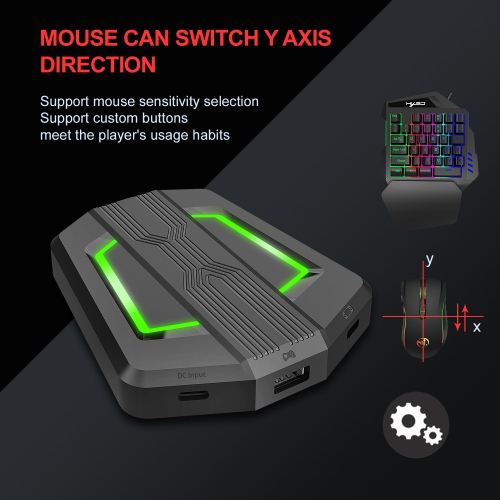
4. Mouse Y-axis direction switch
The Y-axis direction control of some games is opposite to the set value
e. The game operator can press ESC + R to adjust the mouse Y-axis direction as needed.
9: Function switch instructions
1) Enter setting mode: ESC + SPACE
2) Enter setting mode: ESC + SPACE
3) Default page 1: SC + CTRL + Q
4) Exit setting mode: ESC + SPACE
5) Mouse speed switch: ESC + CAPSLOCK + A/ S/ D/ F / G
6) Y-axis plus reverse: ESC + R
7) Page area selection: ESC + TAB + Q / W / E/ R/ T
8) Key value restore default: SC + CTRL + ALT (press and hold for 3 seconds)
10: Upgrade instructions
(Without the correct upgrade program, you cannot upgrade at will)
1) On a Windows computer, open the upgrade software. When the converter is not in upgrade mode, "Update rmware" is displayed in light gray.
2) Connect the converter to the computer via a USB data cable. At this time, the white LED of the converter lights up, and the red LED lights up when the keyboard is inserted. Press and hold the SC+CTRL+ALT+SPACE keys on the keyboard for 3 seconds. At this time, "Update rmware" is displayed in black, and click the "Update rmware" button to update the converter firmware.
4) The OK window pops up and displays "Update Success", indicating that the upgrade is complete. Click OK.
11: Setting instructions
1) The converter box is connected to the host, and no external device is connected, and it is displayed in white.
2) Insert the original controller, the indicator light is yellow, insert the first device to light red, and then insert another device to light green. Successfully light yellow, the breathing light color switches in sequence: yellow light, green light, purple light, pink light.
3) Each color breathes 4 times, and a color is changed. Press the setting key function, and the breathing light lights blue.