College Move-In Tech Checklist
Move-in day goes fast. Build a setup that’s ready for lectures, late-night study sessions, and downtime with dorm-friendly Wi-Fi, power, audio, and laptop add-ons.
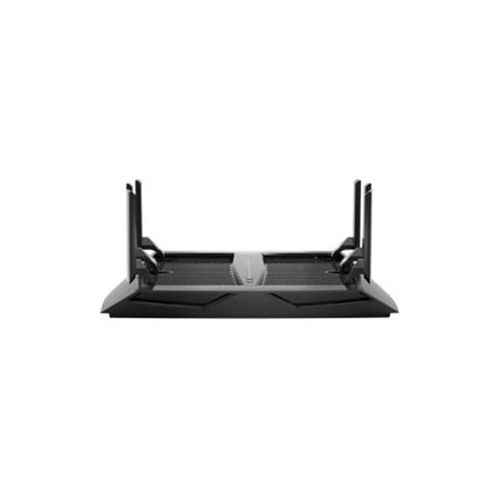
Dorm Wi-Fi Routers and Mesh Systems
Boost coverage and keep multiple devices connected with fast Wi-Fi 6 and mesh-ready options.
Surge Protectors
Get more outlets where you need them and protect your gear from unexpected power spikes.
Reliable Laptops
Keep your laptop, tablet, and phone topped up with reliable USB-C charging—at your desk or on the go.
USB-C Ethernet Adapters
Add HDMI, Ethernet, and extra USB ports so you’re ready for class, study sessions, and external storage.
Portable SSDs and Backup Storage
Fast, pocket-sized storage for projects, photos, and a solid backup plan all semester long.
Noise Cancelling Headphones
Focus in shared spaces, commute with less distraction, and jump on calls with clear audio.
Wireless All-in-One Printers
Print, scan, and copy from your dorm room when the library line (or your schedule) is not it.
Monitors for Dorm Desks
Add screen space for essays, spreadsheets, and streaming—without taking over your whole desk.
Tips
- Start with your school’s residence rules (some dorms restrict personal routers), then decide what you actually need in-room.
- Count outlets before you unpack—between a laptop, phone, monitor, lamp, and speakers, you’ll run out fast without a surge protector.
- Choose one main charger you can trust (a 65W USB-C option covers many laptops, tablets, and phones) and keep a spare in your bag.
- If your laptop has limited ports, pack a USB-C hub with HDMI and USB-A so you’re ready for presentations, external drives, and older accessories.
- Back up school files automatically to a portable SSD so a spilled coffee or lost laptop doesn’t become a semester problem.
- Shared room? Noise cancelling headphones can turn a busy hallway into a quieter study zone in seconds.
- Going with a printer? Pick a compact all-in-one that does scan/copy too, and set it up on Wi-Fi before assignments pile up.
- For a small desk, a 24 to 27 inch monitor can be a big comfort upgrade—just measure your space and check your laptop’s video output.
Frequently Asked Questions
Not always—many residences provide building-wide Wi-Fi. If your room’s signal is weak or you want a dedicated connection for your devices, a personal router or mesh system can help, but check residence policies first.
Prioritize enough outlets for your setup, a cord length that reaches your desk or bed, and surge protection rated for electronics. Models with USB ports can also reduce the number of wall chargers you need.
For many thin-and-light laptops, yes—65W USB-C can handle everyday charging. Some larger laptops need higher wattage, so confirm your device’s recommended power rating and USB-C charging support.
HDMI for external displays or classroom projectors, USB-A for older accessories, and Ethernet if you want a more stable wired connection. If you’ll charge while using the hub, look for power delivery pass-through.
If you’ll be writing papers, coding, or multitasking, a monitor can make work feel less cramped. A 27 inch display is great if you have space, while a smaller option can fit better in tighter dorm setups.
It depends on your program and campus services. If you print often, a compact wireless all-in-one can be convenient for handouts and quick scans, but many students rely on campus printing instead.
Some products may be subject to Environmental Handling Fees (EHF) depending on your province. Learn more about EHFs.