Home Wi-Fi Upgrade Guide
Ready to level up your connection? Upgrade your home Wi-Fi with faster routers, whole-home mesh coverage, and smart add-ons that help eliminate dead zones and keep every device running smoothly.
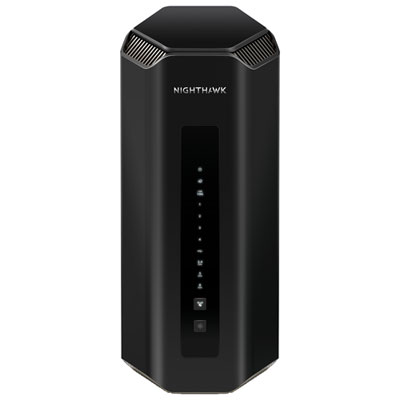
Wi-Fi 7 Routers
Upgrade your network for next-level speed, capacity, and smoother performance across busy households.
Whole Home Mesh Wi-Fi Systems
Spread strong Wi-Fi across more rooms with multi-node systems designed to reduce dead zones.
Wi-Fi 6 Routers
A smart step up for everyday speed and better handling of multiple devices on one network.
Wi-Fi Range Extenders
Boost coverage into hard-to-reach rooms with plug-in extenders and mesh extenders.
Ethernet Switches for More Wired Ports
Add extra Ethernet connections for game consoles, smart TVs, PCs, and wired mesh backhaul.
Cat 6 Ethernet Cables
Run Ethernet to key rooms for stable streaming, faster downloads, and reliable mesh backhaul.
USB Adapters for PCs
Give desktops and laptops a wireless upgrade to take better advantage of your new router or mesh system.
Tips
- Place your main router as centrally as possible and out in the open (not tucked in a cabinet) to improve signal reach.
- If your home has multiple floors or lots of rooms, a mesh Wi-Fi system is usually a better upgrade than a single high-powered router.
- Match the Wi-Fi standard to your devices: Wi-Fi 6 is a solid step up, Wi-Fi 6E adds a 6GHz band for compatible devices, and Wi-Fi 7 is built for top-end performance and heavy multitasking.
- Use Ethernet backhaul between mesh nodes when you can—wired links often deliver more consistent whole-home speed than wireless hops.
- If you only have one weak area (like a back room), a range extender can be a quick fix—place it halfway between your router and the dead zone.
- For gaming consoles, PCs, and smart TVs, a wired connection (or a nearby mesh node with Ethernet) can reduce lag and keep speeds steady.
- Separate your network with a guest Wi-Fi name and password to keep visitors connected without sharing your main network credentials.
- After you install new gear, run a speed test near the router and in your problem rooms to confirm your coverage improvement.
- Update your router firmware and device drivers after setup—performance and security updates can make a noticeable difference.
- If your internet plan is fast but your Wi-Fi feels slow, check for router placement issues, older devices on the network, and interference from neighbouring networks.
Frequently Asked Questions
Choose a new router if you mainly need better speed near the centre of your home and you don’t have many dead zones. Choose a mesh Wi-Fi system if you want more consistent coverage across multiple floors, long hallways, or larger homes—mesh nodes work together to spread Wi-Fi more evenly.
Wi-Fi 6 is a major upgrade for busy homes because it manages lots of devices more efficiently. Wi-Fi 6E adds access to the 6GHz band on compatible devices, which can reduce congestion in many homes. Wi-Fi 7 is the newest option and is designed for higher peak speeds and smoother performance when many devices are active at once.
It depends on your layout and where the dead zones are. Many homes do well with a 2-pack or 3-pack mesh kit, but thicker walls and multiple floors may need additional nodes. A good rule: start with enough nodes to cover each floor, then add one more if you still have weak spots.
Place it where it still gets a strong signal from the main router (or the previous node), but close enough to improve coverage in the problem area. If you place it too far into the dead zone, it won’t have a reliable connection to extend.
Some extenders can reduce effective speed because they repeat the signal. For the best results, use an extender that supports your router’s Wi-Fi standard, place it properly, or consider a mesh system—especially for larger homes.
Most homes need a modem (from your internet provider) plus a router to create Wi-Fi. If you already have a modem from your provider, you can usually upgrade by adding a new router or mesh system—just confirm compatibility with your internet service before you buy.
Try a mesh node placed on the main floor above the basement, or run an Ethernet cable to a mesh node or access point closer to the space. Thick walls, concrete, and distance can block Wi-Fi, so adding a closer node (or a wired connection) is often the most reliable fix.
Some products may be subject to handling fees (EHF) depending on your province. Learn more about EHFs.