Affordable Hard Drives
Looking for a reliable and cost-effective solution to expand your storage space? Our selection of affordable hard drives offers the perfect balance of performance and value. Whether you need extra room for your extensive media collection, important work files, or simply want to back up your data securely, these hard drives are designed to meet your storage needs without breaking the bank. With a range of capacities and connectivity options available, finding the right fit for your requirements is easier than ever. Browse our collection today and take the first step towards maximizing your digital storage capabilities.
Sort

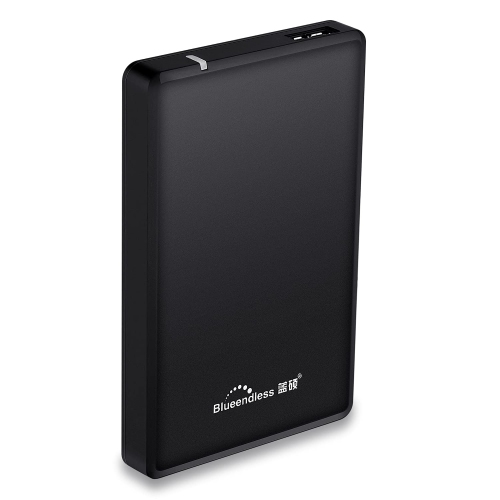
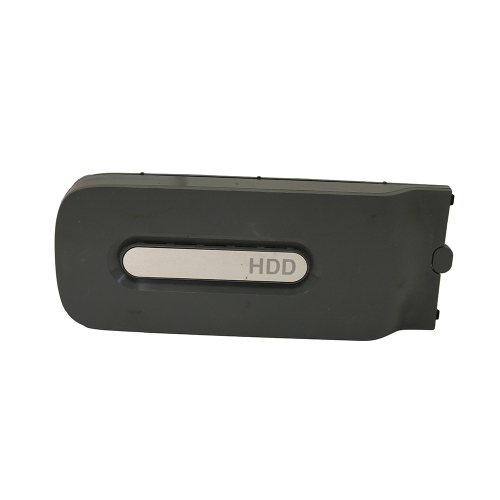
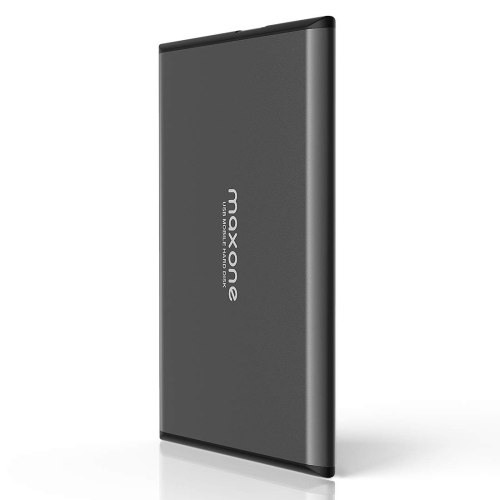
More room for growing photo libraries and everyday files
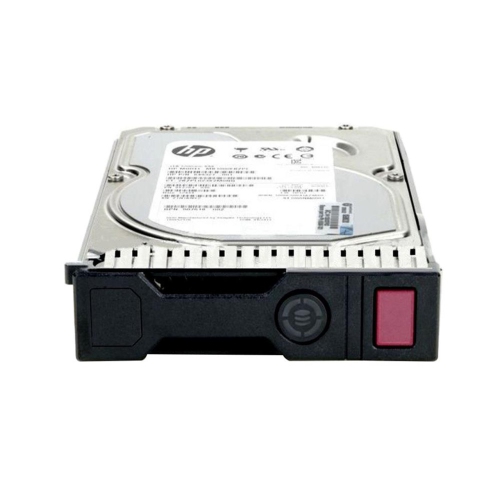
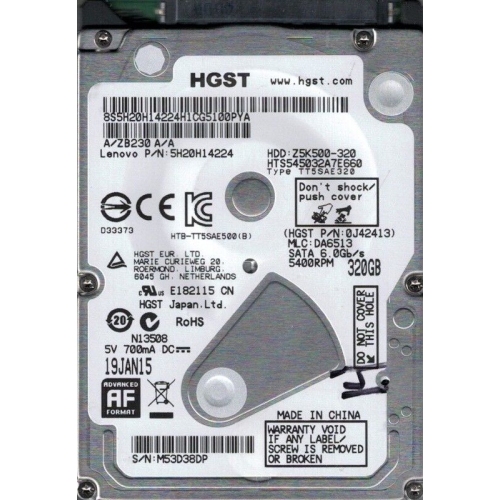
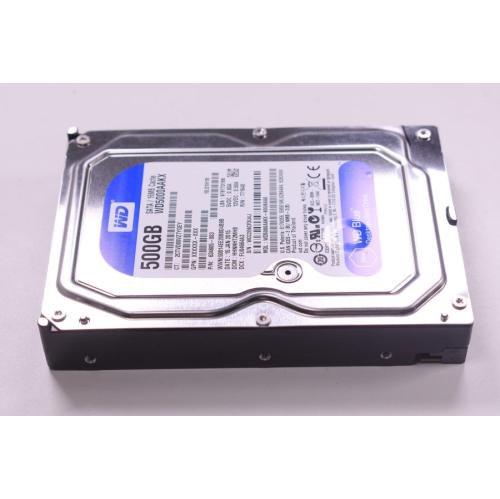
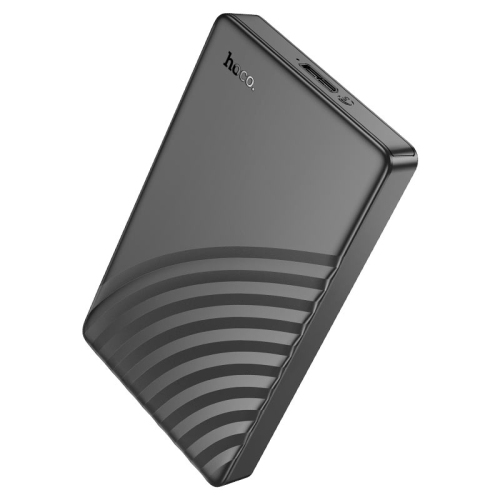
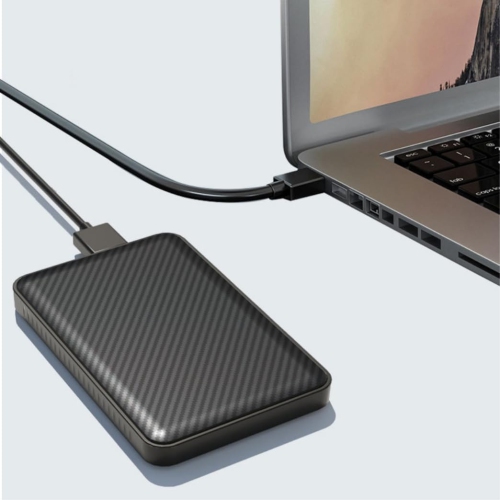
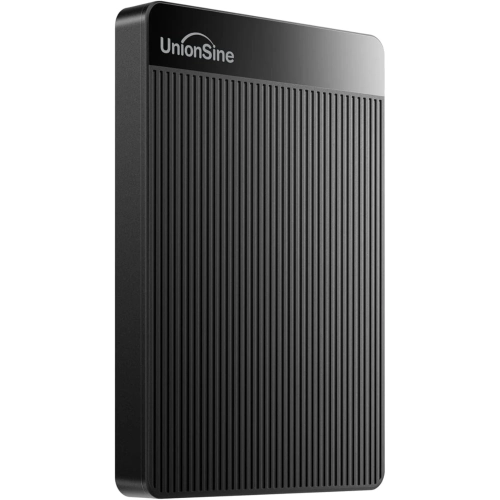
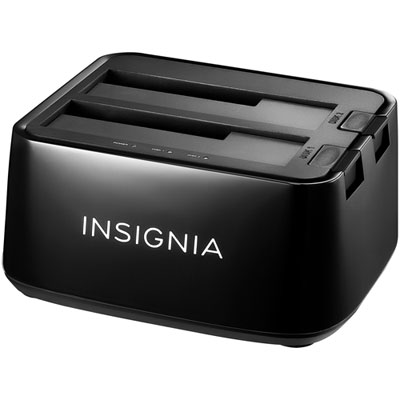
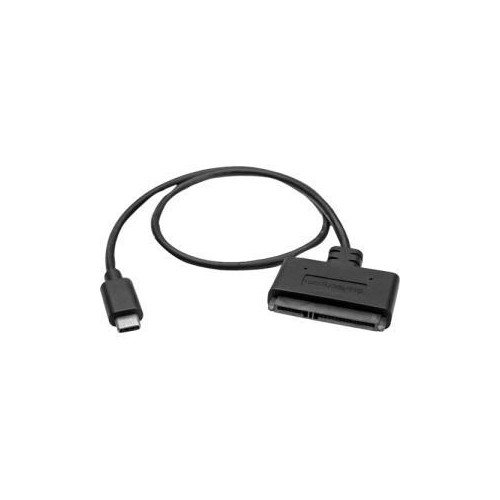
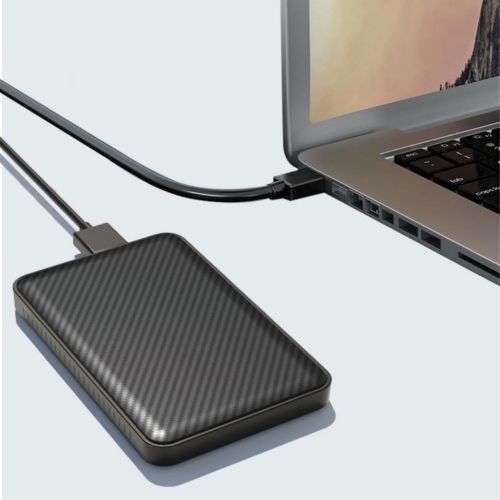
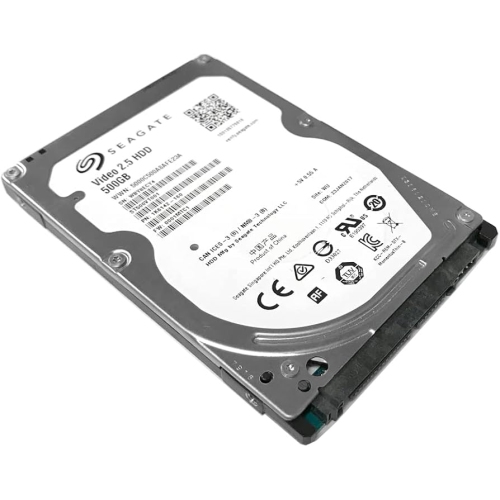
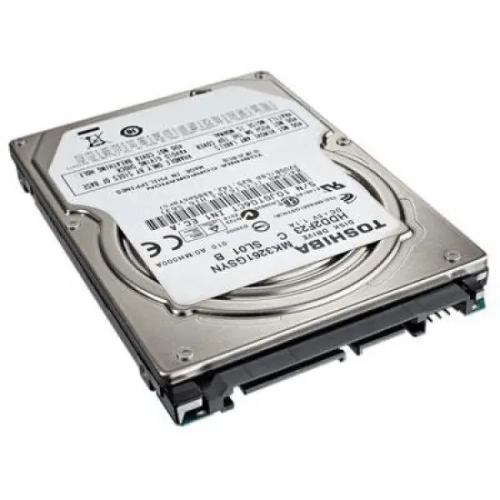
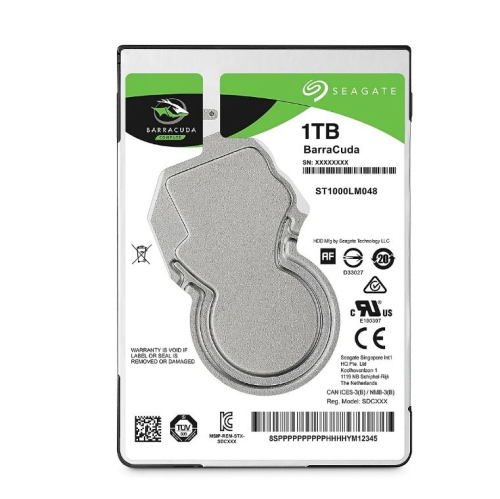
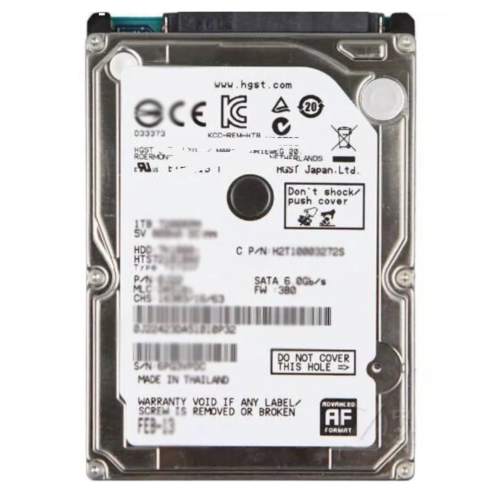
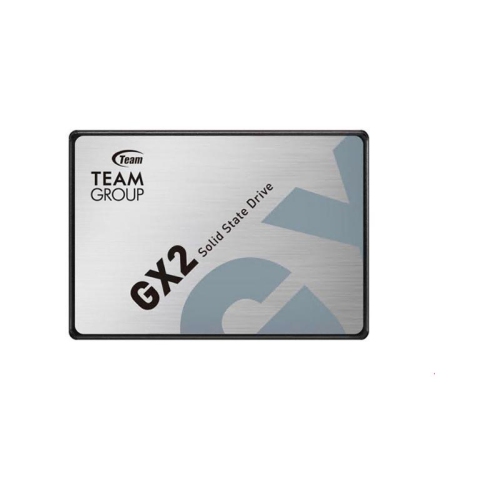
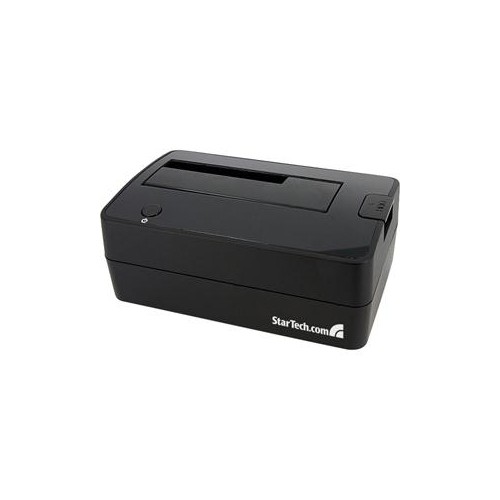
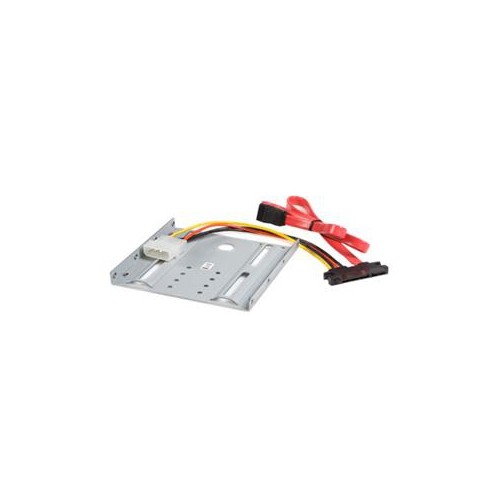
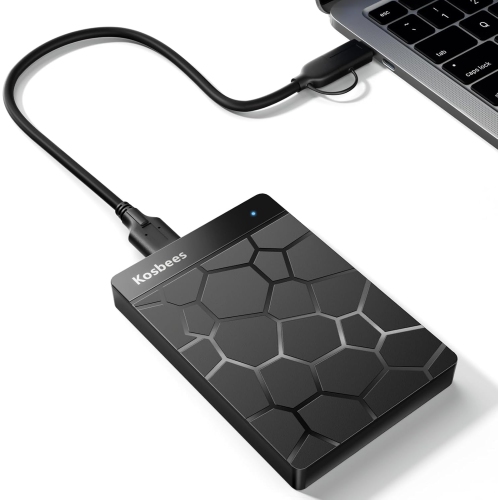
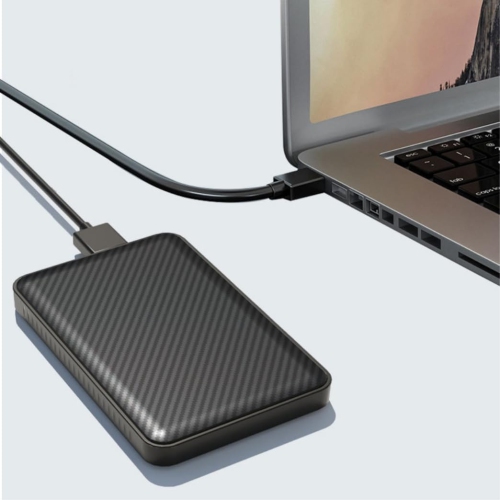
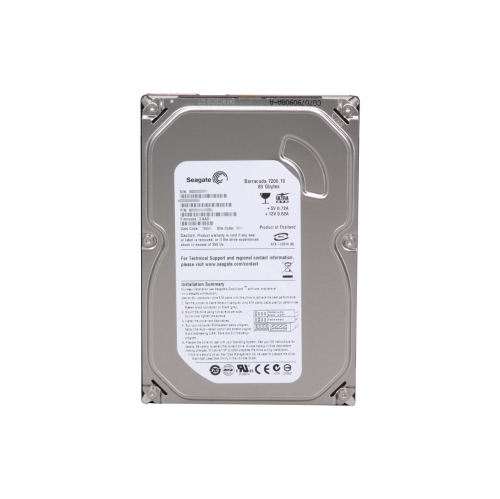
Affordable hard drives provide space for the files that tend to accumulate across everyday life: family photos, downloaded videos, school assignments, creative projects, and years of documents. A hard disk drive, or HDD, stores data on spinning magnetic platters inside a protective housing. This design makes it well suited to holding large collections of files, particularly when storage capacity matters more than the fastest possible loading times. Internal hard drives fit inside compatible computers or storage systems, while external hard drives connect through a cable and keep their working components inside a separate enclosure. Both serve useful purposes, from expanding a desktop computer’s storage to maintaining a separate copy of important files. Capacity is commonly measured in gigabytes and terabytes, with a terabyte representing roughly one thousand gigabytes in the manufacturer’s stated measurement. The usable space displayed by a computer can be lower because of formatting, system files, and differences in how capacity is calculated. Documents generally take up much less space than high-resolution video, large game installations, or photo libraries containing original camera files. A household saving phone photos and scanned paperwork may have different storage needs from someone keeping hours of video footage. Allowing space for a collection to grow helps avoid the need to reorganize everything after each large transfer. Students can use separate storage for completed coursework, photographers can keep original images alongside edited versions, and home users can bring scattered folders together in one place. A hard drive can also make a practical gift for someone who enjoys photography, records music, or regularly works with large files, provided its connections and intended use match their equipment. For these everyday uses, a suitable drive is defined by more than capacity alone: the way it connects, where it will sit, and how often it will be moved all affect how comfortably it fits into a routine.
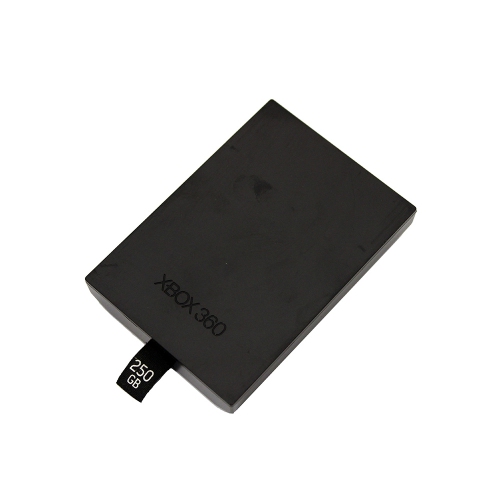
External hard drives generally fall into portable and desktop styles, with differences that become noticeable in daily use. Portable drives often draw power through their USB connection, making them convenient for carrying between a desk, a classroom, and a home workspace without a separate power adapter. Desktop external drives usually need their own power supply and are better suited to a regular spot near a computer or power outlet. Their larger enclosures take up more room, but portability may not matter when a drive mainly holds a household’s shared media collection or scheduled backups. Enclosures may use plastic, metal, or a combination of materials; a metal finish alone does not establish resistance to drops, and a protective outer shell does not make the moving parts inside immune to damage. For internal hard drives, physical fit is just as important as the connection type. Common form factors include 2.5-inch and 3.5-inch drives, but the computer must have a suitable drive bay, interface, and power connection. Some compact computers and laptops have no space for an additional hard drive at all. SATA is a common interface for internal desktop hard drives, while external models typically connect over USB. A USB-C connector describes the plug’s shape rather than guaranteeing a particular transfer speed, so compatibility depends on the drive, cable, and computer port together. Performance also varies with the drive’s mechanism and the task being performed. Transferring a few large video files is different from copying thousands of small documents, and a connection’s advertised maximum speed is not necessarily the speed of the hard drive itself. HDDs remain useful for archives, media libraries, and secondary storage, though they generally respond more slowly than solid-state storage when opening applications or accessing many small files. For gaming, compatibility deserves particular attention: a console may accept an external hard drive for storing games while requiring supported internal storage to play certain titles. Network-attached storage and continuous recording systems have their own drive requirements, including workload suitability and compatibility with the host device.
Reliable everyday use also depends on how a hard drive is handled and how its files are organized. Because an HDD contains moving components, a stable surface and careful handling matter, especially while it is reading or writing data. A drive should not hang from its cable or sit where it can easily be knocked from a desk. Portable models benefit from a padded carrying case, while desktop enclosures need clear ventilation openings and enough space for cables to connect without strain. Keeping liquids away, removing dust from the exterior with a soft, dry cloth, and following the manufacturer’s care directions help protect the enclosure and connections. Safely ejecting an external drive before unplugging it allows pending transfers to finish, reducing the chance of an interrupted write. File system compatibility is another practical consideration, especially for a drive shared between different computer operating systems. Some formats work across multiple systems, while others are better suited to a particular platform or backup application; changing a drive’s format typically erases its contents, so existing files need a separate copy first. Storage and backup are not quite the same thing. Moving a photo library off a laptop and onto a hard drive frees space, but it leaves only one copy unless the files are also stored elsewhere. A more resilient arrangement keeps multiple copies, with at least one stored separately, and includes occasional checks that saved files can actually be opened or restored. Password protection and encryption can help limit access to sensitive documents when supported and configured correctly, but they do not replace a backup. Clear folder names, dated project folders, and a consistent place for new files can make a large drive easier to use over time. For carrying a presentation or moving a smaller folder between compatible devices, Affordable Flash Drives offer a more pocket-sized storage format. Hard drives, by contrast, are particularly useful when the goal is to give larger collections a dedicated home, whether that means keeping finished projects within reach or preserving an additional copy of personal files.
External hard drives generally fall into portable and desktop styles, with differences that become noticeable in daily use. Portable drives often draw power through their USB connection, making them convenient for carrying between a desk, a classroom, and a home workspace without a separate power adapter. Desktop external drives usually need their own power supply and are better suited to a regular spot near a computer or power outlet. Their larger enclosures take up more room, but portability may not matter when a drive mainly holds a household’s shared media collection or scheduled backups. Enclosures may use plastic, metal, or a combination of materials; a metal finish alone does not establish resistance to drops, and a protective outer shell does not make the moving parts inside immune to damage. For internal hard drives, physical fit is just as important as the connection type. Common form factors include 2.5-inch and 3.5-inch drives, but the computer must have a suitable drive bay, interface, and power connection. Some compact computers and laptops have no space for an additional hard drive at all. SATA is a common interface for internal desktop hard drives, while external models typically connect over USB. A USB-C connector describes the plug’s shape rather than guaranteeing a particular transfer speed, so compatibility depends on the drive, cable, and computer port together. Performance also varies with the drive’s mechanism and the task being performed. Transferring a few large video files is different from copying thousands of small documents, and a connection’s advertised maximum speed is not necessarily the speed of the hard drive itself. HDDs remain useful for archives, media libraries, and secondary storage, though they generally respond more slowly than solid-state storage when opening applications or accessing many small files. For gaming, compatibility deserves particular attention: a console may accept an external hard drive for storing games while requiring supported internal storage to play certain titles. Network-attached storage and continuous recording systems have their own drive requirements, including workload suitability and compatibility with the host device.
Reliable everyday use also depends on how a hard drive is handled and how its files are organized. Because an HDD contains moving components, a stable surface and careful handling matter, especially while it is reading or writing data. A drive should not hang from its cable or sit where it can easily be knocked from a desk. Portable models benefit from a padded carrying case, while desktop enclosures need clear ventilation openings and enough space for cables to connect without strain. Keeping liquids away, removing dust from the exterior with a soft, dry cloth, and following the manufacturer’s care directions help protect the enclosure and connections. Safely ejecting an external drive before unplugging it allows pending transfers to finish, reducing the chance of an interrupted write. File system compatibility is another practical consideration, especially for a drive shared between different computer operating systems. Some formats work across multiple systems, while others are better suited to a particular platform or backup application; changing a drive’s format typically erases its contents, so existing files need a separate copy first. Storage and backup are not quite the same thing. Moving a photo library off a laptop and onto a hard drive frees space, but it leaves only one copy unless the files are also stored elsewhere. A more resilient arrangement keeps multiple copies, with at least one stored separately, and includes occasional checks that saved files can actually be opened or restored. Password protection and encryption can help limit access to sensitive documents when supported and configured correctly, but they do not replace a backup. Clear folder names, dated project folders, and a consistent place for new files can make a large drive easier to use over time. For carrying a presentation or moving a smaller folder between compatible devices, Affordable Flash Drives offer a more pocket-sized storage format. Hard drives, by contrast, are particularly useful when the goal is to give larger collections a dedicated home, whether that means keeping finished projects within reach or preserving an additional copy of personal files.
Top selling and popular products
-
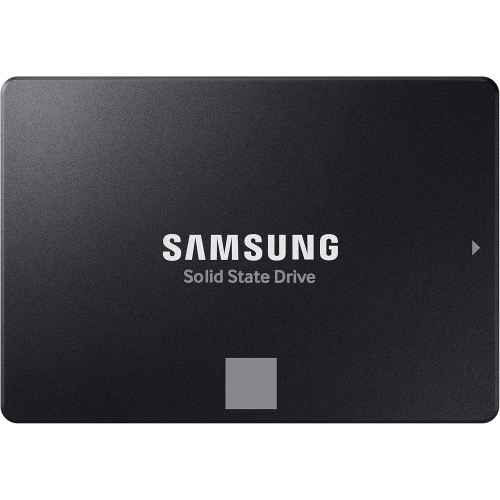 Your price for this item is $397
 -
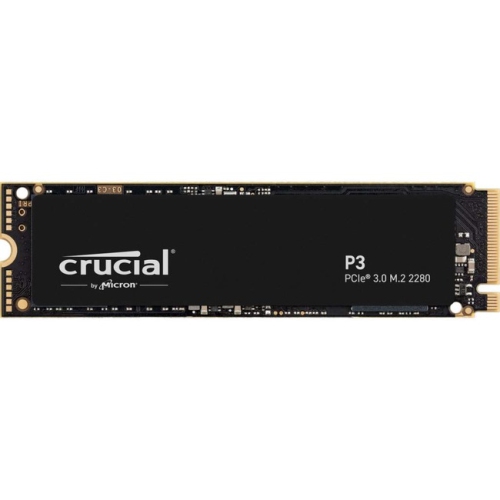 Your price for this item is $400
 -
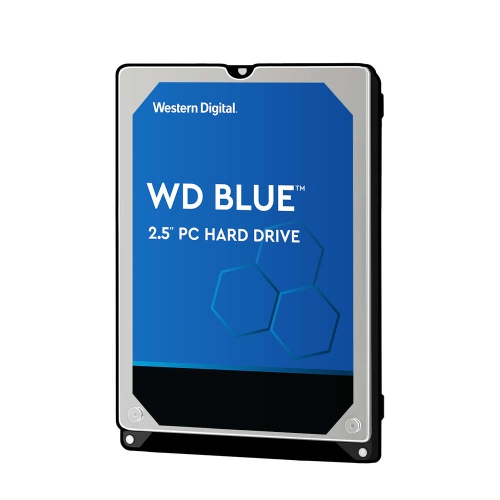 Your price for this item is $279.99
 -
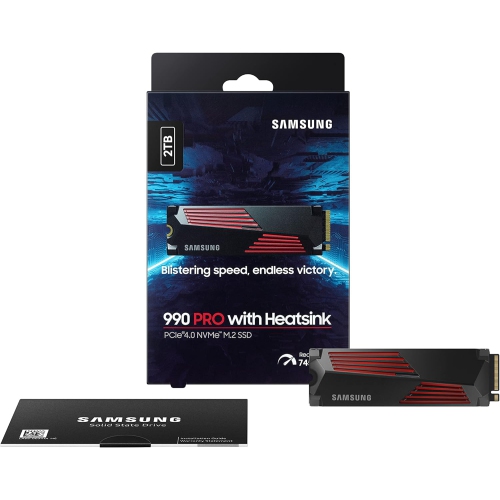 Your price for this item is $629.99
 -
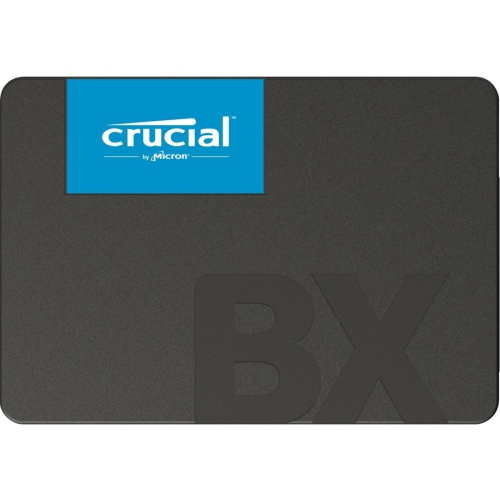 Your price for this item is $240
 -
 Your price for this item is $630.2
 -
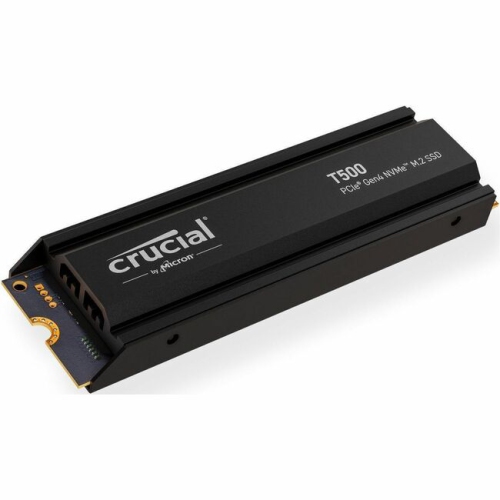 Your price for this item is $599.99
 -
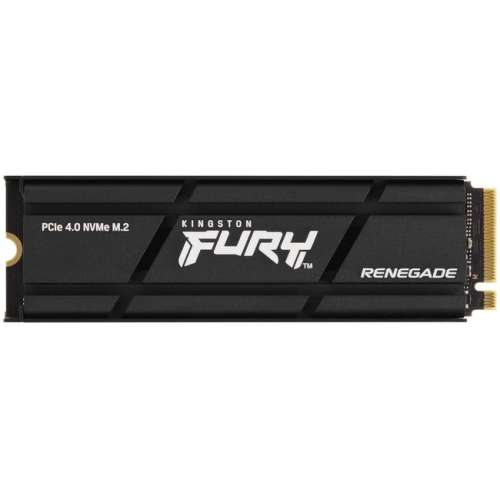 Your price for this item is $906.68
Discover more categories related to Affordable Hard Drives
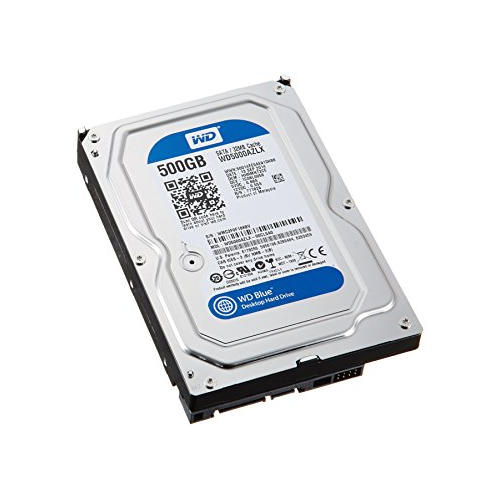
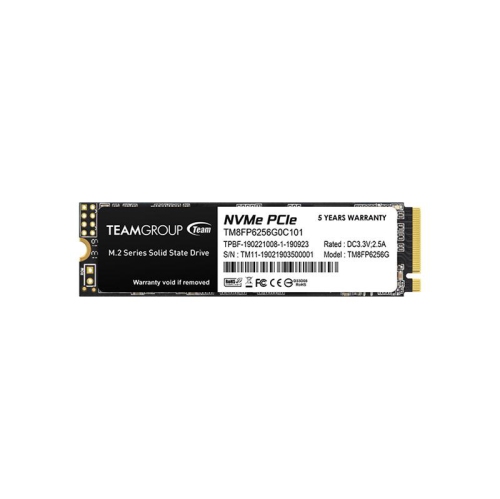
Top Collections:
Pokemon Centers, Kindle Devices, Best Budget Office Chairs, Apple iPhones 16, Best Laptops for Writers, iPhone 15 Apple, Canon G7X Cameras, Refurbished Apple Laptops, Alarm Clock, Motorola Razr Phones
Some products may be subject to Environmental Handling Fees
(EHF) depending on your province.
Learn more about EHFs.