PCie 5.0 Motherboards
Upgrade your gaming experience with the latest technology by exploring these PCIE 5.0 motherboards. Designed to deliver lightning-fast data transfer speeds and enhance overall system performance, these cutting-edge motherboards are a must-have for almost any avid gamer or tech enthusiast. With their advanced features and compatibility with the latest processors, you can take your PC gaming to new heights.
Sort
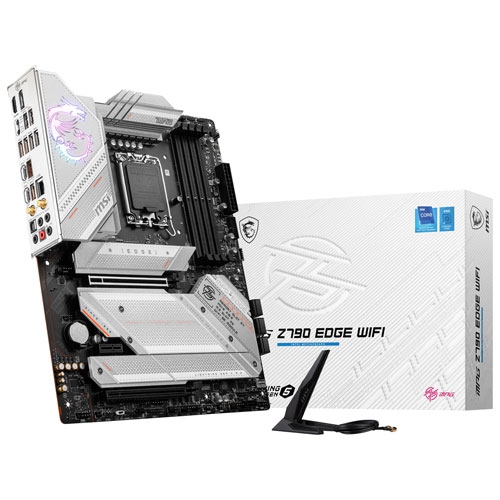

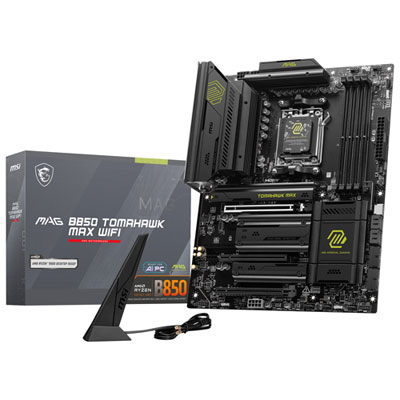
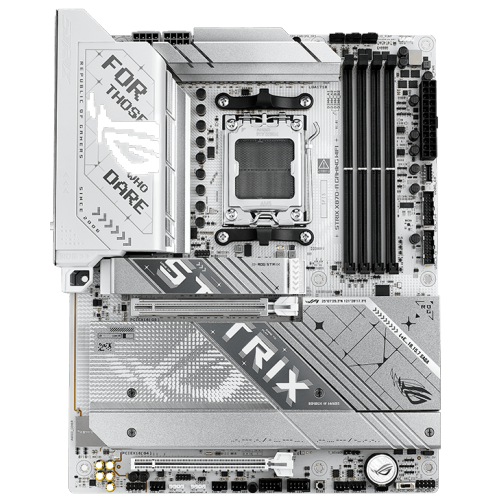

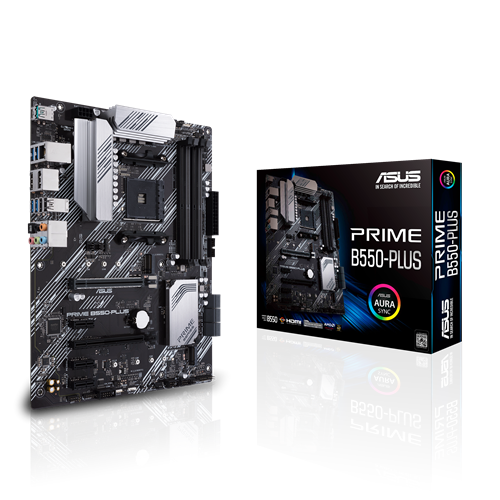
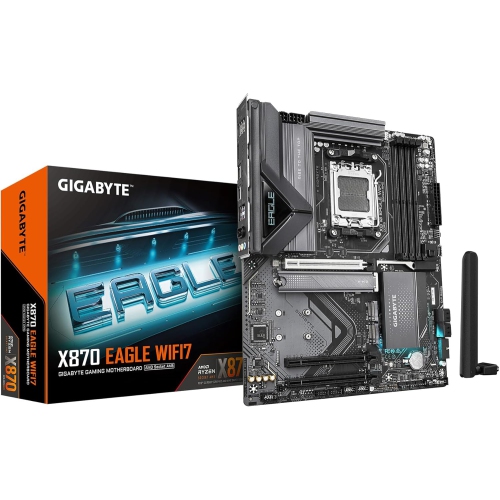
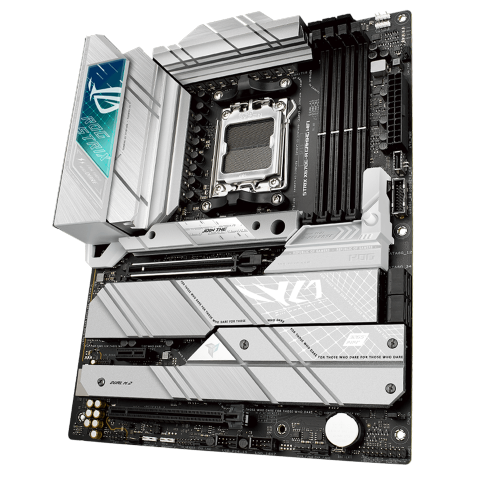
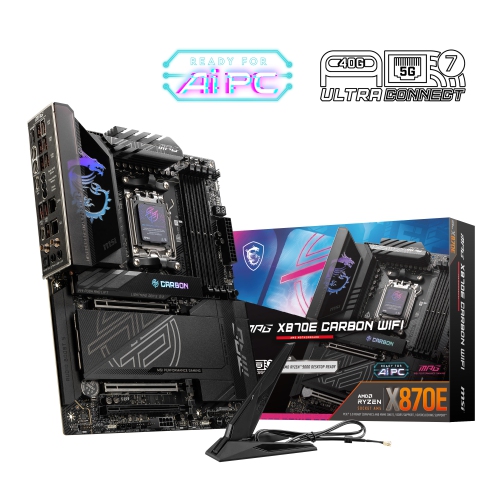
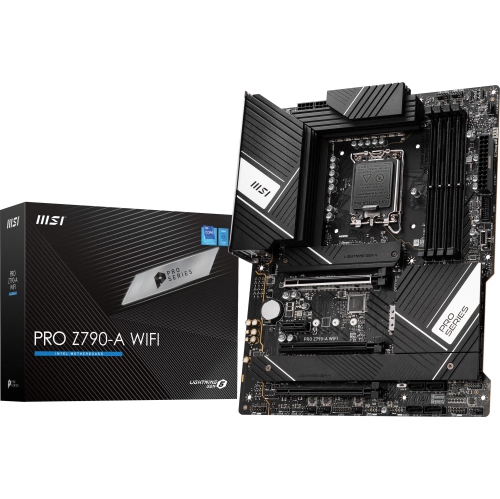
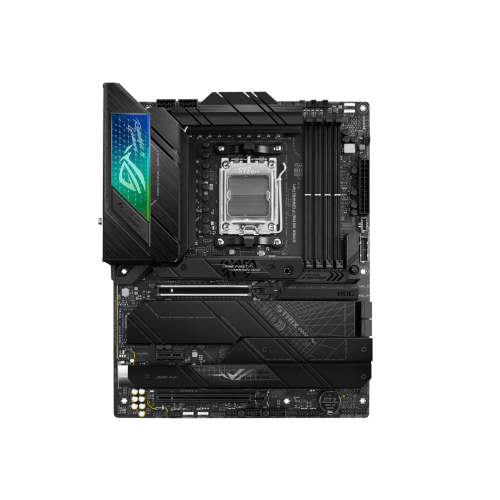
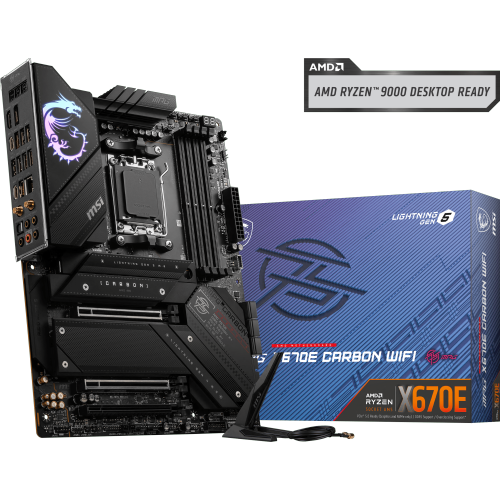
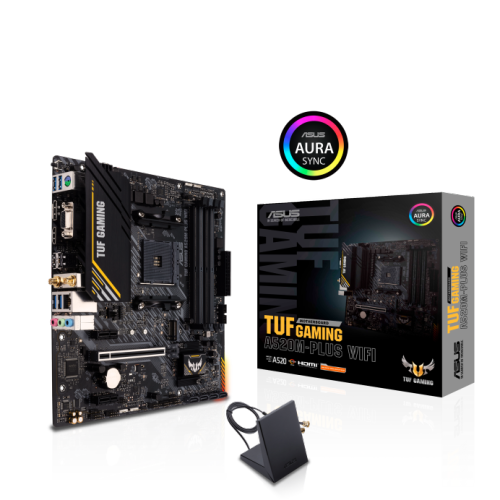
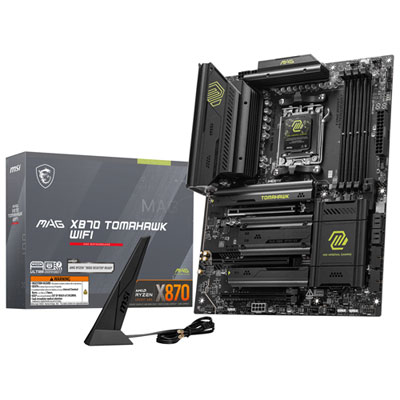
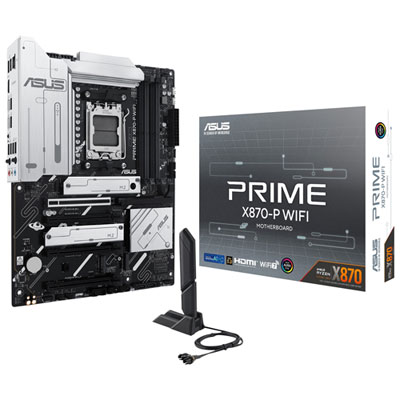
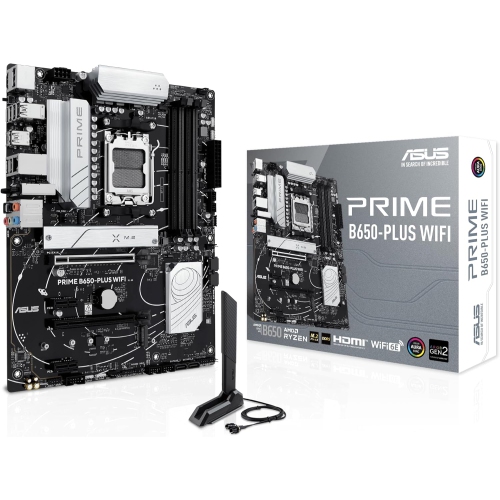
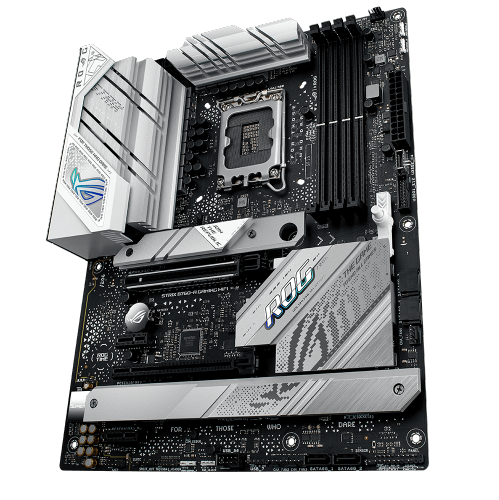
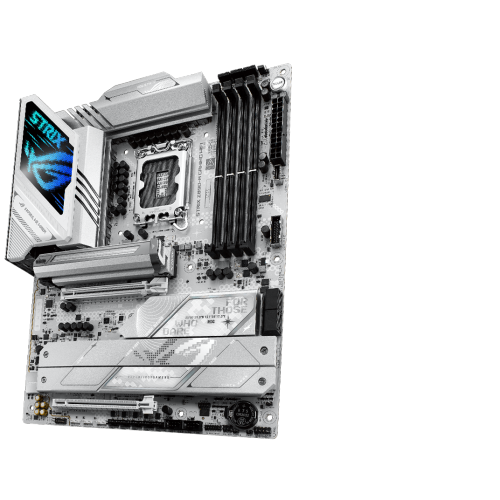

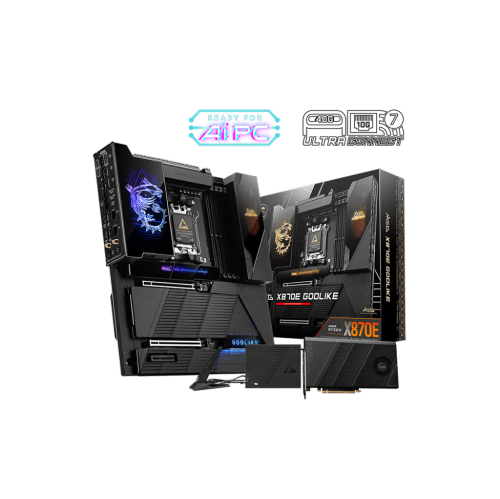
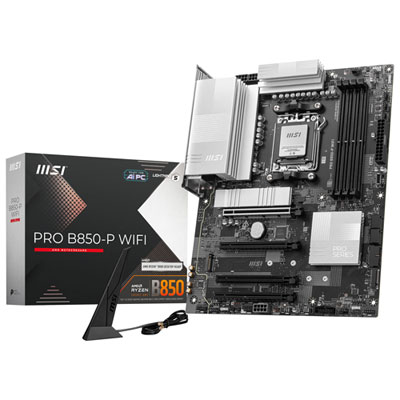
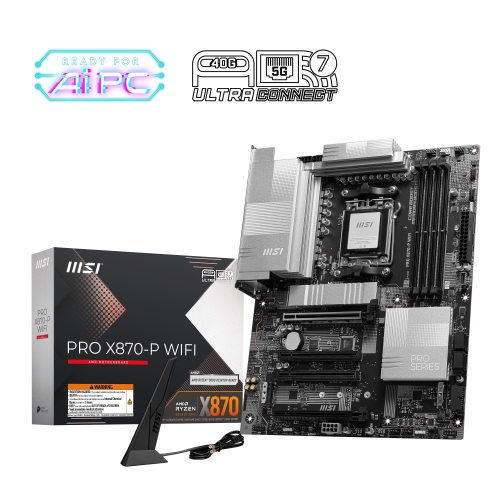
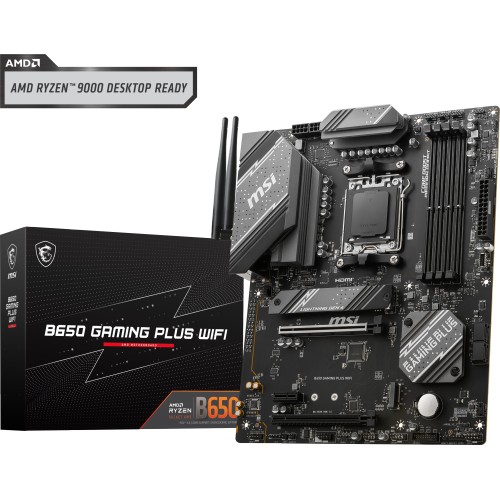
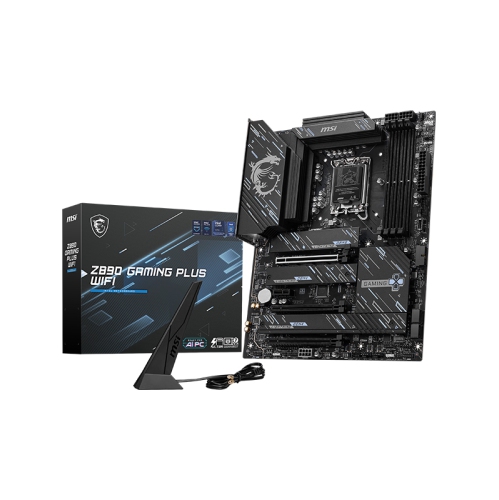
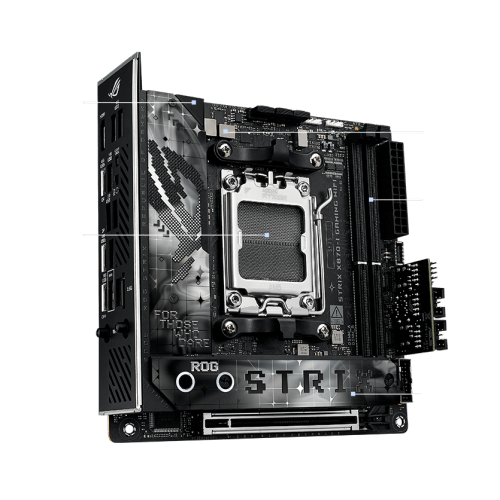
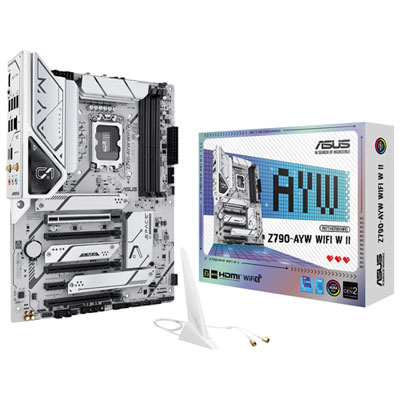
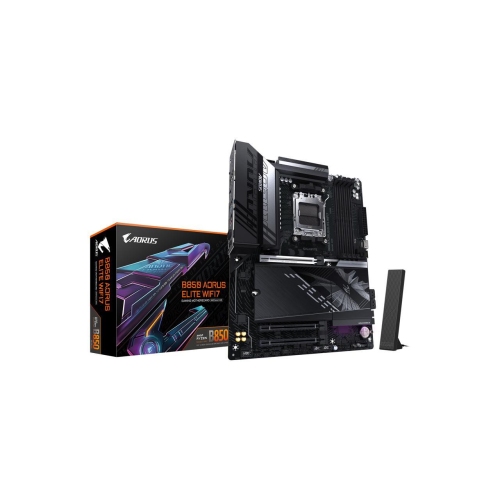
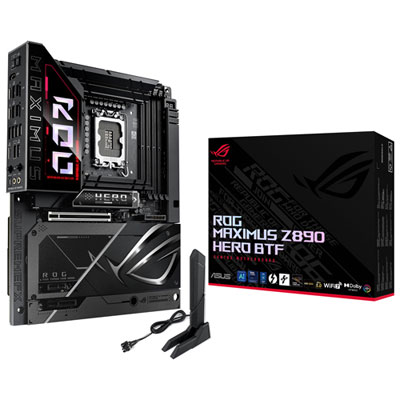
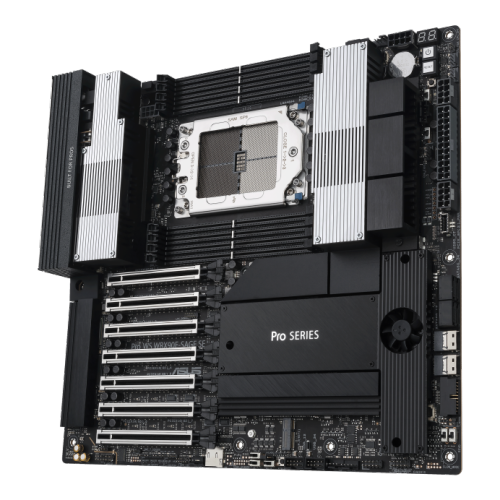
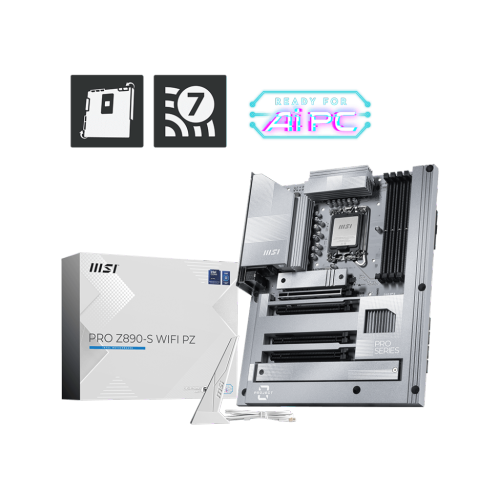
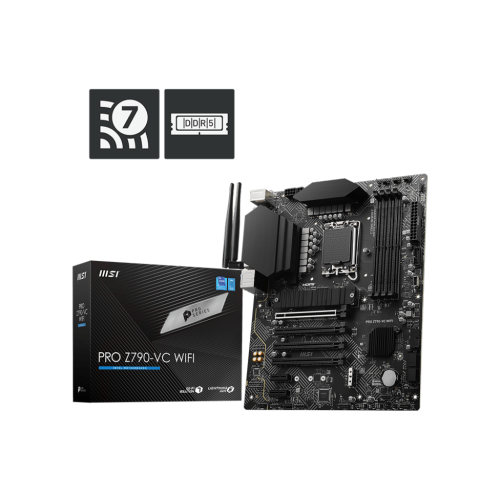
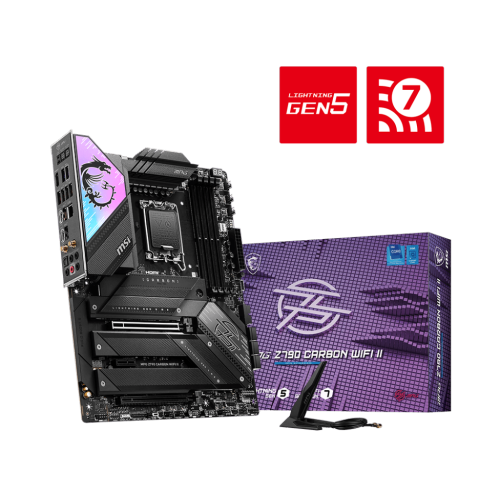
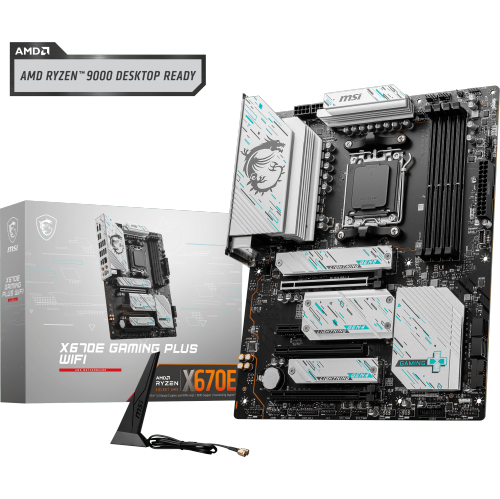
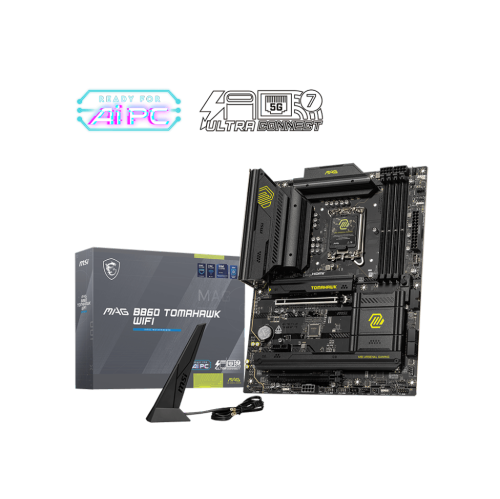
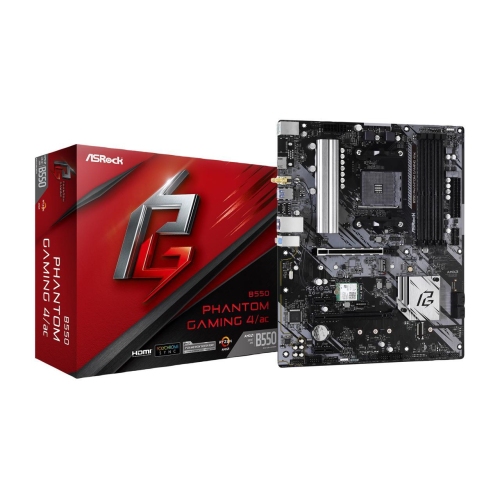
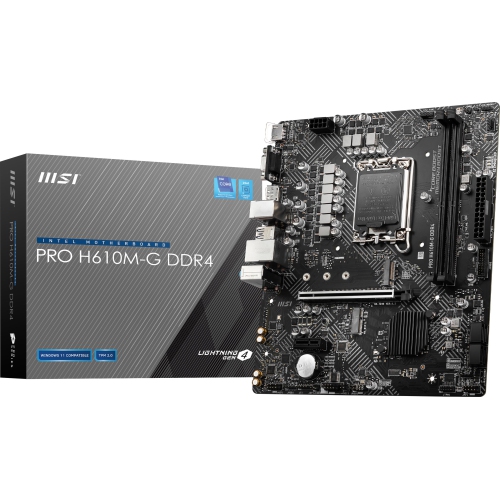
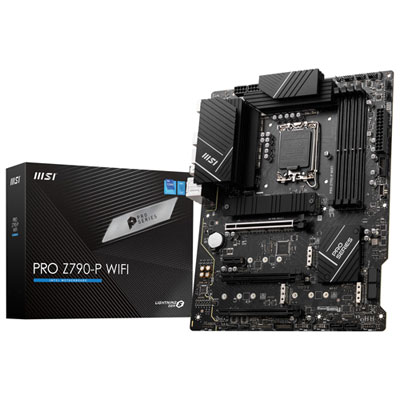
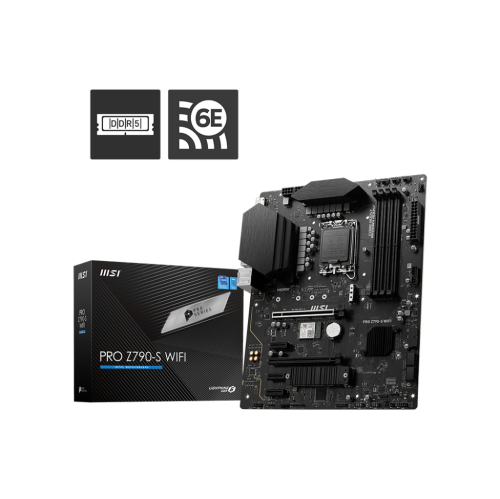
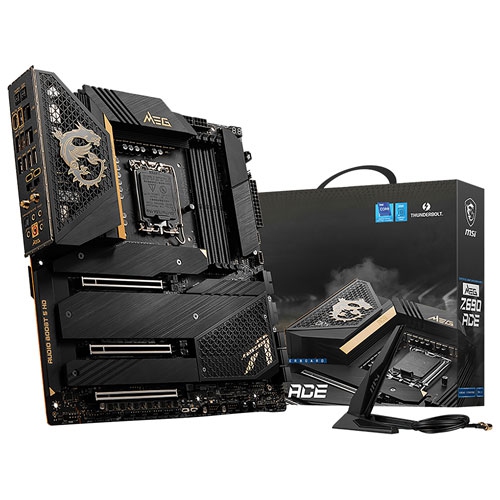
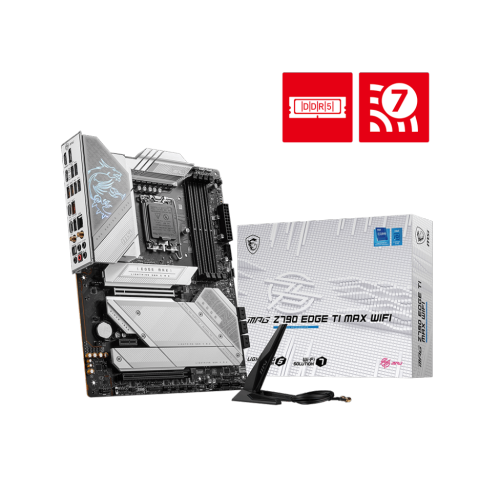
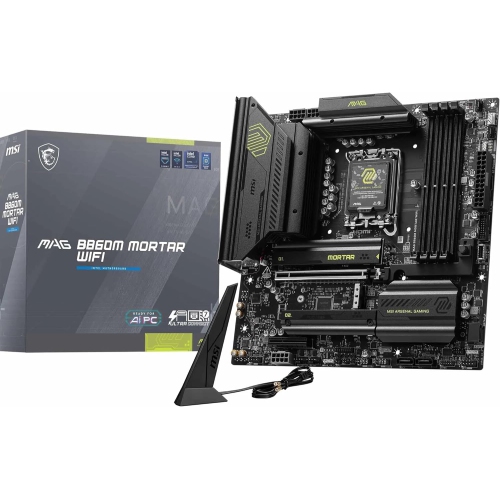
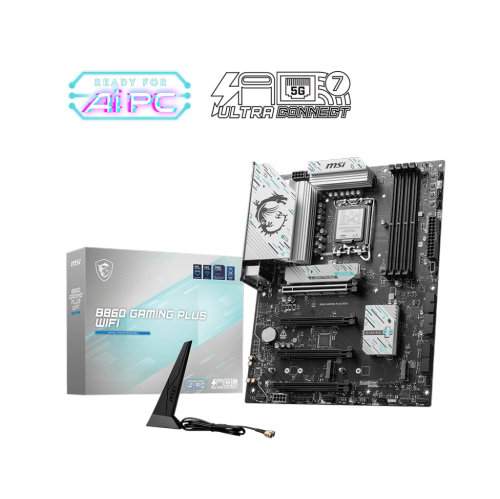
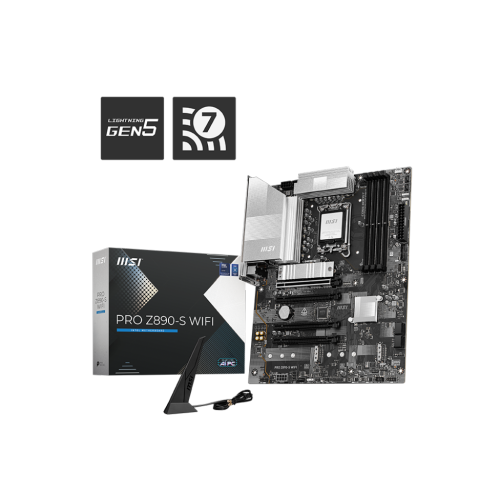
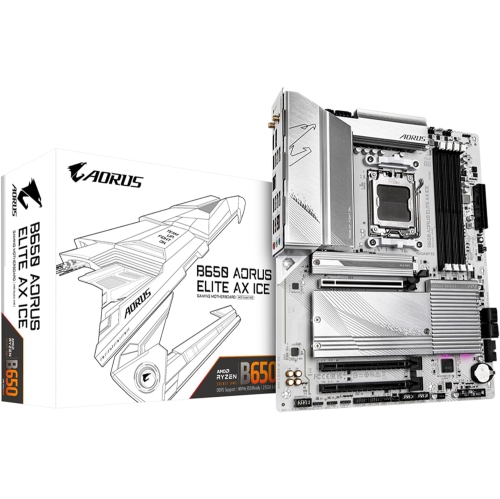
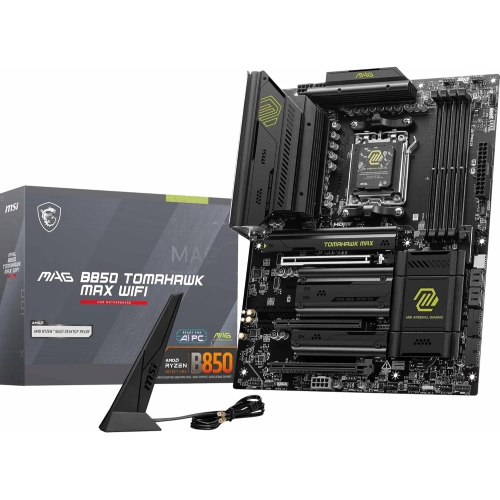
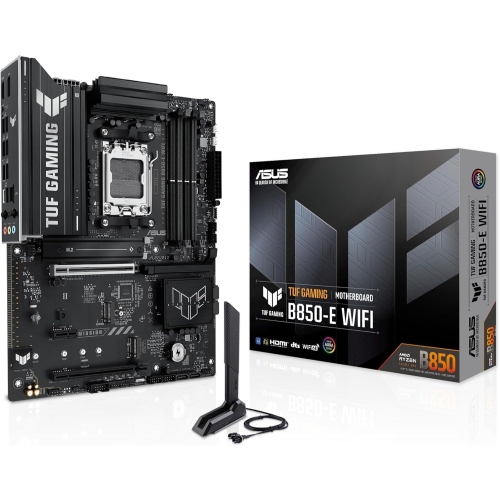
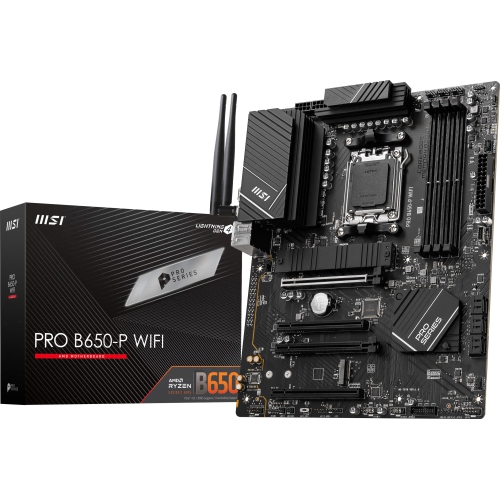
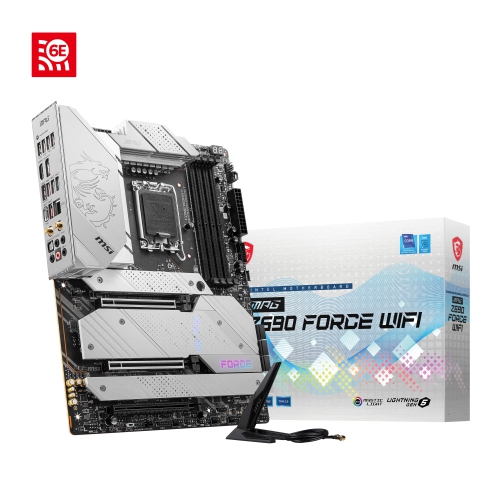
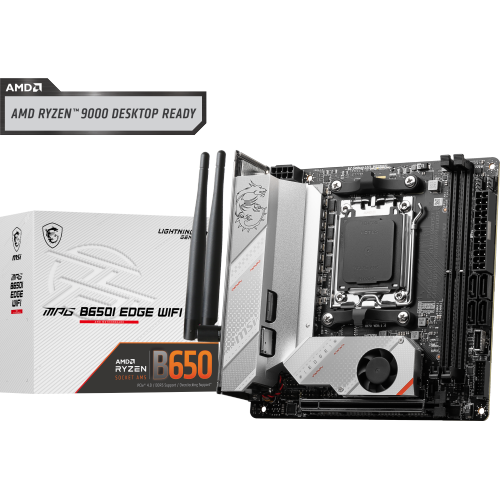
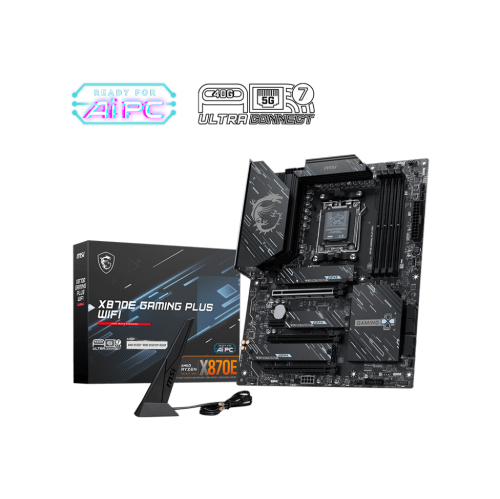
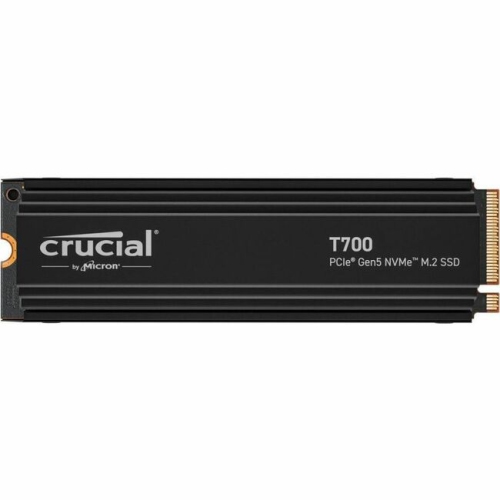
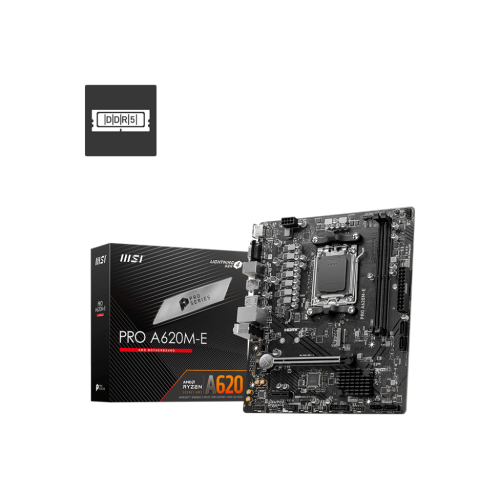
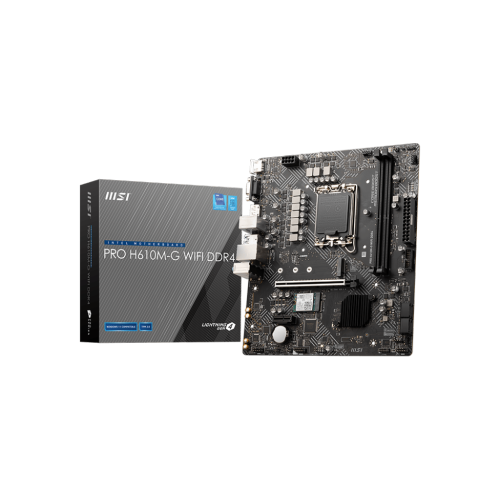
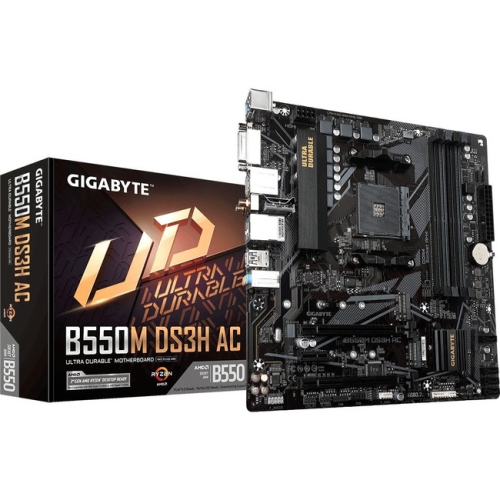
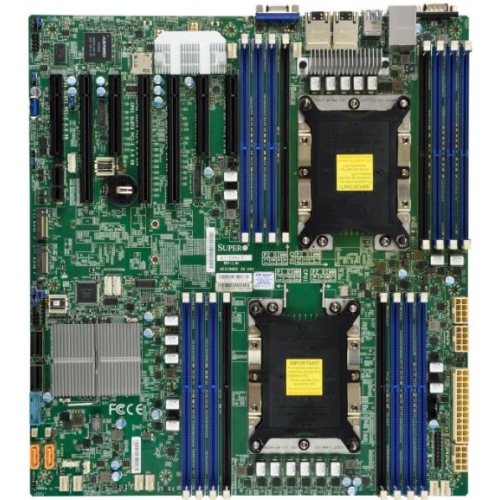
What doubled bandwidth really means for your PC
PCIe 5.0 motherboards provide the foundation for desktop PCs that support the fifth generation of PCI Express, the interface used to connect components such as graphics cards and NVMe solid-state drives. PCIe 5.0 delivers a transfer rate of 32 GT/s per lane, double that of PCIe 4.0, giving compatible devices a higher bandwidth ceiling for moving data between components. That extra capacity is particularly relevant to high-speed storage and demanding workloads involving large files, although it does not automatically make every application or game run twice as fast. Actual performance depends on the processor, installed devices, software, and how the motherboard routes its connections. A motherboard described as supporting PCIe 5.0 may provide it for a graphics expansion slot, an M.2 storage slot, or both; the designation alone does not guarantee fifth-generation bandwidth across every connection. The specification sheet and slot diagram clarify which connections support which generation. PCIe is also backward compatible, so an older PCIe graphics card can generally operate in a newer slot, with the connection running at the highest generation supported by both the slot and the device. Physical fit, lane allocation, power requirements, and firmware support still matter. For someone building a gaming desktop, a content creation workstation, or a home PC with room for later upgrades, these boards offer a way to accommodate compatible high-bandwidth components without requiring every part to use the newest interface. A video editor transferring large source files may benefit more directly from fast storage than someone whose main activities are browsing and writing documents. Likewise, gaming performance usually depends more heavily on the graphics card and processor than on the motherboard’s PCIe generation alone. Comparing this category with PCIe 4.0 Motherboards can help put interface support in context, especially when existing components do not need fifth-generation bandwidth. The practical distinction is the connection capacity available to compatible hardware, not a blanket promise of faster computing.
Compatibility starts with the processor socket and the motherboard’s supported processor list. A socket must match the intended processor, but that is only part of the picture: chipset capabilities and the installed BIOS version can also determine whether a particular processor works. Memory support deserves the same attention, since DDR4 and DDR5 modules are not interchangeable and a board accepts only the memory type for which it was designed. Supported capacities, module configurations, and tested memory profiles help define a suitable setup for everything from everyday multitasking to large creative projects. Form factor then determines how the board fits into the desktop case. ATX, microATX, and Mini-ITX layouts offer different footprints and expansion possibilities, while larger formats require explicit case support. A compact PC for a small desk may need fewer expansion slots, whereas a workstation with a graphics card, capture card, and several drives needs a layout that keeps those connections usable. A long, thick graphics card can cover neighbouring slots even when the motherboard technically includes them. Storage placement matters too: an M.2 socket tucked beneath the graphics card may be harder to access during an upgrade. M.2 describes a physical form factor rather than a guaranteed speed, so each socket’s supported drive lengths, interface, and PCIe generation need to match the intended SSD. Lane sharing is another important distinction between boards. On some layouts, occupying an additional M.2 socket can reduce the graphics slot’s lane count or disable another connection; on others, the available lanes are arranged differently. The manual’s configuration table makes these trade-offs clear. Power connections, processor cooler clearance, and access to case fan headers round out the fit considerations. Together, these details determine whether a motherboard simply fits inside a case or supports a build that is straightforward to assemble, connect, and maintain. For an upgrade to an existing desktop, checking these relationships before replacing the board helps avoid discovering that the memory, cooler mounting hardware, or case wiring also needs attention.
Materials and construction contribute to durability, but useful features are more meaningful than appearance alone. Motherboards use layered printed circuit boards with copper pathways, connectors, and power-delivery components arranged to carry signals and supply connected hardware. Their signal layout is especially important at higher transfer rates, while heatsinks over voltage regulation components help manage heat during sustained processor workloads. Reinforced expansion slots can add mechanical support around a graphics card connection, though a heavy card may still require its own support bracket. M.2 heatsinks are useful for compatible high-performance SSDs, which can reduce their operating speed when heat builds up; heatsink clearance and case airflow remain important even when a board includes substantial metal covers. For someone rendering video, compiling software, or running lengthy simulations, suitable processor power delivery and airflow help support consistent operation under load. Everyday convenience comes from less dramatic details: clearly labelled headers, accessible slot latches, diagnostic indicators, and firmware update features can make assembly and troubleshooting easier. Rear-panel connections should also reflect how the computer will be used. Multiple USB devices, an external storage drive, a wired network connection, and a headset can quickly fill a modest selection of ports. USB-C connector shape alone does not establish transfer speed, charging capability, or display support, and motherboard display outputs generally require a processor with compatible integrated graphics. Built-in Wi-Fi and Bluetooth can simplify a desk setup, while Ethernet is useful for a wired connection. Internal headers need to match the case’s front USB ports and any lighting or fan equipment. Once assembled, sensible care means keeping dust from obstructing airflow, disconnecting power before handling components, and following anti-static precautions when working inside the case. Firmware updates should match the exact board and follow the manufacturer’s process. As a gift for an experienced PC builder, a motherboard is best matched to a confirmed parts list rather than chosen by appearance. The most suitable PCIe 5.0 motherboard brings processor compatibility, storage connections, expansion space, and everyday usability together around the computer it will support.
Compatibility starts with the processor socket and the motherboard’s supported processor list. A socket must match the intended processor, but that is only part of the picture: chipset capabilities and the installed BIOS version can also determine whether a particular processor works. Memory support deserves the same attention, since DDR4 and DDR5 modules are not interchangeable and a board accepts only the memory type for which it was designed. Supported capacities, module configurations, and tested memory profiles help define a suitable setup for everything from everyday multitasking to large creative projects. Form factor then determines how the board fits into the desktop case. ATX, microATX, and Mini-ITX layouts offer different footprints and expansion possibilities, while larger formats require explicit case support. A compact PC for a small desk may need fewer expansion slots, whereas a workstation with a graphics card, capture card, and several drives needs a layout that keeps those connections usable. A long, thick graphics card can cover neighbouring slots even when the motherboard technically includes them. Storage placement matters too: an M.2 socket tucked beneath the graphics card may be harder to access during an upgrade. M.2 describes a physical form factor rather than a guaranteed speed, so each socket’s supported drive lengths, interface, and PCIe generation need to match the intended SSD. Lane sharing is another important distinction between boards. On some layouts, occupying an additional M.2 socket can reduce the graphics slot’s lane count or disable another connection; on others, the available lanes are arranged differently. The manual’s configuration table makes these trade-offs clear. Power connections, processor cooler clearance, and access to case fan headers round out the fit considerations. Together, these details determine whether a motherboard simply fits inside a case or supports a build that is straightforward to assemble, connect, and maintain. For an upgrade to an existing desktop, checking these relationships before replacing the board helps avoid discovering that the memory, cooler mounting hardware, or case wiring also needs attention.
Materials and construction contribute to durability, but useful features are more meaningful than appearance alone. Motherboards use layered printed circuit boards with copper pathways, connectors, and power-delivery components arranged to carry signals and supply connected hardware. Their signal layout is especially important at higher transfer rates, while heatsinks over voltage regulation components help manage heat during sustained processor workloads. Reinforced expansion slots can add mechanical support around a graphics card connection, though a heavy card may still require its own support bracket. M.2 heatsinks are useful for compatible high-performance SSDs, which can reduce their operating speed when heat builds up; heatsink clearance and case airflow remain important even when a board includes substantial metal covers. For someone rendering video, compiling software, or running lengthy simulations, suitable processor power delivery and airflow help support consistent operation under load. Everyday convenience comes from less dramatic details: clearly labelled headers, accessible slot latches, diagnostic indicators, and firmware update features can make assembly and troubleshooting easier. Rear-panel connections should also reflect how the computer will be used. Multiple USB devices, an external storage drive, a wired network connection, and a headset can quickly fill a modest selection of ports. USB-C connector shape alone does not establish transfer speed, charging capability, or display support, and motherboard display outputs generally require a processor with compatible integrated graphics. Built-in Wi-Fi and Bluetooth can simplify a desk setup, while Ethernet is useful for a wired connection. Internal headers need to match the case’s front USB ports and any lighting or fan equipment. Once assembled, sensible care means keeping dust from obstructing airflow, disconnecting power before handling components, and following anti-static precautions when working inside the case. Firmware updates should match the exact board and follow the manufacturer’s process. As a gift for an experienced PC builder, a motherboard is best matched to a confirmed parts list rather than chosen by appearance. The most suitable PCIe 5.0 motherboard brings processor compatibility, storage connections, expansion space, and everyday usability together around the computer it will support.
Top selling and popular products
-
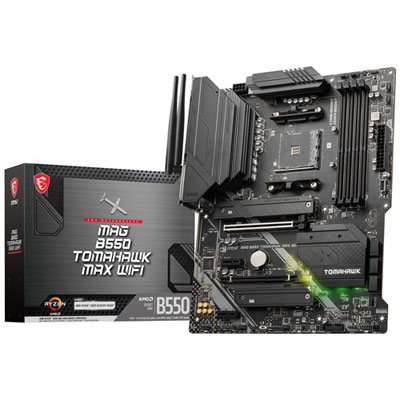 Your price for this item is $224.99
 -
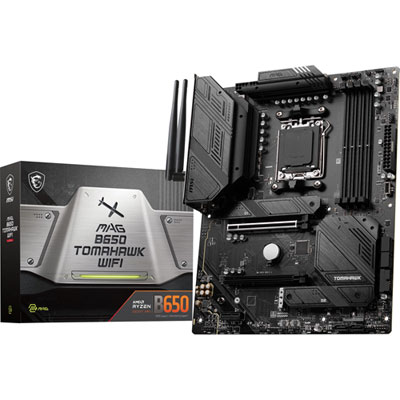 Your price for this item is $239.99
 -
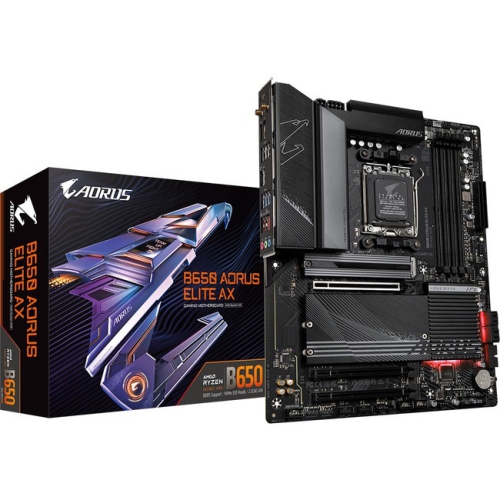 Your price for this item is $286.68
 -
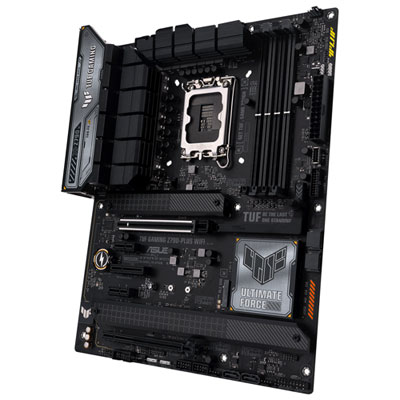 Your price for this item is $349.99
 -
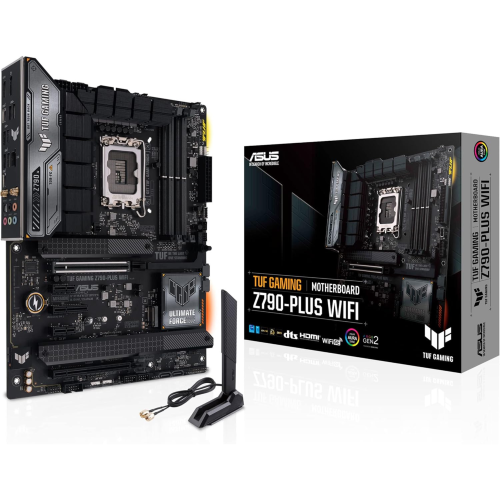 Your price for this item is $361
 -
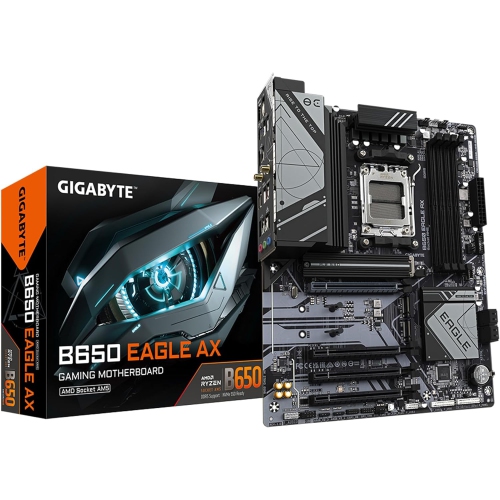 Your price for this item is $209.99
 -
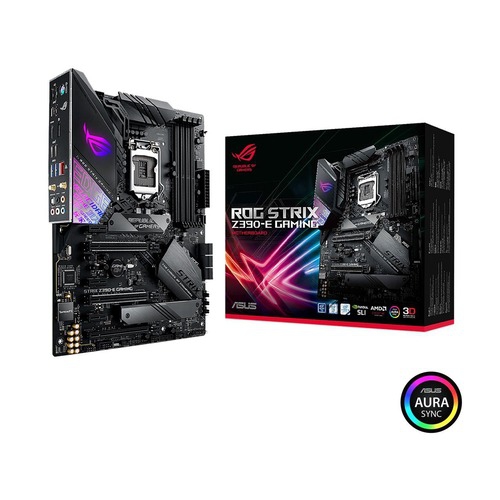 Your price for this item is $350
 -
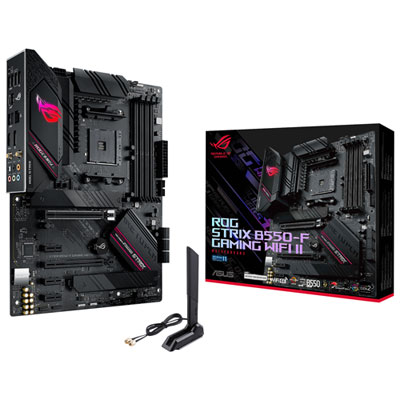 Your price for this item is $259.99
Discover more categories related to PCie 5.0 Motherboards
Top Collections:
Pokemon Centers, Kindle Devices, Best Budget Office Chairs, Apple iPhones 16, Best Laptops for Writers, iPhone 15 Apple, Canon G7X Cameras, Refurbished Apple Laptops, Alarm Clock, Motorola Razr Phones
Some products may be subject to Environmental Handling Fees
(EHF) depending on your province.
Learn more about EHFs.