Windows 7 Flash Drives
Windows 7 Flash Drives offer a convenient solution for storing, transferring, and backing up your important files. Whether you need extra space for documents, photos, or software, these flash drives are designed to work seamlessly with Windows 7 systems. Easy to use and portable, they make file management simple whether you're at home, in the office, or on the go. Explore a variety of capacities and styles to find the perfect fit for your needs with Windows 7 Flash Drives.
Sort
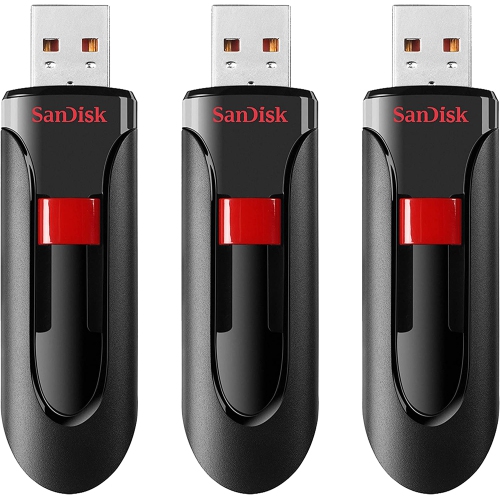
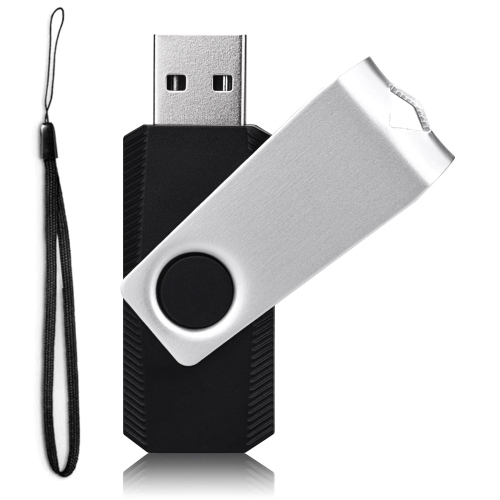
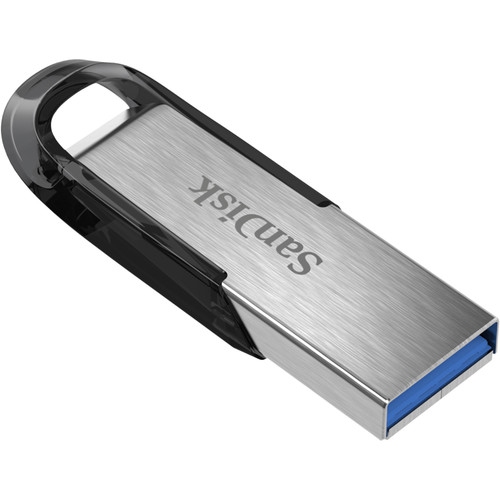
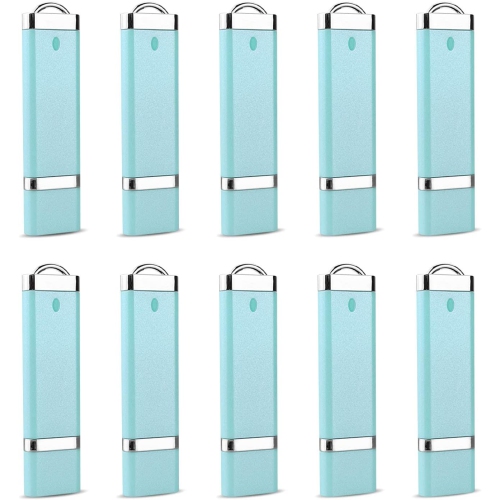
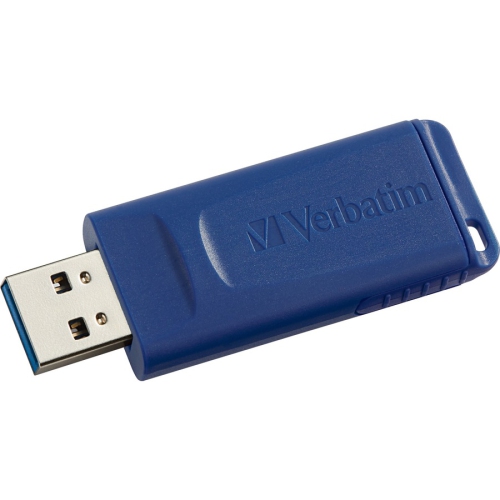
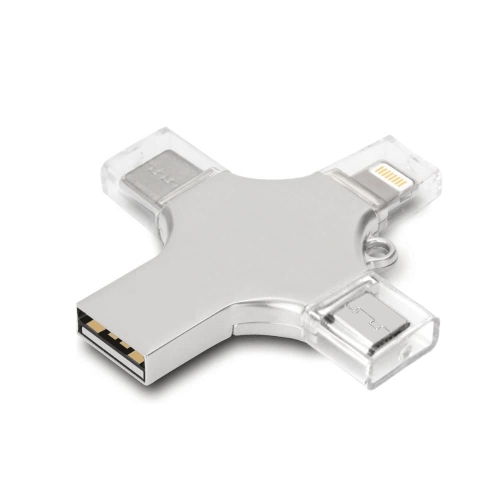
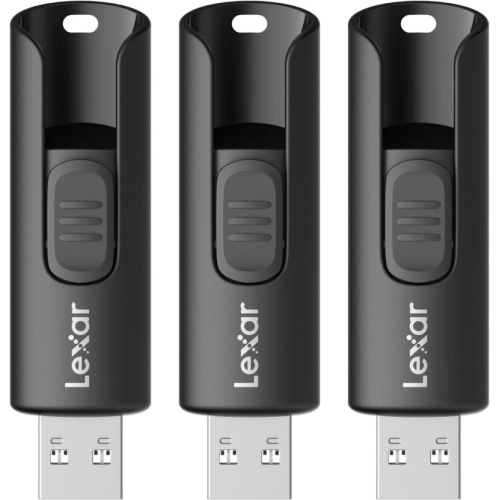
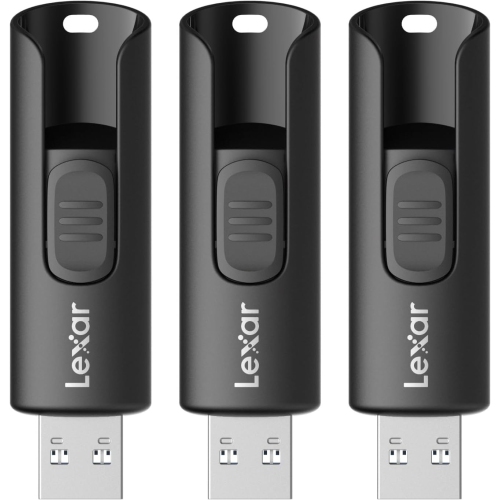
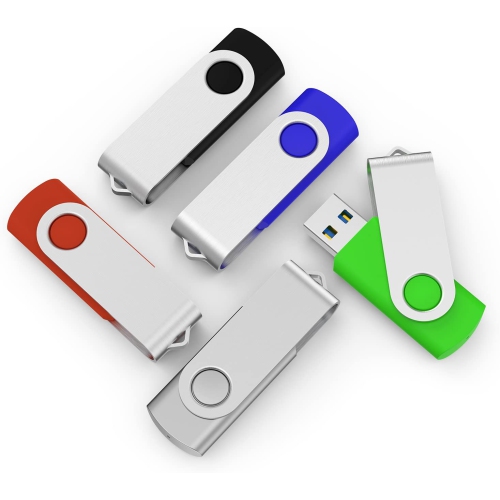
Bootable USB support for legacy computers and system repairs
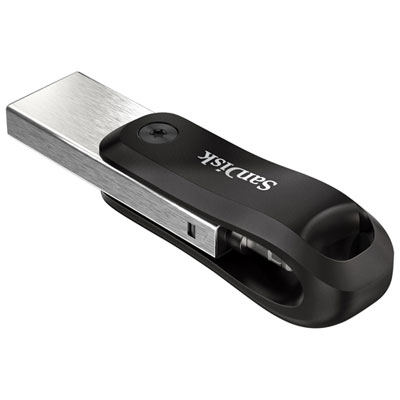
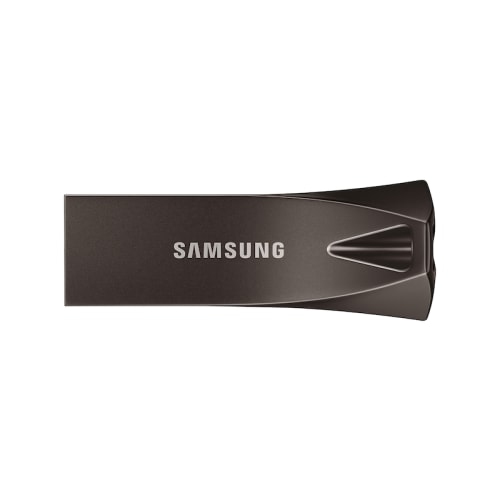
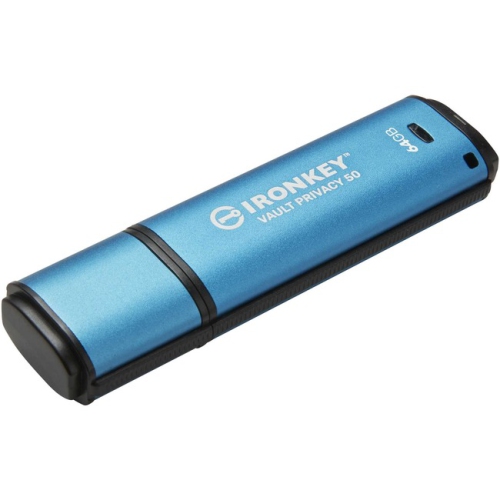
Windows 7 flash drives offer a practical solution for anyone looking to install, reinstall, or repair the Windows 7 operating system on compatible computers. These USB drives are especially valued by IT professionals, tech enthusiasts, and anyone maintaining legacy hardware or supporting older software environments. As the weather warms and the pace of life shifts, many people take the opportunity to refresh older laptops or desktops, whether for personal use, to pass along to a family member, or to prepare devices for students heading back to school in the fall. With a properly prepared Windows 7 flash drive, you can quickly set up a clean installation of the operating system, often much faster than using traditional DVDs. This is particularly useful for those managing multiple systems, as it streamlines setup and troubleshooting, saving time and reducing the hassle of dealing with scratched or unreliable discs.
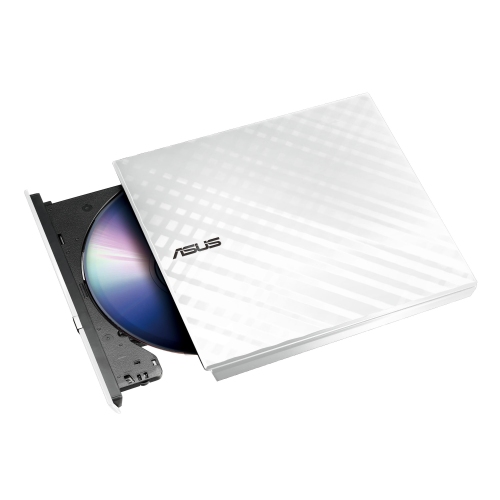
When considering which Windows 7 flash drives to choose, it’s important to look for drives with sufficient storage—typically a minimum of 4GB to 8GB—to accommodate the ISO file and installation tools. Reliability and read/write speed are key, as a faster drive can make the installation process even smoother. Many users prefer USB 2.0 drives for compatibility, since Windows 7 does not natively support USB 3.0, but there are ways to add USB 3.0 drivers to the installation image if needed. Before using a flash drive for this purpose, make sure to back up any important data, as creating a bootable drive will erase all existing files on the device. The process usually involves downloading a Windows 7 ISO file and using a tool such as Rufus or the Windows 7 USB/DVD Download Tool to write the image to the drive. Adjusting your computer’s BIOS or UEFI settings to boot from USB is also a common step, and can be a helpful skill for anyone interested in computer repair or system maintenance. For those who prefer working with physical media or require additional options, you can also explore Windows 7 Disk Drives for related solutions.
Windows 7 flash drives make thoughtful and practical gifts for students, tech hobbyists, or anyone supporting older systems—especially during times when people are preparing for new projects or tech upgrades. Whether you’re helping a friend revive an older computer, setting up a workstation for a summer project, or ensuring you have a reliable recovery tool on hand, these drives are an essential part of any tech toolkit. They’re also invaluable for small business owners and IT departments managing legacy equipment, allowing for quick system restores or fresh installations without the need for optical drives. With the right preparation and a reliable flash drive, you can keep older systems running smoothly, extend their useful life, and provide a dependable backup option as technology continues to evolve.
When considering which Windows 7 flash drives to choose, it’s important to look for drives with sufficient storage—typically a minimum of 4GB to 8GB—to accommodate the ISO file and installation tools. Reliability and read/write speed are key, as a faster drive can make the installation process even smoother. Many users prefer USB 2.0 drives for compatibility, since Windows 7 does not natively support USB 3.0, but there are ways to add USB 3.0 drivers to the installation image if needed. Before using a flash drive for this purpose, make sure to back up any important data, as creating a bootable drive will erase all existing files on the device. The process usually involves downloading a Windows 7 ISO file and using a tool such as Rufus or the Windows 7 USB/DVD Download Tool to write the image to the drive. Adjusting your computer’s BIOS or UEFI settings to boot from USB is also a common step, and can be a helpful skill for anyone interested in computer repair or system maintenance. For those who prefer working with physical media or require additional options, you can also explore Windows 7 Disk Drives for related solutions.
Windows 7 flash drives make thoughtful and practical gifts for students, tech hobbyists, or anyone supporting older systems—especially during times when people are preparing for new projects or tech upgrades. Whether you’re helping a friend revive an older computer, setting up a workstation for a summer project, or ensuring you have a reliable recovery tool on hand, these drives are an essential part of any tech toolkit. They’re also invaluable for small business owners and IT departments managing legacy equipment, allowing for quick system restores or fresh installations without the need for optical drives. With the right preparation and a reliable flash drive, you can keep older systems running smoothly, extend their useful life, and provide a dependable backup option as technology continues to evolve.
Top selling and popular products
-
 Your price for this item is $44.95
 -
 Your price for this item is $69.95
 -
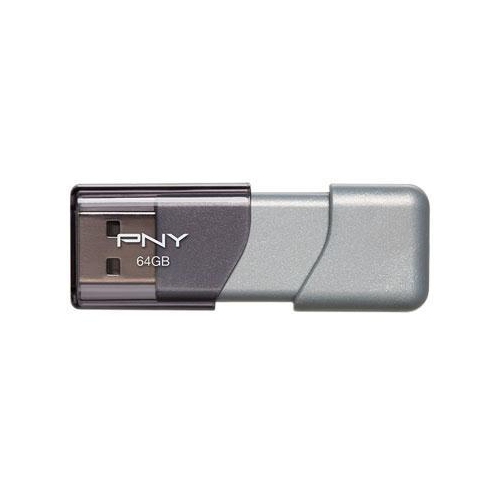 Your price for this item is $59.68
 -
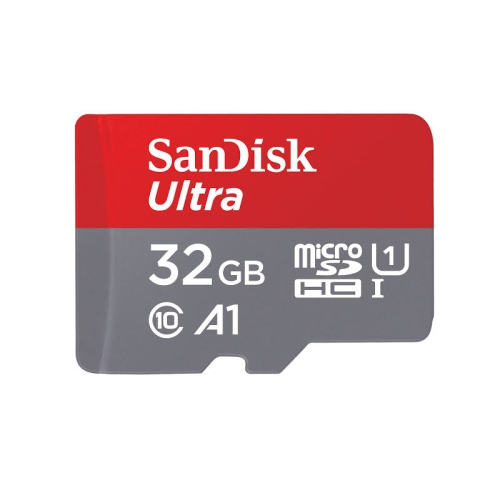 Your price for this item is $38.45
 -
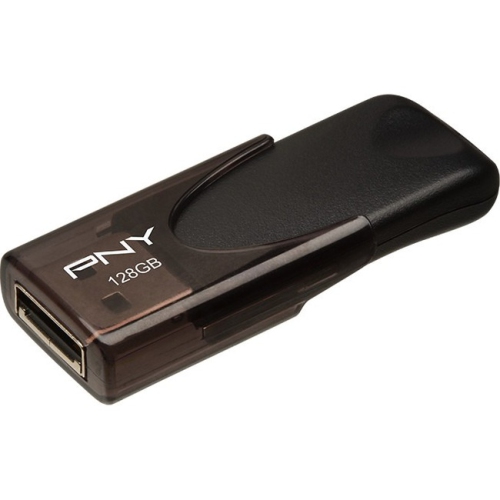 Your price for this item is $35.68
 -
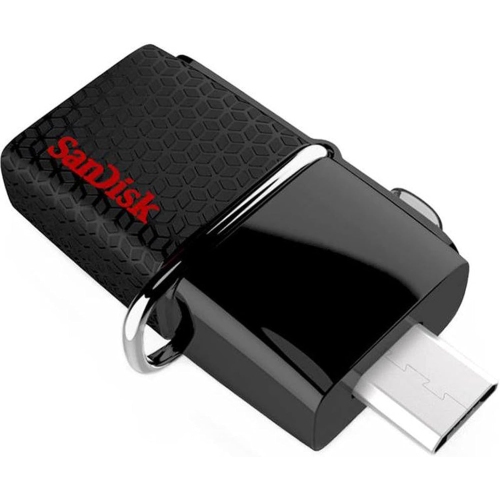 Your price for this item is $29.95
 -
 Your price for this item is $169.99
 -
 Your price for this item is $132.99
Discover more categories related to Windows 7 Flash Drives

Top Collections:
Pokemon Centers, Kindle Devices, Best Budget Office Chairs, Apple iPhones 16, Best Laptops for Writers, iPhone 15 Apple, Canon G7X Cameras, Refurbished Apple Laptops, Alarm Clock, Motorola Razr Phones
Some products may be subject to Environmental Handling Fees
(EHF) depending on your province.
Learn more about EHFs.