2 5 Inch Internal Hard Drives
2.5 inch internal hard drives are a popular choice for upgrading or expanding the storage capacity of laptops, gaming consoles, and compact desktop systems. Designed to fit seamlessly into smaller devices, these drives offer a convenient solution for storing important files, photos, videos, and applications. Whether you're looking to boost your system's performance or simply need more space for your digital content, 2.5 inch internal hard drives provide reliable storage options to suit a wide range of needs. Explore the selection to find the right drive for your setup.
Sort
Why drive fit matters as much as capacity
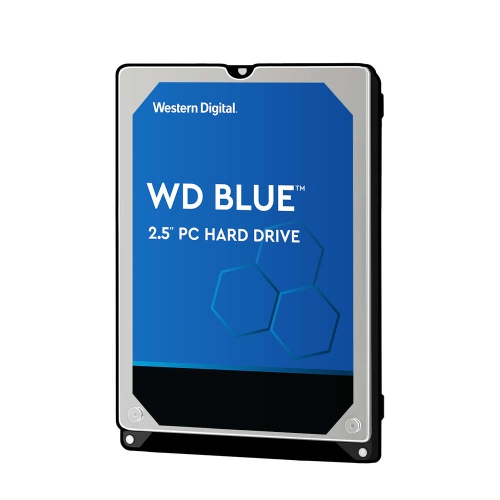
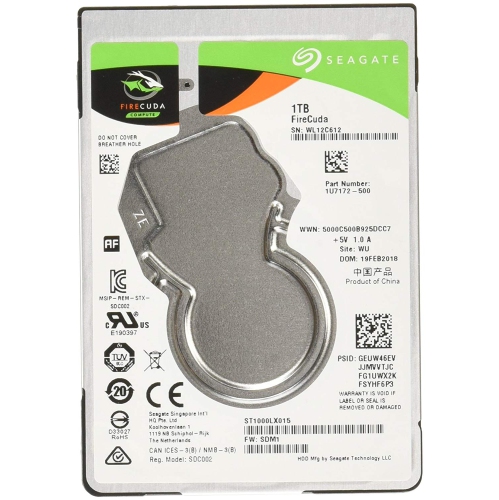
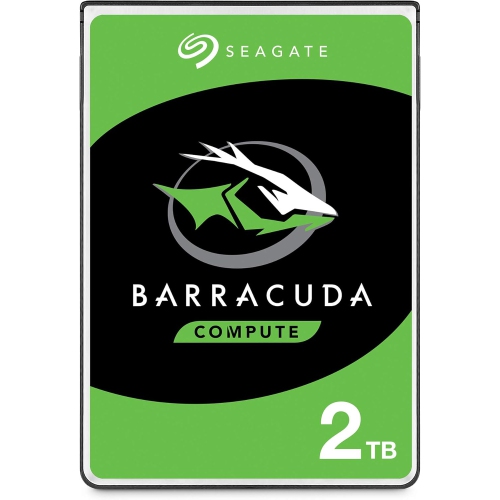
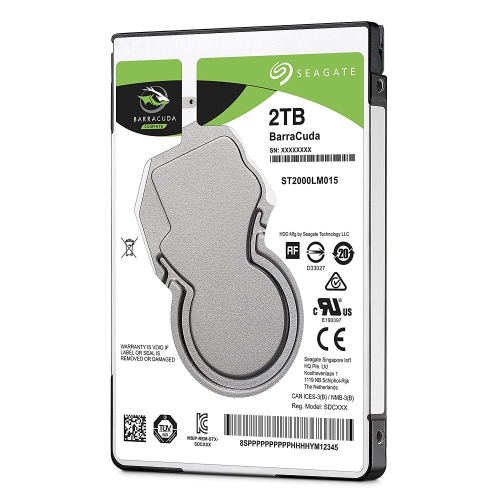
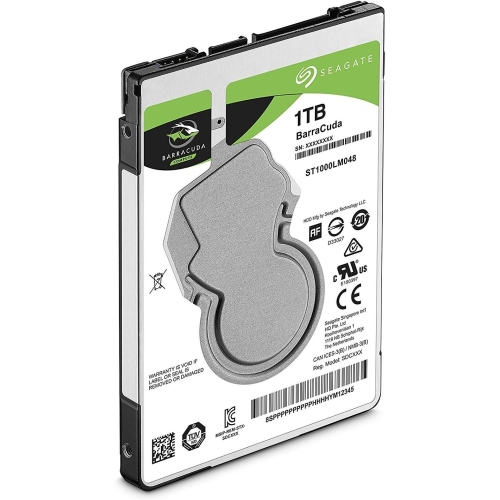
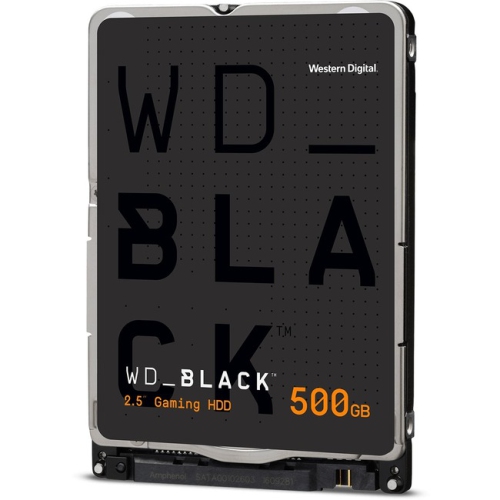
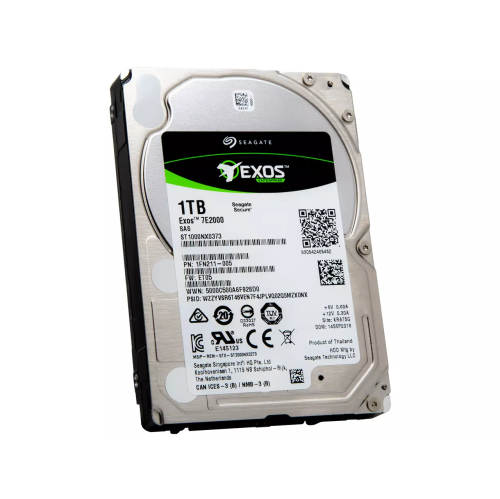
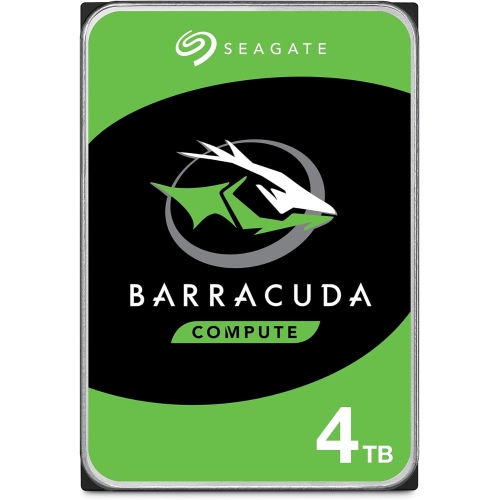
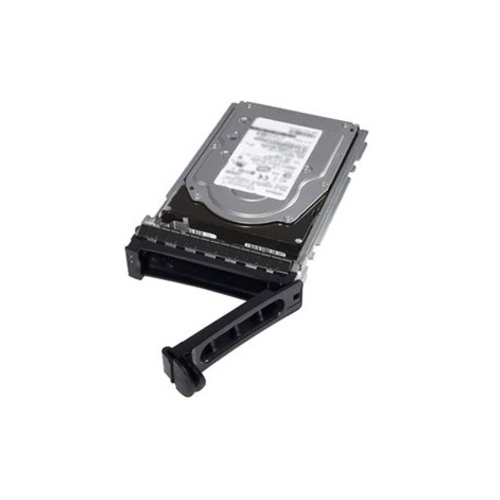
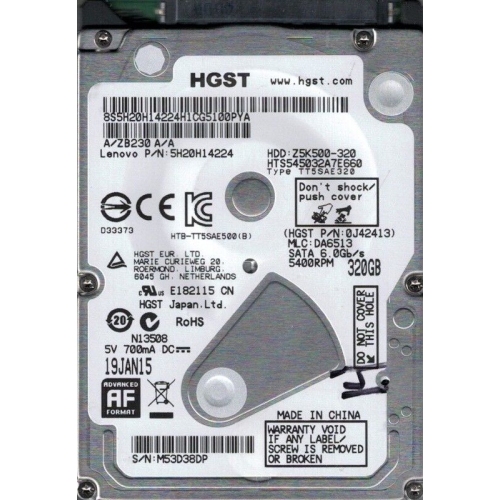
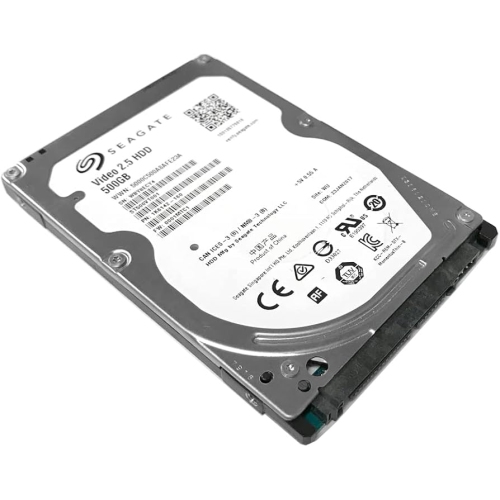
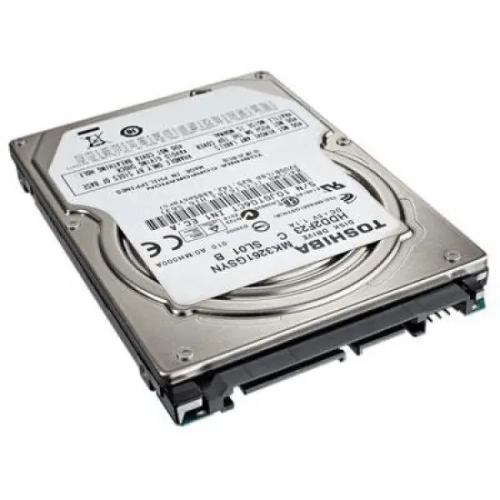
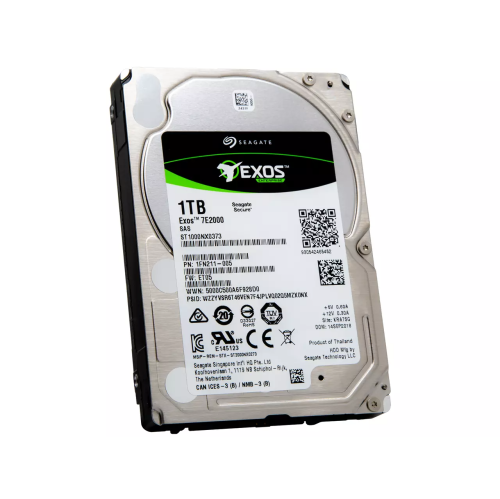
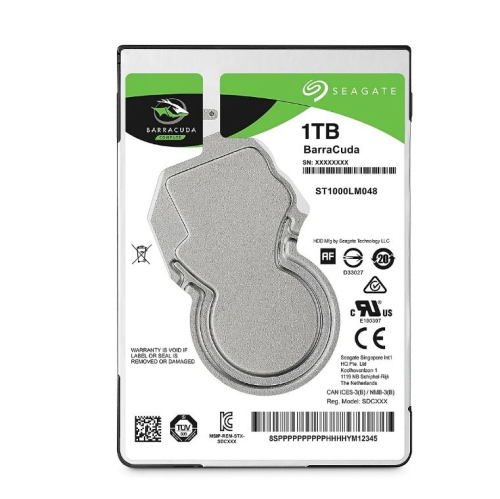
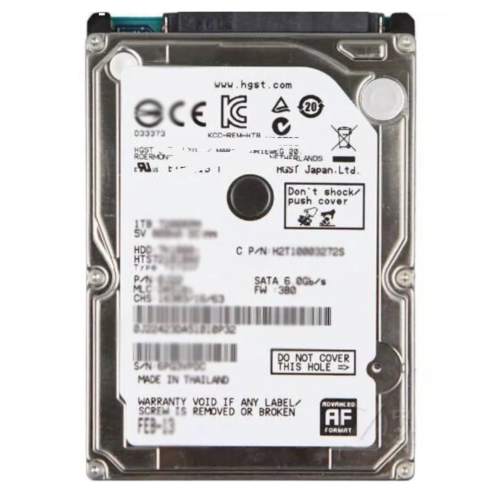
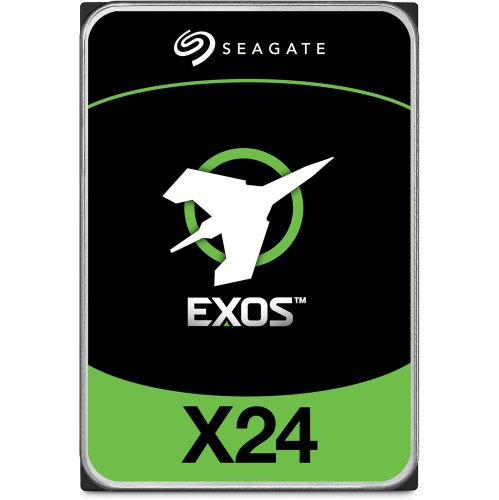
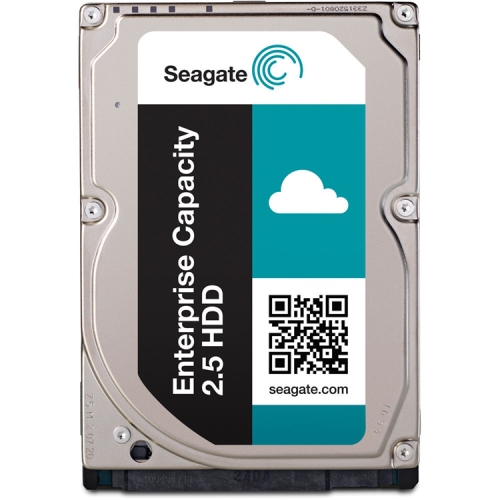
A 2.5-inch internal hard drive adds storage inside a compatible laptop, compact desktop, or other device with a matching drive bay and interface. The 2.5-inch designation describes the drive’s form factor, not its storage capacity or exact outer dimensions. Traditional hard disk drives, often called HDDs, store files on rotating magnetic platters inside a rigid metal housing, with a moving read/write head accessing the data. They are well suited to everyday documents, photo libraries, downloaded media, and other files that do not require the fastest possible access. For a student keeping several terms of coursework, a household collecting years of photos, or someone maintaining a local music library, capacity can matter more than the speed of opening an individual file. Storage is generally measured in gigabytes and terabytes, with 1 TB representing approximately 1,000 GB in drive manufacturers’ specifications. The usable space shown by a computer will be lower because of formatting, system partitions, and differences in how storage is measured and displayed. Leaving room beyond the size of an existing file collection allows space for application updates, new projects, and temporary working files. A drive used mainly for spreadsheets and family photos has different demands from one holding large video projects or a substantial game library. Internal HDDs can also serve as secondary storage in a desktop that runs its operating system and applications from a separate solid state drive. In that arrangement, frequently used software stays on the faster storage while larger, less frequently accessed files occupy the hard drive. For anyone replacing an ageing laptop drive, the right match depends on more than capacity: physical thickness, connector type, mounting hardware, and the computer’s support for the drive all matter. An internal drive is a component rather than a ready-to-connect peripheral, so it needs a compatible host device or enclosure, along with the appropriate connections, before it can be used.
Physical fit is particularly important with 2.5-inch internal hard drives because drives with the same nominal form factor can have different heights. Common thicknesses include 7 mm, 9.5 mm, and 15 mm. A laptop bay designed for a 7 mm drive will not accommodate a thicker model, while a thinner drive installed in a taller bay may need the device’s original caddy or an appropriate spacer to hold it securely. Higher-capacity mechanical drives can use taller housings, making the listed dimensions essential when matching a drive to a slim notebook or compact enclosure. A 15 mm drive generally needs a bay or enclosure explicitly designed for that thickness; the 2.5-inch label alone does not establish compatibility. Most consumer drives in this format use SATA, which carries data through one connector and receives power through another. In a laptop, both connections may be integrated into a single socket or connected through a device-specific cable. A desktop installation may require a SATA data cable, an available power connector, and a mounting bracket if the case only has larger drive bays. Some computers use only M.2 storage or soldered storage and have no space or connection for a 2.5-inch SATA drive. An M.2 slot cannot directly accept one, even when both storage devices use the SATA protocol. Beyond fit, rotational speed affects how a mechanical drive feels in use. Common speeds include 5,400 RPM and 7,200 RPM, although actual performance also depends on recording technology, data layout, workload, and the host system. A faster spindle can improve access times and transfer performance, but may also bring more audible activity or heat. Cache provides temporary working space on the drive, yet a larger cache does not by itself establish that one drive will be faster for every task. For repeated large writes, the distinction between conventional magnetic recording, or CMR, and shingled magnetic recording, or SMR, is also relevant. SMR drives can slow during lengthy or repeated write operations, so recording technology is worth checking where it is specified.
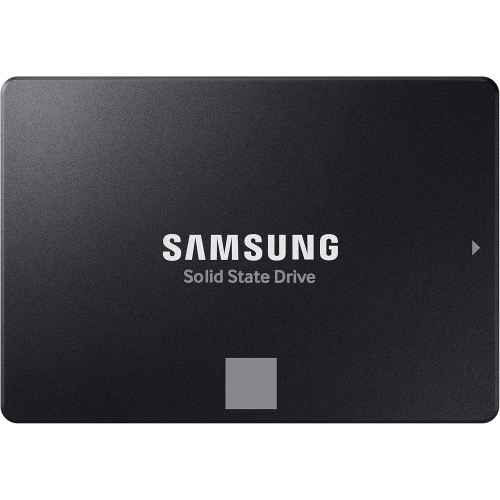
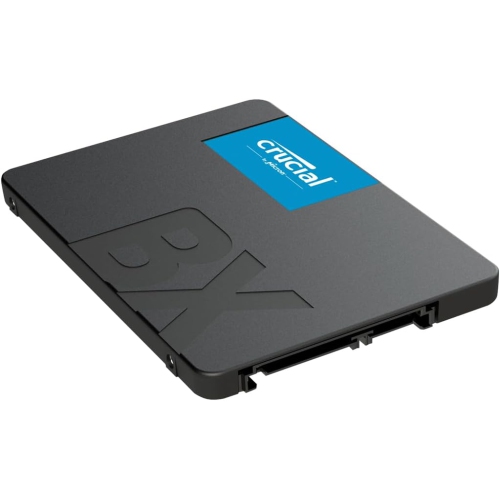
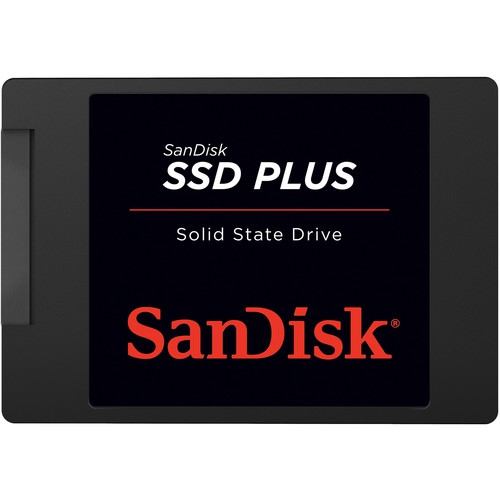
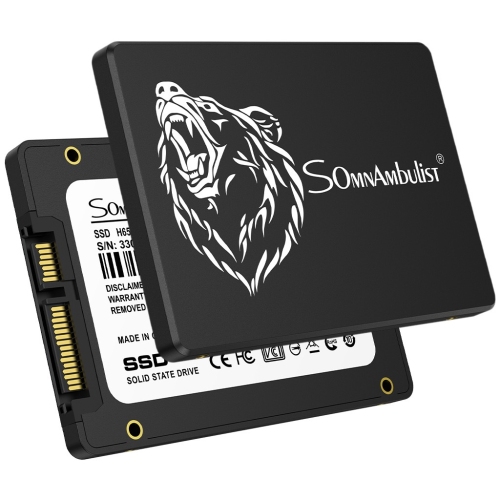
Although 2.5-inch SATA solid state drives share a familiar shape and connection with many internal HDDs, they store data in flash memory rather than on spinning platters. That difference makes an SSD generally more responsive for starting a computer, launching applications, and accessing many small files. A mechanical hard drive remains useful when the main purpose is to hold a large collection of files, particularly as secondary storage. Someone opening a few saved documents each evening may have different expectations from someone moving video footage between folders throughout the day. Durability also has a practical meaning for mechanical storage: the metal housing protects the internal assembly, but it does not make the drive immune to drops or sudden movement. A laptop with an operating HDD is best kept on a stable surface, and the drive should be handled gently during installation. Any built-in shock protection is an additional safeguard rather than a substitute for careful handling or a separate backup. With an internal component, care centres on secure mounting, clear ventilation around the host device, and keeping connectors free of dust and damage rather than cleaning the drive itself. The sealed housing should not be opened. Replacing a system drive also involves transferring existing data or installing an operating system; a blank drive will not arrive with personal files or applications already in place. Cloning may preserve an existing setup when the source drive is healthy and the destination has sufficient usable capacity, while a fresh installation provides a clean starting point. Either approach calls for a verified backup before the original drive is removed. An extra internal drive can hold another copy of important files, but a copy inside the same computer remains exposed to theft, electrical damage, or an incident affecting the whole machine. For separate, portable storage, External Hard Drives provide another way to keep files outside the computer. A compatible enclosure can also turn an internal SATA drive into USB-connected storage, provided it supports the drive’s thickness, capacity, and power requirements. The most useful storage setup balances enough space for everyday files with compatible hardware, suitable performance, and a dependable backup routine.
Physical fit is particularly important with 2.5-inch internal hard drives because drives with the same nominal form factor can have different heights. Common thicknesses include 7 mm, 9.5 mm, and 15 mm. A laptop bay designed for a 7 mm drive will not accommodate a thicker model, while a thinner drive installed in a taller bay may need the device’s original caddy or an appropriate spacer to hold it securely. Higher-capacity mechanical drives can use taller housings, making the listed dimensions essential when matching a drive to a slim notebook or compact enclosure. A 15 mm drive generally needs a bay or enclosure explicitly designed for that thickness; the 2.5-inch label alone does not establish compatibility. Most consumer drives in this format use SATA, which carries data through one connector and receives power through another. In a laptop, both connections may be integrated into a single socket or connected through a device-specific cable. A desktop installation may require a SATA data cable, an available power connector, and a mounting bracket if the case only has larger drive bays. Some computers use only M.2 storage or soldered storage and have no space or connection for a 2.5-inch SATA drive. An M.2 slot cannot directly accept one, even when both storage devices use the SATA protocol. Beyond fit, rotational speed affects how a mechanical drive feels in use. Common speeds include 5,400 RPM and 7,200 RPM, although actual performance also depends on recording technology, data layout, workload, and the host system. A faster spindle can improve access times and transfer performance, but may also bring more audible activity or heat. Cache provides temporary working space on the drive, yet a larger cache does not by itself establish that one drive will be faster for every task. For repeated large writes, the distinction between conventional magnetic recording, or CMR, and shingled magnetic recording, or SMR, is also relevant. SMR drives can slow during lengthy or repeated write operations, so recording technology is worth checking where it is specified.
Although 2.5-inch SATA solid state drives share a familiar shape and connection with many internal HDDs, they store data in flash memory rather than on spinning platters. That difference makes an SSD generally more responsive for starting a computer, launching applications, and accessing many small files. A mechanical hard drive remains useful when the main purpose is to hold a large collection of files, particularly as secondary storage. Someone opening a few saved documents each evening may have different expectations from someone moving video footage between folders throughout the day. Durability also has a practical meaning for mechanical storage: the metal housing protects the internal assembly, but it does not make the drive immune to drops or sudden movement. A laptop with an operating HDD is best kept on a stable surface, and the drive should be handled gently during installation. Any built-in shock protection is an additional safeguard rather than a substitute for careful handling or a separate backup. With an internal component, care centres on secure mounting, clear ventilation around the host device, and keeping connectors free of dust and damage rather than cleaning the drive itself. The sealed housing should not be opened. Replacing a system drive also involves transferring existing data or installing an operating system; a blank drive will not arrive with personal files or applications already in place. Cloning may preserve an existing setup when the source drive is healthy and the destination has sufficient usable capacity, while a fresh installation provides a clean starting point. Either approach calls for a verified backup before the original drive is removed. An extra internal drive can hold another copy of important files, but a copy inside the same computer remains exposed to theft, electrical damage, or an incident affecting the whole machine. For separate, portable storage, External Hard Drives provide another way to keep files outside the computer. A compatible enclosure can also turn an internal SATA drive into USB-connected storage, provided it supports the drive’s thickness, capacity, and power requirements. The most useful storage setup balances enough space for everyday files with compatible hardware, suitable performance, and a dependable backup routine.
Top selling and popular products
-
 Your price for this item is $248.68
 -
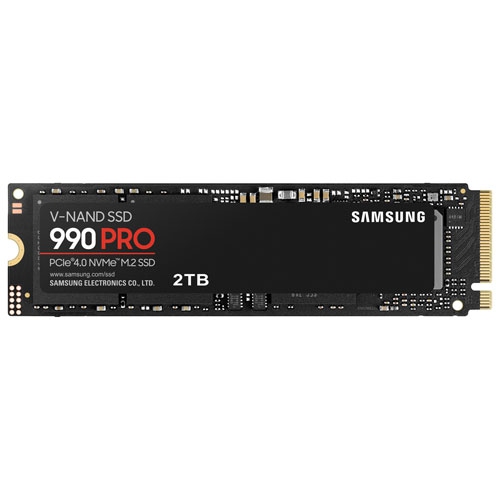 Your price for this item is $679.99
 -
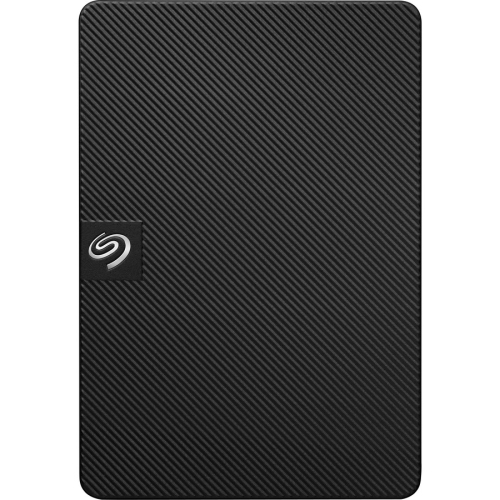 Your price for this item is $164.47
 -
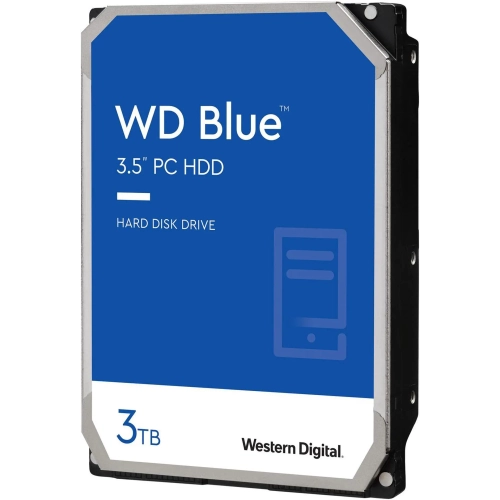 Your price for this item is $259.99
 -
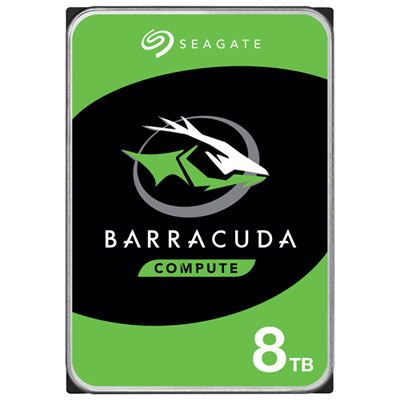 Your price for this item is $389.99
 -
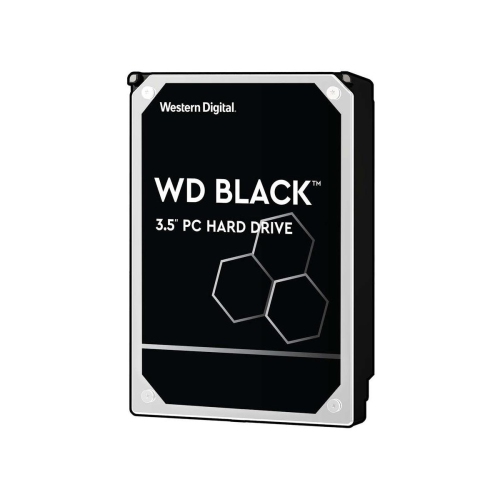 Your price for this item is $399.99
 -
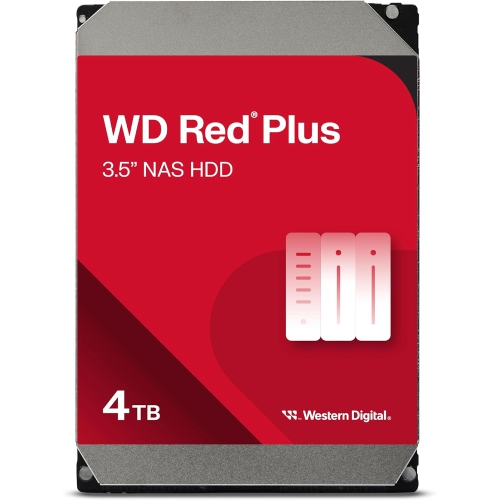 Your price for this item is $379.99
 -
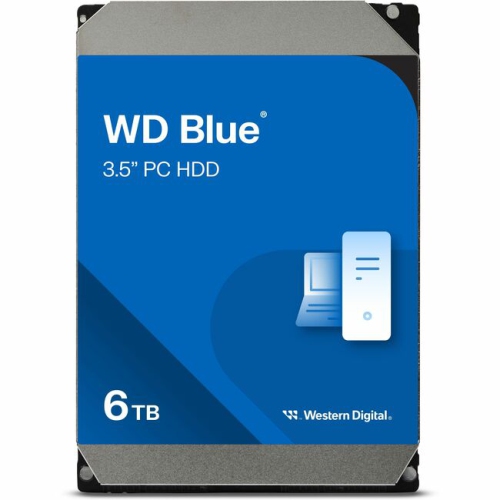 Your price for this item is $389.99
Discover more categories related to 2 5 Inch Internal Hard Drives
Top Collections:
Pokemon Centers, Kindle Devices, Best Budget Office Chairs, Apple iPhones 16, Best Laptops for Writers, iPhone 15 Apple, Canon G7X Cameras, Refurbished Apple Laptops, Alarm Clock, Motorola Razr Phones
Some products may be subject to Environmental Handling Fees
(EHF) depending on your province.
Learn more about EHFs.