Dell Latitude E5530 Laptops
Discover the Dell Latitude E5530 Laptop, designed to support your everyday computing needs with ease and reliability. Whether you're working from home, tackling assignments, or streaming your favorite content, the Dell Latitude E5530 Laptop offers a dependable solution for both productivity and entertainment. Explore a range of options and find the perfect fit to enhance your workflow and keep you connected wherever you go.
Sort



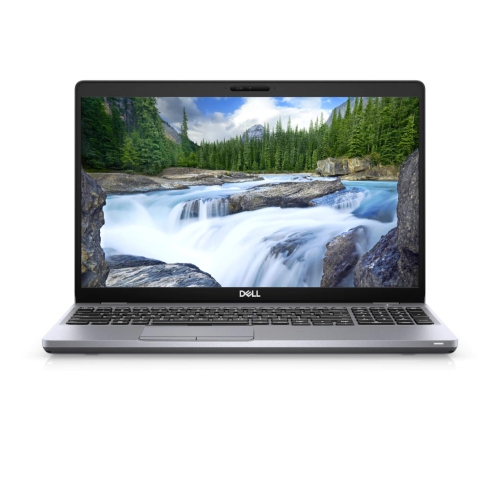
Why older business laptops suit desk-based office work
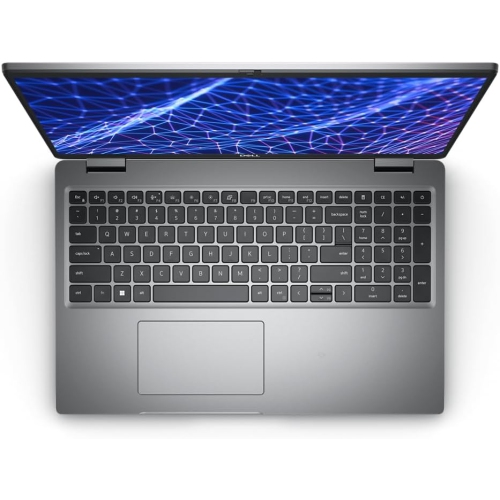
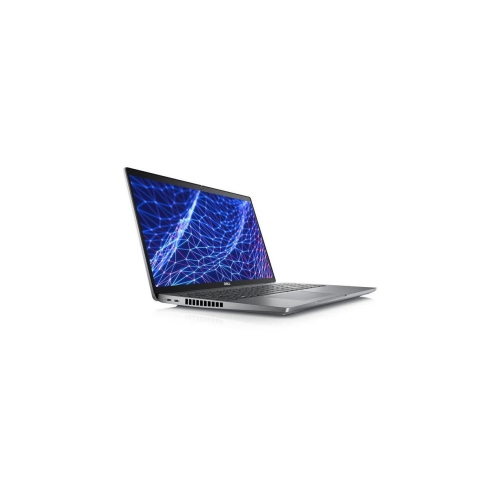
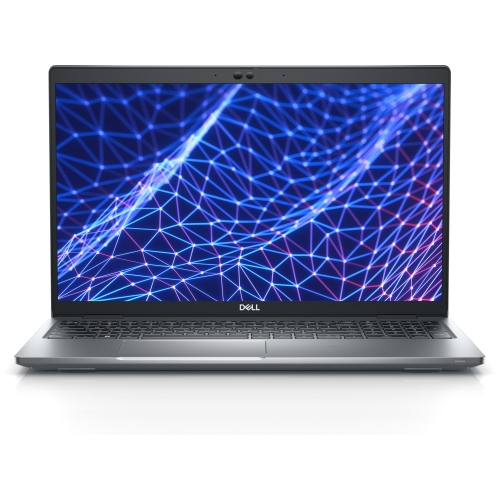
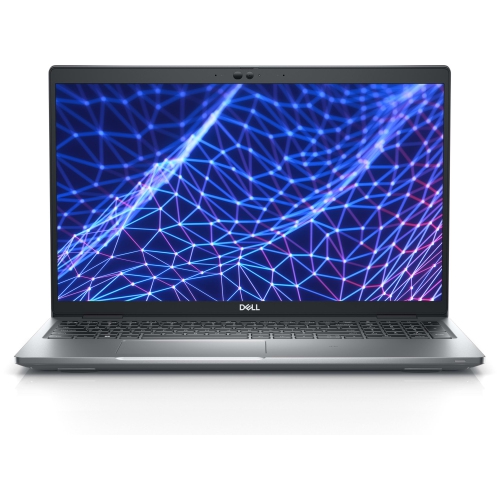
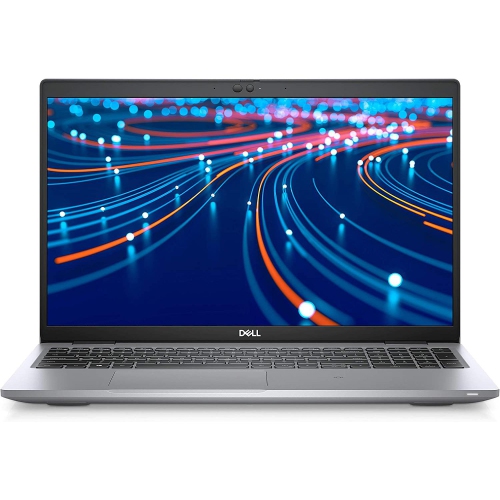
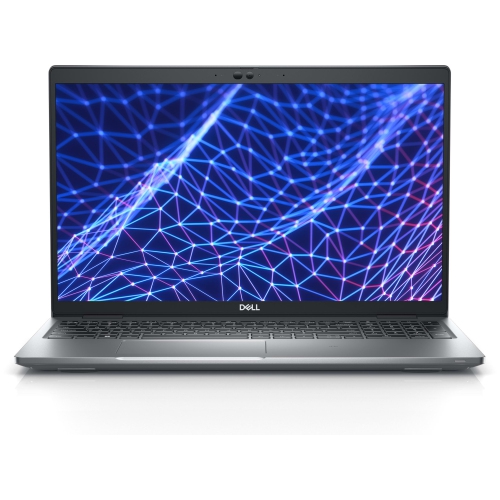
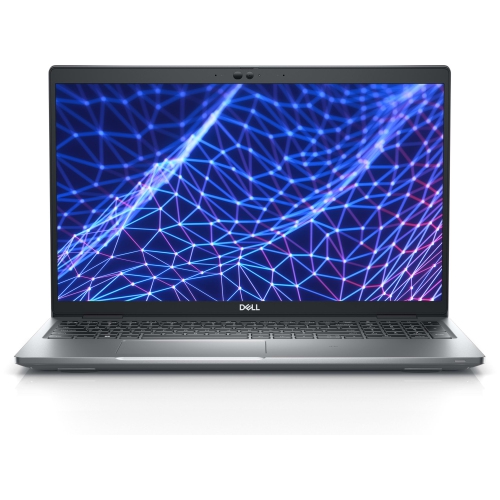
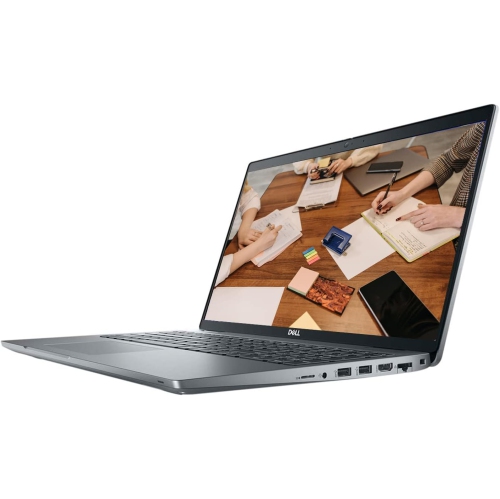
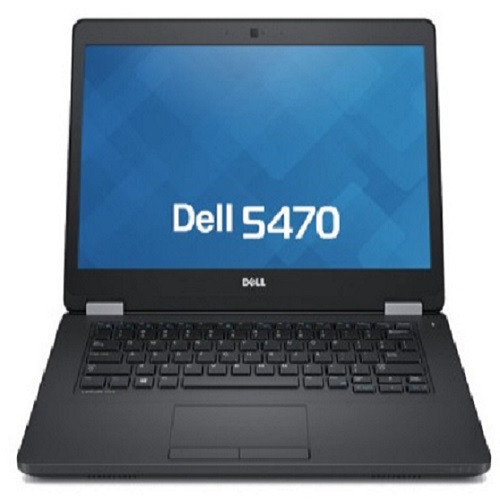
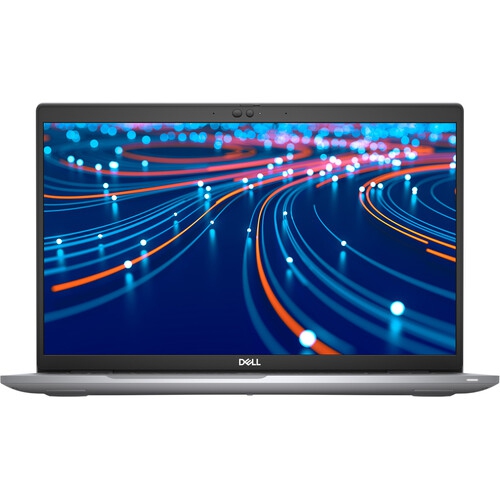
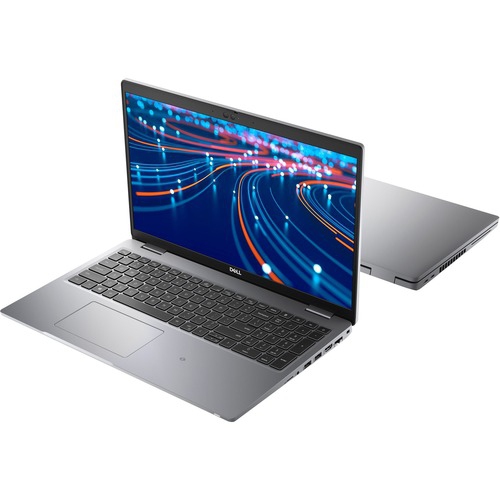
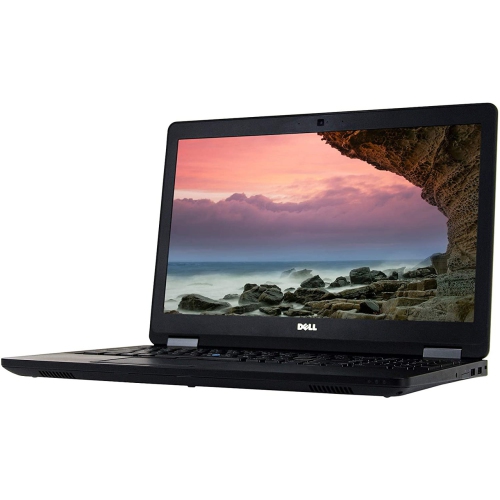
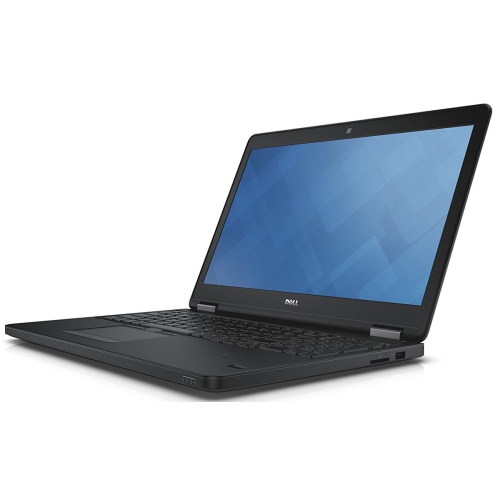
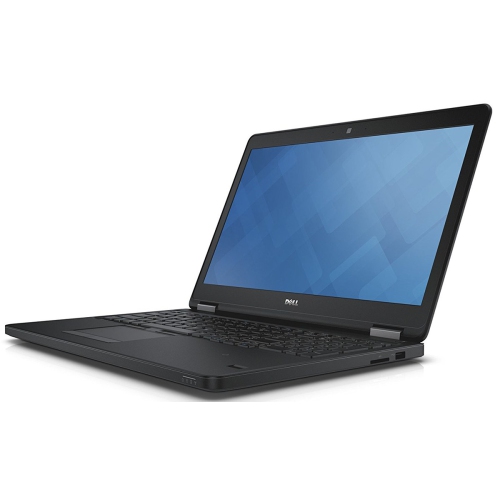
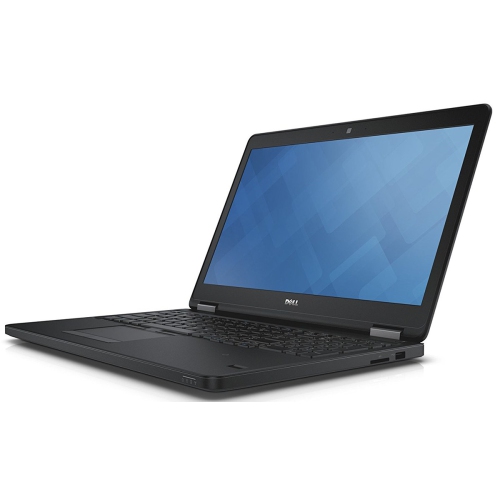
Older 15.6-inch business laptops bring a practical, desk-focused design to everyday computing, with roomy keyboards, readable screens, and connections for office equipment that may not fit newer, slimmer machines. This category is especially relevant to people who spend much of their computer time writing documents, managing spreadsheets, answering email, or working with straightforward desktop applications. Business notebooks from the early 2010s were generally built around serviceability and regular office use rather than the lightest possible frame. Metal-reinforced construction, durable plastic panels, and substantial hinges are common features, although materials and condition vary between configurations. Their larger footprint can make them comfortable workstations for a home office, reception desk, or study area, but less convenient for someone carrying a computer between several appointments each day. A weight around five pounds, before adding the power adapter, is worth considering when choosing a bag or planning a commute. The 15.6-inch measurement describes the screen diagonally, not the outside dimensions of the computer, so a carrying sleeve needs enough room for the thicker chassis as well as the display size. An anti-glare screen can help reduce distracting reflections from overhead lights, while screen resolution determines how much text or spreadsheet content fits comfortably at once. A resolution of 1366 × 768 suits basic tasks, but offers less workspace than higher-resolution displays when two documents need to sit side by side. A full-size keyboard with a numeric keypad can be particularly useful for entering invoices, recording expenses, or updating stockroom records. Keyboard layout, key wear, touchpad response, and hinge firmness all influence the experience of using an older notebook. For a student working on essays, a family member organizing household paperwork, or someone setting up a dedicated computer for an established desktop program, these physical details can matter just as much as the processor specifications. The best fit is a workload that matches the machine’s original business purpose, with realistic expectations for its age and capabilities.
Performance in this class depends heavily on the installed processor, memory, storage drive, and software. Early-2010s business notebooks often use third-generation processors, DDR3 memory, and integrated graphics, making them better suited to routine productivity than demanding video editing, complex 3D work, or recent games. Processor labels alone do not show how an older machine compares with a newer one; generation, core count, and the requirements of the intended application all matter. Memory affects how comfortably the computer handles several tasks together. A configuration with 4GB may feel restrictive with numerous browser tabs and background applications, while 8GB can provide more breathing room for modest workloads. Maximum memory capacity should be checked against the exact hardware documentation rather than assumed from a similar-looking chassis. Storage also makes a noticeable difference in daily use. A SATA solid-state drive generally opens applications and starts the system more quickly than a traditional hard drive, although it cannot remove limitations imposed by an older processor. Capacity deserves a separate look: documents take relatively little space, but a collection of photos, downloaded lessons, and video files can fill a smaller drive quickly. External storage can hold less frequently used files, and important work still needs a separate backup. Older business designs may include a useful mix of USB connections, HDMI, VGA, Ethernet, and sometimes a combined USB/eSATA connection. That variety can help connect a wired network, an older projector, a printer, or an external monitor without relying entirely on adapters. The exact ports and their capabilities need to match the equipment being connected, especially when more than one external display is involved. Wireless connectivity deserves the same attention because an older Wi-Fi adapter may not support every feature offered by a newer router. Webcam, microphone, and speaker specifications also vary, so anyone planning regular online lessons or video meetings should check both the hardware and the meeting application’s system requirements. A computer that handles word processing comfortably may have a different experience when video calls, screen sharing, and multiple browser tabs run together.
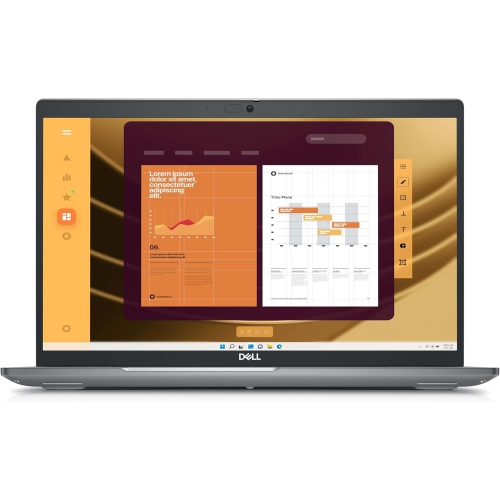
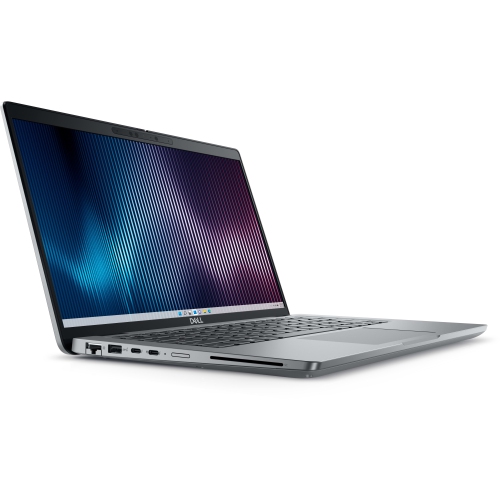
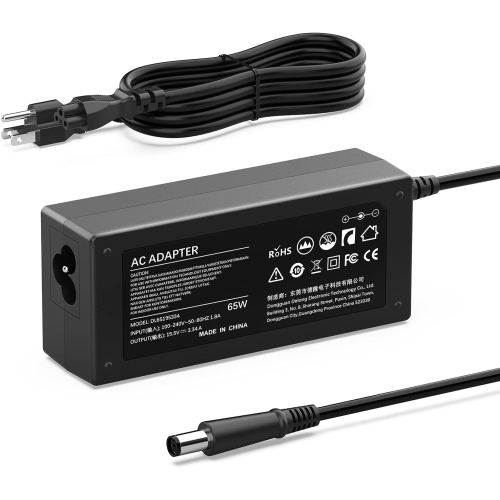
Condition and long-term usability are especially important with refurbished or previously used business laptops. Refurbishment can involve inspection, cleaning, component replacement, and software installation, but the scope of that work differs, so the condition description and warranty terms deserve careful reading. Surface scratches on a lid are different from a loose charging socket, an uneven display backlight, or keys that fail to register consistently. Battery wear is another separate consideration: a laptop may work well at a desk while offering limited time away from an outlet. Original battery-life claims do not establish the runtime of an aged or replacement battery, and capacity depends on its condition as well as brightness, workload, and power settings. A correctly rated power adapter is essential, particularly for a computer that will spend most of its time plugged in. Software compatibility is equally important. An installed operating system is not necessarily one that still receives security updates, and older hardware may not meet the official requirements of newer versions. For email, account access, and work documents, a supported operating system and browser should be part of the suitability check. Similar names can also obscure substantial differences between laptop generations; the Dell Latitude 5530 belongs to a different generation, so its specifications, accessories, and support information should not be treated as interchangeable with those of an older notebook. Once in use, basic care helps protect the screen, keyboard, and chassis. Place the laptop on a firm surface that leaves its ventilation openings clear, keep drinks away from the keyboard, and carry it in a padded compartment rather than loose beside books or tools. Clean the display with a soft microfibre cloth and an appropriate screen-cleaning method, never spraying liquid directly onto the panel. For shared household use or a gift, practical preparation matters too: a working charger, clearly configured user account, tested connections, and compatible applications make the computer easier to put to use.
Performance in this class depends heavily on the installed processor, memory, storage drive, and software. Early-2010s business notebooks often use third-generation processors, DDR3 memory, and integrated graphics, making them better suited to routine productivity than demanding video editing, complex 3D work, or recent games. Processor labels alone do not show how an older machine compares with a newer one; generation, core count, and the requirements of the intended application all matter. Memory affects how comfortably the computer handles several tasks together. A configuration with 4GB may feel restrictive with numerous browser tabs and background applications, while 8GB can provide more breathing room for modest workloads. Maximum memory capacity should be checked against the exact hardware documentation rather than assumed from a similar-looking chassis. Storage also makes a noticeable difference in daily use. A SATA solid-state drive generally opens applications and starts the system more quickly than a traditional hard drive, although it cannot remove limitations imposed by an older processor. Capacity deserves a separate look: documents take relatively little space, but a collection of photos, downloaded lessons, and video files can fill a smaller drive quickly. External storage can hold less frequently used files, and important work still needs a separate backup. Older business designs may include a useful mix of USB connections, HDMI, VGA, Ethernet, and sometimes a combined USB/eSATA connection. That variety can help connect a wired network, an older projector, a printer, or an external monitor without relying entirely on adapters. The exact ports and their capabilities need to match the equipment being connected, especially when more than one external display is involved. Wireless connectivity deserves the same attention because an older Wi-Fi adapter may not support every feature offered by a newer router. Webcam, microphone, and speaker specifications also vary, so anyone planning regular online lessons or video meetings should check both the hardware and the meeting application’s system requirements. A computer that handles word processing comfortably may have a different experience when video calls, screen sharing, and multiple browser tabs run together.
Condition and long-term usability are especially important with refurbished or previously used business laptops. Refurbishment can involve inspection, cleaning, component replacement, and software installation, but the scope of that work differs, so the condition description and warranty terms deserve careful reading. Surface scratches on a lid are different from a loose charging socket, an uneven display backlight, or keys that fail to register consistently. Battery wear is another separate consideration: a laptop may work well at a desk while offering limited time away from an outlet. Original battery-life claims do not establish the runtime of an aged or replacement battery, and capacity depends on its condition as well as brightness, workload, and power settings. A correctly rated power adapter is essential, particularly for a computer that will spend most of its time plugged in. Software compatibility is equally important. An installed operating system is not necessarily one that still receives security updates, and older hardware may not meet the official requirements of newer versions. For email, account access, and work documents, a supported operating system and browser should be part of the suitability check. Similar names can also obscure substantial differences between laptop generations; the Dell Latitude 5530 belongs to a different generation, so its specifications, accessories, and support information should not be treated as interchangeable with those of an older notebook. Once in use, basic care helps protect the screen, keyboard, and chassis. Place the laptop on a firm surface that leaves its ventilation openings clear, keep drinks away from the keyboard, and carry it in a padded compartment rather than loose beside books or tools. Clean the display with a soft microfibre cloth and an appropriate screen-cleaning method, never spraying liquid directly onto the panel. For shared household use or a gift, practical preparation matters too: a working charger, clearly configured user account, tested connections, and compatible applications make the computer easier to put to use.
Top selling and popular products
-
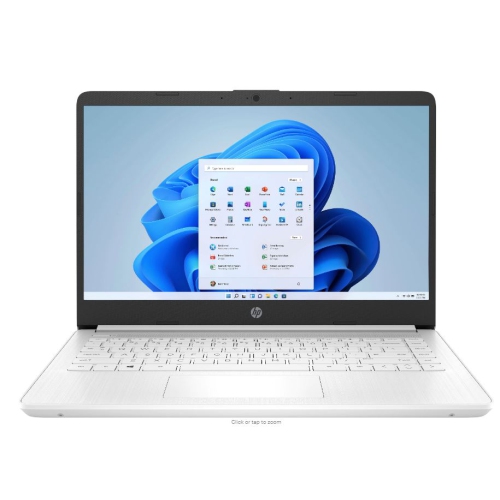 Your price for this item is $449
 -
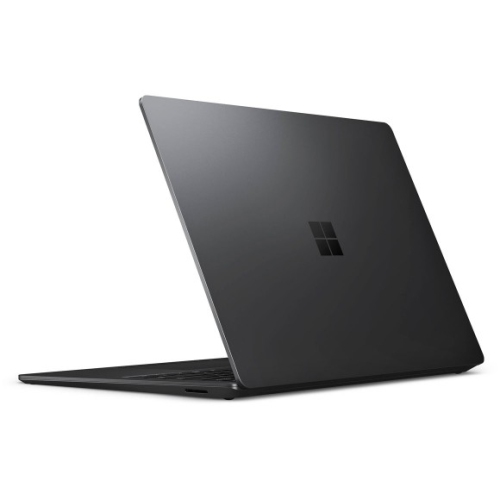 Your price for this item is $3099
 -
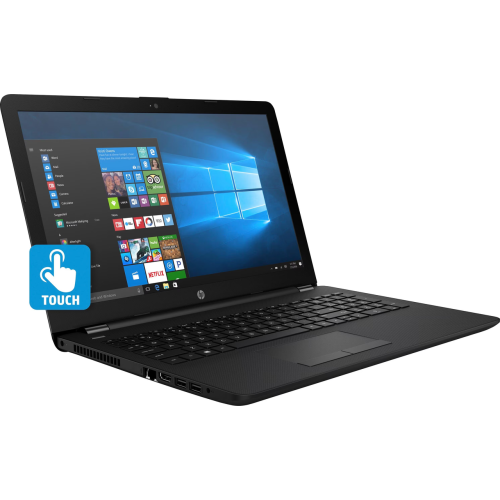 Your price for this item is $299.95
 -
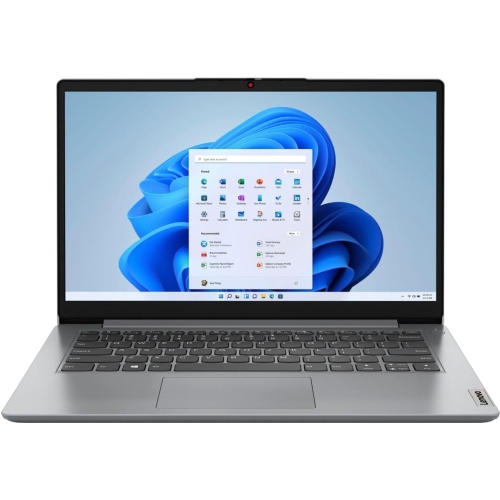 Your price for this item is $664.05
 -
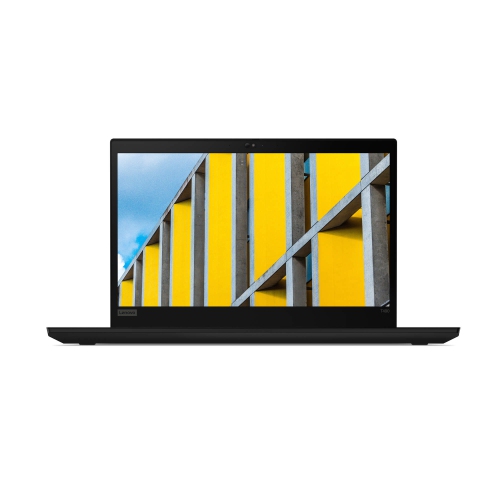 Your price for this item is $599.68
 -
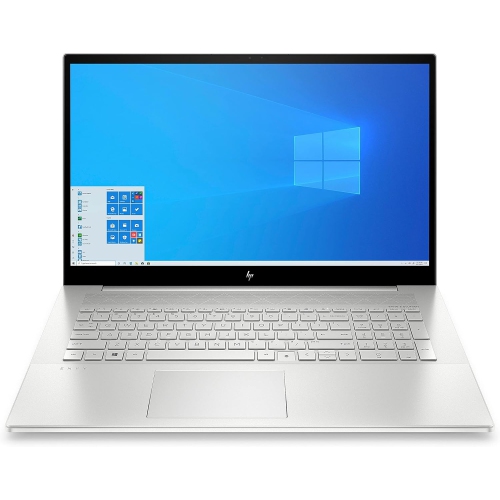 Your price for this item is $869.99
 -
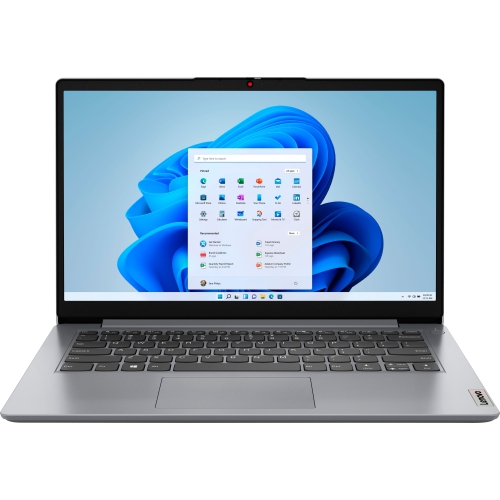 Your price for this item is $259
 -
 Your price for this item is $418.98
Discover more categories related to Dell Latitude E5530 Laptops
Top Collections:
Pokemon Centers, Kindle Devices, Best Budget Office Chairs, Apple iPhones 16, Best Laptops for Writers, iPhone 15 Apple, Canon G7X Cameras, Refurbished Apple Laptops, Alarm Clock, Motorola Razr Phones
Some products may be subject to Environmental Handling Fees
(EHF) depending on your province.
Learn more about EHFs.