Dell OptiPlex 5060
Discover the Dell OptiPlex 5060, designed to meet the demands of modern workspaces and home offices alike. With a focus on performance and reliability, this desktop series offers versatile solutions for a wide range of computing needs. Whether you're upgrading your workstation or setting up a new office, the Dell OptiPlex 5060 delivers the power and efficiency required to keep productivity on track. Explore configurations and options to find the perfect fit for your workflow.
Sort

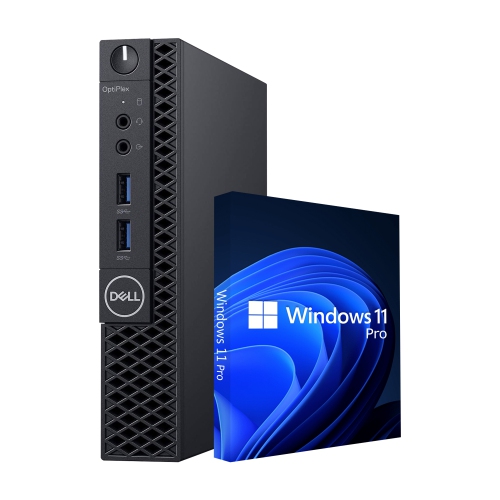

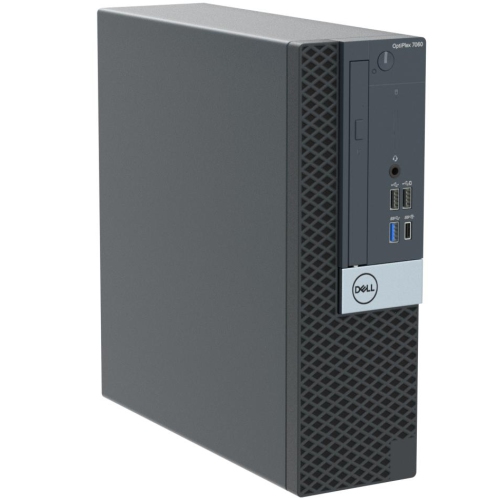
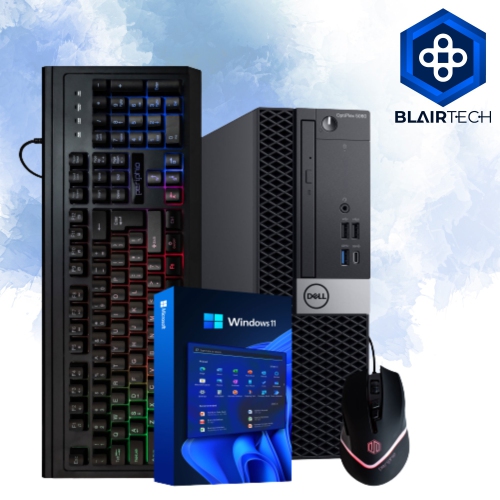
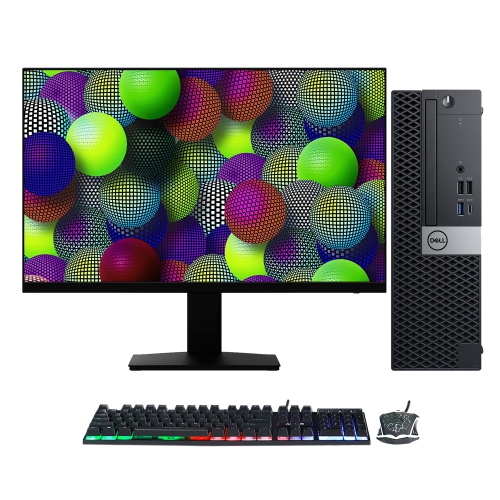
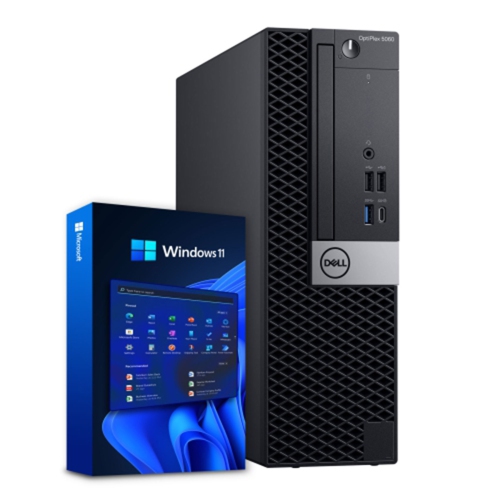
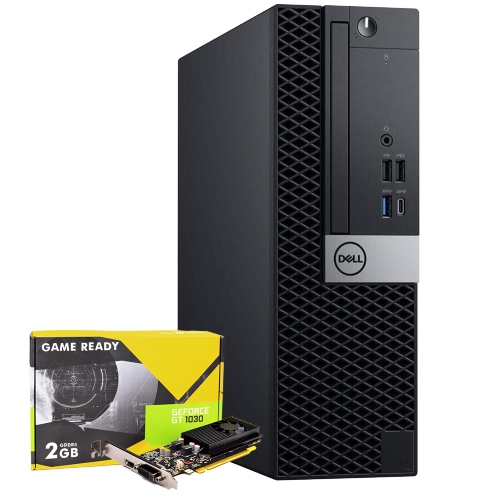
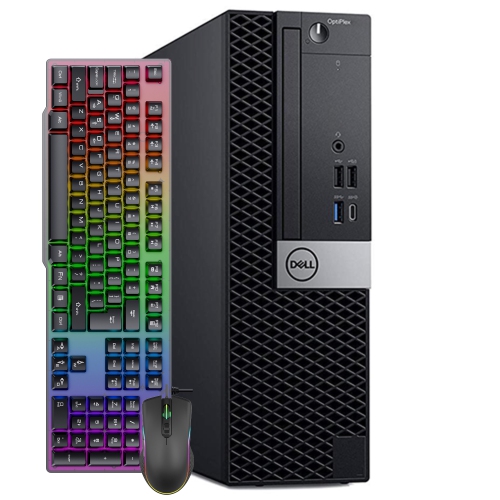
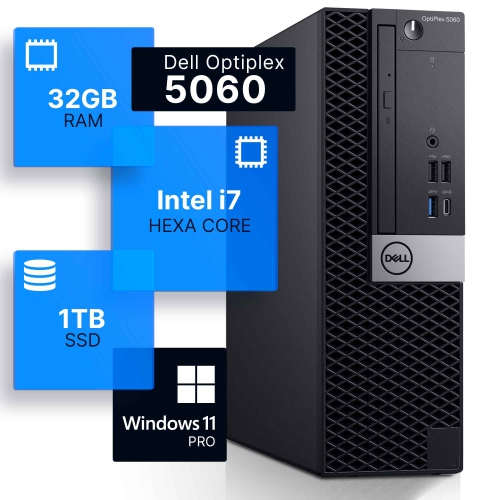
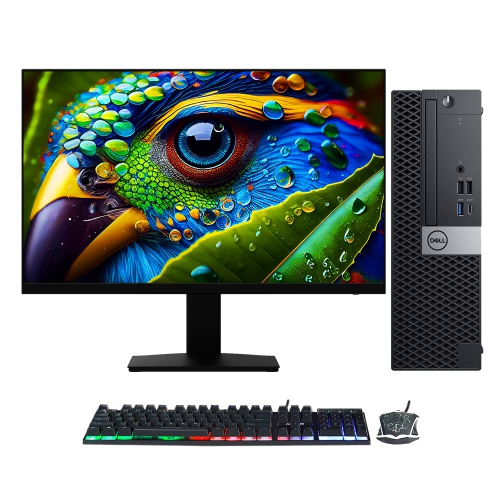
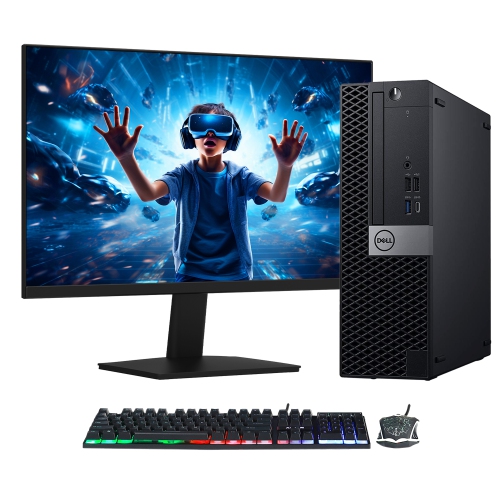
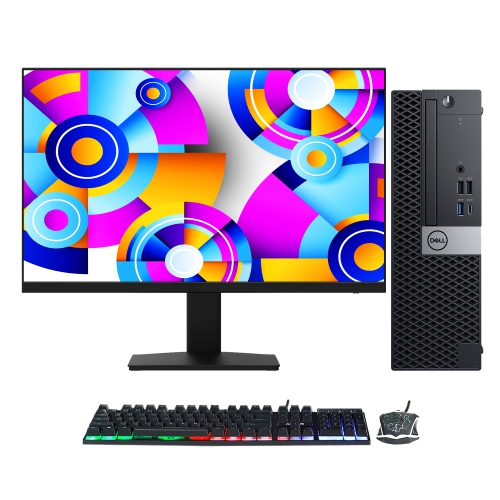
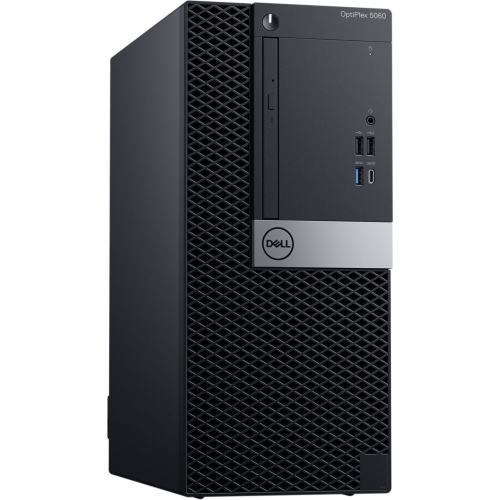
Business desktops that fit your workload and workspace
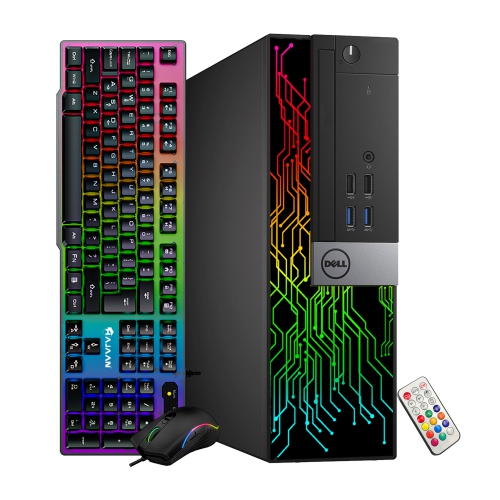
Business-class desktops are built around the practical demands of a working day: keeping documents open, moving between browser tabs, joining video meetings, and handling the spreadsheets and administrative tools that keep a household or office organized. Their appeal lies in a straightforward desktop experience, with a separate monitor, a full-size keyboard, and connections for everyday peripherals. For a home office, reception desk, student workspace, or small business, a compact business computer can provide a tidy, permanent place to work without occupying much of the room. Within this category, configurations featuring eighth-generation processors, DDR4 memory, and solid-state storage are suited to many familiar productivity tasks, although the exact processor and installed components determine how comfortably a particular configuration handles heavier workloads. A system used mainly for email and word processing has different demands from one running large spreadsheets, bookkeeping software, and several communication apps together. Memory helps keep those overlapping tasks responsive: 8GB can cover lighter use, while 16GB provides more breathing room for multitasking, and 32GB may be useful for more demanding applications when supported. A solid-state drive helps shorten startup times and makes opening files and applications feel more immediate than with a traditional mechanical hard drive. Storage capacity matters separately from speed. A 256GB drive may suit documents and mostly online work, whereas 512GB or 1TB gives more room for locally stored photos, project folders, and larger applications. These desktops can also serve shared household needs, from completing school assignments to organizing family records and streaming video at a desk. For someone setting up a dedicated workspace, the most useful configuration is one that matches their actual software, storage habits, and daily routine rather than simply offering the highest specification. General-purpose business hardware is typically a better fit for productivity than for demanding modern games, complex visual effects, or other tasks that depend on substantial dedicated graphics performance.
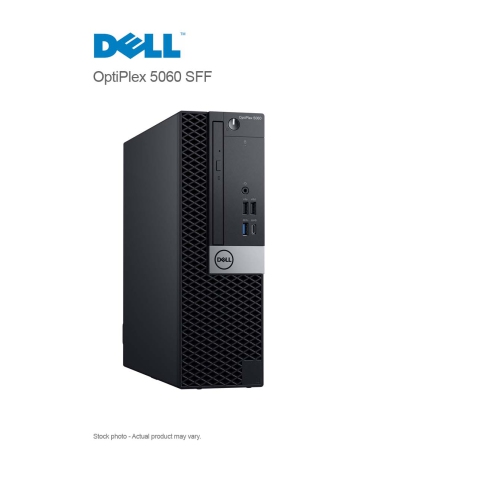
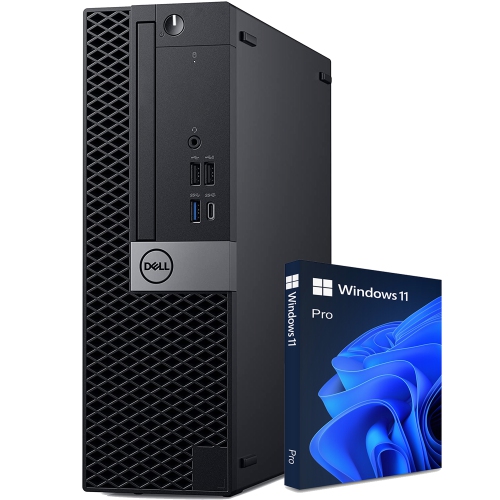
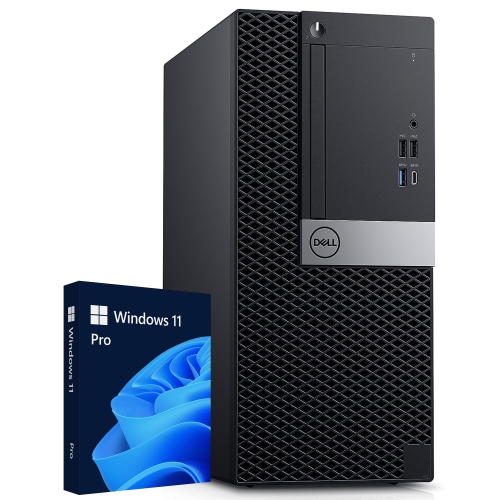
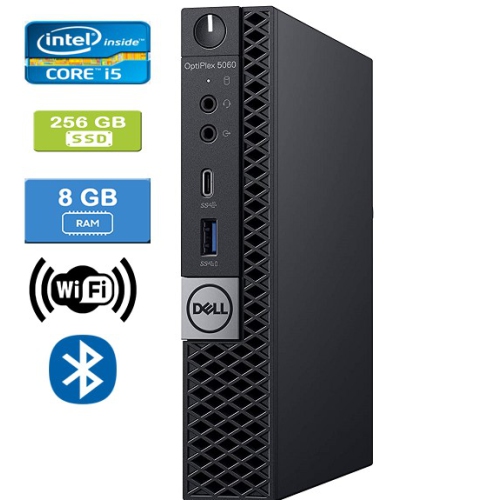
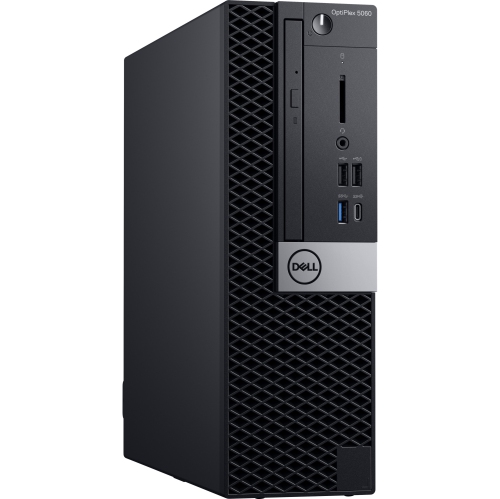
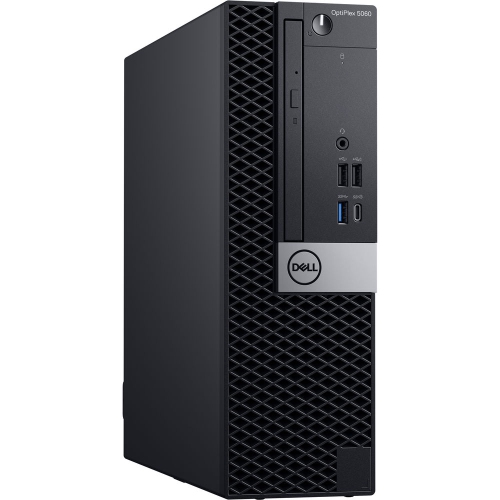
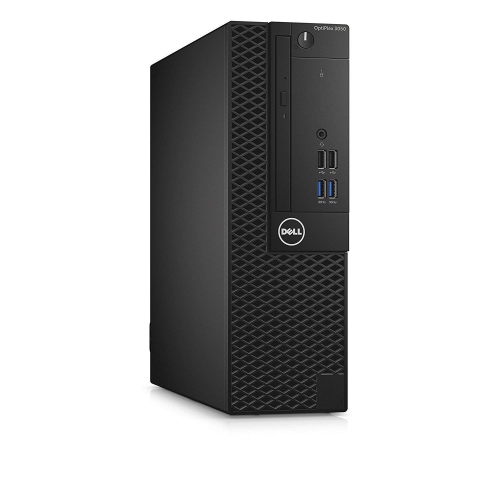
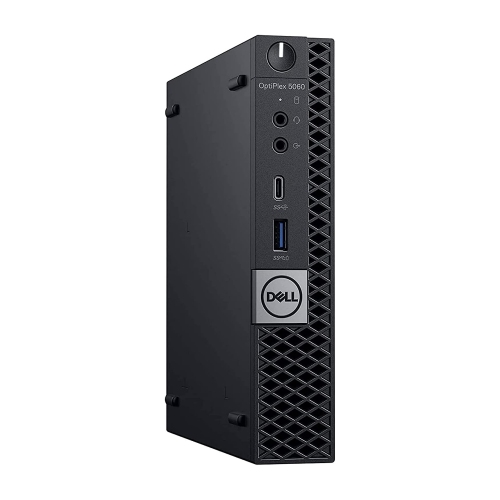
Physical format has a noticeable effect on how a desktop fits into everyday life. A tower generally leaves more room inside for compatible expansion cards and additional storage, making it useful where future changes matter more than minimizing the computer’s footprint. A small form factor chassis takes up less space while retaining a conventional desktop layout, and a micro chassis can make sense on a narrow counter, a shallow desk, or a workstation where the monitor and paperwork already occupy most of the surface. Smaller does not automatically mean less capable for ordinary office tasks, but it usually changes the options for internal expansion, power delivery, and graphics upgrades. Metal chassis panels and moulded plastic front sections are common in business desktops, providing a practical enclosure designed for regular use rather than frequent travel. Dimensions, ventilation clearances, and cable access matter as much as the appearance of the case. A computer tucked into a closed cabinet can struggle to shed heat, while one placed beside a desk needs protection from accidental kicks, drink spills, and cables pulled tight across a walkway. Horizontal or vertical positioning should follow the chassis specifications, with any required stand or mounting hardware accounted for. Connectivity deserves the same attention. A desk with two monitors, a wired keyboard and mouse, a headset, a printer, and an external drive can use more ports than expected. Display connections need to match the screens or suitable adapters, and support for multiple monitors depends on the actual hardware and configuration. Wireless networking is not a given on a business desktop, so Wi-Fi and Bluetooth should be confirmed rather than assumed; wired Ethernet remains useful for a fixed workstation. Shoppers considering a related desktop family can also explore Dell OptiPlex 5050 Desktops, while comparing the processor generation, chassis size, connections, and operating system support of each configuration. Those details reveal more about everyday suitability than a similar-looking case, especially when desk space or existing accessories set firm requirements.
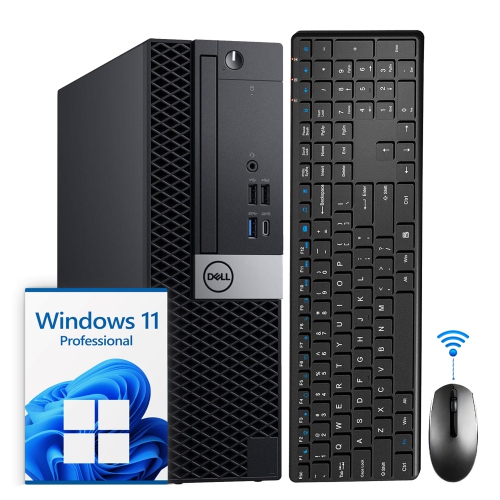
Condition and configuration are particularly important when considering previously used or refurbished business desktops. Refurbishment can involve inspection, cleaning, testing, and component replacement, but the scope of that work varies, and exterior wear does not tell the whole story about internal specifications. A case may show light marks from office use while containing replacement memory or storage, so the stated configuration is the clearest reference for what the computer includes. Processor details, installed memory, drive capacity, and the operating system edition should be considered individually rather than treated as identical across a desktop family. Operating system compatibility also involves more than a familiar interface: processor eligibility, security hardware, firmware settings, and proper licensing can all matter. Software needed for work or school may have its own requirements, making compatibility especially important for bookkeeping, design, remote access, or specialized business applications. Included accessories can differ as well. Some setups require a separate monitor, keyboard, mouse, webcam, speakers, or wireless adapter, and very compact chassis may use an external power adapter rather than an internal power supply. For video calls, a clear microphone and a camera positioned at eye level often improve the experience more noticeably than additional storage capacity. Durability depends partly on sensible placement and routine care. Keeping ventilation openings clear, removing dust according to the manufacturer’s care directions, and shutting down and unplugging the computer before cleaning help protect a frequently used workstation. Liquids should stay away from the case, and cleaning fluid should never be sprayed directly into openings. Regular file backups remain important regardless of drive type, particularly for schoolwork, customer records, and family photos that cannot easily be replaced. A business desktop can be a thoughtful practical gift for a student, someone starting a home-based business, or a family member who prefers a familiar keyboard-and-monitor setup, provided its software and accessories suit the recipient. Matched carefully to its intended use, this style of computer offers a focused workspace for the ordinary tasks that need to run smoothly, day after day.
Physical format has a noticeable effect on how a desktop fits into everyday life. A tower generally leaves more room inside for compatible expansion cards and additional storage, making it useful where future changes matter more than minimizing the computer’s footprint. A small form factor chassis takes up less space while retaining a conventional desktop layout, and a micro chassis can make sense on a narrow counter, a shallow desk, or a workstation where the monitor and paperwork already occupy most of the surface. Smaller does not automatically mean less capable for ordinary office tasks, but it usually changes the options for internal expansion, power delivery, and graphics upgrades. Metal chassis panels and moulded plastic front sections are common in business desktops, providing a practical enclosure designed for regular use rather than frequent travel. Dimensions, ventilation clearances, and cable access matter as much as the appearance of the case. A computer tucked into a closed cabinet can struggle to shed heat, while one placed beside a desk needs protection from accidental kicks, drink spills, and cables pulled tight across a walkway. Horizontal or vertical positioning should follow the chassis specifications, with any required stand or mounting hardware accounted for. Connectivity deserves the same attention. A desk with two monitors, a wired keyboard and mouse, a headset, a printer, and an external drive can use more ports than expected. Display connections need to match the screens or suitable adapters, and support for multiple monitors depends on the actual hardware and configuration. Wireless networking is not a given on a business desktop, so Wi-Fi and Bluetooth should be confirmed rather than assumed; wired Ethernet remains useful for a fixed workstation. Shoppers considering a related desktop family can also explore Dell OptiPlex 5050 Desktops, while comparing the processor generation, chassis size, connections, and operating system support of each configuration. Those details reveal more about everyday suitability than a similar-looking case, especially when desk space or existing accessories set firm requirements.
Condition and configuration are particularly important when considering previously used or refurbished business desktops. Refurbishment can involve inspection, cleaning, testing, and component replacement, but the scope of that work varies, and exterior wear does not tell the whole story about internal specifications. A case may show light marks from office use while containing replacement memory or storage, so the stated configuration is the clearest reference for what the computer includes. Processor details, installed memory, drive capacity, and the operating system edition should be considered individually rather than treated as identical across a desktop family. Operating system compatibility also involves more than a familiar interface: processor eligibility, security hardware, firmware settings, and proper licensing can all matter. Software needed for work or school may have its own requirements, making compatibility especially important for bookkeeping, design, remote access, or specialized business applications. Included accessories can differ as well. Some setups require a separate monitor, keyboard, mouse, webcam, speakers, or wireless adapter, and very compact chassis may use an external power adapter rather than an internal power supply. For video calls, a clear microphone and a camera positioned at eye level often improve the experience more noticeably than additional storage capacity. Durability depends partly on sensible placement and routine care. Keeping ventilation openings clear, removing dust according to the manufacturer’s care directions, and shutting down and unplugging the computer before cleaning help protect a frequently used workstation. Liquids should stay away from the case, and cleaning fluid should never be sprayed directly into openings. Regular file backups remain important regardless of drive type, particularly for schoolwork, customer records, and family photos that cannot easily be replaced. A business desktop can be a thoughtful practical gift for a student, someone starting a home-based business, or a family member who prefers a familiar keyboard-and-monitor setup, provided its software and accessories suit the recipient. Matched carefully to its intended use, this style of computer offers a focused workspace for the ordinary tasks that need to run smoothly, day after day.
Top selling and popular products
-
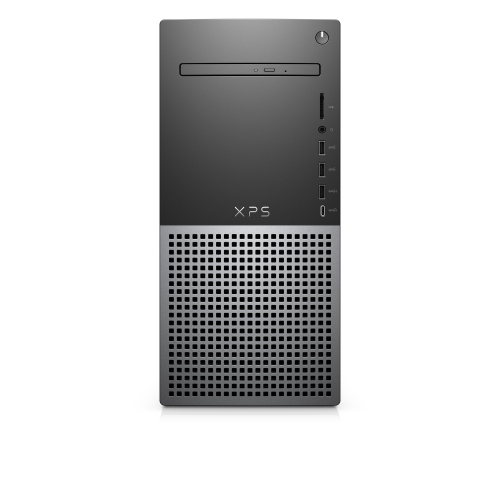 Your price for this item is $1599
 -
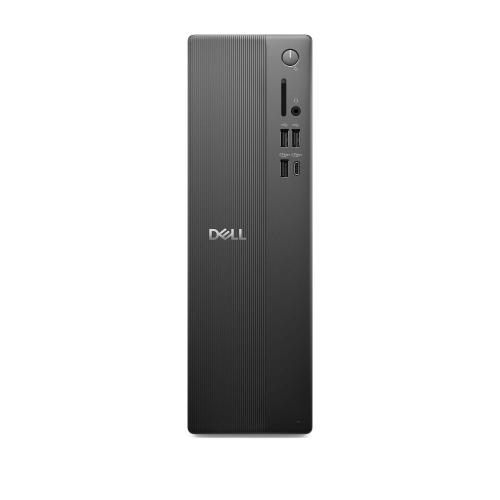 Your price for this item is $1629.79
 -
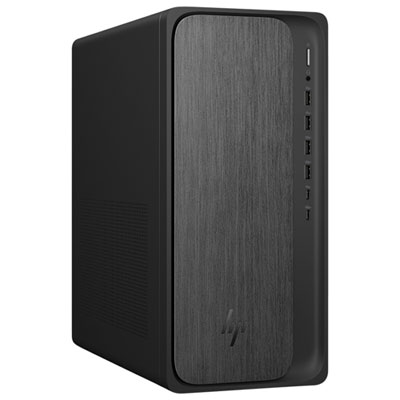 Your price for this item is $1999.99
 -
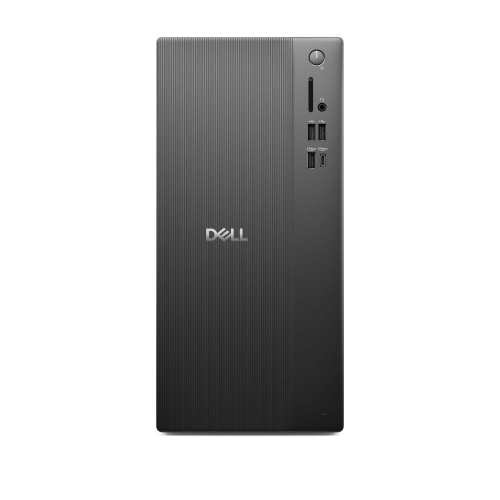 Your price for this item is $1459.79
 -
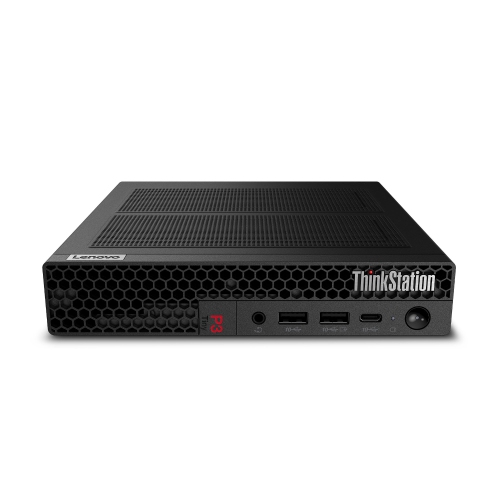 Your price for this item is $879
 -
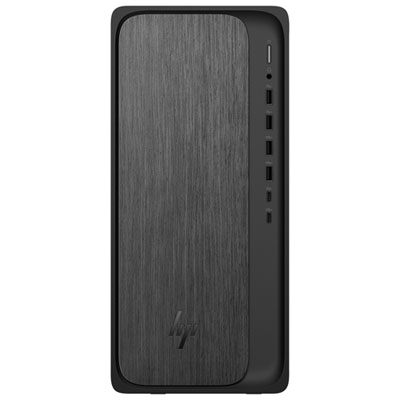 Your price for this item is $1199.99
 -
 Your price for this item is $1839
 -
 Your price for this item is $879
Discover more categories related to Dell OptiPlex 5060
Top Collections:
Pokemon Centers, Kindle Devices, Best Budget Office Chairs, Apple iPhones 16, Best Laptops for Writers, iPhone 15 Apple, Canon G7X Cameras, Refurbished Apple Laptops, Alarm Clock, Motorola Razr Phones
Some products may be subject to Environmental Handling Fees
(EHF) depending on your province.
Learn more about EHFs.