Dell OptiPlex 3060
Discover the Dell OptiPlex 3060, designed to meet the demands of modern workspaces and home offices alike. Whether you’re upgrading your setup or searching for a reliable solution for daily tasks, the Dell OptiPlex 3060 offers versatility and performance to keep you productive. Explore a range of configurations and options to find the perfect fit for your needs, all in one convenient place.
Sort

Why desktop memory and size matter for everyday work
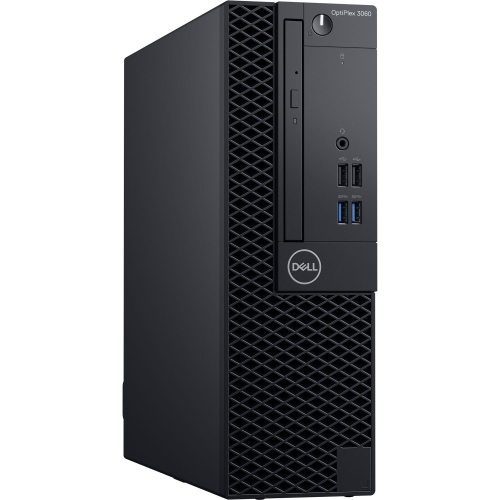
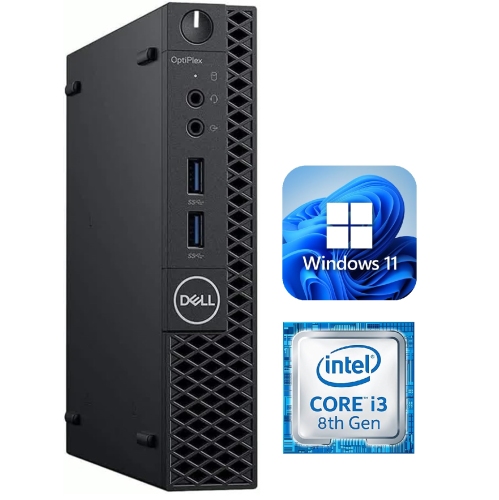
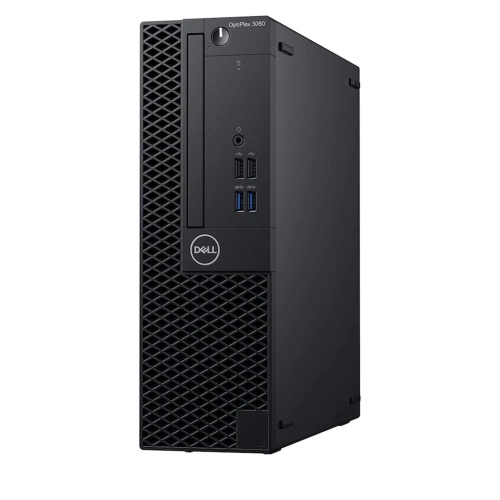
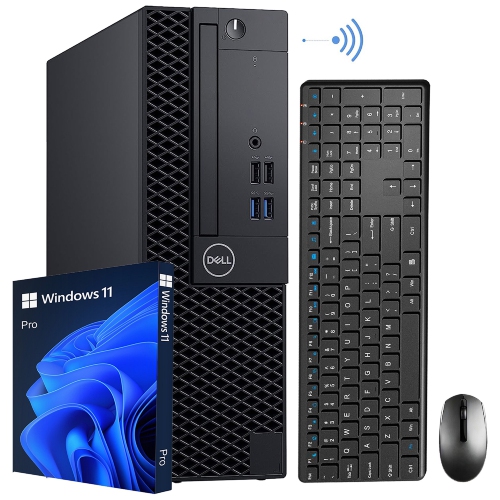
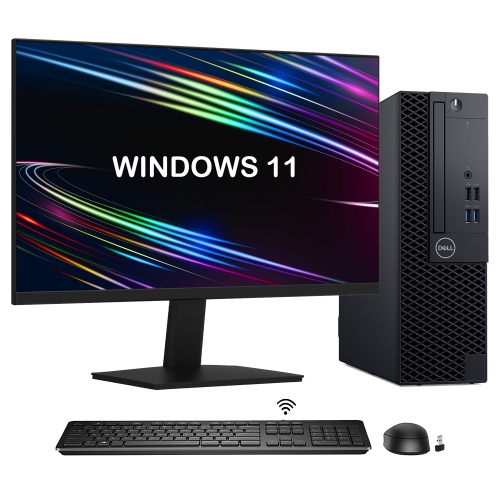
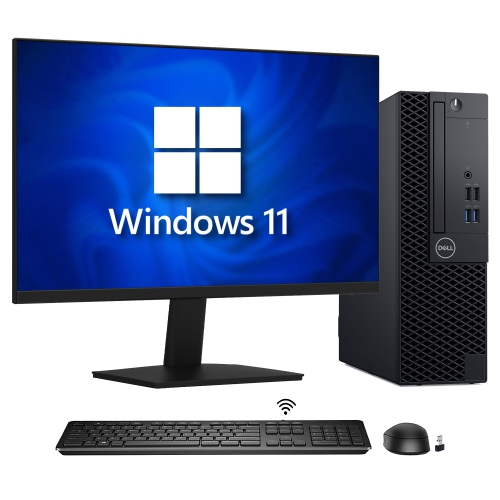
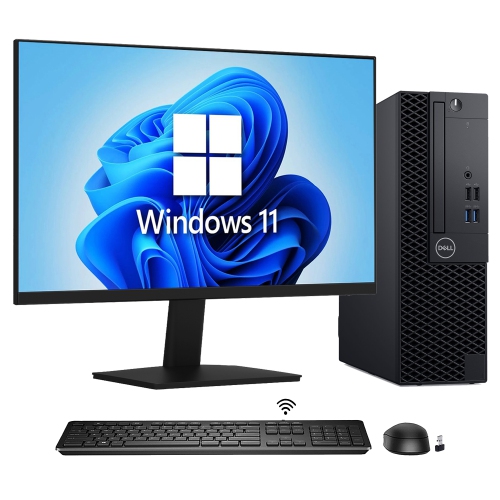
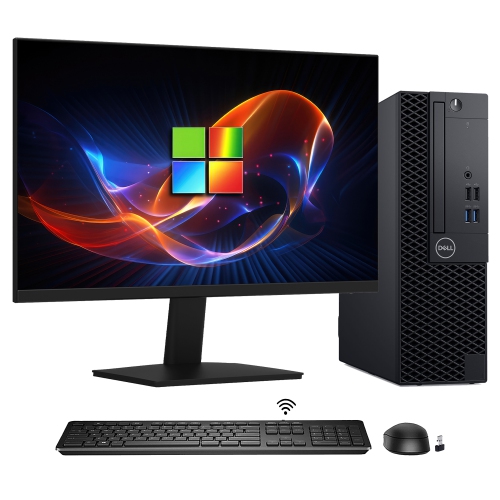
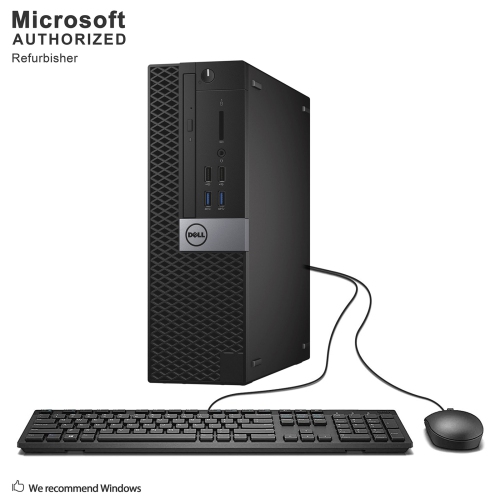
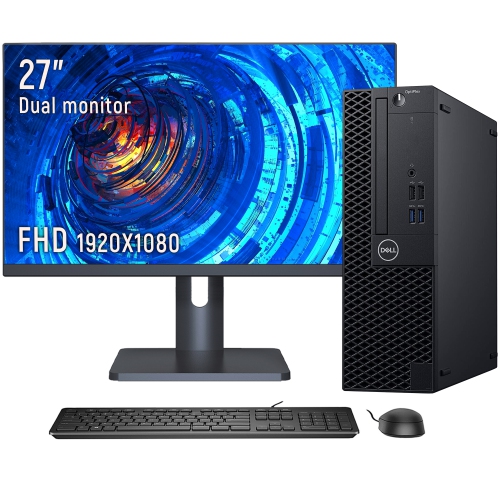
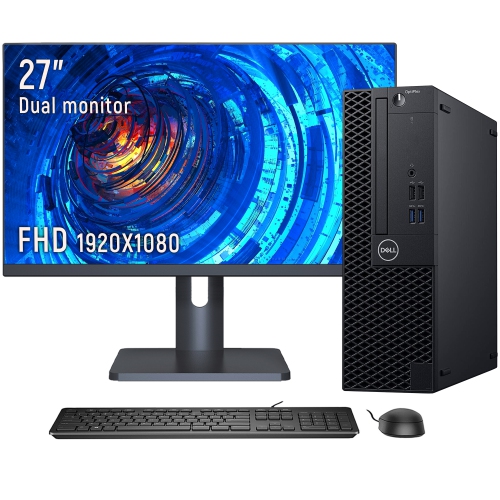
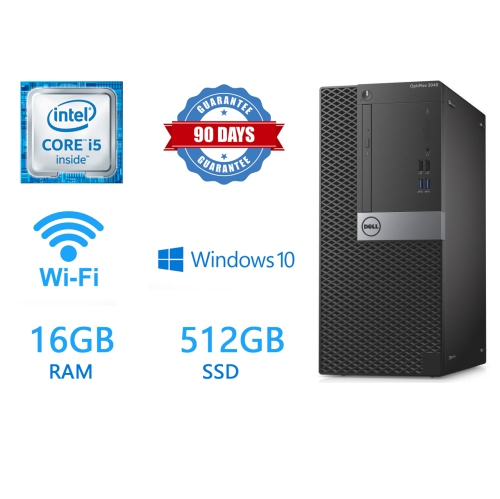
Business-class desktop computers are built around the everyday tasks that keep a household, office, or small business moving: writing documents, managing spreadsheets, joining video calls, handling email, and keeping several browser tabs open at once. Desktops from this generation commonly combine an eighth-generation processor with DDR4 memory and integrated graphics, making the individual configuration an important part of how a system feels in daily use. A computer used for invoices and appointment scheduling has different demands from one running large spreadsheets alongside a video meeting and several business applications. Processor capability and memory both matter when those activities overlap. Many configurations in this desktop family support up to 32GB of DDR4 memory across two slots, although installed capacity varies. An 8GB setup can handle lighter office tasks, while 16GB offers more breathing room for multitasking; heavier workloads may benefit from additional memory where supported. Storage also makes a noticeable difference. A solid-state drive helps the computer start up and open applications promptly, while storage capacity determines how much space remains for documents, photos, downloaded files, and software. Some chassis support combinations of M.2 storage and traditional drives, but the available connections, mounting hardware, and drive bays depend on the design. Integrated graphics are generally suited to office applications, video playback, and routine display use rather than demanding games or complex 3D work. This balance makes compact business desktops a practical fit for students working on assignments, remote workers with a dedicated desk, and small businesses setting up administrative workstations. They can also suit a shared household computer used for forms, family schedules, and online learning. As a gift for someone starting a course or establishing a home office, a desktop is most useful when its capabilities match the recipient’s software needs and there is already a suitable place for the computer, monitor, keyboard, and mouse. A separate webcam or headset may also be needed for classes and meetings, depending on the accessories included.
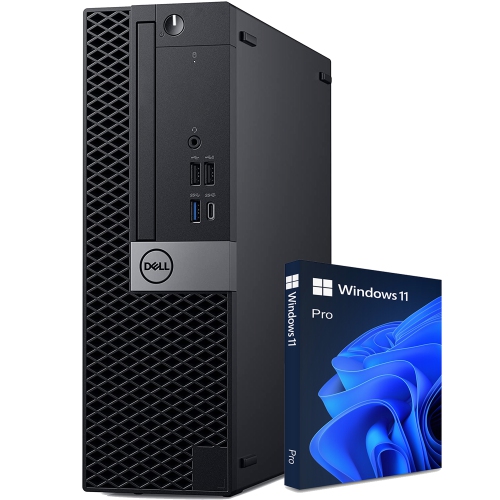
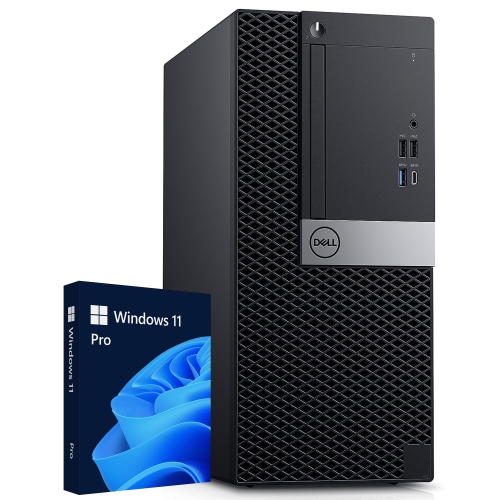
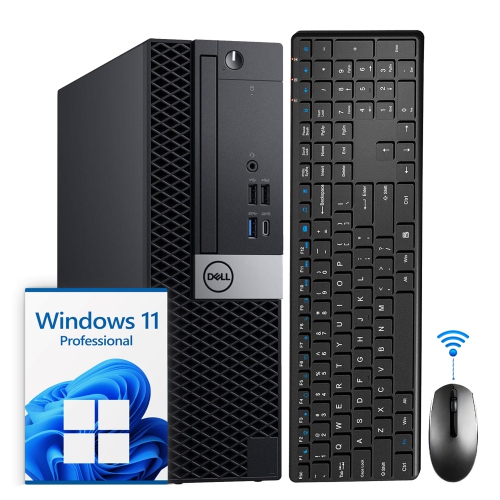
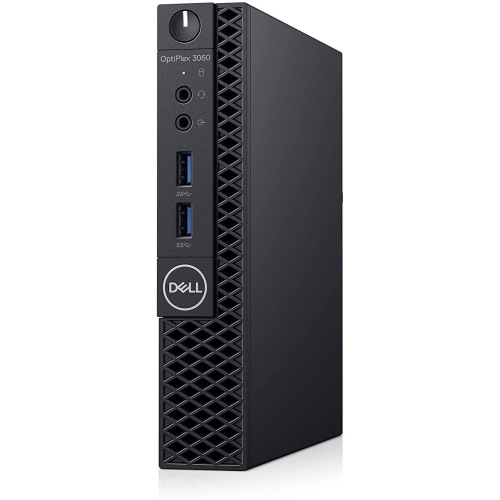
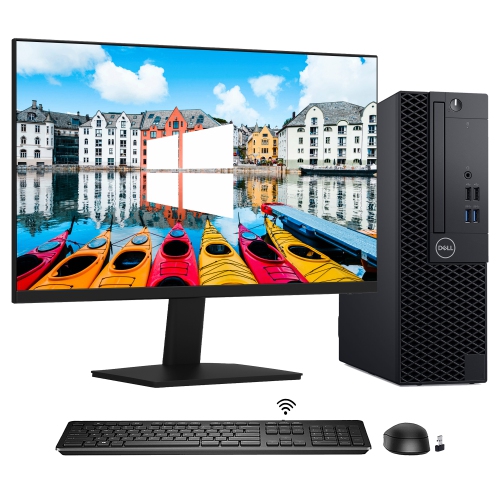
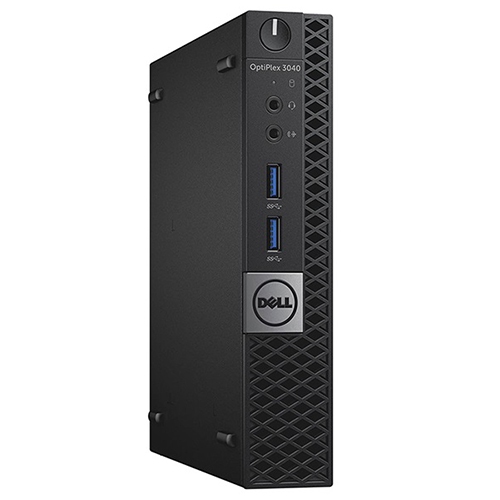
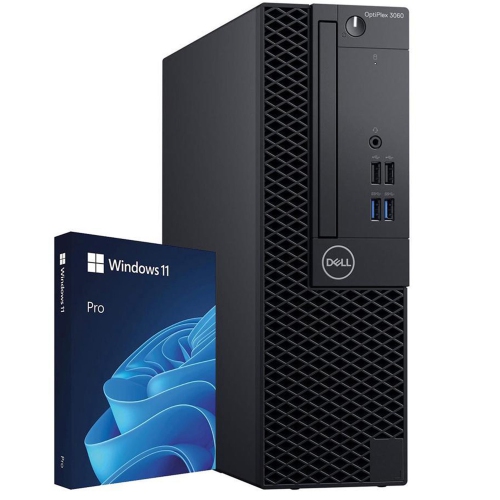
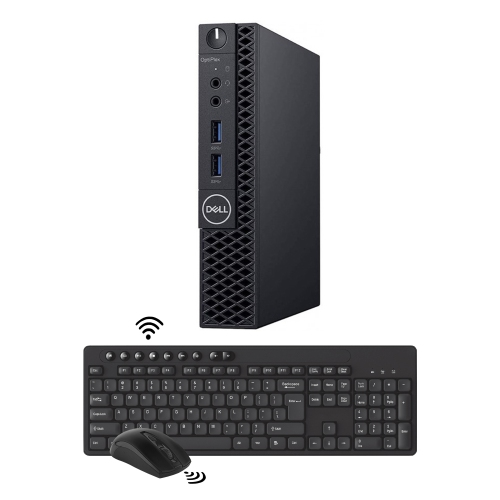
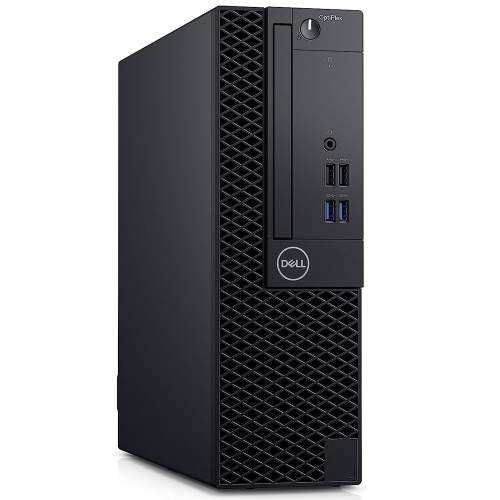
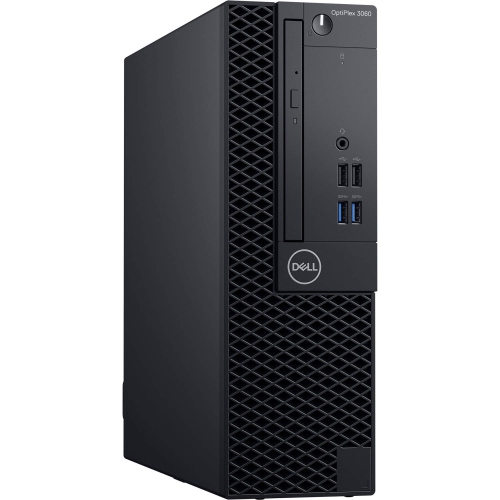
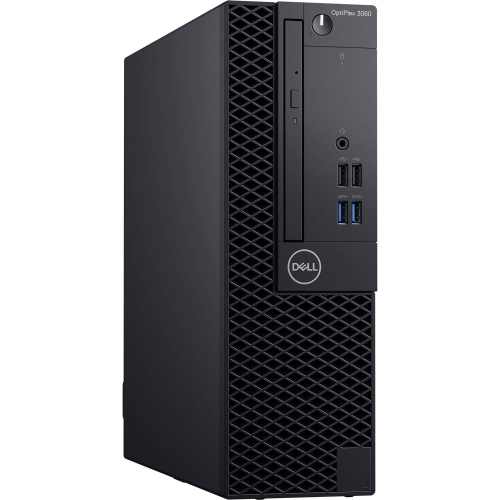
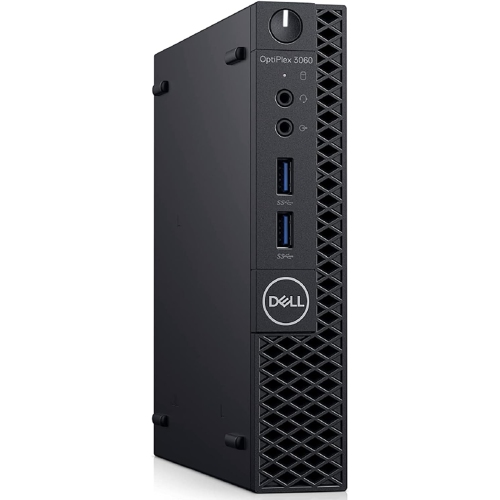
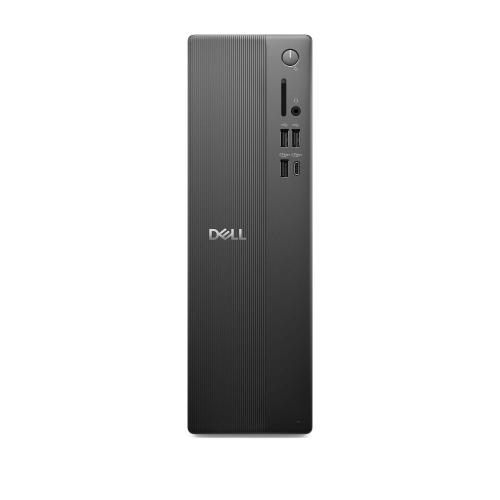
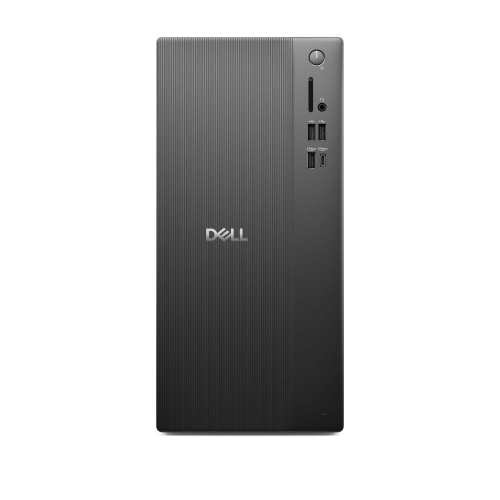
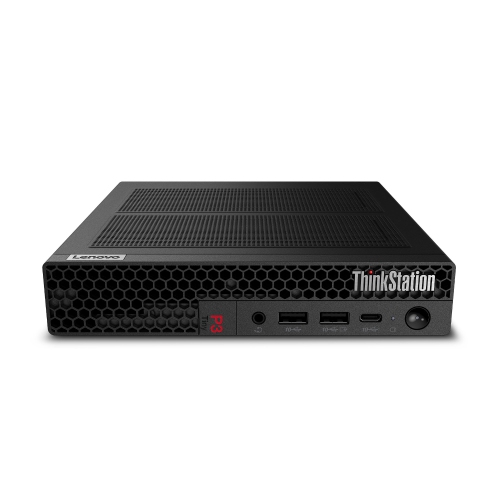
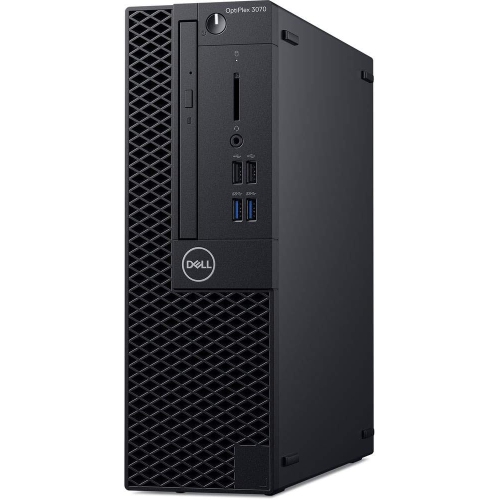
Physical size shapes the experience just as much as the internal specifications. Micro, small form factor, and tower designs serve different spaces, even when they belong to the same business desktop family. A micro desktop can leave more room for notebooks and paperwork on a narrow desk, and compatible mounting hardware may allow it to sit behind a monitor or beneath a work surface. Its compact enclosure usually means fewer internal expansion options, and an external power adapter needs its own space near an outlet. Small form factor desktops offer a middle ground, with a modest footprint and some room for servicing or upgrades. Where expansion slots are present, they generally require low-profile cards that also meet the system’s power and clearance limits. Tower designs take up more room but may provide additional drive bays and easier access to internal components. A larger case does not automatically support every graphics card or power supply, so dimensions, connectors, and power requirements still matter. These computers typically use rigid metal chassis with moulded front panels, a practical construction for desks, reception counters, and office workstations. Good placement helps protect both the case and the components inside it: vents need open space, cables should not pull against their sockets, and a computer tucked under a desk should remain clear of shoes, bags, and accidental spills. Connectivity deserves the same attention as fit. Depending on the configuration, connections may include USB ports, DisplayPort, HDMI, and wired Ethernet, but the exact port layout should be checked against the intended setup. A monitor with the wrong input may need an appropriate adapter, and support for multiple displays depends on the available outputs and graphics capabilities. Wi-Fi and Bluetooth should not be assumed, since some business desktops were configured primarily for wired office networks. For shoppers comparing neighbouring desktop families, the Dell OptiPlex 5060 page provides another relevant point of comparison, with the same need to distinguish between chassis sizes and individual configurations.
Condition, software support, and serviceability are especially important when considering refurbished business desktops. Refurbishment can include inspection, cleaning, testing, and replacement of selected components, but the work performed and the cosmetic grading are not identical across sellers. Light marks on a case may have little effect on everyday use, while the condition of ports, cooling fans, storage, and included power equipment has a more direct bearing on the setup. A clear description of installed memory, storage type and capacity, processor, operating system, and accessories is more useful than a general claim about performance. Warranty coverage and the stated refurbishment process also help clarify what support accompanies the computer. Software compatibility needs attention on a desktop of this age. An installed operating system should be properly licensed and supported, and compatibility with a newer operating system depends on the processor and security hardware as well as the required settings. The programs used for bookkeeping, coursework, remote access, or workplace communication may have their own requirements beyond those of the operating system. For a workstation handling client records or household paperwork, regular security updates and a separate backup of important files remain essential. Day-to-day care is straightforward: keep drinks away from the computer, shut it down and unplug it before cleaning, wipe exterior surfaces with a soft cloth, and prevent dust from building up around ventilation openings. Internal cleaning or upgrades should follow the service documentation, particularly in compact cases where cables and brackets fit closely together. Fan noise can become more noticeable during demanding tasks, so placement matters in a quiet study or a shared workspace. A desktop used for long writing sessions also benefits from a comfortably positioned monitor and input devices suited to the user, rather than being squeezed into whatever space remains. With the right configuration and a tidy, well-ventilated setup, a business desktop can provide a dedicated place for everyday work, keeping documents, peripherals, and familiar applications together without requiring a large computer case or an elaborate workstation.
Physical size shapes the experience just as much as the internal specifications. Micro, small form factor, and tower designs serve different spaces, even when they belong to the same business desktop family. A micro desktop can leave more room for notebooks and paperwork on a narrow desk, and compatible mounting hardware may allow it to sit behind a monitor or beneath a work surface. Its compact enclosure usually means fewer internal expansion options, and an external power adapter needs its own space near an outlet. Small form factor desktops offer a middle ground, with a modest footprint and some room for servicing or upgrades. Where expansion slots are present, they generally require low-profile cards that also meet the system’s power and clearance limits. Tower designs take up more room but may provide additional drive bays and easier access to internal components. A larger case does not automatically support every graphics card or power supply, so dimensions, connectors, and power requirements still matter. These computers typically use rigid metal chassis with moulded front panels, a practical construction for desks, reception counters, and office workstations. Good placement helps protect both the case and the components inside it: vents need open space, cables should not pull against their sockets, and a computer tucked under a desk should remain clear of shoes, bags, and accidental spills. Connectivity deserves the same attention as fit. Depending on the configuration, connections may include USB ports, DisplayPort, HDMI, and wired Ethernet, but the exact port layout should be checked against the intended setup. A monitor with the wrong input may need an appropriate adapter, and support for multiple displays depends on the available outputs and graphics capabilities. Wi-Fi and Bluetooth should not be assumed, since some business desktops were configured primarily for wired office networks. For shoppers comparing neighbouring desktop families, the Dell OptiPlex 5060 page provides another relevant point of comparison, with the same need to distinguish between chassis sizes and individual configurations.
Condition, software support, and serviceability are especially important when considering refurbished business desktops. Refurbishment can include inspection, cleaning, testing, and replacement of selected components, but the work performed and the cosmetic grading are not identical across sellers. Light marks on a case may have little effect on everyday use, while the condition of ports, cooling fans, storage, and included power equipment has a more direct bearing on the setup. A clear description of installed memory, storage type and capacity, processor, operating system, and accessories is more useful than a general claim about performance. Warranty coverage and the stated refurbishment process also help clarify what support accompanies the computer. Software compatibility needs attention on a desktop of this age. An installed operating system should be properly licensed and supported, and compatibility with a newer operating system depends on the processor and security hardware as well as the required settings. The programs used for bookkeeping, coursework, remote access, or workplace communication may have their own requirements beyond those of the operating system. For a workstation handling client records or household paperwork, regular security updates and a separate backup of important files remain essential. Day-to-day care is straightforward: keep drinks away from the computer, shut it down and unplug it before cleaning, wipe exterior surfaces with a soft cloth, and prevent dust from building up around ventilation openings. Internal cleaning or upgrades should follow the service documentation, particularly in compact cases where cables and brackets fit closely together. Fan noise can become more noticeable during demanding tasks, so placement matters in a quiet study or a shared workspace. A desktop used for long writing sessions also benefits from a comfortably positioned monitor and input devices suited to the user, rather than being squeezed into whatever space remains. With the right configuration and a tidy, well-ventilated setup, a business desktop can provide a dedicated place for everyday work, keeping documents, peripherals, and familiar applications together without requiring a large computer case or an elaborate workstation.
Top selling and popular products
-
 Your price for this item is $1599
 -
 Your price for this item is $1629.79
 -
 Your price for this item is $1999.99
 -
 Your price for this item is $1459.79
 -
 Your price for this item is $879
 -
 Your price for this item is $1199.99
 -
 Your price for this item is $1839
 -
 Your price for this item is $879
Discover more categories related to Dell OptiPlex 3060
Top Collections:
Pokemon Centers, Kindle Devices, Best Budget Office Chairs, Apple iPhones 16, Best Laptops for Writers, iPhone 15 Apple, Canon G7X Cameras, Refurbished Apple Laptops, Alarm Clock, Motorola Razr Phones
Some products may be subject to Environmental Handling Fees
(EHF) depending on your province.
Learn more about EHFs.