Internal Optical Drives for Desktops
Internal Optical Drives for Desktops provide a reliable solution for reading, writing, and archiving your favorite media and important files. Perfect for home offices, gaming setups, or professional workstations, these drives make it easy to access CDs, DVDs, and more directly from your desktop computer. Explore a wide selection of Internal Optical Drives for Desktops to find the ideal option that fits seamlessly into your system and supports your digital needs.
Sort
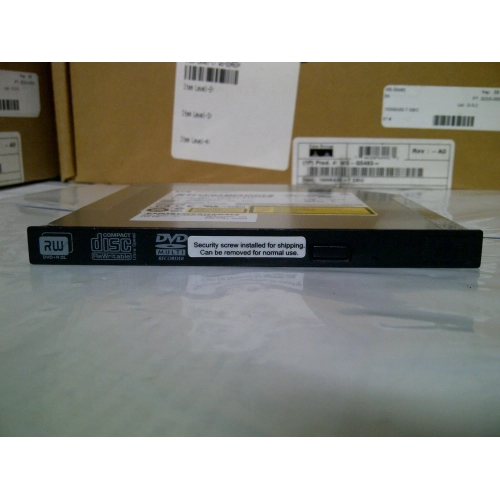

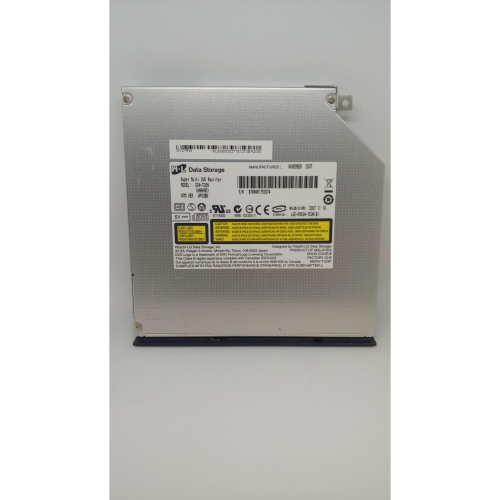
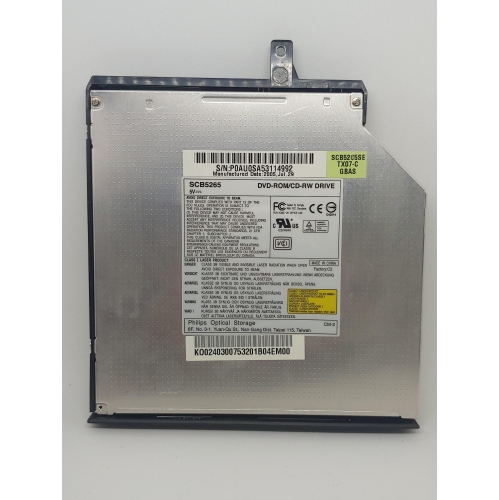
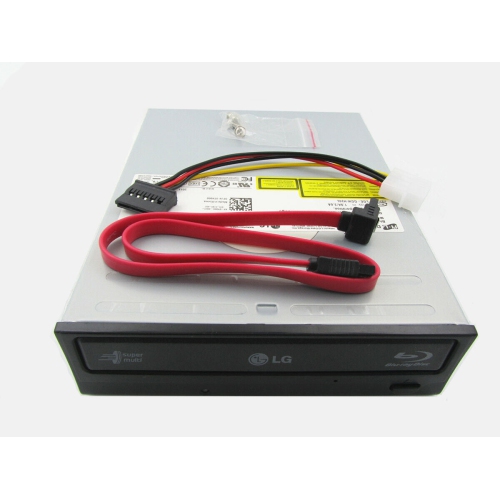
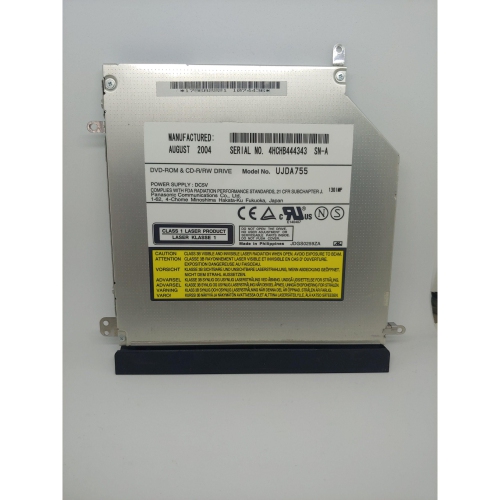
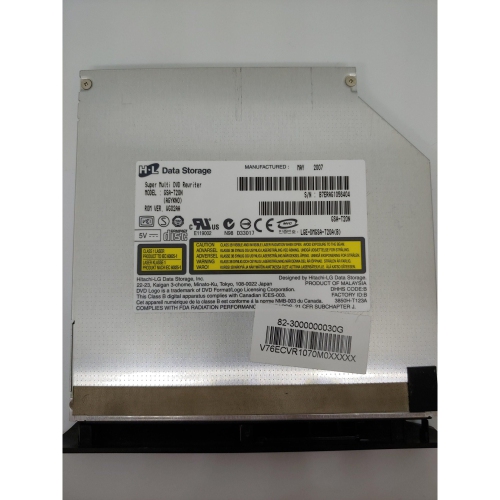
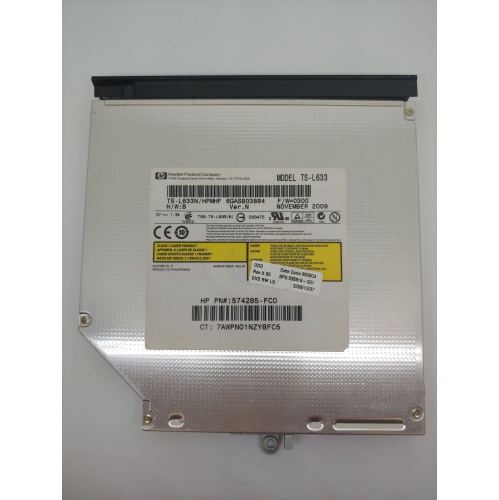
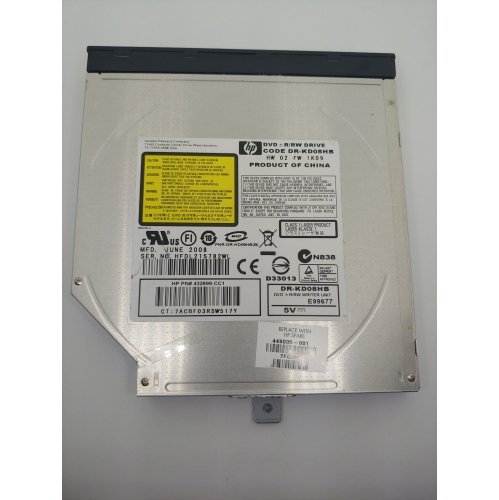
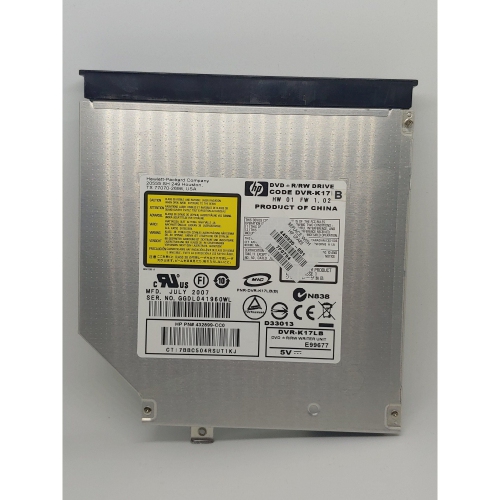
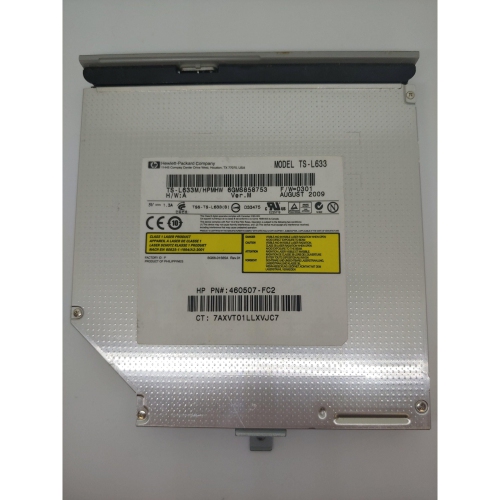
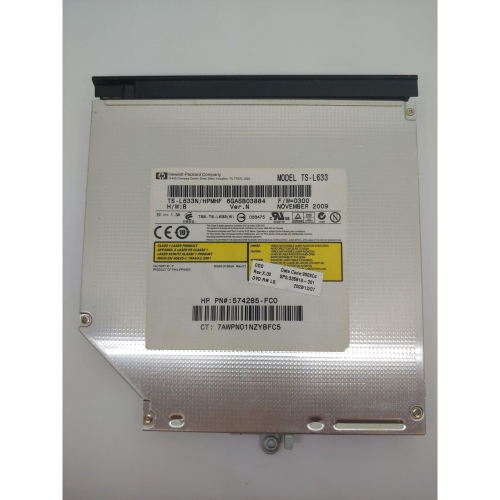
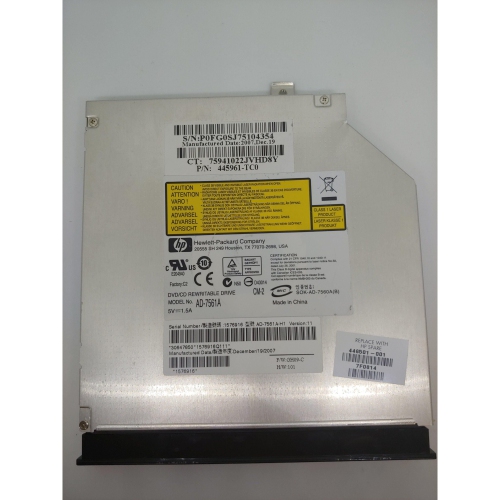
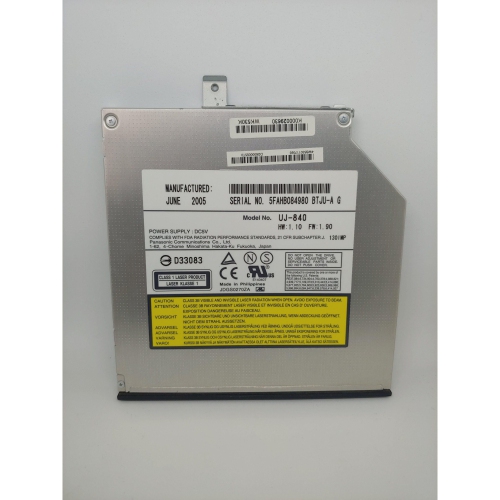
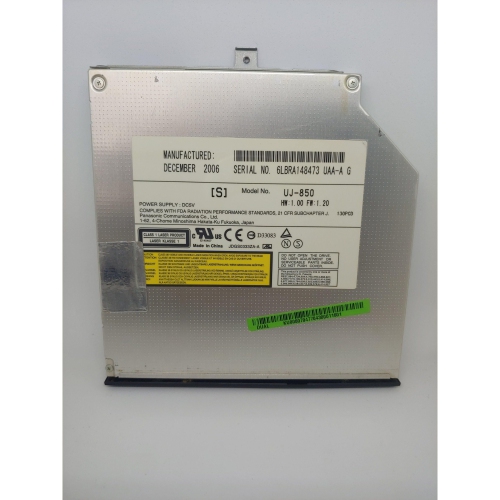
A built-in connection to your physical media collection
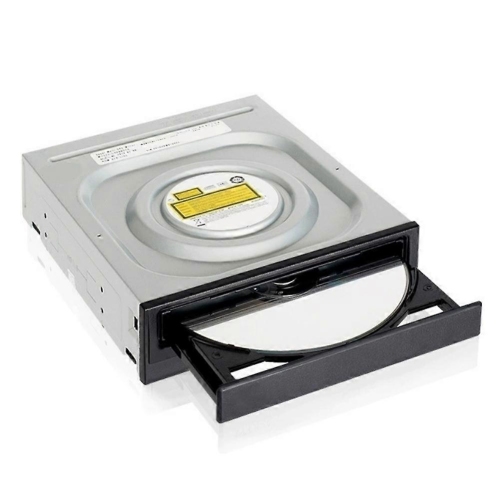
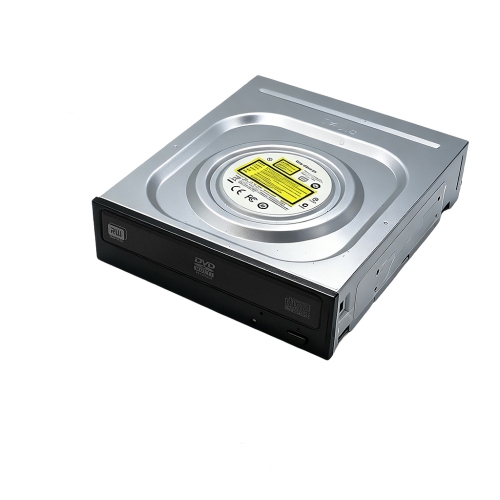
Internal optical drives for desktops are components that mount inside a computer case to read CDs, DVDs, or Blu-ray discs; models with writing capabilities can also save files to compatible blank discs. They provide a practical connection between a desktop computer and a physical media collection, whether that means playing an audio CD, opening photographs saved years ago, installing software from a disc, or creating a recorded copy of a family video. Unlike an external optical drive, an internal model sits within the case, leaving the desk clear of a separate enclosure and its connecting cable. A typical full-size desktop optical drive fits a front-accessible 5.25-inch drive bay and uses a SATA data connection to the motherboard, plus a SATA power connection from the computer’s power supply. Those requirements matter because many desktop cases have no optical drive bay, even when they have plenty of room for other components. The type of disc a drive supports is equally important. A DVD writer generally reads and writes supported CD and DVD formats, but it cannot read Blu-ray discs. A Blu-ray reader can access compatible Blu-ray media, while a Blu-ray writer adds recording support for specified writable Blu-ray formats. Support for CDs and DVDs is common on Blu-ray drives, but the exact combination of reading and writing functions depends on the model. For a household with a shelf of music CDs and occasional DVD use, CD and DVD compatibility may cover the intended tasks. Someone working with larger video files or an existing Blu-ray collection may need broader format support. An internal disc drive can also be a useful addition to a home office or hobby workstation where older records, reference materials, and creative projects still arrive on physical media. Its value comes from making those discs accessible through a compatible desktop rather than replacing the computer’s everyday storage.
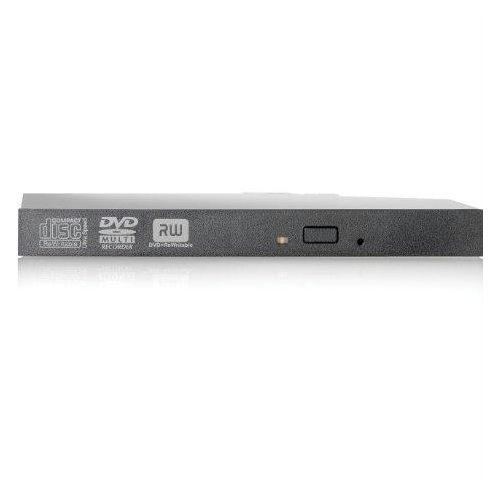
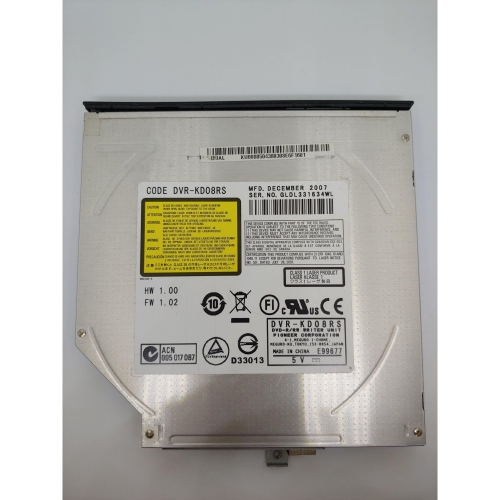
Physical fit involves more than finding an empty space behind the front panel. Standard full-size optical drives need an exposed 5.25-inch bay with suitable mounting points or a compatible tool-free retention system. An internal hard drive bay is not a substitute, since the disc tray needs to open through the front of the case. Drive depth also matters in compact towers: there must be enough clearance behind the housing for connectors and cables without pressing against the motherboard, fans, or other components. Slim optical drives use a different form factor and may have different connectors, so they are not automatically interchangeable with full-size desktop models. A typical drive combines a rigid metal housing with a plastic front bezel and tray. The housing supports the mechanism, while secure mounting helps limit movement and vibration as a disc spins. Bezel colour, tray position, and the placement of the eject button can affect how neatly the drive integrates with the computer’s front panel. Inside the case, a free motherboard SATA port and an available SATA power connector are separate requirements; a data cable alone does not supply power. Cable routing should leave fans unobstructed and allow the tray to operate without catching on a case door or front cover. For installation or replacement, the computer should be shut down and disconnected from power, with handling procedures appropriate for sensitive electronic components. Operating system compatibility deserves attention as well. Basic disc reading may work through built-in support, while disc burning, commercial movie playback, and certain specialist formats may require additional software. Blu-ray movie playback in particular depends on compatible playback software and the rest of the computer setup, not just the drive. Ultra HD Blu-ray playback has further hardware, software, and content-protection requirements, so ordinary Blu-ray support does not establish compatibility with 4K movie discs. Laptop connections are a separate consideration; Optical Drives for MacBook Pro covers a different use case from a drive designed to mount inside a desktop tower.
Everyday performance depends on the task, the disc format, and the condition of the media. Advertised read and write speeds describe capabilities for particular formats rather than a single speed that applies to every disc. Copying a large folder from a DVD, extracting tracks from an audio CD, and writing files to a Blu-ray disc place different demands on the mechanism and software. Higher maximum speed can shorten some transfers, but it may also bring more audible spinning and vibration; for a desktop beside a study area or shared workspace, operating noise can be as relevant as peak speed. Writable media must match the drive’s supported formats. Write-once discs suit finished projects that do not need editing, while rewritable formats allow compatible discs to be erased and used again. Dual-layer and higher-capacity formats require explicit support, and a drive’s ability to read a format does not necessarily mean it can write it. Someone preparing a photo collection for relatives may also need to consider the recipient’s equipment: a disc containing image files is not the same as a video disc authored for a standalone player. For important documents and personal recordings, verifying a completed burn helps confirm that the files can be read, and retaining another copy on separate storage avoids relying on one disc. Long-term readability depends on media quality, storage conditions, handling, and continued access to suitable hardware. Care is straightforward but worthwhile. Hold discs by their edges or centre opening, return them to protective cases, and remove loose dust or fingerprints with a suitable soft cloth, wiping from the centre outwards. Cracked or visibly damaged discs should not be spun in the drive. Keep the tray closed when it is not in use, avoid forcing it by hand, and follow the manufacturer’s cleaning guidance rather than opening the optical mechanism. These habits help protect both the media and the moving parts, keeping an internal optical drive useful for occasional file retrieval as well as regular reading and recording.
Physical fit involves more than finding an empty space behind the front panel. Standard full-size optical drives need an exposed 5.25-inch bay with suitable mounting points or a compatible tool-free retention system. An internal hard drive bay is not a substitute, since the disc tray needs to open through the front of the case. Drive depth also matters in compact towers: there must be enough clearance behind the housing for connectors and cables without pressing against the motherboard, fans, or other components. Slim optical drives use a different form factor and may have different connectors, so they are not automatically interchangeable with full-size desktop models. A typical drive combines a rigid metal housing with a plastic front bezel and tray. The housing supports the mechanism, while secure mounting helps limit movement and vibration as a disc spins. Bezel colour, tray position, and the placement of the eject button can affect how neatly the drive integrates with the computer’s front panel. Inside the case, a free motherboard SATA port and an available SATA power connector are separate requirements; a data cable alone does not supply power. Cable routing should leave fans unobstructed and allow the tray to operate without catching on a case door or front cover. For installation or replacement, the computer should be shut down and disconnected from power, with handling procedures appropriate for sensitive electronic components. Operating system compatibility deserves attention as well. Basic disc reading may work through built-in support, while disc burning, commercial movie playback, and certain specialist formats may require additional software. Blu-ray movie playback in particular depends on compatible playback software and the rest of the computer setup, not just the drive. Ultra HD Blu-ray playback has further hardware, software, and content-protection requirements, so ordinary Blu-ray support does not establish compatibility with 4K movie discs. Laptop connections are a separate consideration; Optical Drives for MacBook Pro covers a different use case from a drive designed to mount inside a desktop tower.
Everyday performance depends on the task, the disc format, and the condition of the media. Advertised read and write speeds describe capabilities for particular formats rather than a single speed that applies to every disc. Copying a large folder from a DVD, extracting tracks from an audio CD, and writing files to a Blu-ray disc place different demands on the mechanism and software. Higher maximum speed can shorten some transfers, but it may also bring more audible spinning and vibration; for a desktop beside a study area or shared workspace, operating noise can be as relevant as peak speed. Writable media must match the drive’s supported formats. Write-once discs suit finished projects that do not need editing, while rewritable formats allow compatible discs to be erased and used again. Dual-layer and higher-capacity formats require explicit support, and a drive’s ability to read a format does not necessarily mean it can write it. Someone preparing a photo collection for relatives may also need to consider the recipient’s equipment: a disc containing image files is not the same as a video disc authored for a standalone player. For important documents and personal recordings, verifying a completed burn helps confirm that the files can be read, and retaining another copy on separate storage avoids relying on one disc. Long-term readability depends on media quality, storage conditions, handling, and continued access to suitable hardware. Care is straightforward but worthwhile. Hold discs by their edges or centre opening, return them to protective cases, and remove loose dust or fingerprints with a suitable soft cloth, wiping from the centre outwards. Cracked or visibly damaged discs should not be spun in the drive. Keep the tray closed when it is not in use, avoid forcing it by hand, and follow the manufacturer’s cleaning guidance rather than opening the optical mechanism. These habits help protect both the media and the moving parts, keeping an internal optical drive useful for occasional file retrieval as well as regular reading and recording.
Top selling and popular products
-
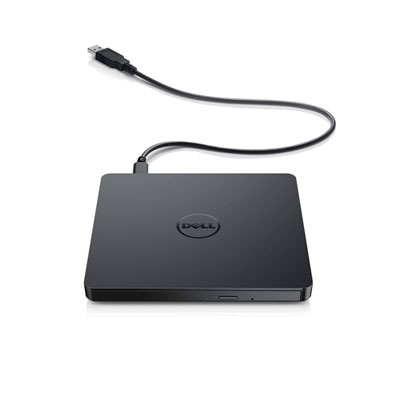 Your price for this item is $49.99
 -
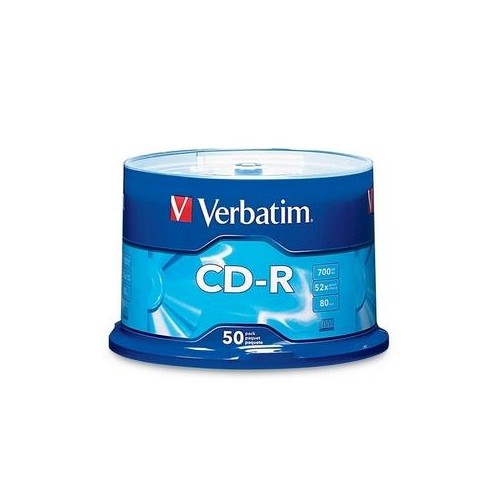 Your price for this item is $47.68
 -
 Your price for this item is $89
 -
 Your price for this item is $60.68
 -
 Your price for this item is $65
 -
 Your price for this item is $53
 -
 Your price for this item is $80.68
 -
 Your price for this item is $69.97
Discover more categories related to Internal Optical Drives for Desktops
Top Collections:
Pokemon Centers, Best Cameras for Sports Photography, Kindle Devices, Samsung Galaxy Phones, Canon G7X Cameras, Pokémon 30th Celebration Cards, Refurbished Apple Laptops, iPhone 15 Apple, Laptops for Students, Budget Smartphones
Some products may be subject to Environmental Handling Fees
(EHF) depending on your province.
Learn more about EHFs.