MacBook Flash Drives
A flash drive is a portable storage device that plugs into the USB port of your computer. It can be used to transfer files between sources, back up data, and carry your work with you. Here are some great options for flash drives for your MacBook.
Sort
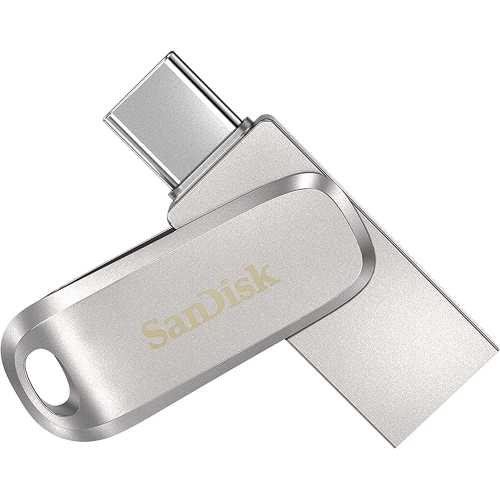
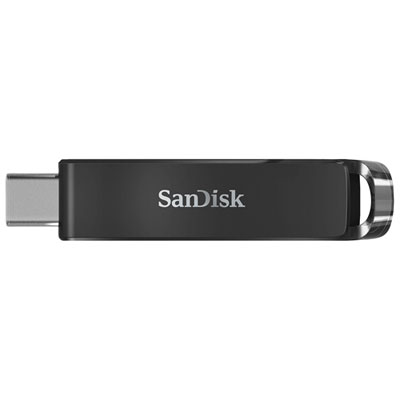
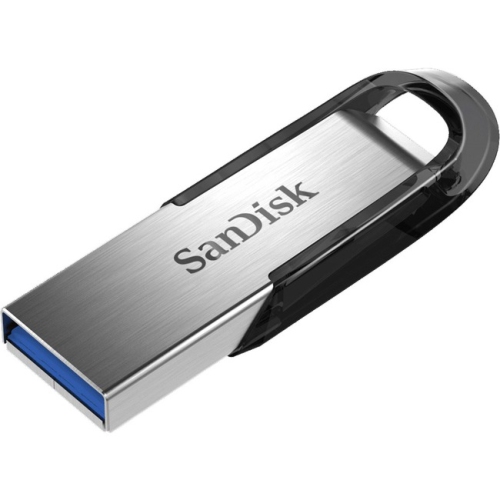
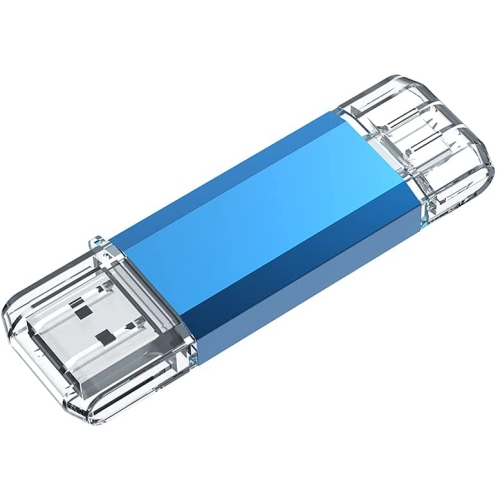
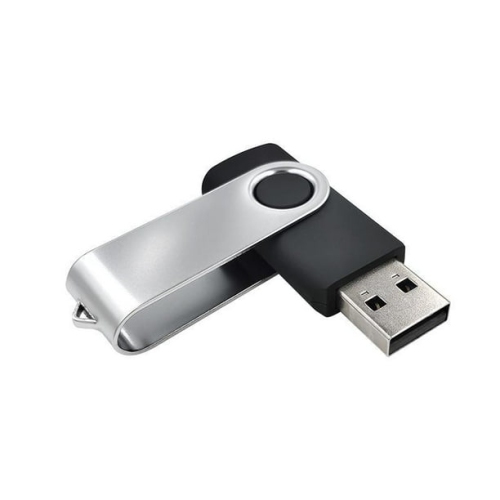
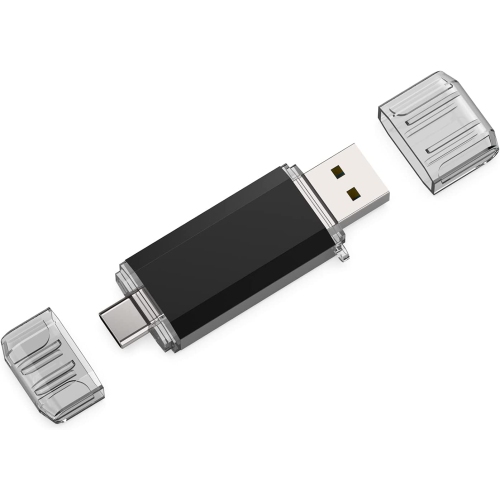
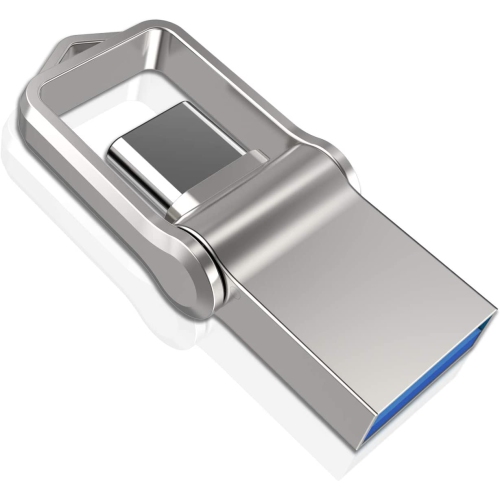
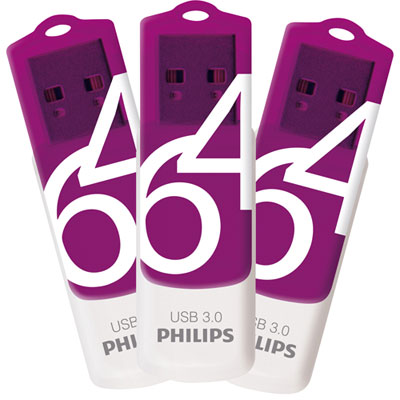
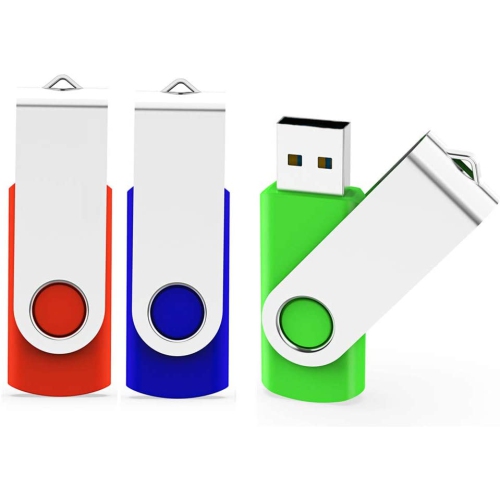
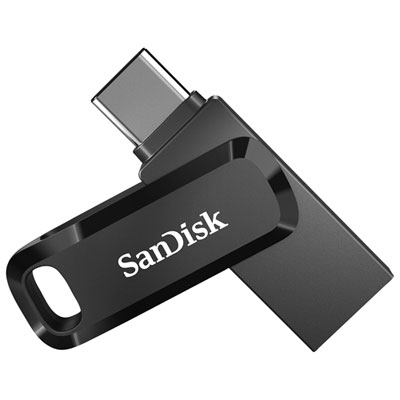
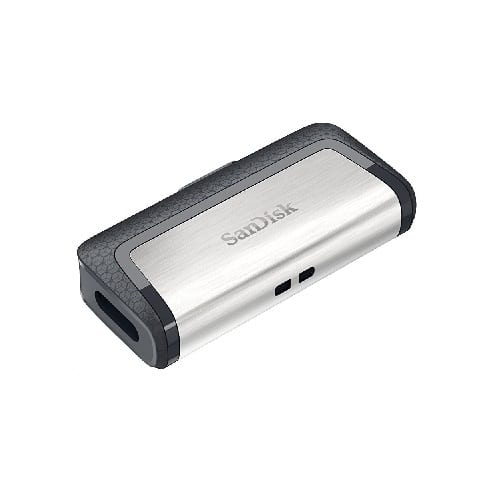
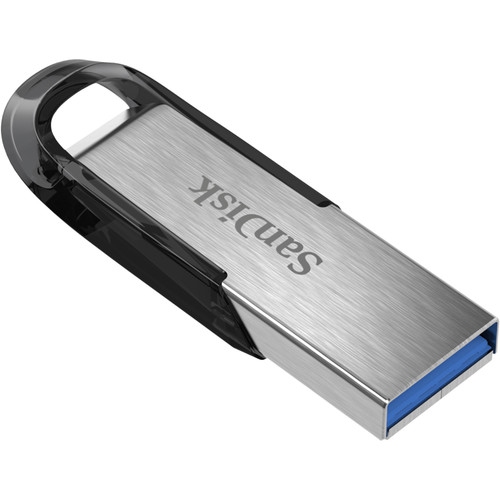
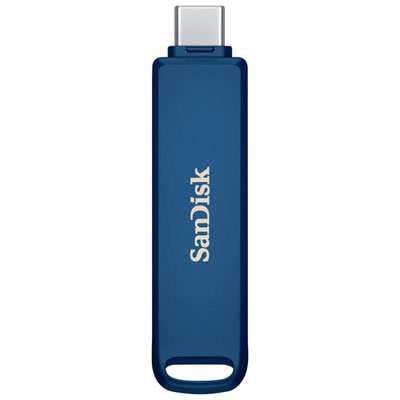
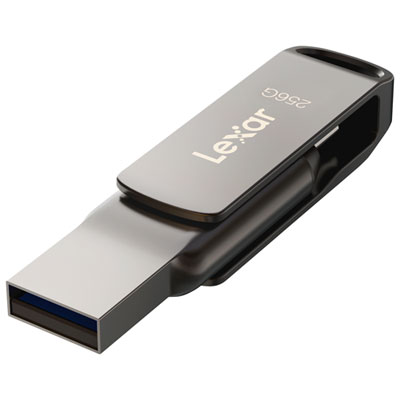
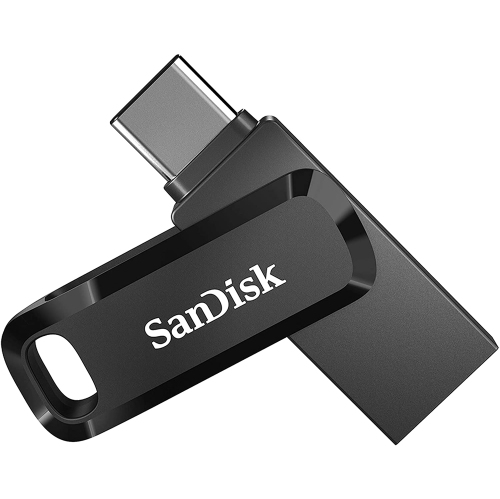
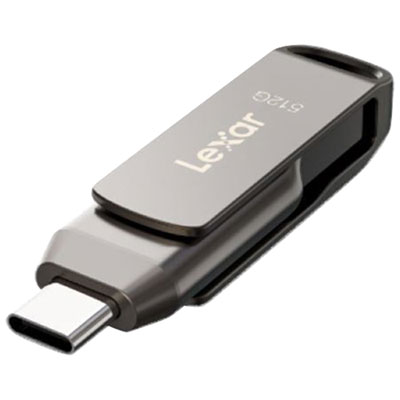
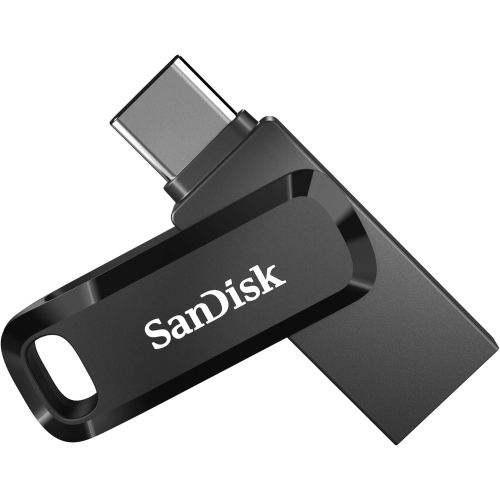

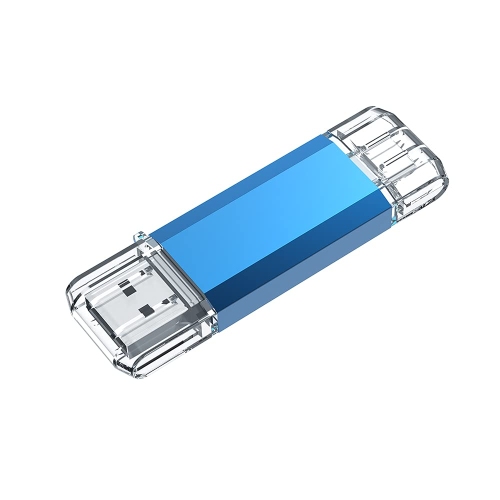
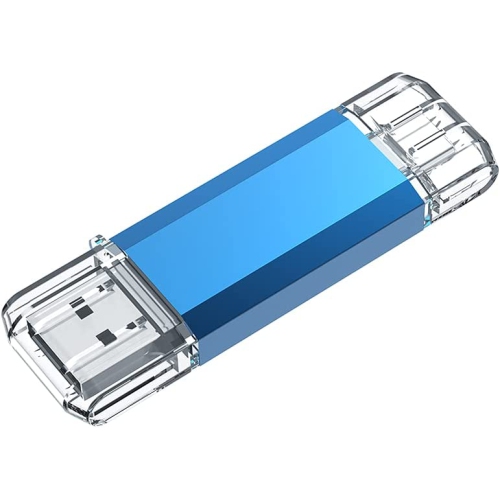
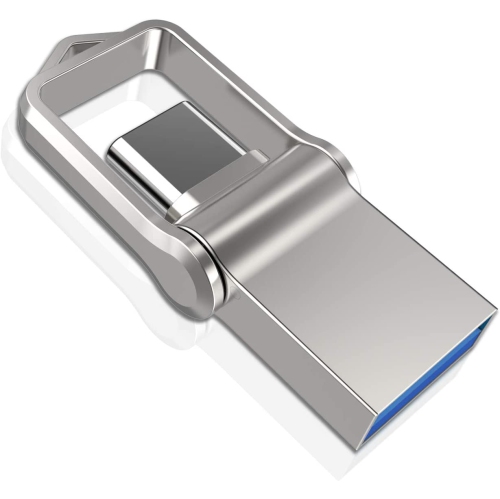
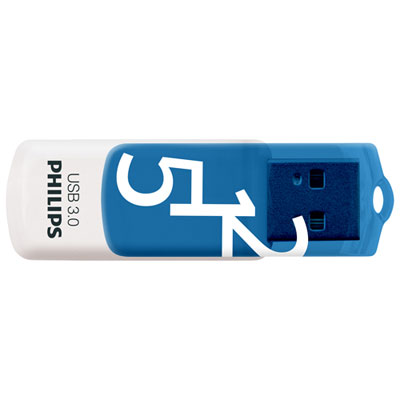
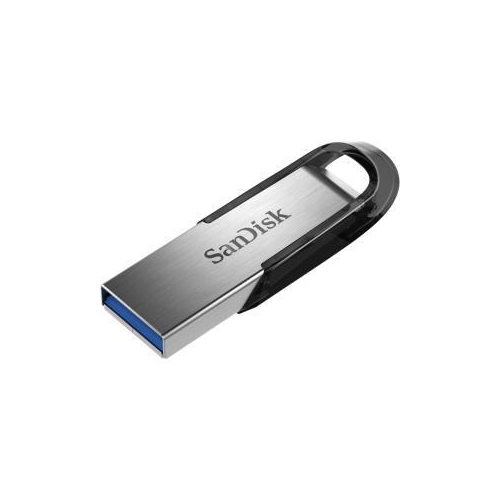
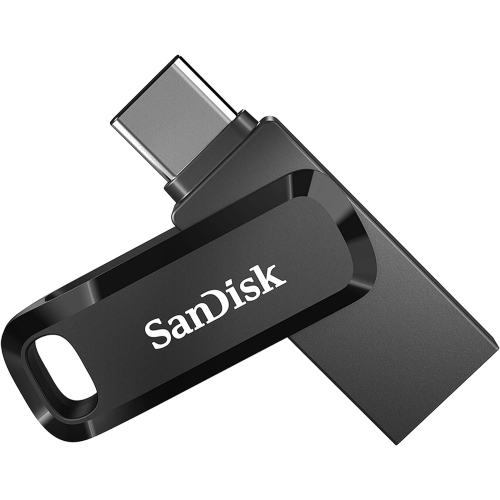
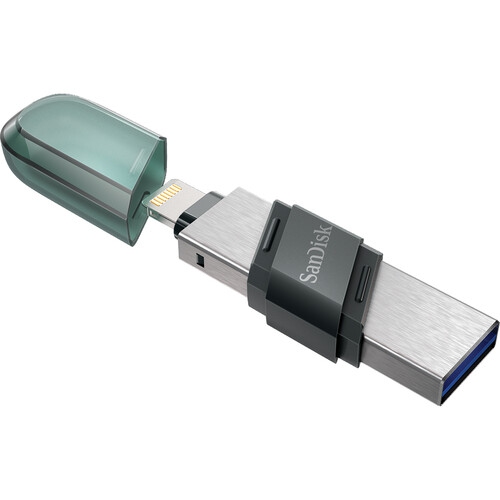
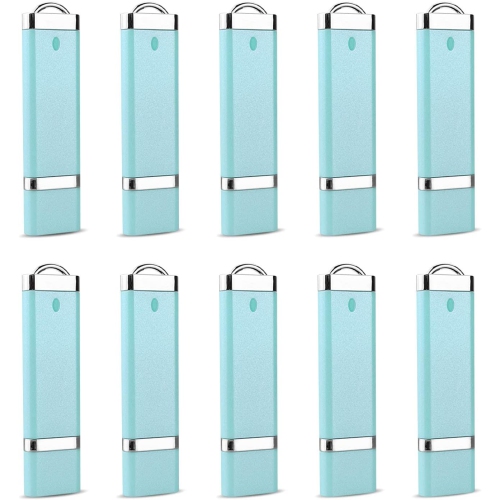
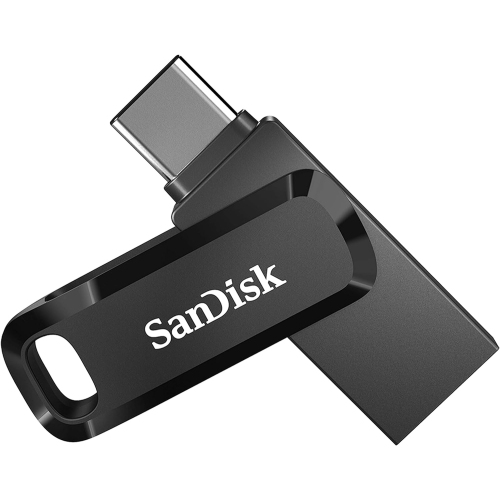
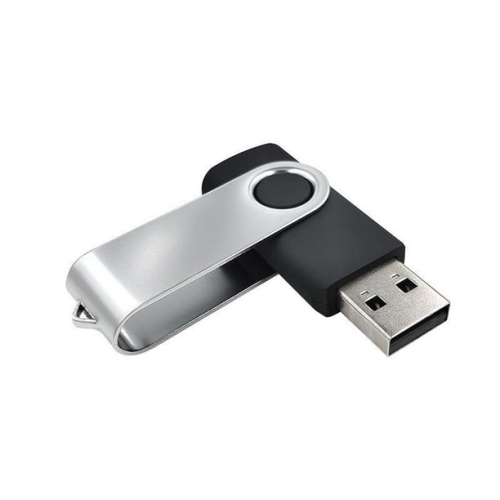

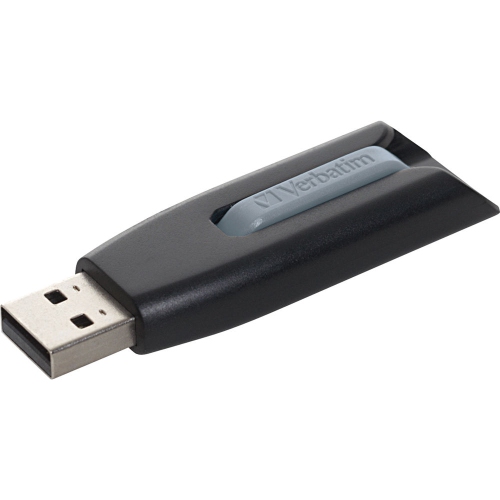
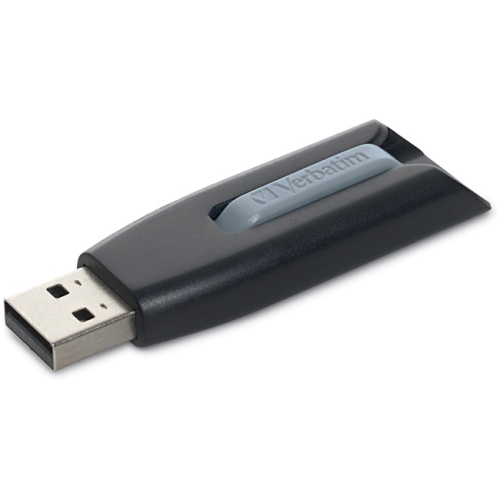
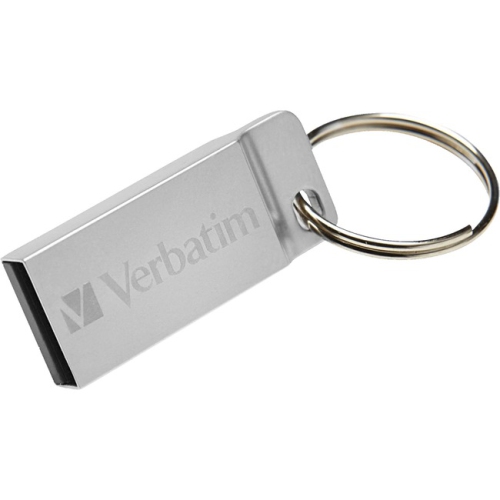
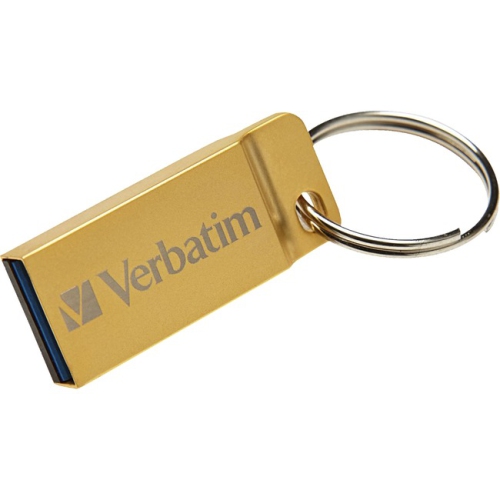
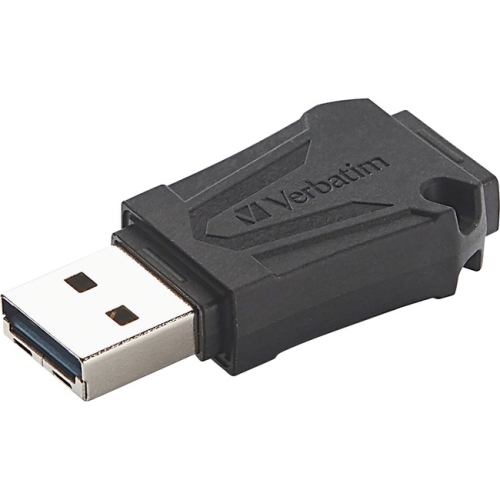
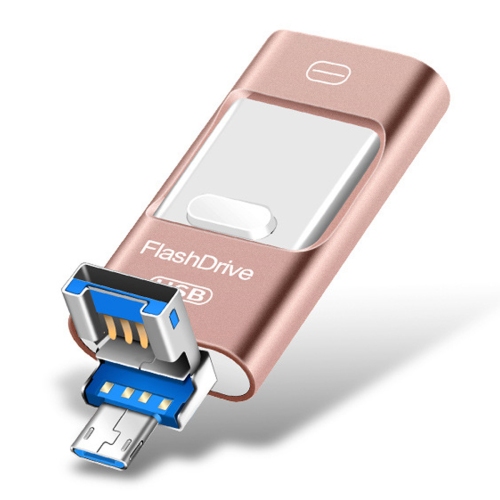
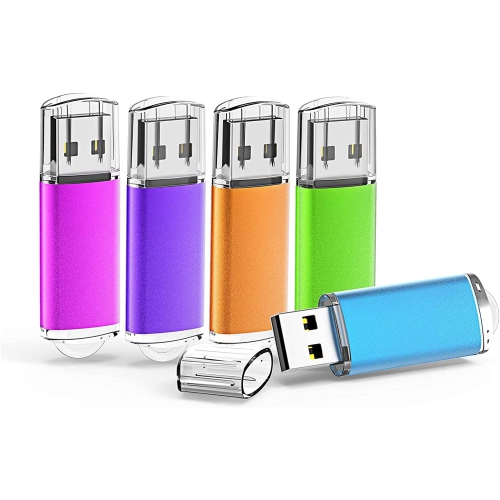
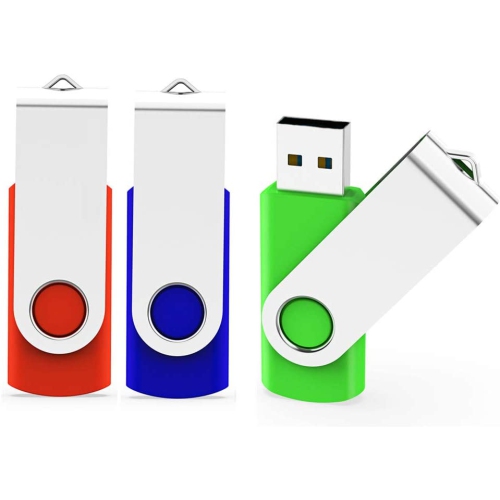
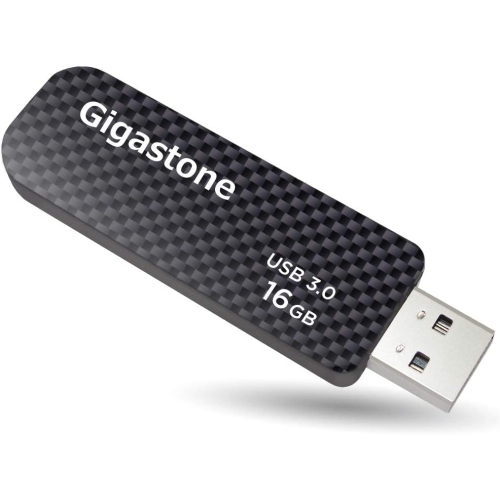
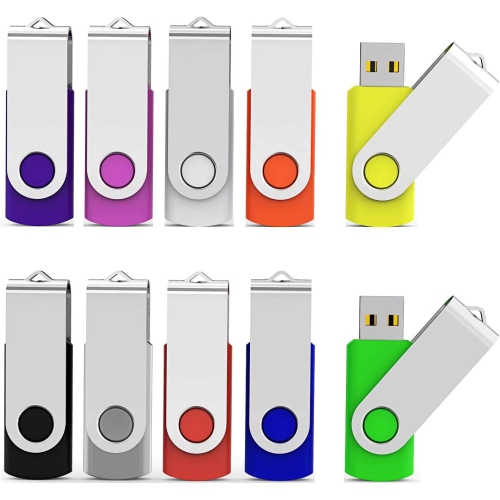
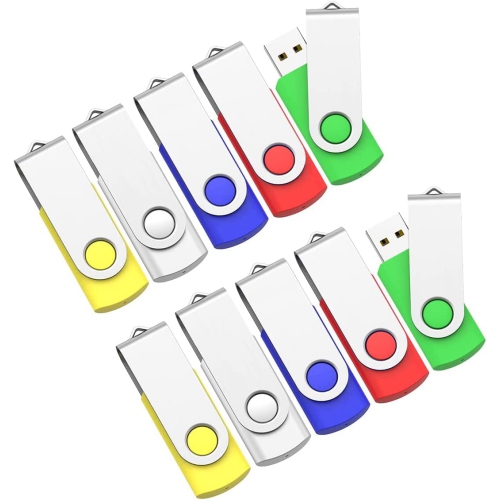
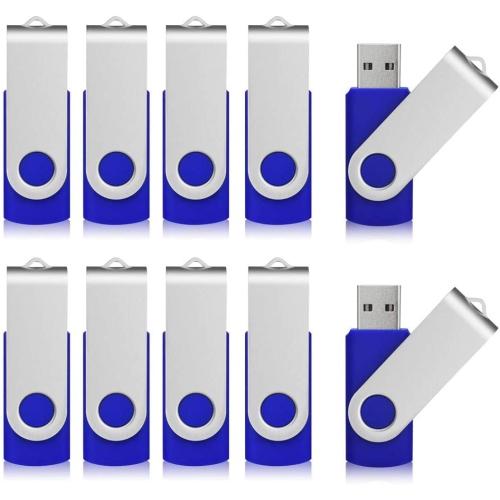
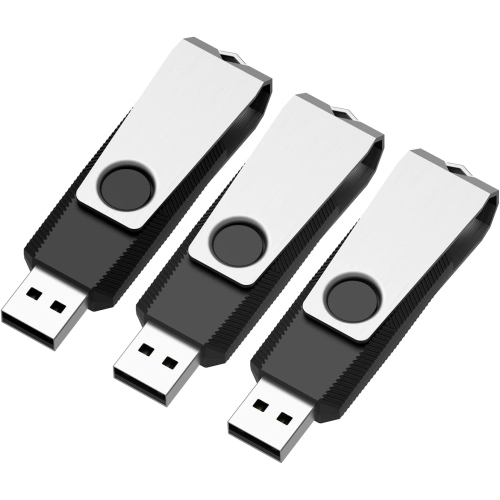
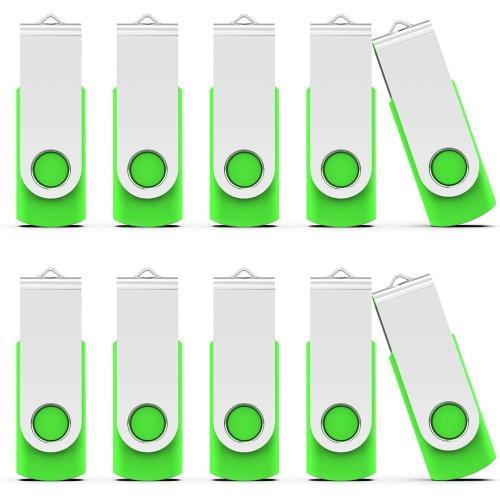
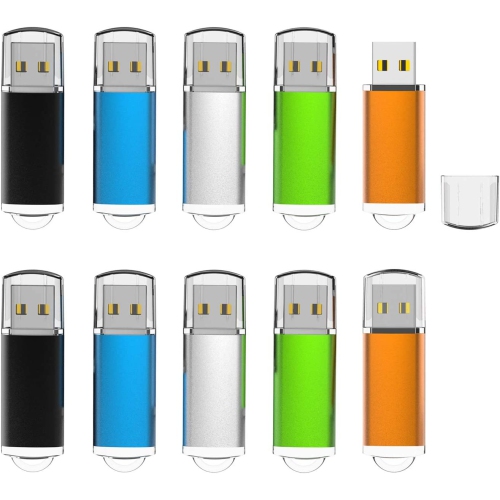
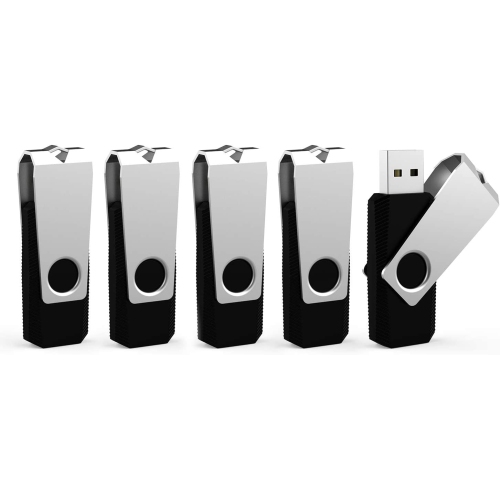
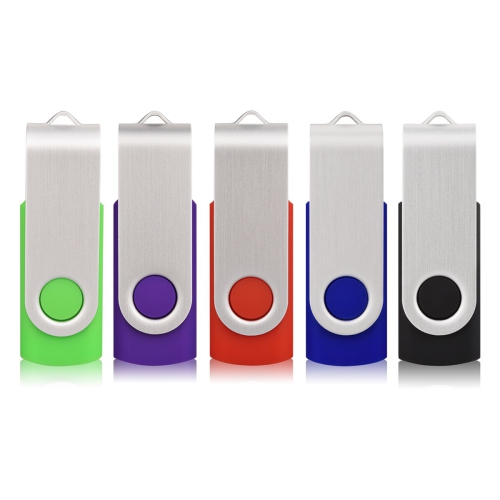
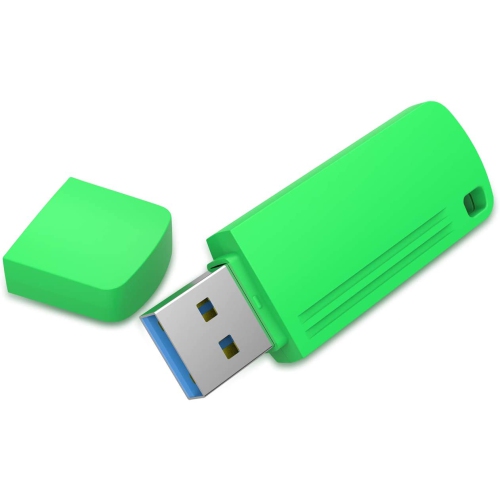
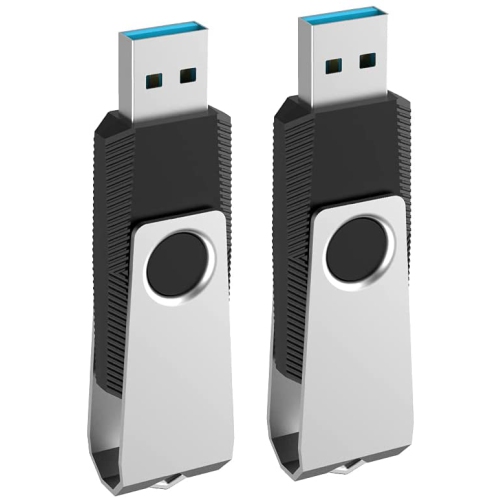
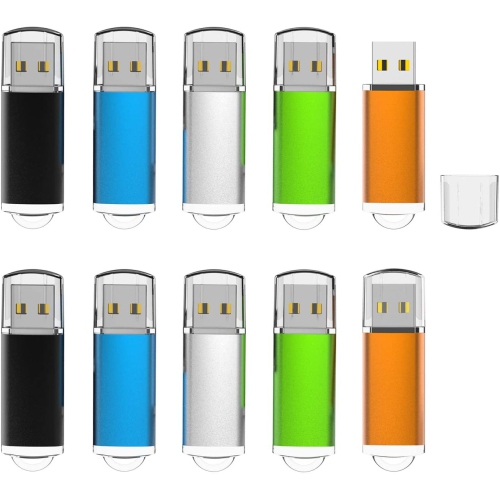
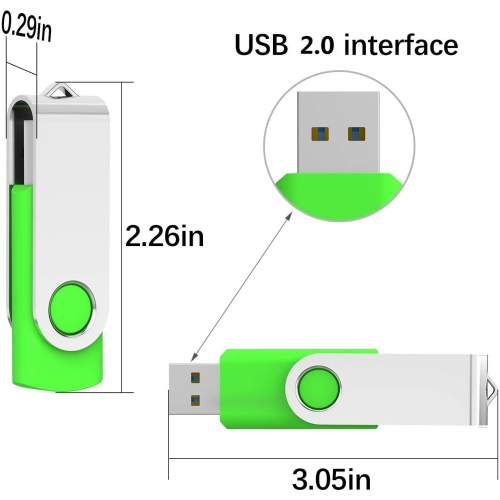
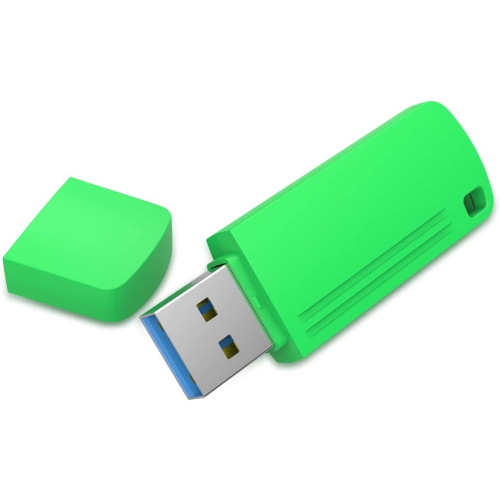
Practical storage for transfers, backups, and everyday MacBook use
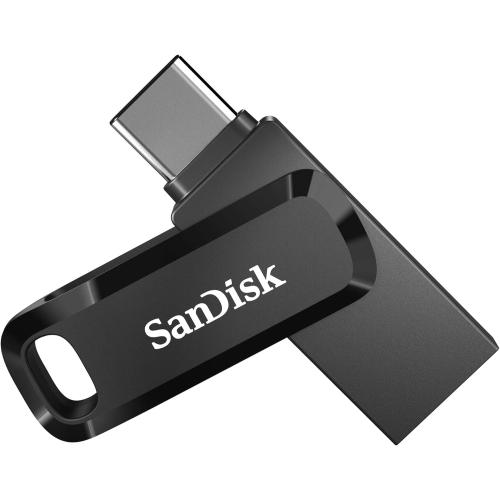
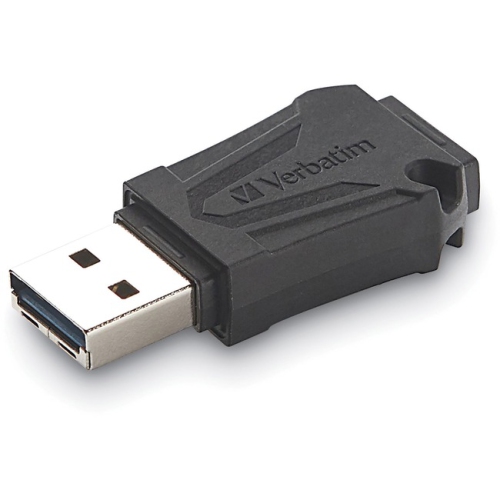
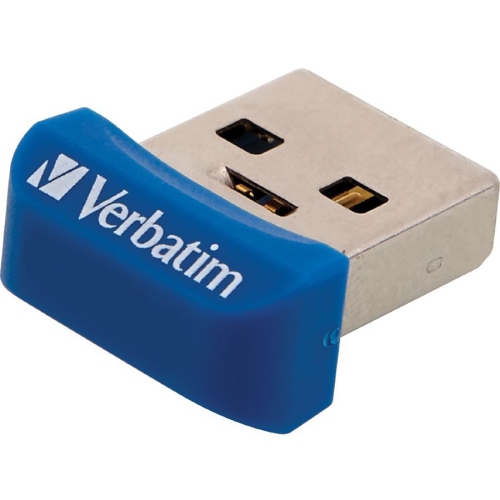
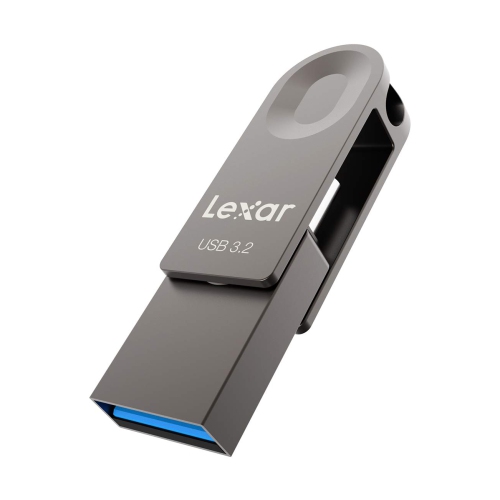
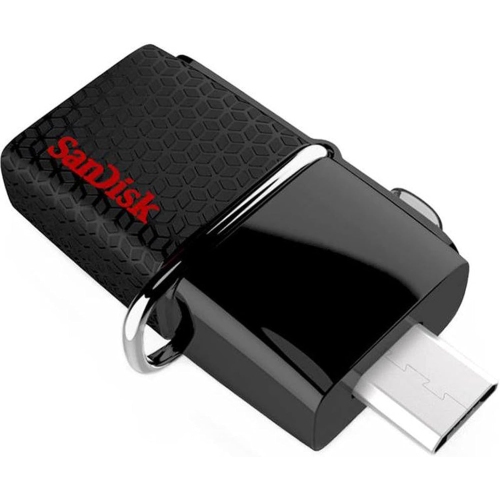
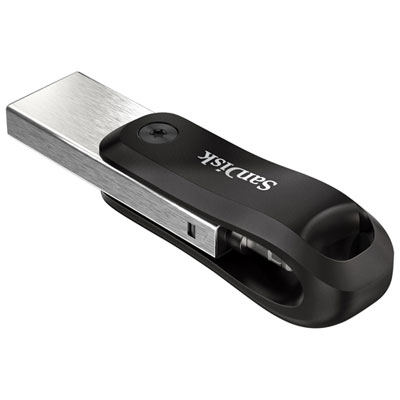
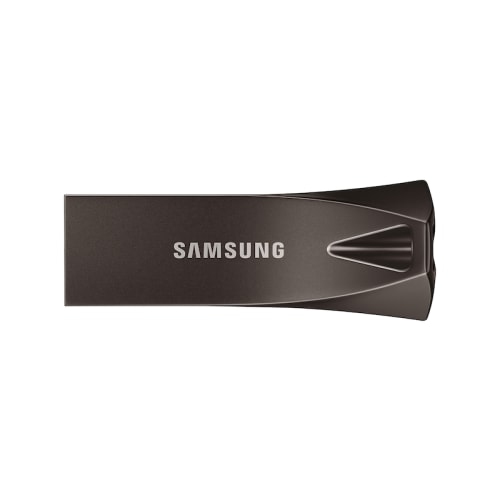
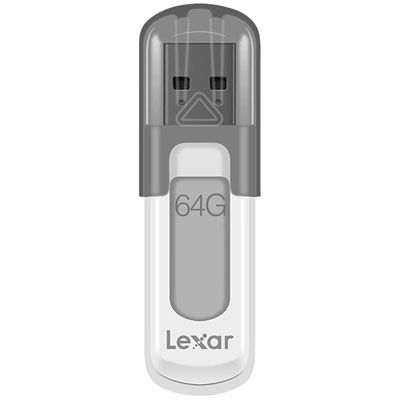
MacBook flash drives provide a simple way to move, store, and carry files without relying entirely on cloud storage or an internet connection. They can be useful for backing up family photos, transferring school assignments, carrying work presentations, saving video projects, or keeping important documents close at hand while travelling. When choosing a drive, start by checking which port your MacBook uses. Many newer MacBook models rely on USB-C or Thunderbolt ports, so a flash drive with a USB-C connector can plug in directly without an additional accessory. Older MacBook models and many other computers may use USB-A ports, making a dual-connector drive or a USB-C to USB-A adapter a practical choice for moving files between devices. A compact design is convenient for a laptop bag, desk drawer, or travel pouch, although a very small drive should be handled carefully so it is not misplaced. For a broader selection of compatible storage options, browse Flash Drives for Mac. Capacity is another important consideration. A smaller drive may be suitable for documents, presentations, spreadsheets, and a modest collection of photos, while a larger capacity is more useful for high-resolution images, music libraries, lengthy videos, design files, or regular backups. It can help to think about how the drive will be used over time rather than choosing based only on the amount of free space needed today. A student sharing coursework may be comfortable with a compact capacity, whereas a photographer, creator, or small business owner may appreciate additional room for large folders and project files. Transfer speed also affects the experience. USB 3.2 and other high-speed connections can reduce the time needed to copy large files, though actual performance depends on the drive, the MacBook port, and the files being transferred. Many small documents may move quickly on almost any modern drive, while raw photos, video footage, and complete folders can take longer. A sturdy casing, a protective cap or sliding connector, and a shape that does not block neighbouring ports can also make a difference during everyday use.
Using a flash drive with a MacBook is generally straightforward. Plug the compatible connector into the computer, open Finder, and look under “Locations” in the sidebar for the drive’s name. If it does not appear, Finder settings can be checked to make sure external disks are shown in the sidebar or on the desktop. Files can then be copied by dragging them to or from the drive window, or by using the usual copy-and-paste commands. Before unplugging the drive, select the eject icon beside its name in Finder or right-click the drive and choose “Eject.” Waiting for the confirmation helps prevent incomplete transfers and reduces the chance of file errors, particularly after moving large folders. File format is worth considering when a drive will be used with more than one type of computer. ExFAT is commonly chosen for sharing files between macOS and Windows, while APFS is designed for Apple systems and can be appropriate when the drive will stay within a Mac-focused setup. A drive may need to be erased and reformatted through Disk Utility before use, so important files should always be copied somewhere safe first. Formatting removes the existing contents, and certain formats may not be readable on every device. MacBook flash drives can make thoughtful gifts for students heading into a new school term, relatives organizing years of photographs, remote workers who move between home and the office, or anyone who prefers having a physical copy of essential files. They are also handy during the cooler months, when travel plans, gatherings, and indoor projects can create more photos and larger collections of files to organize. For everyday confidence, label the drive clearly, keep a second copy of irreplaceable files in another location, and avoid treating a flash drive as the only backup. With the right connector, enough capacity, suitable transfer speed, and a format that matches the devices in use, a flash drive can become a quiet but valuable part of a MacBook setup.
Using a flash drive with a MacBook is generally straightforward. Plug the compatible connector into the computer, open Finder, and look under “Locations” in the sidebar for the drive’s name. If it does not appear, Finder settings can be checked to make sure external disks are shown in the sidebar or on the desktop. Files can then be copied by dragging them to or from the drive window, or by using the usual copy-and-paste commands. Before unplugging the drive, select the eject icon beside its name in Finder or right-click the drive and choose “Eject.” Waiting for the confirmation helps prevent incomplete transfers and reduces the chance of file errors, particularly after moving large folders. File format is worth considering when a drive will be used with more than one type of computer. ExFAT is commonly chosen for sharing files between macOS and Windows, while APFS is designed for Apple systems and can be appropriate when the drive will stay within a Mac-focused setup. A drive may need to be erased and reformatted through Disk Utility before use, so important files should always be copied somewhere safe first. Formatting removes the existing contents, and certain formats may not be readable on every device. MacBook flash drives can make thoughtful gifts for students heading into a new school term, relatives organizing years of photographs, remote workers who move between home and the office, or anyone who prefers having a physical copy of essential files. They are also handy during the cooler months, when travel plans, gatherings, and indoor projects can create more photos and larger collections of files to organize. For everyday confidence, label the drive clearly, keep a second copy of irreplaceable files in another location, and avoid treating a flash drive as the only backup. With the right connector, enough capacity, suitable transfer speed, and a format that matches the devices in use, a flash drive can become a quiet but valuable part of a MacBook setup.
Top selling and popular products
-
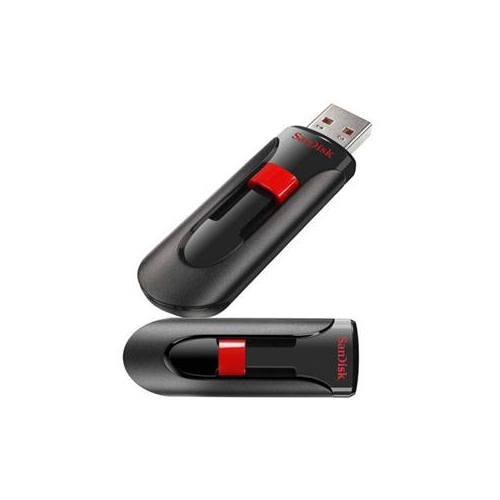 Your price for this item is $44.95
 -
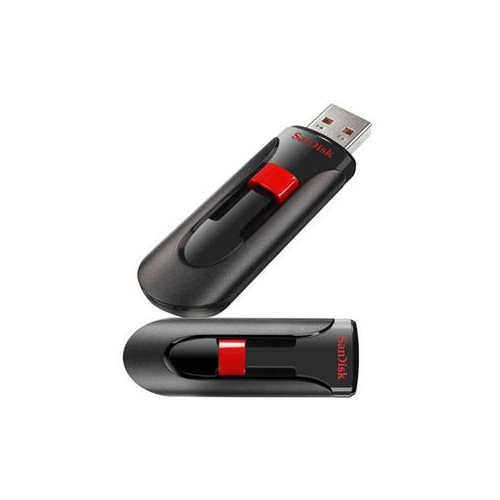 Your price for this item is $69.95
 -
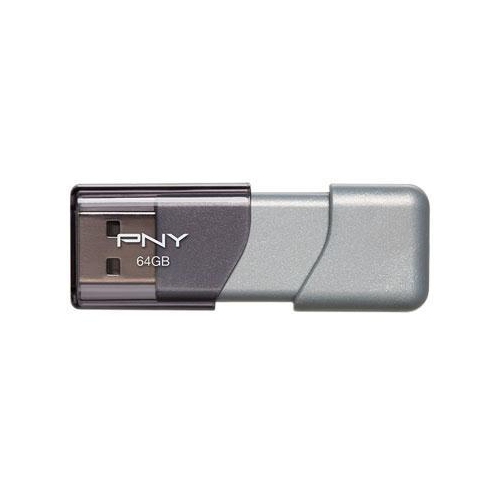 Your price for this item is $59.68
 -
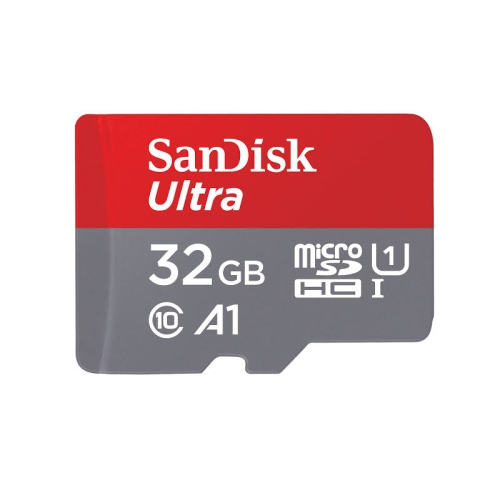 Your price for this item is $38.45
 -
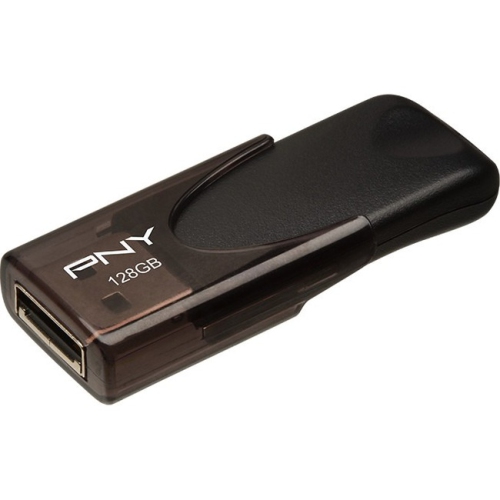 Your price for this item is $35.68
 -
 Your price for this item is $29.95
 -
 Your price for this item is $169.99
 -
 Your price for this item is $132.99
Discover more categories related to MacBook Flash Drives

Top Collections:
Pokemon Centers, Kindle Devices, Best Budget Office Chairs, Apple iPhones 16, Best Laptops for Writers, iPhone 15 Apple, Canon G7X Cameras, Refurbished Apple Laptops, Alarm Clock, Motorola Razr Phones
Some products may be subject to Environmental Handling Fees
(EHF) depending on your province.
Learn more about EHFs.