Memory Modules
Upgrade your computer's performance with our selection of memory modules designed to enhance speed and efficiency. Whether you're a gamer looking to boost your system's capabilities or a professional in need of seamless multitasking, these memory modules offer increased RAM capacity and faster data processing. Explore our range of options to find the perfect fit for your device and take your computing experience to the next level.
Sort
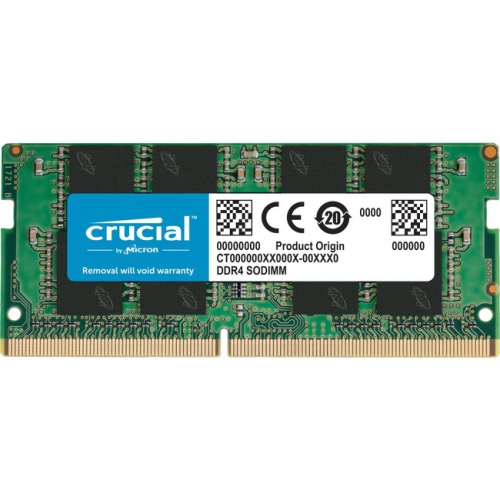
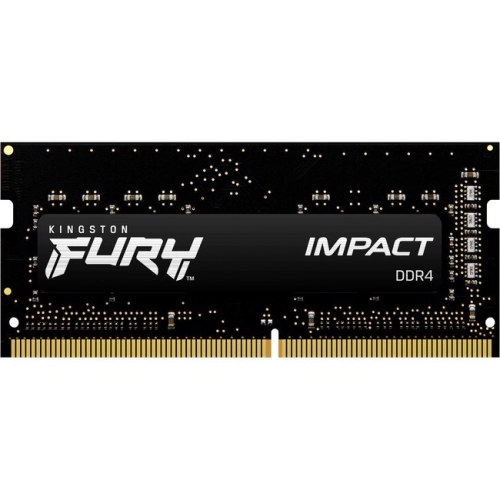
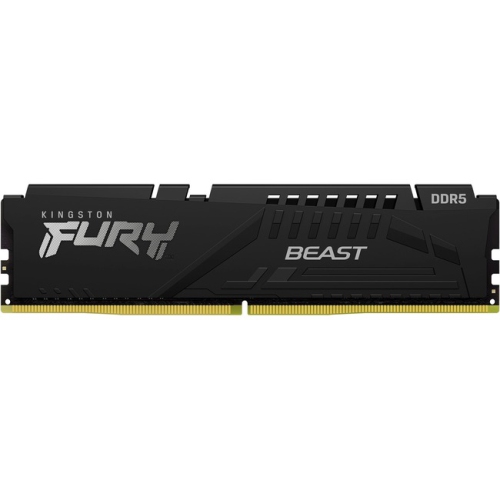
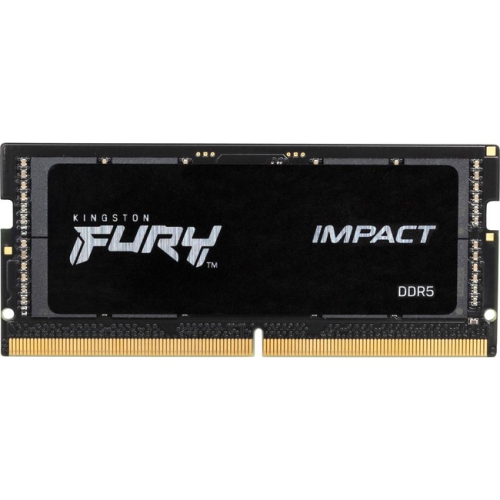
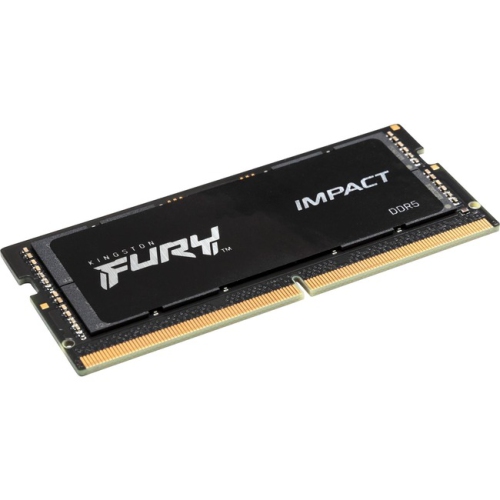
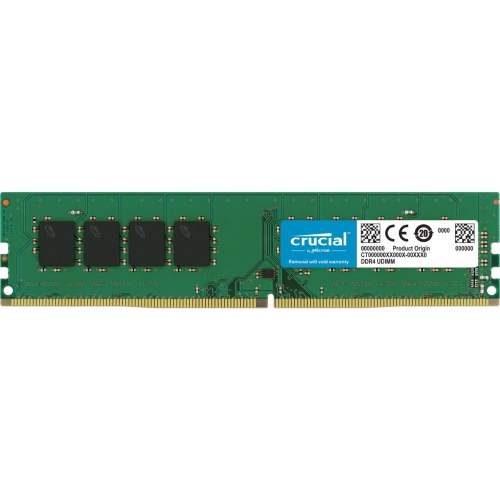
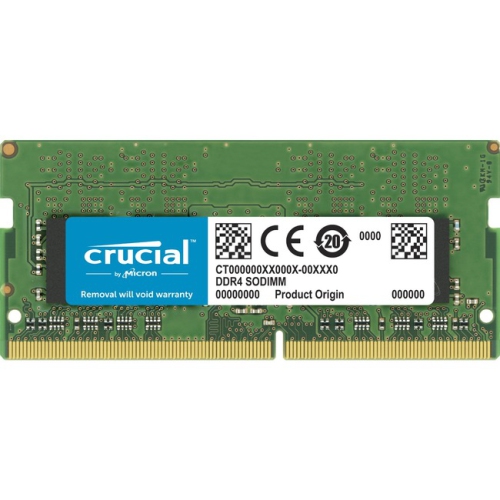
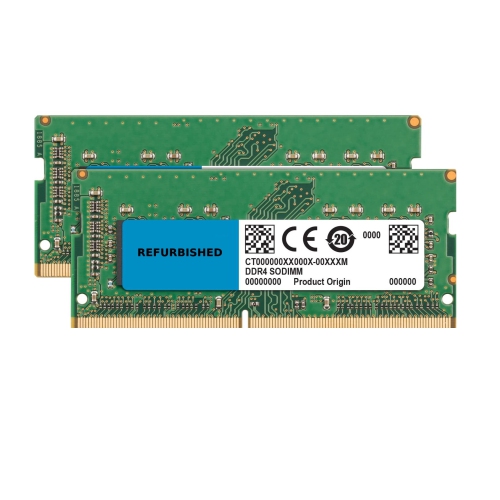
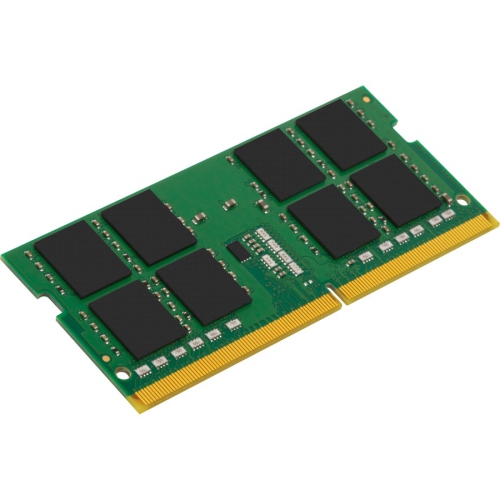
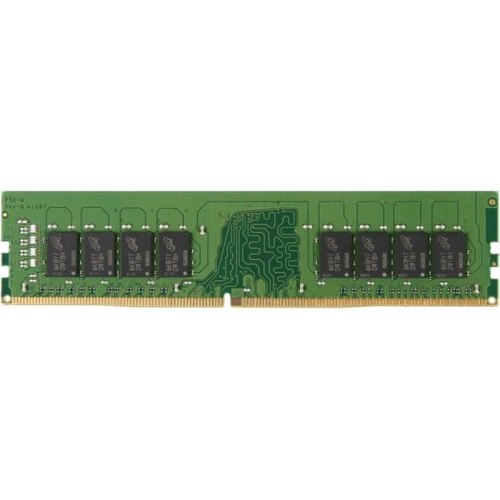
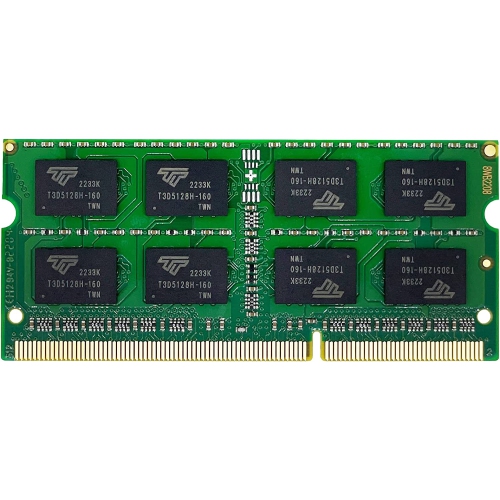
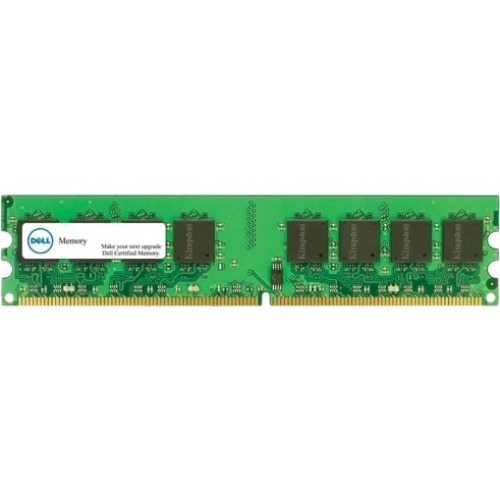
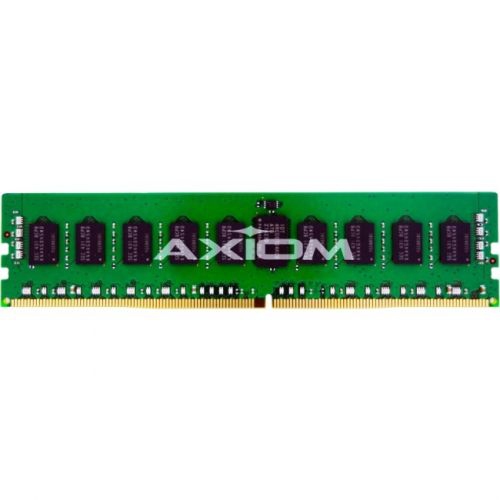
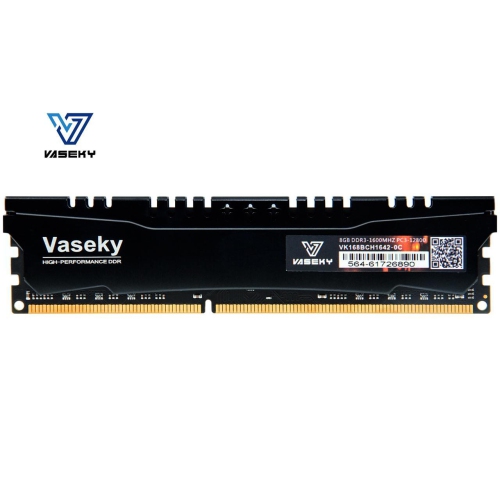
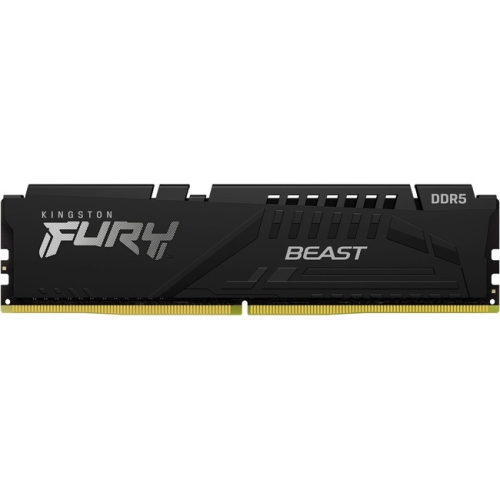
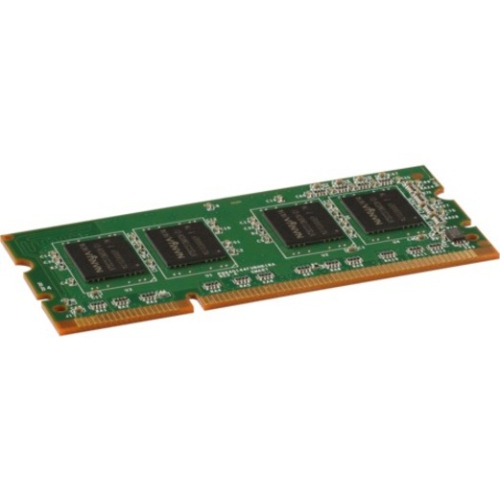
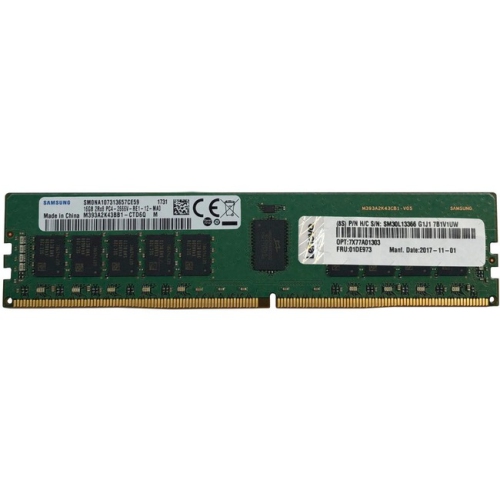
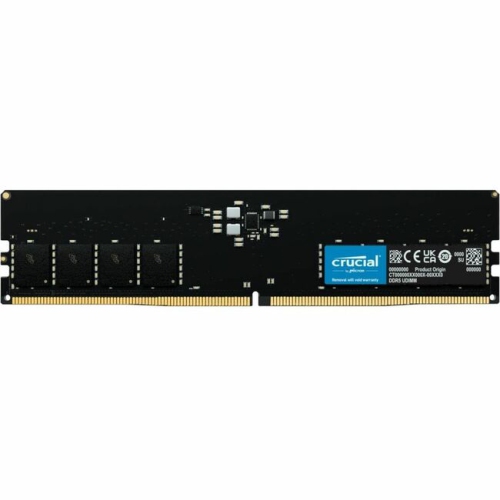

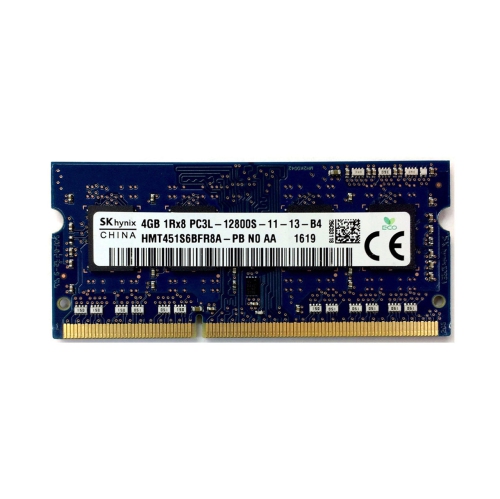
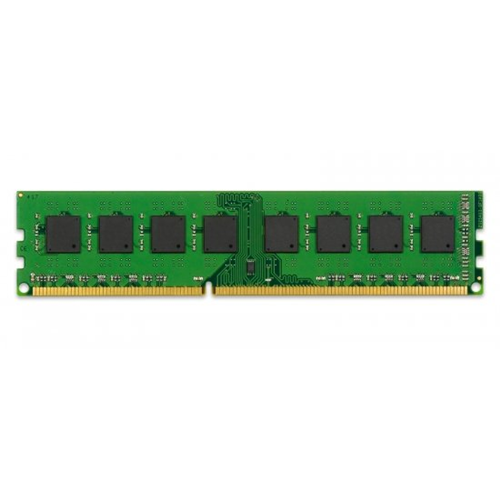
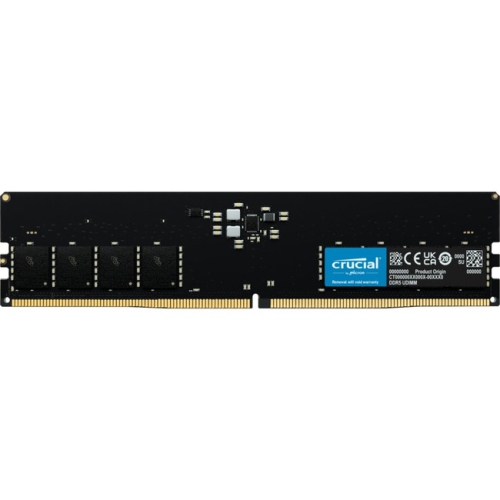
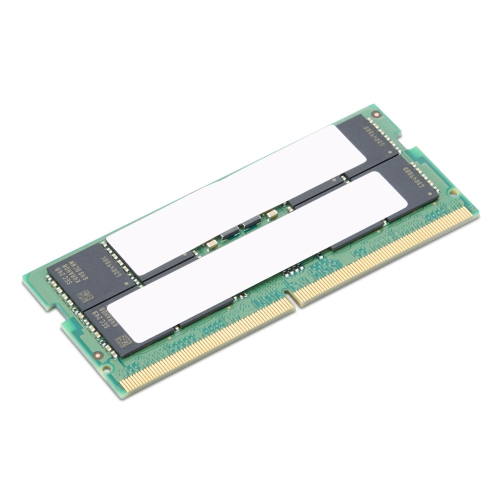
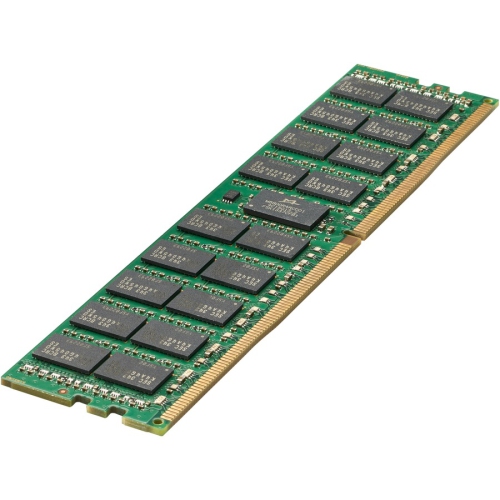
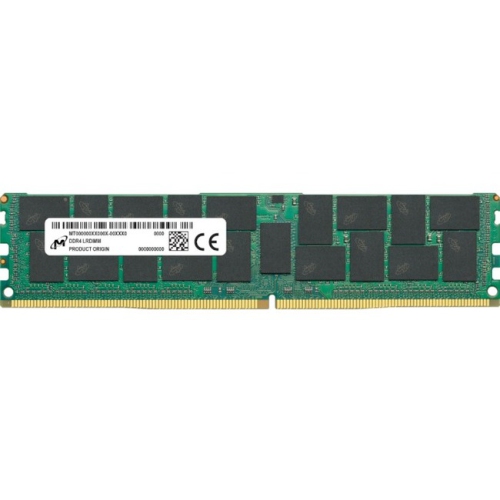


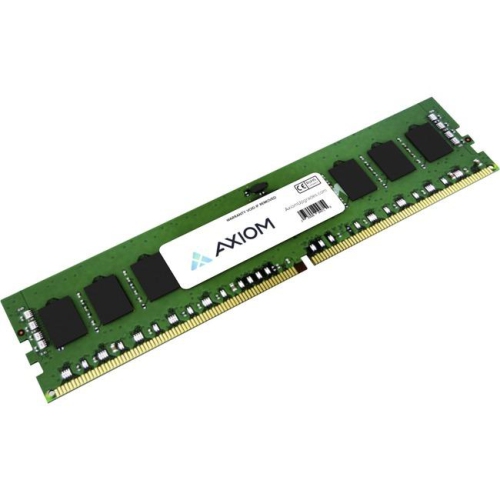
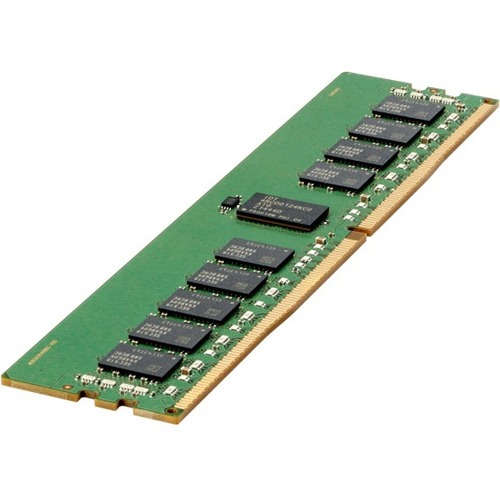
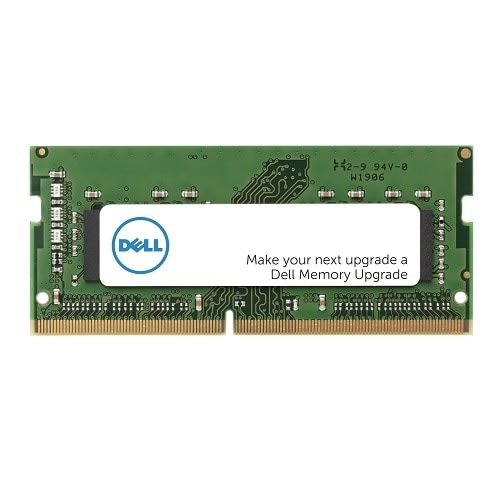
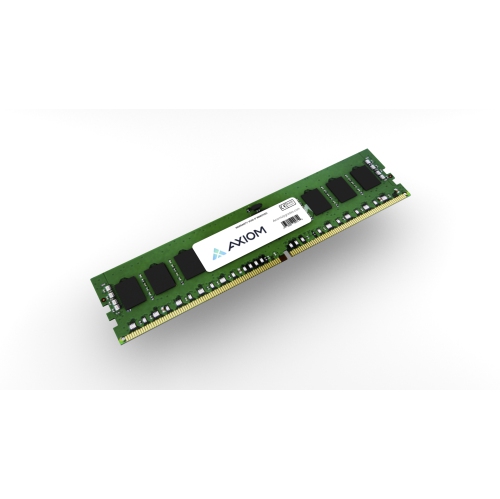
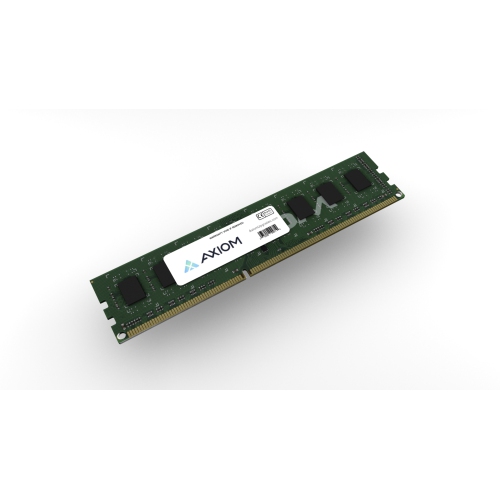
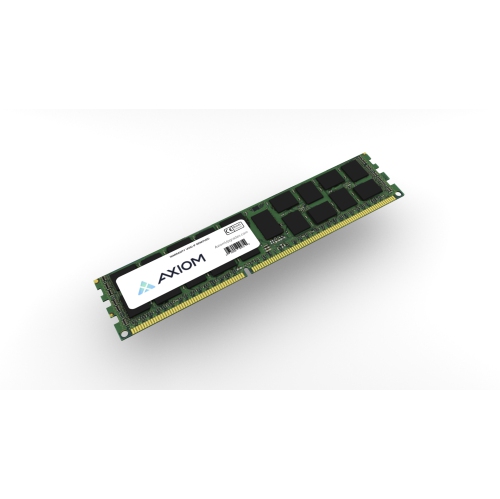
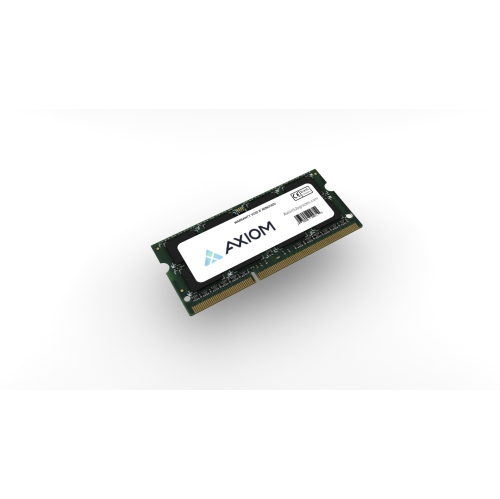
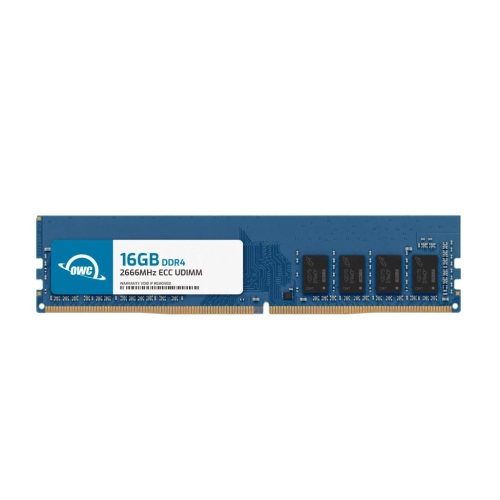
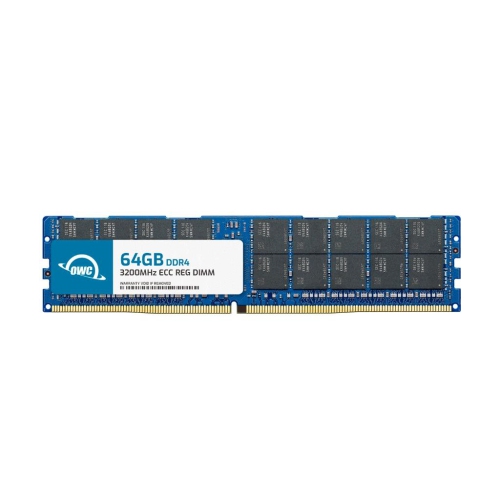
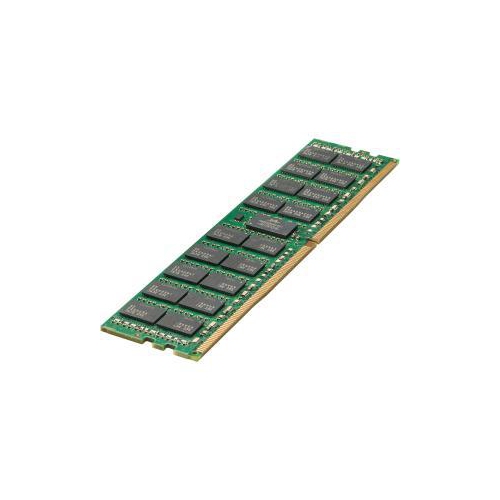

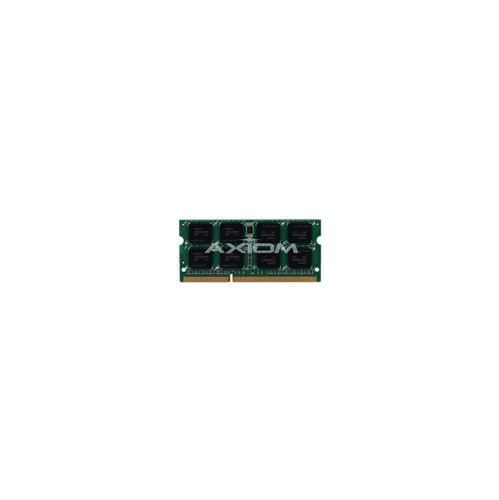
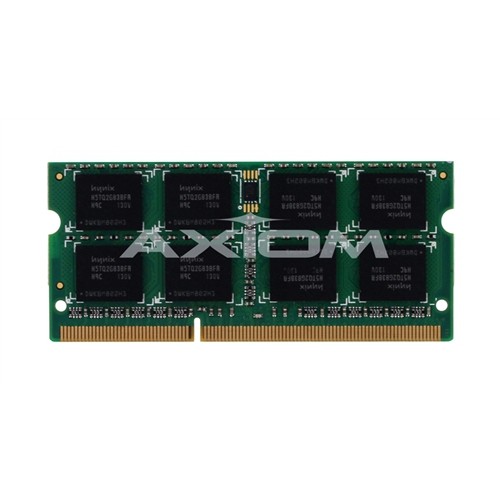
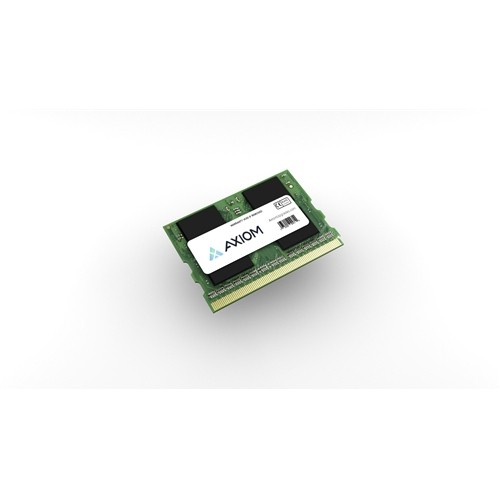
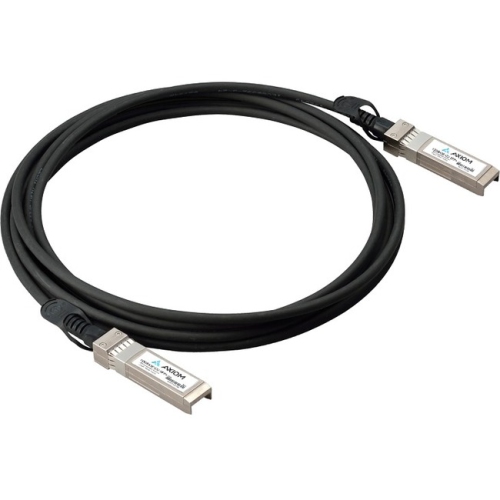
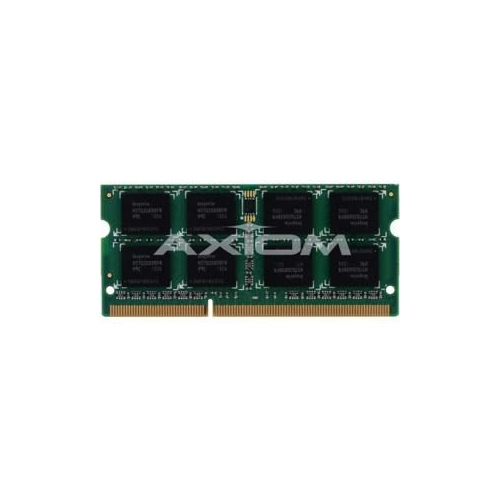

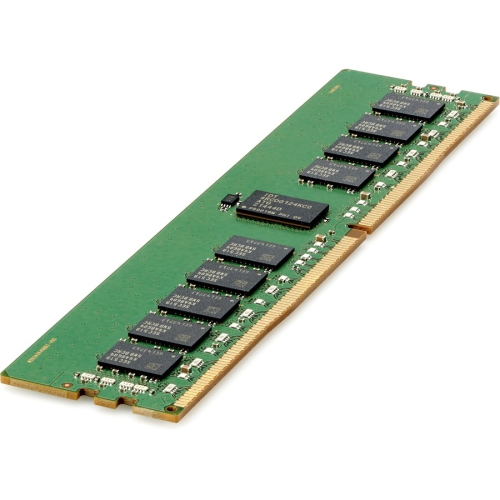
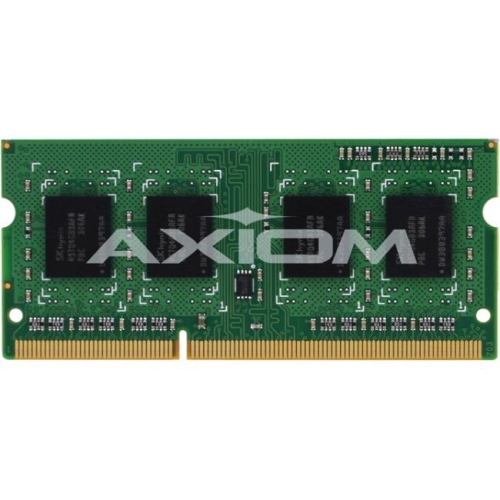
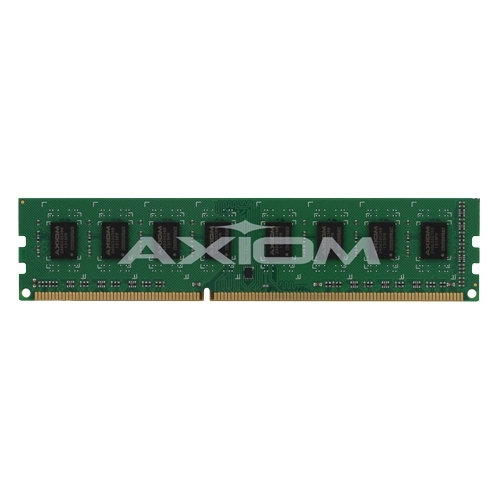
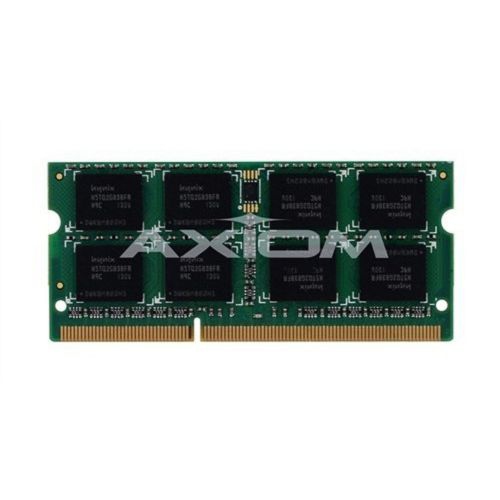
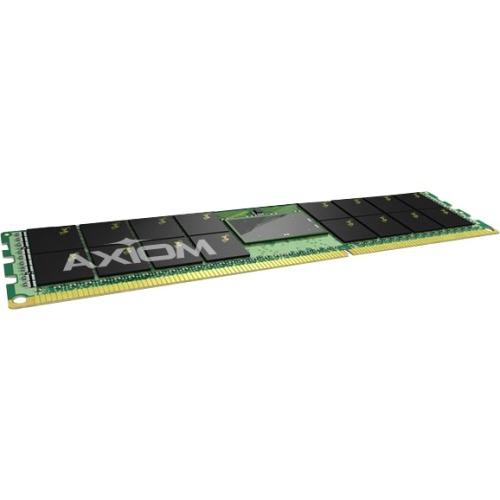


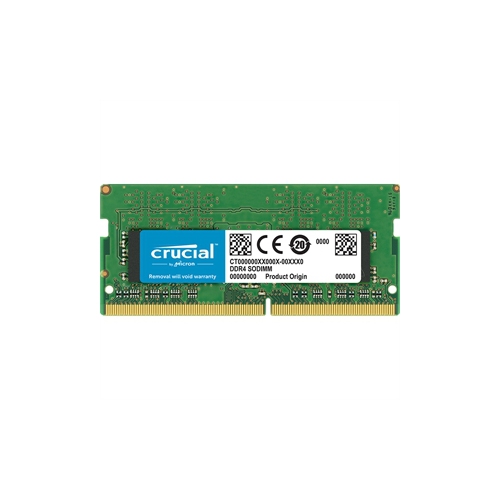
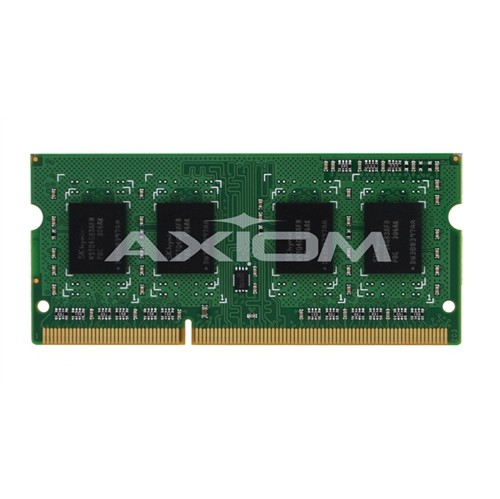
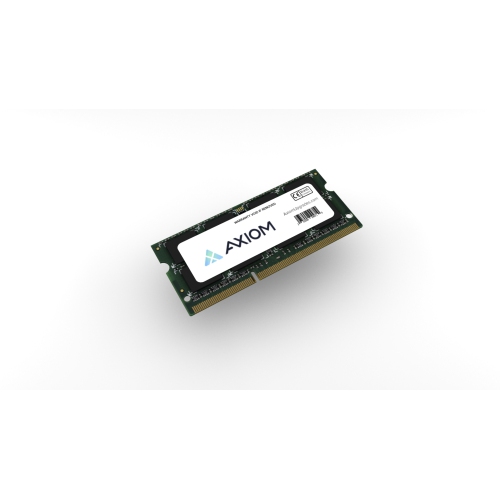
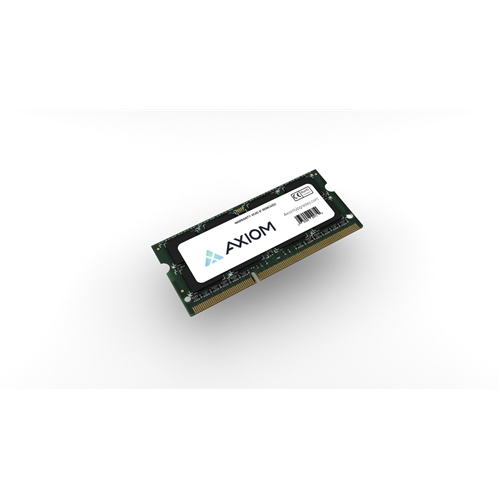
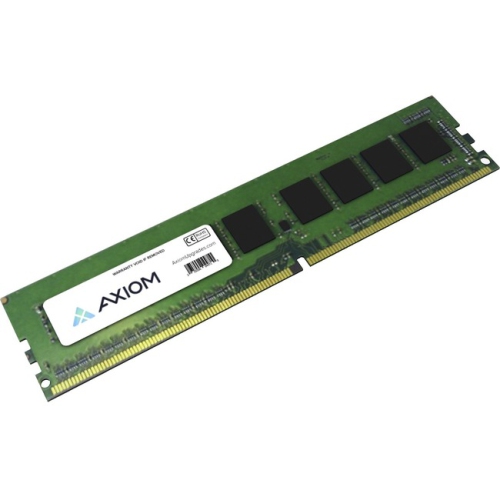
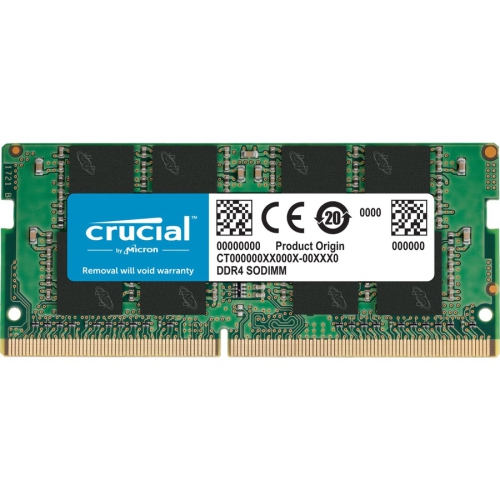
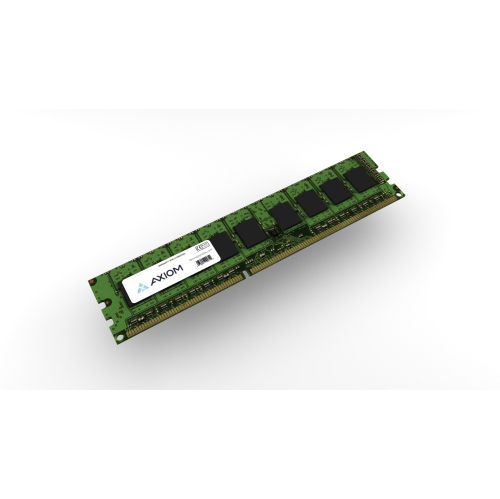
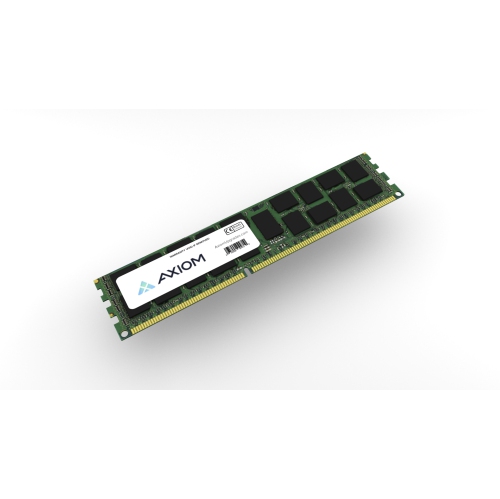
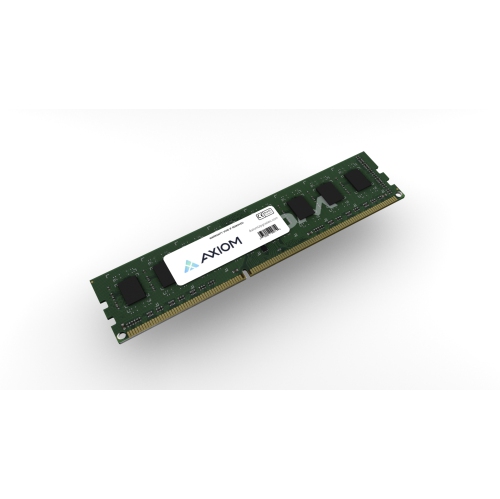
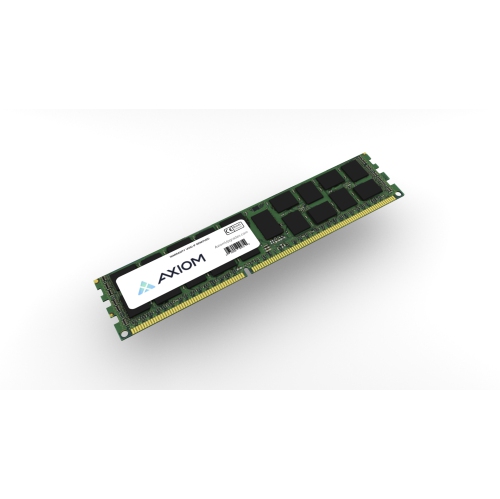
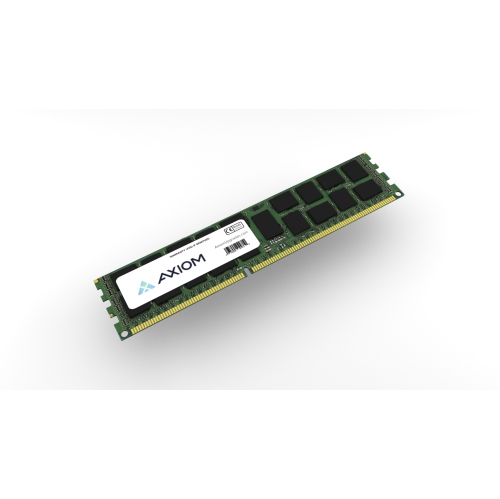
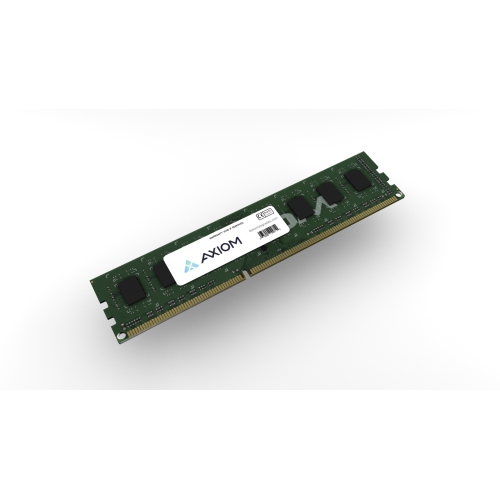
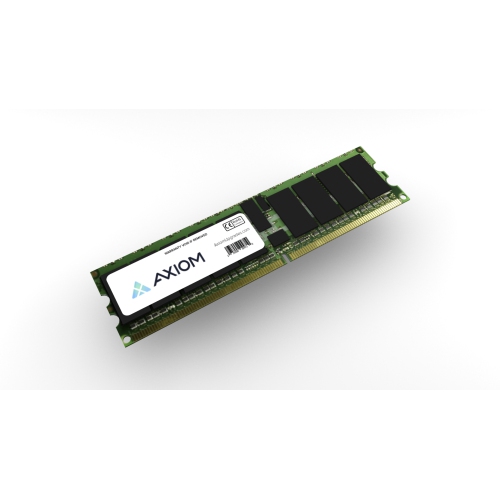
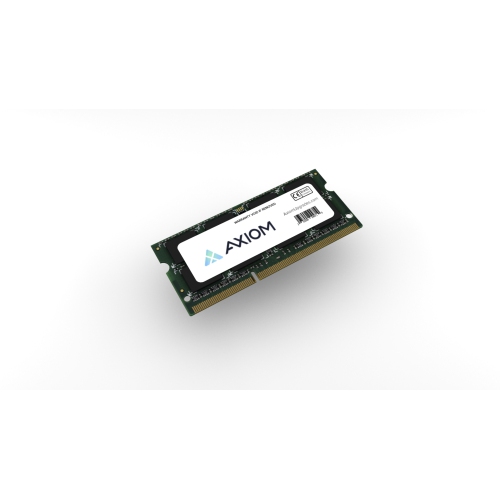
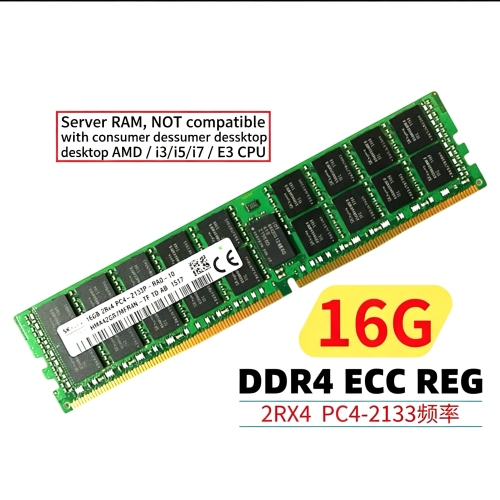
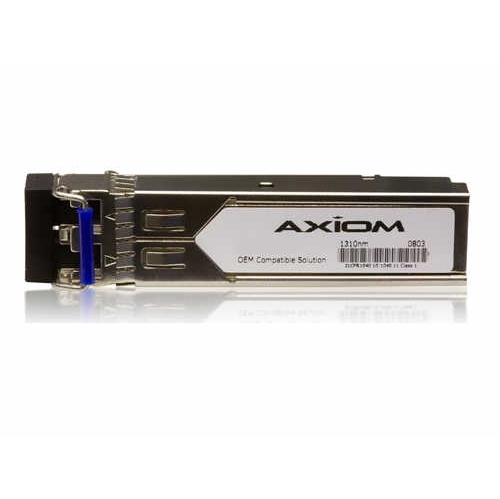
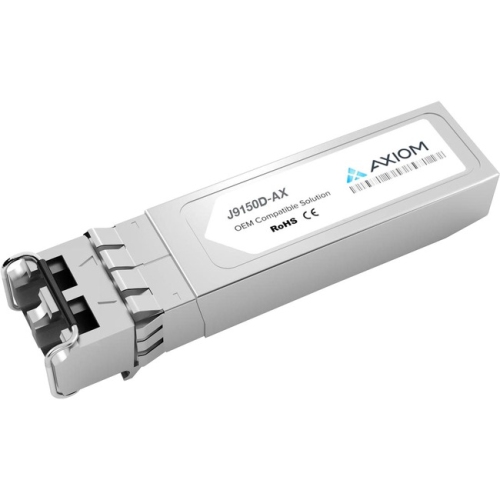
More working room for your computer’s busiest moments
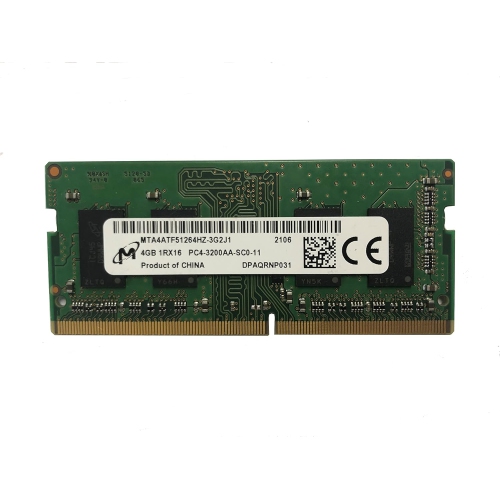
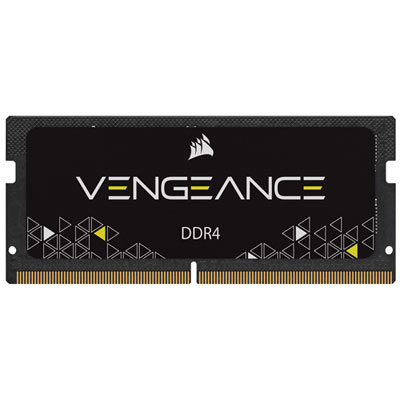
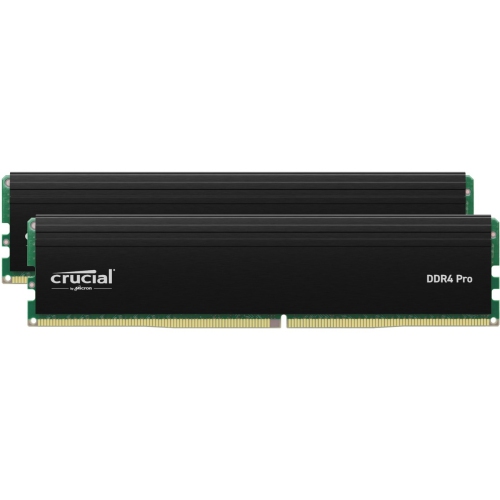
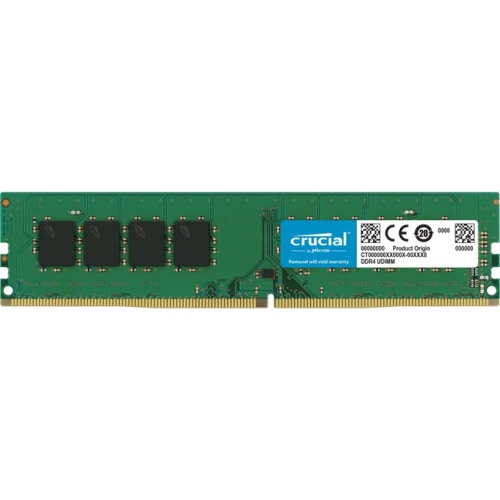
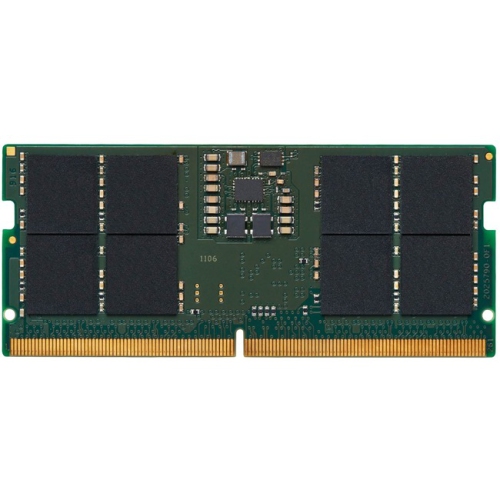
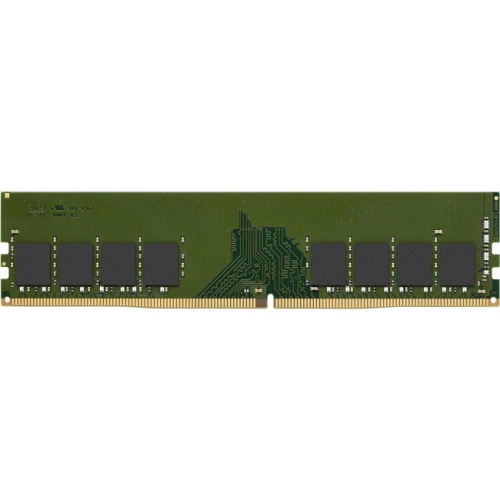
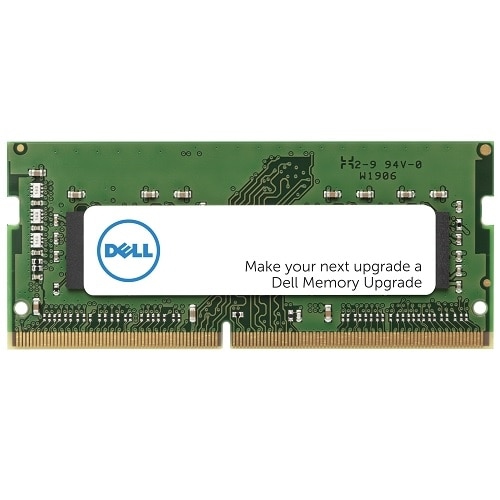
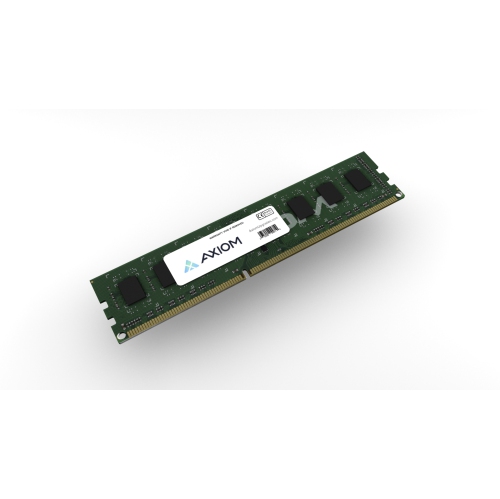
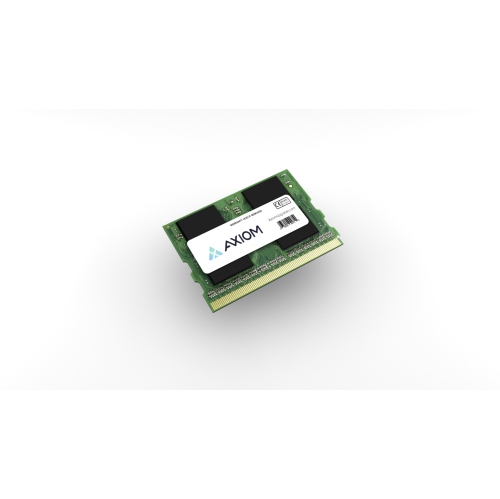
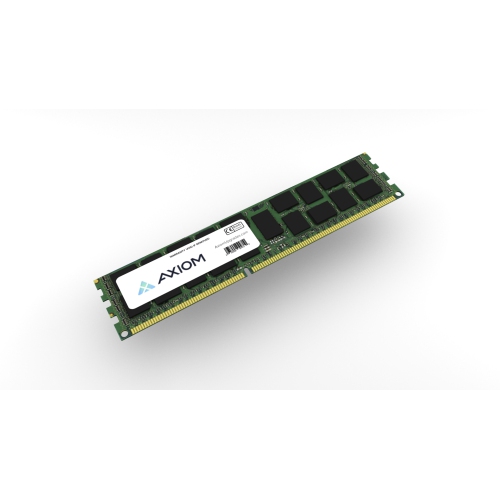
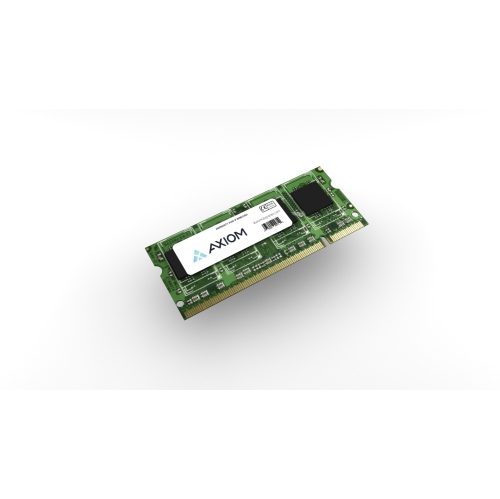
Memory modules give a computer the fast, temporary working space it needs to keep applications and active files close to the processor. Often called RAM sticks, they are small circuit boards fitted with memory chips that hold data while the computer is running. When you open a spreadsheet, launch a game, or work on a photo, data moves from the storage drive into random access memory, where the processor can access it quickly. RAM is volatile: its contents disappear when power is switched off, unlike the files saved on a solid-state drive or hard drive. That distinction matters when shopping, because adding memory increases working capacity rather than permanent file storage. Picture a typical busy desktop with a video call open, a presentation taking shape, and browser tabs spread across the screen. Enough RAM helps those tasks share space without forcing the computer to move as much data back and forth between memory and slower storage. Memory modules come in several physical formats. Full-size DIMMs, or dual in-line memory modules, are common in desktop computers and servers, while smaller SO-DIMMs are used in many upgradeable laptops and compact PCs. Some newer systems use CAMM2, a flat module format that mounts parallel to the motherboard rather than standing in a conventional memory slot. These formats are not interchangeable, and some computers have soldered memory that cannot be replaced or expanded. Most familiar desktop and laptop RAM uses synchronous dynamic random access memory, with DDR generations building on that technology. The Sdram Memories selection offers another way to browse this broad memory family, though the exact generation and specifications still need to match the computer. Whether the aim is a fresh PC build or a useful upgrade to an existing machine, compatibility is the starting point for choosing memory that will actually fit and function.
Choosing memory modules means matching more than the shape of the board. The motherboard and processor determine which memory generation, capacities, and operating speeds the system supports. DDR4 and DDR5, for example, use different electrical designs and slot keying; one cannot replace the other in a motherboard built for only one generation. A computer’s specifications or service manual can help establish the required format, maximum total capacity, supported capacity per slot, and number of available slots. Those details are especially useful in a laptop, where two accessible slots, one accessible slot alongside soldered memory, or no upgradeable slots at all can lead to very different purchase decisions. Capacity is measured in gigabytes, and the appropriate amount depends on the workload. For many people, 16 GB provides comfortable room for everyday productivity, studying, browsing, and video calls. A 32 GB configuration can offer more headroom for gaming alongside other applications, larger creative projects, and heavier multitasking. Professional media work, sizeable datasets, or several virtual machines may justify 64 GB or more, provided the system supports it. These are useful reference points rather than promises of a particular performance gain; application requirements and actual memory usage give a clearer picture of what a computer needs. Speed also deserves attention. DDR memory transfer rates are commonly expressed in megatransfers per second, or MT/s, while latency describes delays in accessing data. Neither figure tells the whole performance story on its own. A module’s advertised higher speed may require a supported performance profile to be enabled in the system firmware, and achievable settings depend on the processor, motherboard, and installed configuration. Matched kits can simplify buying for systems designed to use multiple memory channels. For a typical dual-channel desktop, a supported two-module kit installed in the designated slots can provide greater memory bandwidth than one module alone. Adding more sticks is not automatically better, however: filling every slot can affect the speeds a system can reliably support.
The value of a memory upgrade is often easiest to understand through the work happening on screen. A student moving between lecture recordings, research papers, and a shared assignment needs room for several applications at once. A home-office user may want fewer interruptions while handling large spreadsheets during a call. For a photographer sorting a full day’s images or a video editor arranging a dense timeline, additional capacity can help accommodate larger projects and background tasks. Gamers may benefit when a game and its companion applications exceed the available RAM, but extra capacity alone will not raise performance if the graphics card or processor is the limiting factor. Likewise, memory cannot fix a slow internet connection or replace the need for adequate storage. Checking memory usage during a normal busy session helps distinguish a genuine capacity shortage from another bottleneck. Beyond the main specifications, small physical details can matter. Tall heat spreaders may interfere with a large processor cooler, so desktop builders should compare module height with available clearance. Decorative lighting is a matter of taste, while a straightforward low-profile design can suit a compact or understated build. Workstation and server buyers also need to distinguish ordinary unbuffered memory from registered modules and check whether error-correcting code, or ECC, memory is required and supported. These designations are compatibility requirements, not features that can be freely mixed. Even modules with similar headline specifications may behave differently together, making a validated kit a more predictable choice than combining unrelated sticks. Installation usually involves powering down, disconnecting power, taking suitable precautions against static discharge, and following the device’s service instructions; laptops may also require the internal battery to be disconnected before work begins. After installation, checking that the full capacity is recognised and testing stability helps confirm the upgrade is working properly. Memory can also be a thoughtful gift for someone planning a computer build or spending the cooler months on a creative project, but it is best purchased against their exact system specifications or parts list. The most satisfying choice is not necessarily the largest kit: it is compatible memory with enough capacity for the way that computer is used.
Choosing memory modules means matching more than the shape of the board. The motherboard and processor determine which memory generation, capacities, and operating speeds the system supports. DDR4 and DDR5, for example, use different electrical designs and slot keying; one cannot replace the other in a motherboard built for only one generation. A computer’s specifications or service manual can help establish the required format, maximum total capacity, supported capacity per slot, and number of available slots. Those details are especially useful in a laptop, where two accessible slots, one accessible slot alongside soldered memory, or no upgradeable slots at all can lead to very different purchase decisions. Capacity is measured in gigabytes, and the appropriate amount depends on the workload. For many people, 16 GB provides comfortable room for everyday productivity, studying, browsing, and video calls. A 32 GB configuration can offer more headroom for gaming alongside other applications, larger creative projects, and heavier multitasking. Professional media work, sizeable datasets, or several virtual machines may justify 64 GB or more, provided the system supports it. These are useful reference points rather than promises of a particular performance gain; application requirements and actual memory usage give a clearer picture of what a computer needs. Speed also deserves attention. DDR memory transfer rates are commonly expressed in megatransfers per second, or MT/s, while latency describes delays in accessing data. Neither figure tells the whole performance story on its own. A module’s advertised higher speed may require a supported performance profile to be enabled in the system firmware, and achievable settings depend on the processor, motherboard, and installed configuration. Matched kits can simplify buying for systems designed to use multiple memory channels. For a typical dual-channel desktop, a supported two-module kit installed in the designated slots can provide greater memory bandwidth than one module alone. Adding more sticks is not automatically better, however: filling every slot can affect the speeds a system can reliably support.
The value of a memory upgrade is often easiest to understand through the work happening on screen. A student moving between lecture recordings, research papers, and a shared assignment needs room for several applications at once. A home-office user may want fewer interruptions while handling large spreadsheets during a call. For a photographer sorting a full day’s images or a video editor arranging a dense timeline, additional capacity can help accommodate larger projects and background tasks. Gamers may benefit when a game and its companion applications exceed the available RAM, but extra capacity alone will not raise performance if the graphics card or processor is the limiting factor. Likewise, memory cannot fix a slow internet connection or replace the need for adequate storage. Checking memory usage during a normal busy session helps distinguish a genuine capacity shortage from another bottleneck. Beyond the main specifications, small physical details can matter. Tall heat spreaders may interfere with a large processor cooler, so desktop builders should compare module height with available clearance. Decorative lighting is a matter of taste, while a straightforward low-profile design can suit a compact or understated build. Workstation and server buyers also need to distinguish ordinary unbuffered memory from registered modules and check whether error-correcting code, or ECC, memory is required and supported. These designations are compatibility requirements, not features that can be freely mixed. Even modules with similar headline specifications may behave differently together, making a validated kit a more predictable choice than combining unrelated sticks. Installation usually involves powering down, disconnecting power, taking suitable precautions against static discharge, and following the device’s service instructions; laptops may also require the internal battery to be disconnected before work begins. After installation, checking that the full capacity is recognised and testing stability helps confirm the upgrade is working properly. Memory can also be a thoughtful gift for someone planning a computer build or spending the cooler months on a creative project, but it is best purchased against their exact system specifications or parts list. The most satisfying choice is not necessarily the largest kit: it is compatible memory with enough capacity for the way that computer is used.
Top selling and popular products
-
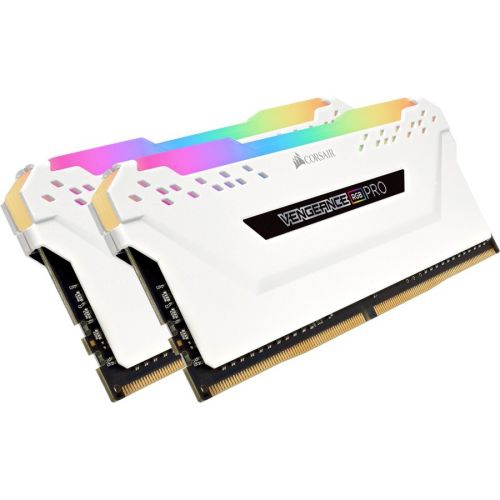 Your price for this item is $307.68
 -
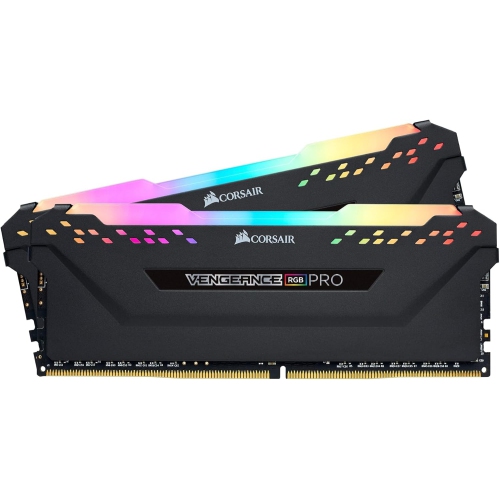 Your price for this item is $329.99
 -
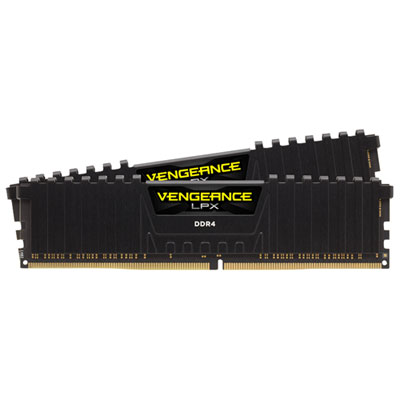 Your price for this item is $349.99
 -
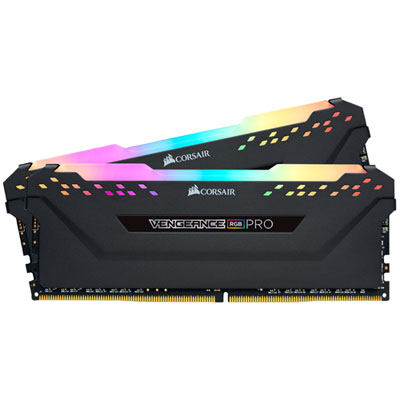 Your price for this item is $369.99
 -
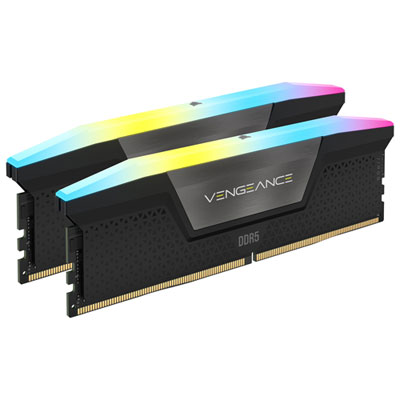 Your price for this item is $679.99
 -
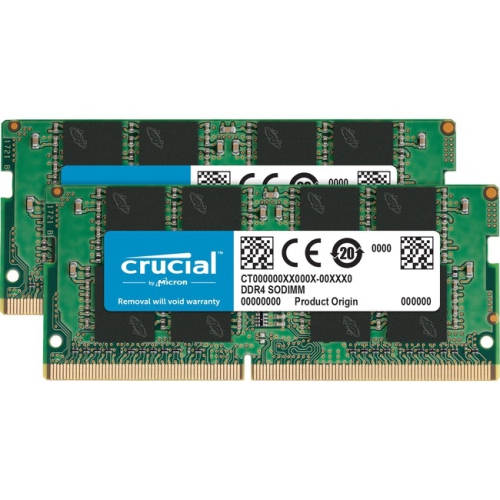 Your price for this item is $379.99
 -
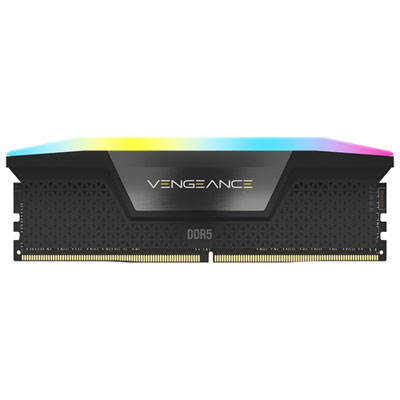 Your price for this item is $1793.99
 -
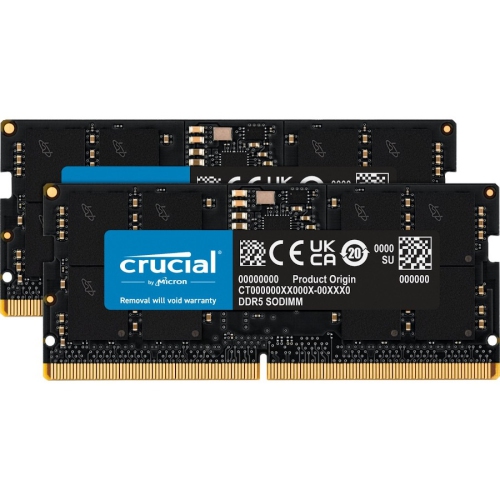 Your price for this item is $1039.68
Discover more categories related to Memory Modules
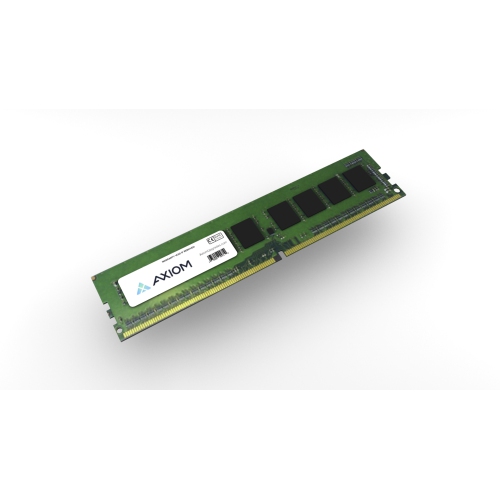
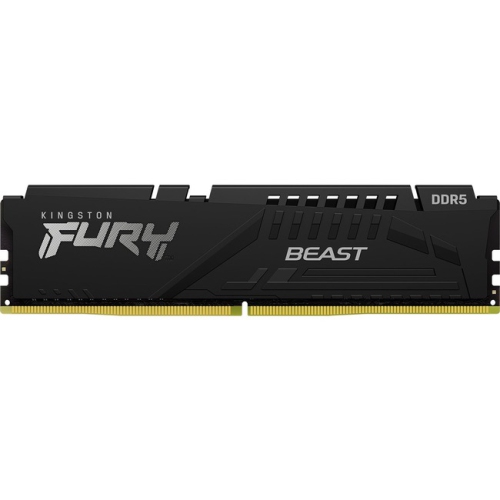
Top Collections:
Pokemon Centers, Kindle Devices, Best Budget Office Chairs, Apple iPhones 16, Samsung Galaxy Phones, Canon G7X Cameras, iPhone 15 Apple, Flip Phones, Best Laptops for Writers, Alarm Clock
Some products may be subject to Environmental Handling Fees
(EHF) depending on your province.
Learn more about EHFs.