Monitor Stands With USB Ports
Upgrade your workspace with Monitor Stands With USB Ports, designed to enhance both organization and connectivity at your desk. Perfect for home offices, gaming setups, or professional environments, these stands offer a convenient way to keep essential devices within reach while maximizing desktop space. Explore a range of options that combine functionality and style, making it easy to create an efficient and streamlined workstation. Find the ideal Monitor Stands With USB Ports to suit your needs and enjoy a more productive and comfortable computing experience.
Sort

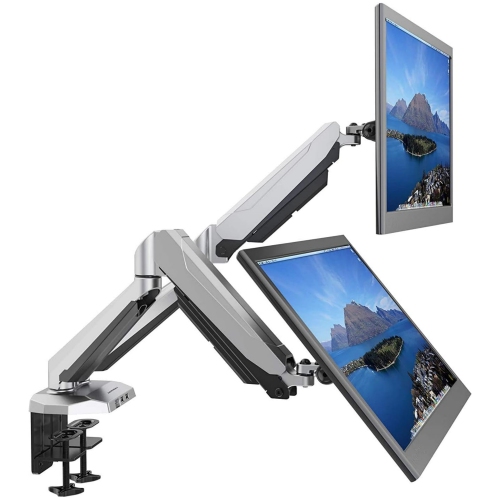
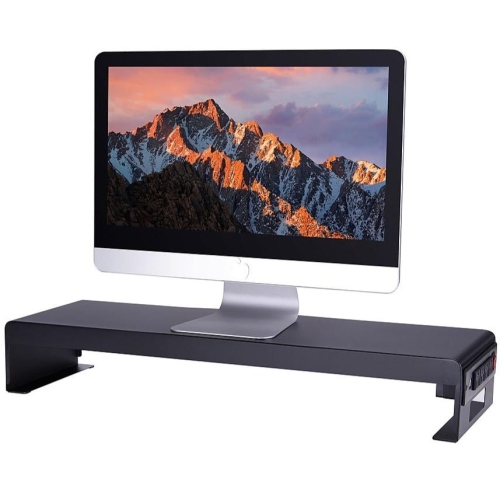
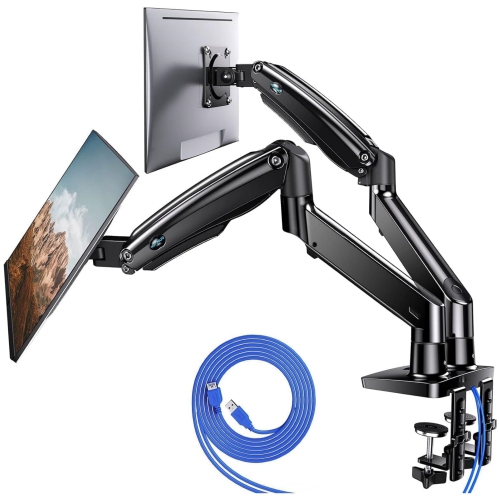
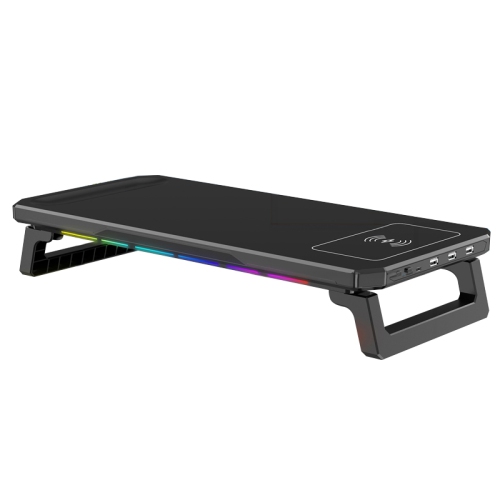
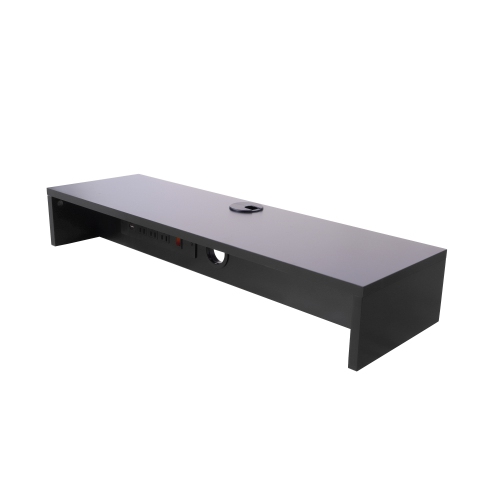
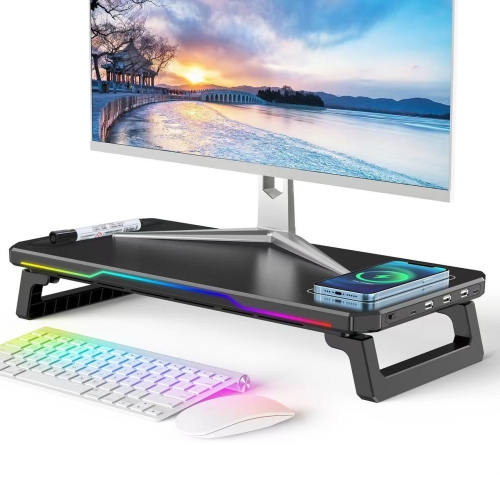
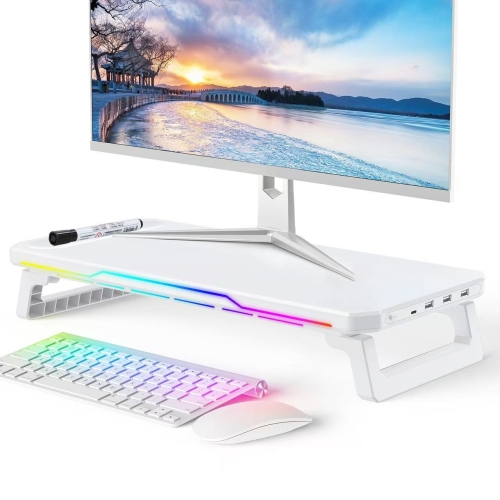
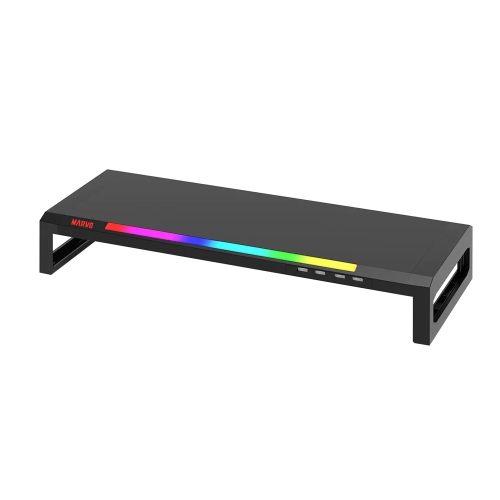
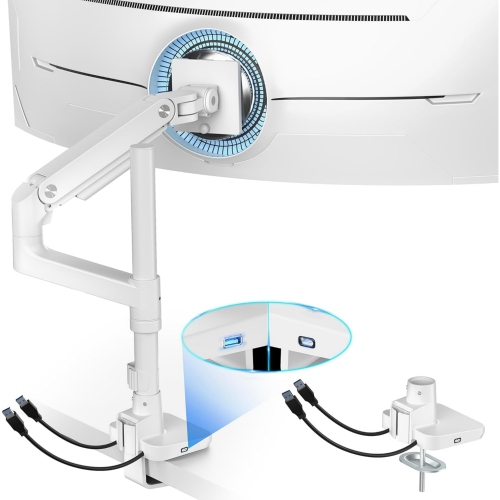
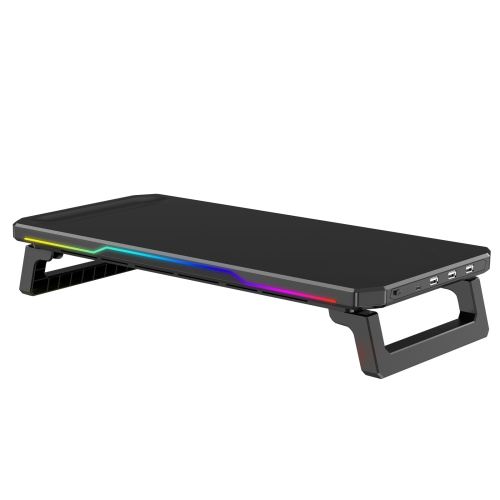
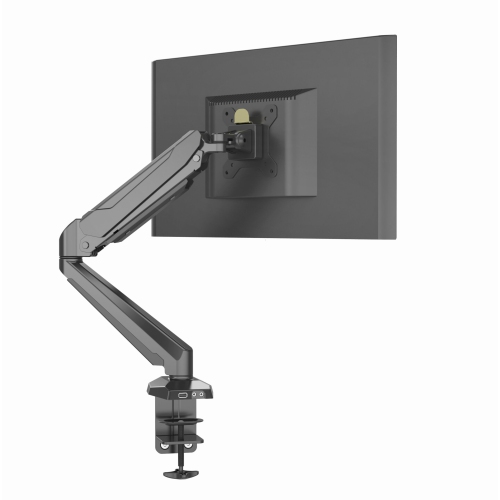
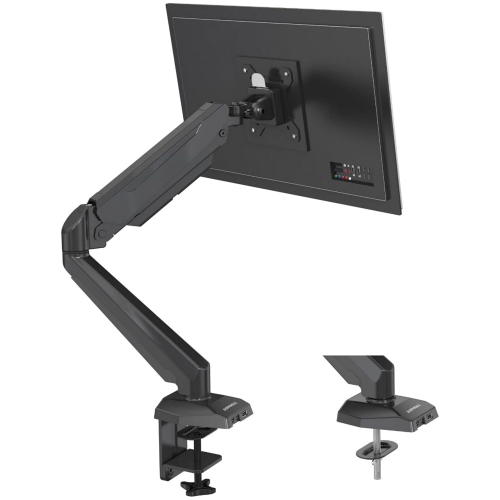
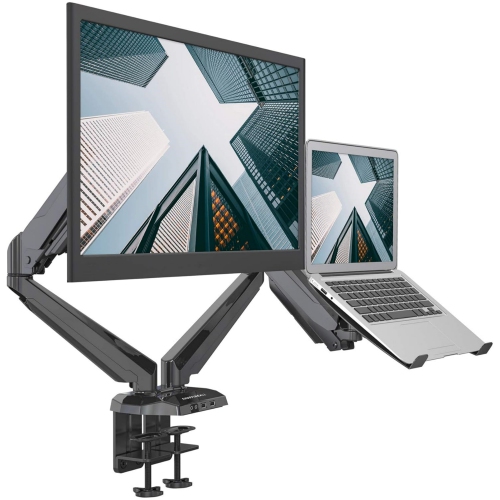
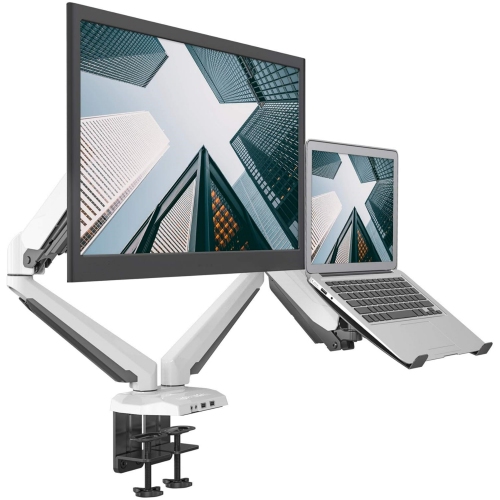
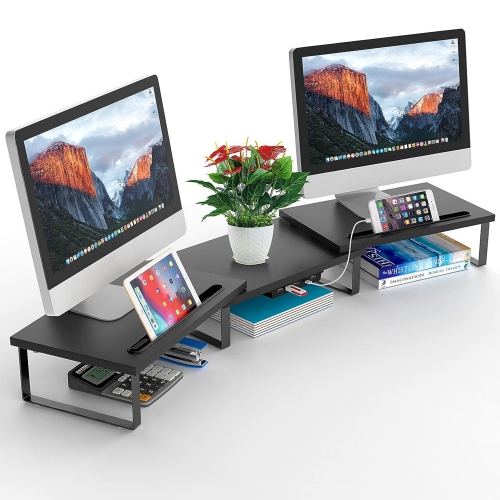
Screen support and USB access that fit your desk
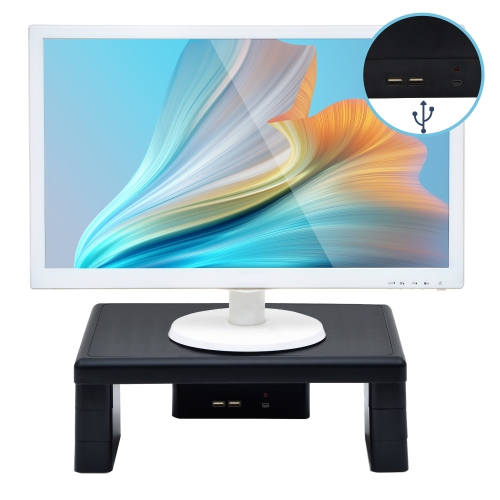
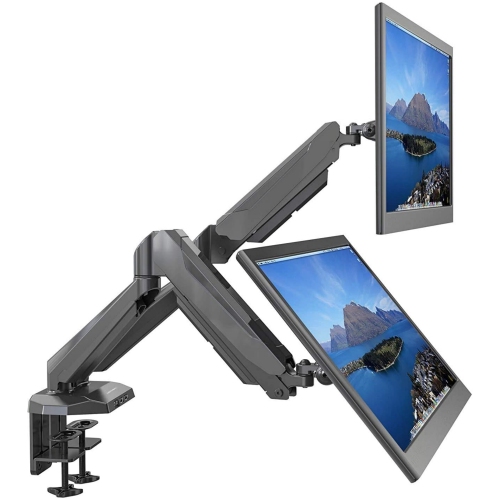
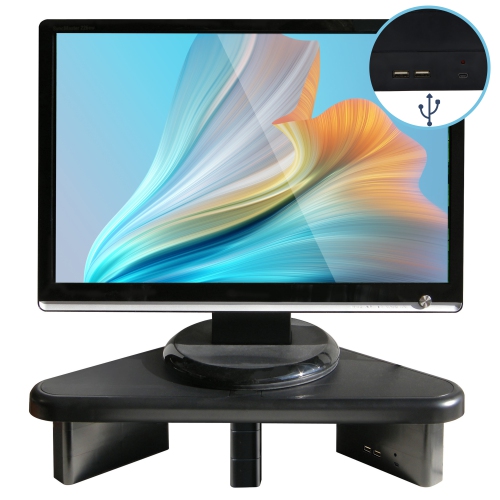
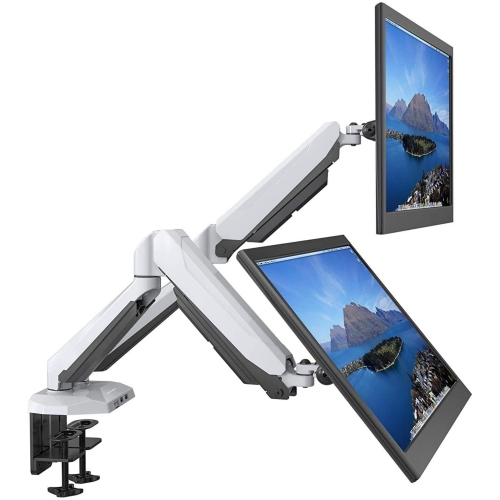
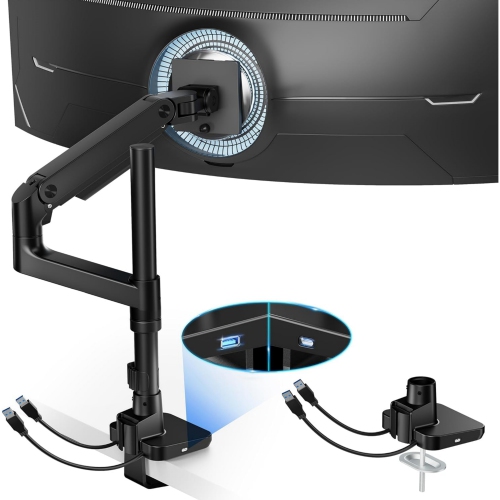
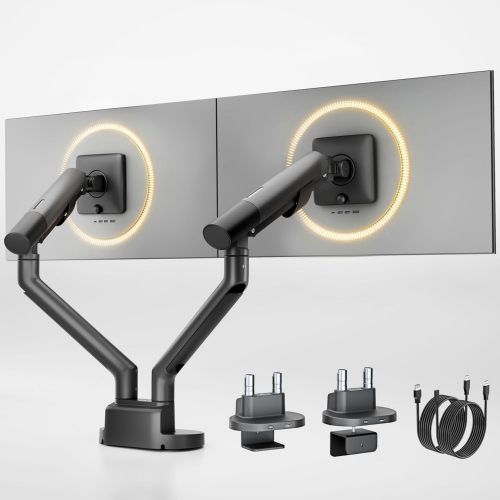
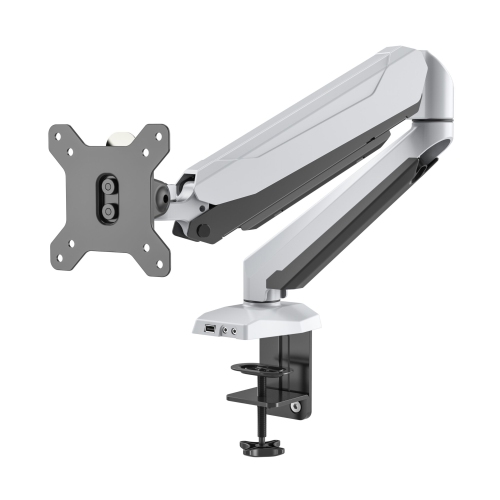
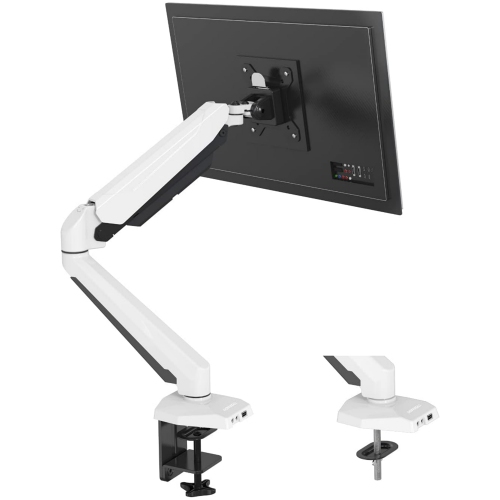
Monitor stands with USB ports combine screen support with accessible connections for everyday desk accessories. A desktop riser raises a monitor on a shelf-like platform, while a desk-mounted arm holds the display above the work surface and may place USB connections in its base. Both designs can bring ports closer to the front of a workstation, reducing the need to reach behind a computer to connect a keyboard, mouse, or flash drive. Their space-saving benefits differ: a riser can create a storage area beneath the screen, while an arm can free the space normally occupied by the monitor’s original base. For a home office, study desk, or gaming setup, the right fit starts with the display’s weight, the size of its base, and the usable depth of the desk. A riser should support the entire monitor base without overhang, and its stated weight capacity should accommodate everything placed on top. A wide platform intended for two monitors needs enough room for both bases and sufficient capacity for their combined weight. With a mounting arm, compatibility depends on the supported screen weight and VESA mounting pattern, not screen size alone. Check the display’s mounting specifications and whether its original stand can be removed before choosing this style. Clamp mounts also need a suitable desk edge, compatible desktop thickness, and clearance from drawers, wall panels, or support rails underneath. Glass desktops and hollow-core surfaces require particular attention to the desk and mount manufacturers’ compatibility requirements. Height matters just as much as footprint. Raising a low screen can make it easier to sit upright, but an excessively tall riser may leave the display uncomfortable to view. A useful starting point is to position the top of the screen at or slightly below eye level, then adjust for the chair, viewing distance, and individual needs. Adjustable designs provide more flexibility when several people share a desk or when the setup changes between seated and standing use.
The USB ports on a monitor stand are typically intended for connecting peripherals or charging compatible devices, but those functions vary by design. A built-in USB hub connects to the computer through an upstream cable and shares that connection across its downstream ports. A passthrough arrangement may instead require a separate connection for each port. Some ports support data and charging, while others supply power only, so the number of sockets does not tell the whole story. For someone who frequently plugs in a flash drive or switches between wired accessories, data-capable ports near the front of the stand can make those small tasks much simpler. For charging a phone during a video call, the relevant details are the port’s supported power output and whether the stand requires an external power adapter. A USB-C connector does not automatically mean faster transfers, laptop charging, or video support; the stated USB standard and supported features determine what it can do. USB 2.0 has a theoretical maximum data rate of 480 Mbps, while USB 3.0, also known as USB 3.2 Gen 1, supports up to 5 Gbps. Actual transfer performance depends on the connected device, cable, computer port, and any other devices sharing the hub. A mouse and keyboard generally place modest demands on a connection, but an external drive and webcam running together may benefit from more bandwidth. Devices with higher power requirements may need a powered hub or their own power supply. Charging a laptop through USB-C requires suitable USB Power Delivery support and sufficient wattage; an ordinary accessory port is not a substitute. Likewise, standard USB hub ports on a stand should not be assumed to carry a monitor’s video signal. The display usually still connects separately through a compatible video connection, and its resolution and refresh rate depend on that video path. Displays in the USB Monitors category have their own connectivity specifications, which should be checked separately from the stand’s features. Cable length also matters: the upstream cable must reach the computer without tension, including when an adjustable arm moves.
Materials and construction influence how a monitor stand feels in daily use and how well it handles repeated adjustments, plugged-in cables, and the weight of the display. Steel and aluminum designs can provide rigid support with a relatively slim profile, although stability still depends on the construction, joints, and base. Wood and engineered-wood risers bring a furniture-like appearance to a workspace, with finishes that may coordinate with shelving or a desk. Plastic components can keep a stand lightweight and provide shaped storage compartments, but the stated load limit remains important. Glass platforms offer a visually open look and should be used only within their specified capacity, with care around edges and any signs of damage. Non-slip feet help a desktop riser stay in place when accessories are connected or disconnected, while a broad, level base can reduce movement during typing. Storage dimensions deserve a closer look if the aim is to tuck a keyboard beneath the monitor: measure its width and height, including raised keys or an attached wrist rest. Drawers and phone holders can be useful for small accessories, provided they do not obstruct access to the USB ports or leave cables stretched across the workspace. On an adjustable arm, cable clips need enough slack for tilting, swivelling, and height changes without pulling on connectors. Routine care is straightforward but should follow the manufacturer’s directions. Disconnect power where applicable before cleaning, use a soft cloth suited to the finish, and keep moisture out of USB sockets and electrical components. Avoid spraying cleaner directly onto the stand, and check mounting hardware periodically without overtightening it. For students, remote workers, and people who regularly connect desk accessories, a well-matched stand can make a compact workspace easier to organize. It can also be a practical gift for someone improving a workstation, especially when the monitor dimensions, desk construction, and connection needs are known. The most useful combination is dependable screen support, comfortable placement, accessible ports, and enough room for the tasks that happen at the desk every day.
Top selling and popular products
-
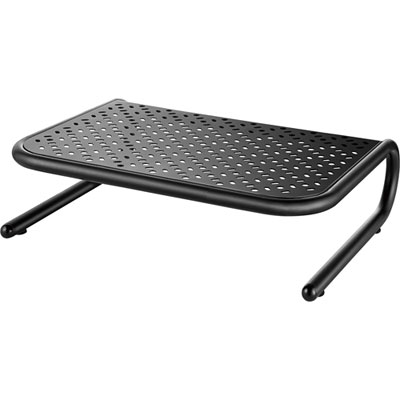 Your price for this item is $34.95
-
 Your price for this item is $129.99
-
 Your price for this item is $69.99
-
 Your price for this item is $69.99
-
 Your price for this item is $99.99
-
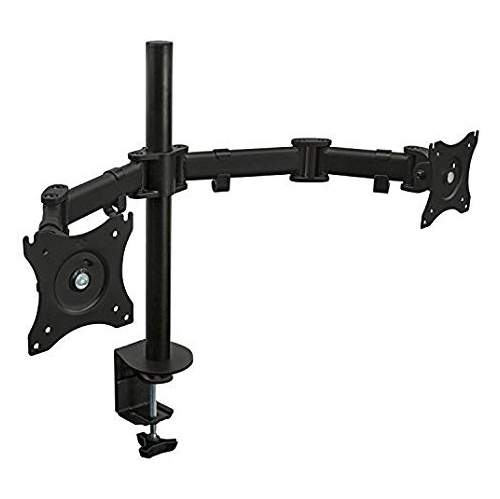 Your price for this item is $99.99
-
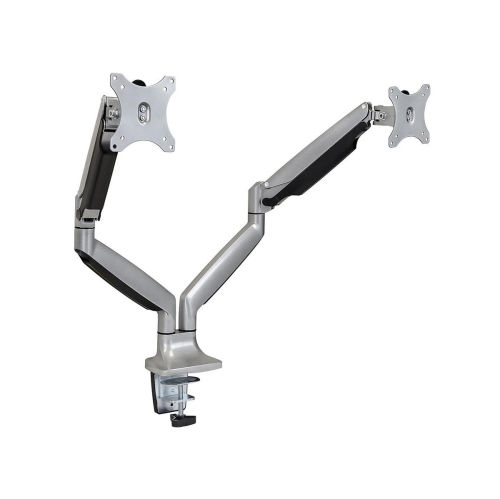 Your price for this item is $238.99
-
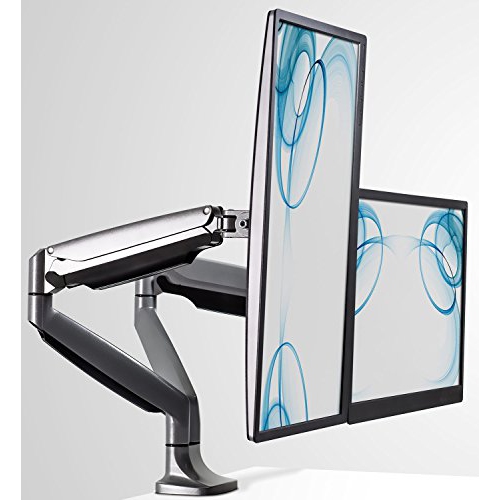 Your price for this item is $321.68
Discover more categories related to Monitor Stands With USB Ports
Top Collections:
Best Black Friday Deals This Year, Best Black Friday Deals On Electronics, Kindle Devices, Dyson Airwrap, Best Cameras for Sports Photography, Best Budget Office Chairs, Canon G7X Cameras, PS5 Pro Consoles, Best Black Friday Deals On Apple Products, XBOX One S Consoles
Some products may be subject to Environmental Handling Fees
(EHF) depending on your province.
Learn more about EHFs.