PCIe Network Cards
Upgrade your computer’s connectivity with a PCIe Network Card, designed to deliver reliable and high-speed network access for both home and office setups. Perfect for enhancing online experiences, these cards offer a seamless way to add or improve wired networking capabilities on desktops and workstations. Whether you’re looking to boost data transfer rates, support multiple devices, or optimize your network performance, a PCIe Network Card provides the flexibility and efficiency needed for demanding tasks. Explore a wide selection of options to find the ideal solution that fits your networking requirements.
Sort





Desktop networking upgrades go beyond connection speed
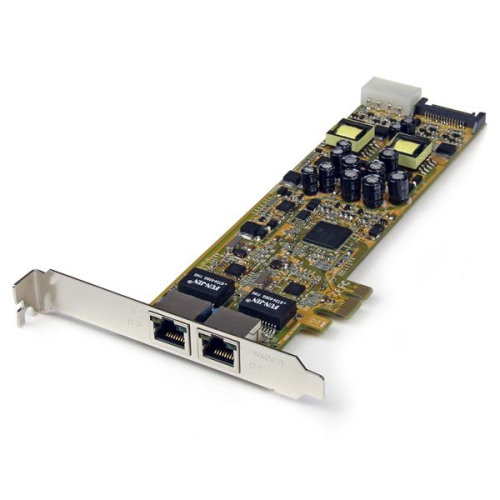
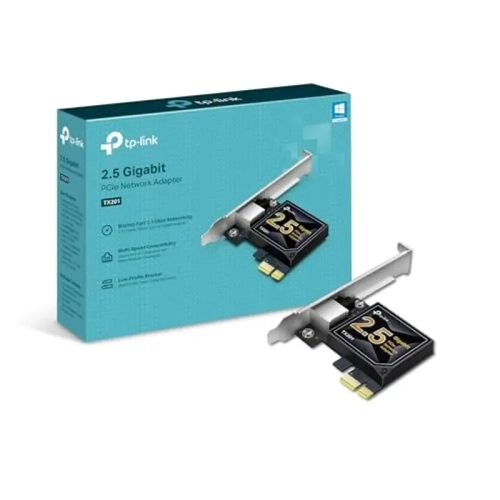
PCIe network cards are internal expansion cards that add or upgrade a desktop computer’s wired Ethernet or wireless Wi-Fi connection. PCIe stands for Peripheral Component Interconnect Express, the interface that connects the card to the motherboard. A network card can replace a failed onboard network connection, bring faster networking to an older desktop, or add a connection type the computer did not originally include. Wired PCIe network cards typically provide one or more Ethernet ports, while wireless models use antennas to communicate with a compatible router or access point. The right type depends on where the computer sits and what it needs to do. A desktop beside a router may benefit from a direct Ethernet connection, while a computer across the house may be better suited to Wi-Fi when running cable is impractical. For wired networking, Gigabit Ethernet supports everyday browsing, video calls, streaming, and many home-office tasks. A 2.5 Gigabit Ethernet card offers more capacity for compatible networks, while 10 Gigabit Ethernet can suit demanding transfers between workstations and network-attached storage. Moving a large folder of video footage to shared storage is one situation where faster local networking can make a noticeable difference. Those speed ratings describe the connection’s capacity, not a guaranteed download or file-transfer rate. The router or switch, cabling, storage devices, and other equipment along the path must also support the intended performance. An upgraded card cannot increase an internet plan’s speed beyond the service provided. Suitable Cat5e cabling can support Gigabit and 2.5 Gigabit Ethernet, while Cat6a is a common choice for 10 Gigabit Ethernet runs up to 100 metres. Port type matters as well: an RJ45 connection accepts a compatible Ethernet cable, whereas an SFP+ connection requires an appropriate module or direct-attach cable. Multi-port cards can connect a computer to separate networks, but extra ports do not automatically combine their speeds into a faster single connection.
Wireless PCIe network cards are useful for desktop computers in bedrooms, shared living spaces, and home offices without a convenient Ethernet outlet. Their capabilities depend on the Wi-Fi standard, supported frequency bands, antenna arrangement, and the network they connect to. Wi-Fi 6 operates on the 2.4 GHz and 5 GHz bands, while Wi-Fi 6E adds access to the 6 GHz band with compatible equipment. Wi-Fi 7 cards can support newer wireless features, although those features depend on the router, operating system, and the card’s specifications. A newer wireless card can often work with an older router using a shared standard, but the connection will not gain capabilities that the router lacks. The 2.4 GHz band generally offers better reach through obstacles, while 5 GHz and 6 GHz can provide more capacity over suitable distances. Walls, floors, neighbouring networks, and the placement of the desktop all affect results. A metal computer case tucked beneath a desk can obstruct wireless signals, making antenna placement particularly important. Some cards have antennas attached directly to the rear bracket; others include a cabled antenna base that can sit on a desk or shelf, away from the case. Adjustable antennas provide flexibility, but they cannot remove every obstacle between a computer and its router. Advertised wireless speeds are theoretical rates and may combine figures from multiple bands rather than represent the speed available to a single connection. For video calls, online games, and remote desktop sessions, a stable connection with consistent latency may matter more than the largest advertised number. Some wireless PCIe cards also provide Bluetooth for compatible headphones, keyboards, mice, and controllers. On many of these cards, Bluetooth requires a separate cable to an internal USB header on the motherboard, even though Wi-Fi uses the PCIe slot. Checking that requirement helps distinguish a straightforward wireless upgrade from one that needs an additional internal connection.
Physical fit and software support are just as important as connection speed when considering PCIe network cards. Most are intended for desktop towers or compatible workstations with an accessible expansion slot, rather than laptops or compact computers without internal expansion space. A PCIe x1 card can generally fit into a compatible x1, x4, x8, or x16 slot, but the card’s stated lane and generation requirements still matter, particularly for higher-speed networking. Motherboard documentation can clarify whether a slot shares resources with other connections or has restrictions when certain storage devices are installed. The space around the slot also deserves attention: a large graphics card may cover an otherwise suitable opening or leave too little clearance for another card. Full-height and low-profile brackets accommodate different case designs, and a small-form-factor desktop may require a low-profile card as well as the matching bracket. Rear access matters for Ethernet plugs and external antennas, especially when a tower sits close to a wall. Within the broader category of PCi Express Cards, network cards specifically address connectivity rather than graphics, storage, or other expansion needs. Their construction typically combines a circuit board, connector contacts, a metal mounting bracket, and, on some designs, a heat sink to manage heat during operation. A securely fitted bracket helps keep the card and its external connections stable. Keeping ventilation paths clear and removing accumulated dust according to the computer manufacturer’s guidance supports dependable operation; handling the card by its edges also helps protect its contacts and components. Installation involves powering down and unplugging the computer, observing static-electricity precautions, and following the relevant hardware instructions. Driver support should match the operating system and version in use, particularly for Linux systems, older Windows installations, or newer wireless features. For a household desktop, a work computer, or a shared-media workstation, the most useful upgrade is one that matches the existing network, fits the case, and supports the connections used every day.
Wireless PCIe network cards are useful for desktop computers in bedrooms, shared living spaces, and home offices without a convenient Ethernet outlet. Their capabilities depend on the Wi-Fi standard, supported frequency bands, antenna arrangement, and the network they connect to. Wi-Fi 6 operates on the 2.4 GHz and 5 GHz bands, while Wi-Fi 6E adds access to the 6 GHz band with compatible equipment. Wi-Fi 7 cards can support newer wireless features, although those features depend on the router, operating system, and the card’s specifications. A newer wireless card can often work with an older router using a shared standard, but the connection will not gain capabilities that the router lacks. The 2.4 GHz band generally offers better reach through obstacles, while 5 GHz and 6 GHz can provide more capacity over suitable distances. Walls, floors, neighbouring networks, and the placement of the desktop all affect results. A metal computer case tucked beneath a desk can obstruct wireless signals, making antenna placement particularly important. Some cards have antennas attached directly to the rear bracket; others include a cabled antenna base that can sit on a desk or shelf, away from the case. Adjustable antennas provide flexibility, but they cannot remove every obstacle between a computer and its router. Advertised wireless speeds are theoretical rates and may combine figures from multiple bands rather than represent the speed available to a single connection. For video calls, online games, and remote desktop sessions, a stable connection with consistent latency may matter more than the largest advertised number. Some wireless PCIe cards also provide Bluetooth for compatible headphones, keyboards, mice, and controllers. On many of these cards, Bluetooth requires a separate cable to an internal USB header on the motherboard, even though Wi-Fi uses the PCIe slot. Checking that requirement helps distinguish a straightforward wireless upgrade from one that needs an additional internal connection.
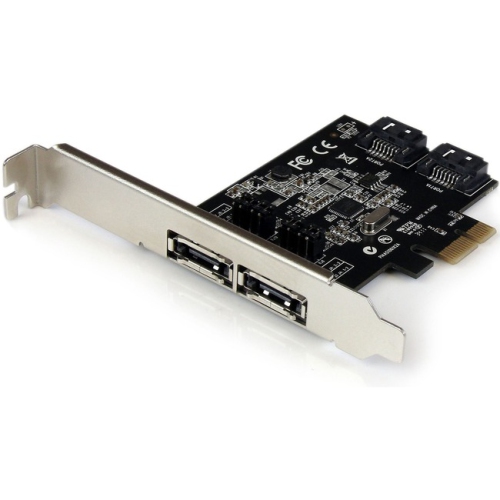
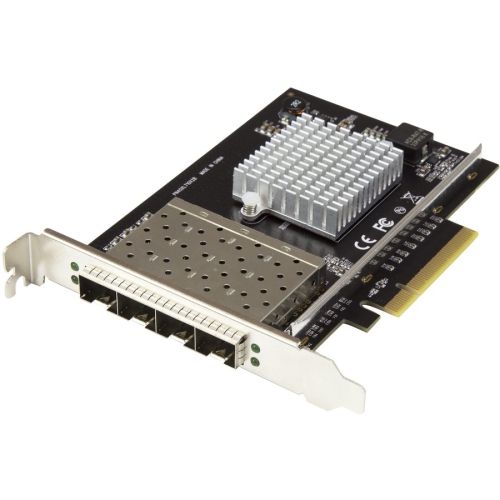
Physical fit and software support are just as important as connection speed when considering PCIe network cards. Most are intended for desktop towers or compatible workstations with an accessible expansion slot, rather than laptops or compact computers without internal expansion space. A PCIe x1 card can generally fit into a compatible x1, x4, x8, or x16 slot, but the card’s stated lane and generation requirements still matter, particularly for higher-speed networking. Motherboard documentation can clarify whether a slot shares resources with other connections or has restrictions when certain storage devices are installed. The space around the slot also deserves attention: a large graphics card may cover an otherwise suitable opening or leave too little clearance for another card. Full-height and low-profile brackets accommodate different case designs, and a small-form-factor desktop may require a low-profile card as well as the matching bracket. Rear access matters for Ethernet plugs and external antennas, especially when a tower sits close to a wall. Within the broader category of PCi Express Cards, network cards specifically address connectivity rather than graphics, storage, or other expansion needs. Their construction typically combines a circuit board, connector contacts, a metal mounting bracket, and, on some designs, a heat sink to manage heat during operation. A securely fitted bracket helps keep the card and its external connections stable. Keeping ventilation paths clear and removing accumulated dust according to the computer manufacturer’s guidance supports dependable operation; handling the card by its edges also helps protect its contacts and components. Installation involves powering down and unplugging the computer, observing static-electricity precautions, and following the relevant hardware instructions. Driver support should match the operating system and version in use, particularly for Linux systems, older Windows installations, or newer wireless features. For a household desktop, a work computer, or a shared-media workstation, the most useful upgrade is one that matches the existing network, fits the case, and supports the connections used every day.
Top selling and popular products
-
 Your price for this item is $45.68
-
 Your price for this item is $35.91
-
 Your price for this item is $77.68
-
 Your price for this item is $649.57
-
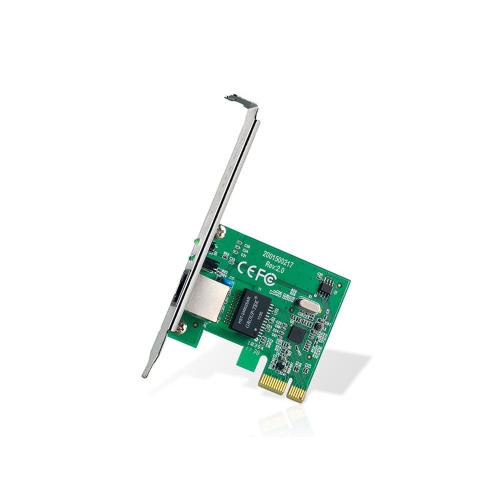 Your price for this item is $23.99
-
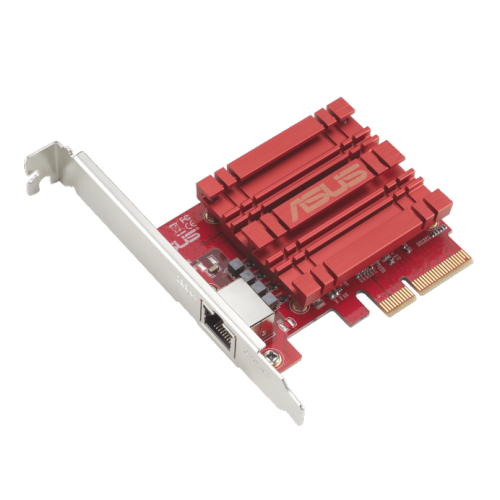 Your price for this item is $129.99
-
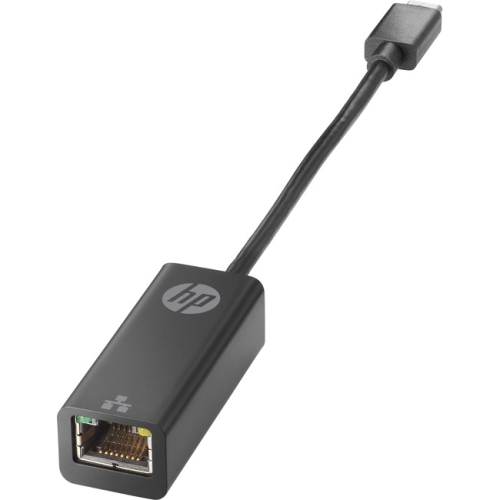 Your price for this item is $62.68
-
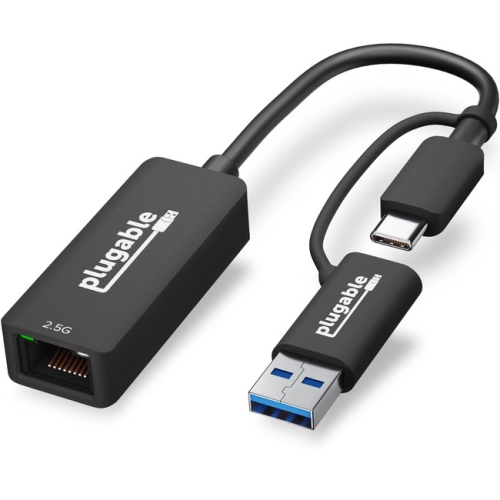 Your price for this item is $56.37
Discover more categories related to PCIe Network Cards

Top Collections:
Best Black Friday Deals This Year, Best Black Friday Deals On Electronics, Kindle Devices, Pokemon Centers, Best Black Friday Deals On Apple Products, Best Cameras for Sports Photography, Dyson Airwrap, Pokémon 30th Celebration Cards, Apple iPhone 17 Pro, Canon G7X Cameras
Some products may be subject to Environmental Handling Fees
(EHF) depending on your province.
Learn more about EHFs.