Samsung 27 FHD LED 1080P
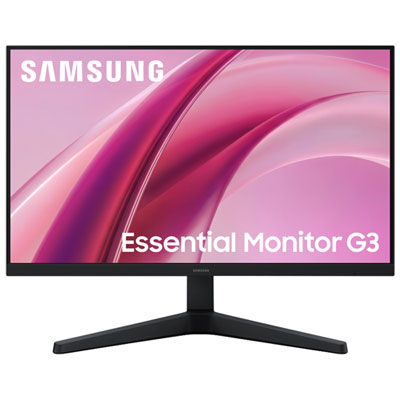
Experience stunning visuals and impressive clarity with the Samsung 27 FHD LED 1080P. Perfect for work, entertainment, or gaming setups, this monitor delivers a vibrant display that enhances any space. Explore a range of options designed to bring out the best in your viewing experience, all while enjoying reliable performance and sleek design. Discover how the Samsung 27 FHD LED 1080P can elevate your daily routine and provide the quality you expect.
Sort
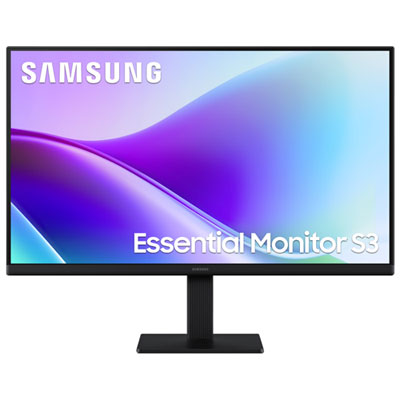

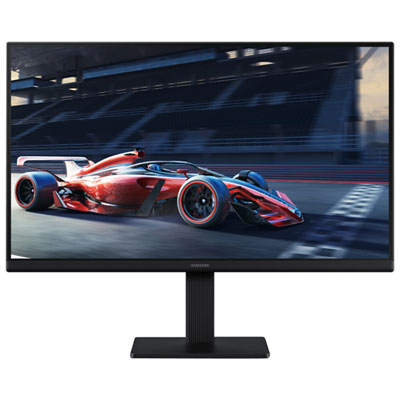
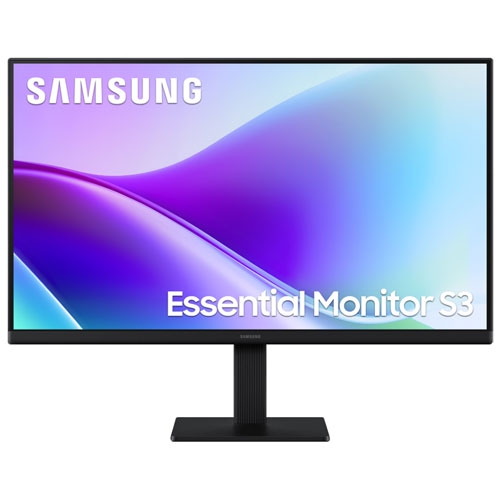
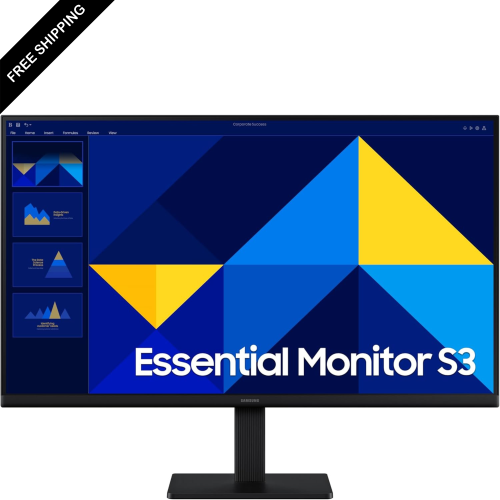
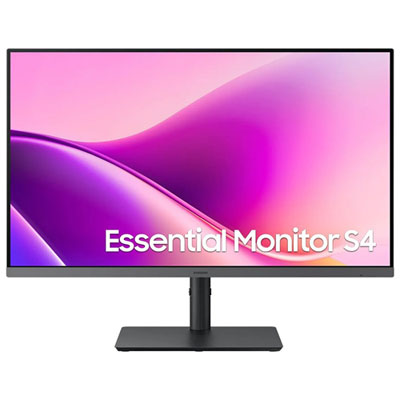
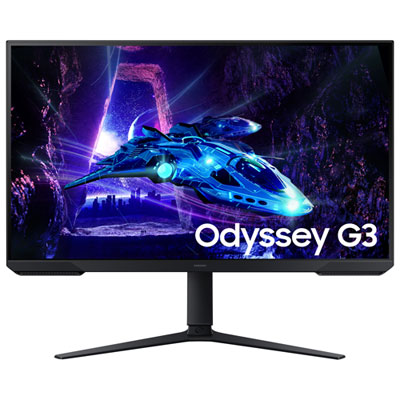
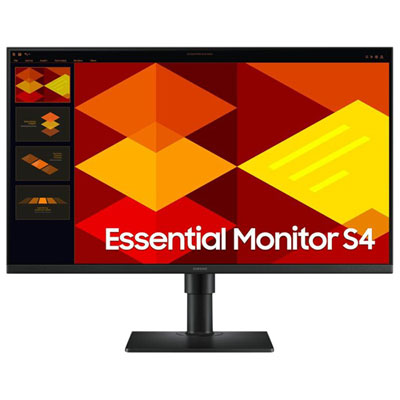
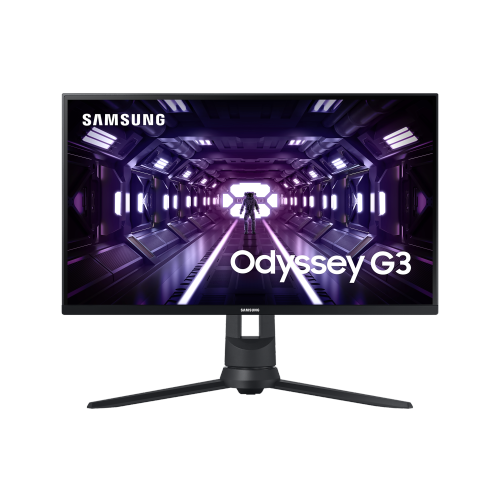
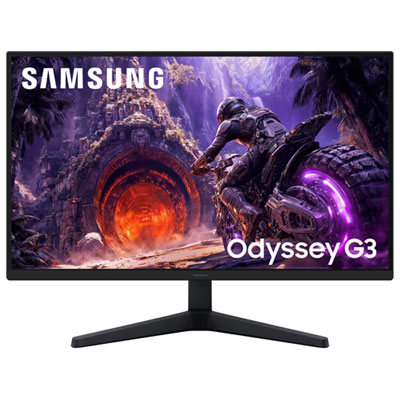

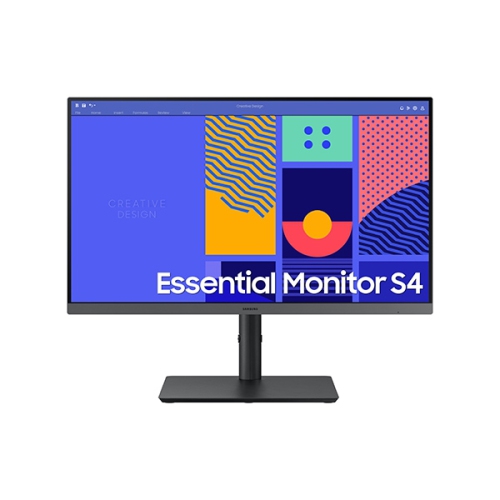
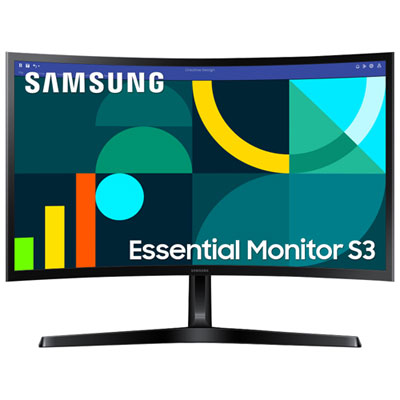

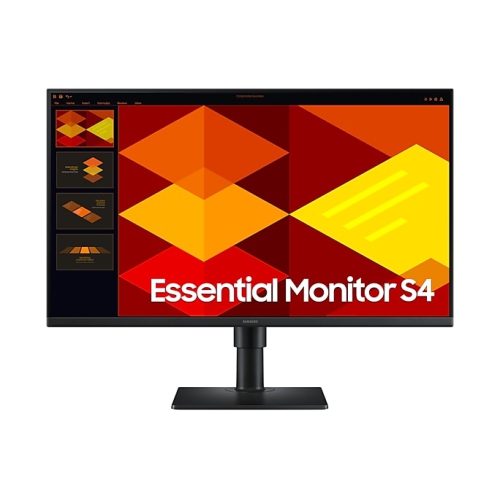
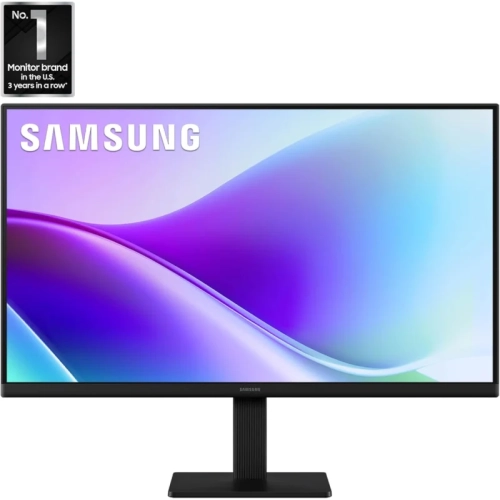
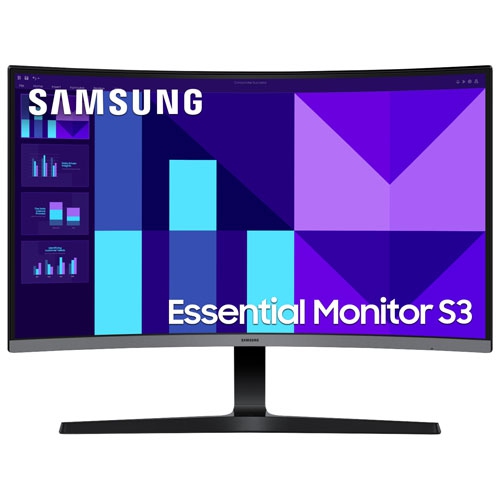
How screen size and desk depth shape your view
A 27-inch Full HD (FHD) LED monitor has a 1920 × 1080 resolution, also called 1080p. The 27-inch measurement runs diagonally across the screen, while Full HD describes the number of pixels in the image. LED refers to the backlight behind the LCD panel, not to the resolution or the panel type. An IPS panel, for example, typically keeps colours and contrast more consistent when viewed from the side. That can matter when two people are looking over a set of slides or when the monitor sits at an angle beside a laptop. At 27 inches, Full HD offers a larger image than a smaller 1080p monitor without adding more room for windows at the same display settings. Text and icons can be easier to see from farther back, but the individual pixels are more noticeable up close. That trade-off is worth considering on a shallow desk, particularly for someone who spends hours reading small text or working with fine lines. At a comfortable viewing distance, the 27-inch format suits everyday uses such as writing, video calls, streaming and casual gaming. It leaves physical room to glance between a document and a messaging window, though a wide spreadsheet and a full-size browser window may still feel cramped side by side. Refresh rate is a separate specification. A 120 Hz display refreshes twice as often as a 60 Hz display, which can make scrolling, cursor movement and supported games look smoother without making static text any sharper. For gaming, the difference is easiest to see when the computer or console can deliver enough frames and is set to use the higher refresh rate. A monitor may start at 60 Hz after setup, so it’s worth checking the display settings on the connected device before assuming the screen is running at its highest supported rate.
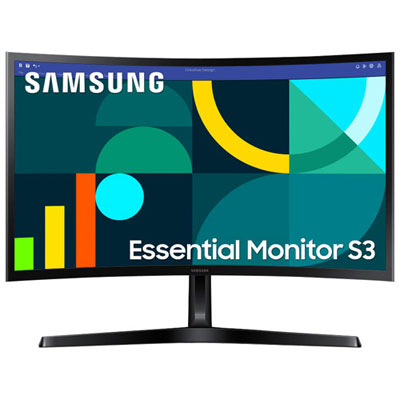
How a 27-inch monitor fits on a desktop depends as much on the stand as on the screen. The listed dimensions with the stand attached are more useful than the diagonal measurement when there’s a shelf above the desk or a wall close behind it. A stand with widely spaced feet may leave enough room to slide a slim keyboard underneath, while a deep base can push the keyboard toward the front edge. Leave room behind the monitor for the power and video cables to bend gently, especially if the ports face straight back. Tilt adjustment helps if overhead lights reflect off the screen, while height adjustment makes it easier to bring the top of the display to about eye level or slightly below it. For a monitor arm, check the VESA mounting pattern and the arm’s weight range rather than relying on screen size alone. Screen shape also affects the setup. A flat panel can be straightforward to line up with a laptop or another display. A curved screen has edges that angle toward the viewer, a difference most apparent when sitting directly in front of it. For a look at that shape, browse Samsung 27" Curved Monitors and check the resolution separately, since curvature doesn’t tell you whether a screen is Full HD. Connections also deserve a look before choosing a monitor. A laptop that uses USB-C for accessories won’t necessarily send video through every USB-C port. If the setup uses a dock or an adapter to connect to HDMI, that part of the chain needs to support the intended resolution and refresh rate as well. For a desk shared by a work laptop and a game console, having a separate input for each can spare repeated cable swaps. Built-in speakers aren’t a given, so anyone planning to use the display for calls or streaming should check how audio will play.
A monitor’s exterior is usually made from rigid plastic, while the stand may use plastic, metal or a combination. For a desk that gets bumped or is used for frequent typing, a firm stand and a hinge that holds its angle matter more than the finish on the casing. A matte screen finish can soften reflections, but placement still counts. Turning the desk so a bright window is off to one side often helps more than raising the brightness to compensate for glare. A 27-inch Full HD display can make a useful gift for a student who wants to keep class notes beside a draft, a remote worker who finds a laptop screen cramped, or someone setting up a desktop for everyday browsing and games. Checking the recipient’s desk depth and the video output on their computer is more useful than guessing from the size of their existing screen. For care, turn the display off before cleaning so dust and smudges are easier to see, then use a clean, soft microfibre cloth with light pressure. For marks that don’t lift with a dry cloth, follow the manufacturer’s cleaning directions and avoid spraying liquid directly onto the screen. Household glass cleaners can damage some screen coatings. When moving the monitor to another desk, unplug the cables first and lift it by its casing without pressing against the panel. Keeping cables loose enough to move with the stand also helps prevent strain at the ports when the screen is tilted or turned. Those practical details make a difference in a setup that gets used day after day, whether the screen spends most of its time showing a row of spreadsheets or switches from homework to a game on the same desk.
Top selling and popular products
-
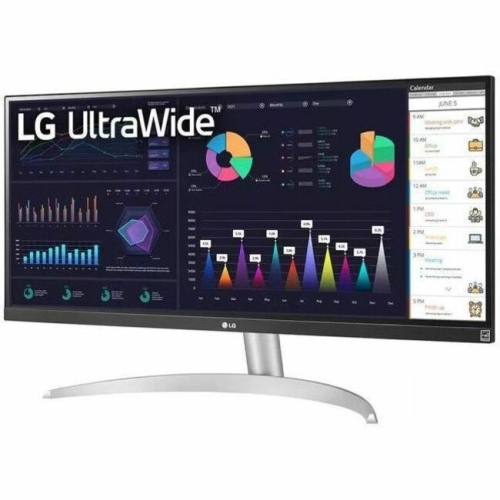 Your price for this item is $2237.68
-
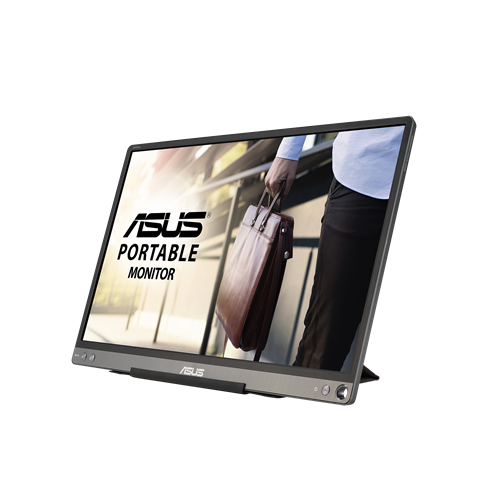 Your price for this item is $320.68
-
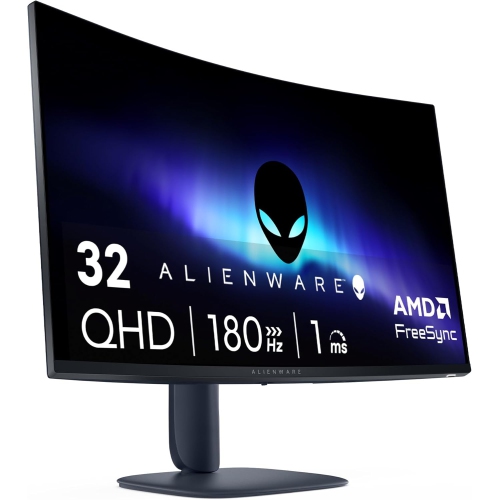 Your price for this item is $469
-
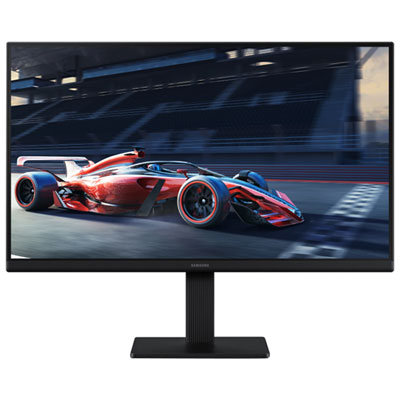 Your price for this item is $149.99
-
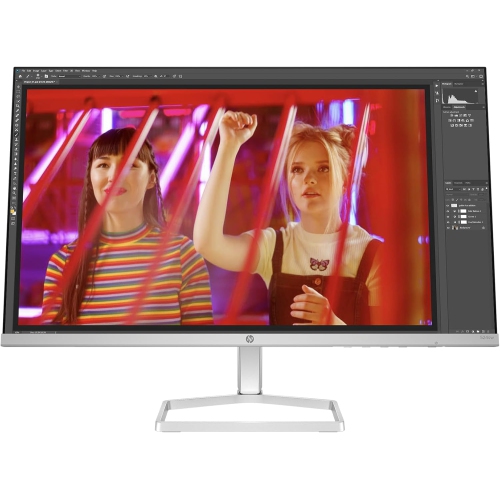 Your price for this item is $265.99
-
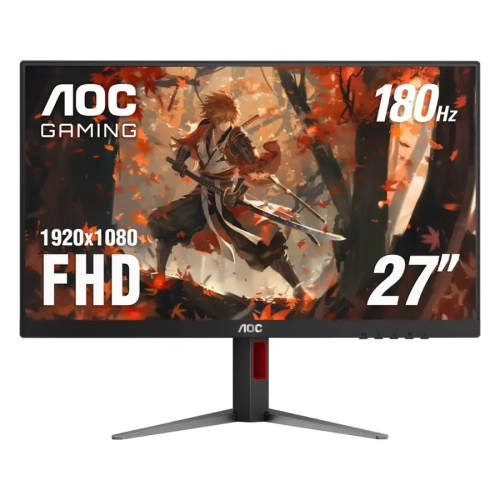 Your price for this item is $229.99
-
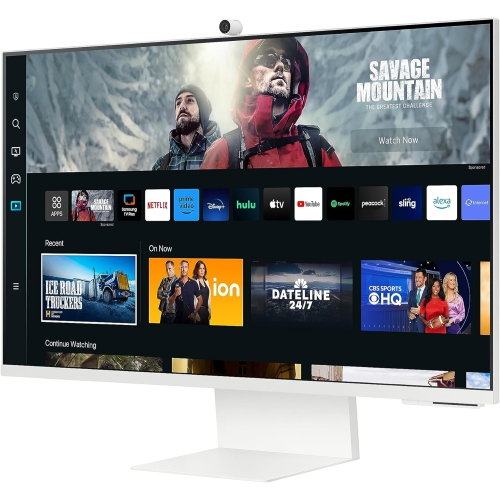 Your price for this item is $1138.68
-
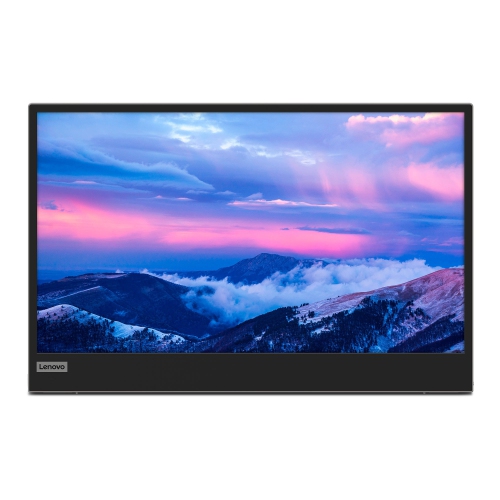 Your price for this item is $355.68
Discover more categories related to Samsung 27 FHD LED 1080P
Top Collections:
Best Black Friday Deals This Year, Best Black Friday Deals On Electronics, Kindle Devices, Pokemon Centers, Best Black Friday Deals On Apple Products, Best Cameras for Sports Photography, Dyson Airwrap, Pokémon 30th Celebration Cards, Apple iPhone 17 Pro, Canon G7X Cameras
Some products may be subject to Environmental Handling Fees
(EHF) depending on your province.
Learn more about EHFs.