School Friendly Tablets
School Friendly Tablets make it easy for students to stay connected, organized, and productive both in and out of the classroom. With a variety of options designed to support learning, these tablets offer reliable performance for assignments, research, and creative projects. Explore models that fit every grade level and budget, so you can find the right solution for your educational needs. School Friendly Tablets are a smart choice for enhancing study time and keeping up with daily tasks.
Sort
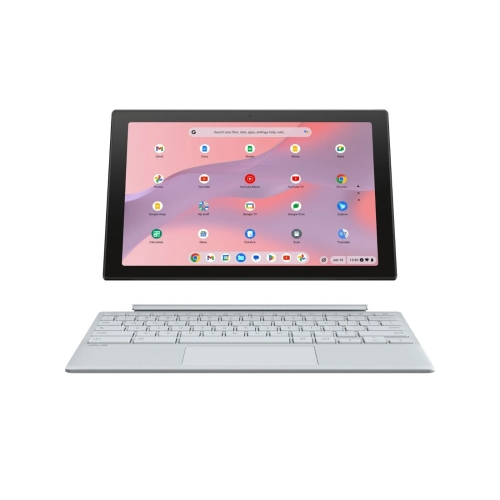
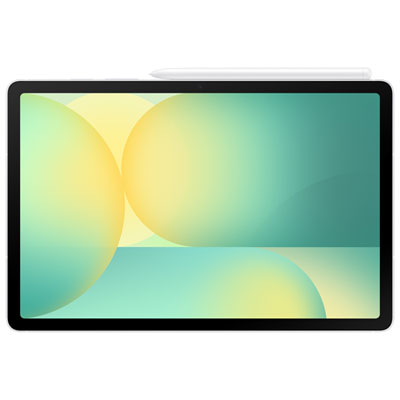
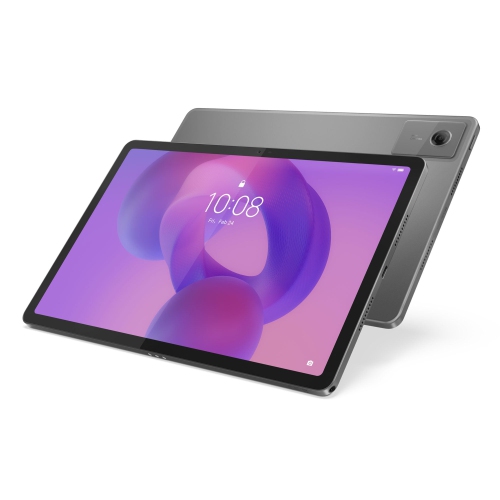
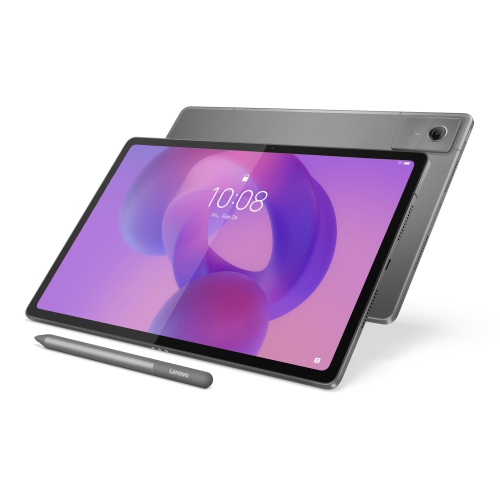
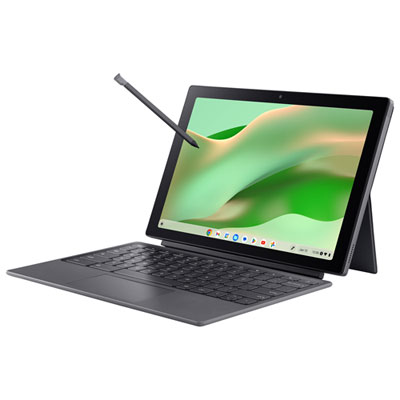
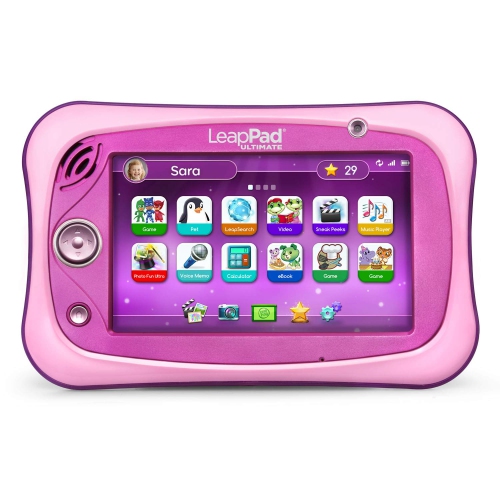
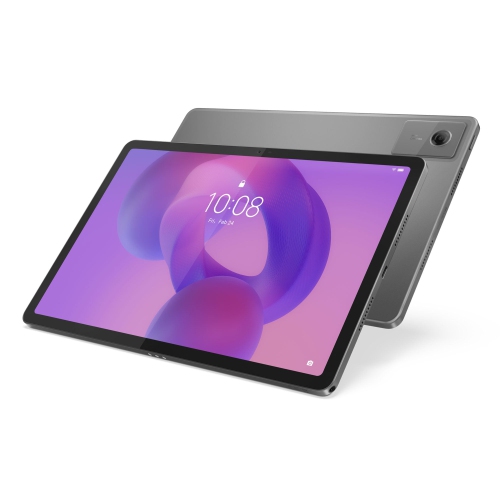
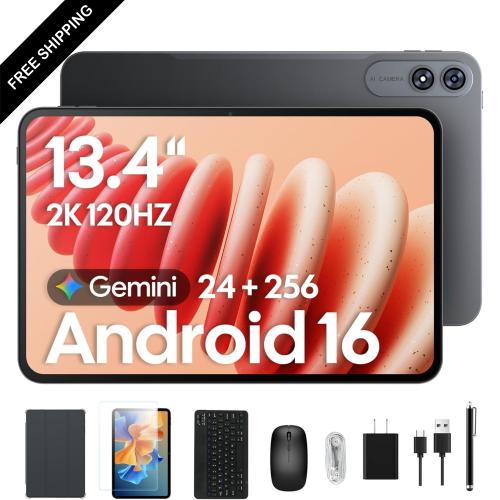
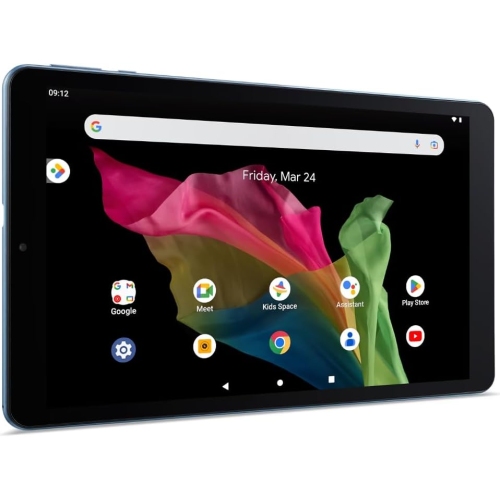
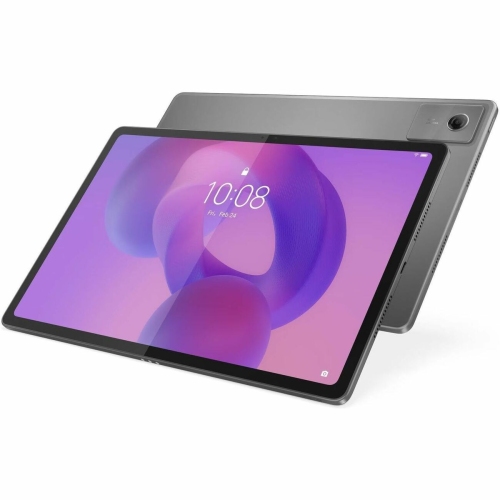
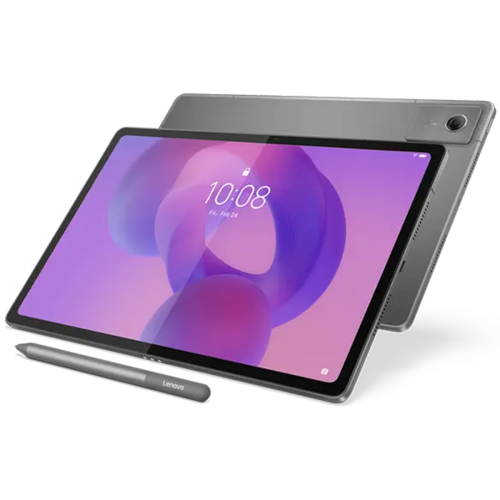
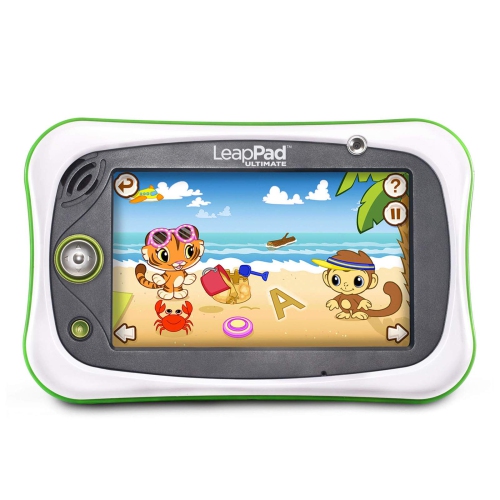
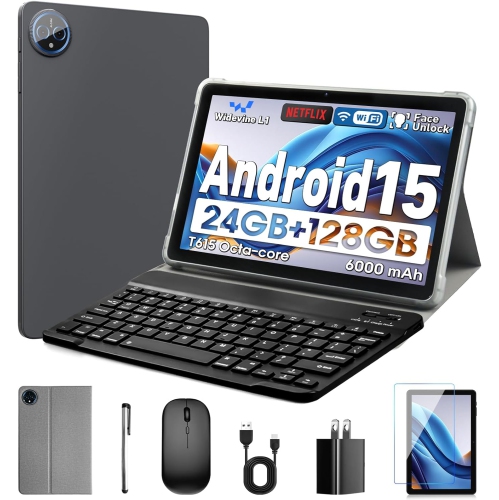
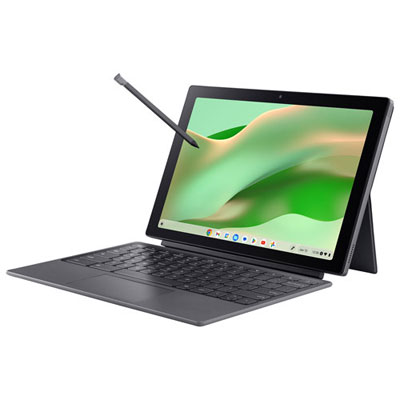
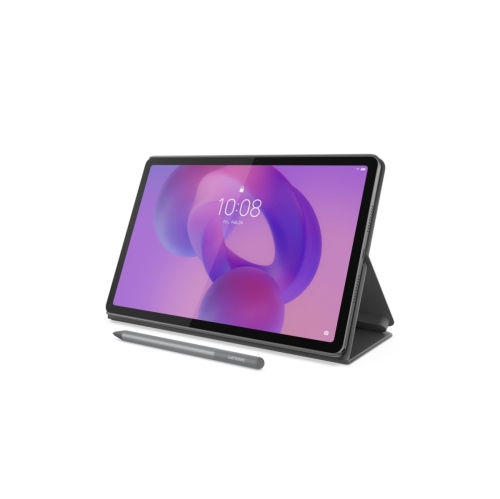
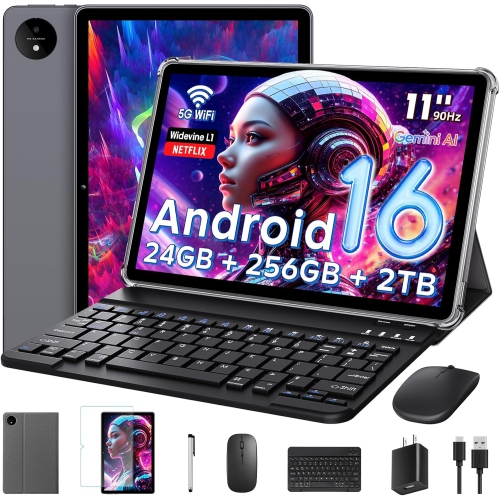
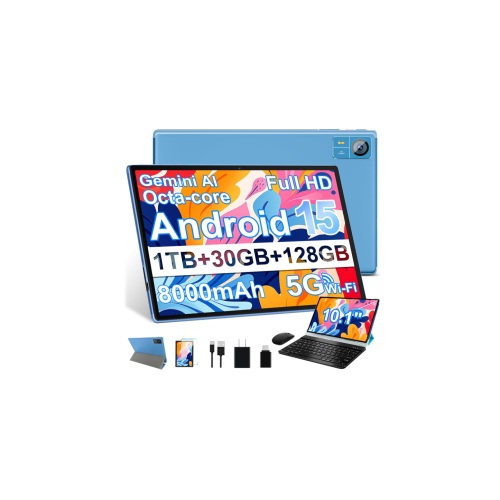
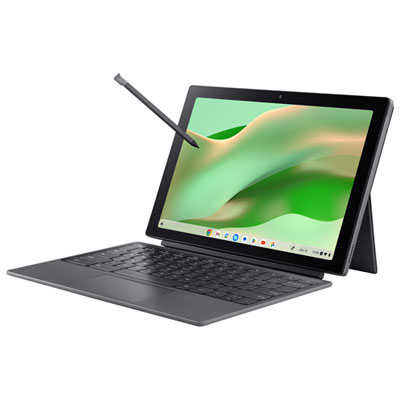

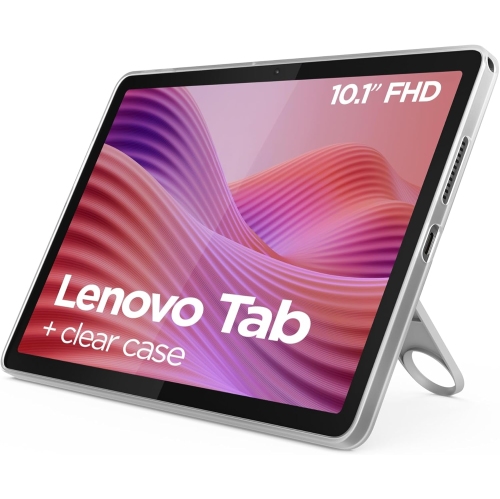
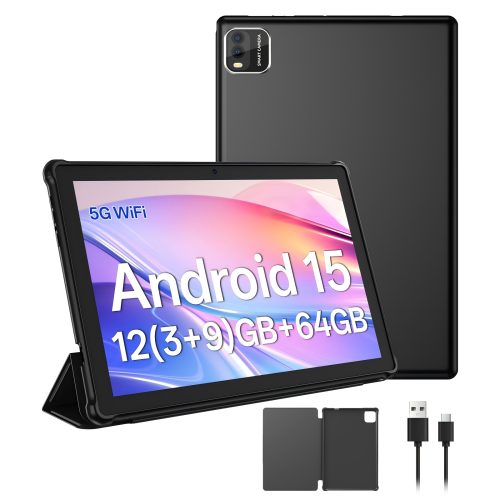
A tablet’s classroom fit starts with app compatibility
School-friendly tablets are portable touchscreen devices suited to digital reading, note-taking, research, and classroom assignments when they support a school’s required apps and access policies. Their appeal is straightforward: a single device can hold textbooks, display a teacher’s instructions, play an instructional video, and provide a place to draft an answer without taking up much room in a backpack. For younger learners, a tablet may be used for supervised reading practice, drawing, or activities assigned through a classroom app. Older students may need to annotate documents, prepare presentations, join video discussions, or move between a reference article and a written assignment. The most useful features depend on those everyday tasks rather than age alone. Reliable Wi-Fi, enough processing power for the required software, comfortable screen space, and battery life that suits the school day all contribute to a practical fit. For families exploring Tablets for School, compatibility with the school’s learning platform is an important starting point. Access through a web browser does not always provide the same functions as a dedicated app, and some assignments require software that only runs on a laptop or desktop computer. A tablet can be a convenient companion to a computer without necessarily replacing one. School-managed accounts, testing software, file submission requirements, and restrictions on personal devices can also affect how a tablet is used in class. A device that opens a worksheet should also support the required way of completing, saving, and returning it. For shared family use, separate profiles or supported account controls can help keep assignments and personal content organized, although these features vary by operating system. Straightforward access to saved work matters just as much: a student should be able to find yesterday’s notes, reopen a downloaded chapter, and submit the correct document without an unnecessarily complicated sequence of steps. This makes everyday usability as important as a long list of technical specifications.
Screen size, weight, and input options shape how comfortable a tablet feels through a full schedule of lessons and homework. A compact device is easier for smaller hands to hold during reading practice, while a larger display offers more room for a textbook page beside a notes window, where split-screen use is supported. Display resolution affects the clarity of small text and detailed diagrams, and adjustable brightness helps students keep the screen comfortable to read in different rooms. Reflections from overhead lighting can make screen positioning important, particularly when a tablet rests flat on a desk. Colour reproduction may matter for visual projects, but legible text and responsive touch controls are useful across almost every subject. Pen support adds another way to work, allowing students to write equations, label a science diagram, or mark up a reading passage. Not every touchscreen supports an active pen, and compatible pens can differ in charging method, pressure sensitivity, and palm rejection. Those details influence whether handwriting feels natural or becomes a distraction. A physical keyboard can make longer reports and frequent typing more comfortable, while a stable stand helps keep the display at a useful angle on a desk or library table. Keyboard layouts, connector types, and case fit need to match the device. Performance also involves more than opening one app quickly. Switching between a lesson, a browser, and a document calls for sufficient memory and processing capacity, while downloaded textbooks, videos, and creative projects take up storage. Offline access is useful for reading or reviewing notes where an internet connection is unavailable, provided the app supports it and the files have been downloaded beforehand. Battery estimates vary with screen brightness, video calls, wireless connections, and workload, so a long advertised runtime is not a guarantee of identical classroom results. Clear speakers, a usable microphone, and a front-facing camera round out the features that support spoken assignments, recorded presentations, and remote participation. Headphone compatibility matters too, particularly for listening exercises in a shared study space.
Durability and care are especially relevant for tablets that travel between home, classrooms, libraries, and after-school activities. Glass screens and metal or plastic housings have different finishes and handling characteristics, but no material makes a device immune to drops or pressure inside a crowded bag. A well-fitting protective case can add grip and help protect corners, while a padded sleeve separates the tablet from loose stationery and other belongings. Cases with stands need a secure resting position, particularly when students tap the screen repeatedly or write with a pen. Extra protection also adds weight, which can be noticeable for a child carrying the device alongside books and a lunch bag. A screen protector may help reduce surface scratches, although its fit and effect on writing feel depend on the tablet and accessory. Routine care is simple: a soft, clean microfibre cloth helps remove fingerprints, and the manufacturer’s cleaning instructions identify suitable methods for the screen and housing. Keeping drinks away from the work surface and avoiding pressure against the display can prevent common mishaps. Charging cables and ports also benefit from careful handling rather than being pulled sideways or packed under strain. Beyond physical protection, school use calls for thoughtful account settings and ongoing software support. Supported accessibility tools, such as text enlargement, dictation, screen reading, and captions, can make the same device useful to students with different ways of learning. Family controls may help manage app installation, purchases, and screen-time routines, while notification settings can reduce interruptions during homework. These features vary, and they work best alongside clear expectations about when the tablet is for classwork and when it is for leisure. Software and security updates help maintain compatibility and address known issues over time, although support periods differ between devices. A school-friendly tablet ultimately fits into a student’s routine: comfortable to carry, practical to work on, compatible with required tasks, and straightforward enough that the technology does not become the assignment.
Top selling and popular products
-
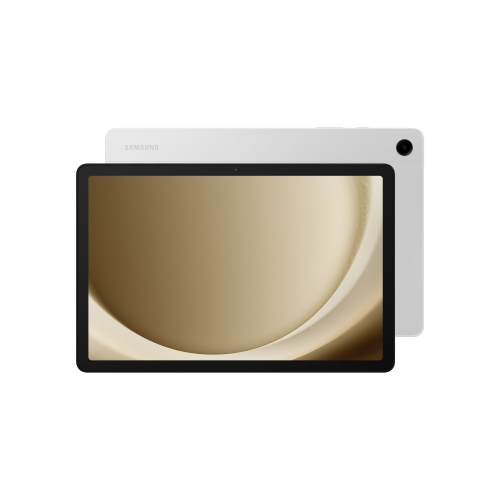 Your price for this item is $499.99
-
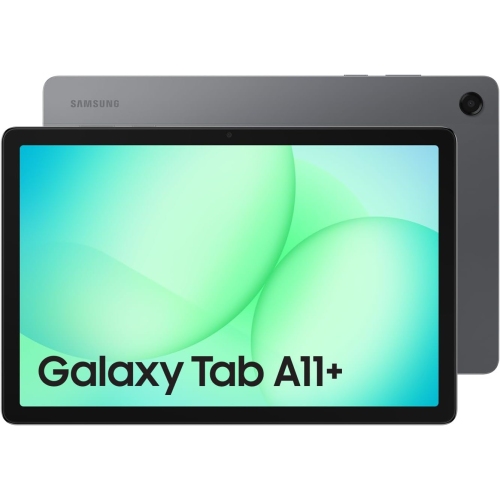 Your price for this item is $350
-
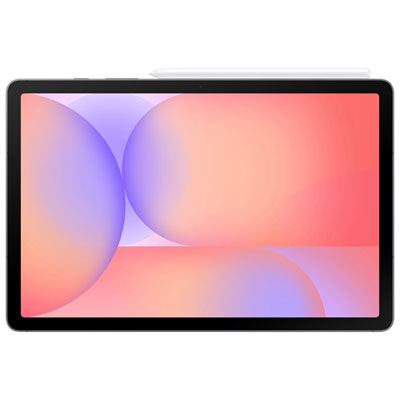 Your price for this item is $399.99
-
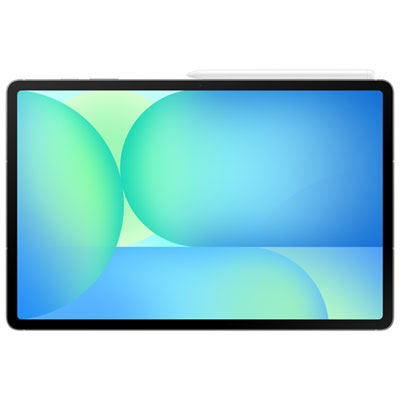 Your price for this item is $979.99
-
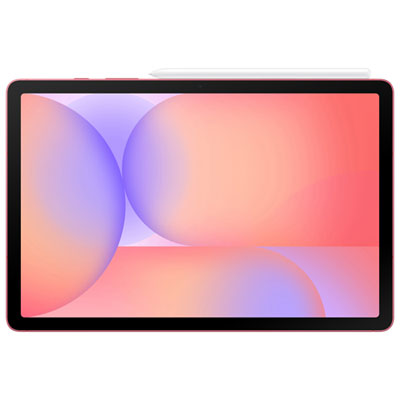 Your price for this item is $399.99
-
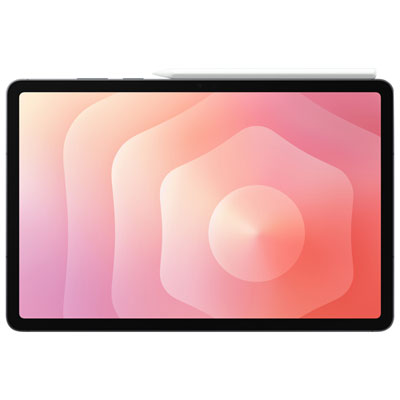 Your price for this item is $1399.99
-
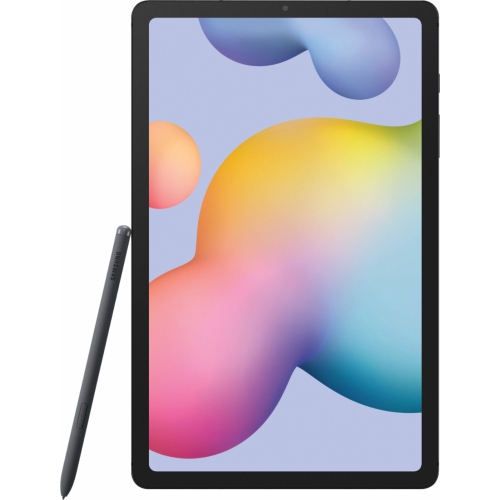 Your price for this item is $699.99
-
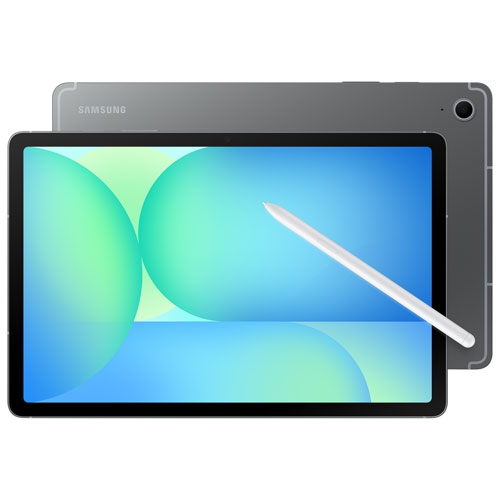 Your price for this item is $664.95
Discover more categories related to School Friendly Tablets
Top Collections:
Best Black Friday Deals This Year, Best Black Friday Deals On Electronics, Kindle Devices, Pokemon Centers, Best Black Friday Deals On Apple Products, Best Cameras for Sports Photography, Dyson Airwrap, Pokémon 30th Celebration Cards, Apple iPhone 17 Pro, Canon G7X Cameras
Some products may be subject to Environmental Handling Fees
(EHF) depending on your province.
Learn more about EHFs.