SSDs for Computers
Looking to supercharge your computer's performance? Look no further than our wide selection of SSDs for computers. These powerful storage devices are designed to provide lightning-fast read and write speeds, ensuring that your system runs smoothly and efficiently. Whether you're a gamer looking for faster load times or a professional in need of snappy file transfers, our SSDs are the perfect upgrade for any computer. With various capacities and form factors available, finding the right SSD to suit your needs has never been easier.
Sort


![Sandisk Portable 2TB USB 3.2 External Solid State Drive (SDSSDE30-2T00-G26) - Black [Employee of bestbuy] Great product for the value glad i purchased this from best buy](https://multimedia.bbycastatic.ca/multimedia/products/400x400/177/17744/17744651.jpg)






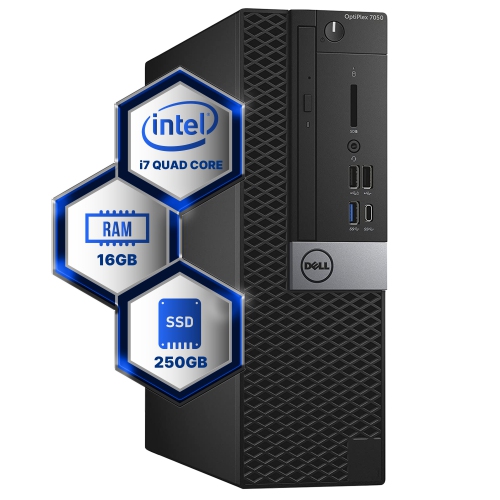
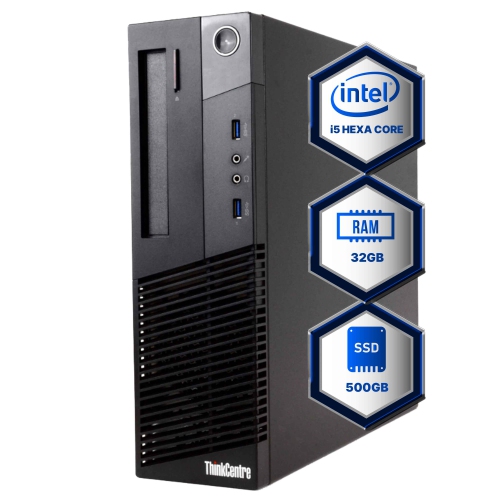
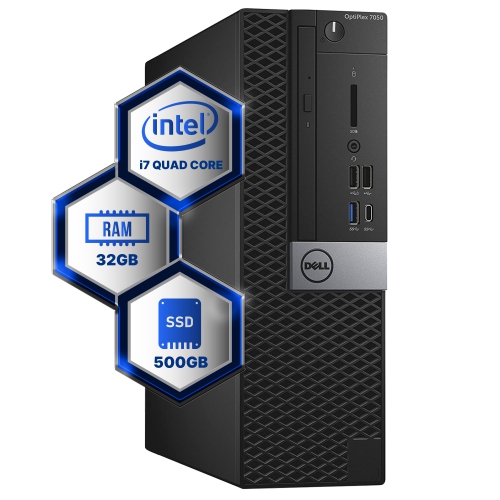
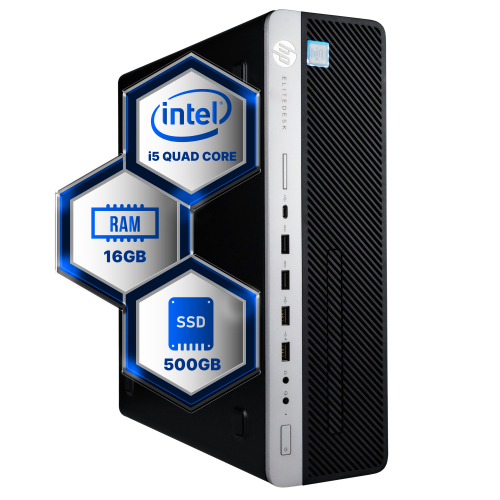


Why an SSD upgrade can make everyday tasks faster
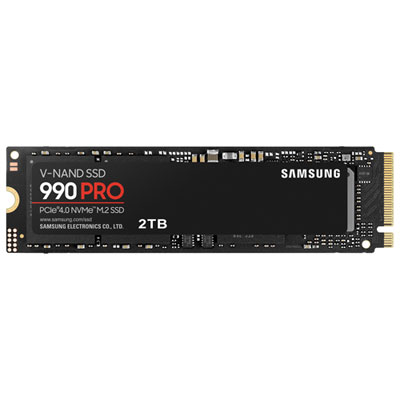
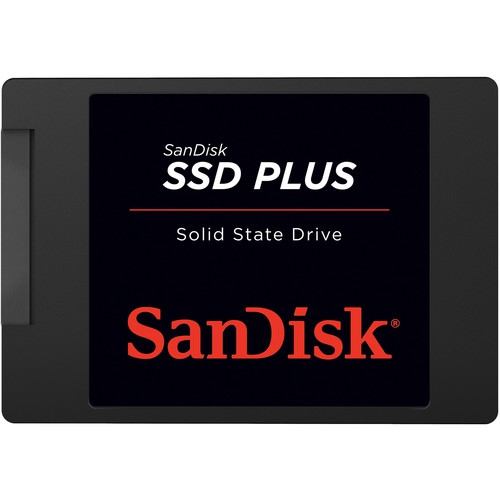
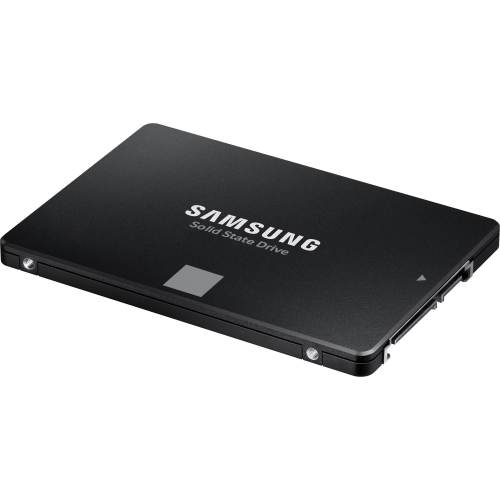
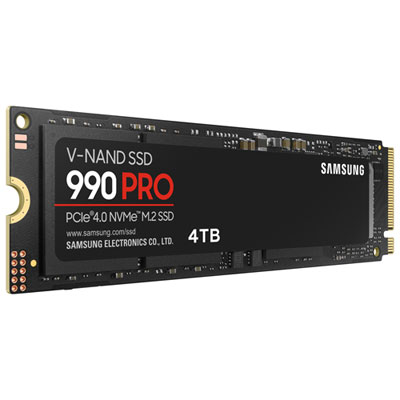
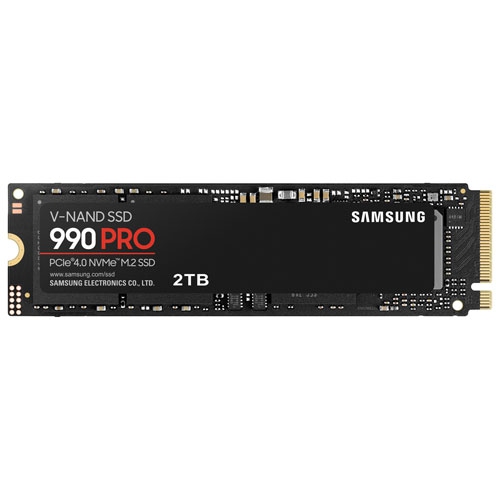
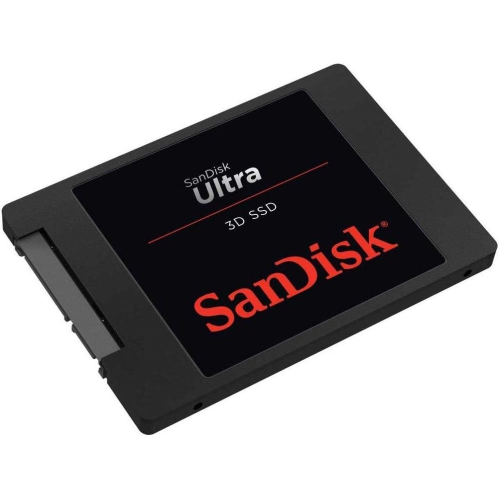
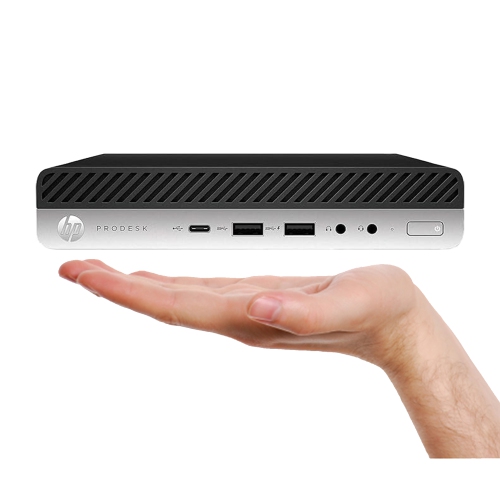
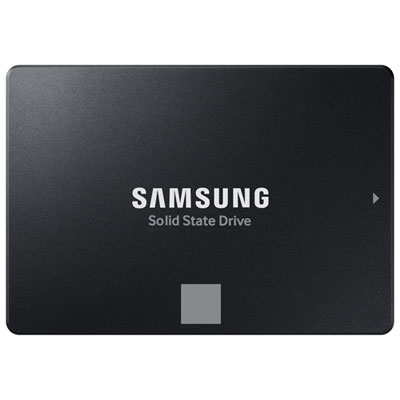
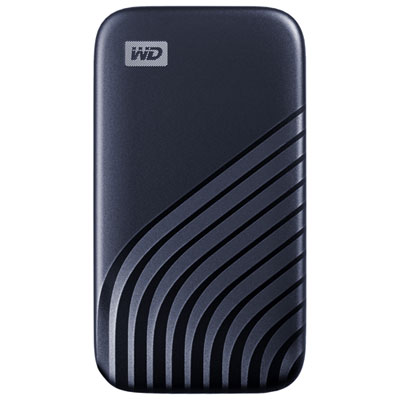
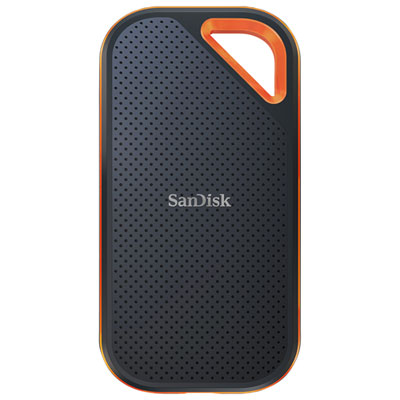
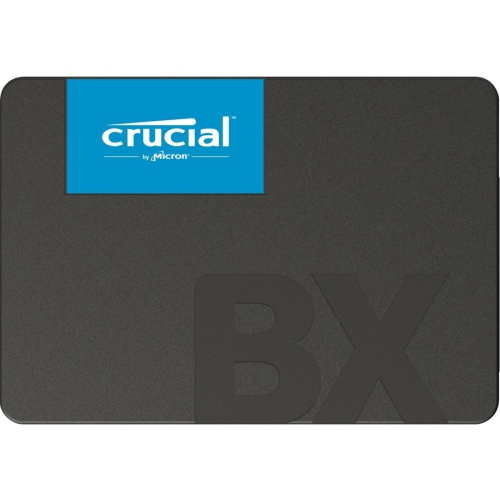
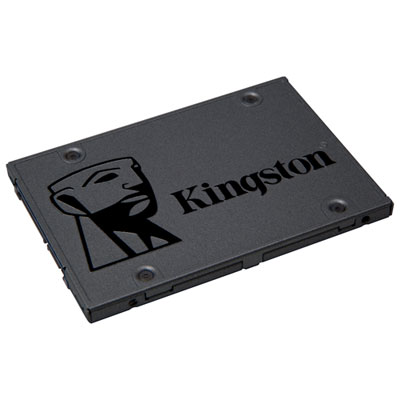
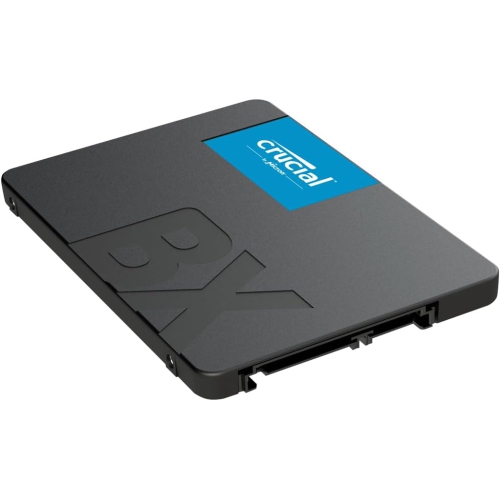
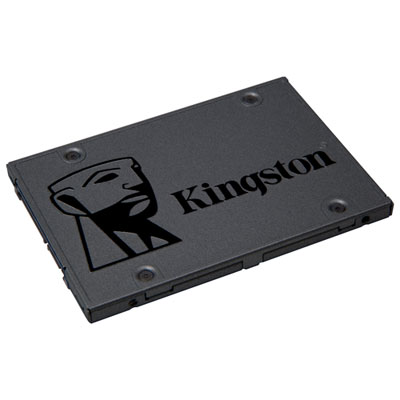
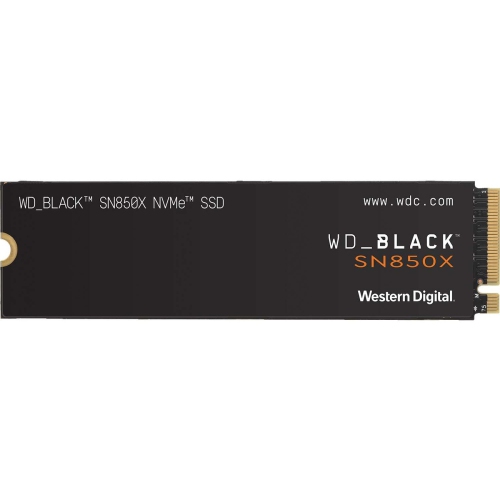
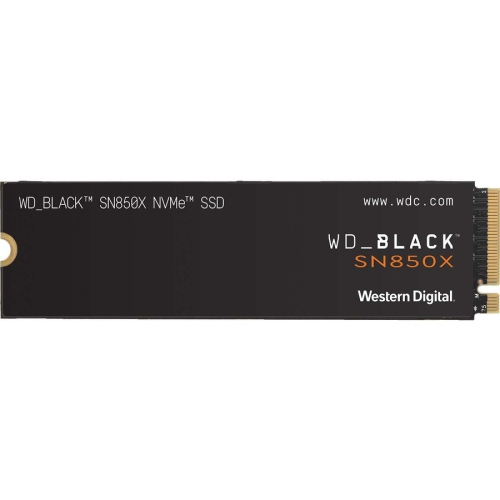
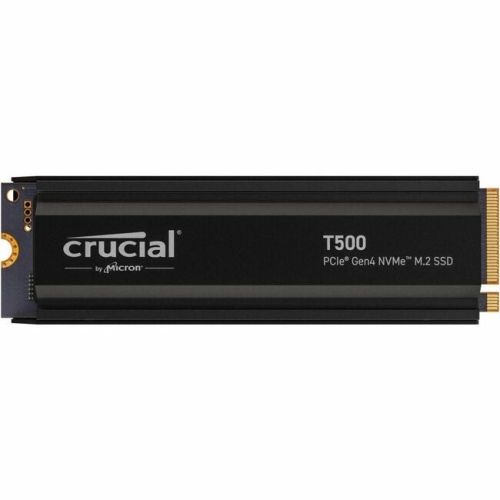
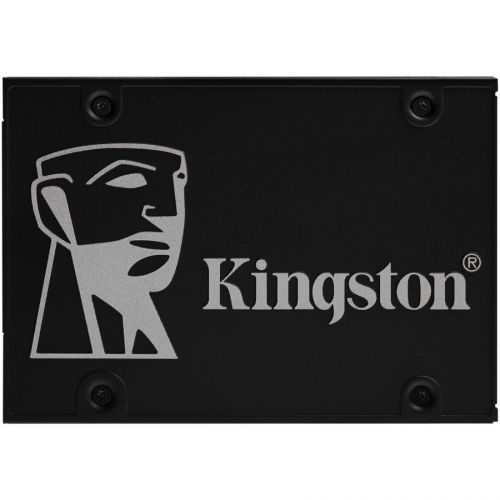
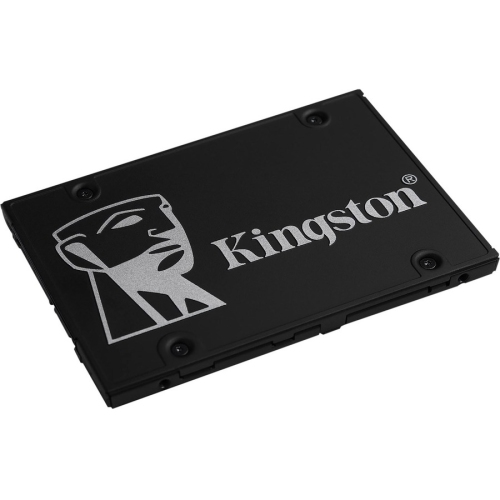
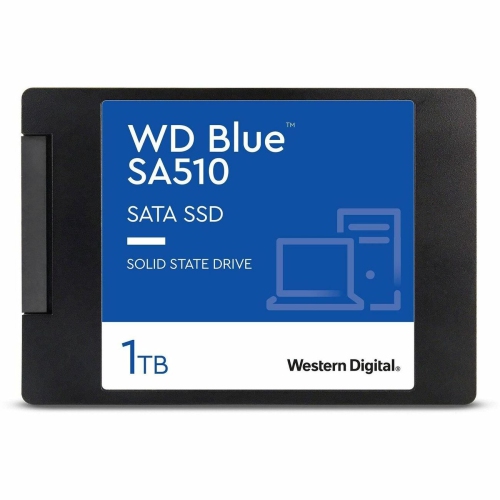
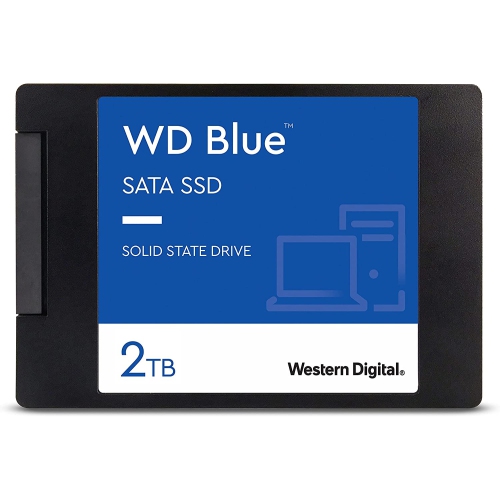
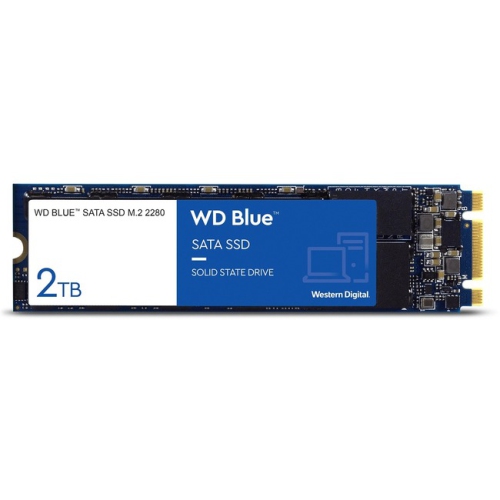
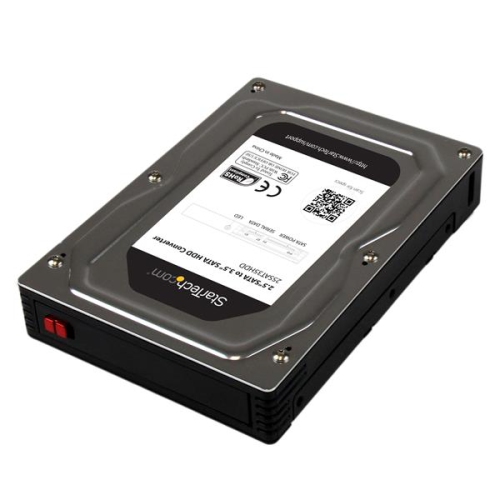
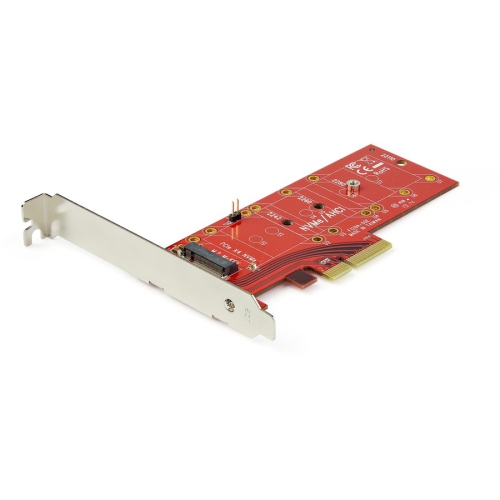
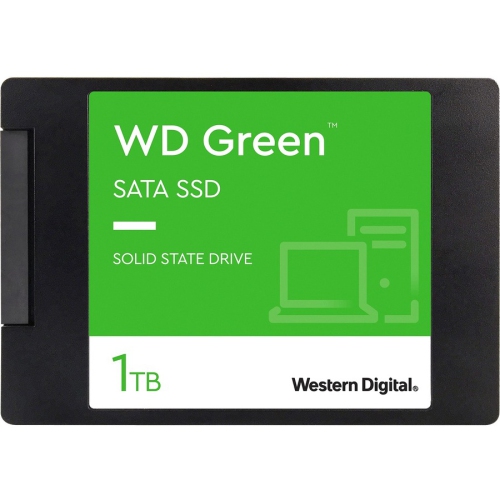
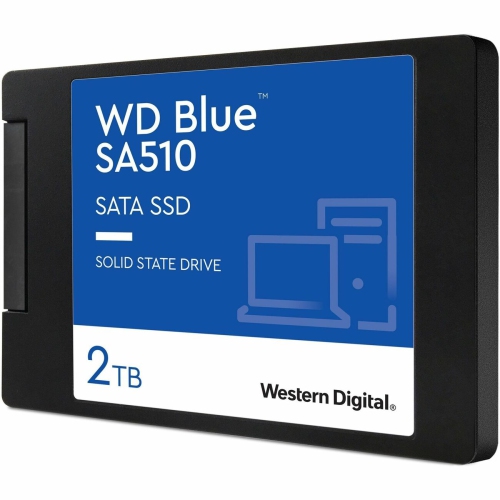
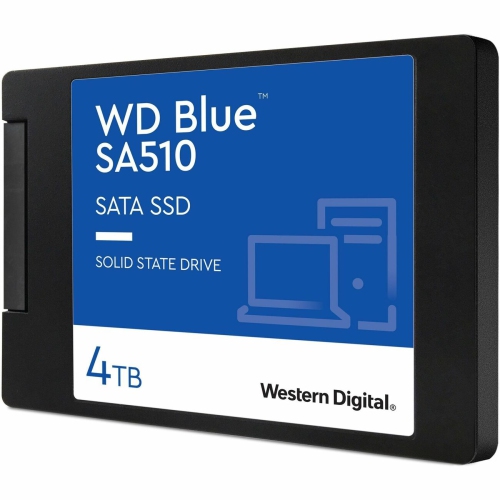
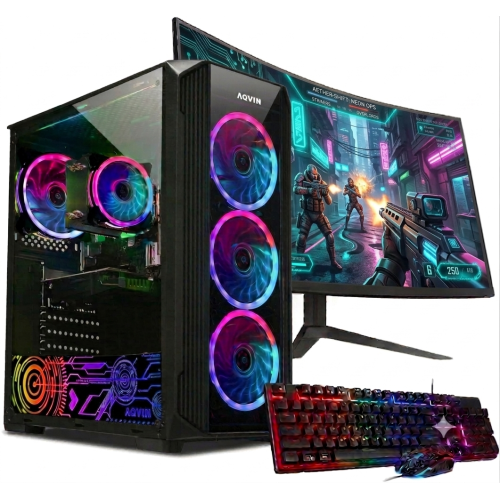
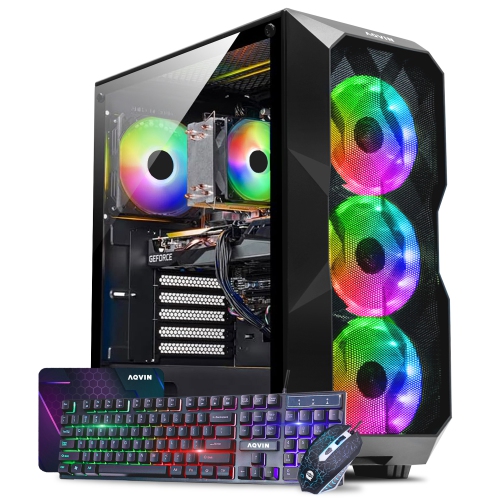
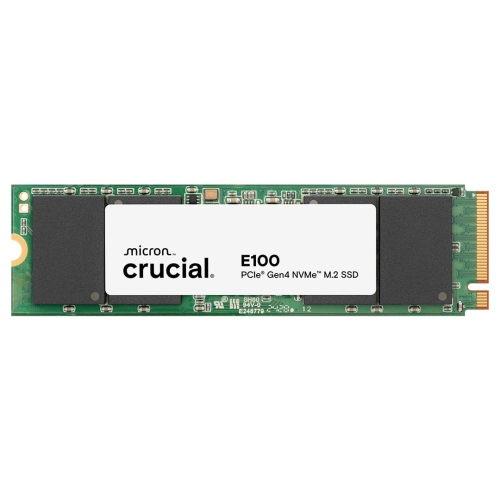
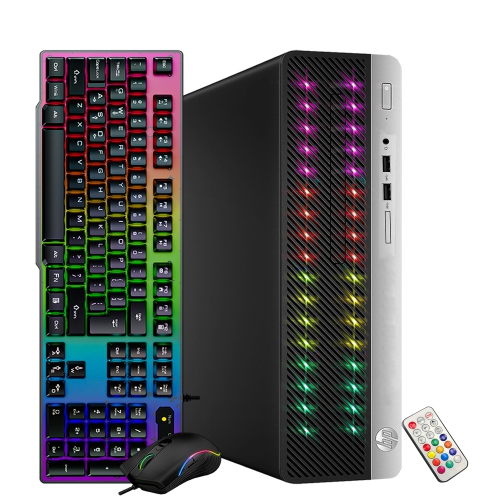
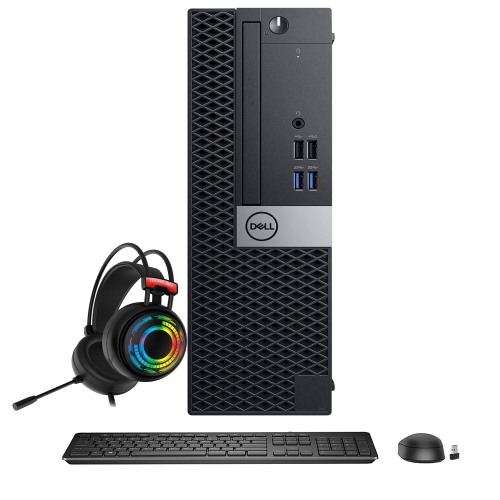
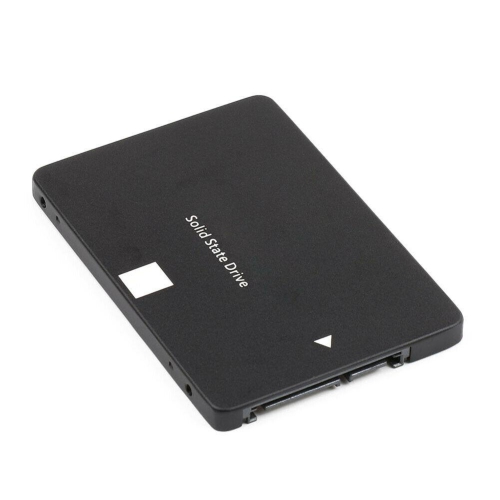
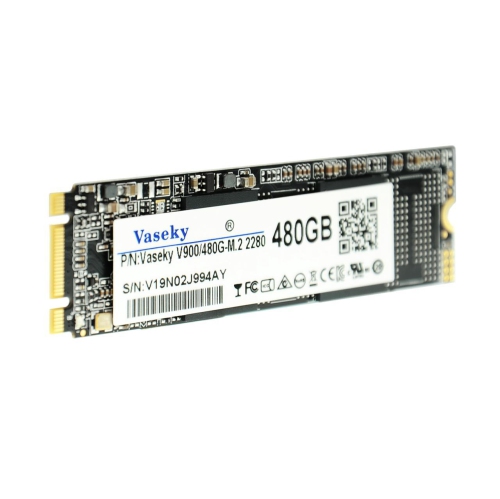
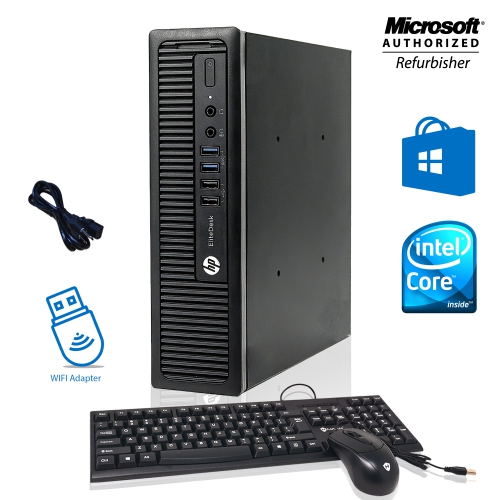
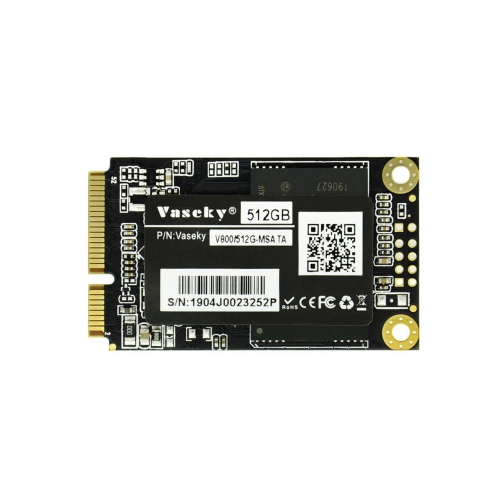
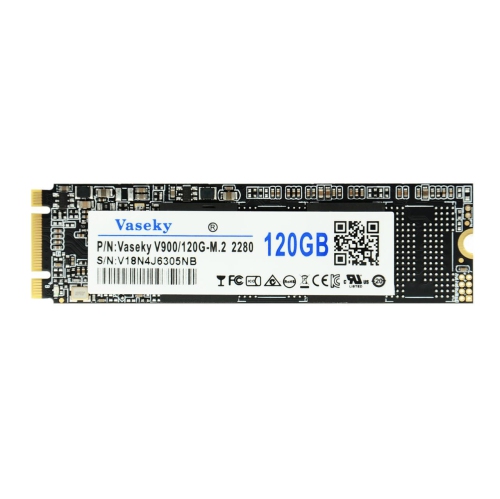
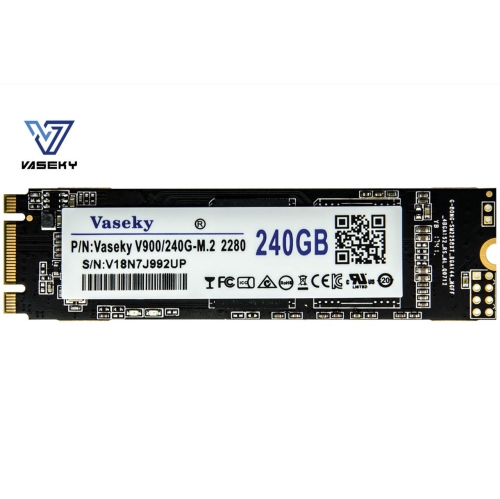
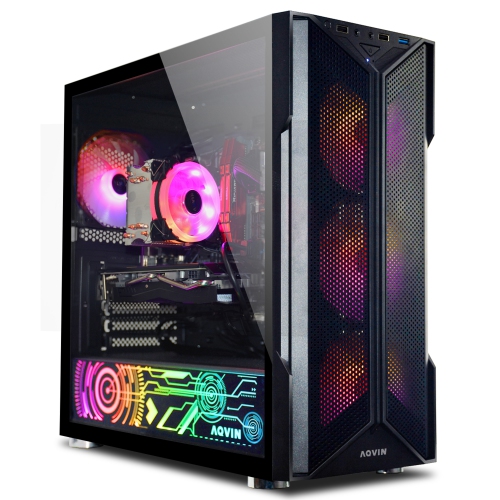
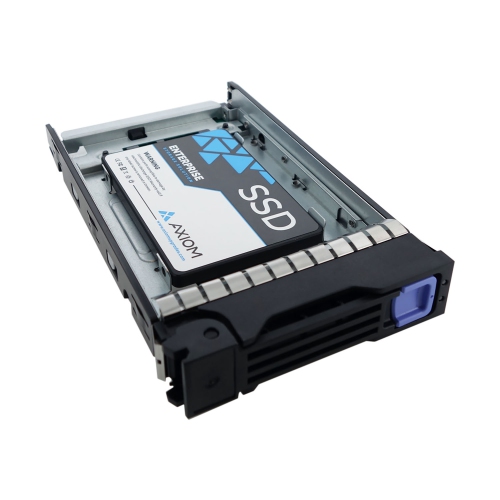
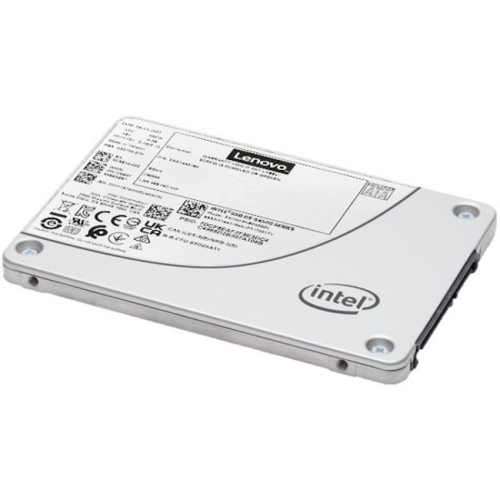
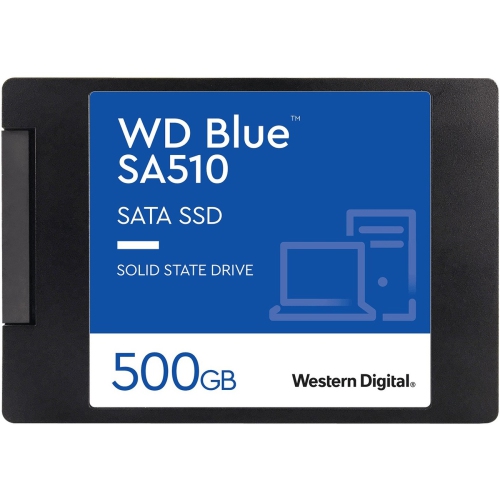
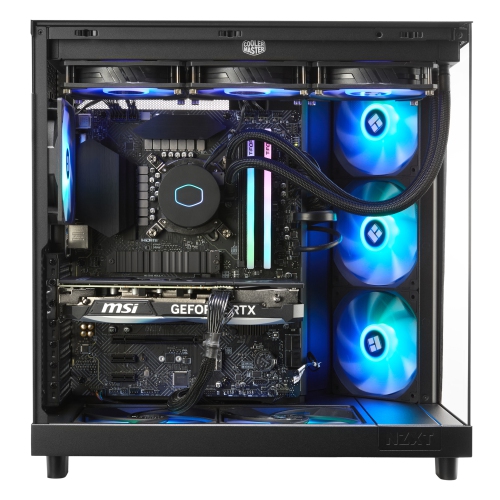
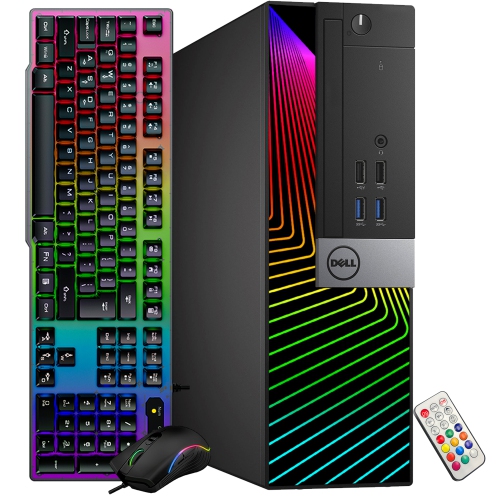
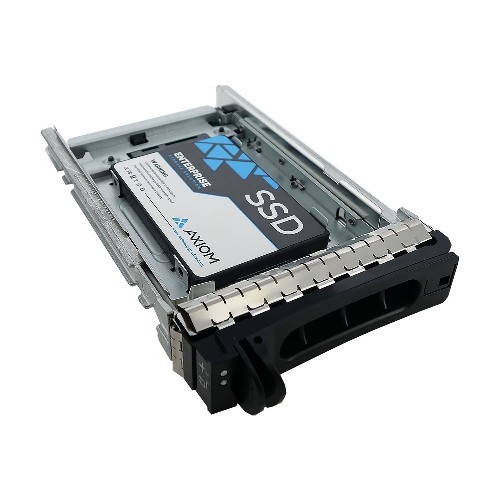
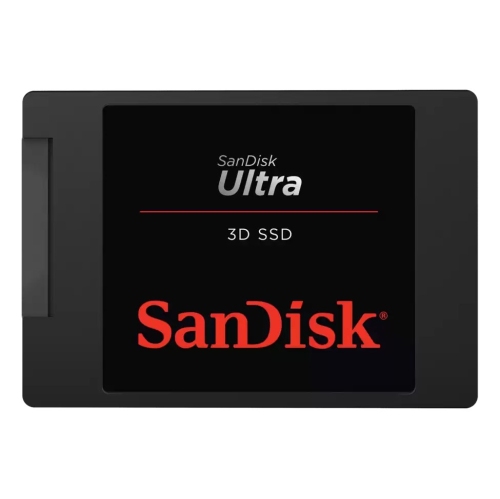
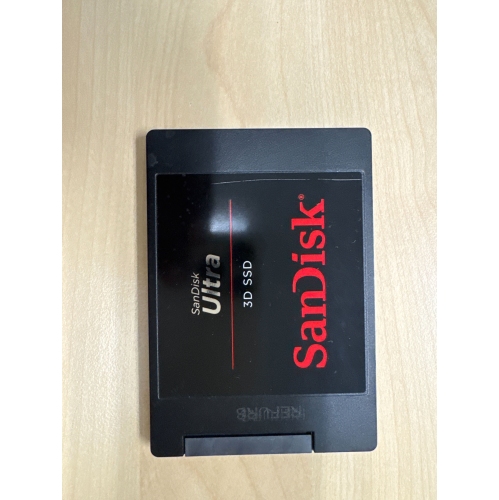
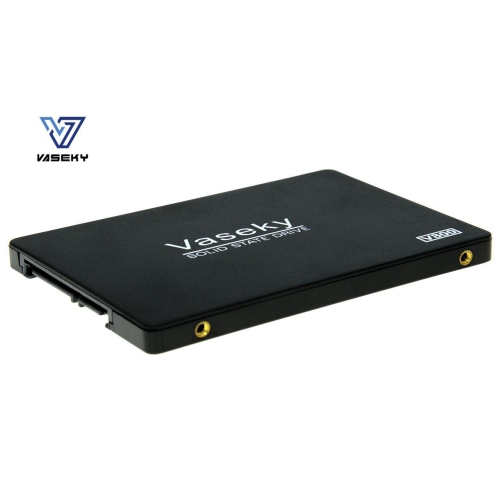
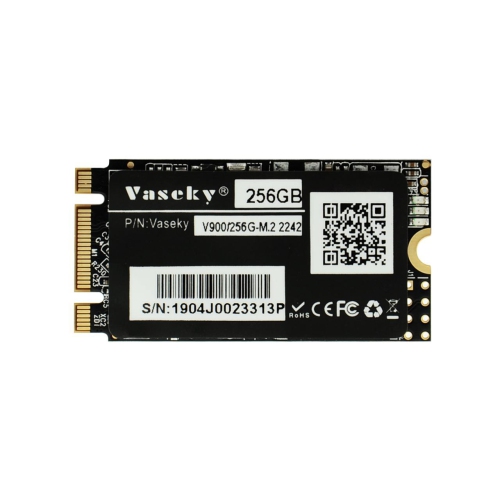
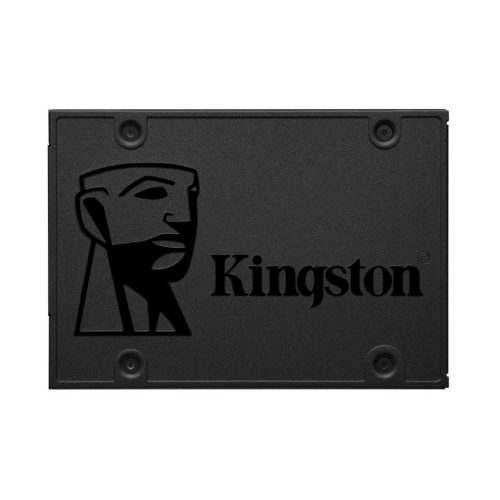
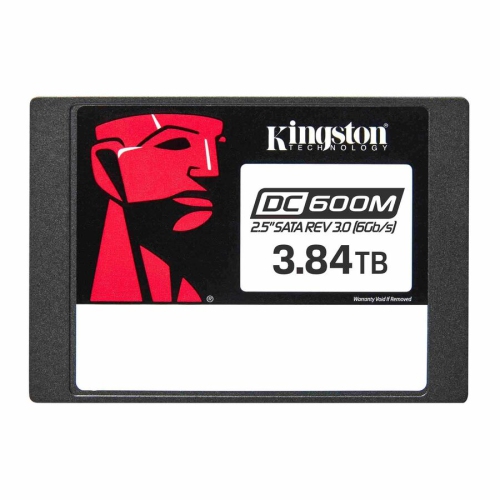
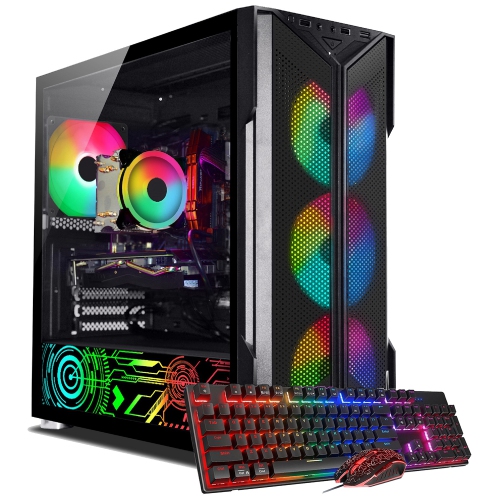
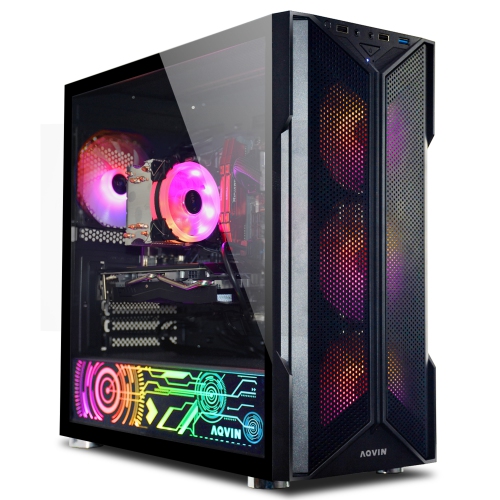
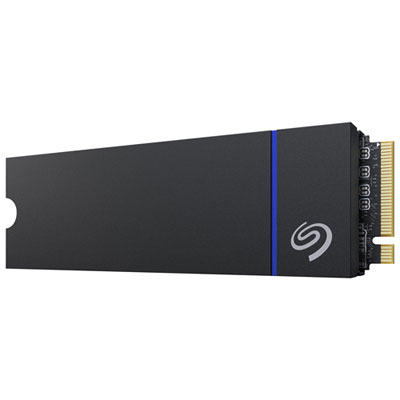
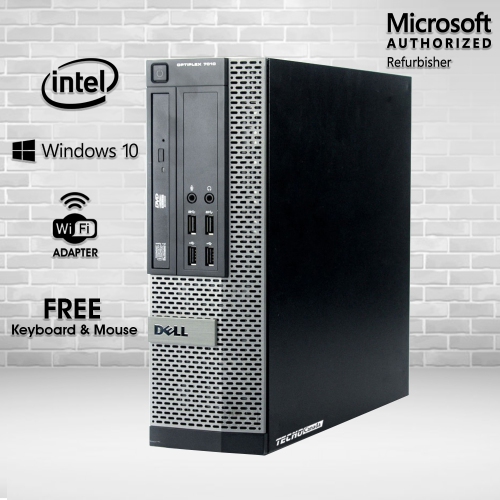
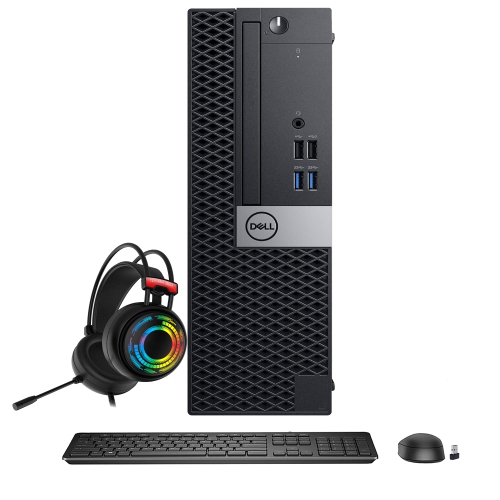
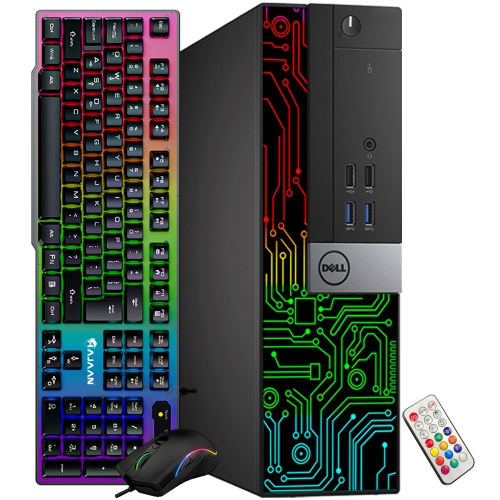
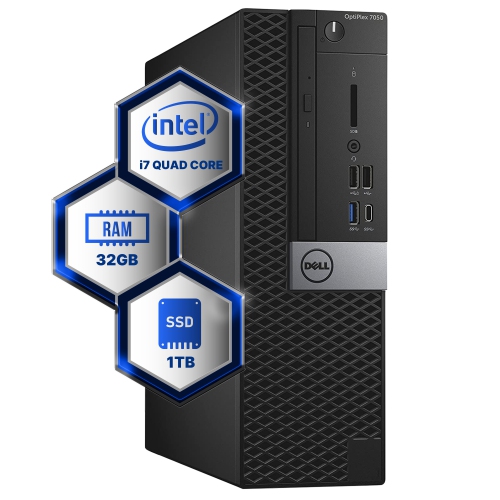
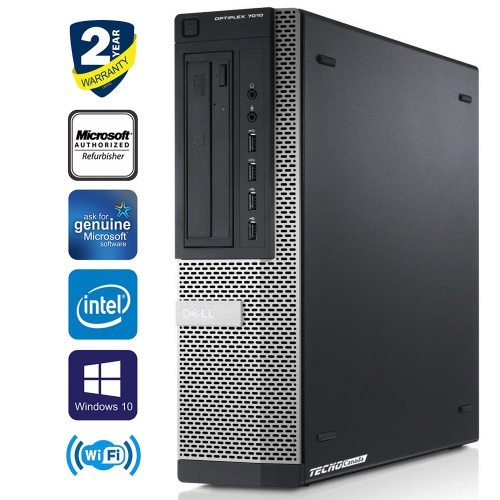
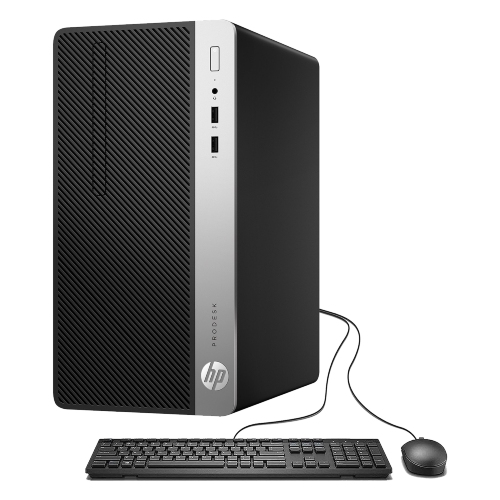
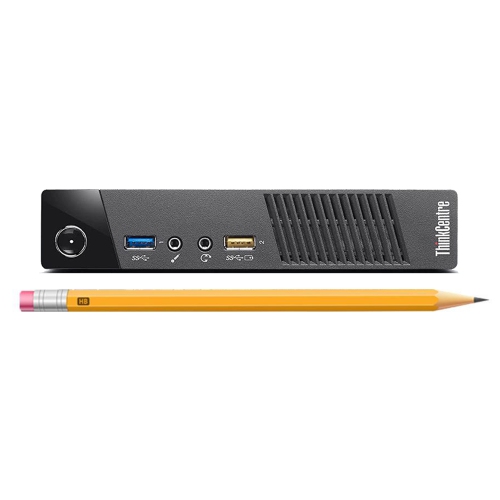
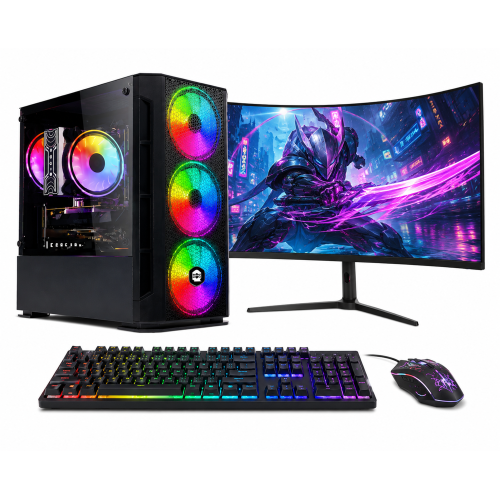
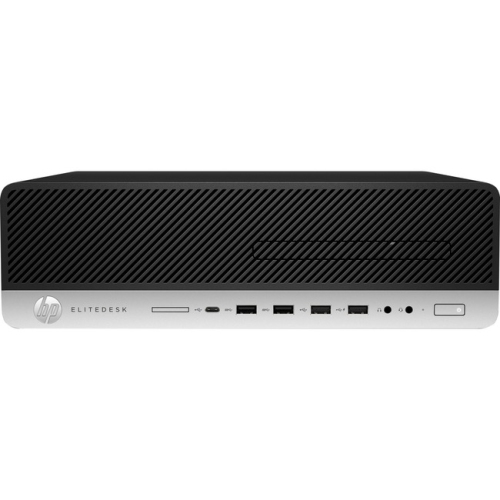
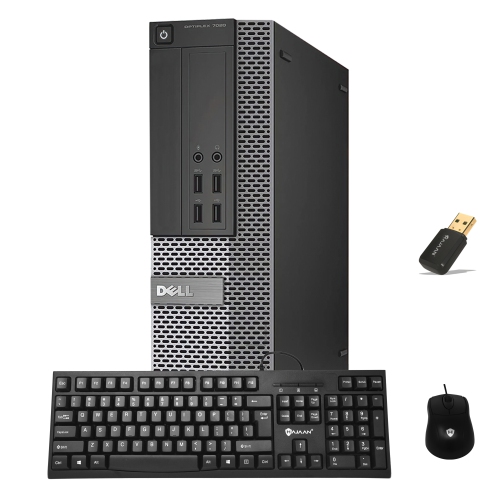
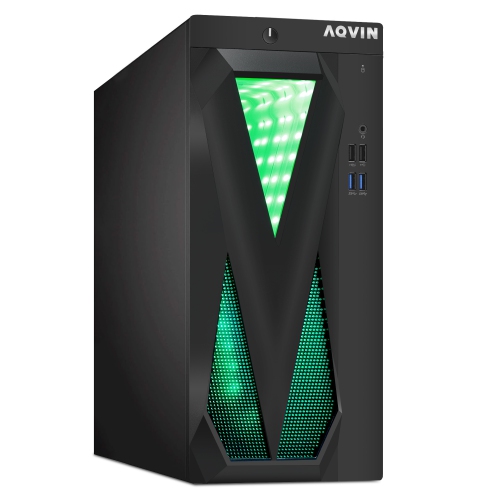
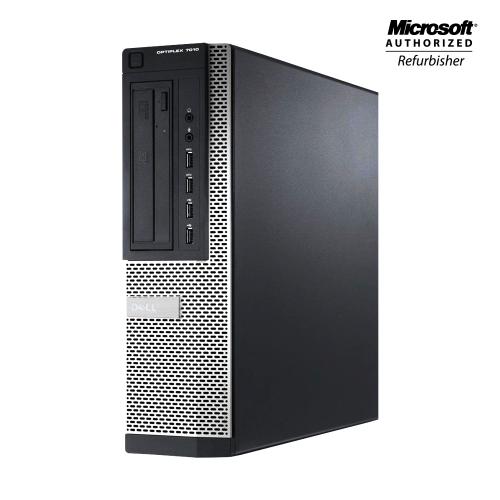
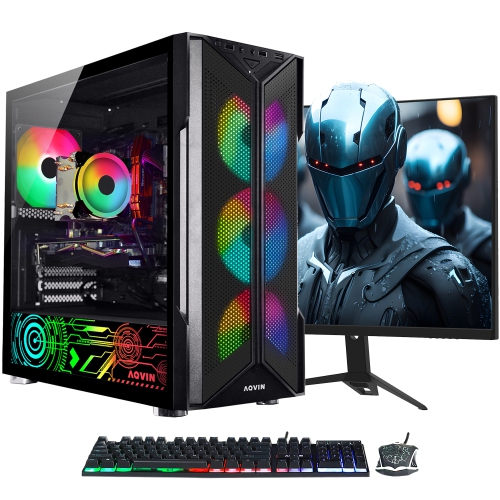
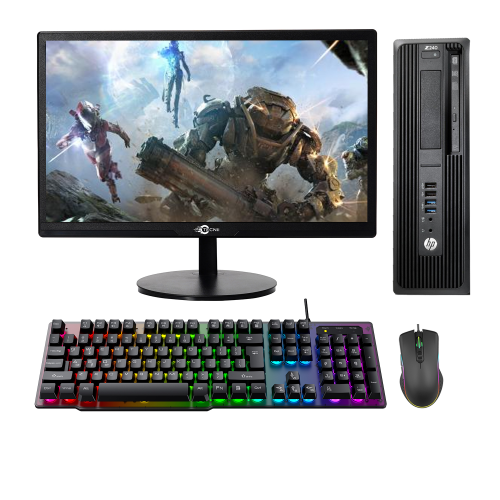
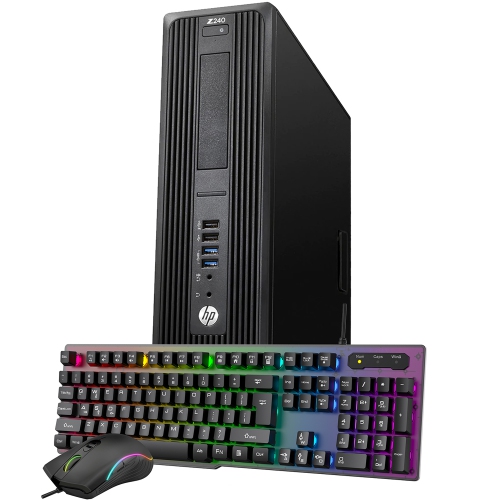
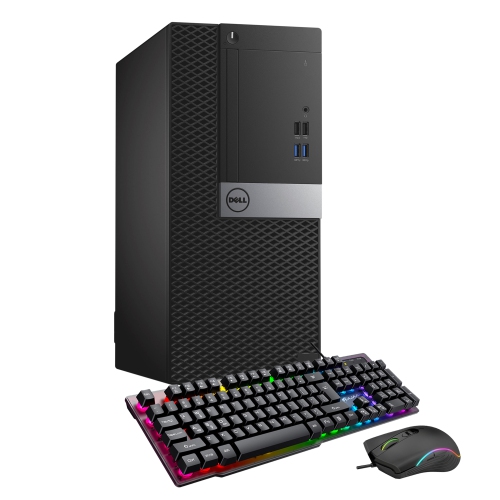
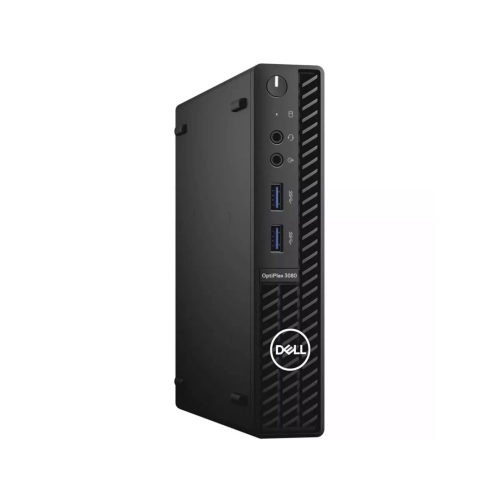
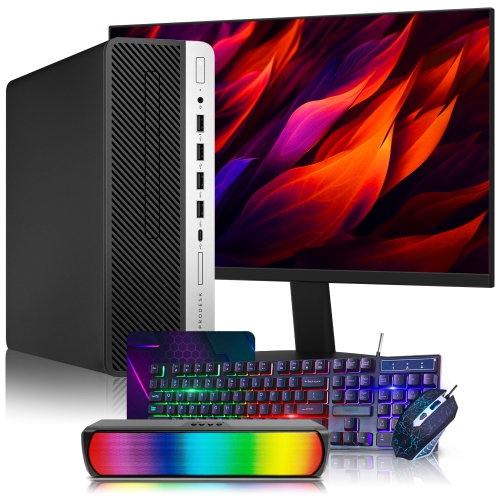
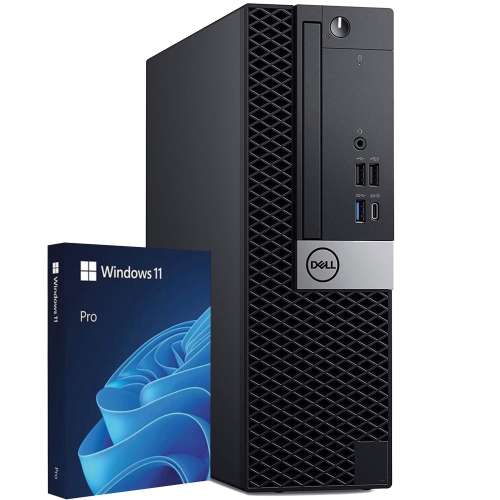
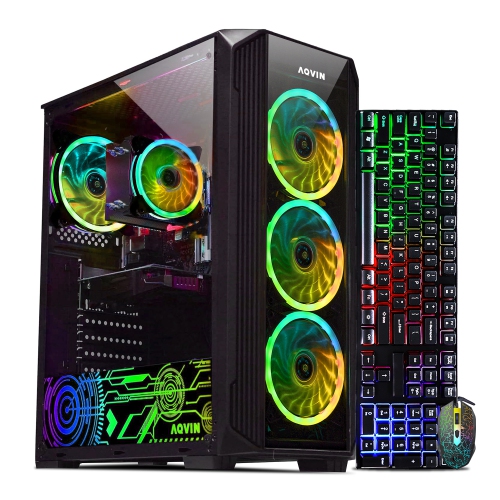
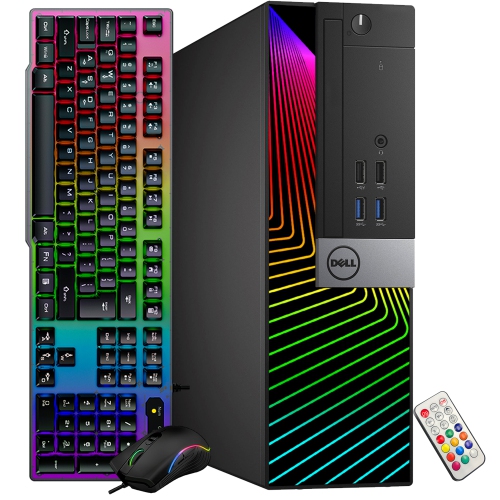
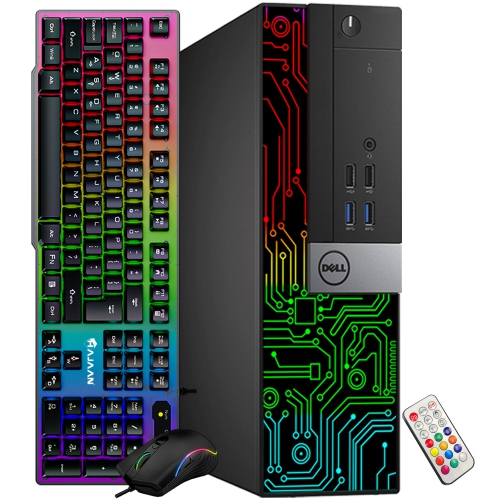
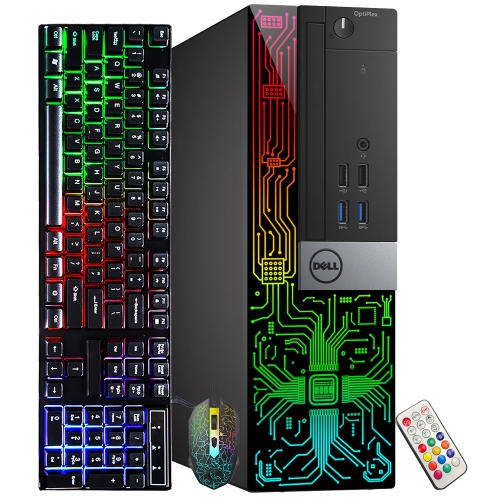
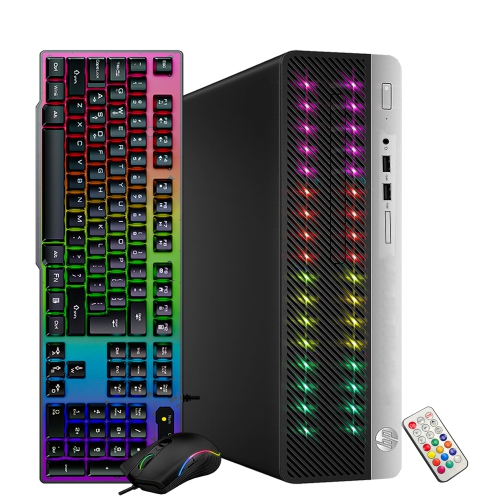
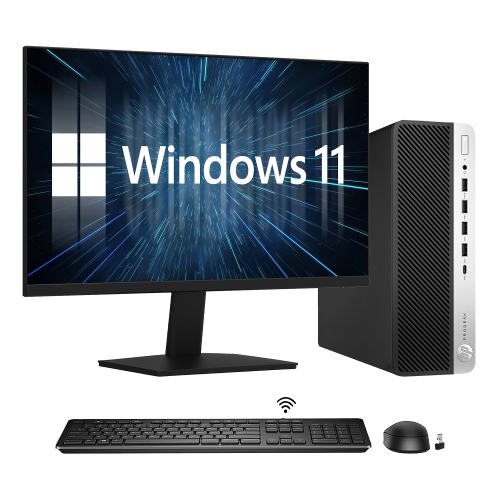
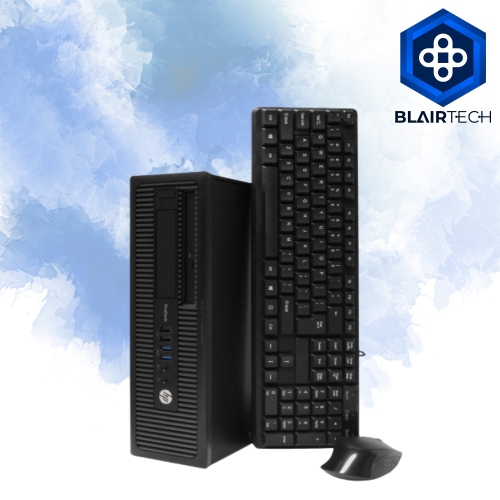
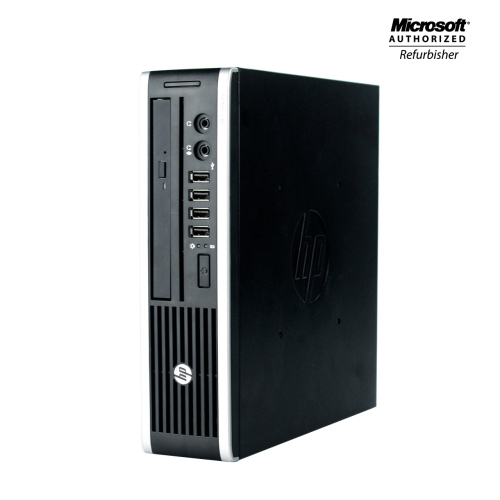
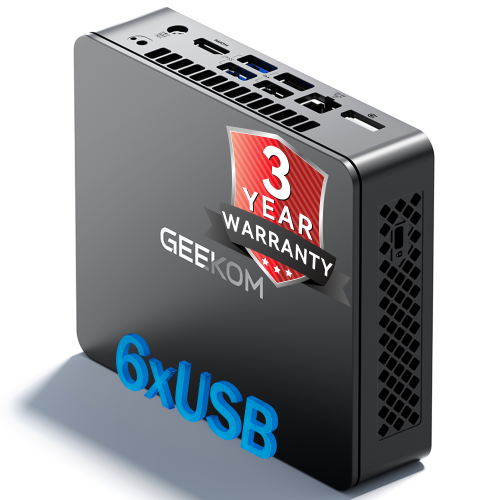
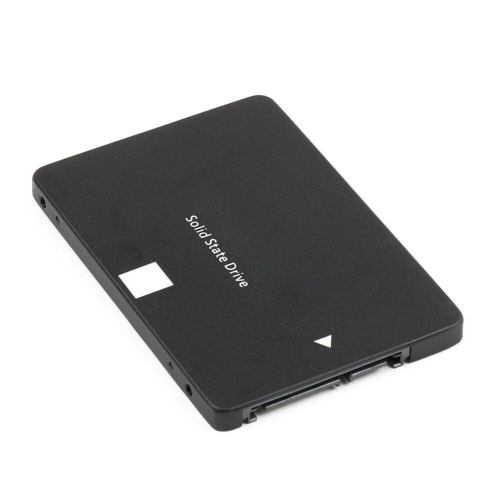
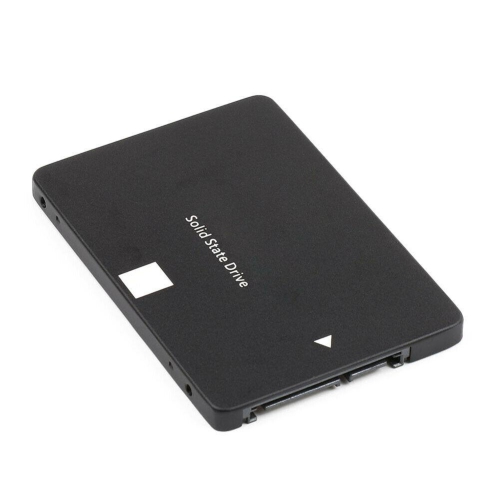
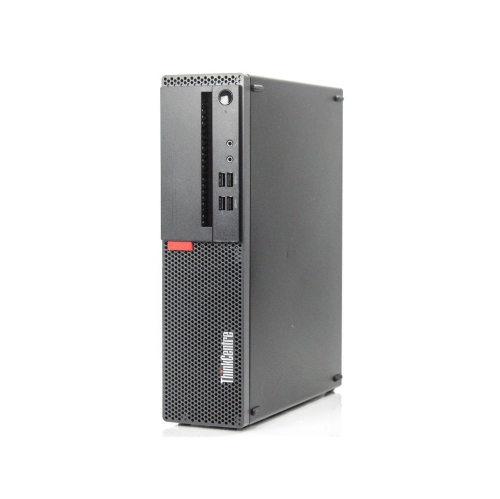
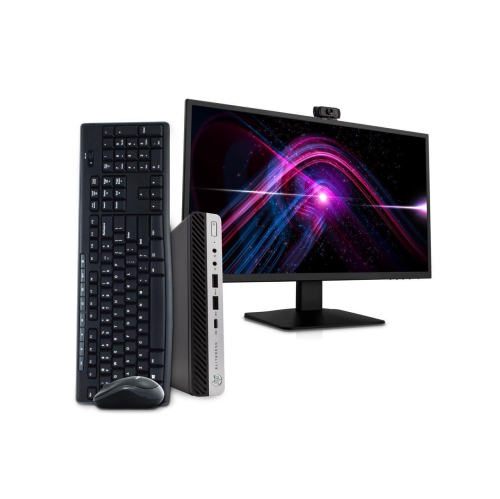
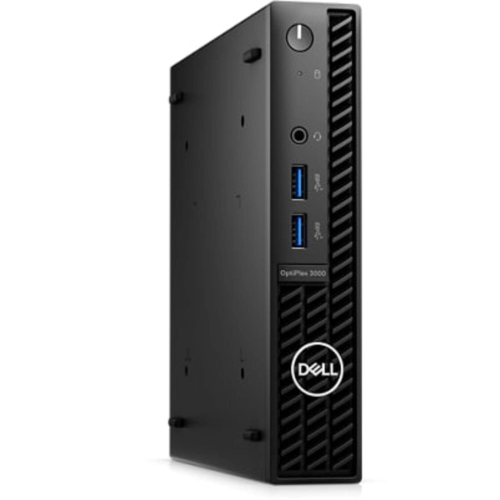
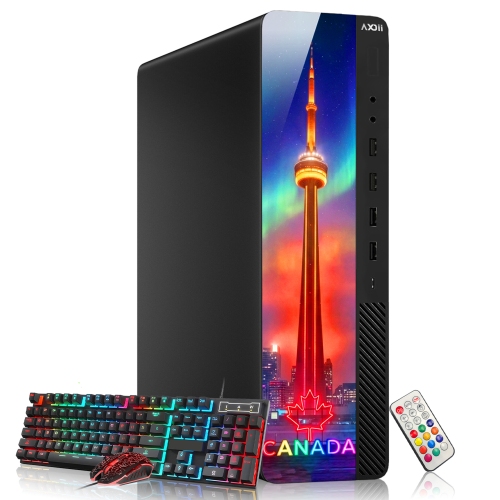
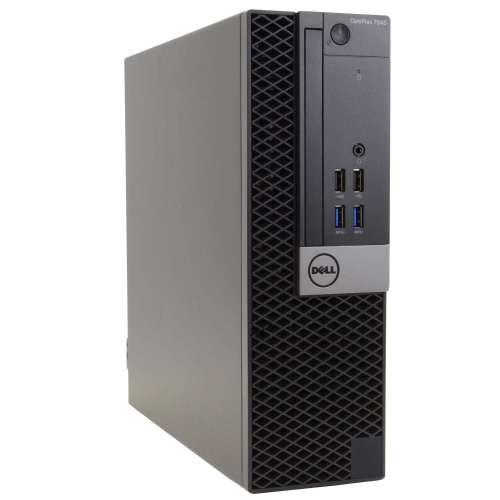
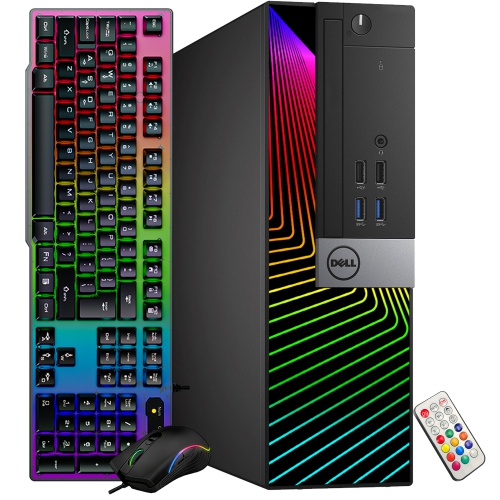
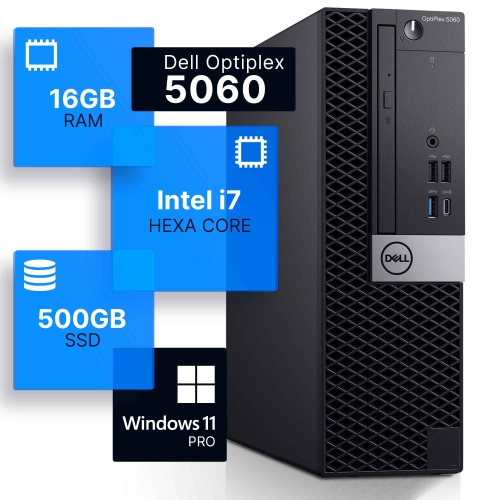
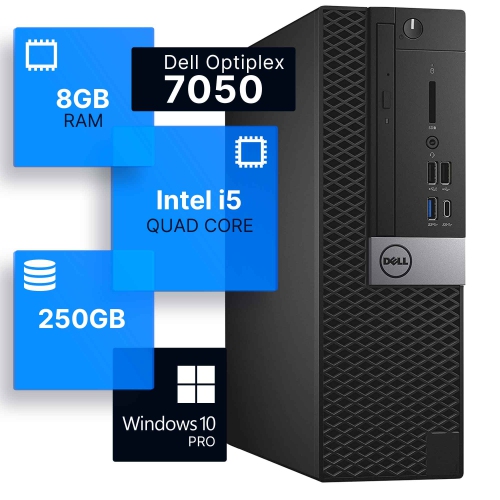
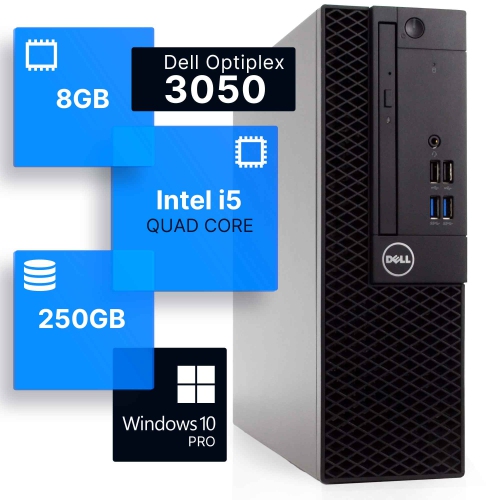
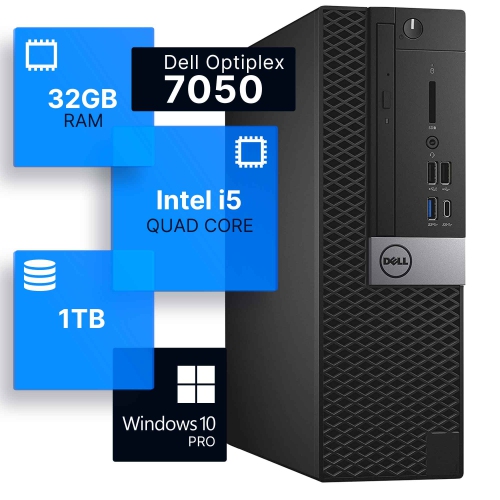
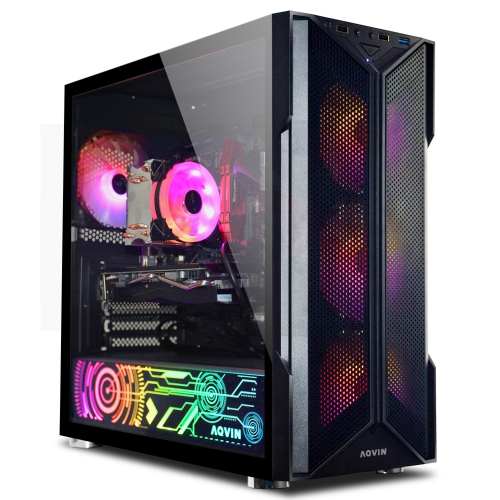
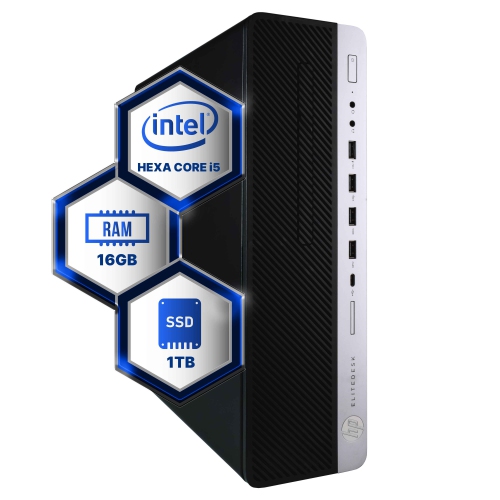
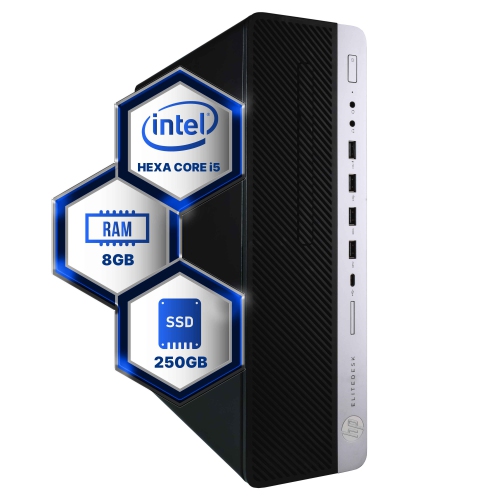
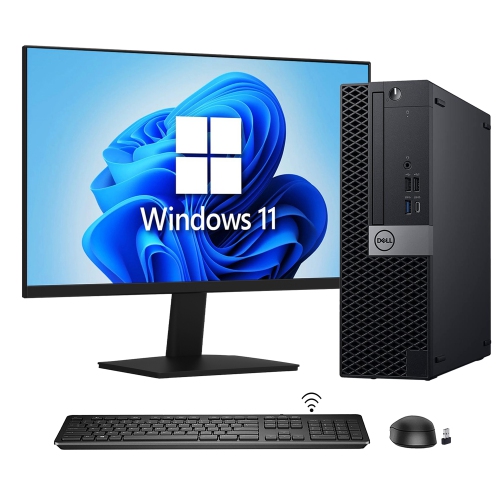
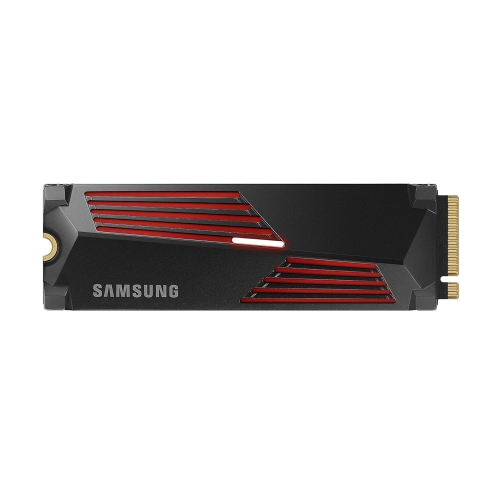
SSDs for computers provide solid-state storage for operating systems, applications, games, documents, and media files. Unlike mechanical hard drives, which use spinning platters and moving read/write heads, solid-state drives store data on flash memory chips. That difference can make a computer feel more responsive during familiar tasks: starting up, opening a browser with several tabs, launching a large spreadsheet, or loading a game save. An SSD is particularly useful when an otherwise capable laptop or desktop slows down while accessing files, though it cannot make up for every limitation in a processor, graphics card, or memory configuration. Internal computer SSDs generally fall into two main groups: 2.5-inch SATA drives and compact M.2 drives, many of which use NVMe over a PCIe connection. A 2.5-inch SATA SSD is a common upgrade for a computer with a compatible hard drive bay, while an M.2 NVMe SSD connects directly to a supported slot on the motherboard. SATA drives are limited by their interface and typically reach sequential read speeds around 500–560 MB/s. PCIe NVMe drives can transfer large files much faster, with some PCIe 4.0 models offering sequential read speeds above 7,000 MB/s under suitable conditions. Those figures describe particular workloads rather than the speed of every action on a computer. For everyday browsing, school assignments, and office applications, moving from a hard drive to an SSD often makes a more noticeable difference than moving between two fast NVMe drives. Students, home office users, gamers, and creative professionals can all benefit from storage matched to the way they work. A family laptop may need room for photos and homework, while an editing desktop may need fast access to substantial project folders. For shoppers replacing an entire system rather than upgrading a component, computers with solid state drives bring solid-state storage into a complete computer, without the need to install a separate internal drive.
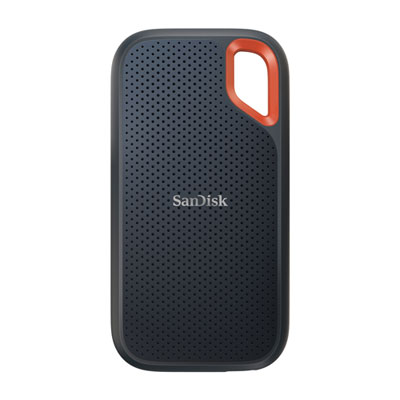
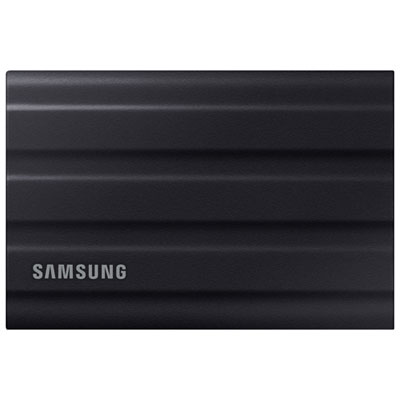
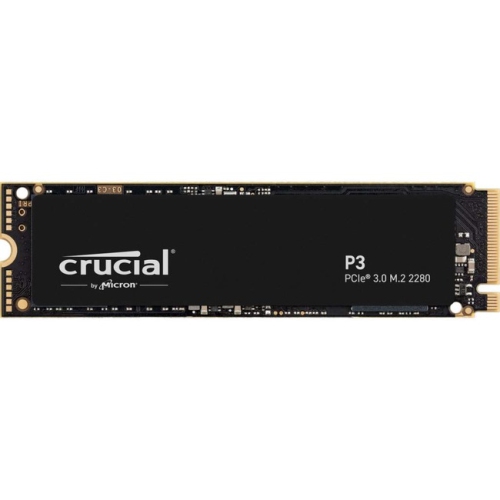
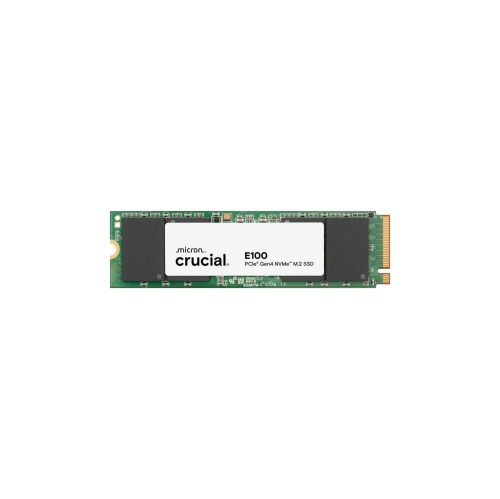
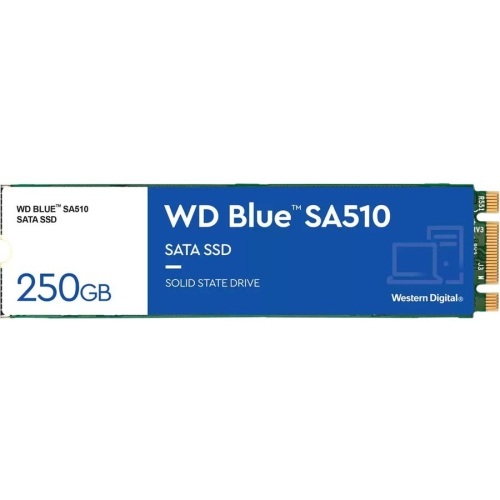
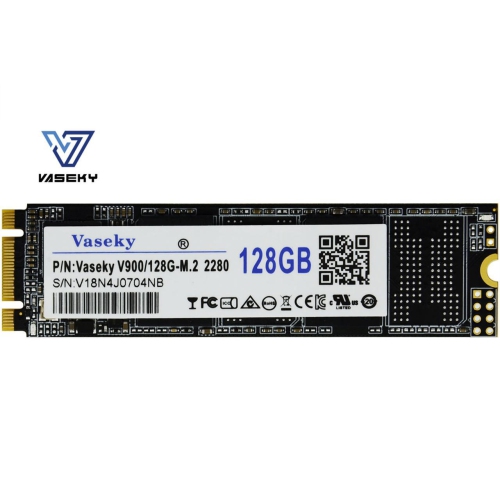
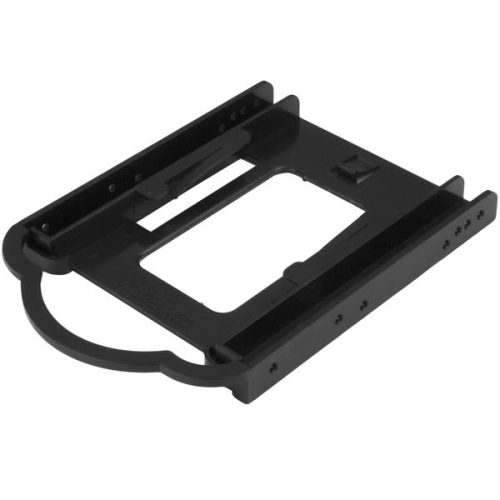
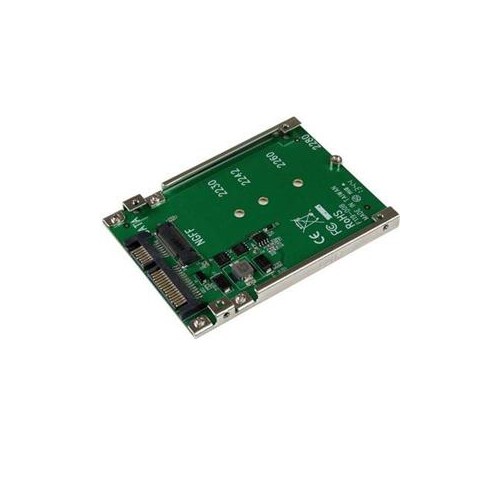
Physical fit and connection support are central to choosing an internal SSD. The M.2 designation describes a form factor, not a guarantee of NVMe compatibility: some M.2 drives use SATA, and a motherboard slot may support SATA, PCIe NVMe, or both. M.2 2280 is a common size, measuring 22 mm wide and 80 mm long, but compact laptops and other small systems may require shorter modules. The computer’s specifications establish which drive lengths, interfaces, and capacities it supports, whether storage is replaceable, and whether an unused slot is present. A slim notebook may also have limited clearance for components on both sides of an SSD or for an attached heatsink. For a 2.5-inch SATA drive, bay dimensions, mounting points, and connector placement matter; a desktop installation may need a mounting bracket, a SATA data cable, and a suitable power connection. M.2 modules are small circuit boards populated with flash memory and a controller, whereas 2.5-inch drives typically protect their circuitry inside a metal or plastic housing. That housing does not make a bare internal drive suitable for carrying loose in a bag. Portable use calls for an external SSD or a compatible enclosure, with transfer speeds also depending on the computer’s port and cable. Capacity shapes how comfortably a drive fits daily routines. A 500 GB SSD can suit light workloads with modest local storage needs, while 1 TB provides more room for applications, personal files, and a selection of games. A 2 TB drive or larger can better accommodate extensive game libraries, high-resolution photographs, and video projects. Actual space required depends on the files involved, and usable capacity will be lower than the labelled figure after formatting and system allocations. Room for updates, temporary files, and new projects helps avoid constant file shuffling. For a shared computer, extra capacity can also keep separate users’ documents and media together without immediately needing another storage device.
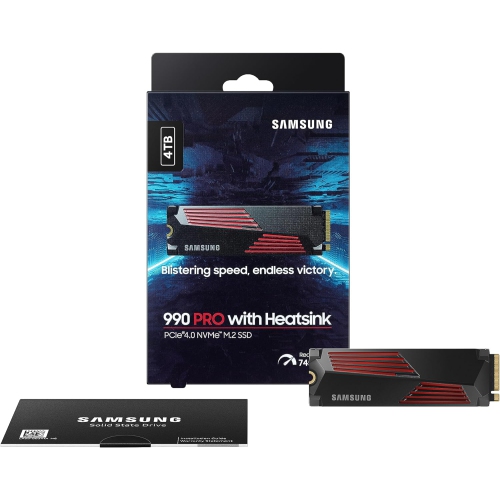
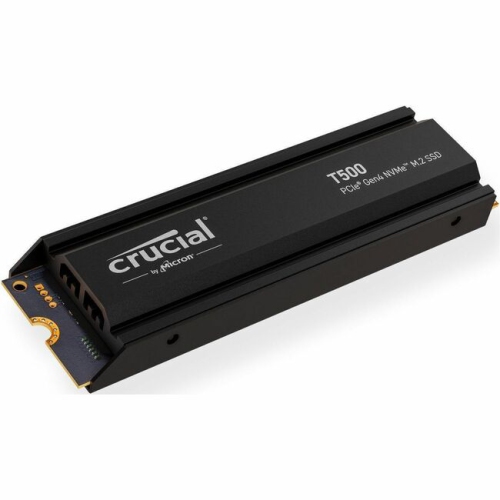
Performance, durability, and installation requirements help distinguish SSDs that look similar on a specification sheet. PCIe generation and lane support affect the connection’s maximum throughput. A PCIe 4.0 NVMe drive will generally work in a compatible PCIe 3.0 NVMe slot, but at the older connection’s limits; newer generations likewise depend on support from the computer to deliver their full potential. High sequential speeds are especially relevant to moving large video files or working with substantial datasets. Random read and write performance, latency, and sustained write behaviour also matter, particularly when a drive handles many small files or lengthy transfers. Flash memory type, controller design, and cache implementation influence these results. TLC flash generally offers stronger write endurance and sustained writing characteristics than QLC flash, although the overall drive design and workload remain important. A burst of fast copying may slow once a drive’s write cache fills, which is more noticeable when transferring a large media folder than when saving a document. Endurance ratings, often expressed as terabytes written, describe a rated amount of writing over the drive’s specified service terms; they are not a promise against data loss. SSDs have no moving mechanical parts and tolerate everyday movement better than hard drives, but their electronic components still need careful handling. Protection from static discharge during installation, secure mounting, and cooling suited to the system support dependable operation. High-performance NVMe drives may benefit from a compatible heatsink during extended workloads, while laptops often rely on cooling arrangements built into the chassis. Important files still need separate backups, regardless of drive type. Replacing a system drive also involves transferring the operating system and files through compatible cloning tools or performing a fresh installation, so an upgrade includes more than fitting the hardware. An SSD can be a thoughtful gift for someone building a desktop, studying digital media, or expanding a gaming computer when the required specifications are known. The most useful match combines verified compatibility, enough capacity for the intended workload, and performance the computer can actually use.
Physical fit and connection support are central to choosing an internal SSD. The M.2 designation describes a form factor, not a guarantee of NVMe compatibility: some M.2 drives use SATA, and a motherboard slot may support SATA, PCIe NVMe, or both. M.2 2280 is a common size, measuring 22 mm wide and 80 mm long, but compact laptops and other small systems may require shorter modules. The computer’s specifications establish which drive lengths, interfaces, and capacities it supports, whether storage is replaceable, and whether an unused slot is present. A slim notebook may also have limited clearance for components on both sides of an SSD or for an attached heatsink. For a 2.5-inch SATA drive, bay dimensions, mounting points, and connector placement matter; a desktop installation may need a mounting bracket, a SATA data cable, and a suitable power connection. M.2 modules are small circuit boards populated with flash memory and a controller, whereas 2.5-inch drives typically protect their circuitry inside a metal or plastic housing. That housing does not make a bare internal drive suitable for carrying loose in a bag. Portable use calls for an external SSD or a compatible enclosure, with transfer speeds also depending on the computer’s port and cable. Capacity shapes how comfortably a drive fits daily routines. A 500 GB SSD can suit light workloads with modest local storage needs, while 1 TB provides more room for applications, personal files, and a selection of games. A 2 TB drive or larger can better accommodate extensive game libraries, high-resolution photographs, and video projects. Actual space required depends on the files involved, and usable capacity will be lower than the labelled figure after formatting and system allocations. Room for updates, temporary files, and new projects helps avoid constant file shuffling. For a shared computer, extra capacity can also keep separate users’ documents and media together without immediately needing another storage device.
Performance, durability, and installation requirements help distinguish SSDs that look similar on a specification sheet. PCIe generation and lane support affect the connection’s maximum throughput. A PCIe 4.0 NVMe drive will generally work in a compatible PCIe 3.0 NVMe slot, but at the older connection’s limits; newer generations likewise depend on support from the computer to deliver their full potential. High sequential speeds are especially relevant to moving large video files or working with substantial datasets. Random read and write performance, latency, and sustained write behaviour also matter, particularly when a drive handles many small files or lengthy transfers. Flash memory type, controller design, and cache implementation influence these results. TLC flash generally offers stronger write endurance and sustained writing characteristics than QLC flash, although the overall drive design and workload remain important. A burst of fast copying may slow once a drive’s write cache fills, which is more noticeable when transferring a large media folder than when saving a document. Endurance ratings, often expressed as terabytes written, describe a rated amount of writing over the drive’s specified service terms; they are not a promise against data loss. SSDs have no moving mechanical parts and tolerate everyday movement better than hard drives, but their electronic components still need careful handling. Protection from static discharge during installation, secure mounting, and cooling suited to the system support dependable operation. High-performance NVMe drives may benefit from a compatible heatsink during extended workloads, while laptops often rely on cooling arrangements built into the chassis. Important files still need separate backups, regardless of drive type. Replacing a system drive also involves transferring the operating system and files through compatible cloning tools or performing a fresh installation, so an upgrade includes more than fitting the hardware. An SSD can be a thoughtful gift for someone building a desktop, studying digital media, or expanding a gaming computer when the required specifications are known. The most useful match combines verified compatibility, enough capacity for the intended workload, and performance the computer can actually use.
Top selling and popular products
-
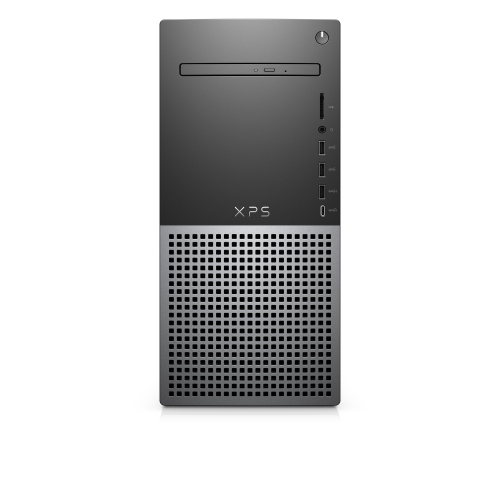 Your price for this item is $1599
 -
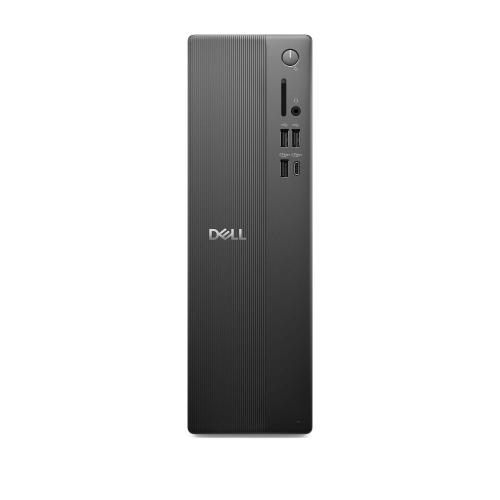 Your price for this item is $1629.79
 -
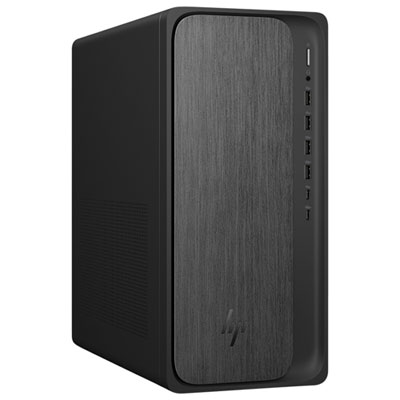 Your price for this item is $1999.99
 -
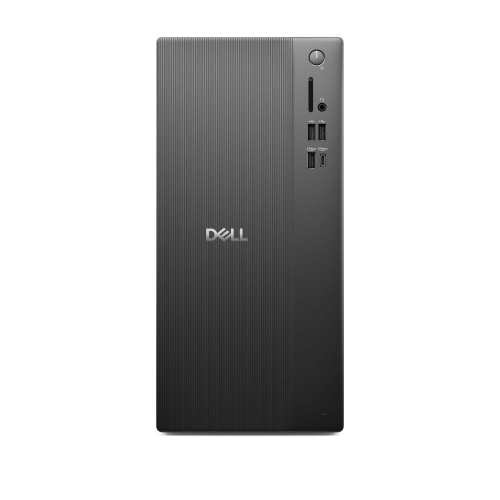 Your price for this item is $1459.79
 -
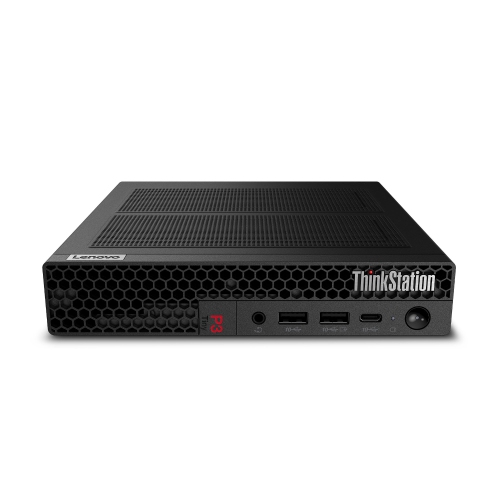 Your price for this item is $879
 -
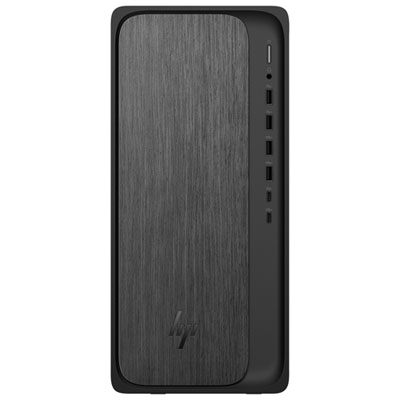 Your price for this item is $1199.99
 -
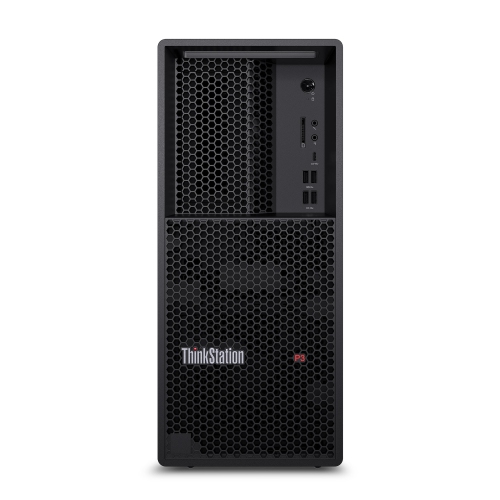 Your price for this item is $1839
 -
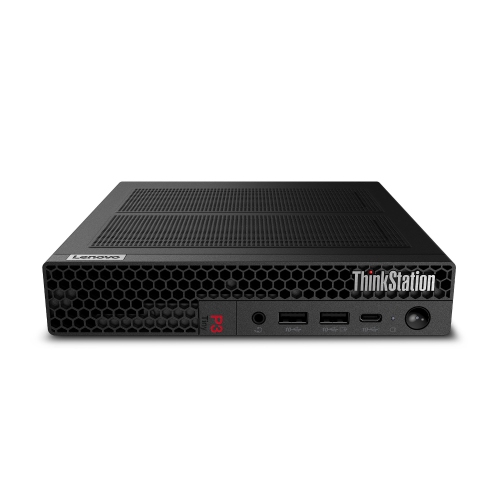 Your price for this item is $879
Discover more categories related to SSDs for Computers
Top Collections:
Pokemon Centers, Kindle Devices, Best Budget Office Chairs, Apple iPhones 16, Best Laptops for Writers, iPhone 15 Apple, Canon G7X Cameras, Refurbished Apple Laptops, Alarm Clock, Motorola Razr Phones
Some products may be subject to Environmental Handling Fees
(EHF) depending on your province.
Learn more about EHFs.