SSDs for Laptops
Looking to upgrade your laptop's storage capacity and speed? Look no further than our selection of SSDs for laptops. With their lightning-fast read and write speeds, SSDs can significantly enhance your laptop's overall performance, making it more responsive and efficient. Whether you're a gamer, a professional on the go, or a student needing extra storage for assignments and projects, our range of SSDs for laptops has got you covered. Shop our collection today and take your laptop's performance to new heights.
Sort
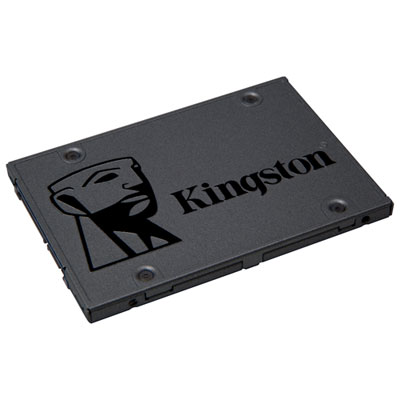
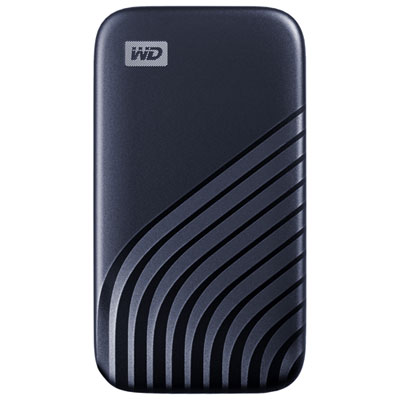
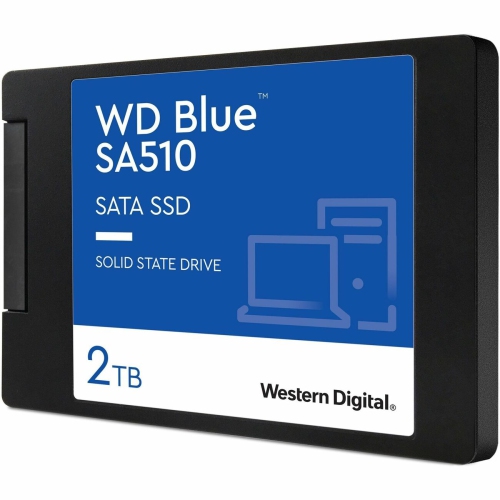
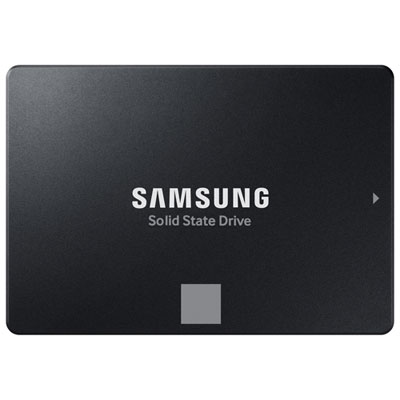


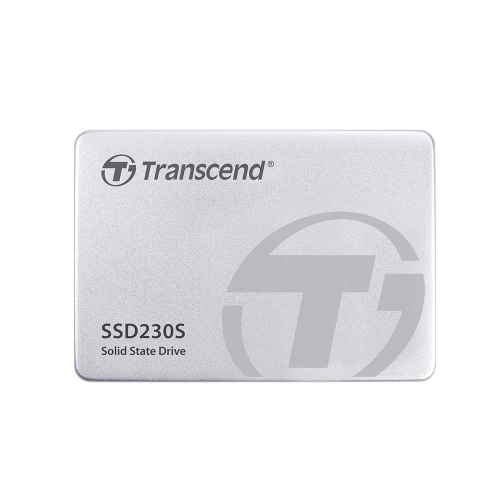
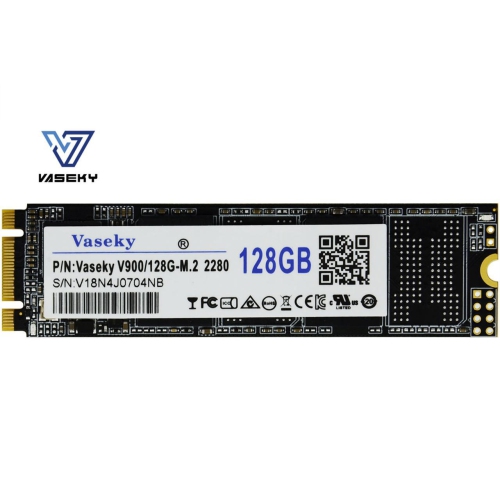
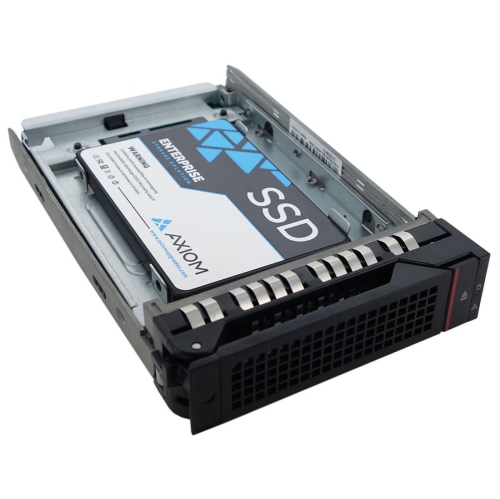



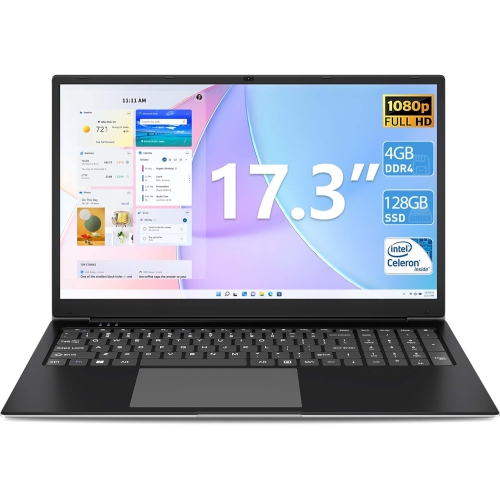

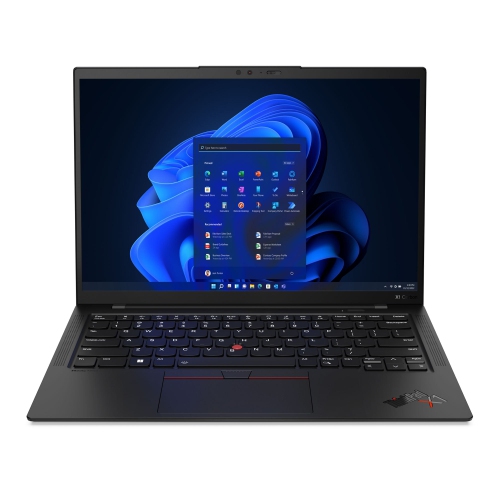
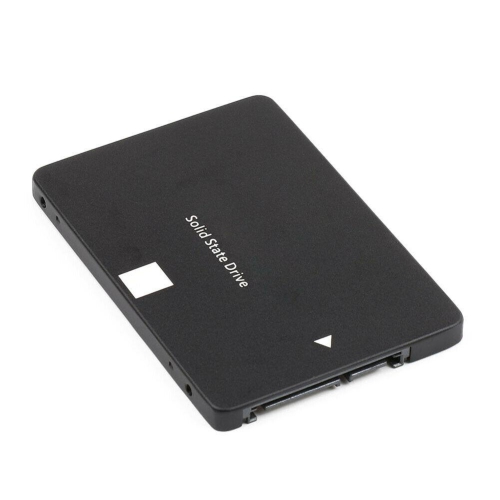
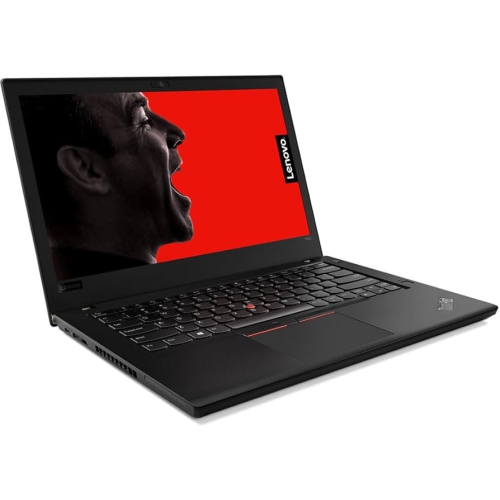
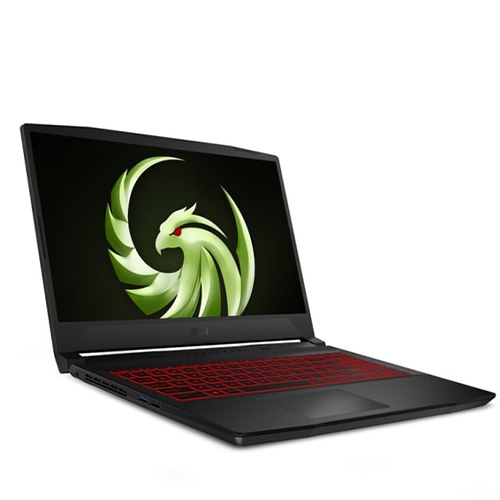
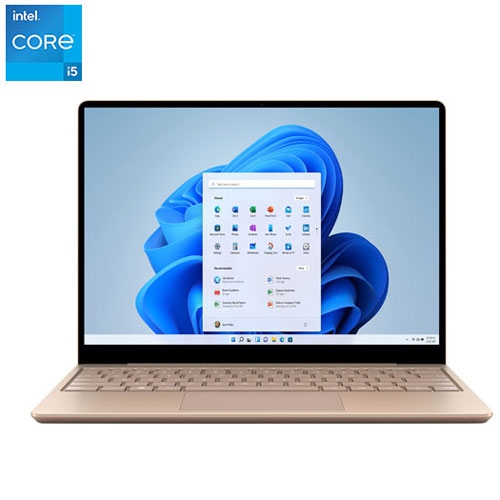
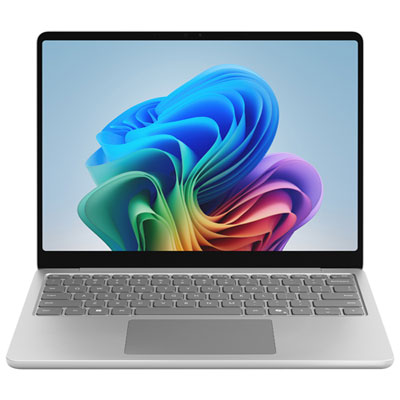
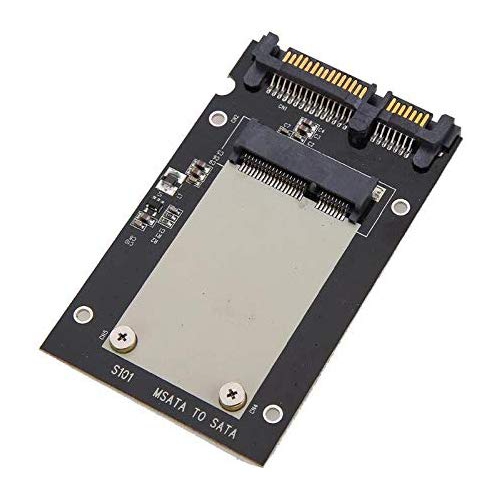
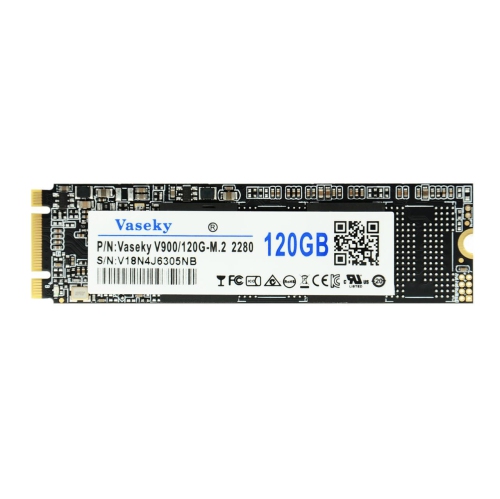

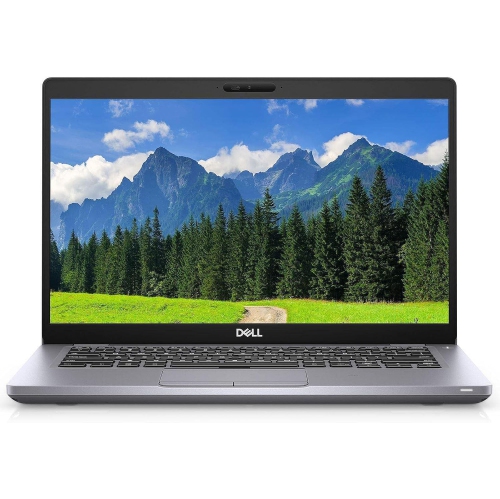
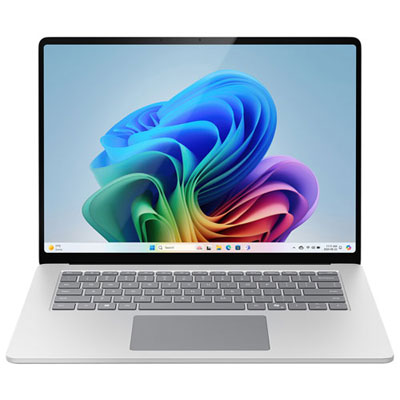
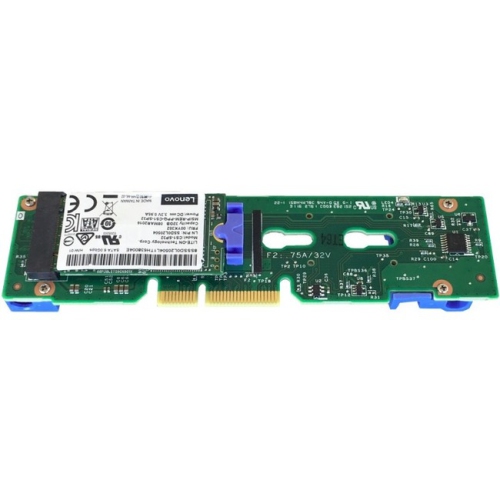
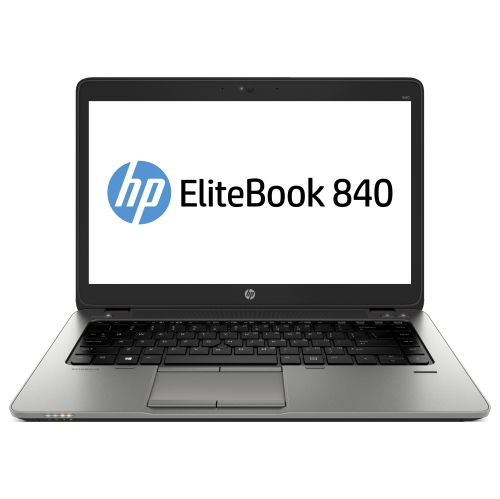
Laptop upgrades depend on more than speed alone
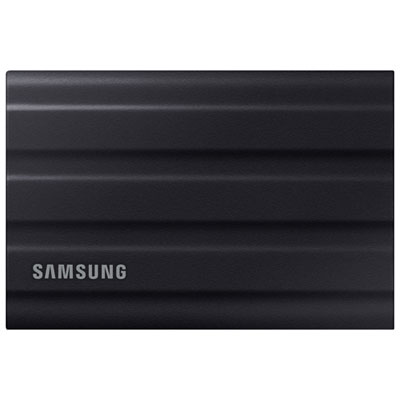
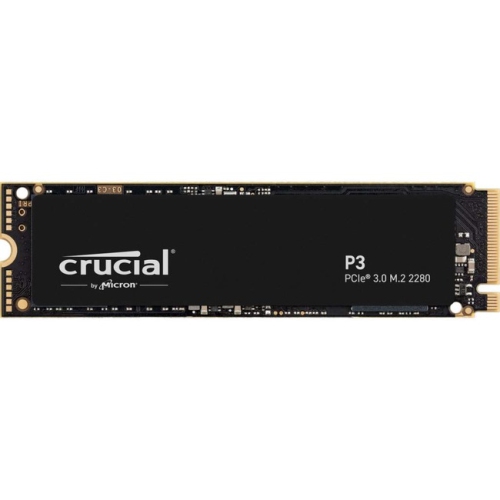
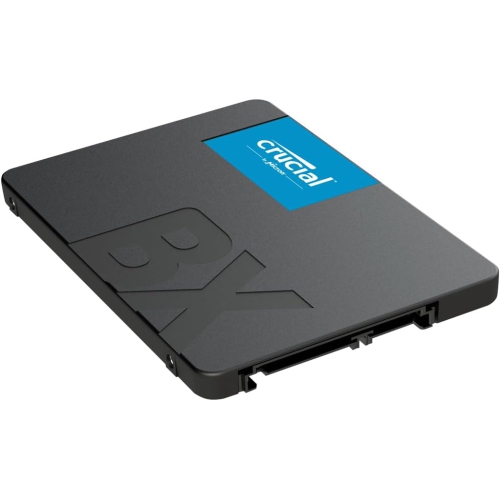
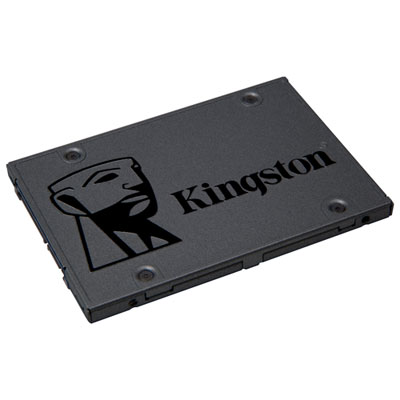
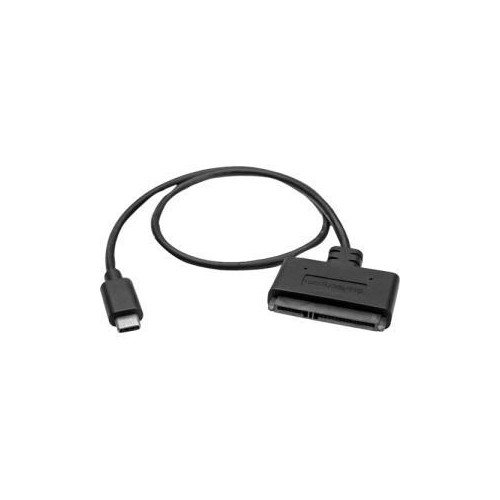
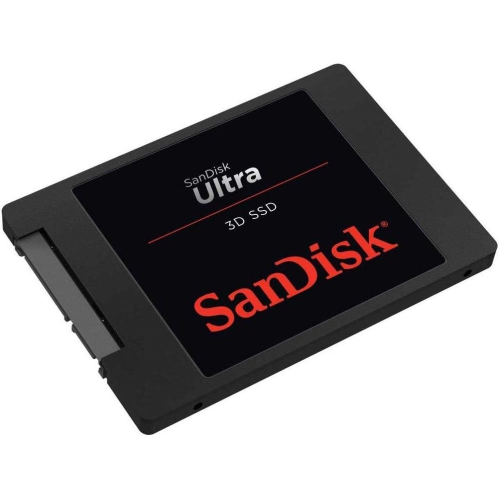
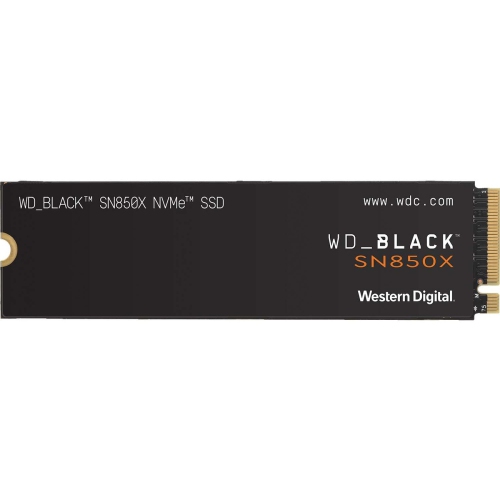
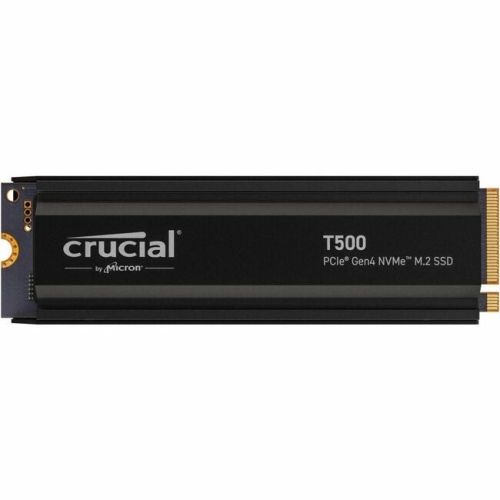
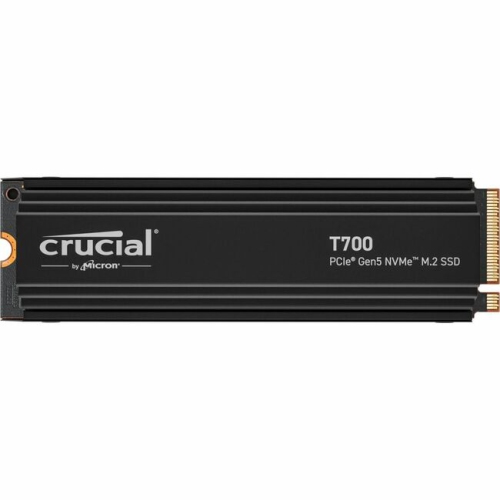
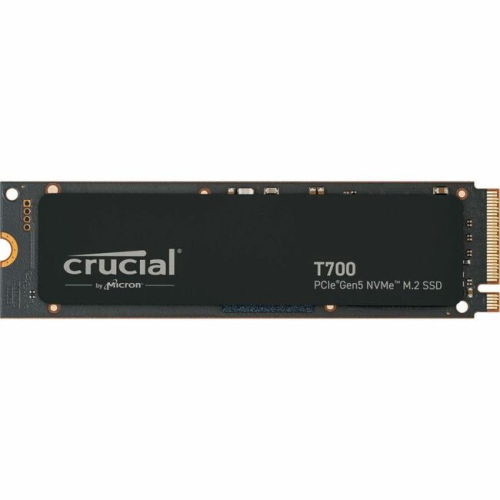
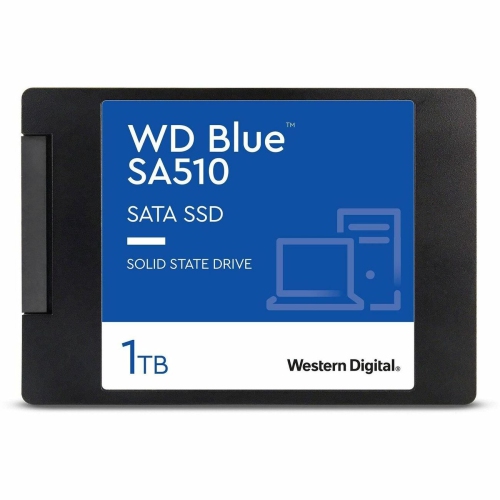
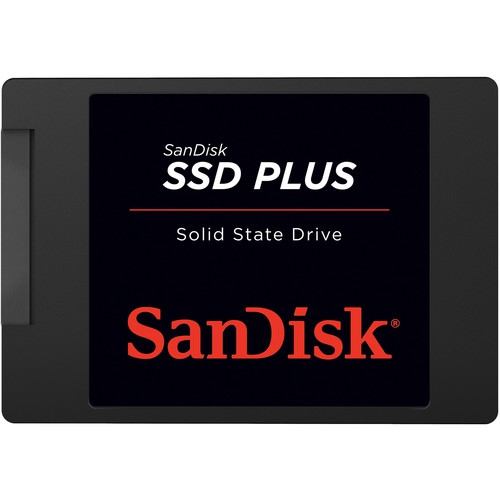
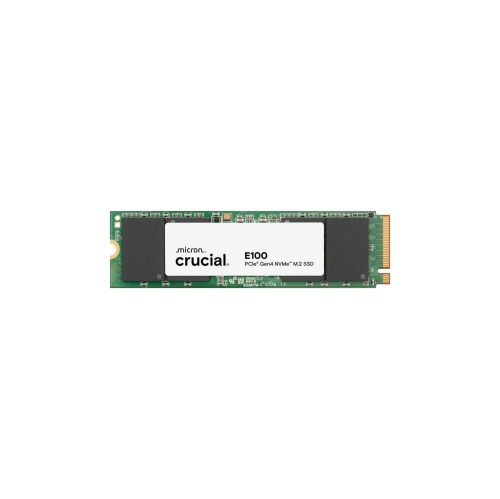
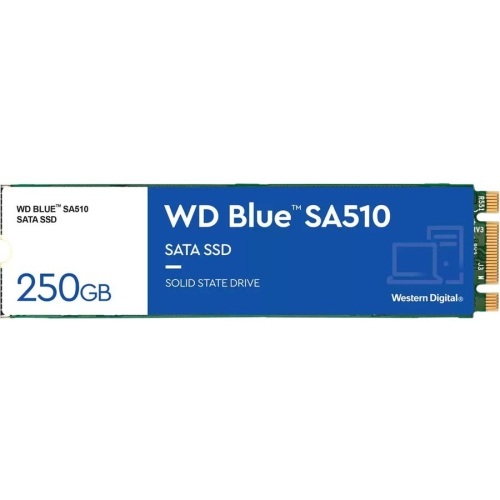
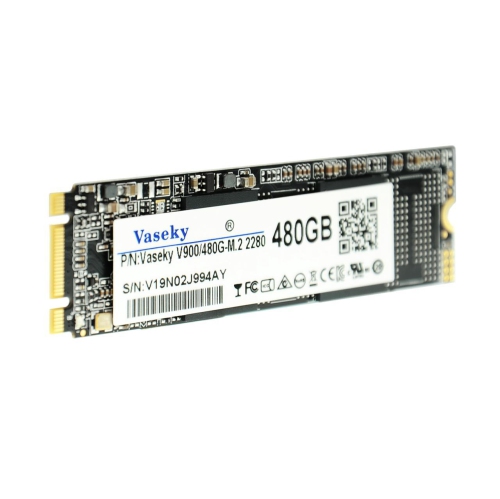
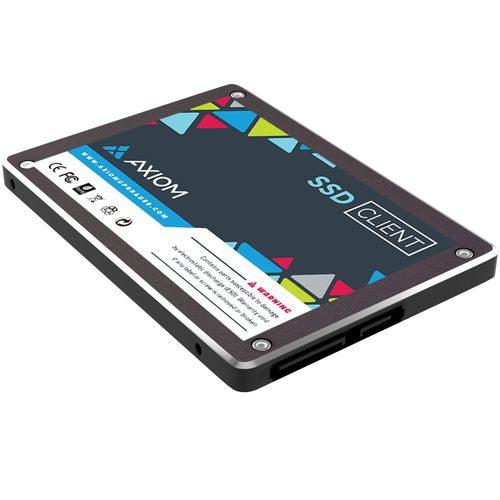
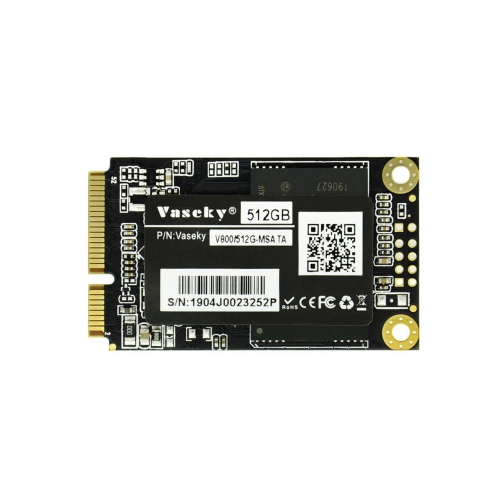
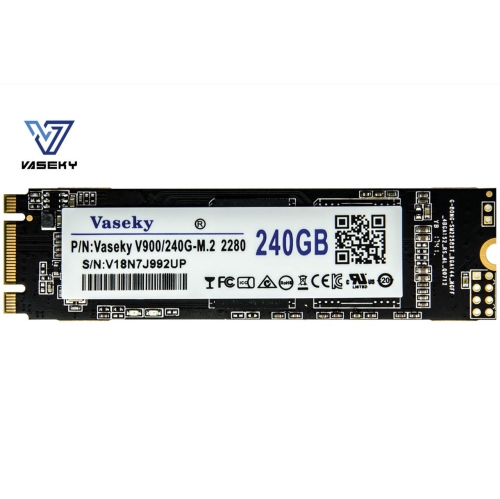
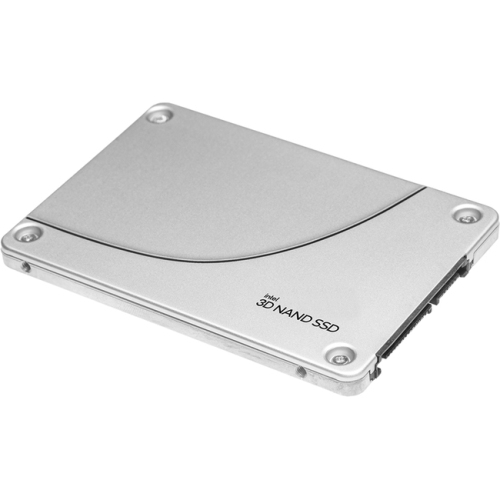
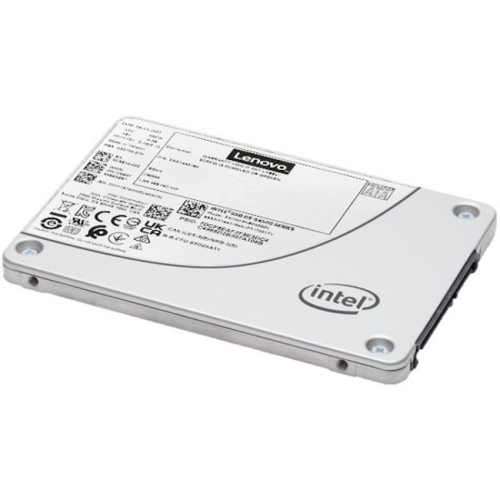
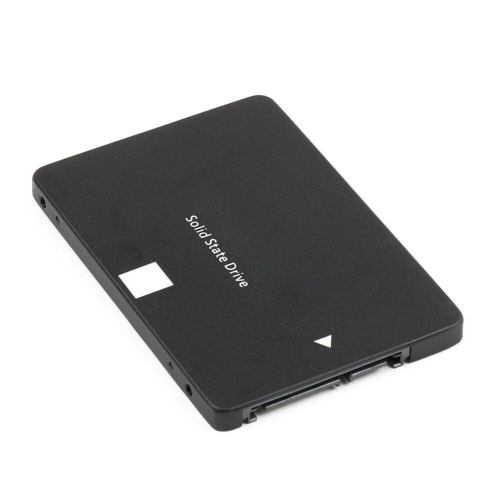
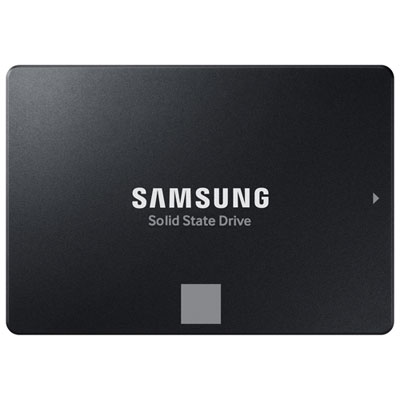
SSDs for laptops are a practical way to improve the everyday feel of a compatible computer. Because solid-state drives have no moving parts, they can offer quicker start-up times, faster file access, and a more responsive experience than older mechanical hard drives. Opening a large presentation, launching creative software, loading a game, or returning to a collection of photos can feel noticeably smoother when the laptop has a fast SSD and enough available storage. An SSD can also be a useful replacement when an older drive is becoming noisy, unreliable, or slow, although the exact improvement depends on the laptop’s processor, memory, operating system, and other components. The first step is confirming compatibility. Modern thin laptops commonly use an M.2 SSD, a narrow circuit board that installs directly into a compatible slot inside the computer. Many M.2 drives use the NVMe protocol over a PCIe interface, with PCIe 4.0 and PCIe 5.0 models designed for very high data-transfer speeds. Older laptops may instead require a 2.5-inch SATA SSD, which uses the same general size and connection style as many traditional laptop hard drives. A SATA SSD can be an excellent way to refresh an older computer, but it will not reach the same peak speeds as an NVMe drive. The laptop’s service manual, manufacturer specifications, or existing drive information can help identify the correct form factor, interface, physical dimensions, and supported capacity before purchasing. If the computer has an M.2 slot, it is also important to check whether that slot supports NVMe, SATA, or both, since M.2 describes the shape rather than the storage technology itself.
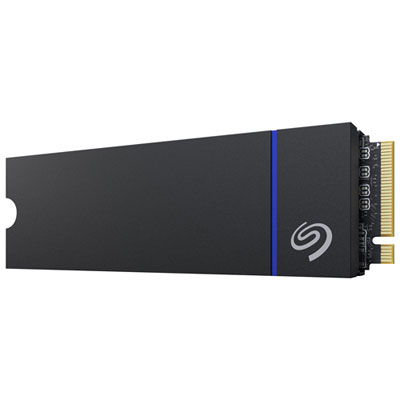
Capacity is another important consideration for laptop storage. A smaller SSD may suit a basic laptop used for web browsing, documents, online learning, and streaming, while a larger drive gives more room for software, downloaded media, photo libraries, design files, and games. Leaving some free space can help maintain a comfortable experience, so choosing a drive that gives the user room to grow is often more convenient than selecting a capacity that will be filled soon after installation. Performance specifications can help compare drives, but advertised sequential read and write speeds are only one part of the picture. Random performance, controller design, cache behaviour, temperature management, endurance ratings, warranty coverage, and included management software can also affect long-term use. A laptop used for schoolwork or office tasks may not need the highest available speed, whereas a user working with high-resolution video, large databases, 3D projects, or extensive game libraries may appreciate stronger sustained performance and additional capacity. Heat is worth considering as well. Compact laptops have limited airflow, and some high-performance NVMe SSDs may benefit from a suitable heatsink or laptop cooling design; a drive must fit within the computer’s available clearance. When comparing storage for a desktop or a larger computer, the broader selection at SSDs for Computers can provide additional formats and capacities, but laptop compatibility should remain the priority for this category.
Installing an SSD can involve transferring the existing operating system and files, performing a fresh installation, or adding the drive as secondary storage when the laptop has room for more than one drive. Before opening the computer, back up important documents, photos, schoolwork, and other irreplaceable files to a separate location. A cloning process can preserve the existing installation and settings, but it may require a USB-to-SATA cable, an external enclosure for an M.2 drive, or compatible cloning software. A clean installation can provide a fresh start, though it takes more time to reinstall applications and sign back into services. Laptop upgrades may also require a small screwdriver, careful handling, and attention to static electricity, and some computers have storage that is difficult or impossible to replace. Checking the manufacturer’s instructions can prevent damage and clarify whether the upgrade affects warranty service. These drives can make thoughtful gifts for students preparing for a new term, remote workers managing a busy collection of files, photographers organizing growing image libraries, or family members whose older laptop has become frustratingly sluggish. They are especially useful for someone who already has a laptop they like but needs more storage or a faster drive rather than a completely new computer. During the cooler months and throughout changing routines, a dependable laptop can support home administration, study, creative projects, travel planning, and entertainment with less waiting between tasks. The best choice balances the laptop’s supported interface with the user’s storage needs, workload, budget, and comfort with the installation process.
Capacity is another important consideration for laptop storage. A smaller SSD may suit a basic laptop used for web browsing, documents, online learning, and streaming, while a larger drive gives more room for software, downloaded media, photo libraries, design files, and games. Leaving some free space can help maintain a comfortable experience, so choosing a drive that gives the user room to grow is often more convenient than selecting a capacity that will be filled soon after installation. Performance specifications can help compare drives, but advertised sequential read and write speeds are only one part of the picture. Random performance, controller design, cache behaviour, temperature management, endurance ratings, warranty coverage, and included management software can also affect long-term use. A laptop used for schoolwork or office tasks may not need the highest available speed, whereas a user working with high-resolution video, large databases, 3D projects, or extensive game libraries may appreciate stronger sustained performance and additional capacity. Heat is worth considering as well. Compact laptops have limited airflow, and some high-performance NVMe SSDs may benefit from a suitable heatsink or laptop cooling design; a drive must fit within the computer’s available clearance. When comparing storage for a desktop or a larger computer, the broader selection at SSDs for Computers can provide additional formats and capacities, but laptop compatibility should remain the priority for this category.
Installing an SSD can involve transferring the existing operating system and files, performing a fresh installation, or adding the drive as secondary storage when the laptop has room for more than one drive. Before opening the computer, back up important documents, photos, schoolwork, and other irreplaceable files to a separate location. A cloning process can preserve the existing installation and settings, but it may require a USB-to-SATA cable, an external enclosure for an M.2 drive, or compatible cloning software. A clean installation can provide a fresh start, though it takes more time to reinstall applications and sign back into services. Laptop upgrades may also require a small screwdriver, careful handling, and attention to static electricity, and some computers have storage that is difficult or impossible to replace. Checking the manufacturer’s instructions can prevent damage and clarify whether the upgrade affects warranty service. These drives can make thoughtful gifts for students preparing for a new term, remote workers managing a busy collection of files, photographers organizing growing image libraries, or family members whose older laptop has become frustratingly sluggish. They are especially useful for someone who already has a laptop they like but needs more storage or a faster drive rather than a completely new computer. During the cooler months and throughout changing routines, a dependable laptop can support home administration, study, creative projects, travel planning, and entertainment with less waiting between tasks. The best choice balances the laptop’s supported interface with the user’s storage needs, workload, budget, and comfort with the installation process.
Top selling and popular products
-
 Your price for this item is $554.99
 -
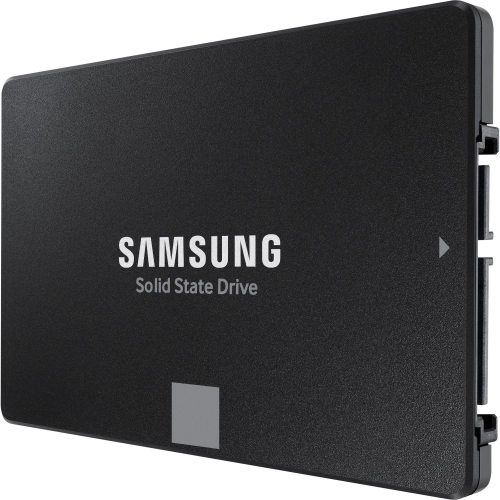 Your price for this item is $649.99
 -
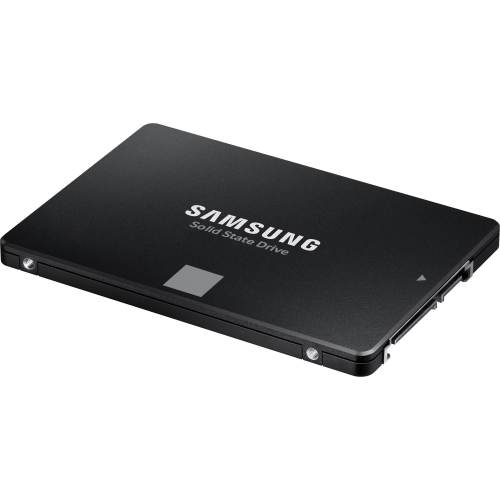 Your price for this item is $394.99
 -
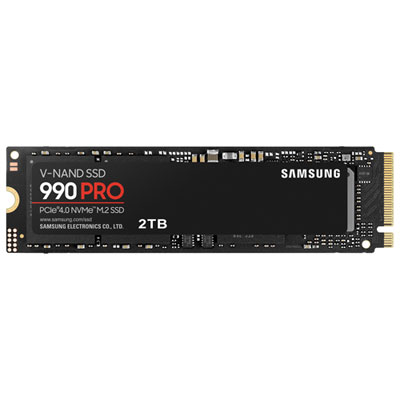 Your price for this item is $649.99
 -
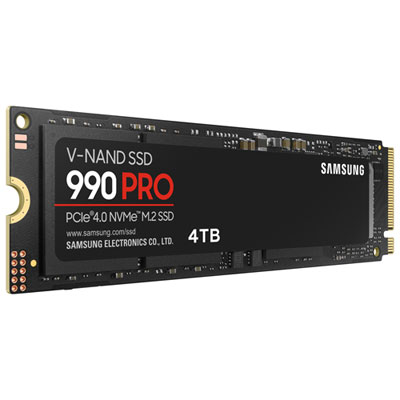 Your price for this item is $1199.97
 -
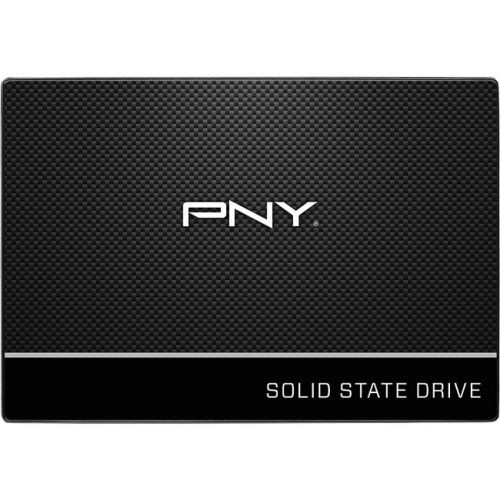 Your price for this item is $106.93
 -
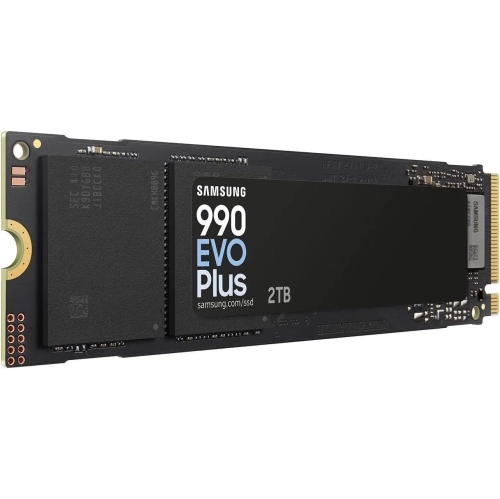 Your price for this item is $639.99
 -
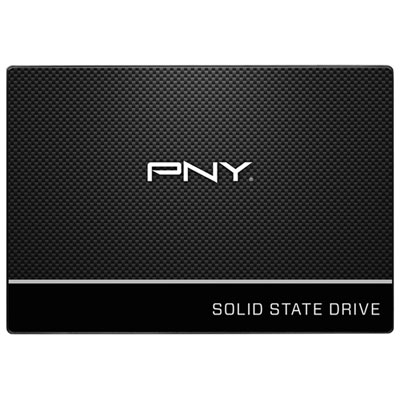 Your price for this item is $124.99
Discover more categories related to SSDs for Laptops
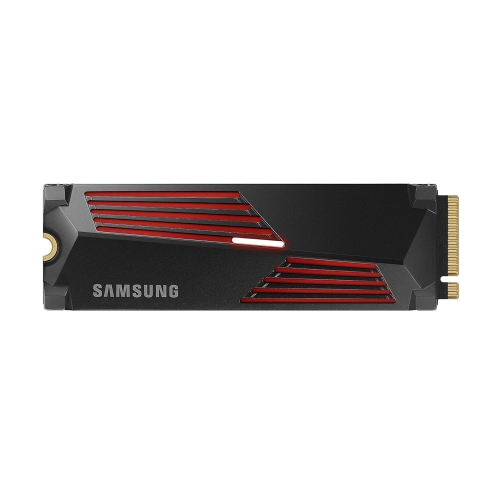
Top Collections:
Pokemon Centers, Kindle Devices, Best Budget Office Chairs, Apple iPhones 16, Best Laptops for Writers, iPhone 15 Apple, Canon G7X Cameras, Refurbished Apple Laptops, Alarm Clock, Motorola Razr Phones
Some products may be subject to Environmental Handling Fees
(EHF) depending on your province.
Learn more about EHFs.