Tablets for Presentations
Tablets for Presentations offer a dynamic and portable solution for showcasing your ideas in meetings, classrooms, or on the go. With a range of options designed to enhance visual impact and streamline your workflow, these tablets help you deliver engaging presentations with ease. Explore user-friendly interfaces and versatile designs that make Tablets for Presentations ideal for professionals, educators, and anyone looking to share content seamlessly. Find the right tablet to support your presentation needs and elevate your next meeting or event.
Sort

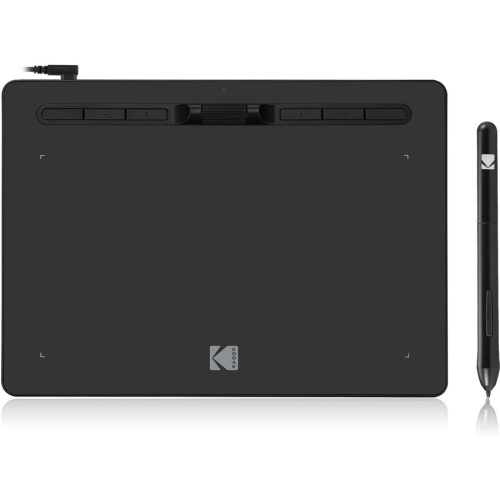
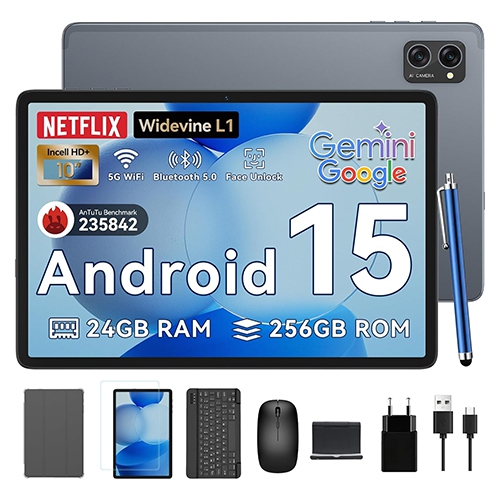
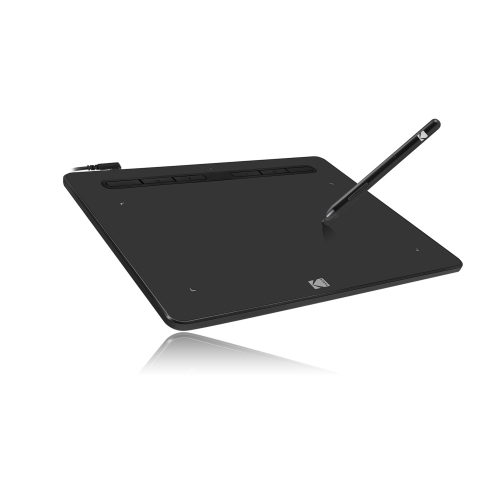
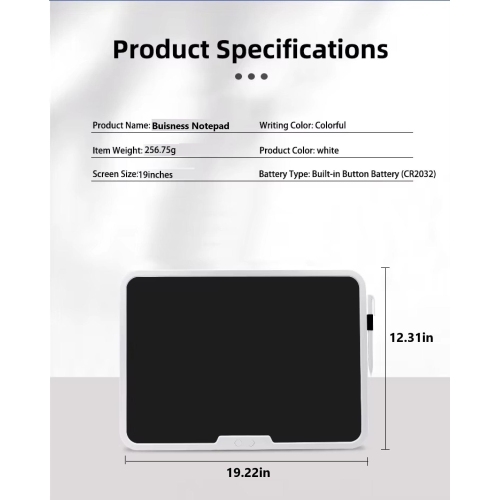


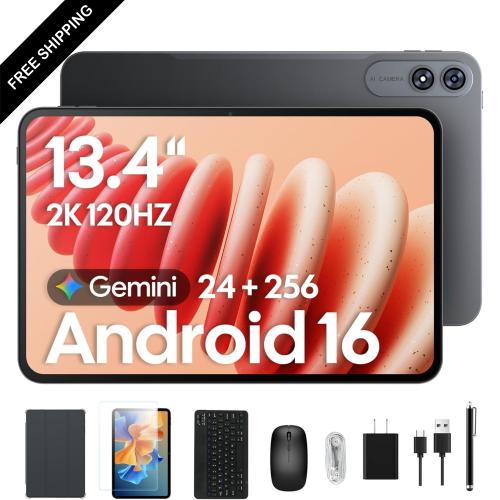
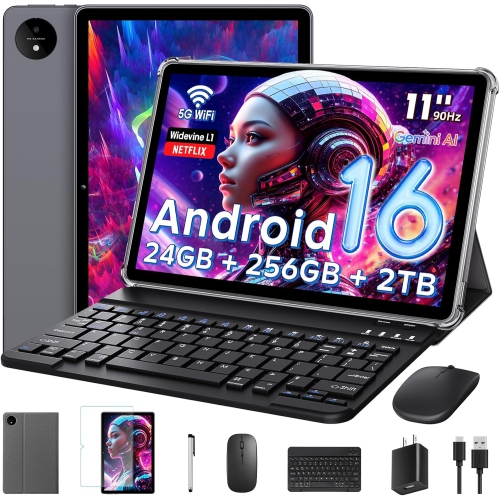
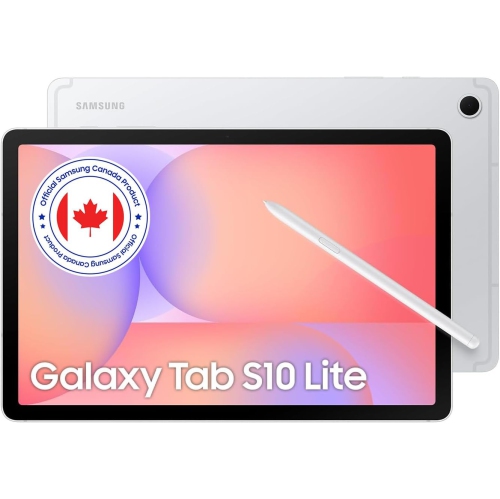
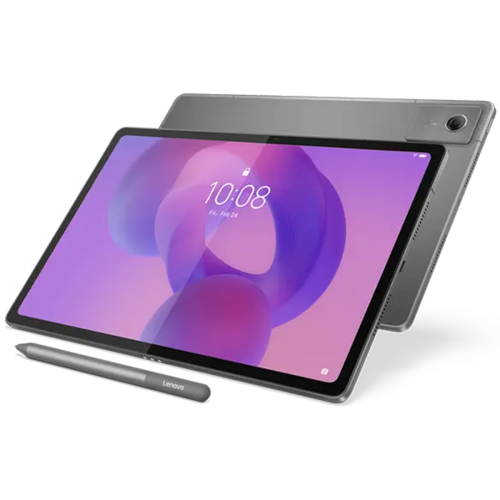
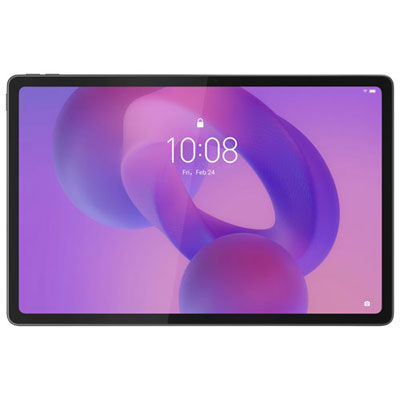
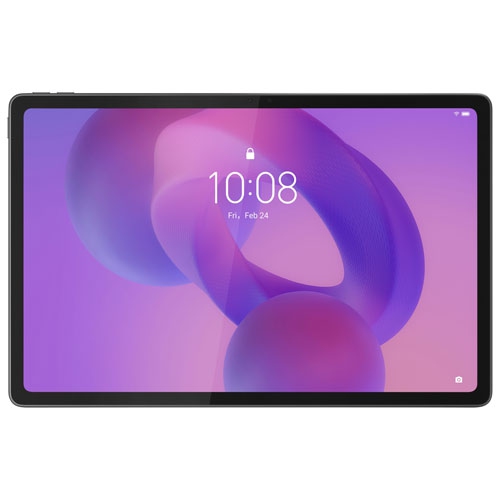
Presentation-ready tablets need more than a sharp screen
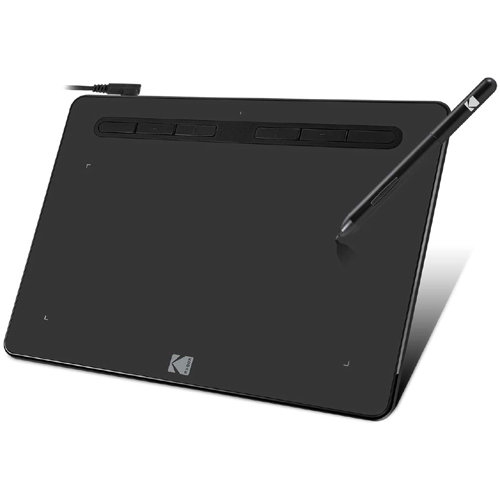
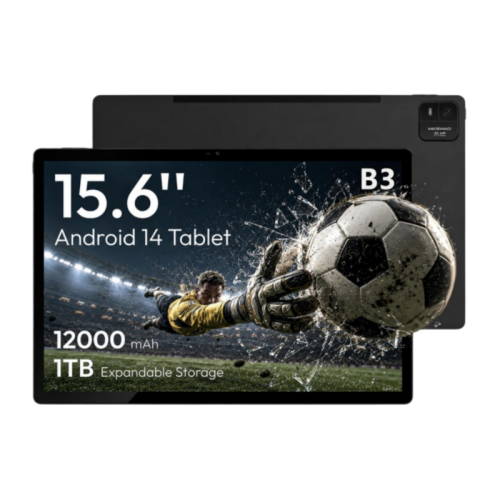
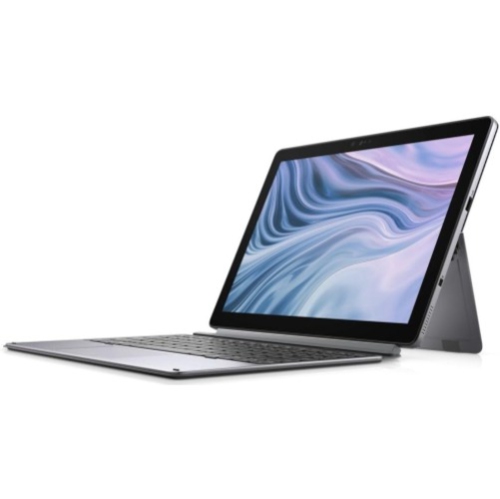
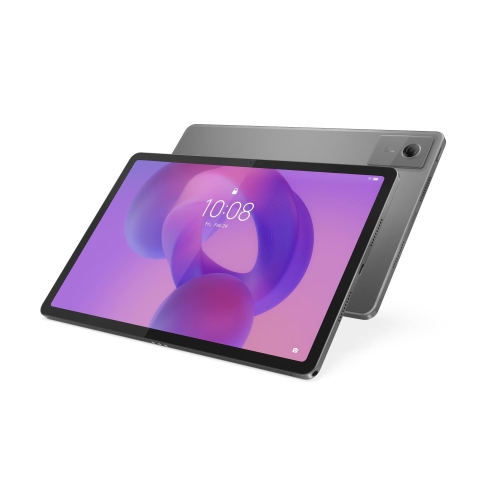
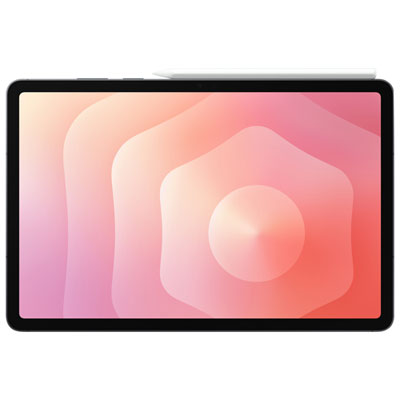
Tablets for presentations combine a portable touchscreen with tools for displaying slides, marking up documents, and sharing visual information with an audience. They can serve as a handheld presentation screen, a digital notepad for explaining an idea, or the source device connected to a larger display. For a consultant moving between client meetings, that might mean carrying a proposal and supporting charts in one slim device. For a teacher, it could mean writing directly over a diagram while students follow along on a classroom screen. Screen size makes a noticeable difference to these tasks: a larger display gives charts, slide controls, and handwritten notes more room, while a smaller tablet is easier to hold during a walking demonstration or a conversation across a table. Resolution, brightness, viewing angles, and reflections also affect how comfortably people can read text or examine images, particularly when several people are gathered around the same screen. A wider display can suit widescreen slides, whereas a squarer screen may provide more comfortable space for reading documents and sketching explanations. Touch controls make it easy to move between slides or enlarge a detail, though an active stylus can offer greater precision for circling figures, drawing arrows, or working through an equation. Stylus compatibility varies, and features such as palm rejection depend on both the tablet and the app. For handwritten presentations, the combination of a responsive pen, a stable writing surface, and suitable annotation software matters more than touchscreen support alone. Presentation apps differ in their handling of fonts, transitions, embedded video, and speaker notes, so file compatibility is an important part of a tablet’s suitability. A deck that looks correct on one device may display differently in another app. The strongest fit is a tablet that supports the files and presentation tools already used for work or study, with enough screen space to keep those tools comfortable to use.
Connecting a tablet to the audience’s screen is another important consideration, whether the destination is a meeting-room television, a projector, or a desktop monitor. Wired video output can provide a dependable connection, but the presence of a USB-C port does not automatically mean a tablet can send video through it. The tablet, adapter, cable, and receiving display all need compatible connections and supported display capabilities. Wireless screen sharing offers more freedom to move around, although it depends on compatible receiving equipment and may be affected by network restrictions or connection quality. A shared Wi-Fi network in a workplace or classroom can also have rules that limit device discovery or casting. For presentations with detailed demonstrations or video clips, connection stability and audio routing deserve as much attention as image quality. Sound may play through the tablet, the connected display, or another selected output, depending on the setup. Presenter tools are equally useful when available: seeing the next slide, elapsed time, or private notes can make a talk easier to manage. However, some tablet and app combinations simply mirror the same image to both screens rather than offering a separate presenter view. That distinction matters when notes need to stay out of sight. Processing performance and memory influence how smoothly a tablet handles large slide decks, high-resolution images, video playback, and switching between documents during questions. Storage provides room for downloaded presentations and supporting files, while offline access can keep essential material usable without an internet connection, provided the app supports it. Battery life varies with screen brightness, wireless sharing, video calls, and connected accessories, so manufacturer estimates may not reflect a full presentation session. Charging access, cable placement, and support for charging while connected to a display can make a practical difference during longer workshops. A compact setup is most useful when its connections, controls, and power arrangements suit the spaces where it will be used.
Physical design helps determine how comfortable a presentation tablet feels throughout a working day. Weight and balance become especially noticeable when a presenter holds the device in one hand while speaking or annotating with the other. Metal housings can feel rigid and substantial, while other constructions may offer a lighter feel; neither material alone establishes how well a tablet will withstand everyday handling. A well-fitted case can help protect the corners and screen during travel between offices, classrooms, and meeting rooms. Fit should account for the exact tablet dimensions, button positions, camera openings, charging port, and any stylus attachment or charging area. A folio with a steady stand can hold slides at a readable angle on a table, while a keyboard case can make last-minute text changes more comfortable. For handwritten explanations, a stand that remains stable under pen pressure is particularly helpful. Screen protectors may change the feel of writing or the appearance of the display, and compatibility with the case and stylus matters. Routine care is straightforward: a soft, lint-free cloth and the manufacturer’s cleaning recommendations help protect the screen and finish, while keeping grit out of a case reduces the chance of scratches. Beyond physical handling, presentation tablets often carry client information, student work, or internal documents. Screen locks, supported security updates, notification controls, and separate work profiles where available can help keep unrelated information away from a shared screen. For presenters who also host remote discussions, Tablets for Video Conferencing offers a related selection to explore. Camera placement, microphone clarity, headset compatibility, and the ability to share content while staying in a call become important for hybrid meetings. Students presenting group projects, trainers demonstrating a process, and sales professionals reviewing proposals may each value a different balance of portability, writing space, and connectivity. As a gift for someone starting a course or taking on more public-speaking responsibilities, a tablet is most useful when it fits their existing apps, accessories, and presentation routine.
Connecting a tablet to the audience’s screen is another important consideration, whether the destination is a meeting-room television, a projector, or a desktop monitor. Wired video output can provide a dependable connection, but the presence of a USB-C port does not automatically mean a tablet can send video through it. The tablet, adapter, cable, and receiving display all need compatible connections and supported display capabilities. Wireless screen sharing offers more freedom to move around, although it depends on compatible receiving equipment and may be affected by network restrictions or connection quality. A shared Wi-Fi network in a workplace or classroom can also have rules that limit device discovery or casting. For presentations with detailed demonstrations or video clips, connection stability and audio routing deserve as much attention as image quality. Sound may play through the tablet, the connected display, or another selected output, depending on the setup. Presenter tools are equally useful when available: seeing the next slide, elapsed time, or private notes can make a talk easier to manage. However, some tablet and app combinations simply mirror the same image to both screens rather than offering a separate presenter view. That distinction matters when notes need to stay out of sight. Processing performance and memory influence how smoothly a tablet handles large slide decks, high-resolution images, video playback, and switching between documents during questions. Storage provides room for downloaded presentations and supporting files, while offline access can keep essential material usable without an internet connection, provided the app supports it. Battery life varies with screen brightness, wireless sharing, video calls, and connected accessories, so manufacturer estimates may not reflect a full presentation session. Charging access, cable placement, and support for charging while connected to a display can make a practical difference during longer workshops. A compact setup is most useful when its connections, controls, and power arrangements suit the spaces where it will be used.
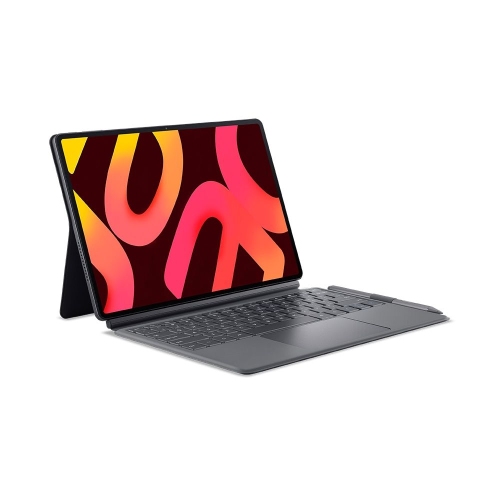
Physical design helps determine how comfortable a presentation tablet feels throughout a working day. Weight and balance become especially noticeable when a presenter holds the device in one hand while speaking or annotating with the other. Metal housings can feel rigid and substantial, while other constructions may offer a lighter feel; neither material alone establishes how well a tablet will withstand everyday handling. A well-fitted case can help protect the corners and screen during travel between offices, classrooms, and meeting rooms. Fit should account for the exact tablet dimensions, button positions, camera openings, charging port, and any stylus attachment or charging area. A folio with a steady stand can hold slides at a readable angle on a table, while a keyboard case can make last-minute text changes more comfortable. For handwritten explanations, a stand that remains stable under pen pressure is particularly helpful. Screen protectors may change the feel of writing or the appearance of the display, and compatibility with the case and stylus matters. Routine care is straightforward: a soft, lint-free cloth and the manufacturer’s cleaning recommendations help protect the screen and finish, while keeping grit out of a case reduces the chance of scratches. Beyond physical handling, presentation tablets often carry client information, student work, or internal documents. Screen locks, supported security updates, notification controls, and separate work profiles where available can help keep unrelated information away from a shared screen. For presenters who also host remote discussions, Tablets for Video Conferencing offers a related selection to explore. Camera placement, microphone clarity, headset compatibility, and the ability to share content while staying in a call become important for hybrid meetings. Students presenting group projects, trainers demonstrating a process, and sales professionals reviewing proposals may each value a different balance of portability, writing space, and connectivity. As a gift for someone starting a course or taking on more public-speaking responsibilities, a tablet is most useful when it fits their existing apps, accessories, and presentation routine.
Top selling and popular products
-
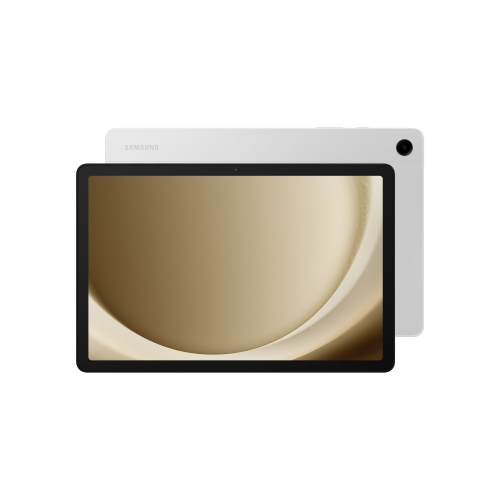 Your price for this item is $499.99
-
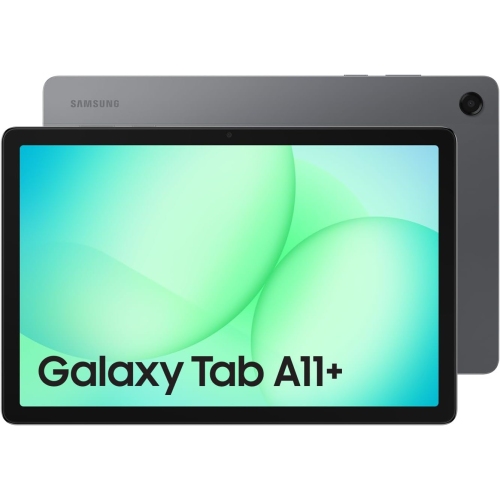 Your price for this item is $350
-
 Your price for this item is $399.99
-
 Your price for this item is $979.99
-
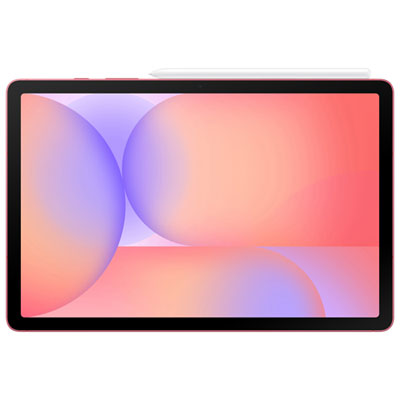 Your price for this item is $399.99
-
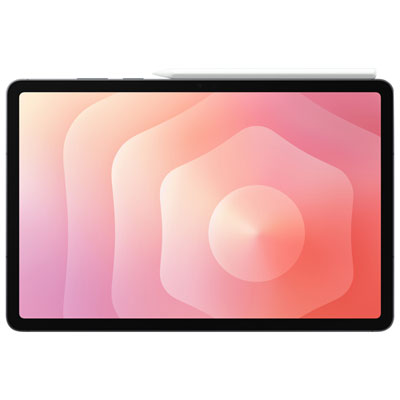 Your price for this item is $1399.99
-
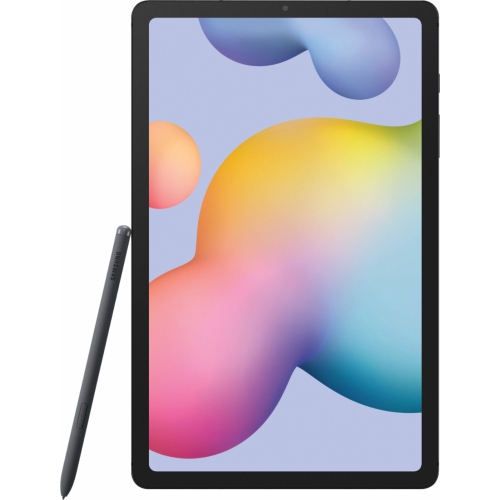 Your price for this item is $699.99
-
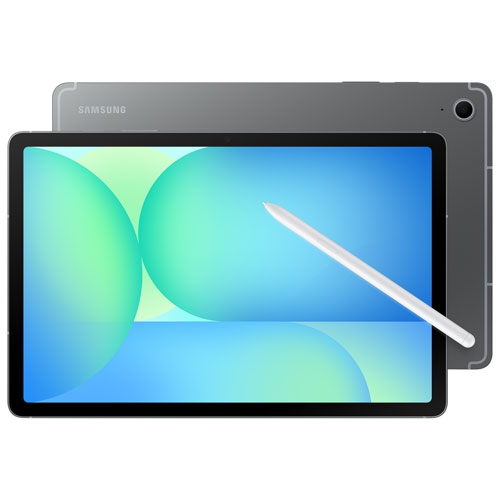 Your price for this item is $664.95
Discover more categories related to Tablets for Presentations
Top Collections:
Best Black Friday Deals This Year, Best Black Friday Deals On Electronics, Kindle Devices, Pokemon Centers, Best Black Friday Deals On Apple Products, Best Cameras for Sports Photography, Dyson Airwrap, Pokémon 30th Celebration Cards, Apple iPhone 17 Pro, Canon G7X Cameras
Some products may be subject to Environmental Handling Fees
(EHF) depending on your province.
Learn more about EHFs.