USB Cables for Monitors
Looking to connect your monitor to your computer or laptop? Look no further than our wide selection of USB cables for monitors. These versatile cables are designed to provide a reliable and high-speed connection between your devices, ensuring seamless data transfer and crystal-clear display quality. Whether you need a USB-C to HDMI cable, a USB 3.0 to DisplayPort cable, or any other type of USB cable for your monitor, we have you covered. With various lengths and types available, finding the perfect cable to suit your needs has never been easier. Upgrade your setup today with our top-notch USB cables for monitors.
Sort
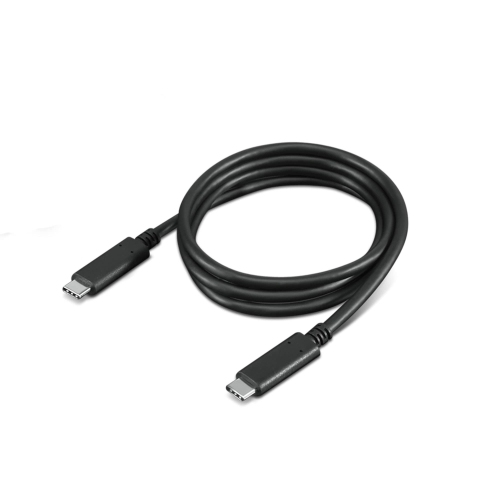
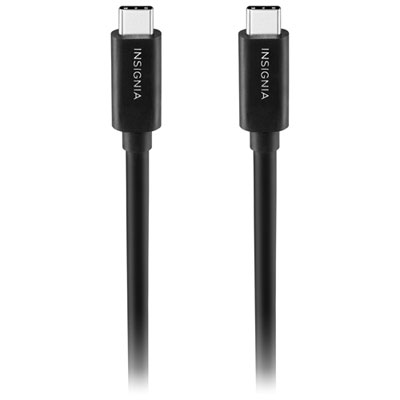
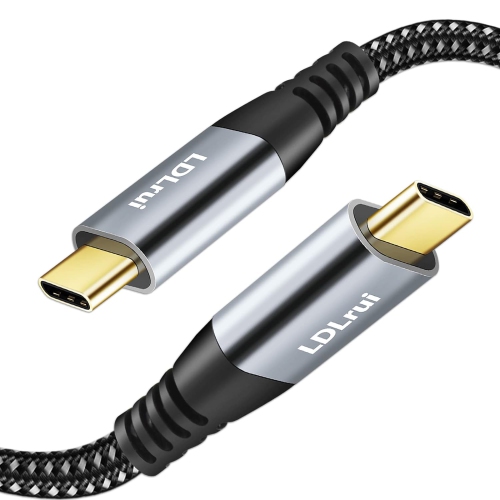
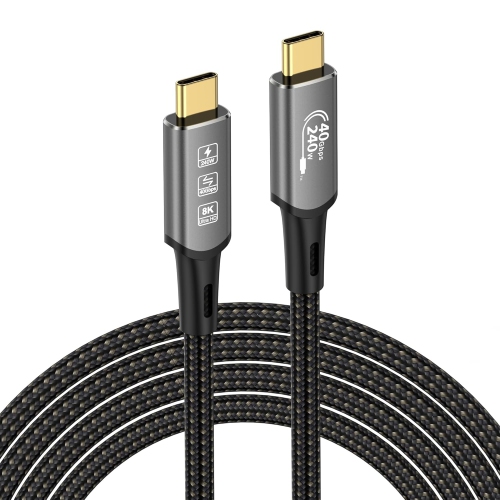
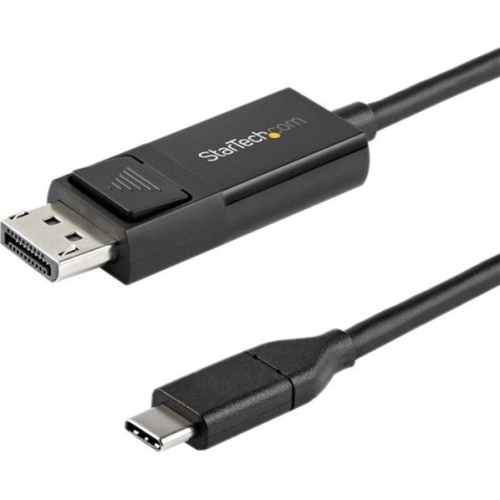
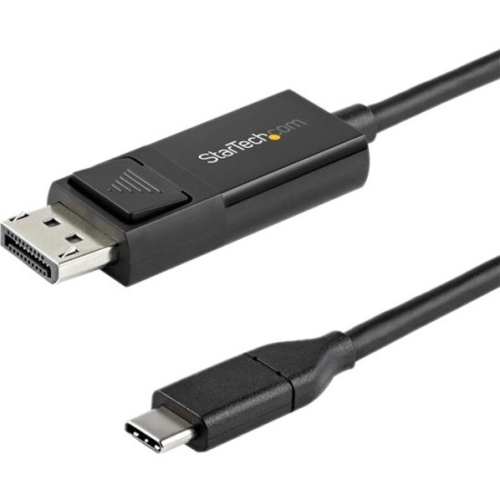
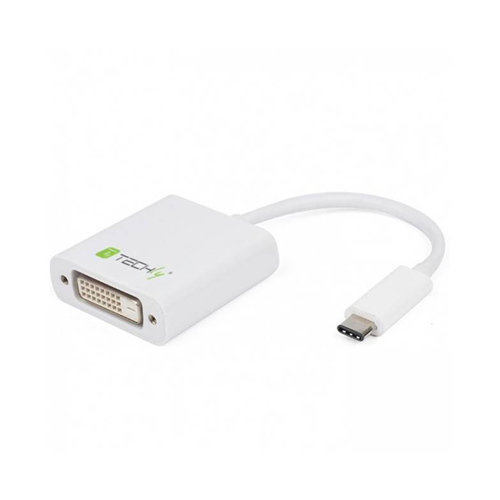
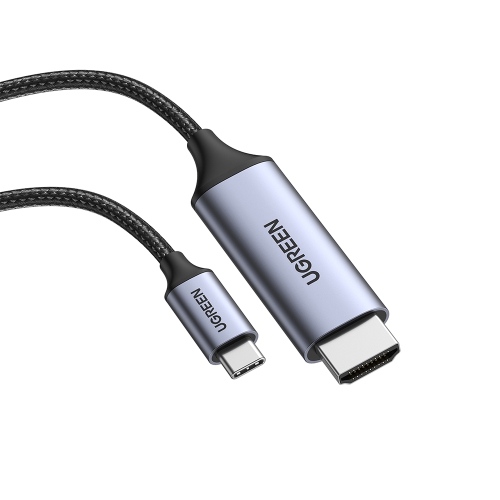
![YELLOW-PRICE USB C to HDMI Adapter 4K60Hz Cable [Thunderbolt 3 Compatible]+HDMI 2.0 HD Cable](https://multimedia.bbycastatic.ca/multimedia/products/500x500/166/16600/16600781.jpeg)
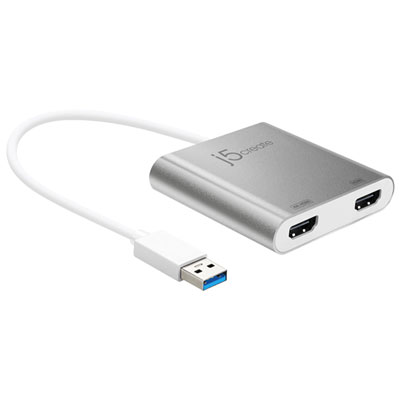
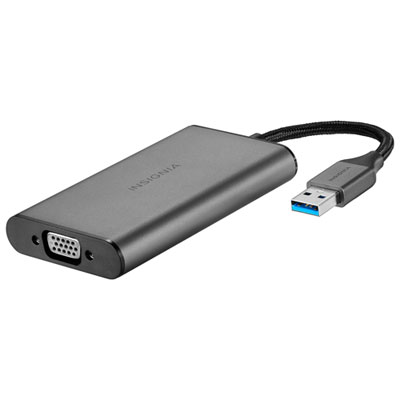

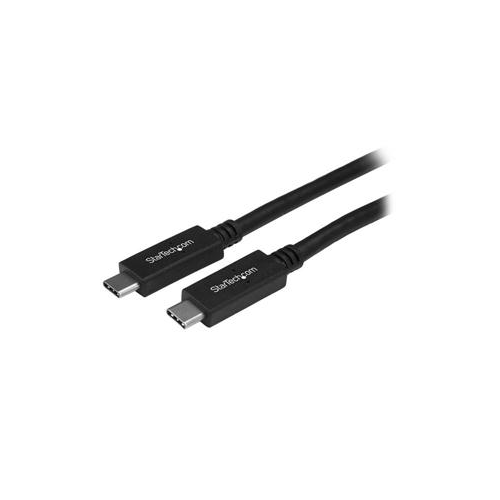
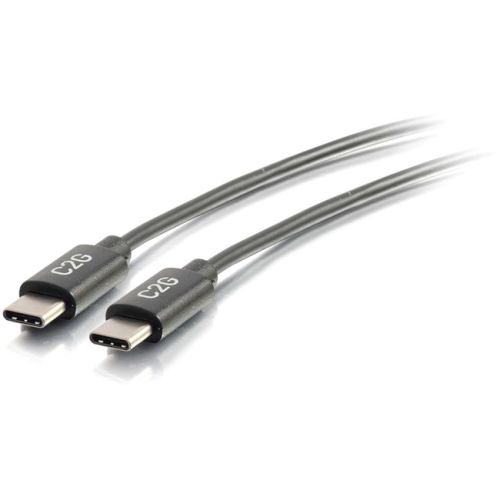

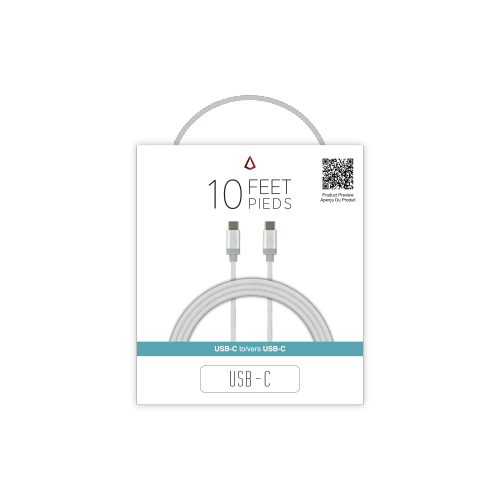
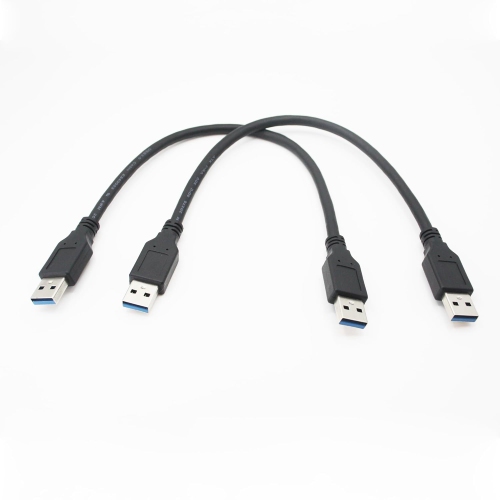
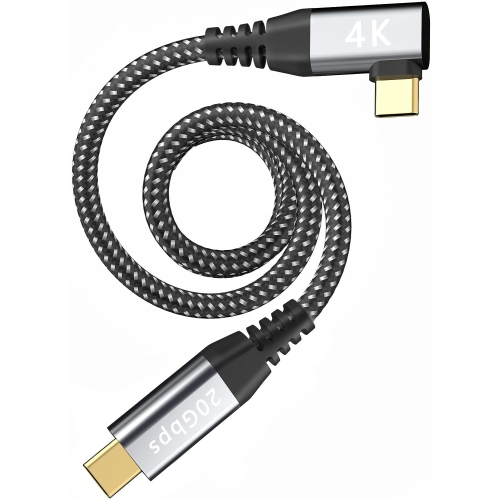
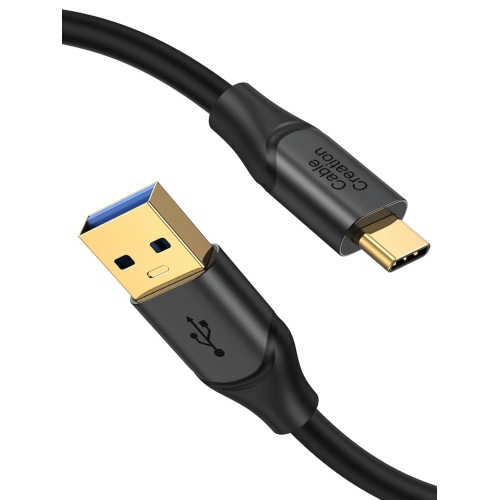
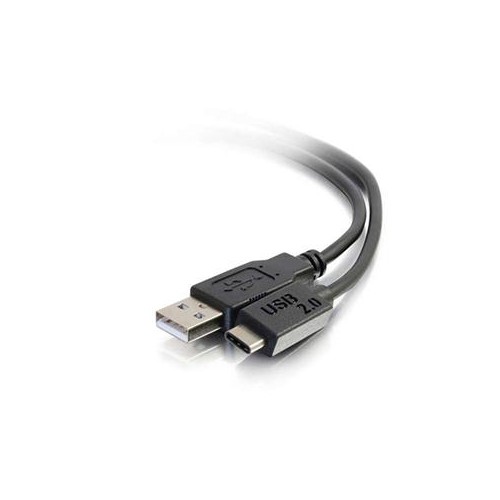
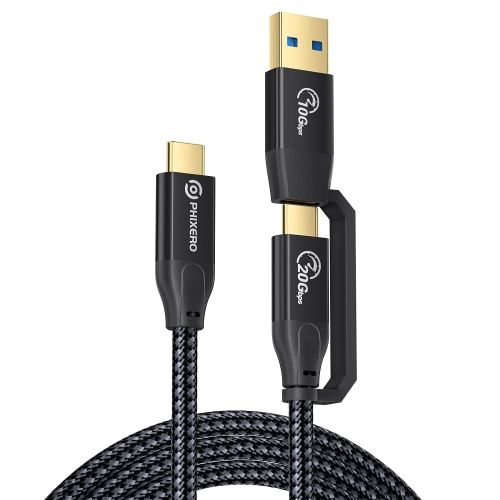
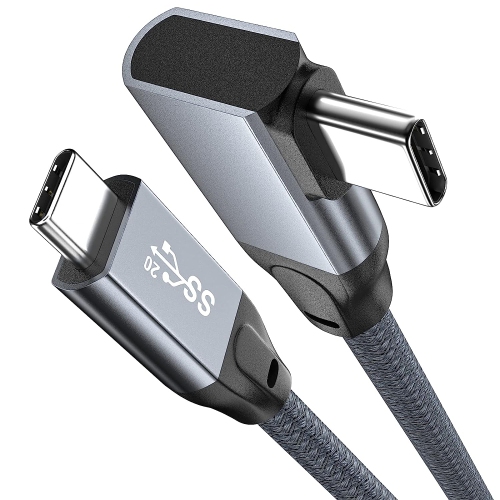
![GENERIC USB C Data Cable 20GBps, USB C 3.2 Gen 2X2 High Speed Data Transfer Cable, [5K/4K 60Hz] USB C Monitor Cable](https://multimedia.bbycastatic.ca/multimedia/products/500x500/196/19617/19617640.jpeg)
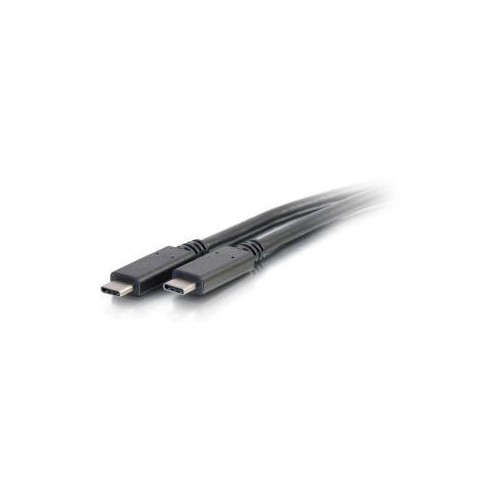
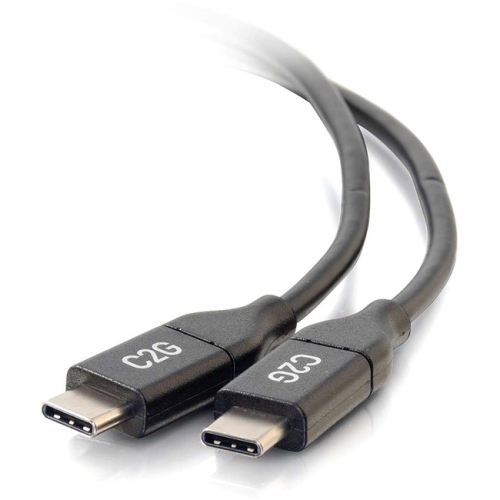



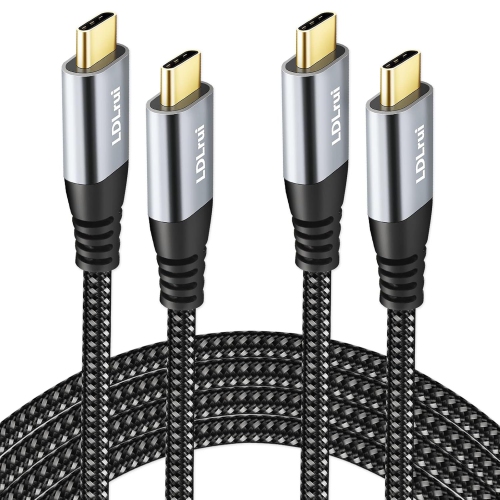
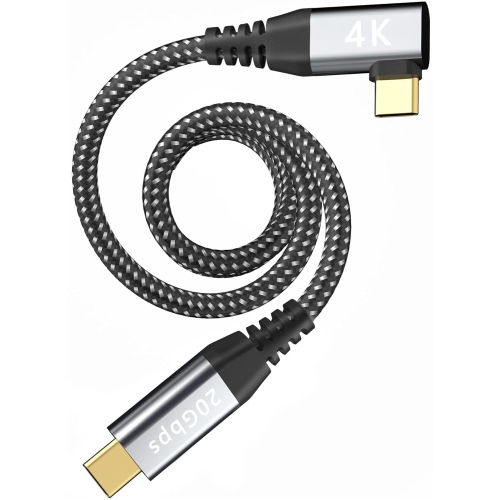
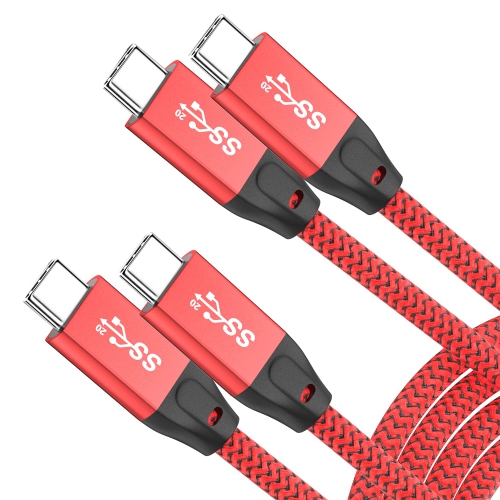
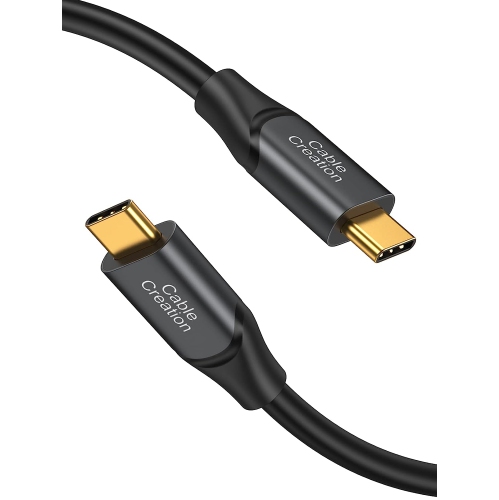
![DOLAER 4K USB-C Monitor Cable [6Ft, 2-Pack], Uhd USB C Video Cable, 10GBps Data & 100W Pd Charging, HDr Type C Display Cord for Dell/lg](https://multimedia.bbycastatic.ca/multimedia/products/500x500/196/19687/19687547.jpeg)
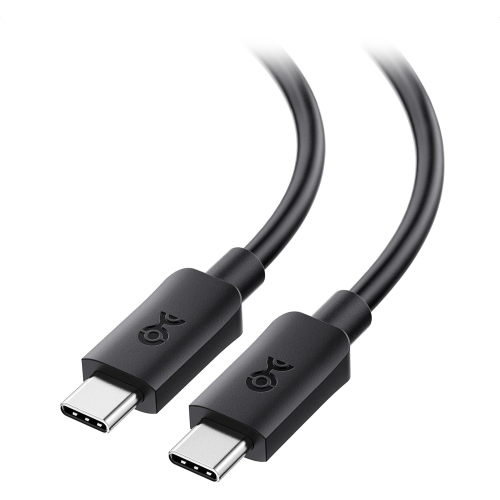
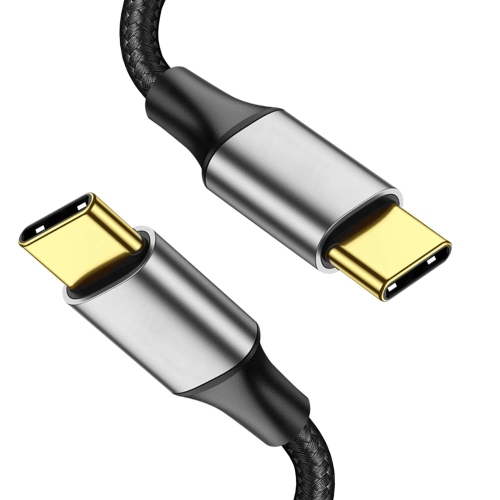
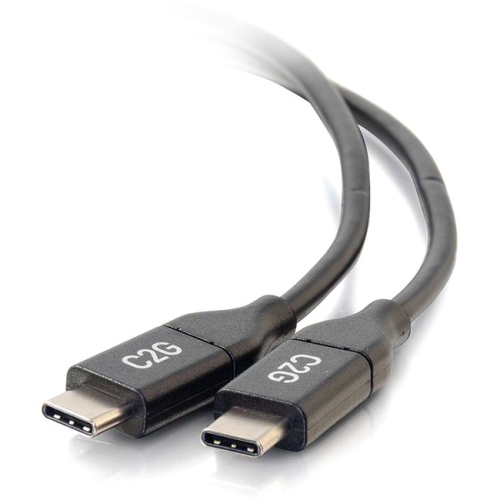
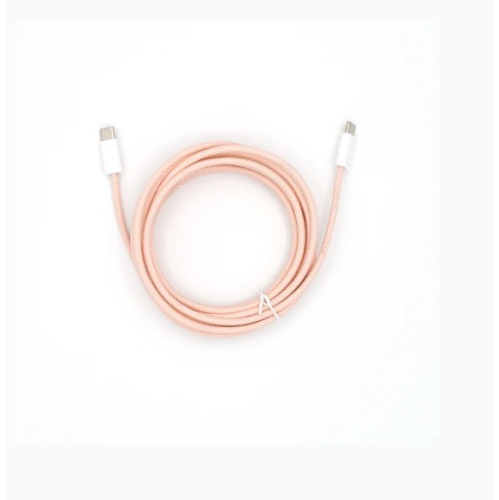
![DOLAER USB C Monitor Display Cable [4K120Hz/60Hz 8K30Hz], USB C 3.2 Gen 2X2 Video Cable, 20GBps Data Transfer, 240W Pd Fast Charge, Type C Cable](https://multimedia.bbycastatic.ca/multimedia/products/500x500/196/19689/19689069.jpeg)
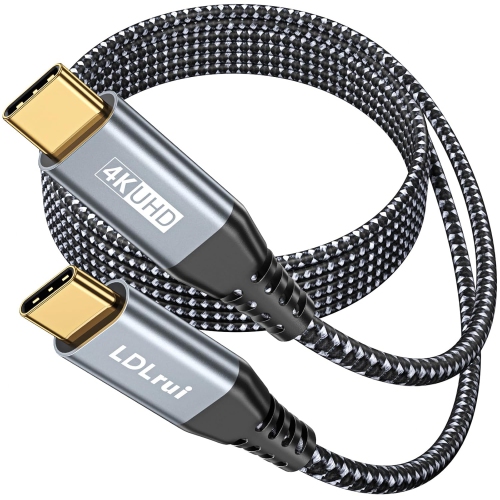
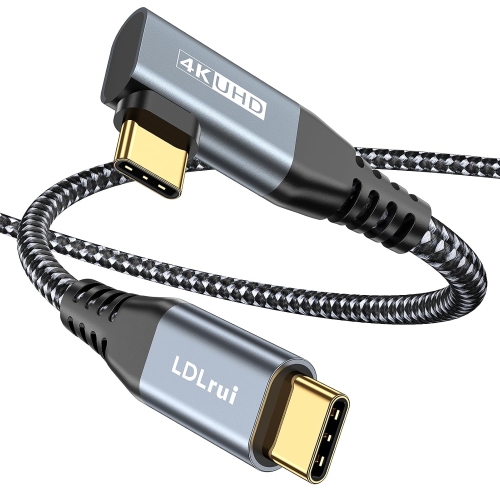
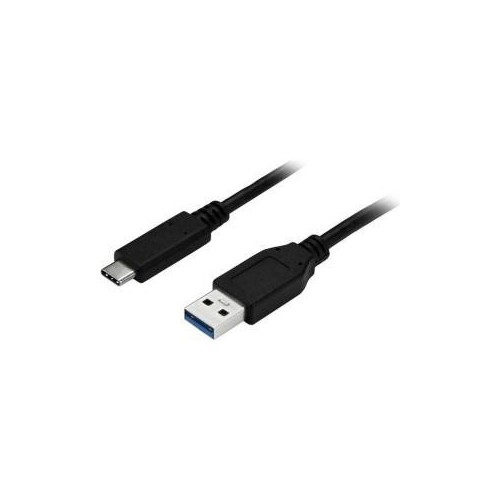
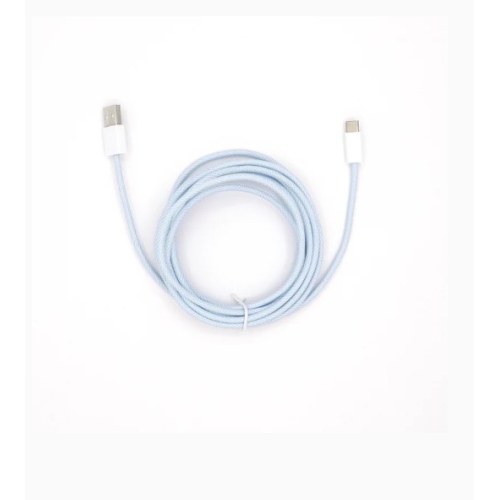
![GENERIC USB C Monitor Display Cable [4K144Hz/60Hz 8K30Hz], USB C 3.2 Gen 2X2 Video Cable, 20GBps Data Transfer, 240W](https://multimedia.bbycastatic.ca/multimedia/products/500x500/199/19999/19999888.jpeg)
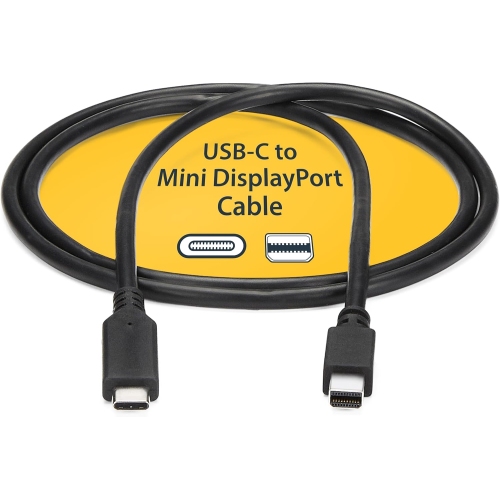
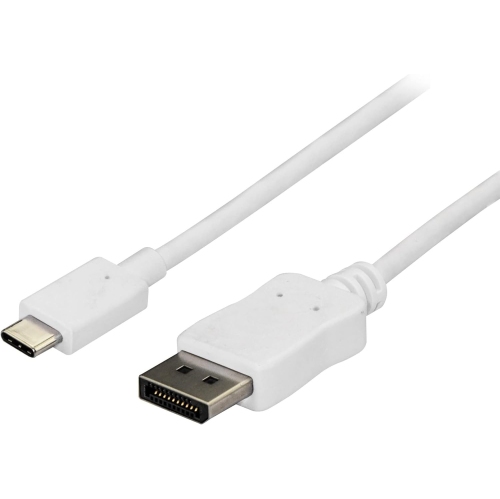
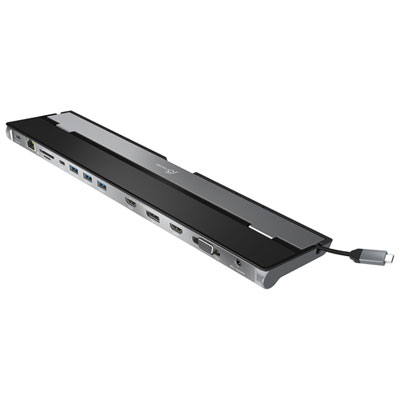



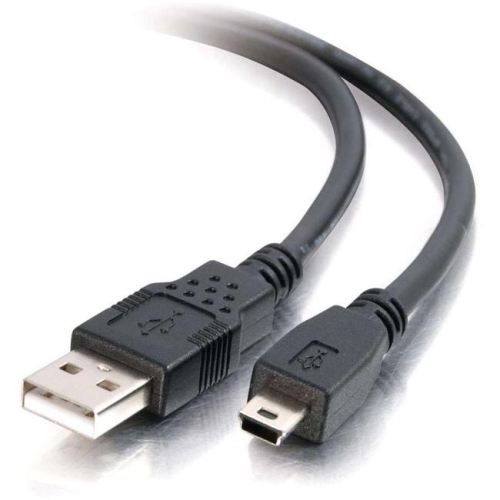
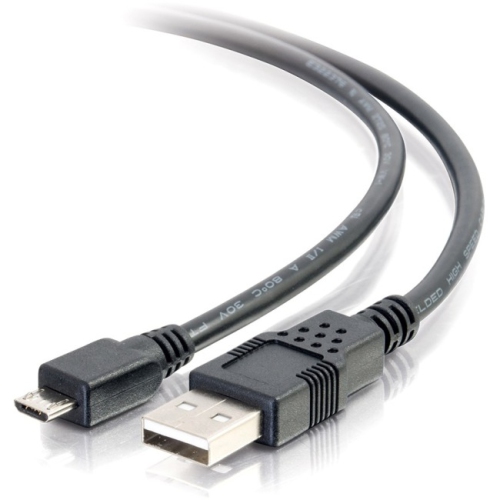
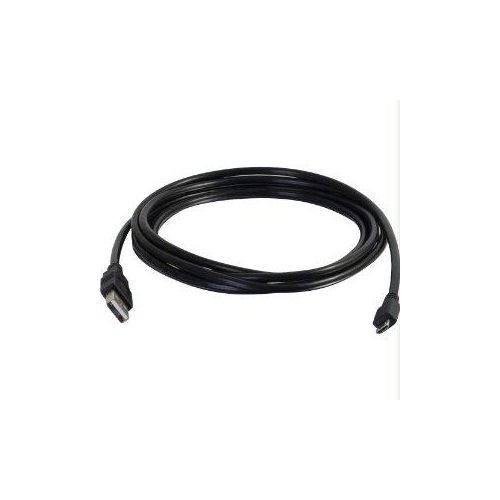
![SABRENT [6-Pack] 22Awg Premium 3Ft Micro USB Cables High Speed USB 2.0 A Male to Micro B Sync And Charge Cables [Black]](https://multimedia.bbycastatic.ca/multimedia/products/500x500/139/13987/13987493.jpg)


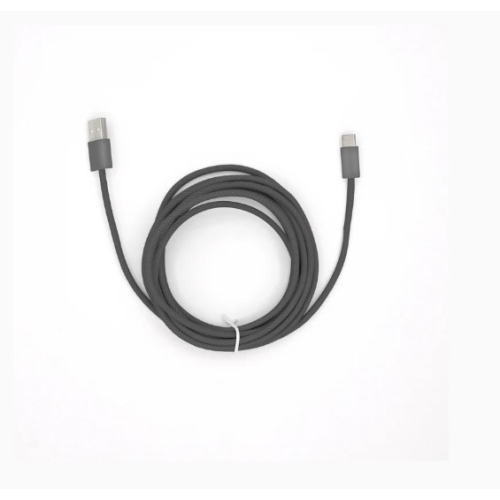
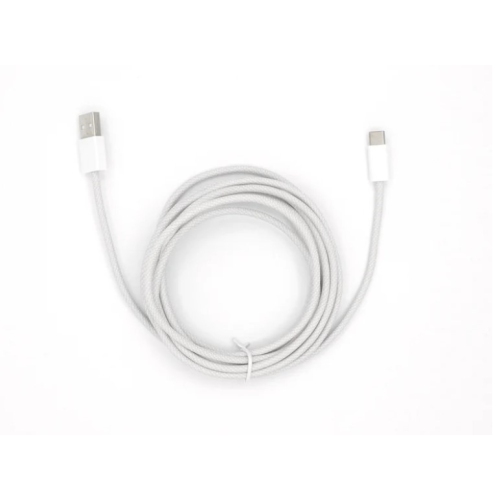
Why a USB-C connector doesn’t guarantee video support
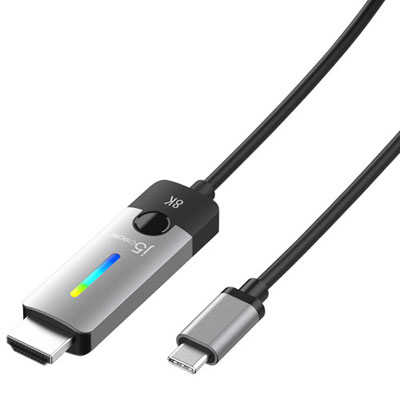
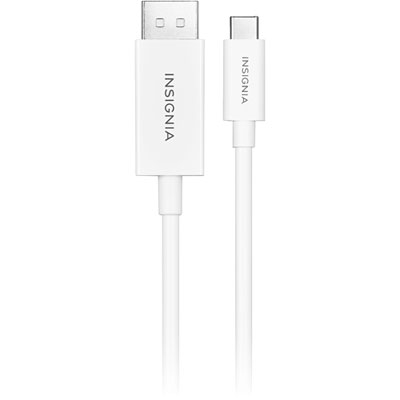
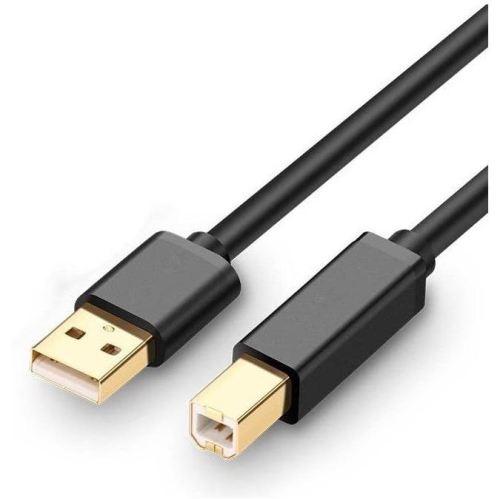
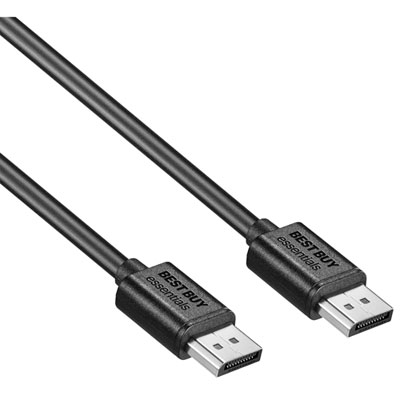
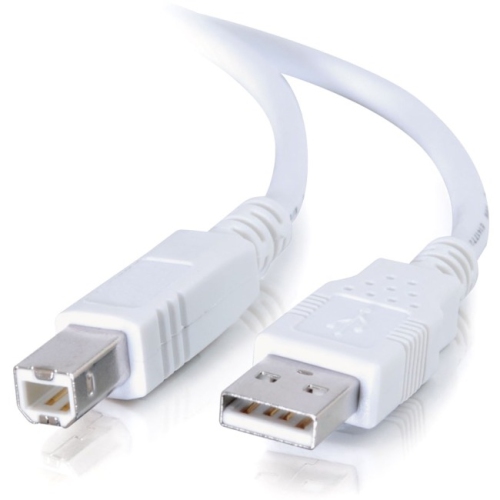
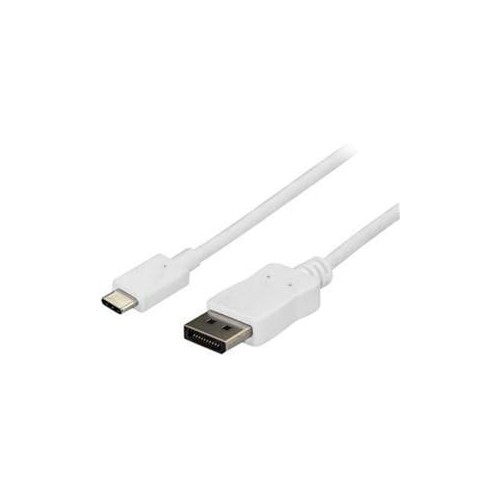
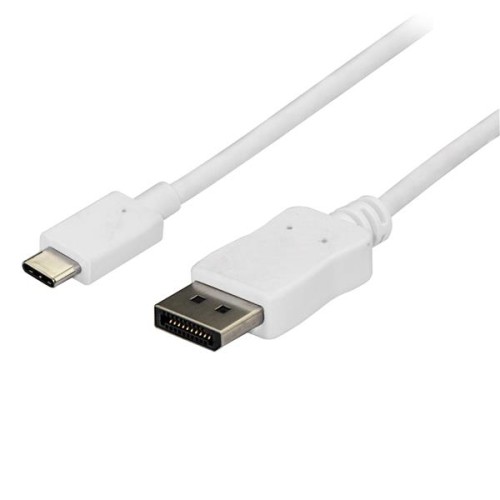
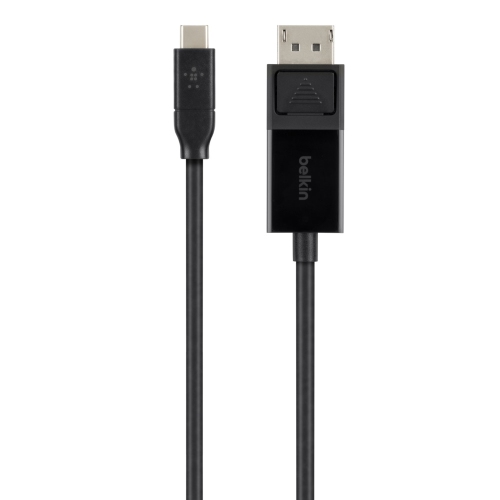
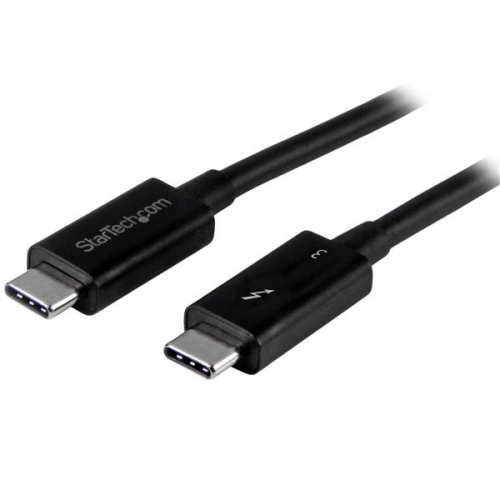
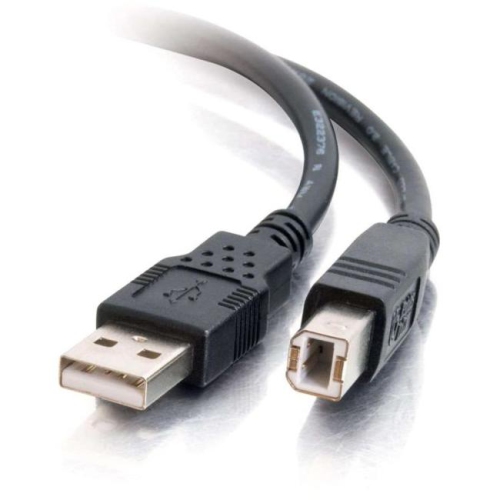
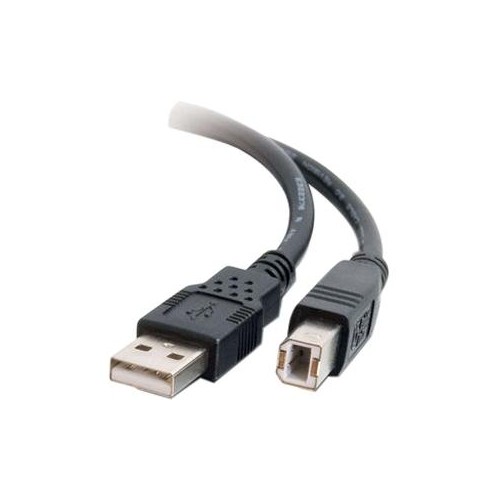
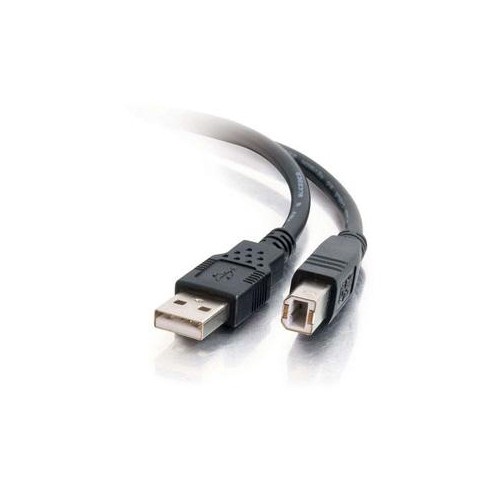
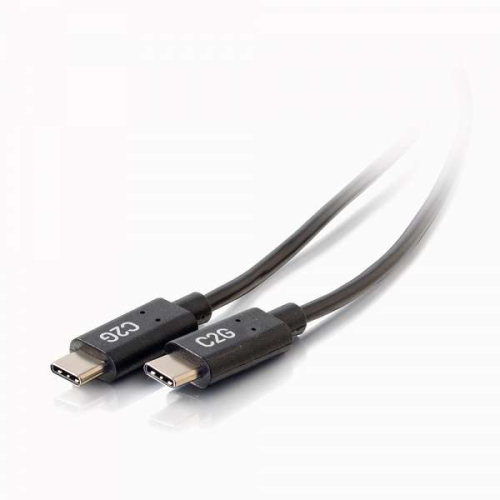
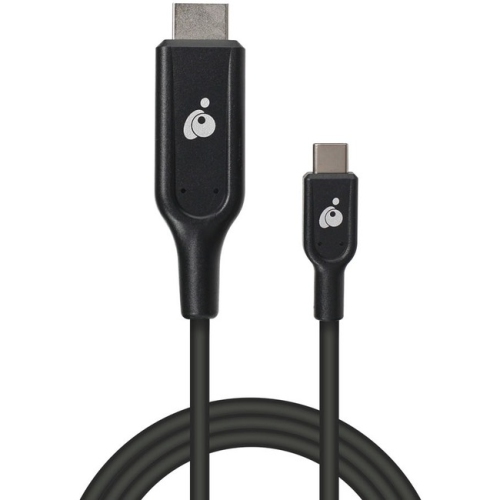
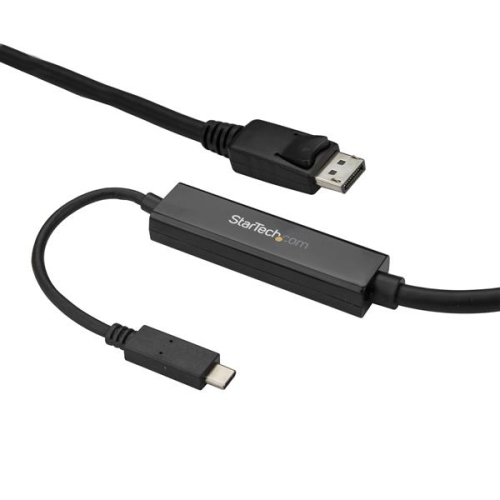
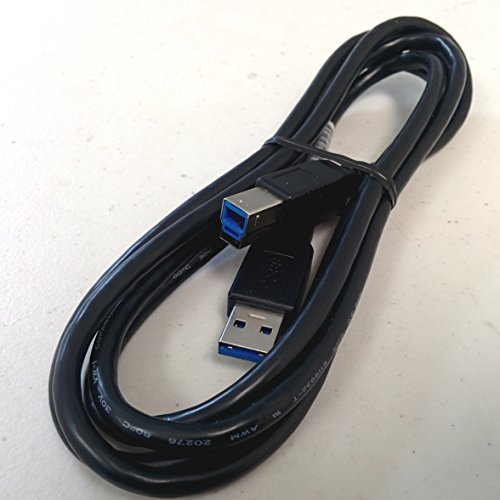
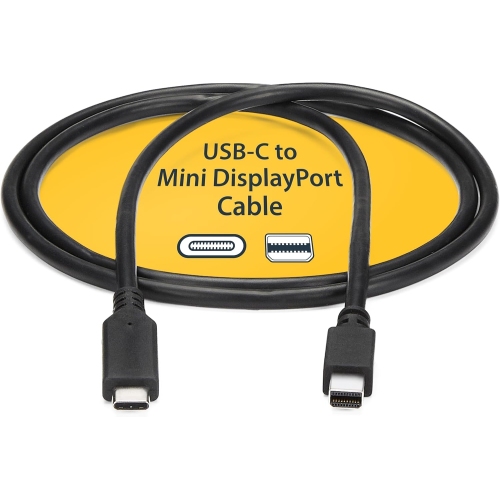
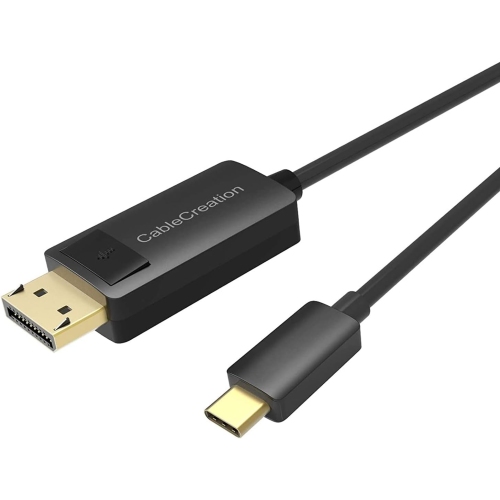
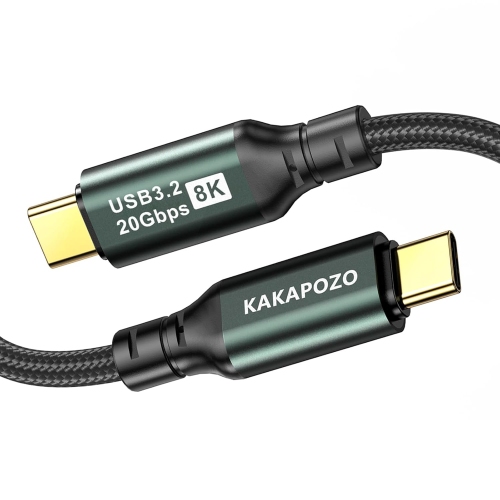
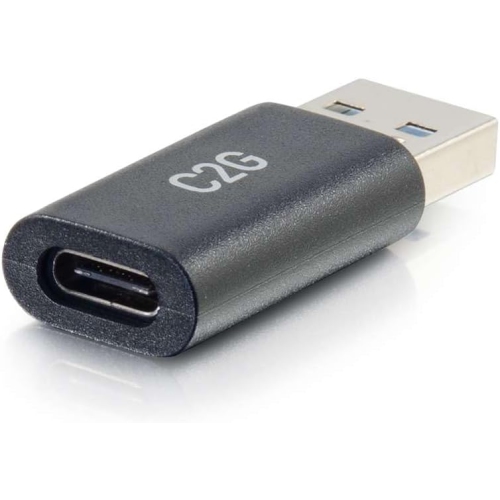
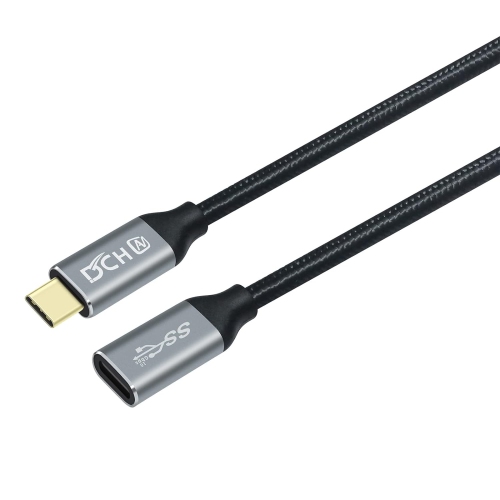
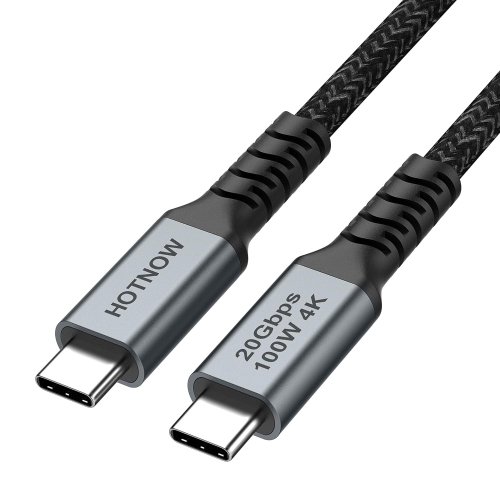
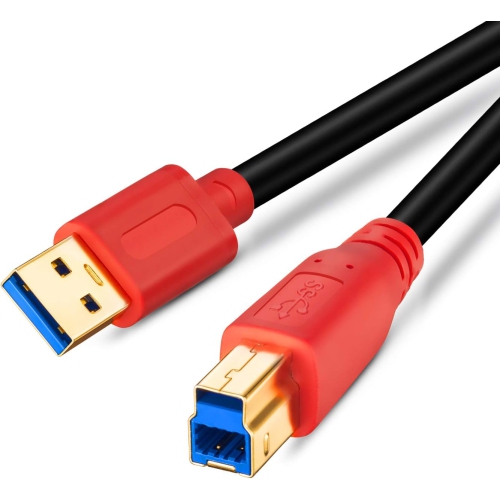
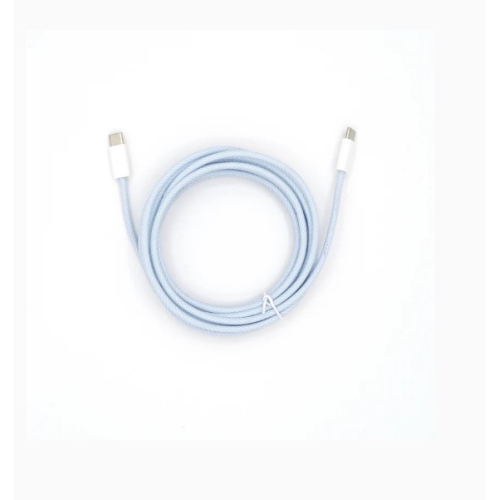
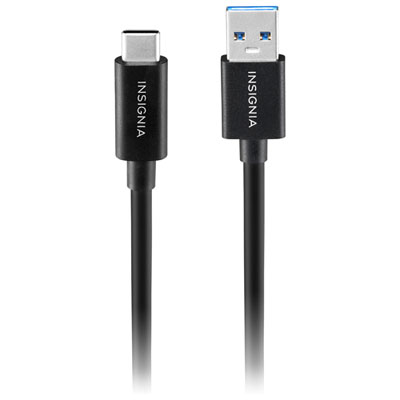
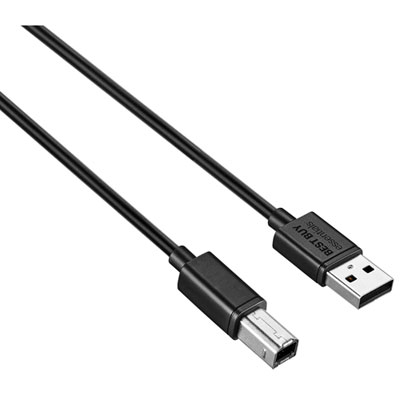
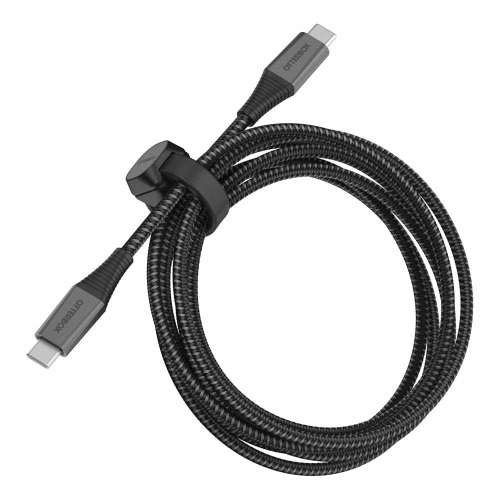
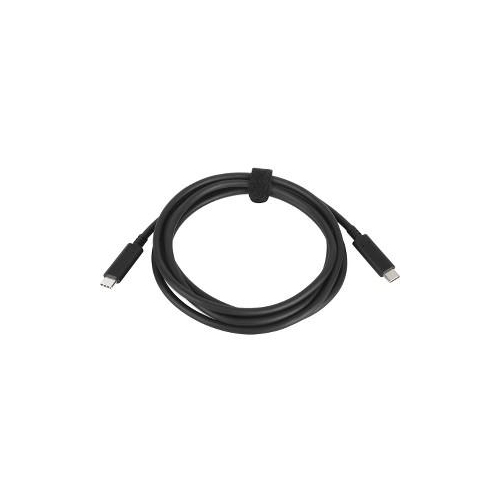
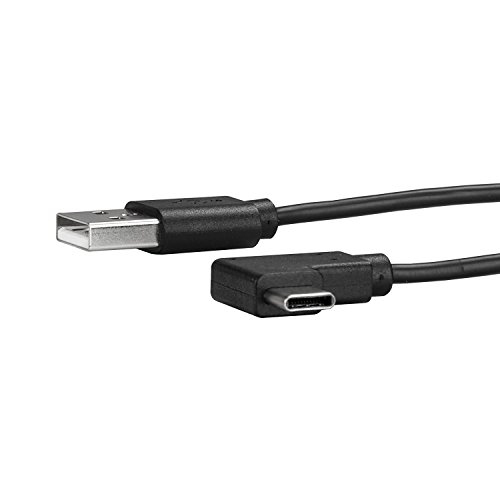
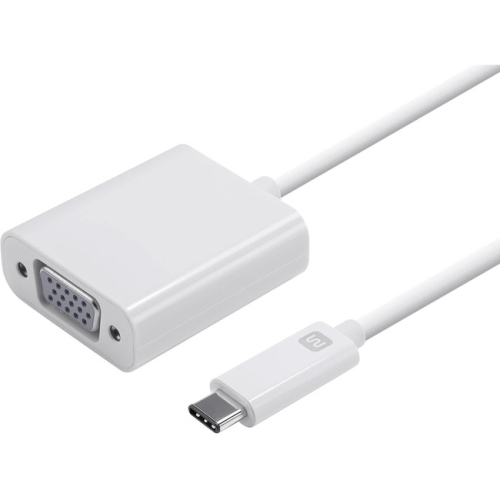
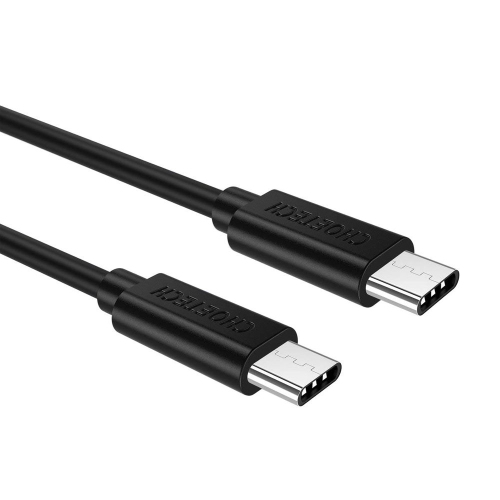
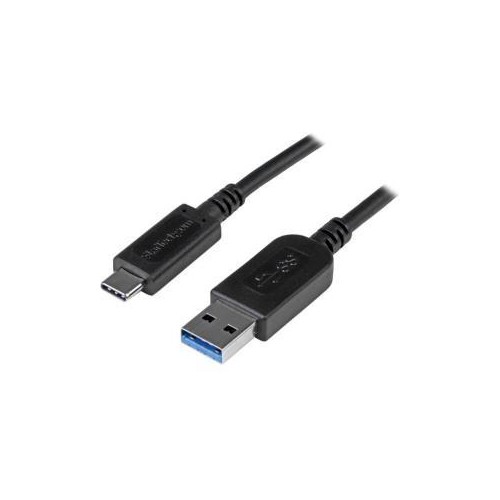
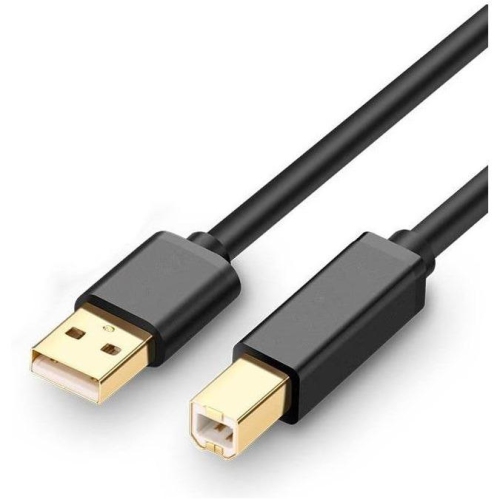
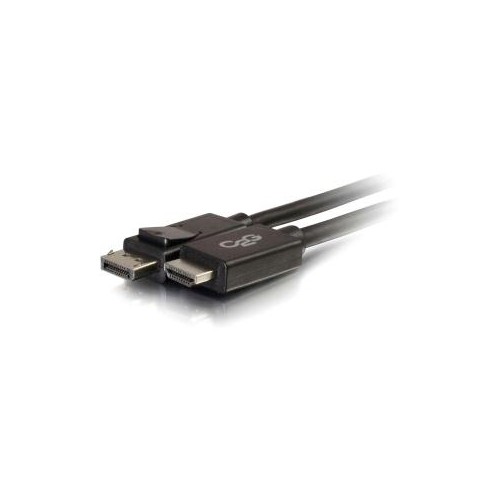
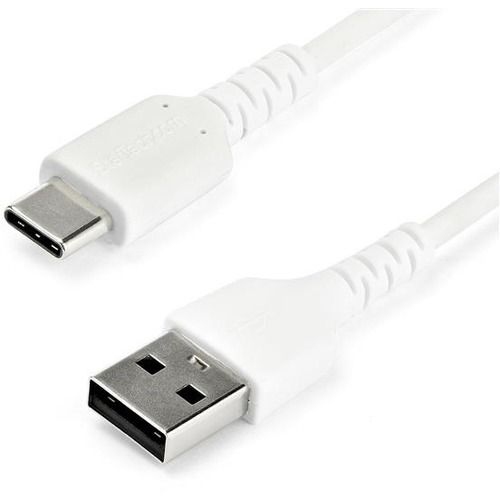
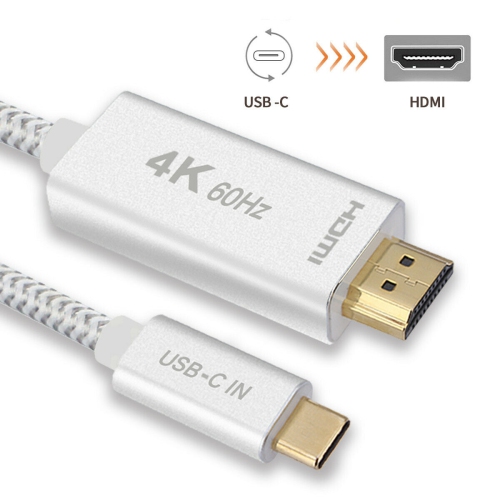
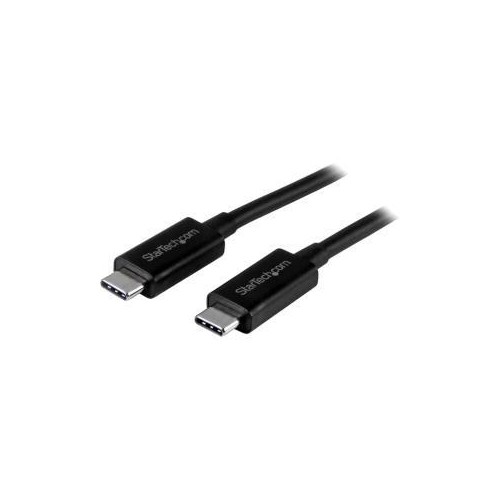
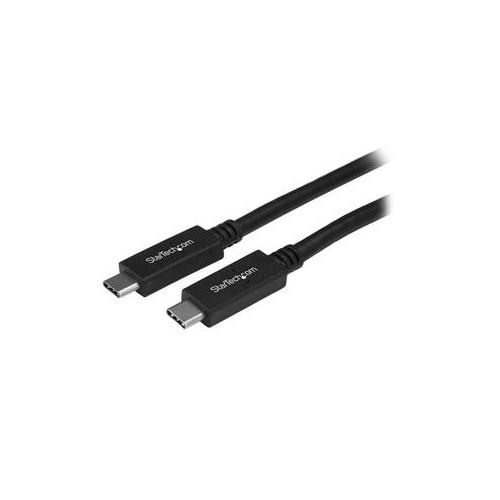
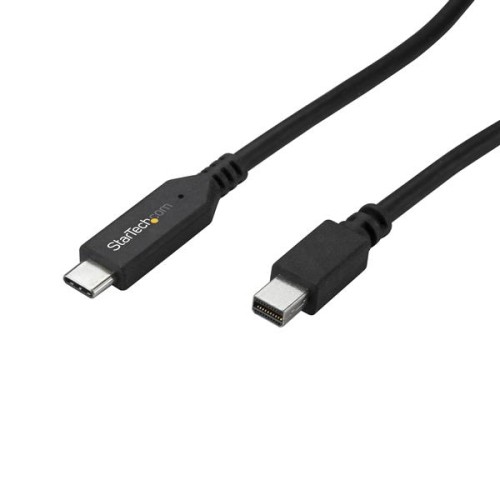
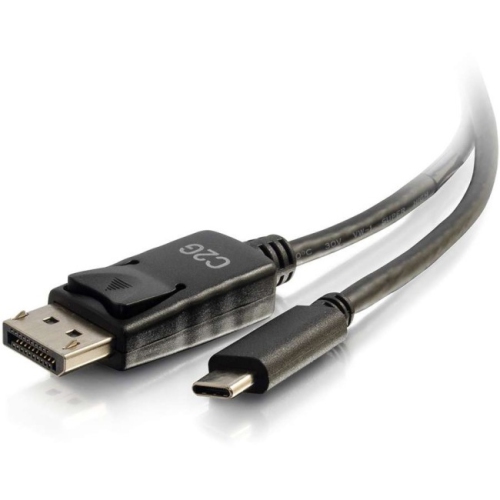
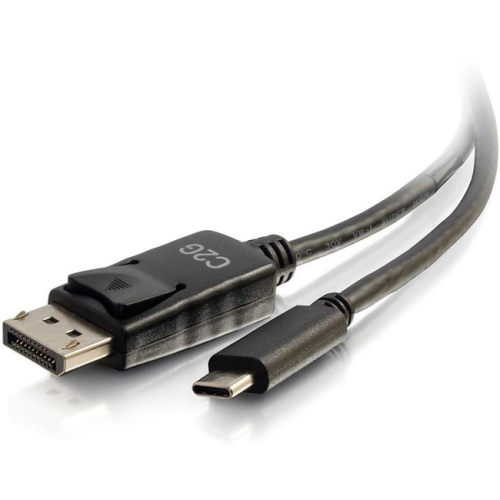
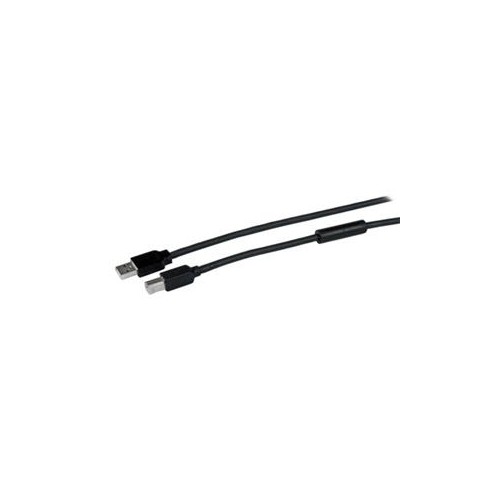
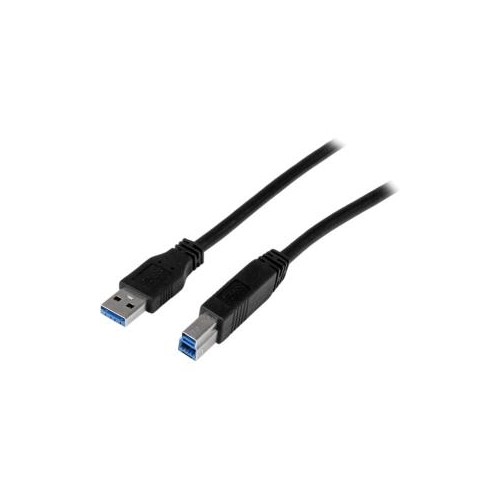
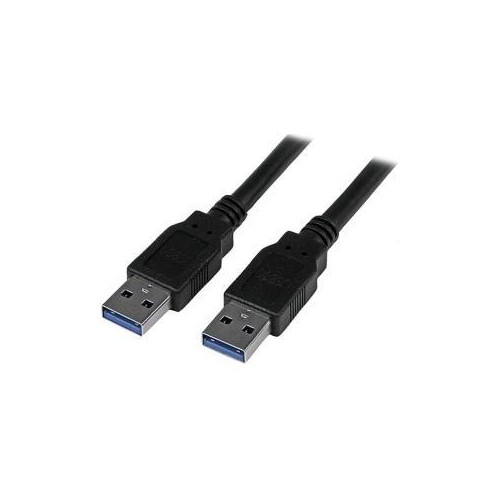
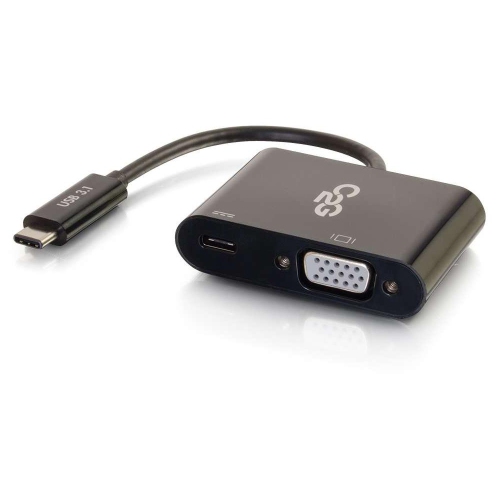
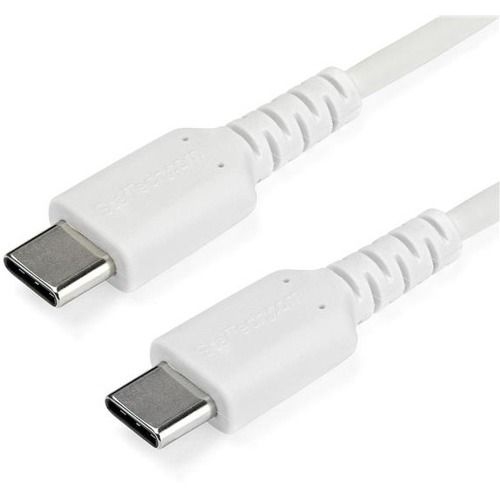
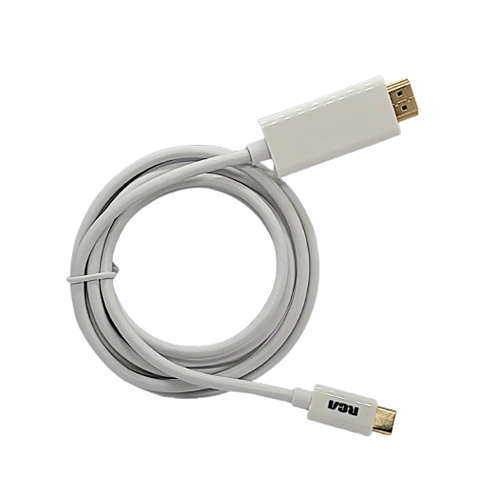
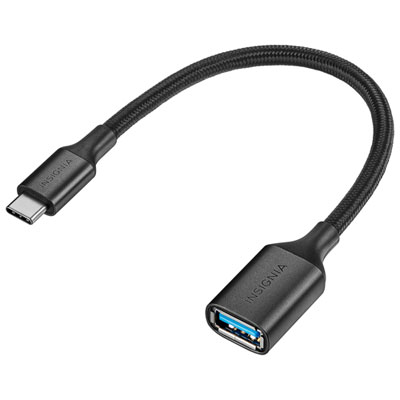
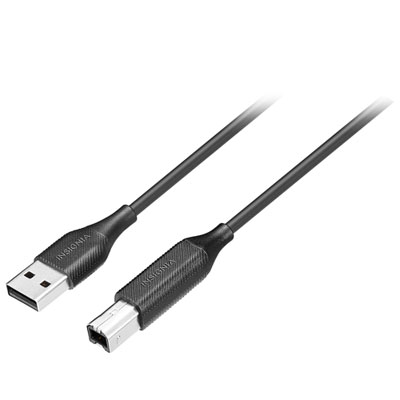
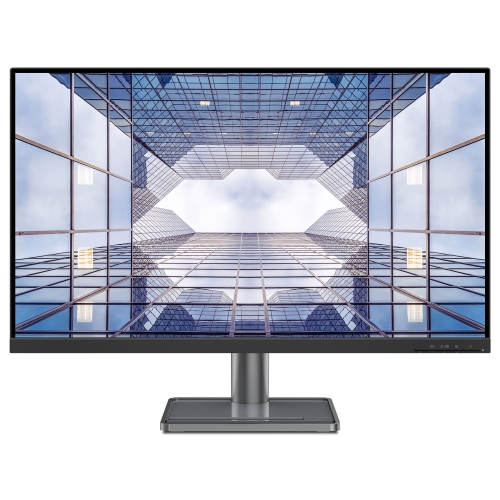
USB cables for monitors connect a computer to a display for video, data, power, or a combination of these functions, depending on the ports and cable specifications. The most important distinction is between a cable that carries the picture to the screen and one that connects the monitor’s built-in USB hub. A compatible USB-C to USB-C cable can carry video and audio while also supporting USB accessories and delivering power, making it a practical choice for a desk where a laptop is connected and disconnected throughout the day. For a typical DisplayPort Alt Mode connection, the computer’s USB-C port must support video output, the monitor’s USB-C port must accept video input, and the cable must support that video connection. The USB-C connector shape alone does not confirm any of those capabilities: some ports and cables handle only charging or data. Displays such as USB Type C Monitors can simplify a workspace when their supported features match the connected computer and cable. A USB-C to DisplayPort or USB-C to HDMI cable serves a different purpose, carrying video from a compatible USB-C source to a monitor with the corresponding display input. These connections suit setups that pair a newer laptop with an existing desktop screen, but they generally do not charge the laptop or connect the monitor’s USB hub through the same cable. A USB-A to USB-B cable, by contrast, commonly links a computer to the upstream USB port on a monitor so that accessories plugged into the display can communicate with the computer. That hub connection normally works alongside a separate video cable rather than replacing it. USB-A to USB-C can also serve as a hub connection on compatible displays, but an ordinary cable of this type does not provide native DisplayPort Alt Mode video. These differences matter whether the screen is used for spreadsheets, online lessons, photo editing, or a larger view of a laptop workspace.
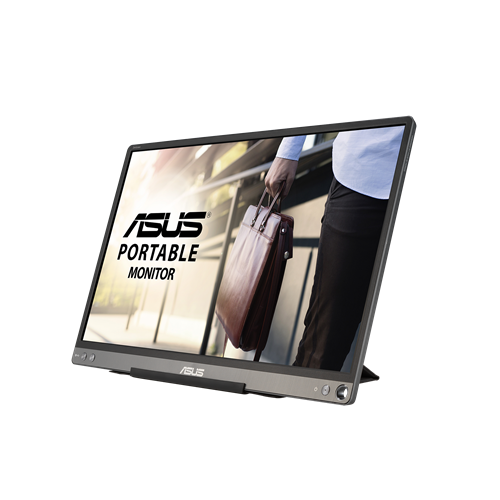
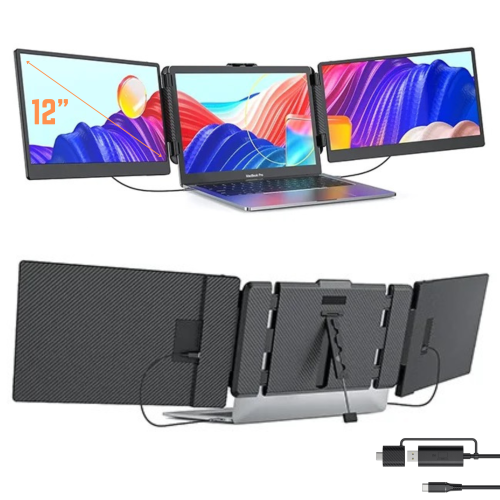
Picture quality and charging performance depend on the complete connection, not simply the name printed on a cable. Resolution and refresh rate place different demands on bandwidth, so support for 4K at one refresh rate does not automatically mean support for 4K at a higher refresh rate. The computer’s graphics capabilities, display output, cable, any adapter or dock, and monitor input all influence the modes that can be used. For someone working with detailed drawings or several documents side by side, reliable operation at the screen’s native resolution helps keep small text and fine lines clear. For gaming or fast-moving video, support for the intended refresh rate is also important. Cable specifications should identify the supported video capabilities rather than relying on a broad description such as fast charging or high-speed data. USB-C displays that share a connection between video and a built-in hub may also divide bandwidth between those functions, with some setups offering different display and USB data modes. Power is a separate consideration. USB Power Delivery allows compatible equipment to negotiate power over USB-C, but the monitor’s output, the cable’s power rating, and the laptop’s requirements must all be suitable. A cable with a high power rating cannot make a monitor supply more power than its own specifications allow. Some laptops may charge slowly or draw on their battery during demanding work if the display supplies less power than they need. Higher-power connections may require an electronically marked cable rated for the intended wattage. Portable monitors bring another variation: some accept both video and operating power from a compatible computer through one USB-C cable, while others need a separate power connection. A video-only connection to HDMI or DisplayPort does not supply the operating power those screens require. Cable direction also matters, particularly with USB-C to HDMI or DisplayPort designs, which are often intended to run from a USB-C computer to a display input and may not work in reverse.
Physical fit and construction make a noticeable difference in everyday use, especially when a cable sits behind a screen for months or travels between desks each day. A useful cable length leaves enough slack for the monitor’s height adjustment, tilt, and swivel without pulling on either connector. On a monitor arm, the route through the arm’s cable channels can require more length than the straight-line distance between the computer and display suggests. Excess cable, however, can crowd a small desk or catch beneath a laptop stand. Longer runs can also make high-bandwidth connections more demanding, so length belongs alongside video, data, and power ratings when comparing cables. Active cable designs can support certain longer connections, but their direction and feature compatibility need to match the setup. Connector housings should fit comfortably around recessed monitor ports and beside other occupied sockets. A bulky plug or sharply angled connector may interfere with a neighbouring cable even when the connector type is correct. Flexible moulded jackets are practical for routing behind furniture, while braided outer coverings can offer added resistance to everyday abrasion. Neither finish alone guarantees video performance or charging capacity; the internal construction and stated capabilities remain essential. Reinforced strain relief near each plug helps manage repeated bending, although no cable benefits from being tightly folded at the connector or trapped under a desk leg. For shared offices, study spaces, and home workstations, a well-matched cable can keep a keyboard, mouse, and display connection organized around a compatible monitor hub. For travel, a gently coiled cable in a separate pouch is less likely to snag on charger prongs or place sideways pressure on a laptop port. Routine care is straightforward: disconnect by holding the plug rather than pulling the cord, keep connectors dry and free of debris, and wipe the outer jacket with a soft, dry cloth when needed. Frayed coverings, loose plugs, or intermittent connections are reasons to stop using a damaged cable. The best fit is a cable whose connectors, supported functions, length, and construction suit the way the monitor is actually used.
Picture quality and charging performance depend on the complete connection, not simply the name printed on a cable. Resolution and refresh rate place different demands on bandwidth, so support for 4K at one refresh rate does not automatically mean support for 4K at a higher refresh rate. The computer’s graphics capabilities, display output, cable, any adapter or dock, and monitor input all influence the modes that can be used. For someone working with detailed drawings or several documents side by side, reliable operation at the screen’s native resolution helps keep small text and fine lines clear. For gaming or fast-moving video, support for the intended refresh rate is also important. Cable specifications should identify the supported video capabilities rather than relying on a broad description such as fast charging or high-speed data. USB-C displays that share a connection between video and a built-in hub may also divide bandwidth between those functions, with some setups offering different display and USB data modes. Power is a separate consideration. USB Power Delivery allows compatible equipment to negotiate power over USB-C, but the monitor’s output, the cable’s power rating, and the laptop’s requirements must all be suitable. A cable with a high power rating cannot make a monitor supply more power than its own specifications allow. Some laptops may charge slowly or draw on their battery during demanding work if the display supplies less power than they need. Higher-power connections may require an electronically marked cable rated for the intended wattage. Portable monitors bring another variation: some accept both video and operating power from a compatible computer through one USB-C cable, while others need a separate power connection. A video-only connection to HDMI or DisplayPort does not supply the operating power those screens require. Cable direction also matters, particularly with USB-C to HDMI or DisplayPort designs, which are often intended to run from a USB-C computer to a display input and may not work in reverse.
Physical fit and construction make a noticeable difference in everyday use, especially when a cable sits behind a screen for months or travels between desks each day. A useful cable length leaves enough slack for the monitor’s height adjustment, tilt, and swivel without pulling on either connector. On a monitor arm, the route through the arm’s cable channels can require more length than the straight-line distance between the computer and display suggests. Excess cable, however, can crowd a small desk or catch beneath a laptop stand. Longer runs can also make high-bandwidth connections more demanding, so length belongs alongside video, data, and power ratings when comparing cables. Active cable designs can support certain longer connections, but their direction and feature compatibility need to match the setup. Connector housings should fit comfortably around recessed monitor ports and beside other occupied sockets. A bulky plug or sharply angled connector may interfere with a neighbouring cable even when the connector type is correct. Flexible moulded jackets are practical for routing behind furniture, while braided outer coverings can offer added resistance to everyday abrasion. Neither finish alone guarantees video performance or charging capacity; the internal construction and stated capabilities remain essential. Reinforced strain relief near each plug helps manage repeated bending, although no cable benefits from being tightly folded at the connector or trapped under a desk leg. For shared offices, study spaces, and home workstations, a well-matched cable can keep a keyboard, mouse, and display connection organized around a compatible monitor hub. For travel, a gently coiled cable in a separate pouch is less likely to snag on charger prongs or place sideways pressure on a laptop port. Routine care is straightforward: disconnect by holding the plug rather than pulling the cord, keep connectors dry and free of debris, and wipe the outer jacket with a soft, dry cloth when needed. Frayed coverings, loose plugs, or intermittent connections are reasons to stop using a damaged cable. The best fit is a cable whose connectors, supported functions, length, and construction suit the way the monitor is actually used.
Top selling and popular products
-
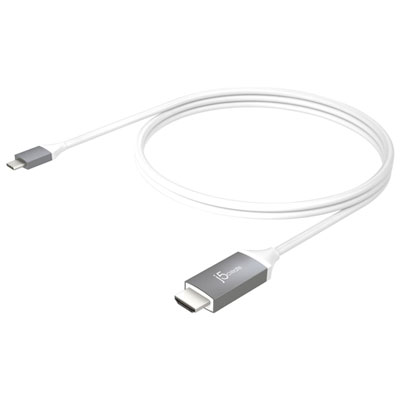 Your price for this item is $39.99
 -
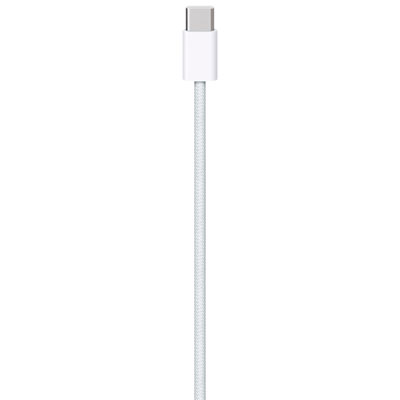 Your price for this item is $24.99
 -
 Your price for this item is $19.99
 -
 Your price for this item is $29.99
 -
 Your price for this item is $29.99
 -
 Your price for this item is $19.99
 -
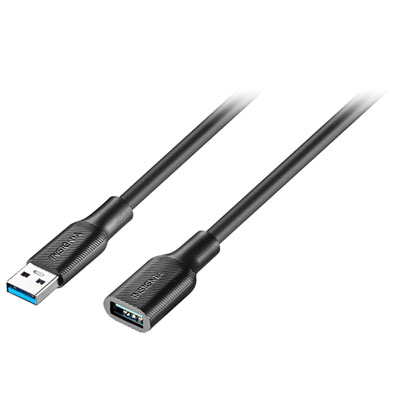 Your price for this item is $24.99
 -
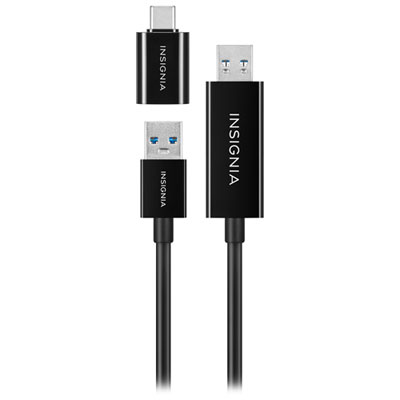 Your price for this item is $44.97
Discover more categories related to USB Cables for Monitors
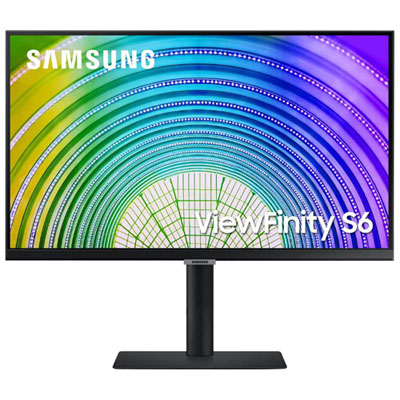
Top Collections:
Pokemon Centers, Kindle Devices, Best Budget Office Chairs, Apple iPhones 16, Best Laptops for Writers, iPhone 15 Apple, Canon G7X Cameras, Refurbished Apple Laptops, Alarm Clock, Motorola Razr Phones
Some products may be subject to Environmental Handling Fees
(EHF) depending on your province.
Learn more about EHFs.