Hp Officejet Pro 8715 Ink Cartridges
Hp Officejet Pro 8715 Ink Cartridges are essential for keeping your printer running smoothly and producing high-quality documents. Whether you’re handling everyday printing tasks or preparing important business materials, having the right ink cartridges ensures consistent performance and reliable results. Explore a range of options designed to fit your Hp Officejet Pro 8715, making it easy to find the perfect match for your printing needs.
Sort

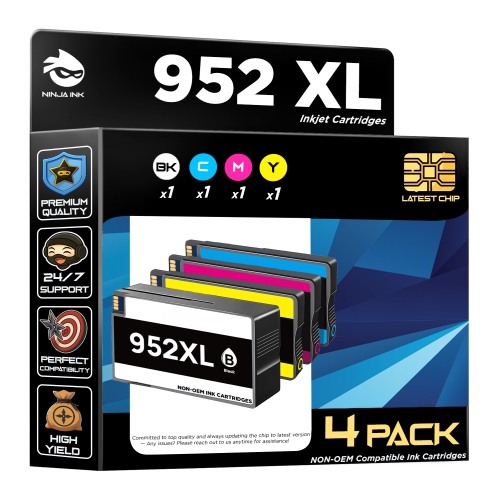

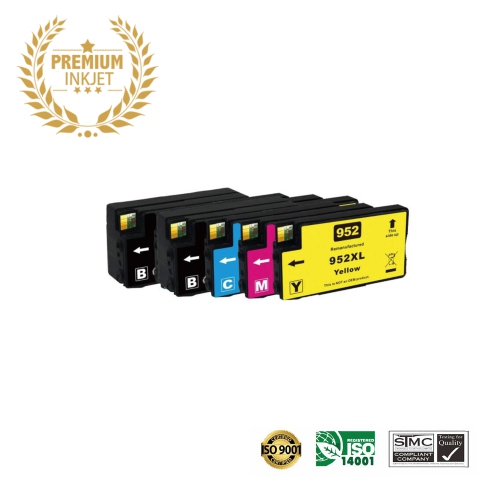
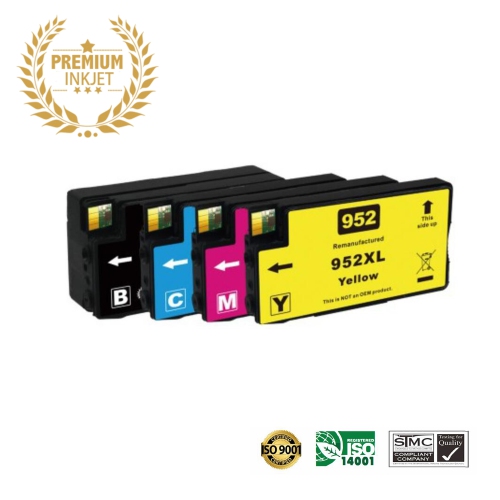
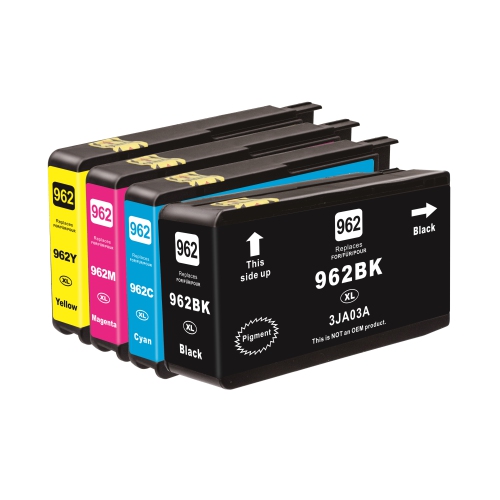
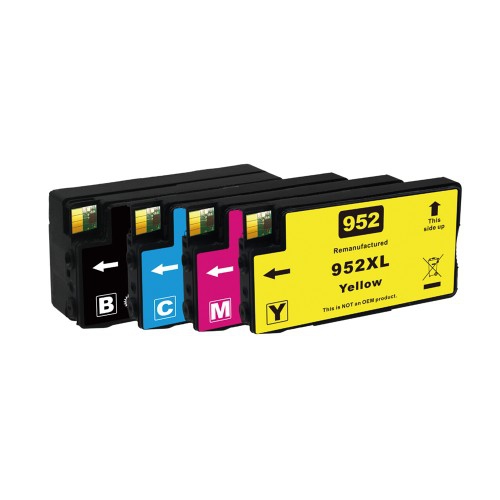
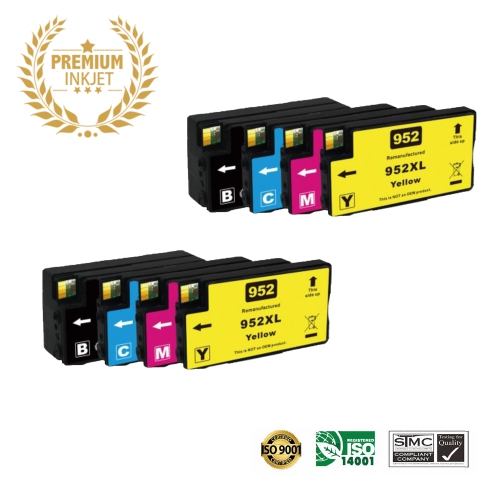
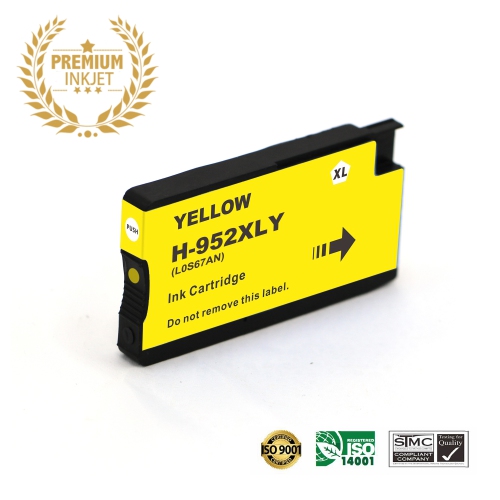
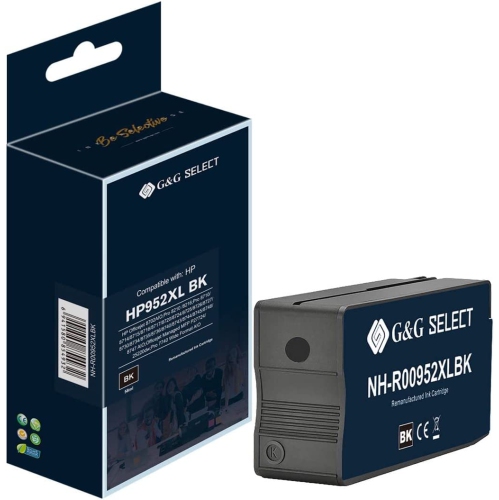
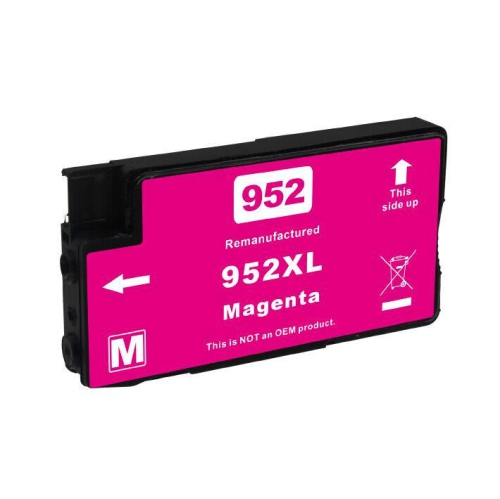
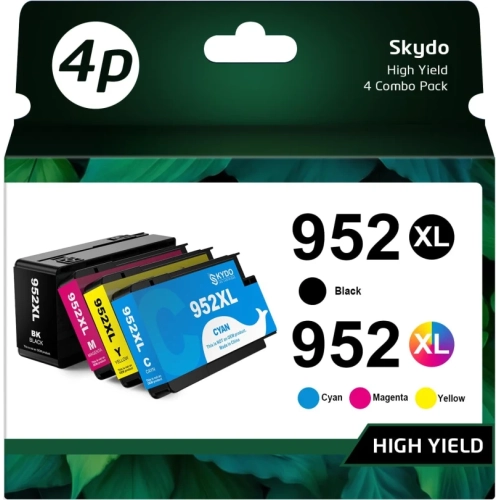
![BESTONER [New Chip] 2 Compatible HP 952 Xl Ink Cartridges 952Xl High Yield - HP Officejet 8702 7740 8715 8210 8216 7720 7730 7745 8730 8710 8727](https://multimedia.bbycastatic.ca/multimedia/products/500x500/171/17168/17168598.jpeg)
![BESTONER [New Chip] 2 Set Compatible HP 952 Xl Ink Cartridges 952Xl High Yield - HP Officejet 8702 7740 8715 8210 8216 7720 7730 7745 8730 8710 8727](https://multimedia.bbycastatic.ca/multimedia/products/500x500/171/17168/17168597.jpeg)
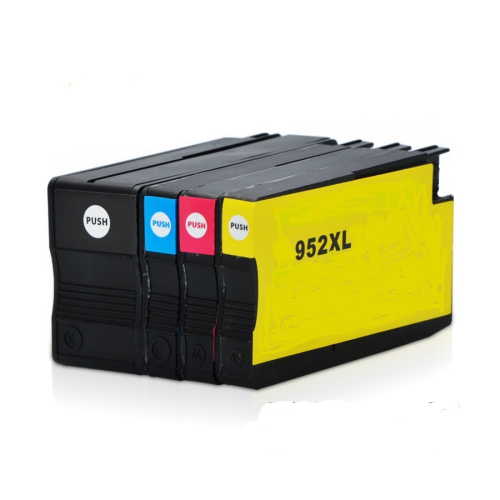

Compatible cartridge options for occasional or busy printing
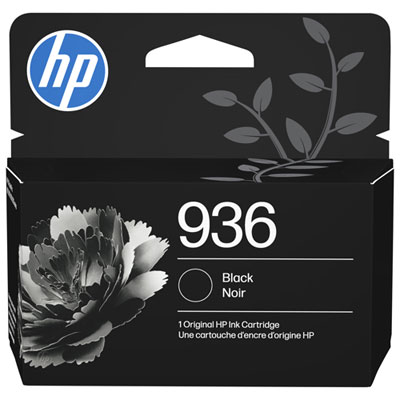
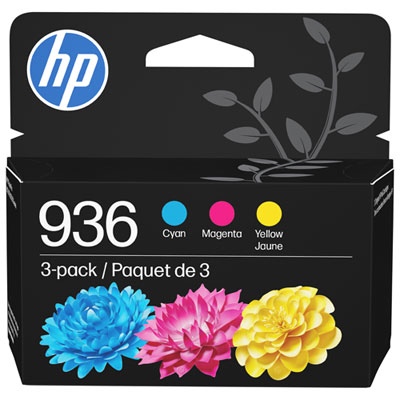
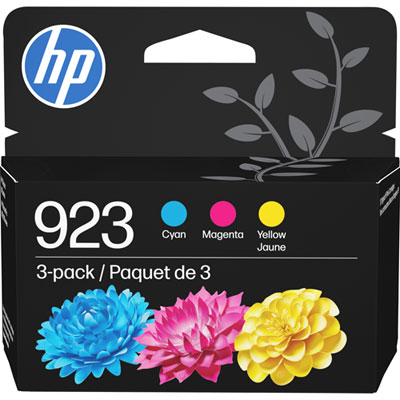
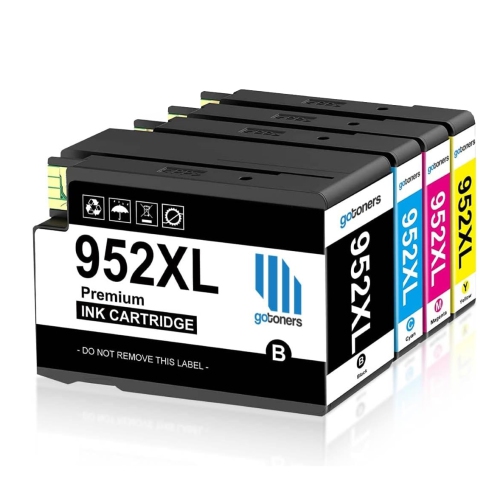
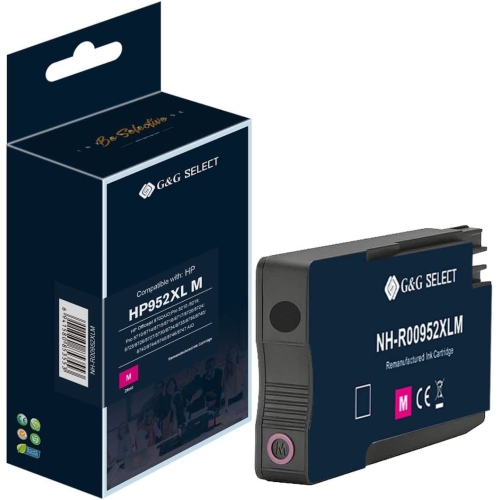
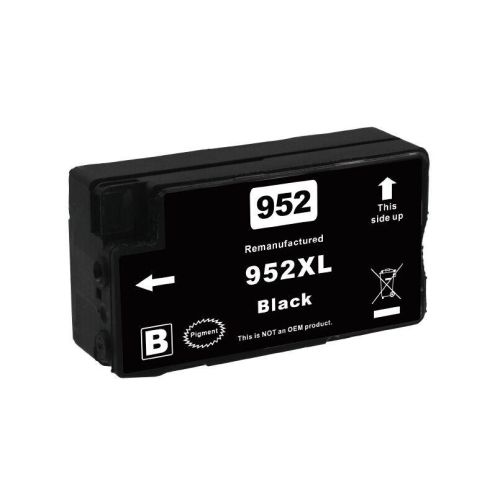
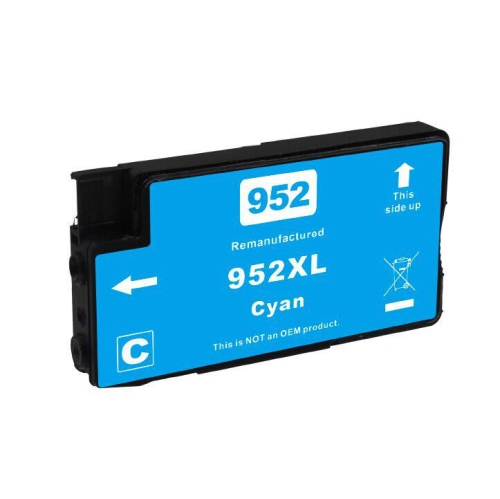
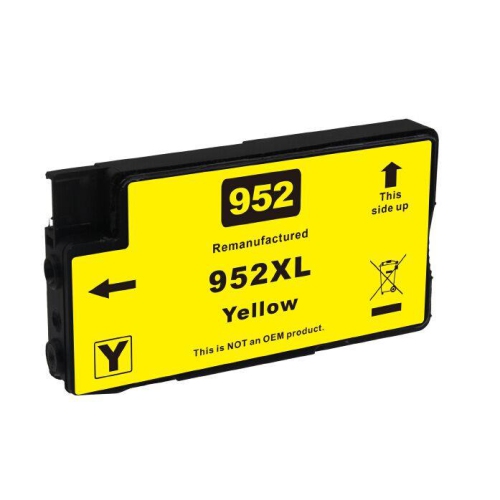
Finding the right ink cartridges for an OfficeJet Pro 8715 printer starts with confirming compatibility before placing an order. This printer uses a four-cartridge system with separate black, cyan, magenta, and yellow cartridges, allowing you to replace only the colour that has run low instead of changing the entire set. Compatible replacement options are available in standard and high-yield formats. Standard cartridges are a practical choice for occasional printing, such as household forms, school assignments, travel documents, recipes, or the occasional colour project. High-yield cartridges contain more ink and can be a better fit for a busy home office, small business, classroom, or shared workspace where invoices, reports, labels, presentations, and other documents are printed throughout the week. When comparing options, look for the printer series and cartridge number listed on the package or product page, and check whether the cartridge is intended for black text, colour graphics, or both. It is also worth considering whether you need a single replacement or a multipack. A single black cartridge can be useful when text-heavy printing has emptied the black supply first, while a complete set helps restore all four colours at once after a period of frequent photo, chart, or presentation printing. Checking page-yield information can make the choice easier: a higher stated yield generally means more pages before replacement, although actual results vary with font size, image coverage, print quality settings, paper type, and how often the printer performs maintenance cycles. For a work-from-home station, having a spare black cartridge on hand can prevent an important document from being delayed. For a family printer, a full colour set may be convenient before a busy stretch of school projects, forms, and creative activities. These cartridges can also make a thoughtful practical gift for someone setting up a new desk, managing a home-based business, or returning to regular printing during the cooler months. If you are comparing nearby printer-compatible options, you can also browse HP Officejet Pro 8730 Ink Cartridges.
Replacing an ink cartridge is generally straightforward, but a few careful habits can help keep the process clean and reliable. Turn on the printer, open the cartridge access area, and allow the carriage to stop moving completely before removing anything. Press the empty cartridge gently to release it, then slide the replacement into the matching colour slot until it clicks securely into place. Avoid touching the copper contacts or ink nozzles, since fingerprints or debris can interfere with communication and print quality. Remove protective packaging only when you are ready to install the cartridge, and keep replacement cartridges upright in their sealed packaging until needed. If a new cartridge is not recognized immediately, remove it and reseat it carefully, making sure all protective tape has been removed and the latch is closed. A short alignment or calibration routine may follow installation; allowing the printer to complete it can help text appear sharp and colours look balanced. For the best results, use paper suited to the task: plain multipurpose paper is suitable for everyday documents, while presentation or photo paper can produce stronger colour and finer detail when the printer settings match the paper type. Faded text, missing colour sections, streaks, or pale images may indicate a low cartridge, a blocked printhead, incorrect paper settings, or a need for a cleaning cycle. Running repeated cleaning cycles uses additional ink, so check the cartridge status and perform maintenance only when needed. It is also helpful to keep frequently used documents in a print queue only after confirming that the correct paper is loaded and enough ink remains for the job. For offices and households that print often, storing a spare set in a cool, dry location away from direct sunlight can make replacement less stressful when an alert appears during an important task. Whether you print a few pages a week or manage a steady flow of paperwork, choosing the correct cartridge type, yield, and colour combination helps your printer remain ready for everyday work, school, and personal projects.
Replacing an ink cartridge is generally straightforward, but a few careful habits can help keep the process clean and reliable. Turn on the printer, open the cartridge access area, and allow the carriage to stop moving completely before removing anything. Press the empty cartridge gently to release it, then slide the replacement into the matching colour slot until it clicks securely into place. Avoid touching the copper contacts or ink nozzles, since fingerprints or debris can interfere with communication and print quality. Remove protective packaging only when you are ready to install the cartridge, and keep replacement cartridges upright in their sealed packaging until needed. If a new cartridge is not recognized immediately, remove it and reseat it carefully, making sure all protective tape has been removed and the latch is closed. A short alignment or calibration routine may follow installation; allowing the printer to complete it can help text appear sharp and colours look balanced. For the best results, use paper suited to the task: plain multipurpose paper is suitable for everyday documents, while presentation or photo paper can produce stronger colour and finer detail when the printer settings match the paper type. Faded text, missing colour sections, streaks, or pale images may indicate a low cartridge, a blocked printhead, incorrect paper settings, or a need for a cleaning cycle. Running repeated cleaning cycles uses additional ink, so check the cartridge status and perform maintenance only when needed. It is also helpful to keep frequently used documents in a print queue only after confirming that the correct paper is loaded and enough ink remains for the job. For offices and households that print often, storing a spare set in a cool, dry location away from direct sunlight can make replacement less stressful when an alert appears during an important task. Whether you print a few pages a week or manage a steady flow of paperwork, choosing the correct cartridge type, yield, and colour combination helps your printer remain ready for everyday work, school, and personal projects.
Top selling and popular products
-
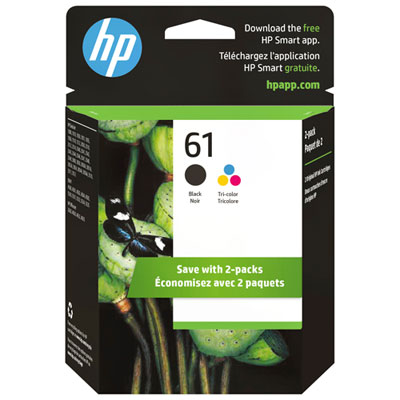 Your price for this item is $109.99
 -
 Your price for this item is $40.99
 -
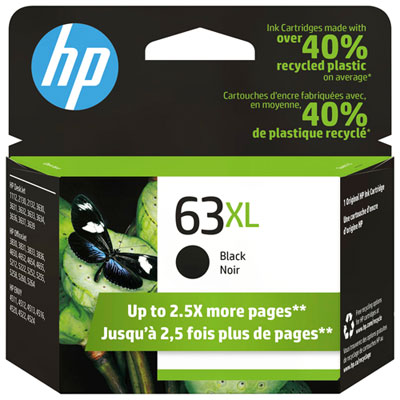 Your price for this item is $101.99
 -
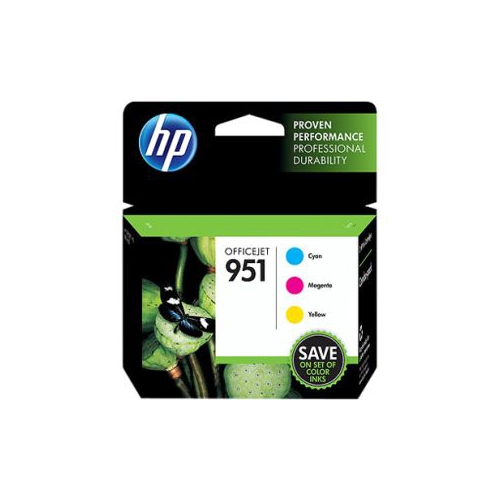 Your price for this item is $129.99
 -
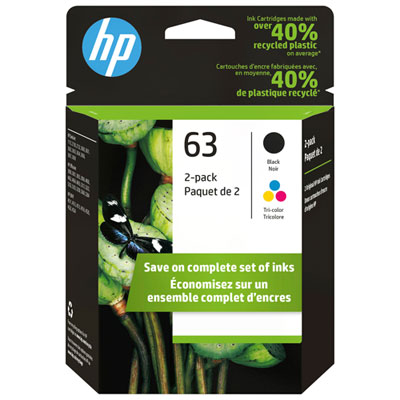 Your price for this item is $109.99
 -
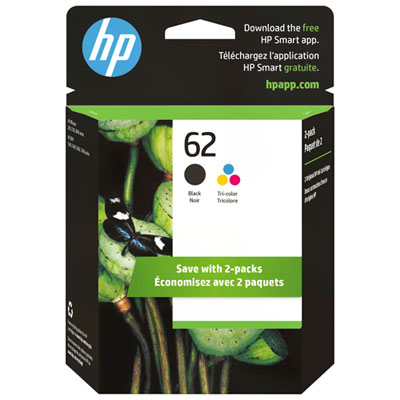 Your price for this item is $89.99
 -
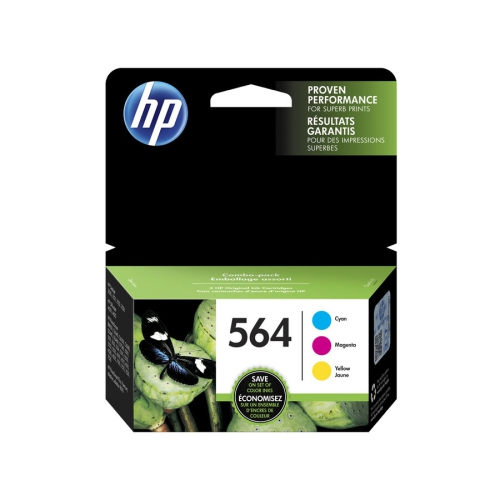 Your price for this item is $90.99
 -
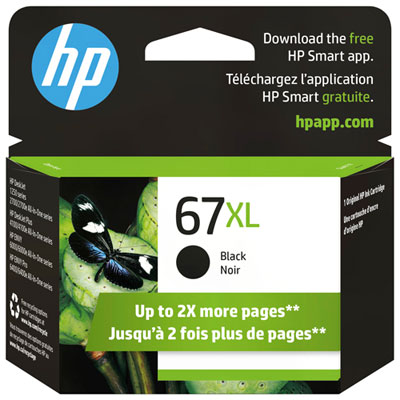 Your price for this item is $57.99
Discover more categories related to Hp Officejet Pro 8715 Ink Cartridges
Top Collections:
Pokemon Centers, Kindle Devices, Best Budget Office Chairs, Apple iPhones 16, Canon G7X Cameras, iPhone 15 Apple, Alarm Clock, Refurbished Apple Laptops, Flip Phones, Best Laptops for Writers
Some products may be subject to Environmental Handling Fees
(EHF) depending on your province.
Learn more about EHFs.