75 Keyboards Bluetooth
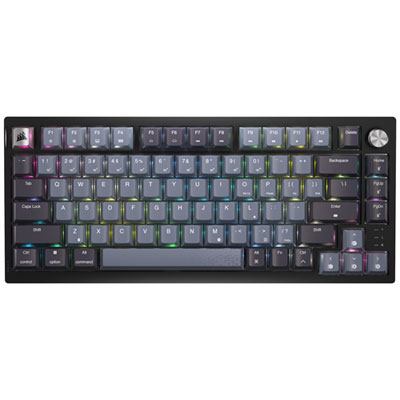
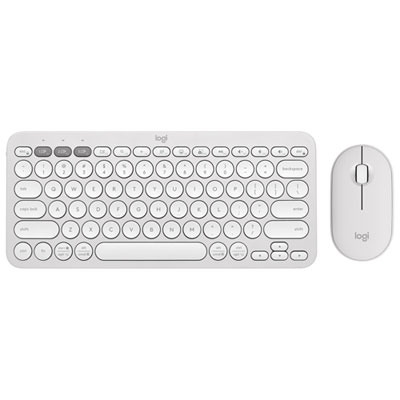
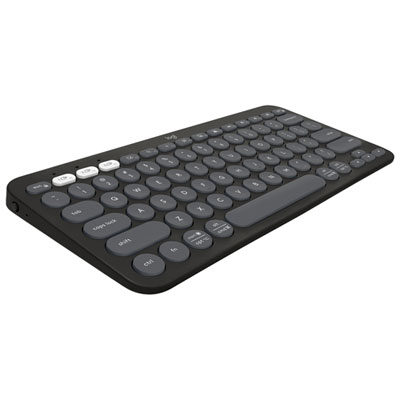
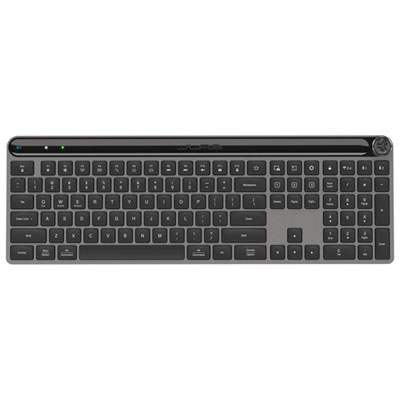
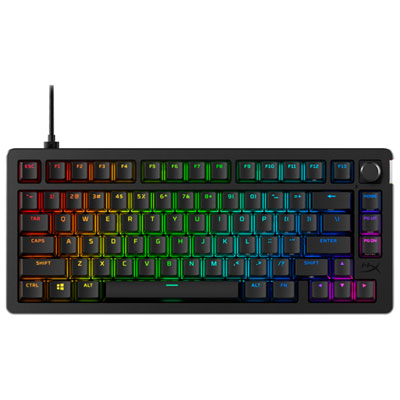
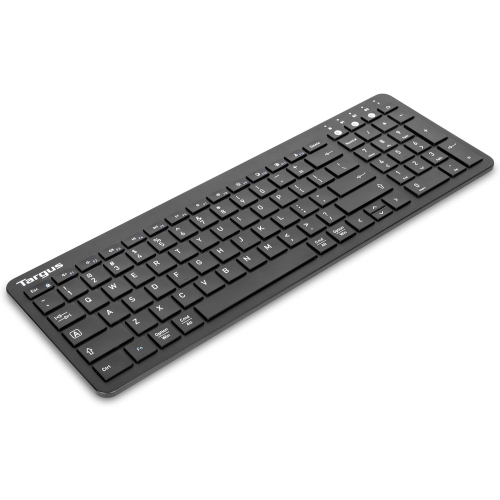
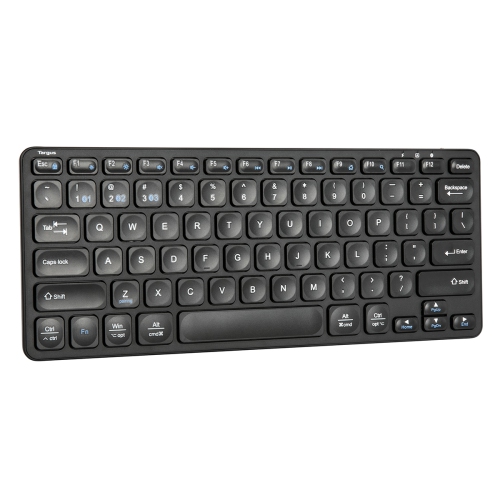
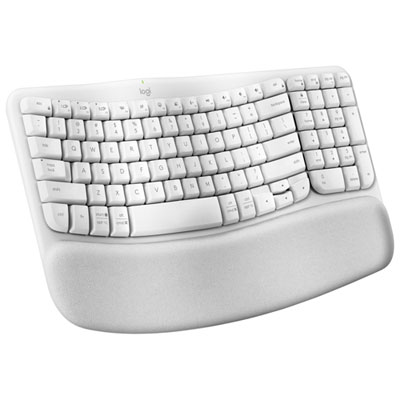
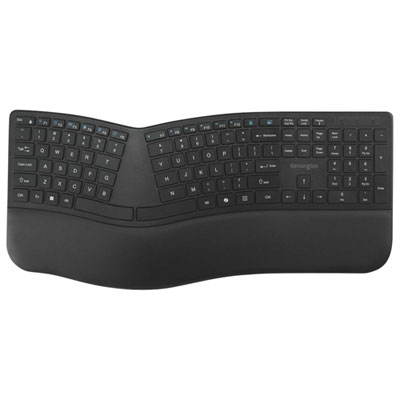
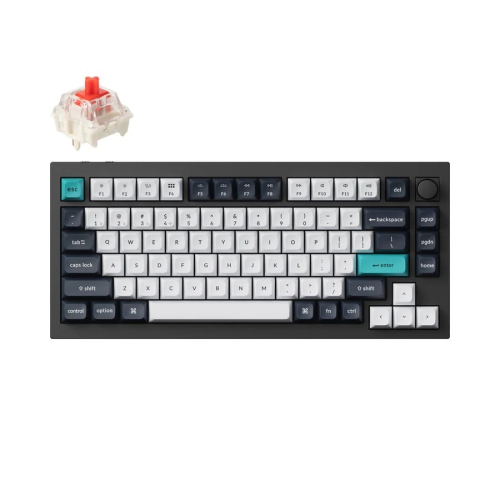
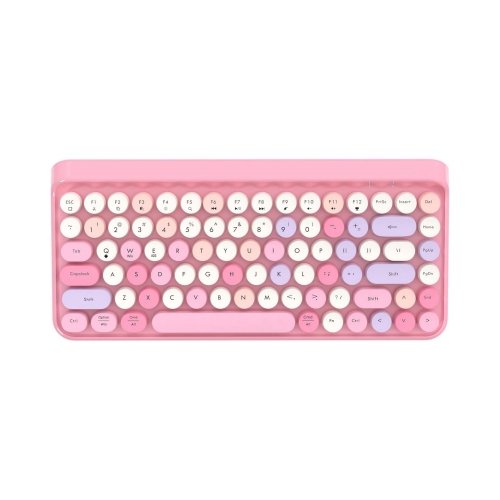
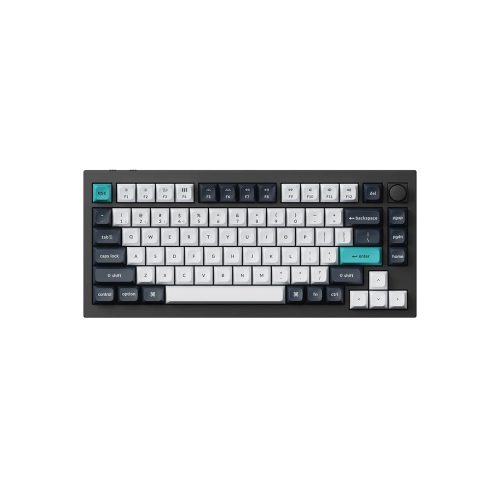
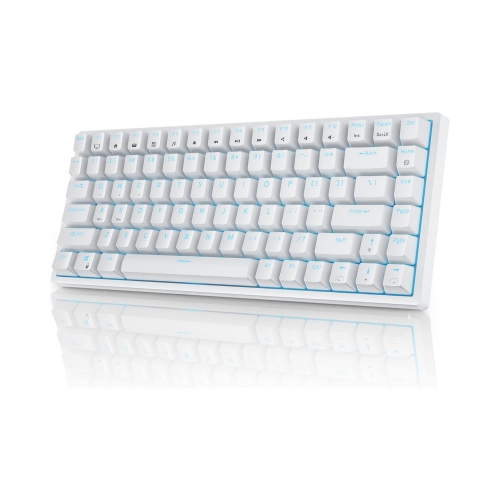
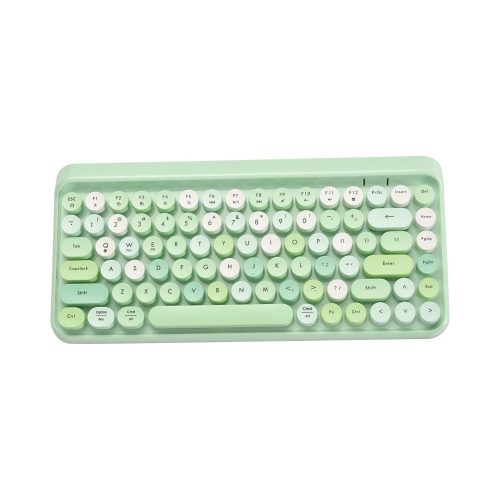
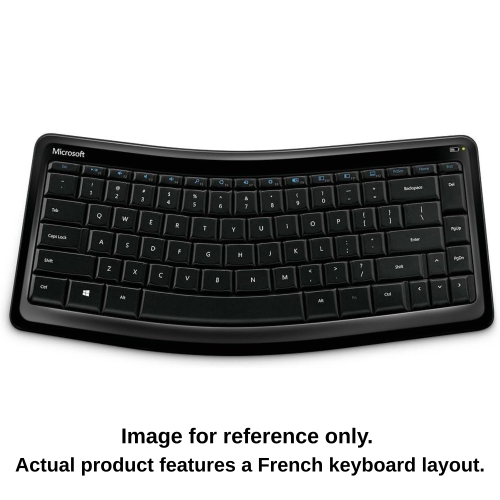
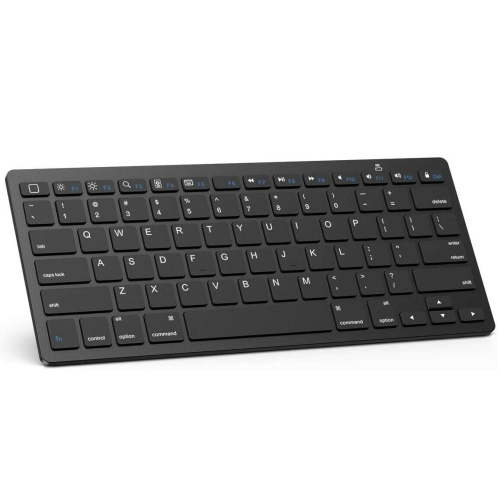
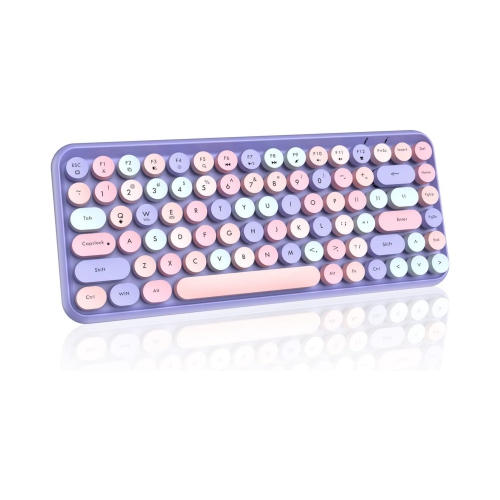
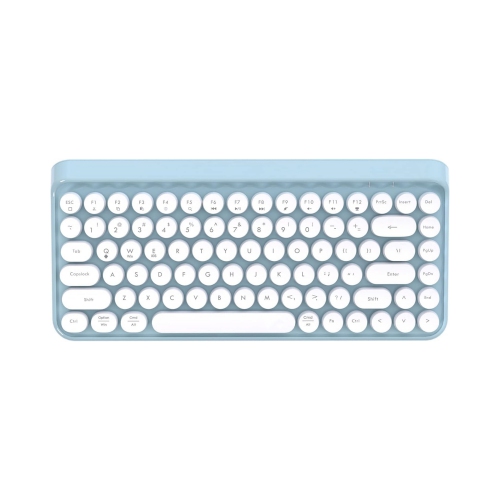
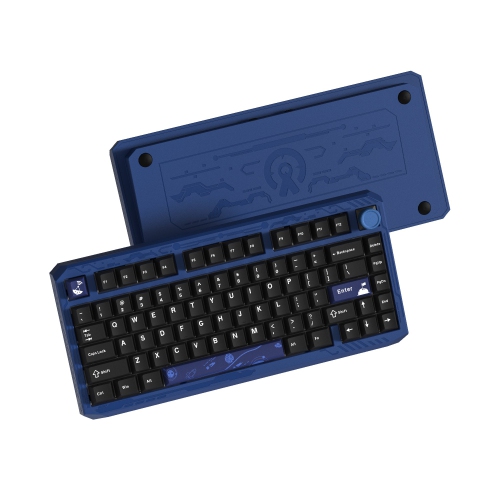
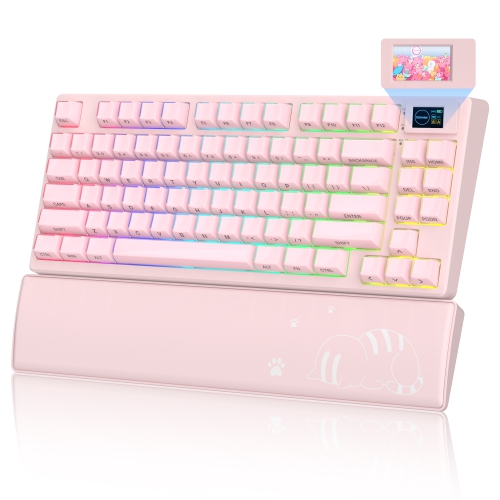
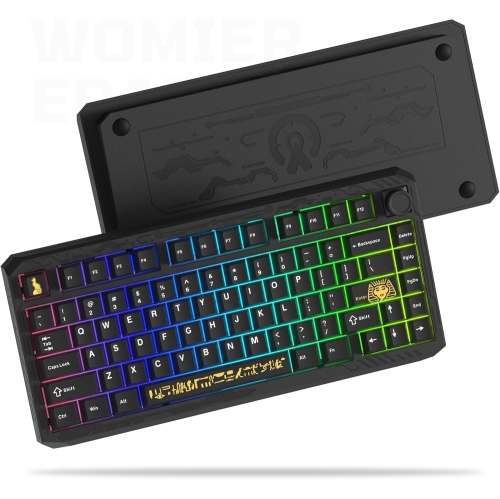
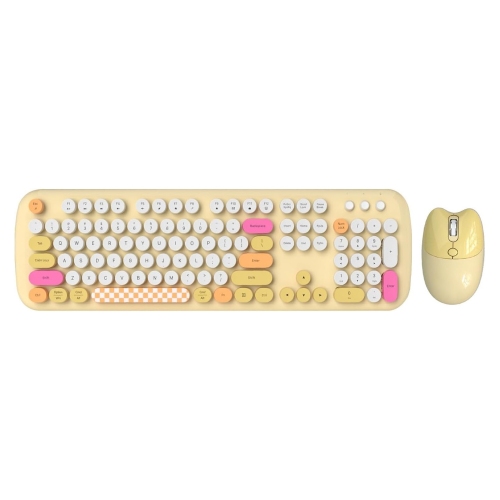
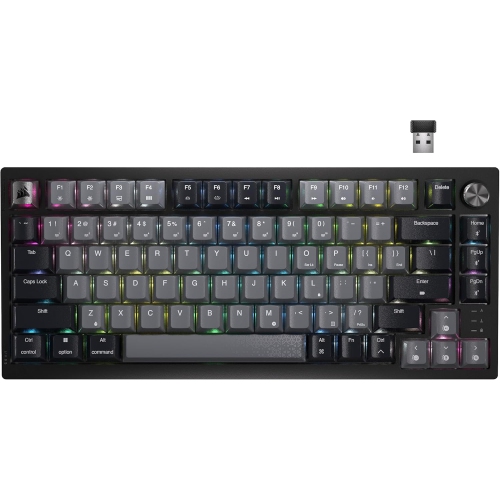
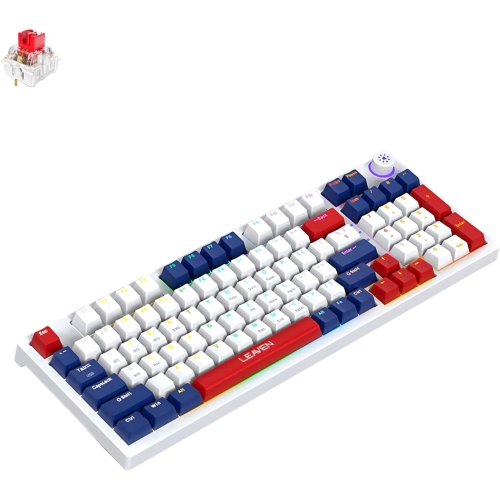
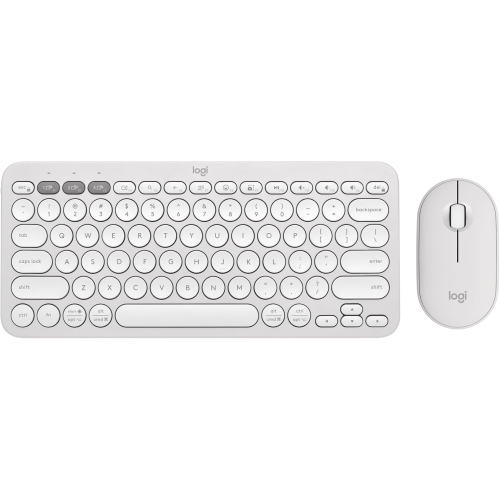
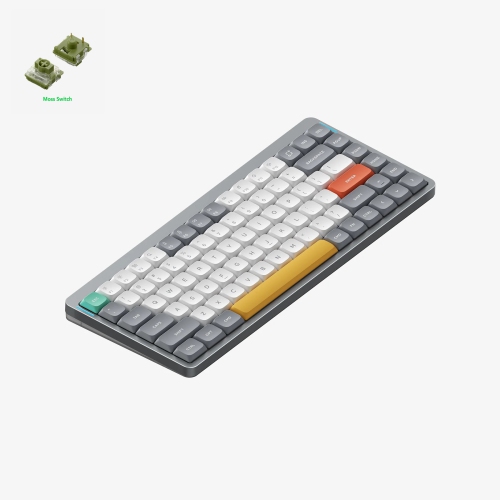
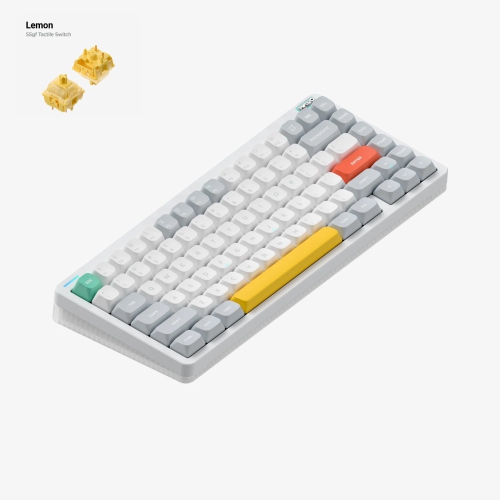
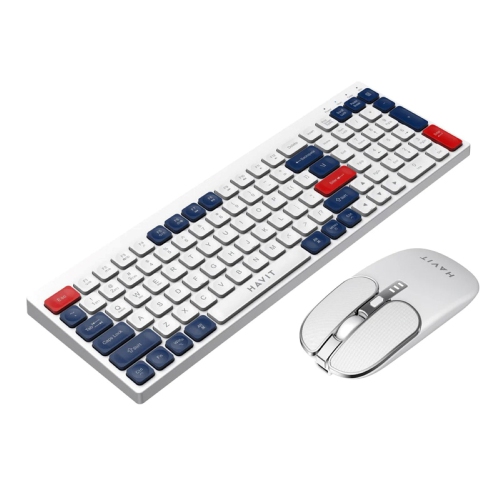
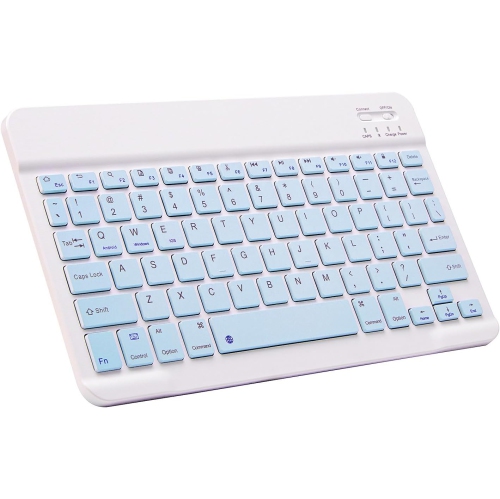
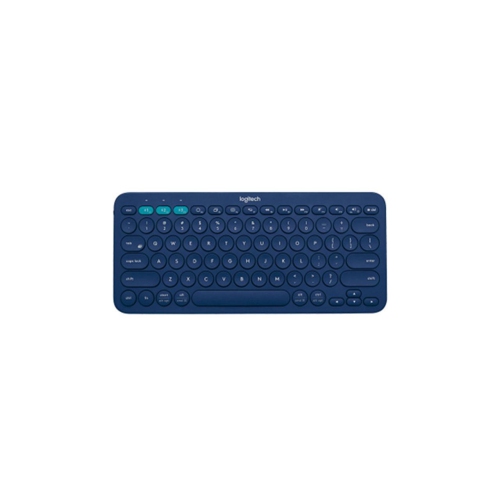
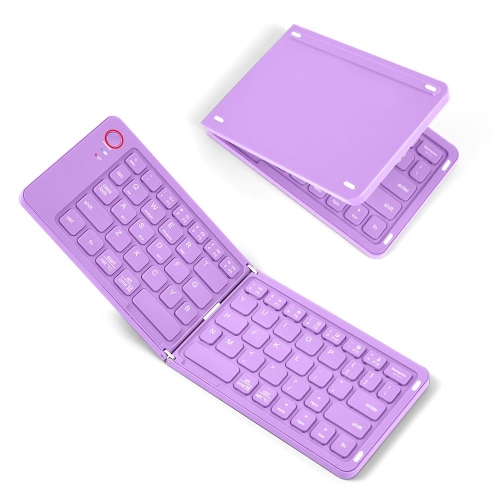
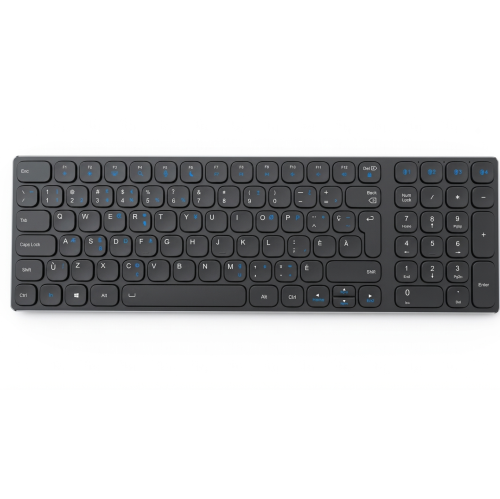
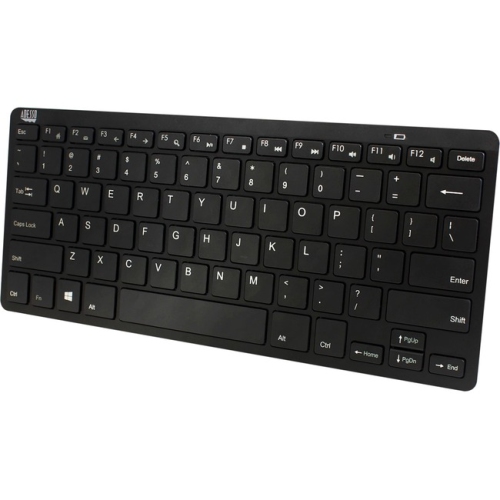
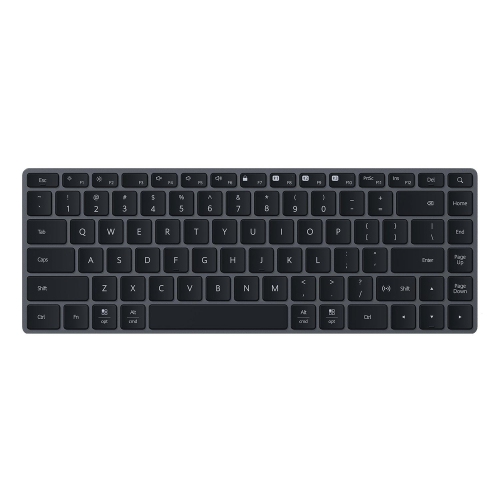
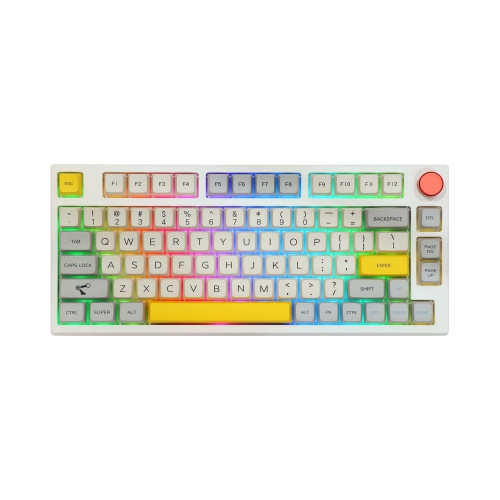
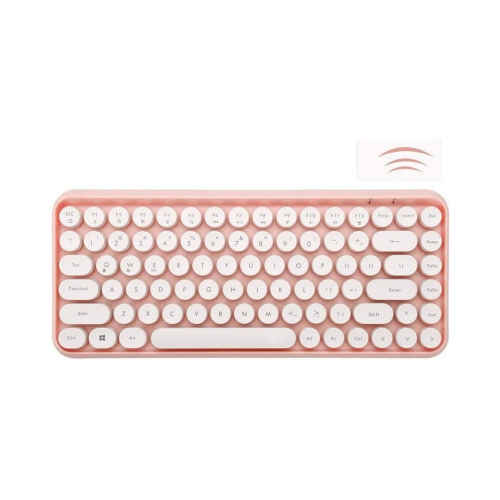
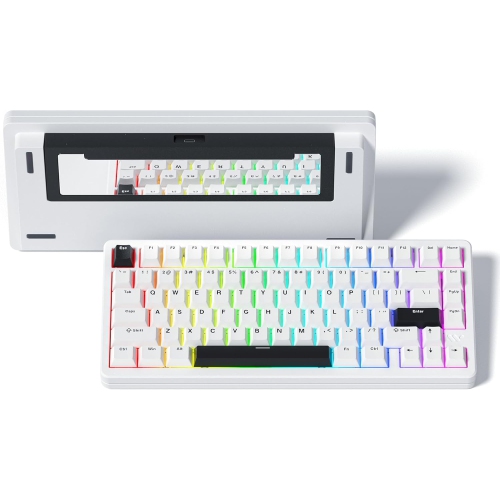
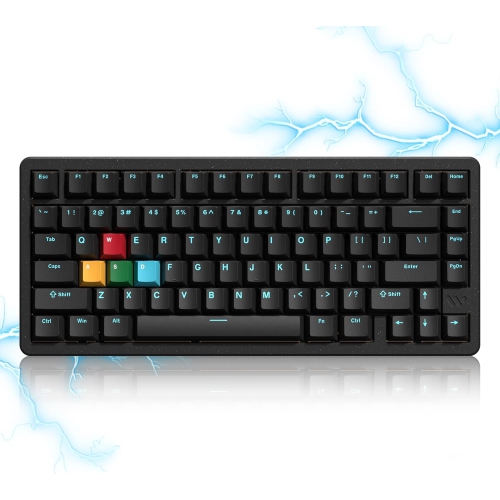
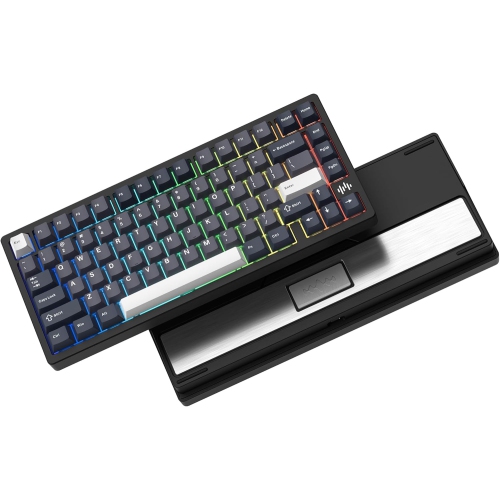
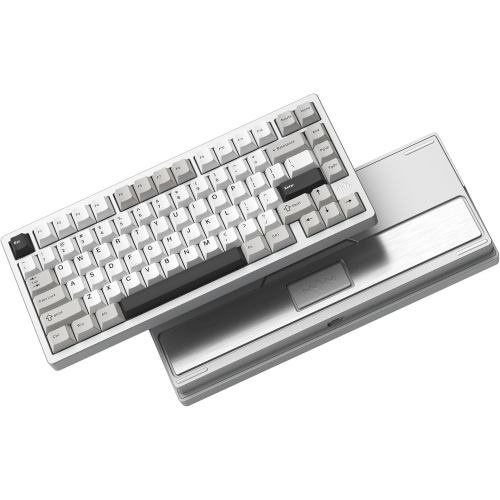
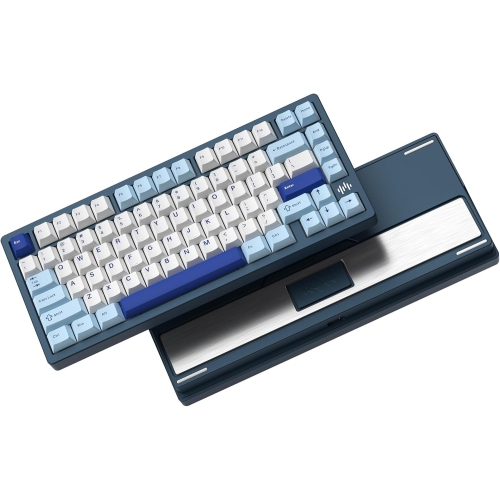
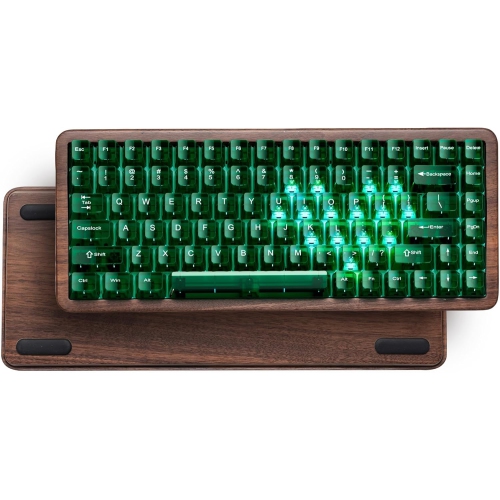
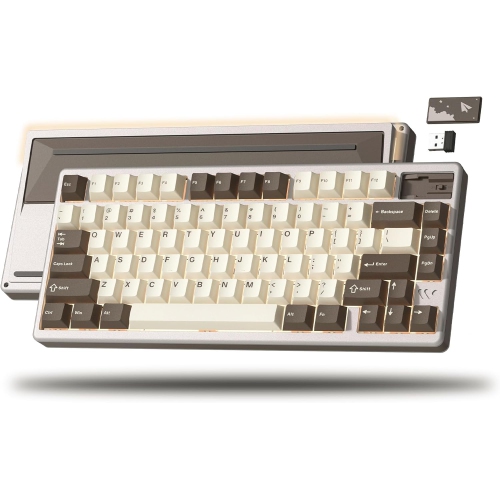
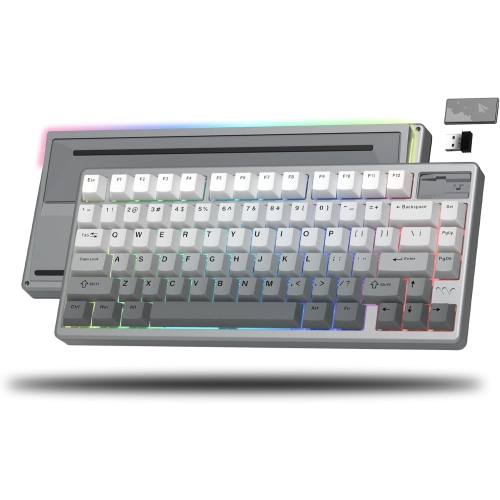
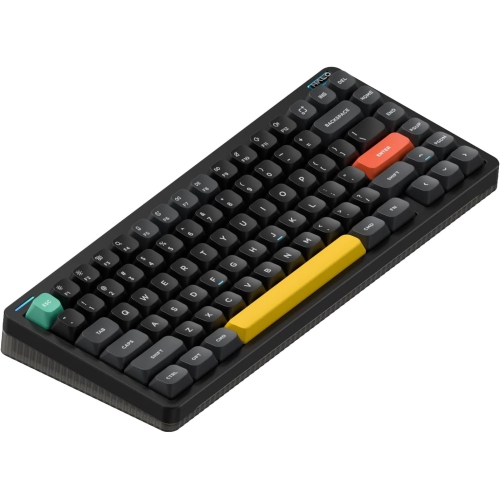
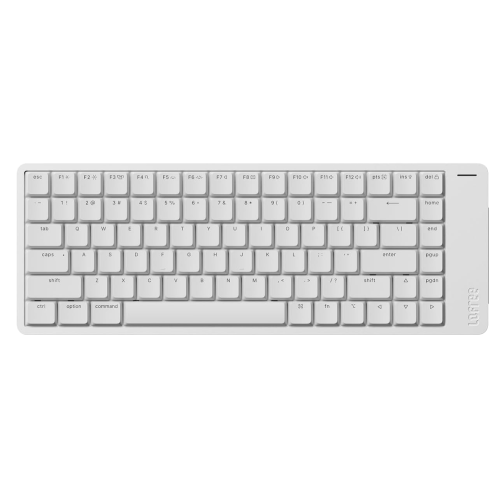
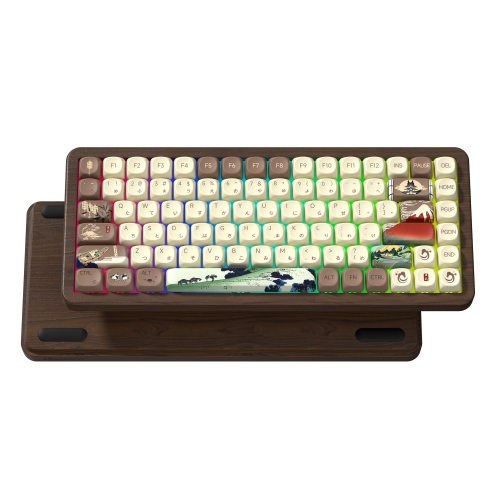
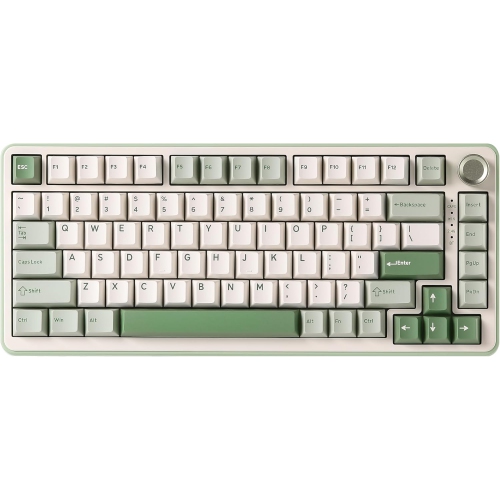
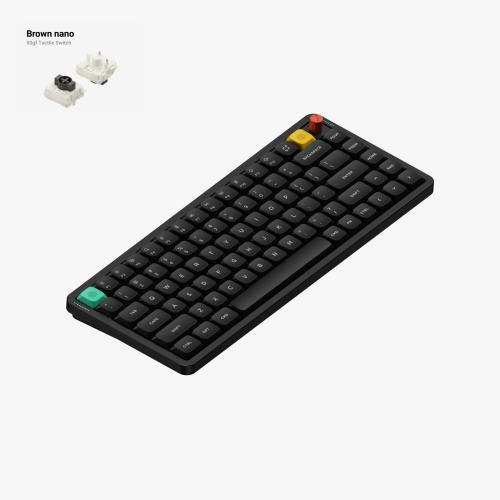
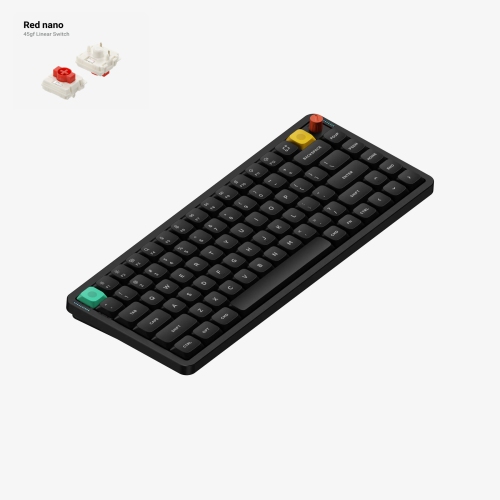
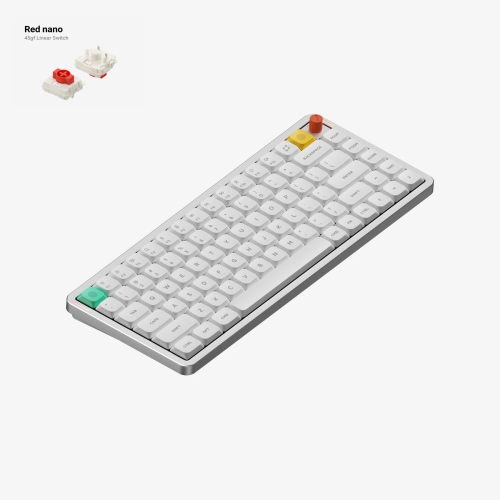
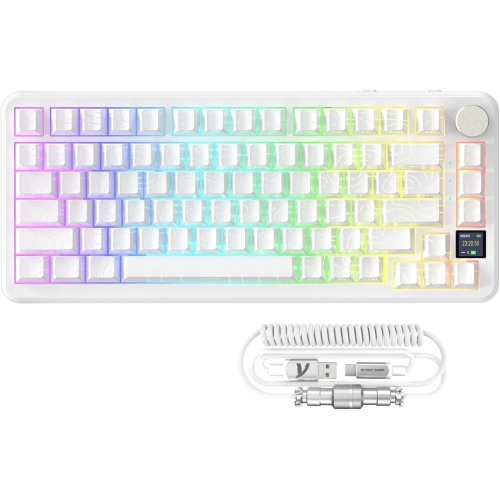
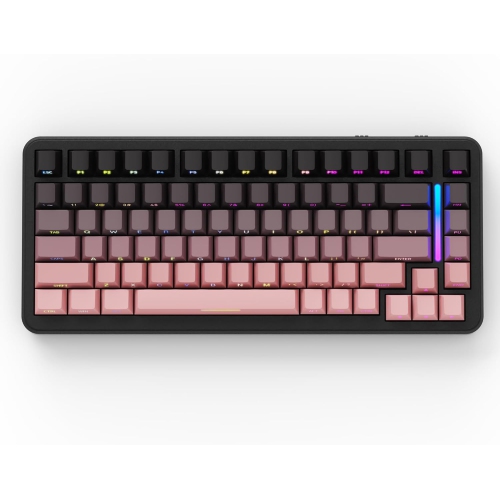
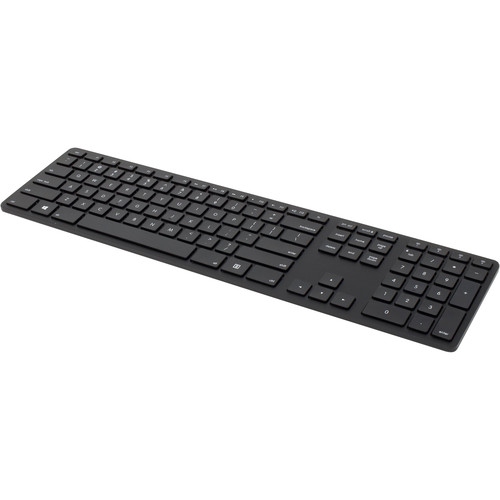
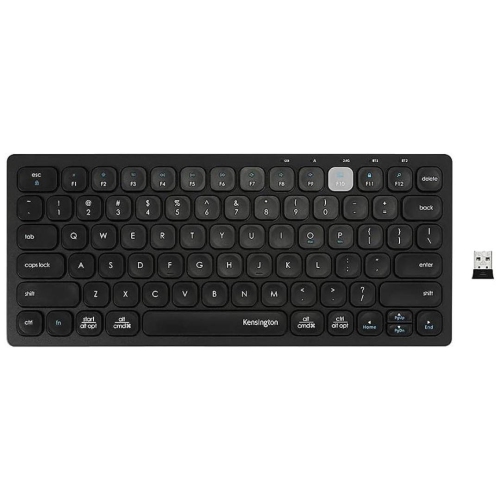
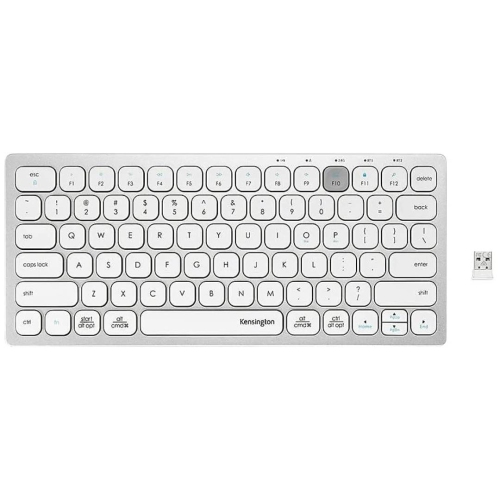
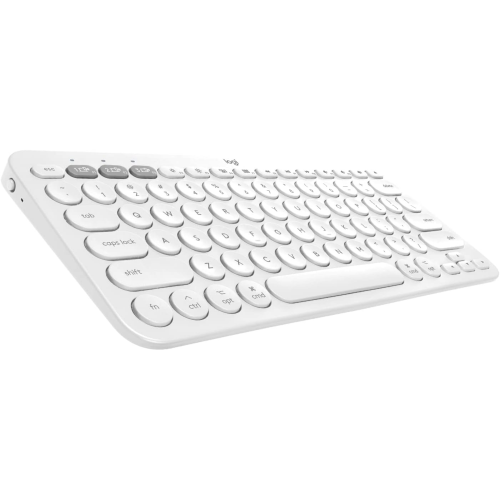
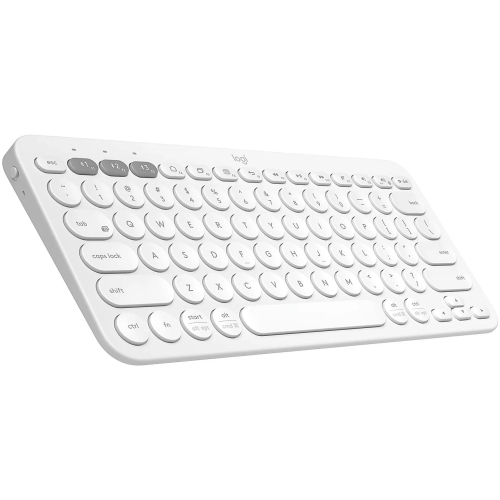
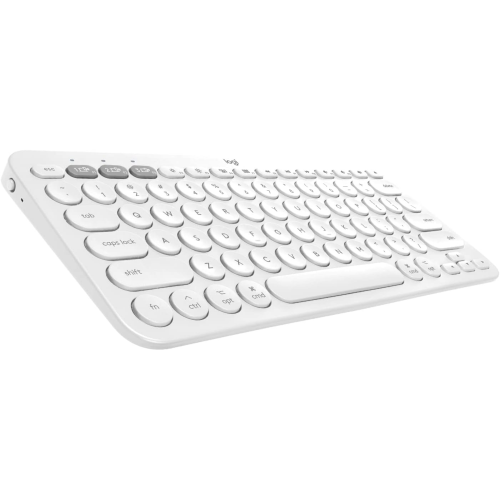
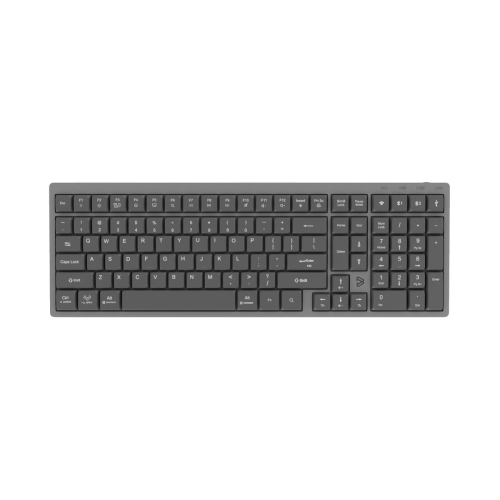
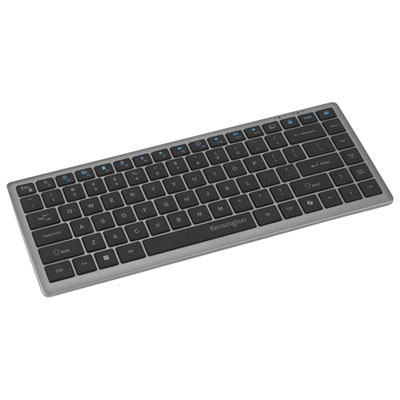
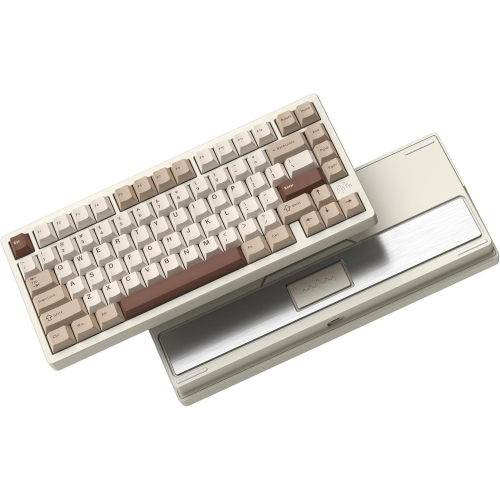
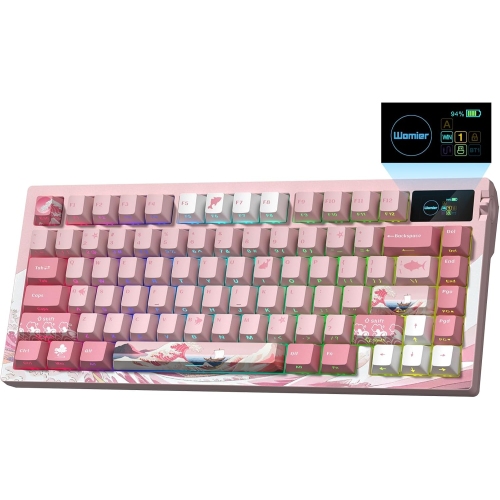
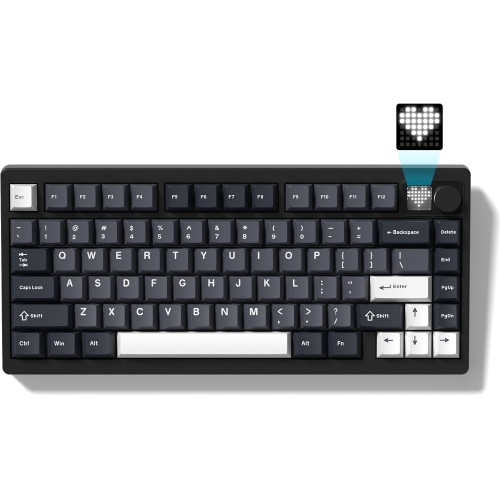
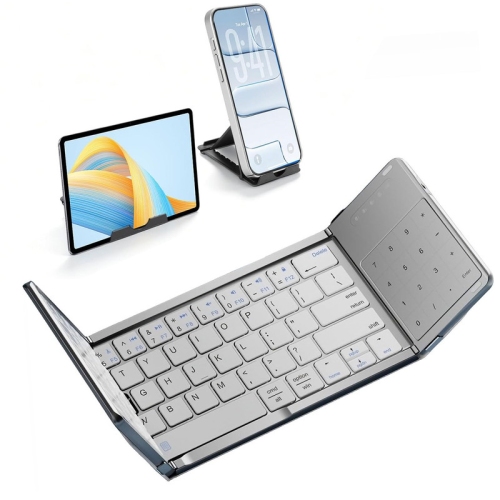
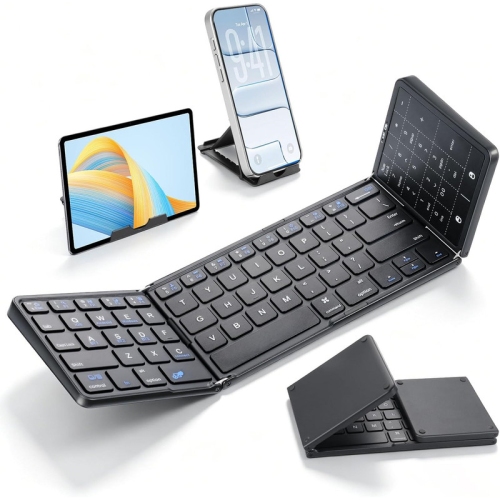
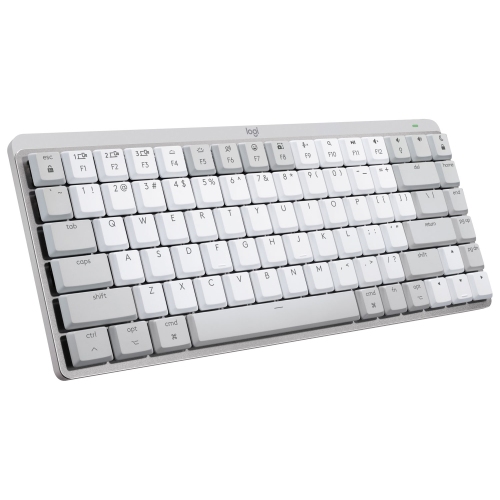
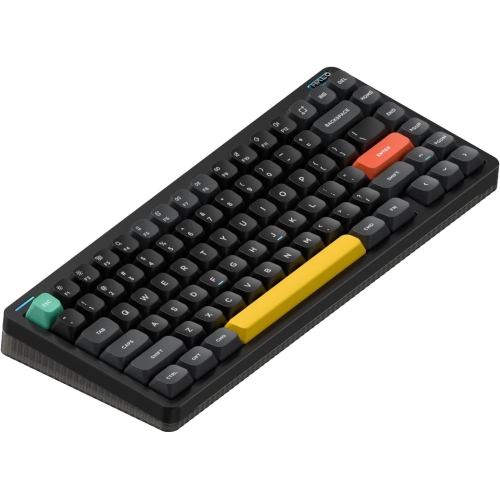
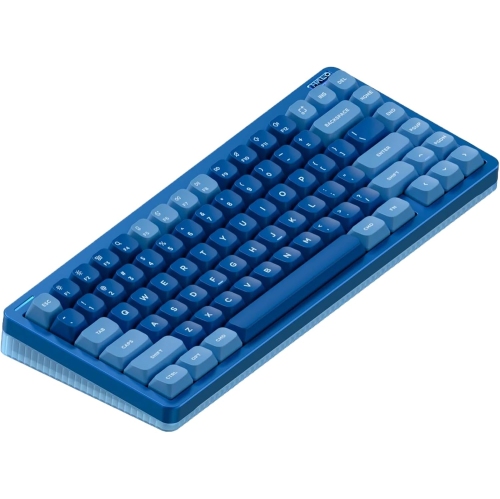
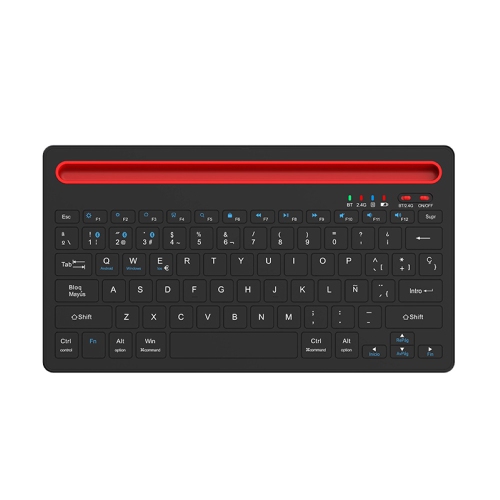
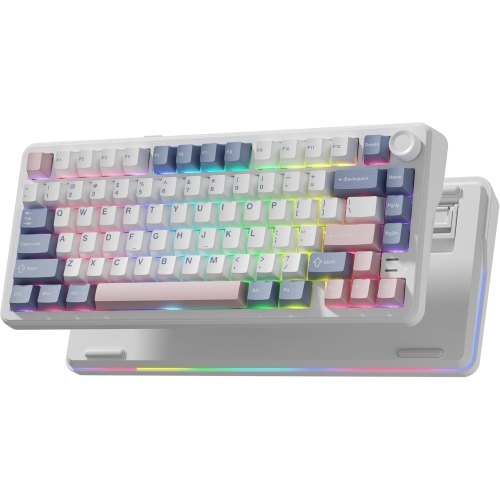
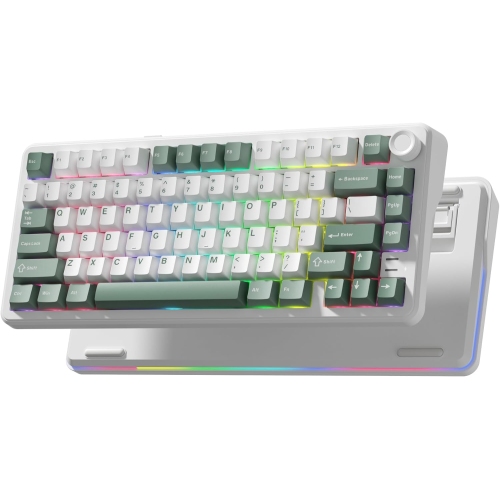
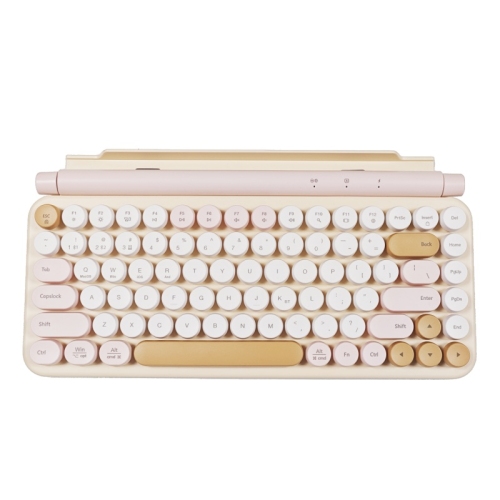
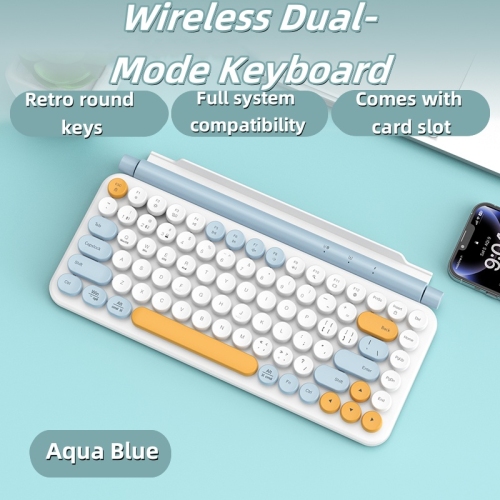
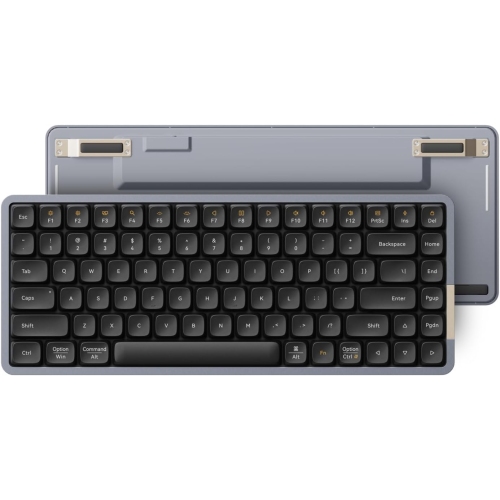
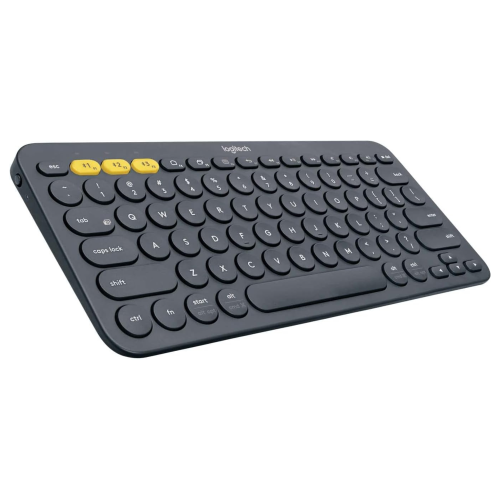
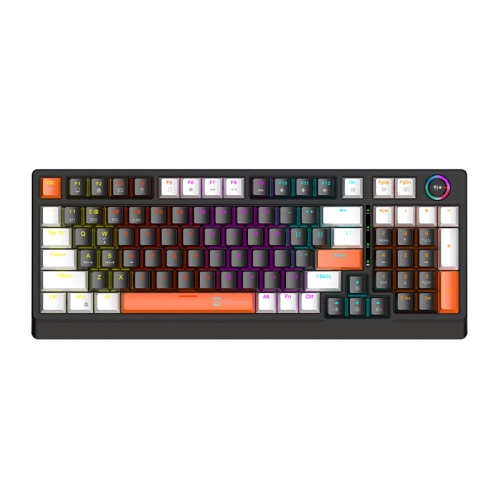
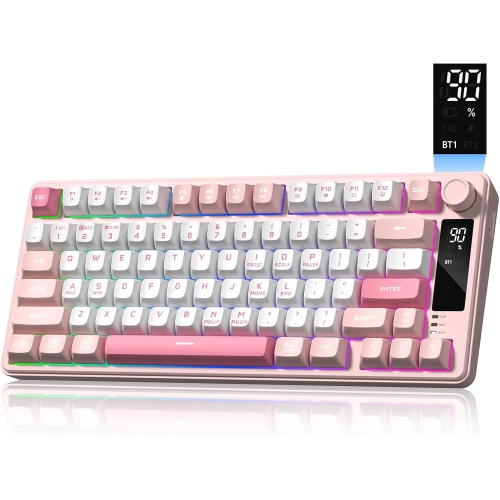
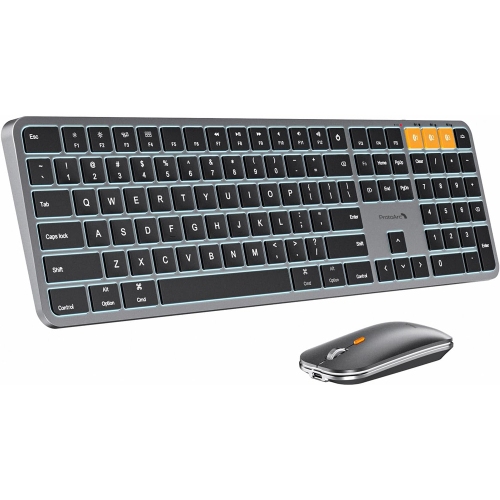
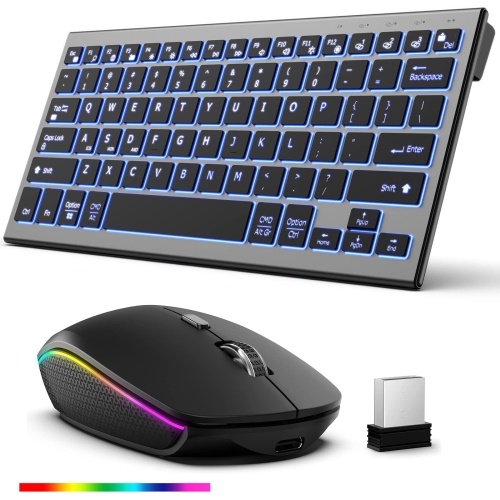
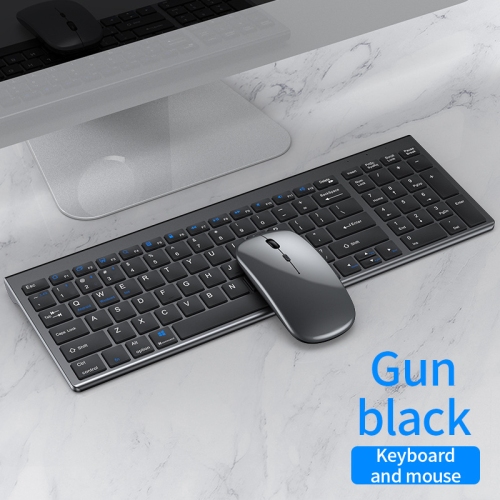
Find 75% Bluetooth keyboards that save desk space while keeping a function row and dedicated arrow keys. This compact layout offers a middle ground between full-size and smaller keyboards. Compare key layouts and device compatibility to choose a wireless keyboard that fits your workspace and typing needs.












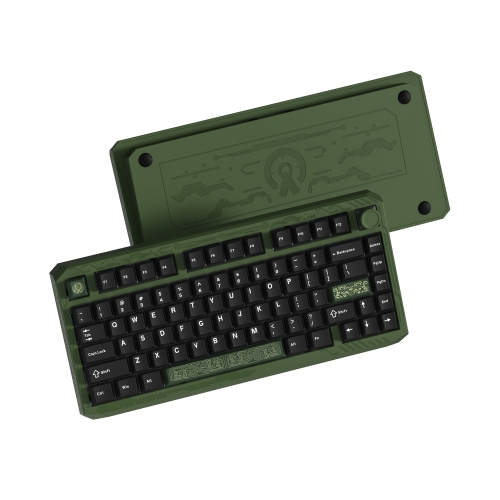
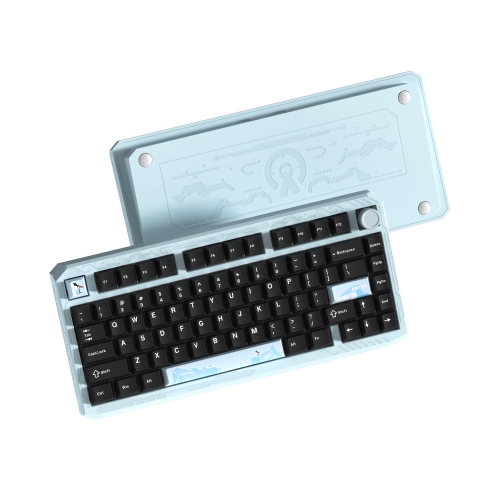
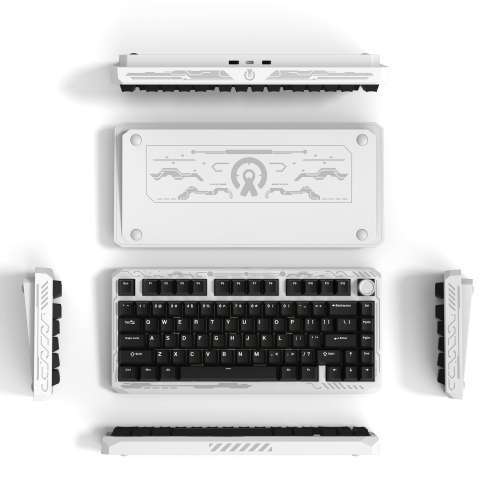
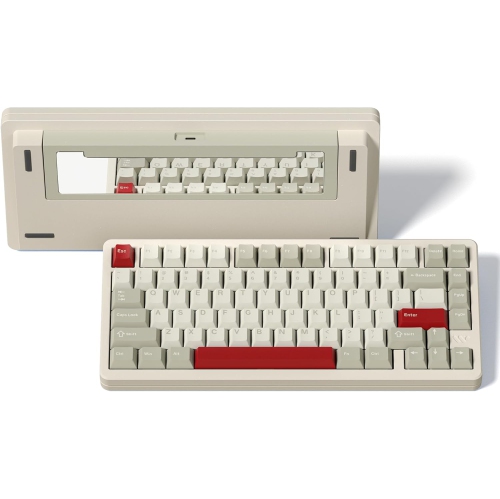
FAQ
Turn on the keyboard and activate its Bluetooth pairing mode, usually by holding a dedicated button or key combination. Open your device’s Bluetooth settings, select the keyboard, and follow any on-screen prompts. The exact pairing steps vary by model.
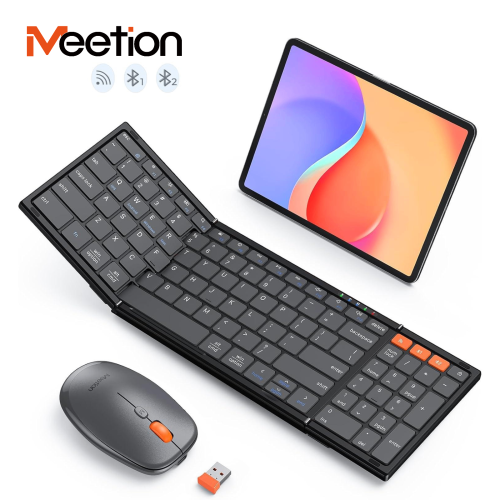
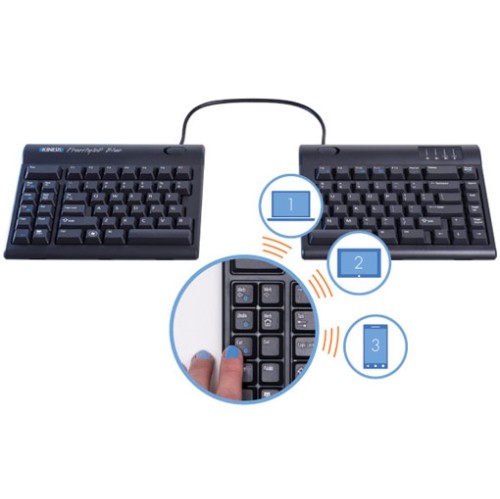
Some models can save pairing profiles for multiple devices, such as a laptop, tablet, and phone. You can switch between saved profiles using dedicated buttons or keyboard shortcuts. Check the keyboard’s specifications for multi-device support and the number of available profiles.
Many models support Windows, macOS, Android, iOS, or iPadOS, but compatibility varies. Some include an operating system toggle or alternate keycaps for different modifier keys. Basic typing may be supported even when certain shortcuts or customization software are not.
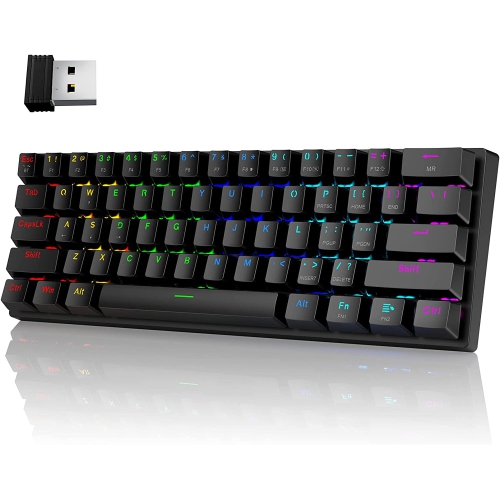
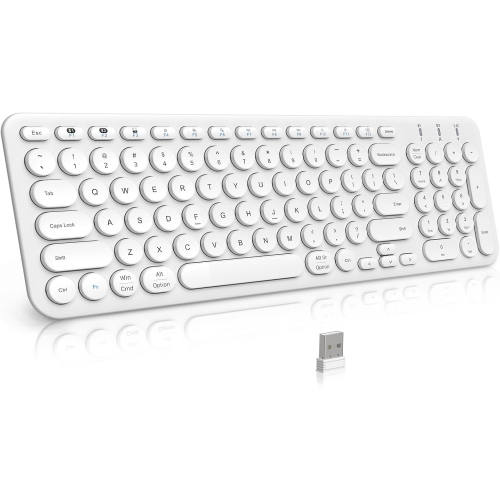
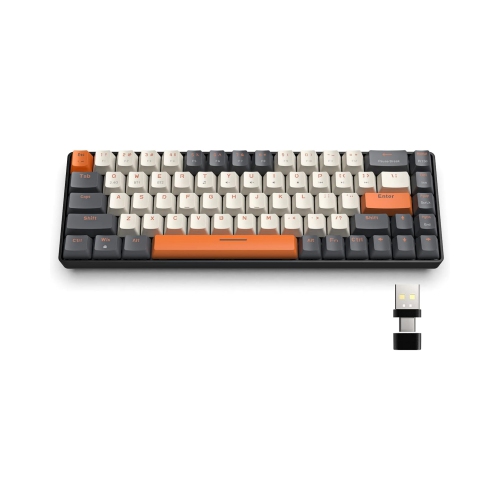
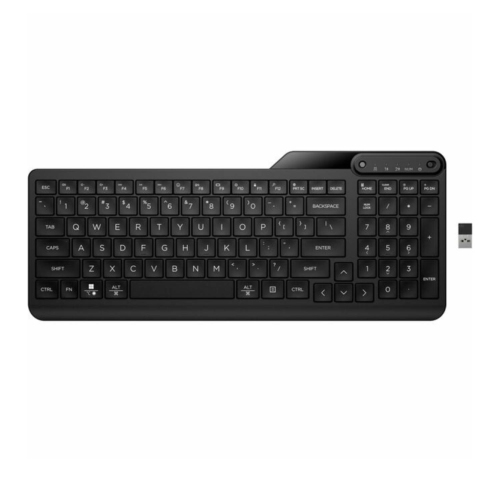
Bluetooth connects through your device’s built-in Bluetooth capability or a compatible adapter. A USB wireless receiver plugs into a USB port and typically uses a separate, manufacturer-specific wireless connection. Some 75% keyboards offer both options, while others support Bluetooth only.
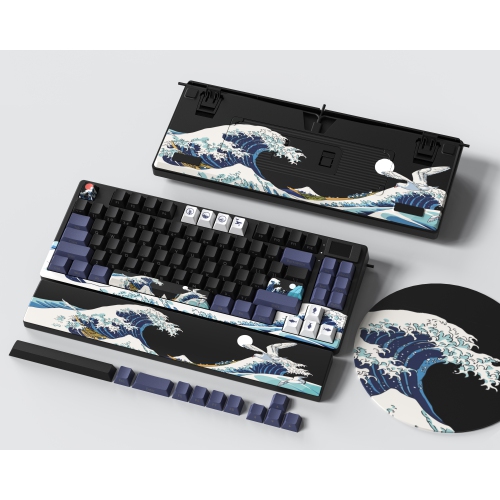
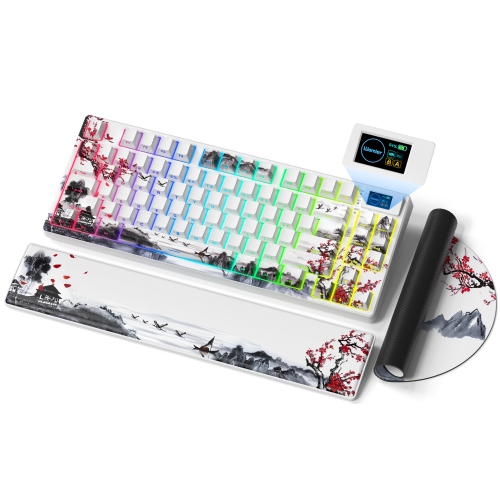
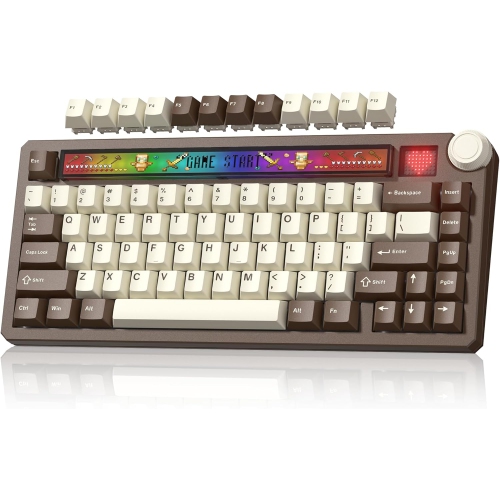
Customization depends on the model. Some keyboards let you remap keys, assign macros, or adjust lighting through software or onboard shortcuts. Models with removable keycaps may also support compatible replacement sets. Check keycap compatibility and whether customization requires a wired connection.
Top selling and popular products
Discover more categories related to 75 Keyboards Bluetooth
Some products may be subject to Environmental Handling Fees (EHF) depending on your province. Learn more about EHFs.