Best Earbuds for PS5
Find the best earbuds for PS5 to stay immersed in every match, mission, and adventure. Ranked by user review ratings, this selection highlights options for gamers who prefer a compact alternative to over-ear headsets. Compare sound quality, comfort, and microphone features, and check PS5 compatibility and connection requirements to find the right fit for your setup.
What to look for in earbuds for PS5
1. PS5 Compatibility
2. Sound Quality and Latency
3. Microphone and Chat Controls
4. Fit and Battery Life
-
1
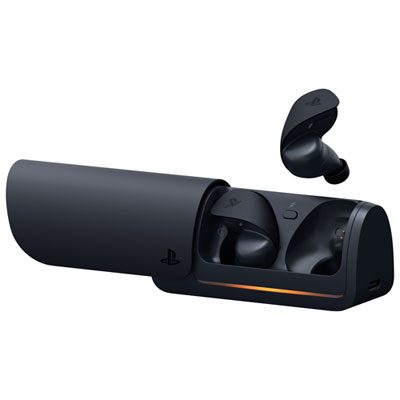
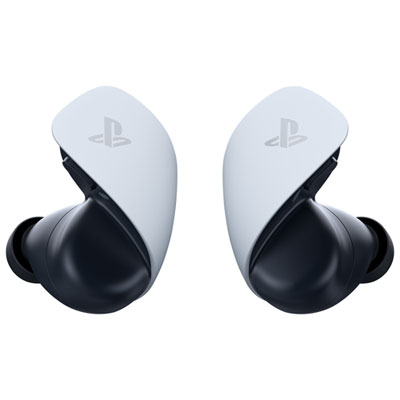
PULSE Explore Wireless Earbuds for PS4 / PS5 - Midnight Black
About this product
A pair of wireless black earbuds with ultra-low latency, rich audio detail, and AI noise-rejecting microphones.
(1)$199.99 Your price for this item is $199.99 -
2
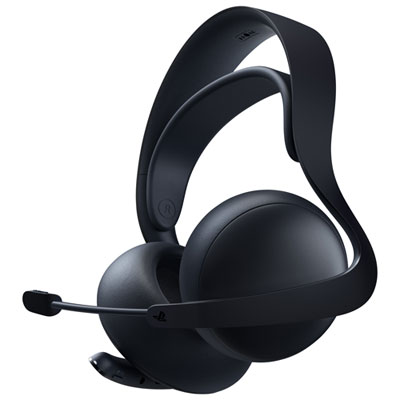
PULSE Elite Wireless Gaming Headset for PS4 / PS5 - Midnight Black
About this product
A wireless gaming headset in midnight black with ultra-low latency, AI noise rejection, and retractable microphone.
(13)$199.99 Your price for this item is $199.99 -
3
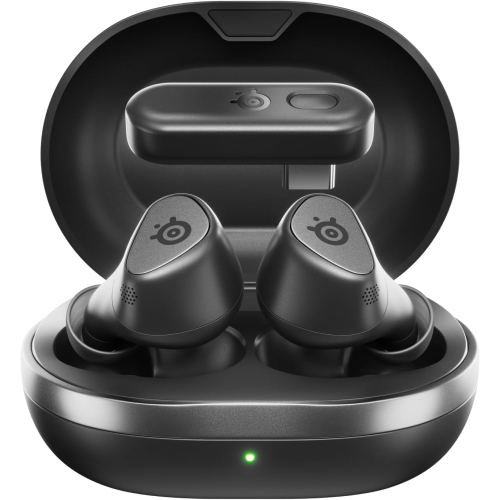
STEELSERIES Arctis Gamebuds for Playstation, PC, Switch, And Mobile - Quick-Switch Dual Wireless, Active Noise Cancelling, 40H Battery w Qi Charging
About this product
A pair of wireless gaming earbuds with active noise cancellation, 360° spatial audio, and Qi charging case.
$229.00 Your price for this item is $229 -
4
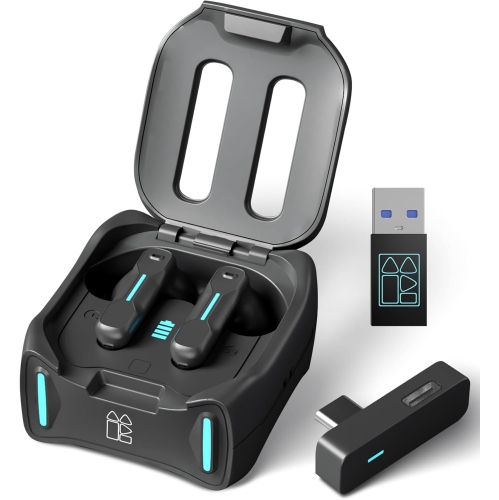
DOLAER Sw4 Pro Gaming Earbuds w Mic Wireless, 2.4G Dongle + Bluetooth Dual Mode, 20Ms Low Latency, Compatible w Meta 3/3S/2, Ps5, Ps4, Playstation
About this product
A wireless gaming earbud set with mic, dual 2.4G dongle and Bluetooth modes, and ultra-low latency.
$83.99Your price for this item is $83.99SAVE $69 -
5
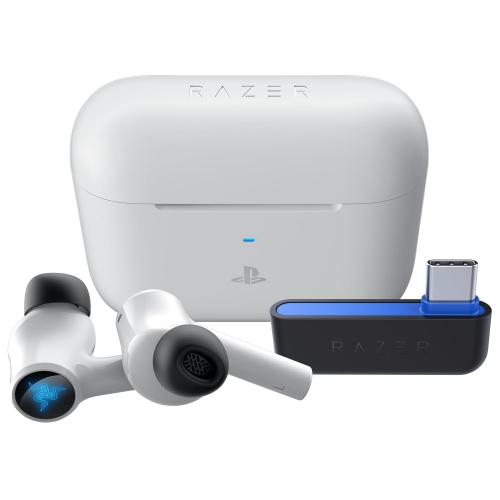
RAZER Hammerhead Hyperspeed In-Ear Wireless Gaming Earbuds for Ps5 | Ps4 | PC - In White
About this product
A white pair of wireless gaming earbuds with Bluetooth 5.2, active noise cancellation, and low-latency Gaming Mode.
$174.99Your price for this item is $174.99SAVE $45 -
6
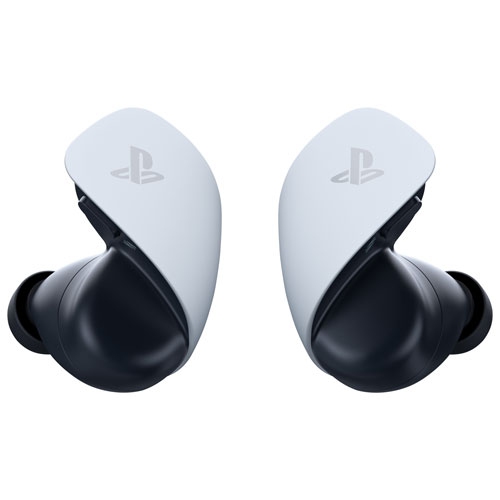
PLAYSTATION Brand New - Pulse Explore Wireless Earbuds - In White
About this product
A pair of white wireless earbuds delivering lifelike gaming audio with planar magnetic drivers and PlayStation Link connectivity.
$209.99Your price for this item is $209.99SAVE $60 -
7
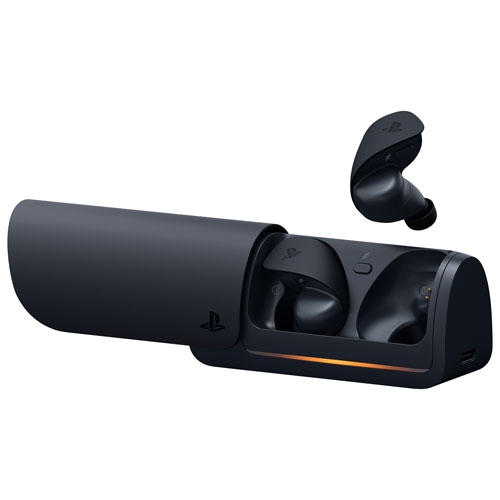
PLAYSTATION Refurbished (Good) Pulse Explore Wireless Earbuds - Midnight In Black
About this product
A pair of refurbished wireless earbuds in black with ultra-low latency and AI-enhanced noise rejection.
$199.50Your price for this item is $199.50SAVE $70 -
8
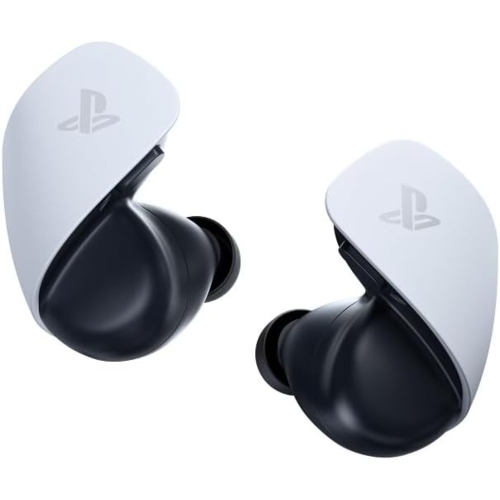
PLAYSTATION Pulse Explore Wireless Earbuds – Gaming Audio, Multi-Device Connectivity (Open Box)
About this product
A pair of wireless earbuds offering immersive gaming audio, crystal-clear voice capture, and multi-device connectivity.
$236.55Your price for this item is $236.55SAVE $12
FAQ
PS5 supports wired earbuds through the DualSense controller’s 3.5 mm headset jack and compatible wireless earbuds through a USB audio transmitter. Standard Bluetooth earbuds cannot pair directly with the console for audio. For wireless models, check that the earbuds and their transmitter explicitly support PS5.
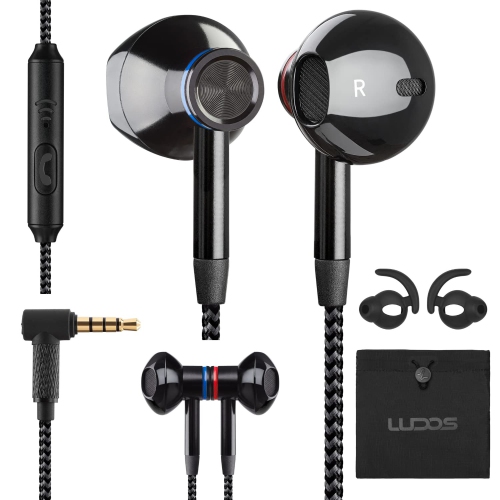
Plug your earbuds into the 3.5 mm headset jack on the DualSense controller. On your PS5, go to Settings > Sound > Audio Output and select the headset connected to your controller. Set Output to Headphones to All Audio if you want both game sound and chat through your earbuds.
Yes, provided the microphone connection is compatible with PS5. Wired earbuds generally need a four-pole 3.5 mm headset plug that carries both audio and microphone signals. Wireless earbuds need a PS5-compatible transmitter that supports microphone input, not just audio output. You can select your input device and adjust its level under Settings > Sound > Microphone.
Compatible stereo earbuds connected through the DualSense controller or a supported USB audio device can be used with PS5 3D Audio for Headphones. The console handles the audio processing, so a dedicated surround-sound earbud design is not required. You can configure the feature under Settings > Sound > 3D Audio for Headphones; game support and available audio options vary.
Press the PS button to open the control centre, select Sound, and choose your preferred Output Device. You can also manage this under Settings > Sound > Audio Output. The Switch Output Device Automatically setting controls whether the console changes audio output when it detects a connected headset.
Top selling and popular products
Discover more categories related to Best Earbuds for PS5
Some products may be subject to Environmental Handling Fees (EHF) depending on your province. Learn more about EHFs.