Docking Stations for Dell Laptops
You can maximize your productivity and streamline your workspace with docking stations for Dell laptops. Designed to help you connect multiple devices with ease, these docking solutions offer a convenient way to expand your laptop’s capabilities at home, in the office, or on the go. Whether you're looking to connect monitors, keyboards, or other accessories, find the right docking station to enhance your setup and keep your devices organized. Explore a wide selection of options to suit your needs and make multitasking effortless.
Sort
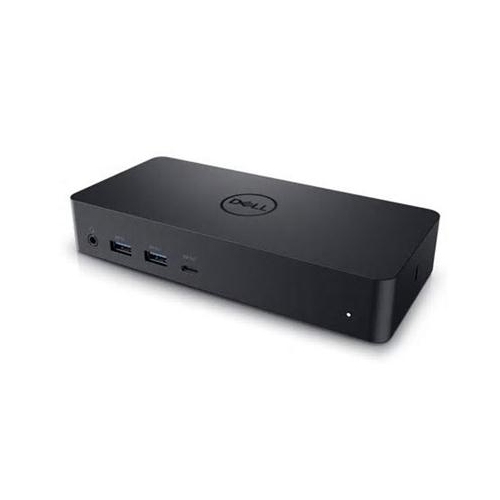
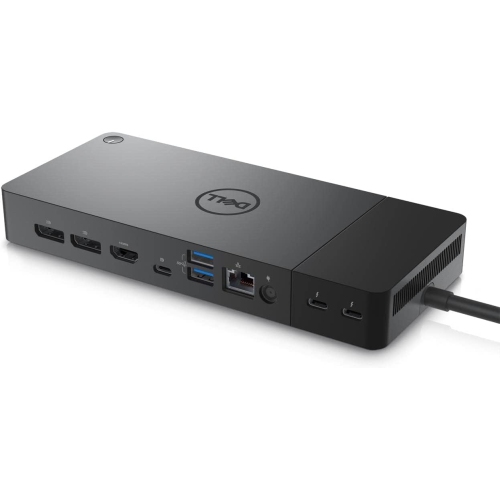
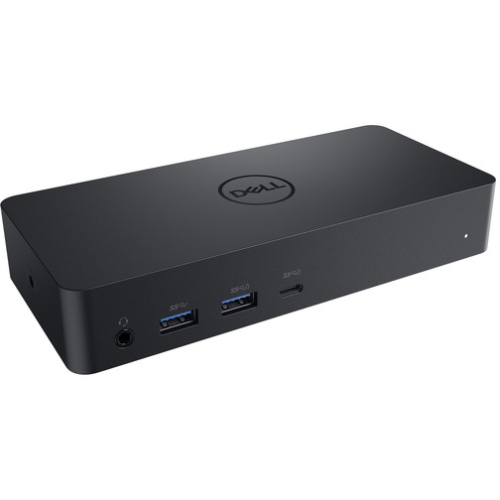
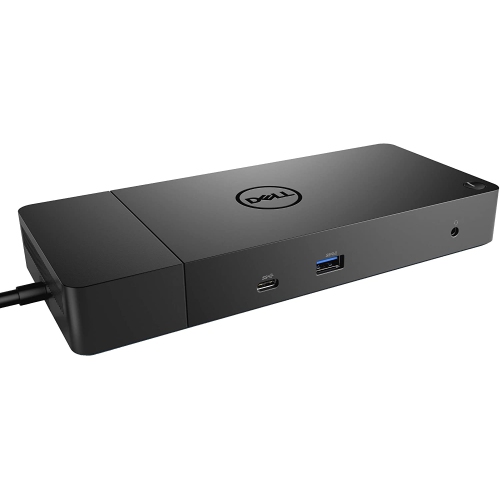
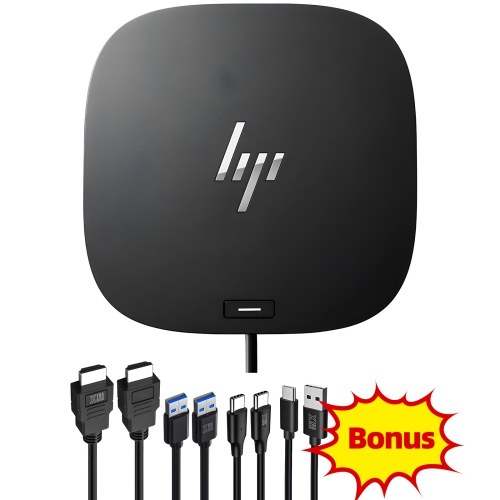
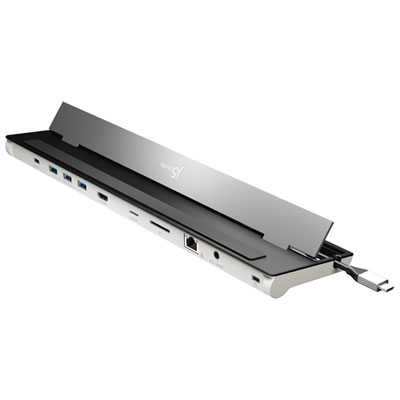
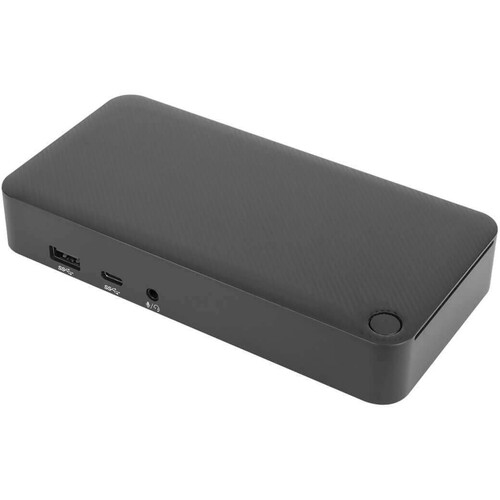
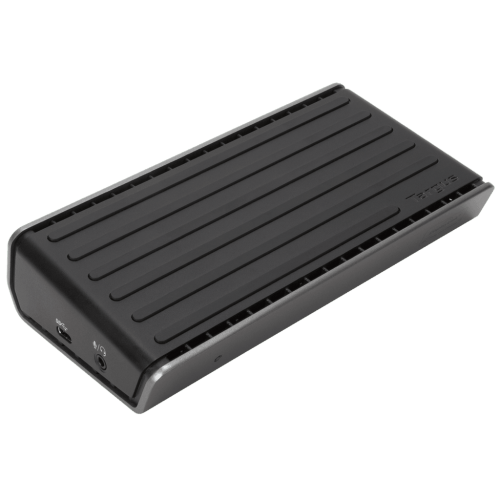
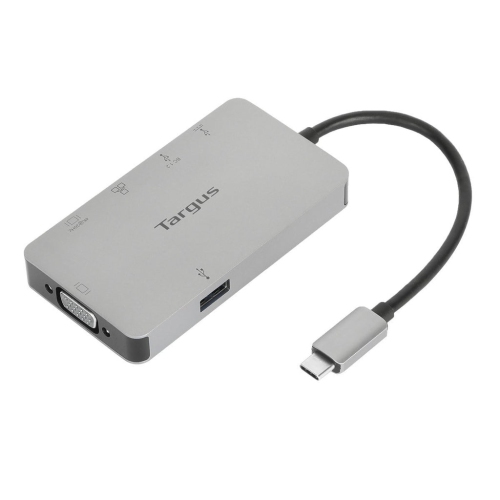
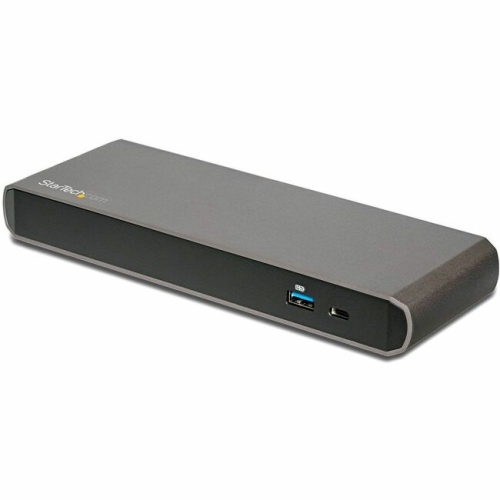
A single connection can simplify your Dell laptop workspace
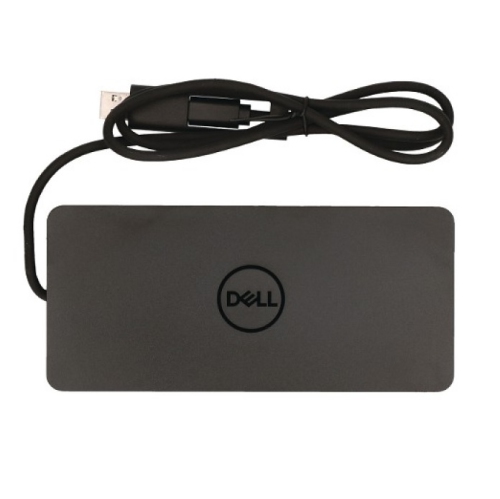
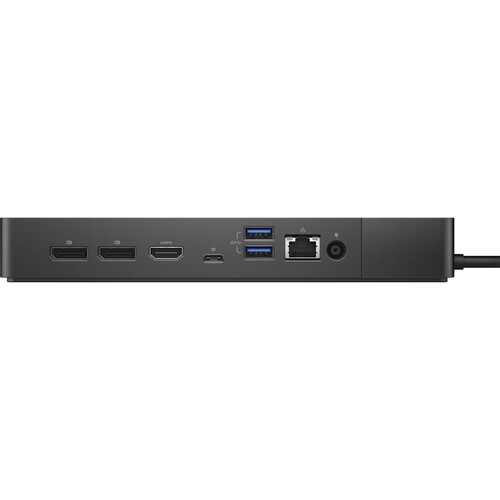
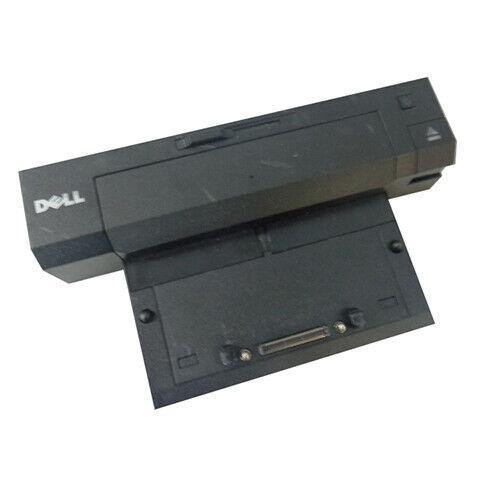
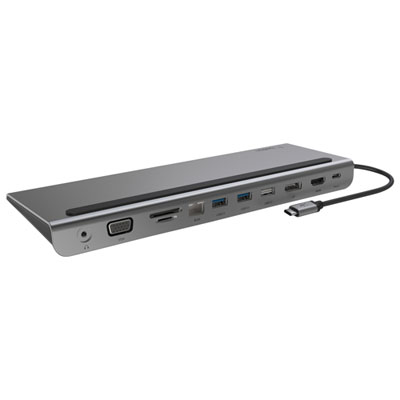
Docking stations for Dell laptops make it easier to turn a portable computer into a capable desktop workstation without giving up the convenience of a slim, travel-friendly design. A single connection can bring together one or more external monitors, a full-size keyboard, a mouse, wired networking, speakers, storage, and other everyday accessories, helping reduce the tangle of cables around a desk. They are a practical choice for people who move between a home office, workplace, classroom, or shared workspace, since a laptop can be connected to a complete setup with far less unplugging and rearranging. A compatible dock may also charge the laptop through the same cable, although charging performance depends on the dock’s power delivery and the laptop’s requirements. For a tidy desk in a smaller room, a dock can keep connections gathered in one place, while a more powerful model can support a demanding workstation with several displays and numerous peripherals. Whether it is being added to a new home office or replacing a collection of separate adapters, a docking station can make a Dell laptop feel more like a permanent computer while keeping the laptop easy to take on the road.
Compatibility is the most important consideration when choosing a dock for a Dell laptop. Check the computer’s available ports and specifications before making a decision, paying particular attention to whether it uses USB-C, USB-C with video output, Thunderbolt 3, Thunderbolt 4, or USB-A. Not every USB-C port supports display connections or laptop charging, and a dock’s advertised features may work differently depending on the connected computer. It is also useful to consider the number and type of monitors in the setup. Someone using a single Full HD display may only need a straightforward connection, while a professional working with spreadsheets, creative applications, data dashboards, or multiple windows may prefer support for two or more screens at higher resolutions. Look at the available HDMI and DisplayPort connections, maximum resolution and refresh rate, and whether the dock can run the desired arrangement at the same time. Thunderbolt-based docks can be a strong fit for high-speed storage, advanced peripherals, and multi-monitor configurations, while universal docks using DisplayLink technology can offer broader compatibility across certain computers. A USB-A connection can be helpful for older laptops, though video and charging capabilities should be confirmed rather than assumed. For a cleaner setup, look for a dock with enough USB ports for current accessories and a little room for future additions, along with Ethernet for stable wired internet, an audio jack for headsets or speakers, and memory card support when transferring photos or files is part of the routine.
Power delivery deserves close attention, particularly for larger Dell laptops designed for demanding work. Compare the dock’s maximum output with the wattage specified for the laptop, since an underpowered connection may charge slowly, maintain the battery level without charging fully, or not provide enough power during intensive tasks. Some laptops may require a separate power adapter even when a dock is connected, so checking the computer’s requirements and the dock’s included accessories can prevent surprises. A dock intended for a desk can include a larger selection of ports and stronger display support, whereas a compact travel adapter is better suited to carrying in a laptop bag and connecting to a projector, television, USB accessory, or temporary screen. Think about where the dock will be used, how often it will be moved, and whether the connected equipment will remain plugged in for long periods. A home worker might appreciate one-cable access to a monitor, webcam, keyboard, and wired network, while a student could use a compact option to connect a laptop to a larger screen and external storage between classes and study sessions. It can also be a useful gift for someone setting up a first office, starting a new course, or improving a flexible workspace during the cooler months, especially when the recipient already owns a compatible Dell laptop. Those shopping for other computer brands can also browse Docking Stations for Lenovo Laptops. Before choosing, review the laptop model, port standards, power needs, monitor requirements, and the accessories that will be connected most often. The right match can keep a workspace organised, make daily connections feel almost effortless, and give a portable computer the comfort and functionality of a dedicated desktop setup.
Compatibility is the most important consideration when choosing a dock for a Dell laptop. Check the computer’s available ports and specifications before making a decision, paying particular attention to whether it uses USB-C, USB-C with video output, Thunderbolt 3, Thunderbolt 4, or USB-A. Not every USB-C port supports display connections or laptop charging, and a dock’s advertised features may work differently depending on the connected computer. It is also useful to consider the number and type of monitors in the setup. Someone using a single Full HD display may only need a straightforward connection, while a professional working with spreadsheets, creative applications, data dashboards, or multiple windows may prefer support for two or more screens at higher resolutions. Look at the available HDMI and DisplayPort connections, maximum resolution and refresh rate, and whether the dock can run the desired arrangement at the same time. Thunderbolt-based docks can be a strong fit for high-speed storage, advanced peripherals, and multi-monitor configurations, while universal docks using DisplayLink technology can offer broader compatibility across certain computers. A USB-A connection can be helpful for older laptops, though video and charging capabilities should be confirmed rather than assumed. For a cleaner setup, look for a dock with enough USB ports for current accessories and a little room for future additions, along with Ethernet for stable wired internet, an audio jack for headsets or speakers, and memory card support when transferring photos or files is part of the routine.
Power delivery deserves close attention, particularly for larger Dell laptops designed for demanding work. Compare the dock’s maximum output with the wattage specified for the laptop, since an underpowered connection may charge slowly, maintain the battery level without charging fully, or not provide enough power during intensive tasks. Some laptops may require a separate power adapter even when a dock is connected, so checking the computer’s requirements and the dock’s included accessories can prevent surprises. A dock intended for a desk can include a larger selection of ports and stronger display support, whereas a compact travel adapter is better suited to carrying in a laptop bag and connecting to a projector, television, USB accessory, or temporary screen. Think about where the dock will be used, how often it will be moved, and whether the connected equipment will remain plugged in for long periods. A home worker might appreciate one-cable access to a monitor, webcam, keyboard, and wired network, while a student could use a compact option to connect a laptop to a larger screen and external storage between classes and study sessions. It can also be a useful gift for someone setting up a first office, starting a new course, or improving a flexible workspace during the cooler months, especially when the recipient already owns a compatible Dell laptop. Those shopping for other computer brands can also browse Docking Stations for Lenovo Laptops. Before choosing, review the laptop model, port standards, power needs, monitor requirements, and the accessories that will be connected most often. The right match can keep a workspace organised, make daily connections feel almost effortless, and give a portable computer the comfort and functionality of a dedicated desktop setup.
Top selling and popular products
-
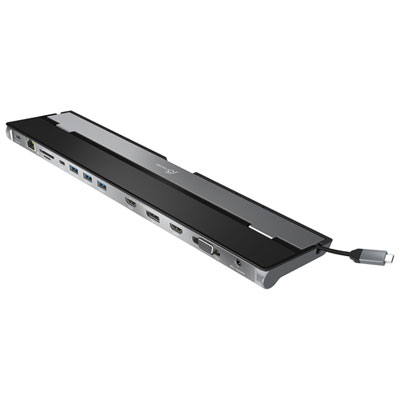 Your price for this item is $149.99
 -
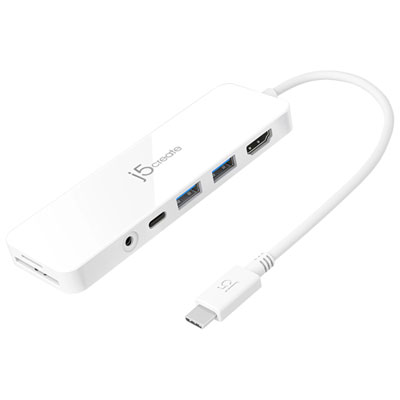 Your price for this item is $69.99
 -
 Your price for this item is $35
 -
 Your price for this item is $59.99
 -
 Your price for this item is $179.99
 -
 Your price for this item is $209.99
 -
 Your price for this item is $89.99
 -
 Your price for this item is $154.99
Discover more categories related to Docking Stations for Dell Laptops


Top Collections:
Pokemon Centers, Kindle Devices, Best Budget Office Chairs, Apple iPhones 16, Best Laptops for Writers, iPhone 15 Apple, Canon G7X Cameras, Refurbished Apple Laptops, Alarm Clock, Motorola Razr Phones
Some products may be subject to Environmental Handling Fees
(EHF) depending on your province.
Learn more about EHFs.