Dell 27 Inch
Discover the perfect balance of performance and style with the Dell 27 Inch selection. Ideal for home offices, gaming setups, or creative workspaces, these monitors offer a versatile solution for your everyday needs. Explore a range of options designed to enhance productivity and deliver an immersive viewing experience. Find the Dell 27 Inch display that fits seamlessly into your environment and elevates your digital experience.
Sort
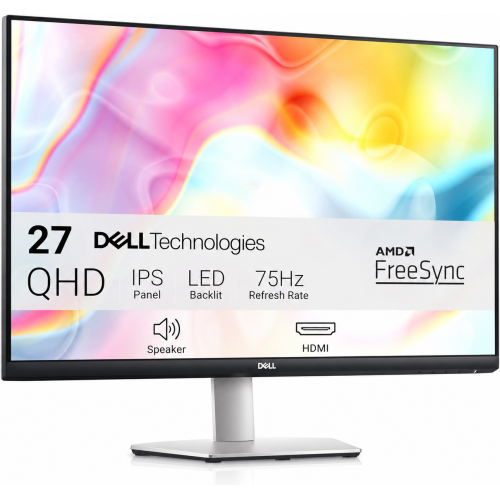
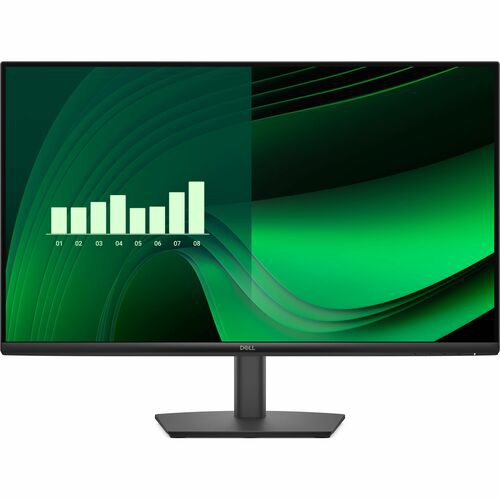
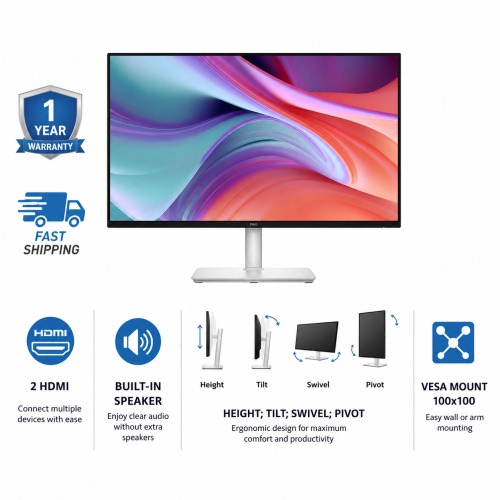
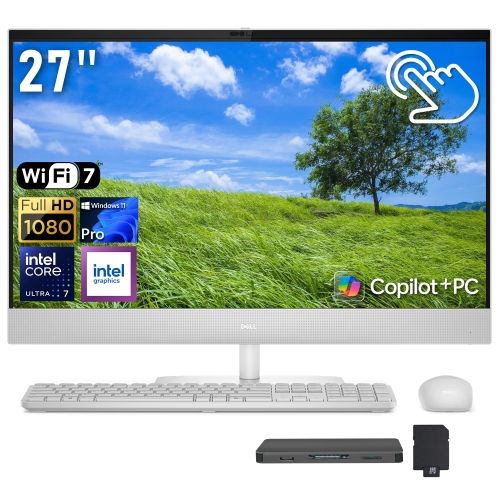
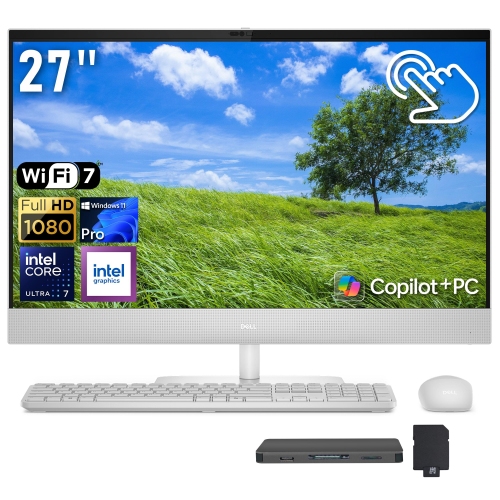
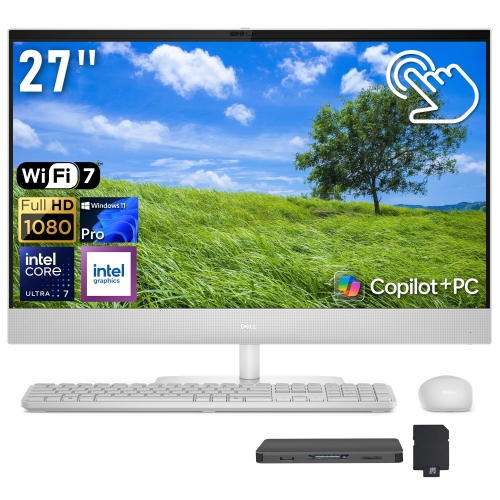
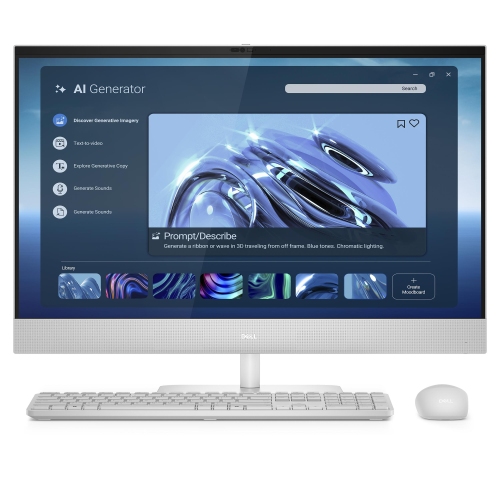
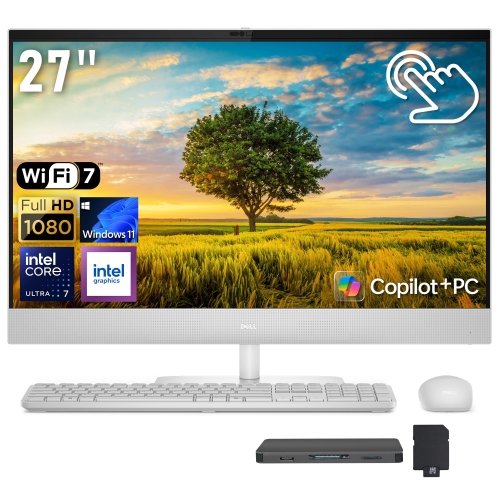
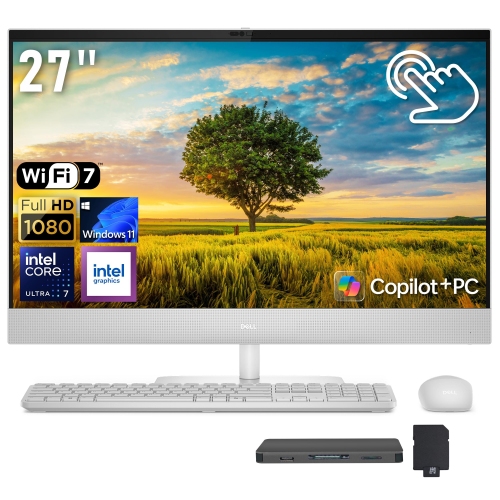
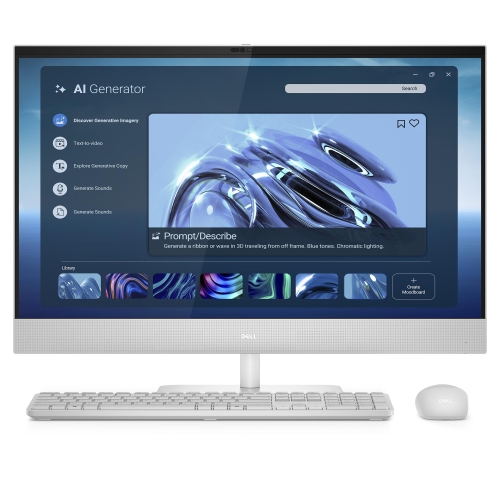
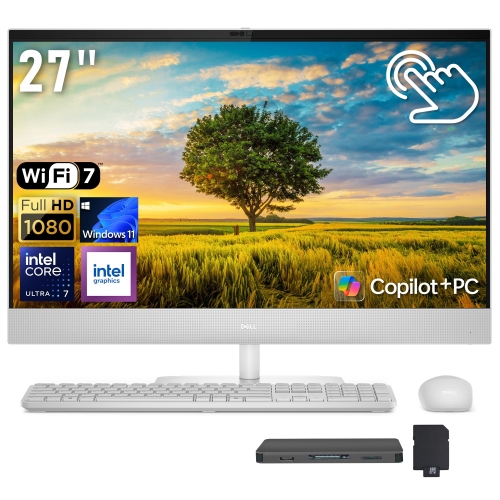
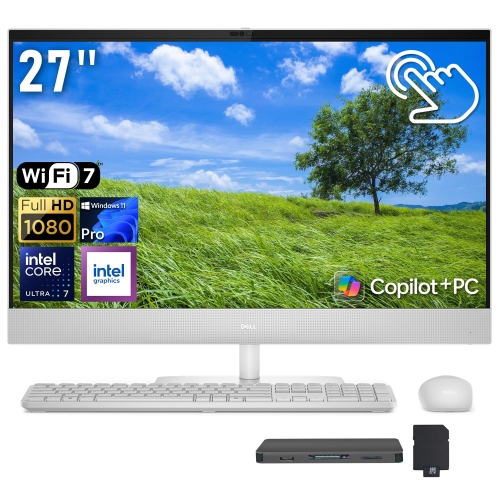
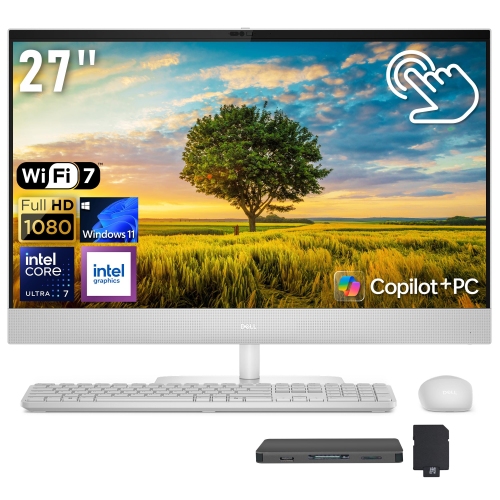
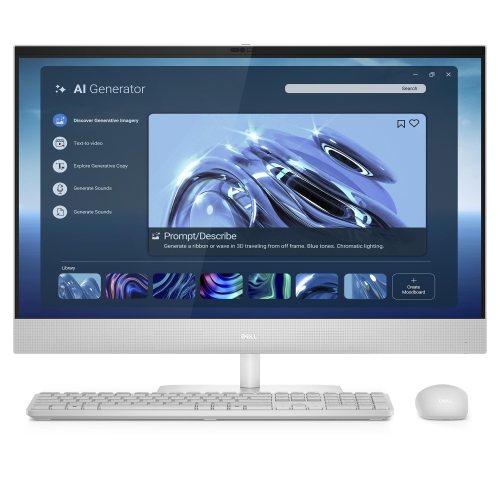
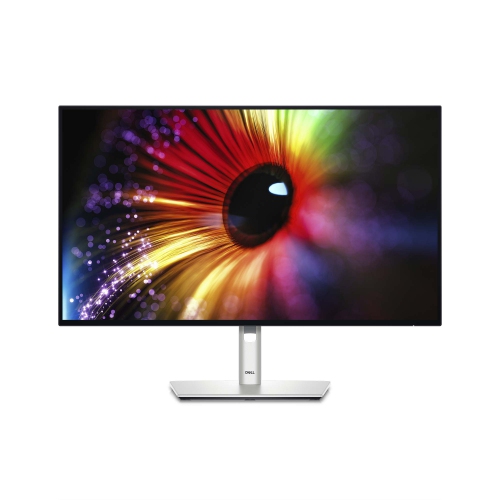
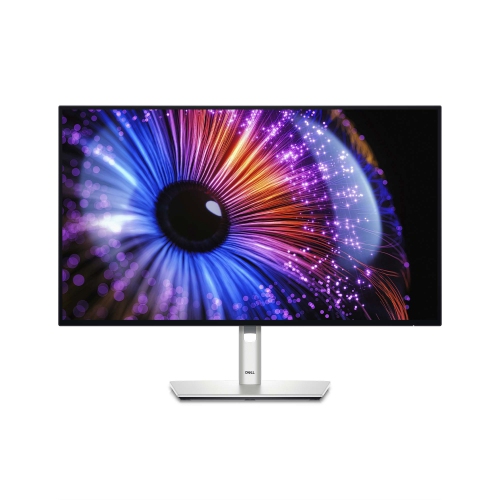
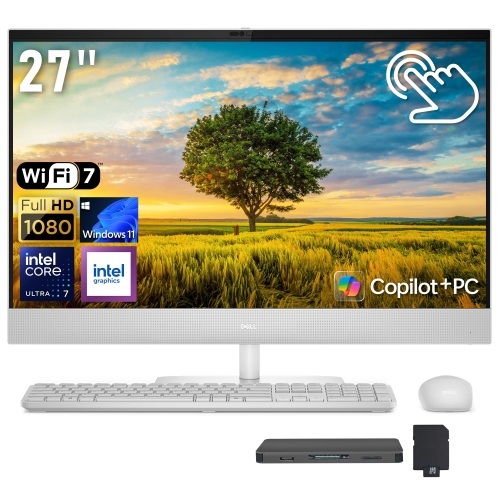
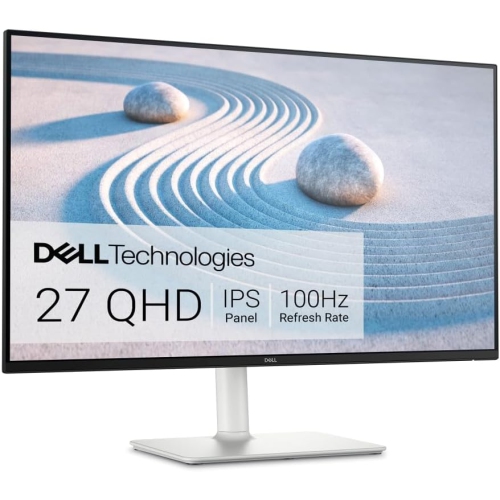
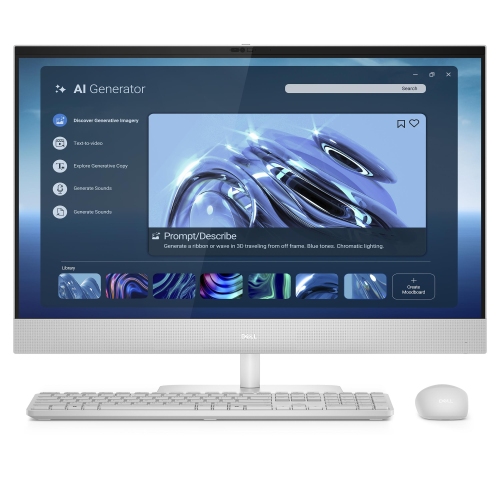
More room for everyday work without overwhelming your desk
27-inch monitors offer a versatile screen size for home offices, study spaces, creative work, and gaming desks. There is room to keep a document beside a reference window, follow a video lesson while taking notes, or see more detail in a photograph without moving to an especially large display. The 27-inch measurement refers to the screen’s diagonal, not its width; a typical 16:9 panel has a viewable area approximately 60 cm wide and 34 cm high, with the bezel and stand adding to its overall footprint. Resolution makes a noticeable difference at this size. Full HD, at 1920 × 1080 pixels, suits everyday browsing, video playback, and tasks where larger text is welcome. QHD, at 2560 × 1440 pixels, provides finer detail and useful room for spreadsheets, toolbars, and side-by-side windows. A 4K UHD display, at 3840 × 2160 pixels, offers higher pixel density for crisp lettering, detailed images, and high-resolution video. Text scaling can make a 4K desktop more comfortable to read, so a higher resolution does not necessarily mean everything needs to appear smaller. For someone moving from a laptop screen, the difference is often most apparent during ordinary tasks: a spreadsheet needs less horizontal scrolling, a presentation can sit beside speaking notes, and an editing timeline has more breathing room. Panel characteristics also shape the experience. IPS panels generally maintain consistent colour and image appearance across wide viewing angles, which is helpful when sharing the screen with a colleague. VA panels often provide stronger native contrast, making dark scenes look deeper, although performance varies between displays. For photography, illustration, and design, colour gamut coverage and accuracy matter alongside resolution. Broad colour coverage alone does not guarantee accurate colour, and colour-critical work may benefit from calibration. A student writing essays, a remote worker managing several applications, and a hobbyist editing family photos can all use this screen size, but each may value a different balance of clarity, colour performance, and workspace.
Motion performance and connectivity distinguish 27-inch monitors just as much as resolution. A 60 Hz refresh rate redraws the image 60 times per second and is suitable for documents, web browsing, and video calls. Higher refresh rates, such as 120 Hz or 144 Hz, can make scrolling and supported games look smoother, provided the computer and connection can deliver the required signal. Refresh rate is separate from response time, which describes how quickly pixels change between states. A low advertised response time is useful context, but it does not tell the whole story about motion clarity; aggressive response-time settings can sometimes introduce visible trails or bright outlines around moving objects. Adaptive sync can reduce screen tearing when supported by both the display and graphics hardware. For gaming, the practical balance depends on the games being played and the computer driving them: a detailed 4K image places greater demands on graphics hardware than QHD at comparable settings. For work, the connections may have a greater effect on daily convenience. HDMI and DisplayPort carry video and audio, while some USB-C connections can combine video, data, and laptop charging through one cable. Those USB-C functions are not universal. The laptop must support video output through the chosen port, and the monitor’s power delivery needs to suit the laptop’s charging requirements. A USB-C socket used only for data will not provide the same experience. Built-in USB hubs can keep a keyboard, mouse, or webcam connected at the desk, although some setups require a separate upstream cable to link the hub to the computer. Supported resolution and refresh rate also depend on port capabilities, adapters, and cables throughout the connection. Built-in speakers are convenient for spoken audio and casual viewing, while separate speakers or headphones may better suit music and immersive games. A monitor does not necessarily include a webcam or microphone, either, so a video-call setup may still need those accessories even when the display has audio features.
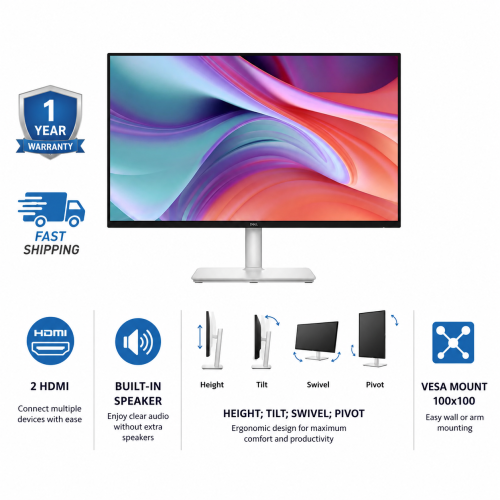
Physical fit and adjustability help a 27-inch monitor feel at home on a desk rather than simply occupying it. Stand depth matters on a narrow work surface, especially when a full-size keyboard, notebook, and mouse need space in front of the screen. Height adjustment makes it easier to position the display near a comfortable eye level, while tilt and swivel allow small changes for different seating positions. A pivoting stand can turn a compatible screen vertically for long documents or programming, provided there is enough clearance and the operating system supports the desired orientation. Monitor arms offer another way to free desk space, but the mounting pattern, display weight, and desk attachment all need to be compatible. For a two-screen setup, matching screen height and resolution can make movement between displays feel more consistent; slim bezels can reduce the visual interruption without eliminating the gap entirely. Glare is another practical consideration. A matte screen finish can soften reflections, while positioning the display away from direct window glare or a bright lamp can improve visibility without relying only on higher brightness. Plastic housings and metal stand components are common construction materials, but a stable base, secure adjustments, and sensible cable routing matter more in daily use than a finish alone. Care is straightforward: a soft, clean microfibre cloth helps remove dust, and cleaning should follow the display manufacturer’s directions without pressing hard on the panel or spraying liquid directly onto it. Supporting the monitor by its intended lifting points rather than gripping the screen also helps protect it during a desk move. As a gift for a student, home-office worker, or gaming enthusiast, a monitor is most useful when its connections and dimensions suit the recipient’s existing setup. For a more specific search within this size category, explore the Dell 27 Monitor P2723D page. The right combination of screen detail, connection options, and physical adjustment can make a 27-inch display a comfortable centrepiece for everyday work and downtime.
Top selling and popular products
-
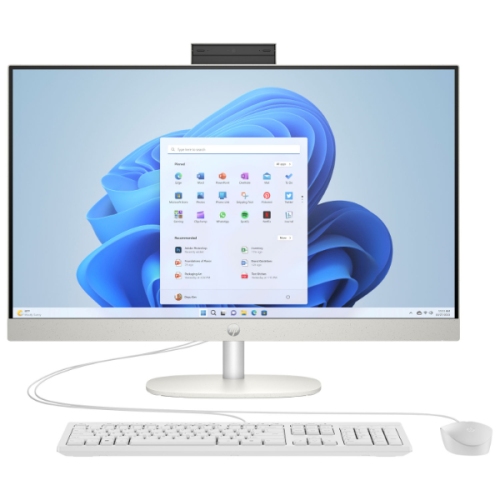 Your price for this item is $949.99
-
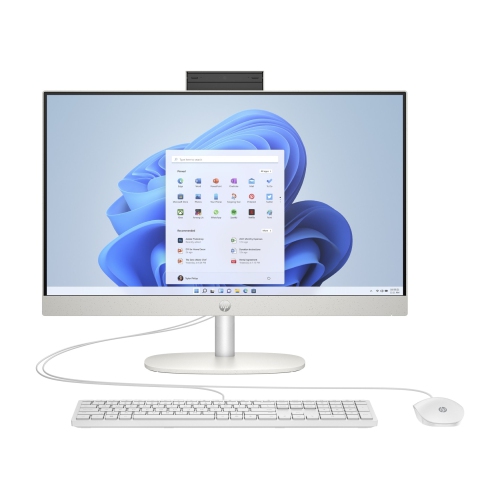 Your price for this item is $1458.99
-
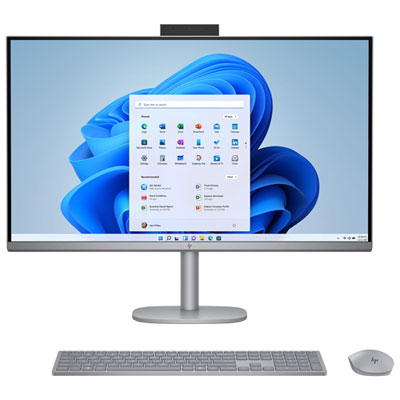 Your price for this item is $3899.99
-
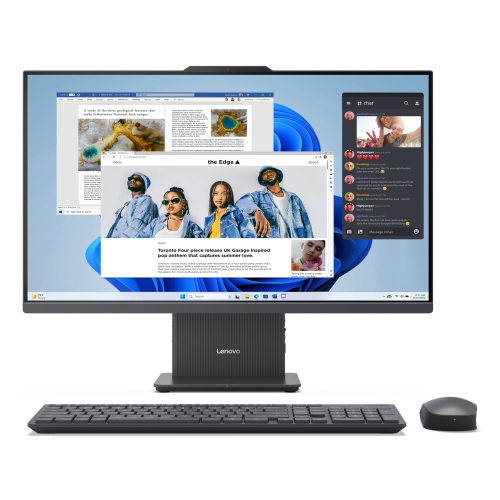 Your price for this item is $2199.99
-
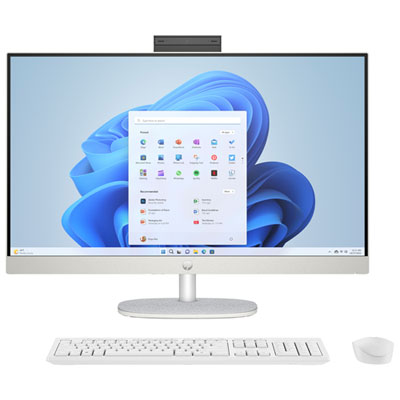 Your price for this item is $1099.97
-
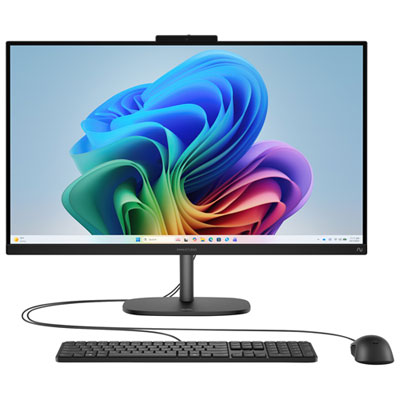 Your price for this item is $1199.99
-
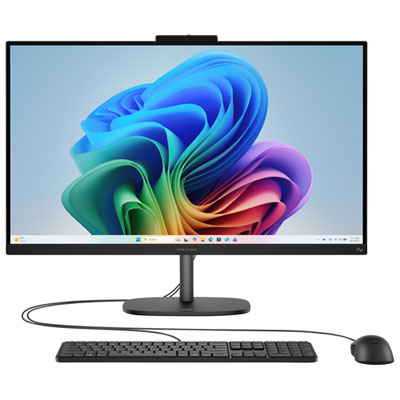 Your price for this item is $1499.99
-
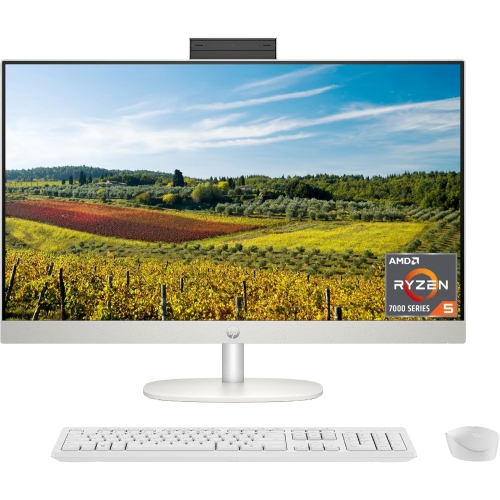 Your price for this item is $1661.55
Discover more categories related to Dell 27 Inch
Top Collections:
Best Black Friday Deals This Year, Best Black Friday Deals On Electronics, Kindle Devices, Pokemon Centers, Best Black Friday Deals On Apple Products, Best Cameras for Sports Photography, Dyson Airwrap, Pokémon 30th Celebration Cards, Apple iPhone 17 Pro, Canon G7X Cameras
Some products may be subject to Environmental Handling Fees
(EHF) depending on your province.
Learn more about EHFs.