Dell Optiplex 3010
Discover reliable performance and dependable computing with the Dell Optiplex 3010. Perfect for both home and office environments, the Dell Optiplex 3010 offers versatile options to meet your everyday needs. Whether you’re looking to upgrade your workspace or set up a new system, explore a range of configurations designed to keep you productive and organized. Find the ideal Dell Optiplex 3010 to suit your requirements and enjoy seamless operation for all your tasks.
Sort
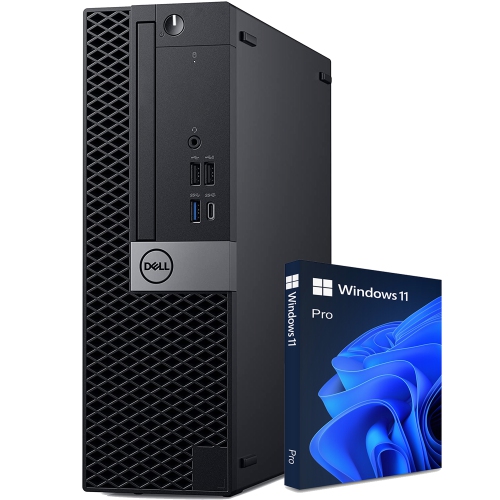
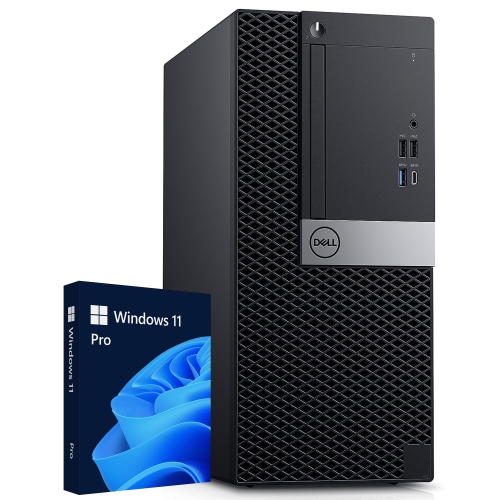
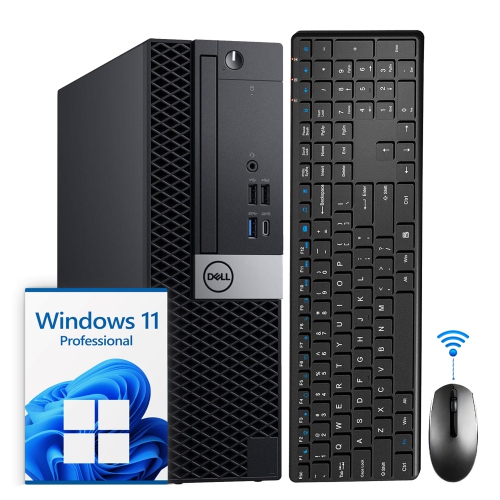
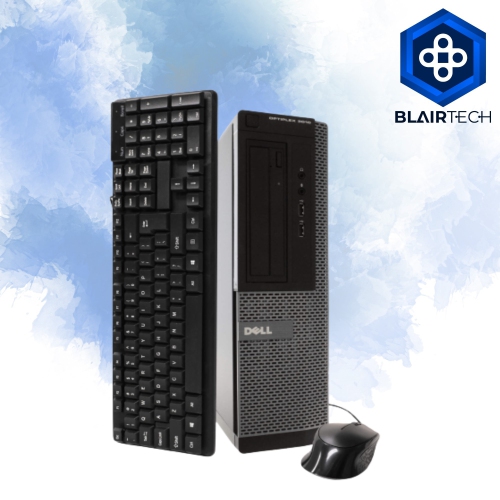
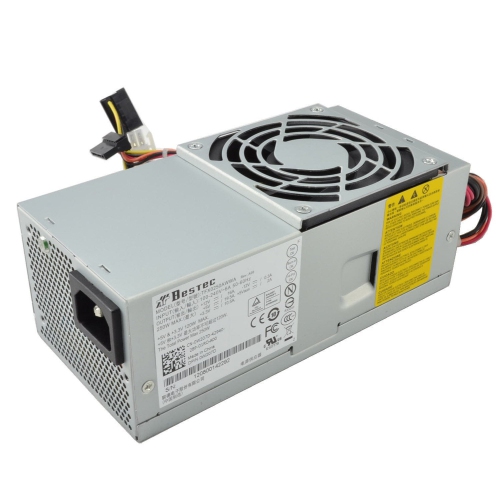
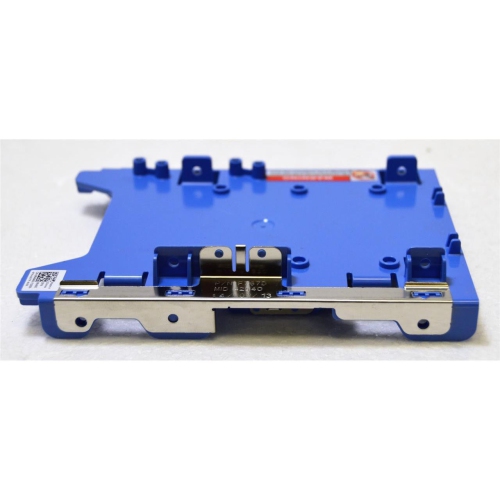
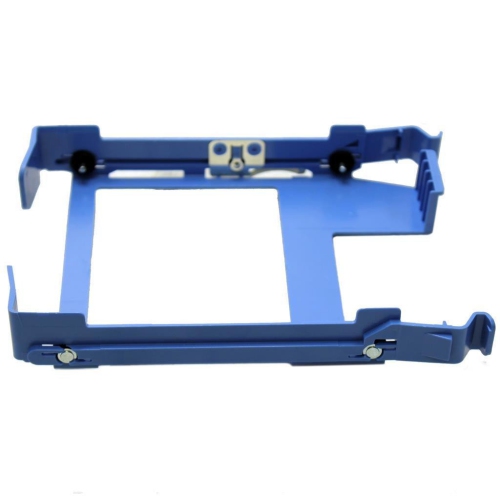
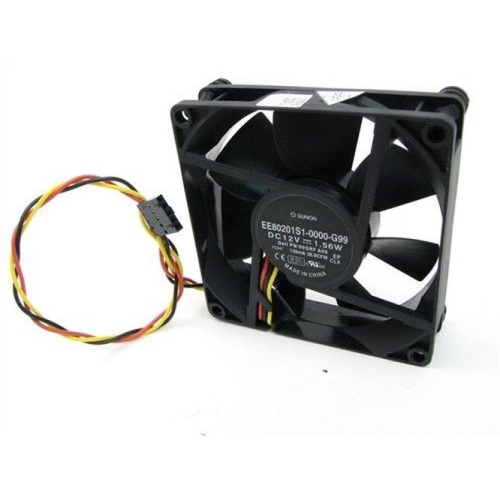
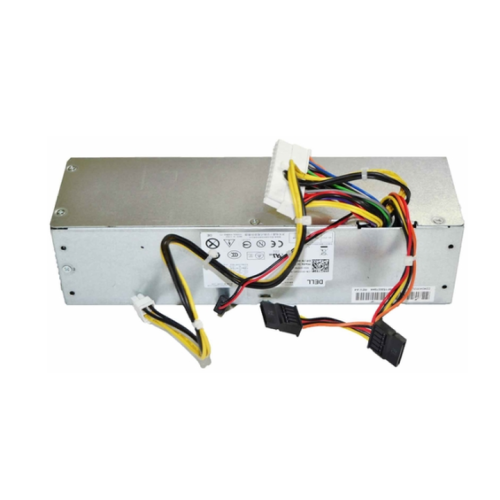
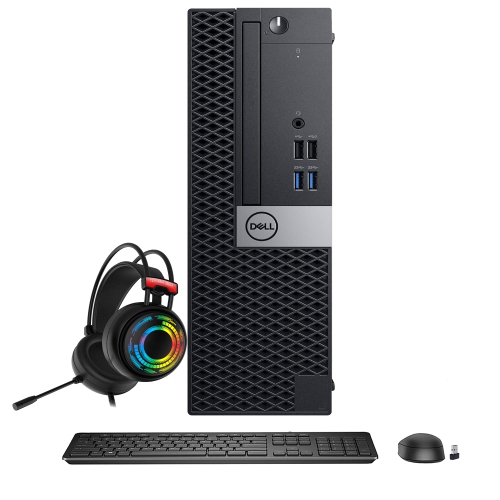
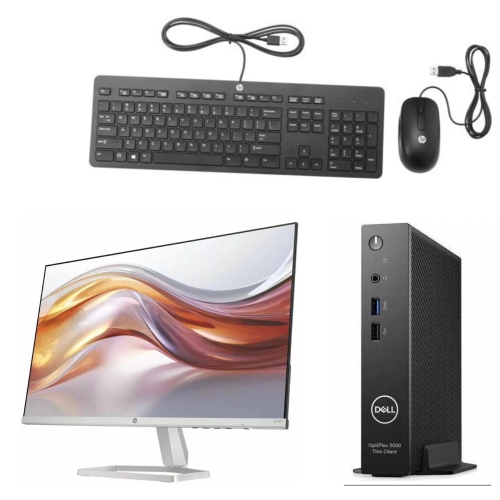
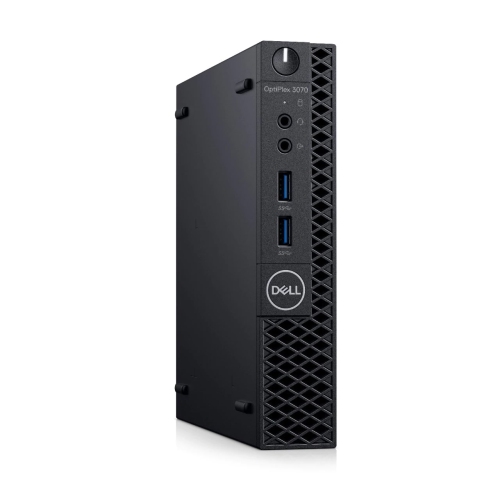
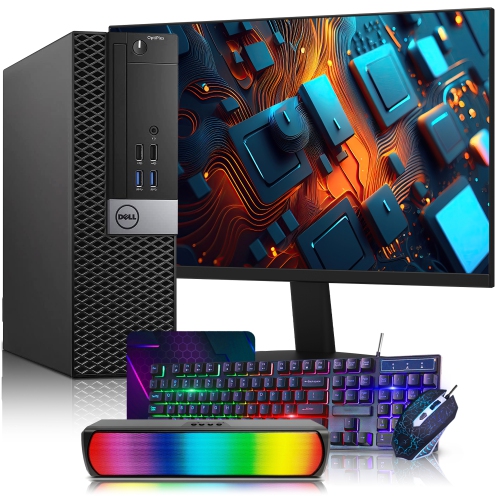
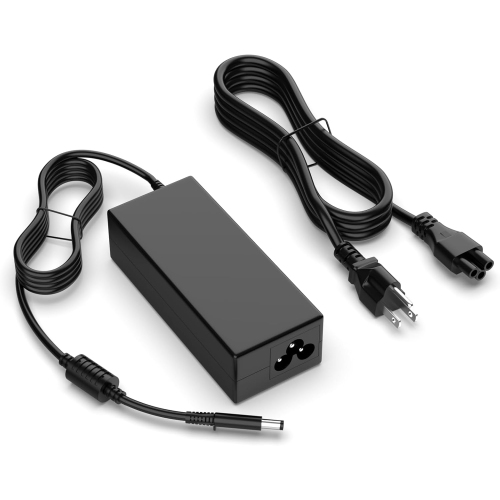
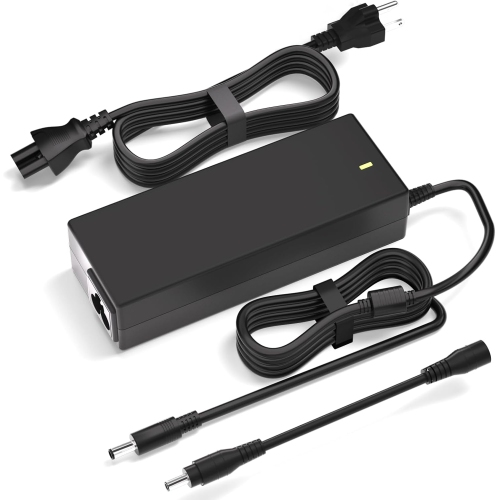
Where older business desktops still fit everyday office tasks
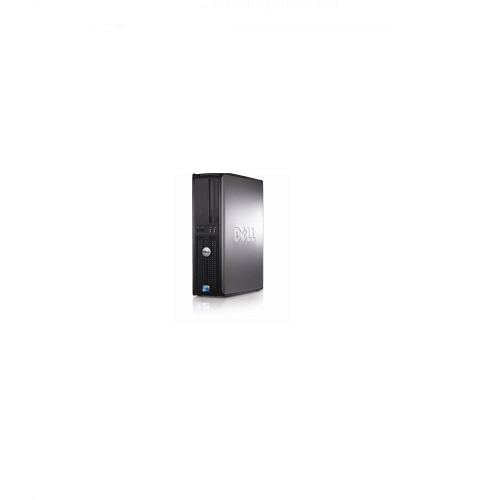
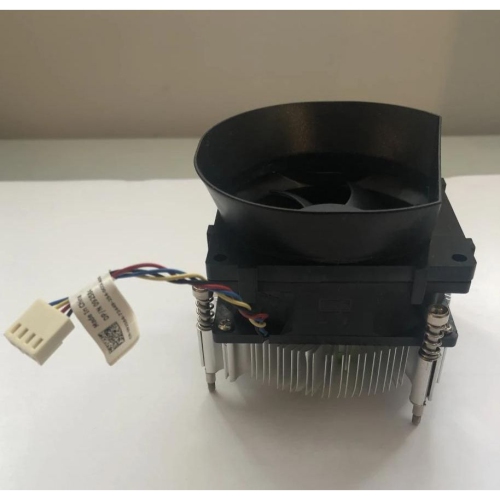
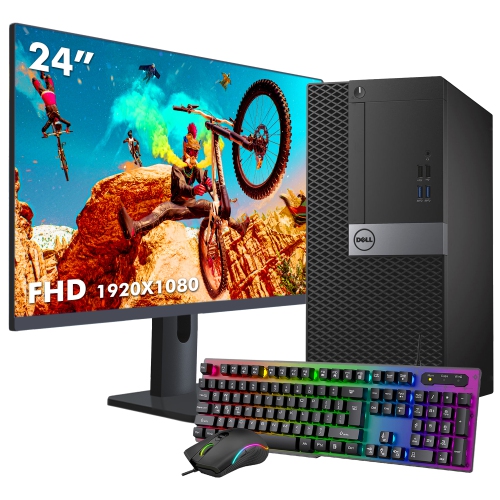
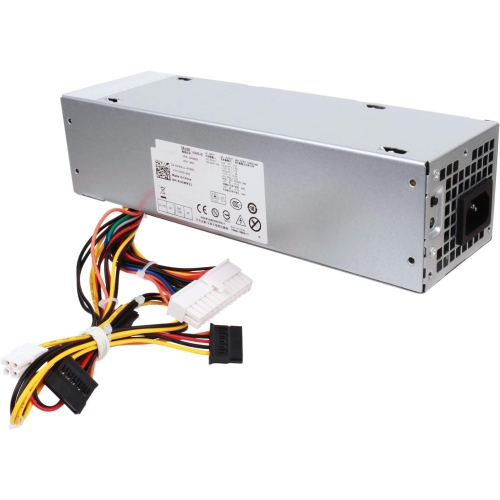
Business-class desktop computers from the early 2010s can still serve a practical purpose in a home office, study area, or small workplace when their specifications match the job. Built primarily for office tasks, this generation of desktop typically pairs a third-generation processor with DDR3 memory, SATA storage, and integrated graphics. That combination is better suited to writing documents, maintaining spreadsheets, printing forms, and running compatible administrative software than to demanding video production or modern gaming. A household computer used for typing assignments and organising saved files has different requirements from a workstation handling large design projects all day. Even everyday web browsing deserves some consideration: several busy browser tabs, a video call, and a large spreadsheet open together can place substantial demands on older hardware. Processor type, installed memory, storage condition, and software compatibility all influence how comfortable that experience feels. Refurbished desktops can differ considerably despite sharing a chassis design, so the individual specifications matter more than the appearance of the case. One configuration may retain a mechanical hard drive, while another may have a solid-state drive and a different amount of memory. Refurbished condition also does not automatically mean every internal part has been replaced. Details about testing, cosmetic wear, included accessories, and warranty coverage help clarify what to expect. Small marks on an outer panel are different from a loose connector or a fan that struggles to move air. For a student writing essays, an adult managing household paperwork, or a small business setting up a dedicated invoicing station, a clearly defined workload makes it easier to judge suitability. These desktops are most useful when approached as established office hardware with specific capabilities and limits, rather than as direct substitutes for a new high-performance computer. For internet-connected use, a supported operating system and browser are especially important, since working hardware alone does not guarantee access to ongoing security updates.
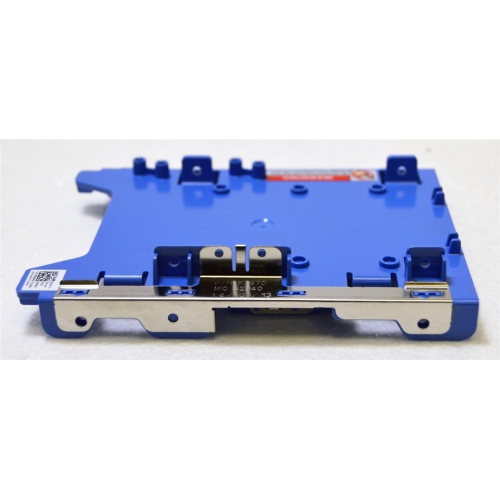
Physical size is another important distinction among older business desktops. Tower, desktop, and small-form-factor cases can share a family resemblance while offering different amounts of internal space. A tower generally leaves more room for expansion cards and additional drives, whereas a compact chassis fits more easily beside a monitor or beneath a shallow desk. Compact does not necessarily mean suitable for a sealed cupboard: the computer still needs clearance around its ventilation openings, and the placement should leave power buttons, USB ports, and any optical drive accessible. A sturdy desk or raised stand is preferable to thick carpet, which can obstruct lower vents and bring the case closer to dust. These systems commonly use metal chassis panels with plastic front sections, providing a practical structure for office use, though clips, hinges, and removable covers need gentle handling as they age. Internal fit matters just as much as desk fit. A small-form-factor case may require low-profile expansion cards, and a card that physically fits may still exceed the power supply’s capacity. Drive brackets, cable connections, and available bays also vary, so an upgrade should be checked against the exact chassis and technical documentation. A compatible 2.5-inch SATA solid-state drive can make startup and application loading feel more responsive than a mechanical hard drive, even when an older storage controller limits peak transfer speeds. It cannot remove processor or memory limitations, however. Memory upgrades require compatible DDR3 modules and confirmation of the supported capacity; the number of slots alone does not establish the maximum. Routine care is straightforward: keep vents clear, shut down and unplug the system before cleaning, and use a soft cloth on exterior surfaces without allowing liquid into openings. Internal cleaning or component replacement is best handled by someone comfortable working around computer hardware. Keeping a separate backup of important files remains essential, particularly when the age or service history of a storage drive is uncertain.
Connections and software support determine how well an older desktop fits into the rest of a workspace. Hardware from this period may include HDMI or VGA display outputs, USB 2.0 ports, wired Ethernet, and analogue audio connections, but the exact arrangement should be confirmed for each configuration. A monitor with a different input may need a compatible adapter, and connecting two displays depends on the supported graphics configuration rather than simply counting sockets. Integrated graphics are generally intended for desktop applications and basic display duties; demanding games, advanced visual effects, and some high-resolution media workloads can require capabilities beyond their reach. A wired Ethernet connection can suit a fixed desk, while Wi-Fi and Bluetooth should not be assumed to be built in. Compatible adapters may add those functions, although drivers and operating-system support need checking. USB 2.0 is useful for keyboards, mice, printers, and other basic peripherals, but transferring a large photo collection to an external drive can take longer than on newer connections. A comfortable setup also includes a monitor positioned at an appropriate height, enough desk space for the keyboard and mouse, and cables routed away from chair wheels and walkways. During the cooler months, a permanent study corner can make shared household tasks easier, provided the computer is kept away from heaters and its airflow remains unobstructed. Software planning deserves equal attention. Older processors may not meet the official requirements of newer operating systems, and an installed operating system may no longer receive standard security updates. Confirm support for essential applications, printers, accessibility tools, and any workplace requirements before relying on the computer for sensitive tasks. Shoppers comparing another desktop generation can also explore Dell Optiplex 3040, while checking configuration details rather than assuming that similar-looking cases offer the same capabilities. The strongest match is a desktop whose processing power, connections, physical footprint, and supported software suit the work it will actually handle, with realistic room for maintenance and compatible upgrades.
Physical size is another important distinction among older business desktops. Tower, desktop, and small-form-factor cases can share a family resemblance while offering different amounts of internal space. A tower generally leaves more room for expansion cards and additional drives, whereas a compact chassis fits more easily beside a monitor or beneath a shallow desk. Compact does not necessarily mean suitable for a sealed cupboard: the computer still needs clearance around its ventilation openings, and the placement should leave power buttons, USB ports, and any optical drive accessible. A sturdy desk or raised stand is preferable to thick carpet, which can obstruct lower vents and bring the case closer to dust. These systems commonly use metal chassis panels with plastic front sections, providing a practical structure for office use, though clips, hinges, and removable covers need gentle handling as they age. Internal fit matters just as much as desk fit. A small-form-factor case may require low-profile expansion cards, and a card that physically fits may still exceed the power supply’s capacity. Drive brackets, cable connections, and available bays also vary, so an upgrade should be checked against the exact chassis and technical documentation. A compatible 2.5-inch SATA solid-state drive can make startup and application loading feel more responsive than a mechanical hard drive, even when an older storage controller limits peak transfer speeds. It cannot remove processor or memory limitations, however. Memory upgrades require compatible DDR3 modules and confirmation of the supported capacity; the number of slots alone does not establish the maximum. Routine care is straightforward: keep vents clear, shut down and unplug the system before cleaning, and use a soft cloth on exterior surfaces without allowing liquid into openings. Internal cleaning or component replacement is best handled by someone comfortable working around computer hardware. Keeping a separate backup of important files remains essential, particularly when the age or service history of a storage drive is uncertain.
Connections and software support determine how well an older desktop fits into the rest of a workspace. Hardware from this period may include HDMI or VGA display outputs, USB 2.0 ports, wired Ethernet, and analogue audio connections, but the exact arrangement should be confirmed for each configuration. A monitor with a different input may need a compatible adapter, and connecting two displays depends on the supported graphics configuration rather than simply counting sockets. Integrated graphics are generally intended for desktop applications and basic display duties; demanding games, advanced visual effects, and some high-resolution media workloads can require capabilities beyond their reach. A wired Ethernet connection can suit a fixed desk, while Wi-Fi and Bluetooth should not be assumed to be built in. Compatible adapters may add those functions, although drivers and operating-system support need checking. USB 2.0 is useful for keyboards, mice, printers, and other basic peripherals, but transferring a large photo collection to an external drive can take longer than on newer connections. A comfortable setup also includes a monitor positioned at an appropriate height, enough desk space for the keyboard and mouse, and cables routed away from chair wheels and walkways. During the cooler months, a permanent study corner can make shared household tasks easier, provided the computer is kept away from heaters and its airflow remains unobstructed. Software planning deserves equal attention. Older processors may not meet the official requirements of newer operating systems, and an installed operating system may no longer receive standard security updates. Confirm support for essential applications, printers, accessibility tools, and any workplace requirements before relying on the computer for sensitive tasks. Shoppers comparing another desktop generation can also explore Dell Optiplex 3040, while checking configuration details rather than assuming that similar-looking cases offer the same capabilities. The strongest match is a desktop whose processing power, connections, physical footprint, and supported software suit the work it will actually handle, with realistic room for maintenance and compatible upgrades.
Top selling and popular products
-
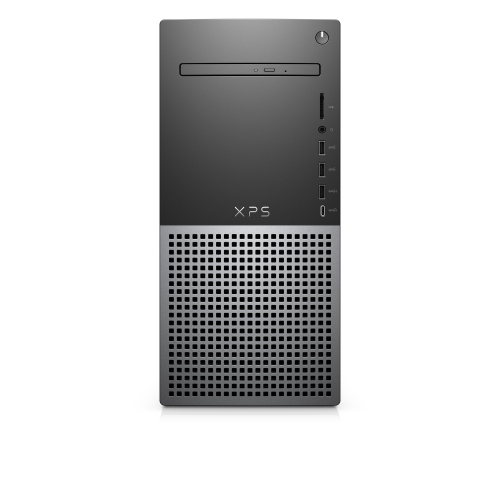 Your price for this item is $1599
 -
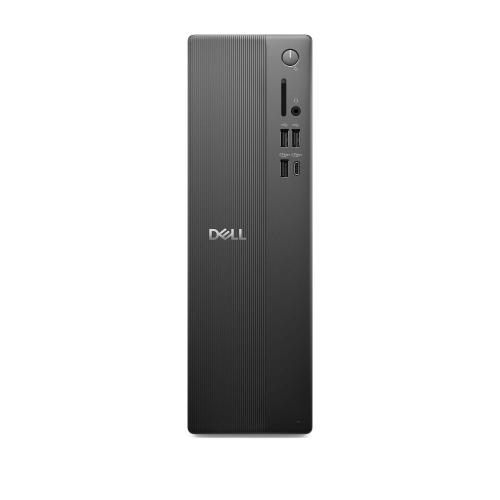 Your price for this item is $1629.79
 -
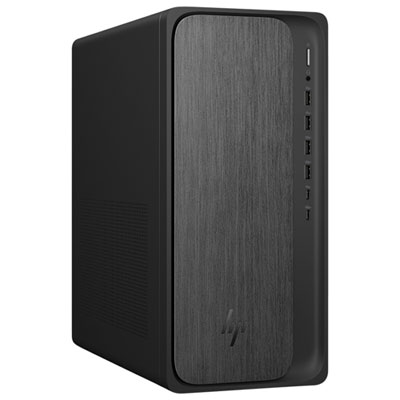 Your price for this item is $1999.99
 -
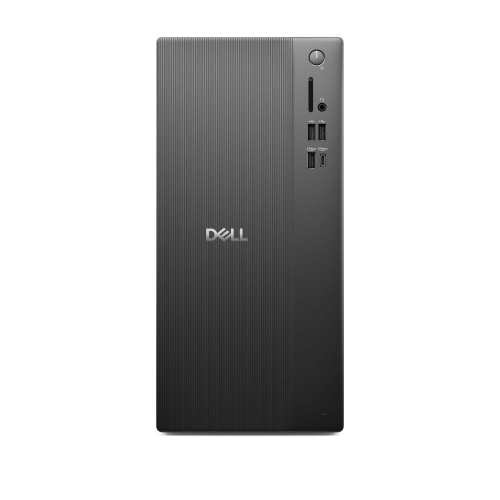 Your price for this item is $1459.79
 -
 Your price for this item is $879
 -
 Your price for this item is $1199.99
 -
 Your price for this item is $1839
 -
 Your price for this item is $879
Discover more categories related to Dell Optiplex 3010
Top Collections:
Pokemon Centers, Kindle Devices, Best Budget Office Chairs, Apple iPhones 16, Best Laptops for Writers, iPhone 15 Apple, Canon G7X Cameras, Refurbished Apple Laptops, Alarm Clock, Motorola Razr Phones
Some products may be subject to Environmental Handling Fees
(EHF) depending on your province.
Learn more about EHFs.