Drawing Tablets for Animation
Drawing Tablets for Animation are essential tools for artists, designers, and creative professionals looking to bring their ideas to life with precision and ease. Whether you’re working on detailed character designs, storyboarding, or full-length animated projects, these tablets offer a smooth and responsive drawing experience. Explore a wide selection of Drawing Tablets for Animation that cater to various skill levels and workflows, making it simple to find the perfect match for your creative needs.
Sort
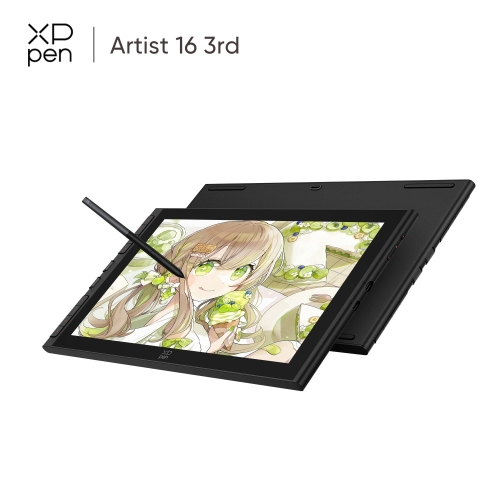
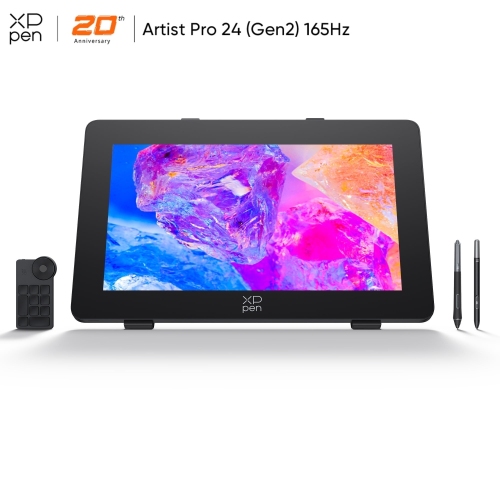
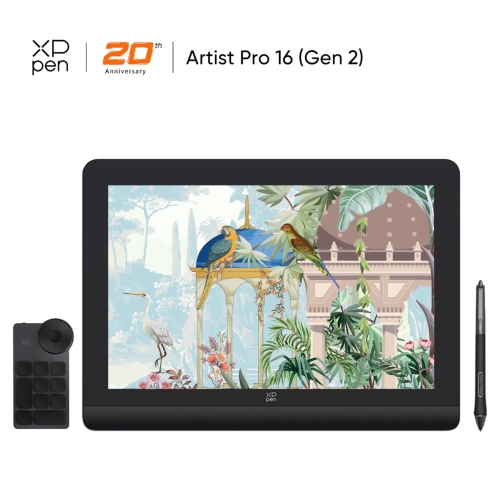
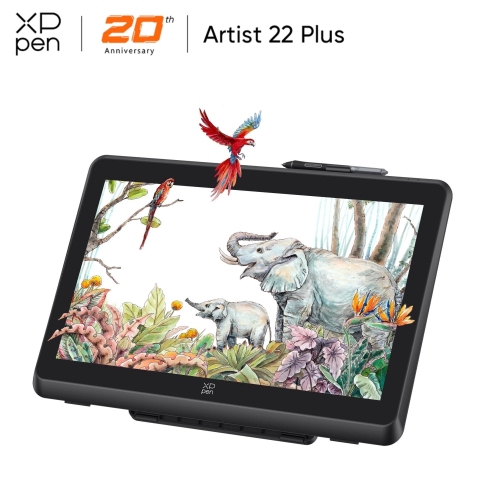
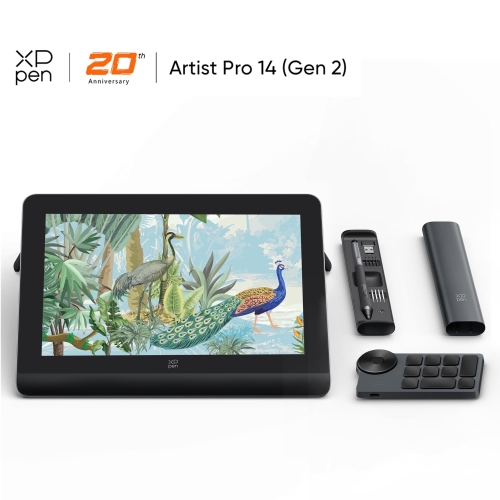
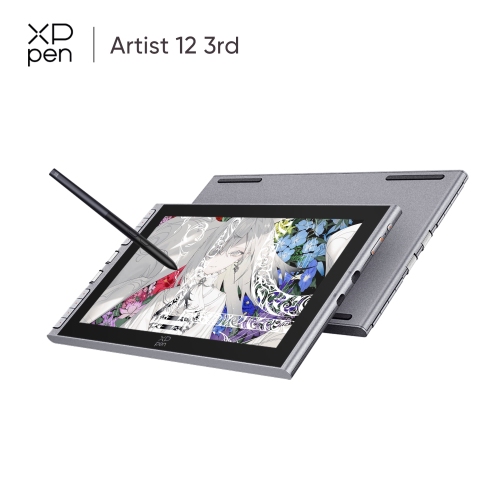
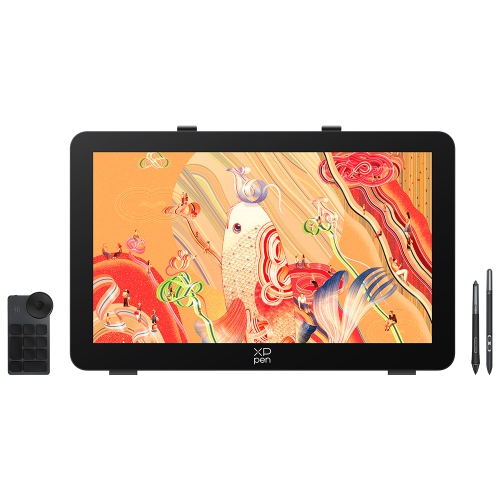
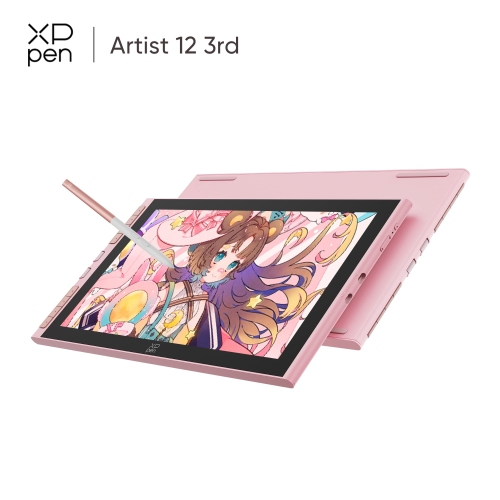
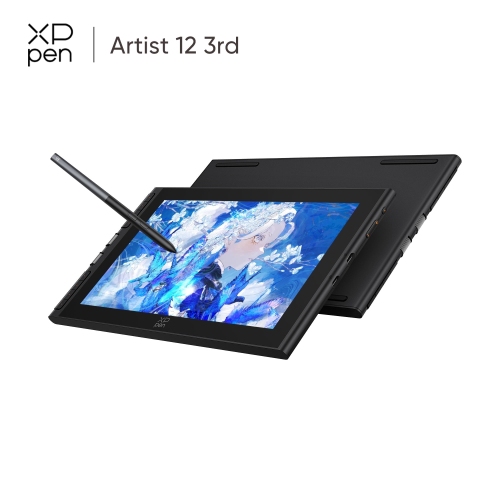
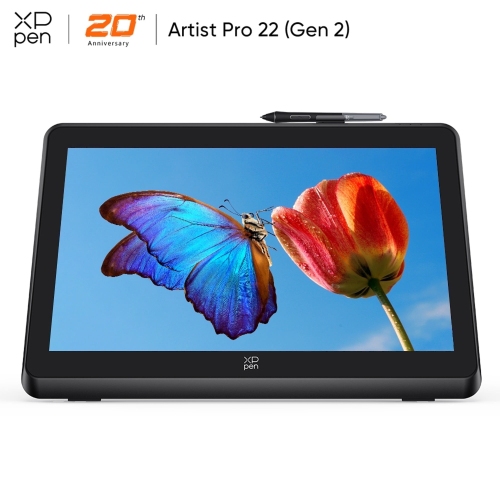
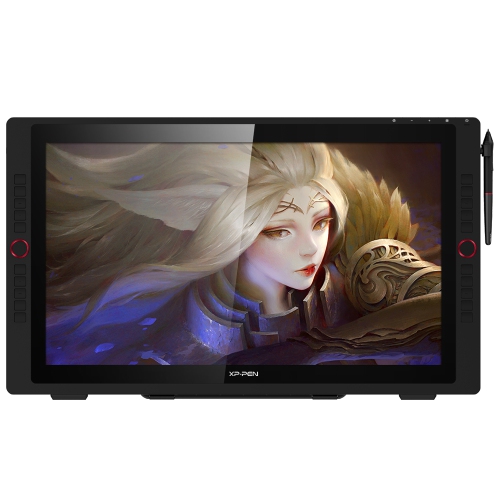
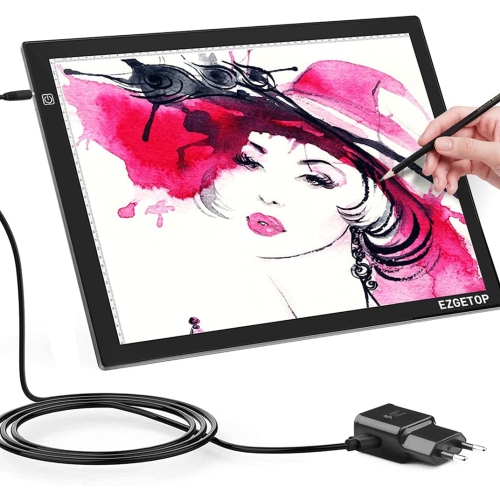

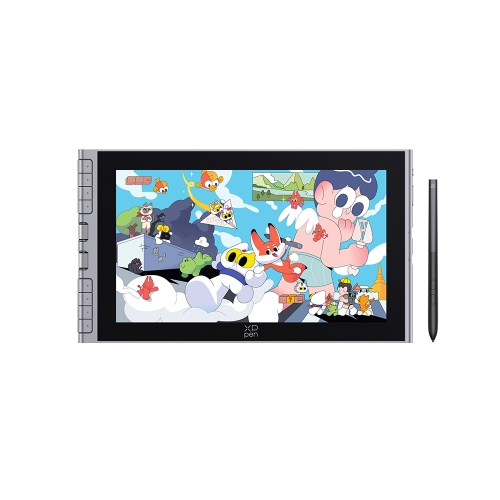
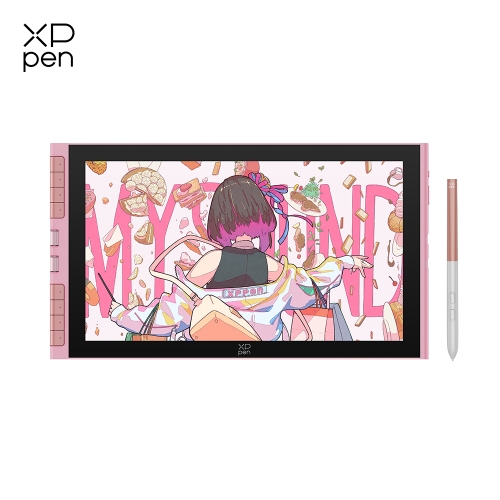
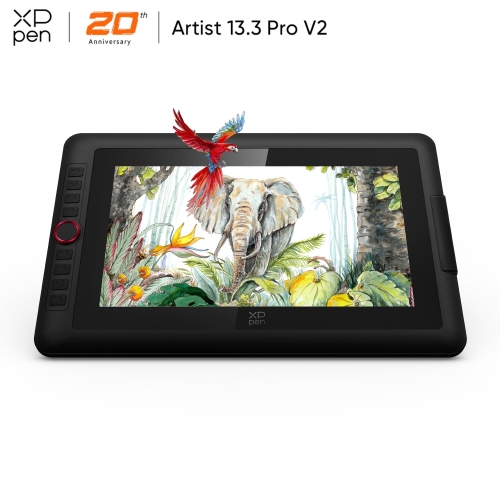
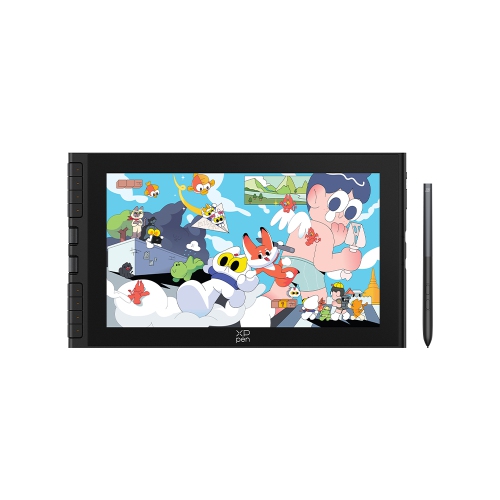
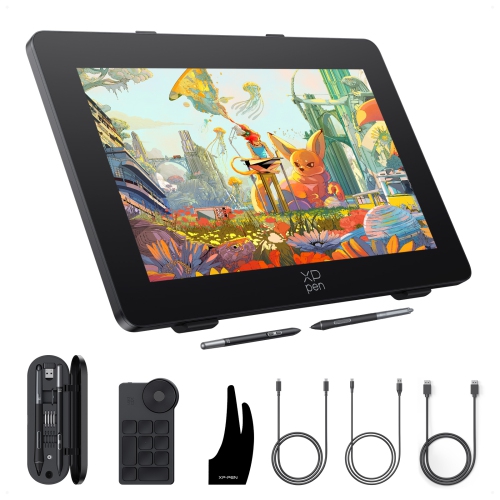
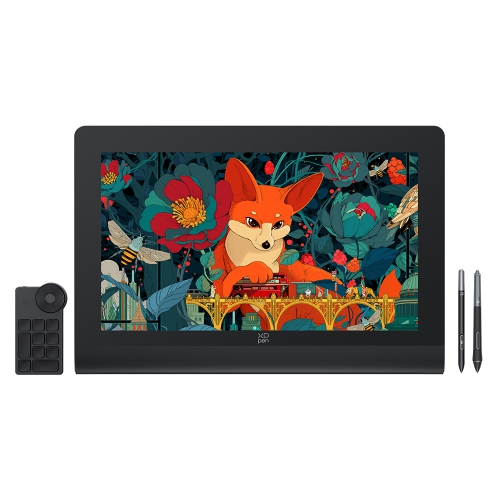
How tablet formats shape your animation workflow
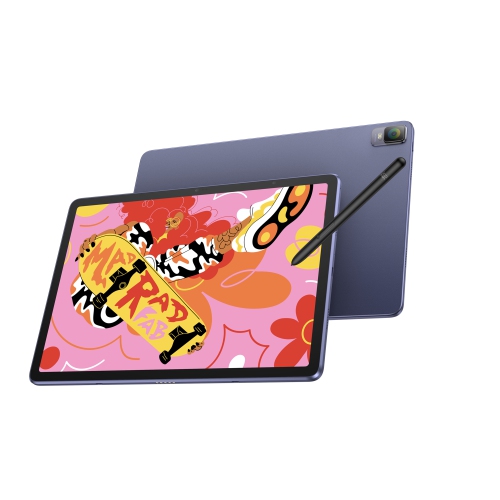
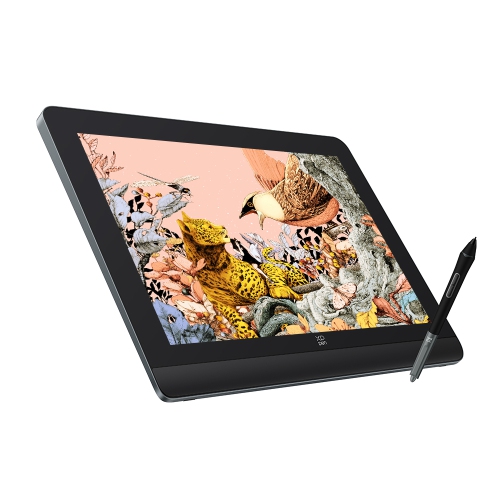
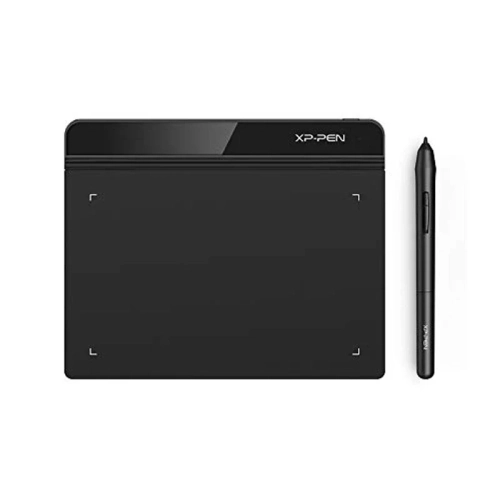
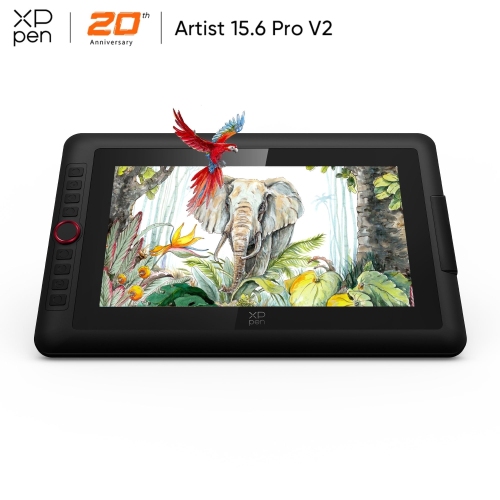
Drawing tablets for animation give artists a pen-based way to sketch characters, refine poses, draw backgrounds, and build the individual frames that create movement. The main formats are screenless graphics tablets, pen displays, and standalone tablets that support a compatible drawing pen. A screenless graphics tablet connects to a computer and maps pen movements to the monitor, while a pen display shows the artwork directly beneath the drawing hand. A standalone tablet combines the drawing surface and computing hardware in one device, although its animation software options may differ from desktop applications. For shoppers exploring Animation Drawing Tablets, these distinctions matter more than appearance alone: many pen displays still require a separate computer, and a screen does not automatically mean a device can run animation software independently. Each format can suit different working habits. A compact screenless tablet leaves more room beside a keyboard and travels easily between a classroom and a home desk. A pen display offers a more direct connection between hand and image, which can feel familiar to someone accustomed to drawing on paper. Larger drawing surfaces provide room for broad arm movements, while smaller ones can suit tighter workspaces and artists who prefer shorter strokes. The active drawing area is the useful measurement for a graphics tablet; the surrounding casing adds to its overall footprint without adding drawing space. On a pen display, space for a timeline, brush controls, and reference images also affects how much room remains for the artwork. These tools support more than finished character animation. They can be useful for storyboards, expression sheets, rough movement studies, background painting, and revisions to a scene. An artist might sketch a loose walking pose, lower its opacity, and draw the next frame over it using the animation application's onion-skin feature. The tablet supplies the pen input, while the software provides the timeline, playback, layers, and frame-management tools.
The feel of the pen is central to drawing comfortably and consistently. Pressure sensitivity can vary line weight or brush opacity in supported software, helping a light construction sketch develop into a cleaner, more deliberate outline. Tilt support can change the behaviour of compatible brushes, such as creating a broader shaded mark when the pen leans to one side. Neither feature works identically in every application, so operating-system support, tablet drivers, and compatibility with the intended animation program are important parts of the setup. The highest pressure-level count alone does not determine how natural a pen feels. Initial activation force, stroke tracking, and the way a line tapers can be just as noticeable when drawing a character's eyelid or finishing a narrow curve. Cursor offset also matters on pen displays: a smaller apparent gap between the pen tip and the image can make precise placement feel more direct. Display resolution affects how clearly fine details appear, while colour performance helps artists judge painted backgrounds and character palettes. A tablet's input response is separate from the computer's ability to play a complex scene smoothly; processor performance, memory, and software settings still influence the overall workflow. Physical controls can make repeated tasks less disruptive. Programmable buttons, a touch strip, or a dial may handle actions such as undo, brush-size changes, canvas rotation, or movement through frames, depending on driver and application support. For someone drawing many closely related poses, keeping those actions within easy reach can reduce repeated trips to on-screen menus. Connection requirements deserve equal attention. A USB-C connector does not guarantee that a computer port supports video output or enough power for a pen display, and some setups require separate data, video, and power connections. Cable length and port placement also affect whether the tablet sits comfortably beside a laptop or in front of a larger monitor.
Materials, support, and everyday care influence how a drawing tablet holds up to regular use. Drawing surfaces range from textured composite panels to coated glass, with different levels of friction beneath the nib. A lightly textured surface can offer a paper-like resistance, while a smoother surface allows the pen to glide with less drag. That feel is personal, and adding a protective film can change it; any film also needs to be compatible with the device and its pen input. Nibs gradually wear with use, particularly against more textured surfaces, so replaceable tips and access to compatible replacements are practical considerations for frequent drawing. A clean, soft cloth and cleaning methods approved for the surface help remove fingerprints and dust without damaging coatings. Loose grit, heavy objects in a bag, and strain on a connected cable can all cause avoidable wear. For travel between study spaces or work locations, a fitted sleeve and a secure place for the pen help protect the drawing surface and keep small accessories together. At a desk, an adjustable stand can bring a pen display to a more comfortable angle, provided it supports the device securely. A screenless tablet can sit flat while the monitor remains at a comfortable viewing height, offering a different arrangement for longer sessions. Drawing tablets can suit animation students, hobbyists making short clips, illustrators adding movement to their work, and experienced artists developing character performances or production assets. They can also make thoughtful gifts for someone already interested in digital art, especially when their computer, preferred software, and workspace are known. A beginner may value a straightforward setup and comfortable pen more than an expansive drawing surface, while an artist working across detailed scenes may appreciate more room for broad strokes and reference material. The most useful fit supports the person's actual drawing habits, from quick gesture studies to careful frame-by-frame clean-up, without making the workspace harder to use.
Top selling and popular products
-
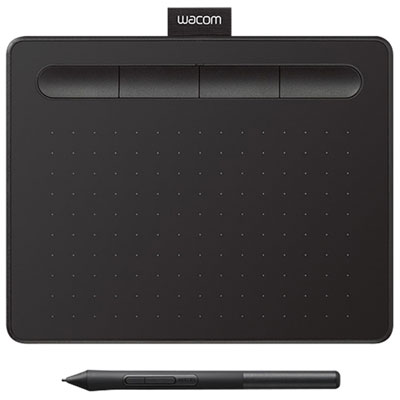 Your price for this item is $89.99
-
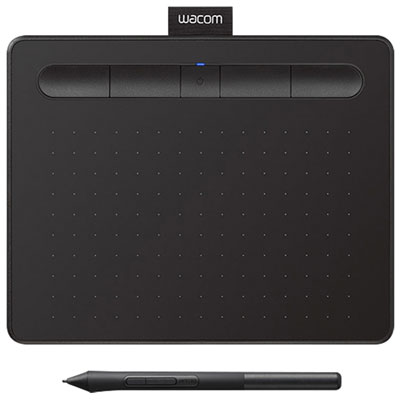 Your price for this item is $139.99
-
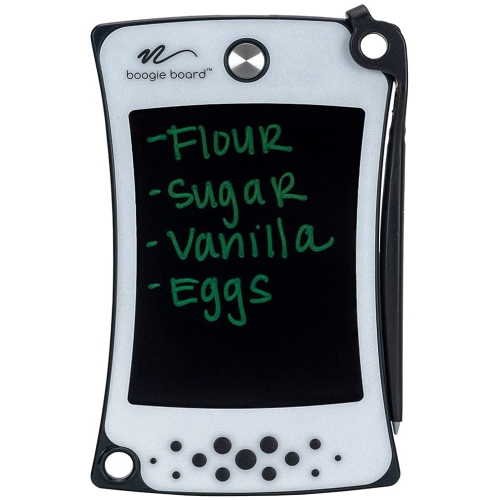 Your price for this item is $21.97
-
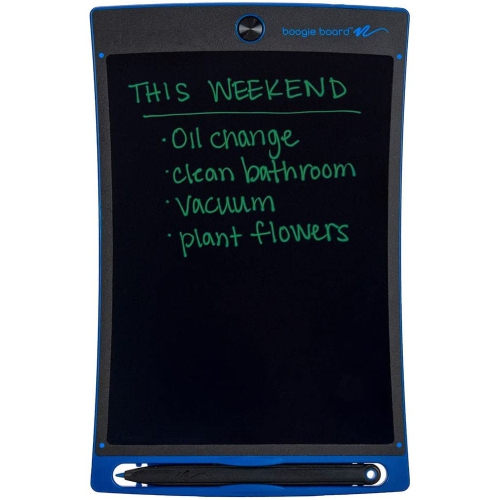 Your price for this item is $39.97
-
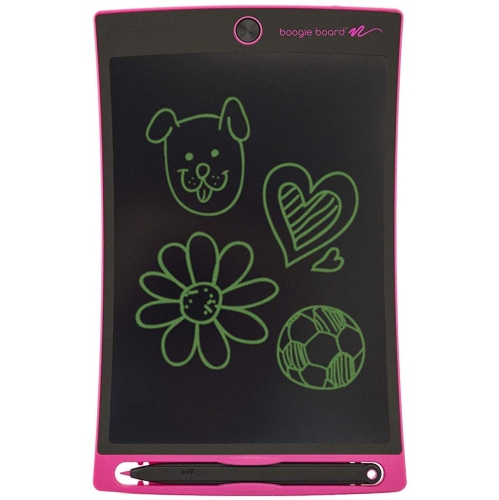 Your price for this item is $39.97
-
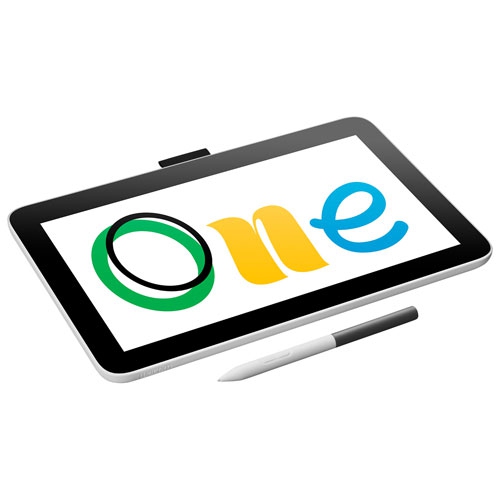 Your price for this item is $319.99
-
 Your price for this item is $699.99
-
 Your price for this item is $2118.68
Discover more categories related to Drawing Tablets for Animation
Top Collections:
Best Black Friday Deals This Year, Best Black Friday Deals On Electronics, Kindle Devices, Pokemon Centers, Best Black Friday Deals On Apple Products, Best Cameras for Sports Photography, Dyson Airwrap, Pokémon 30th Celebration Cards, Apple iPhone 17 Pro, Canon G7X Cameras
Some products may be subject to Environmental Handling Fees
(EHF) depending on your province.
Learn more about EHFs.