HDMI Computer Monitors
HDMI is a digital multimedia interface that allows you to connect your computer or other device to an HDTV or projector. It's the best way to get high-definition video and audio from your computer to your display. An HDMI computer monitor is a type of display that has an HDMI input. Here are the recommended products for HDMI computer monitors.
Sort
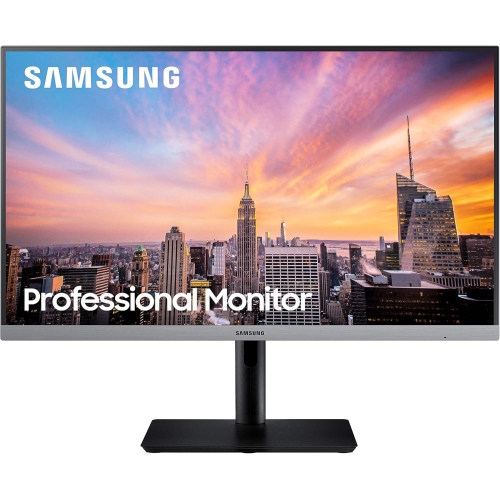
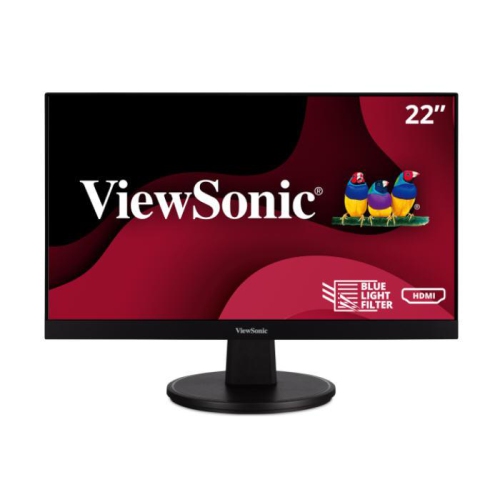
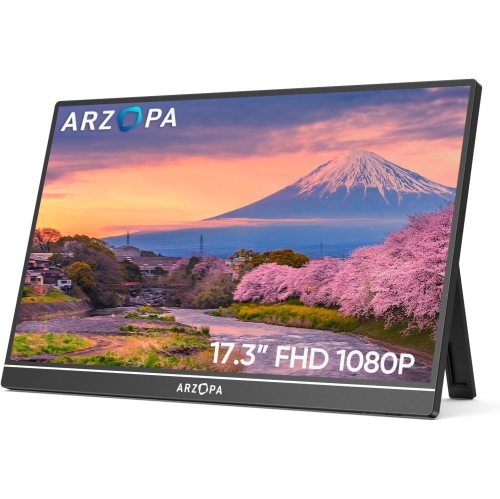
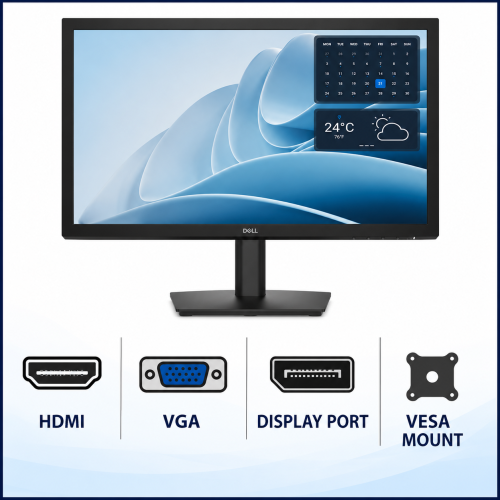
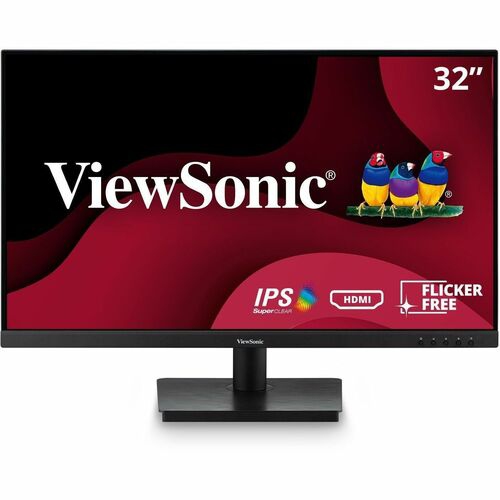
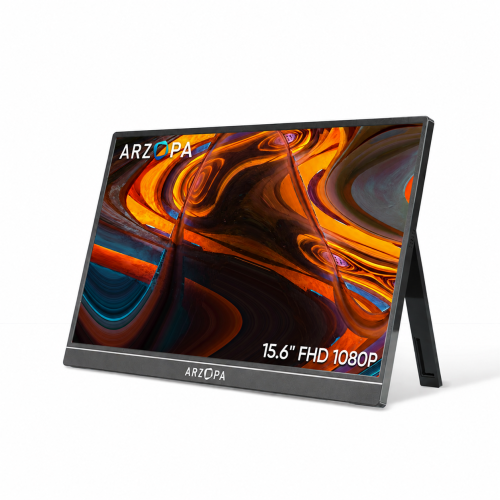
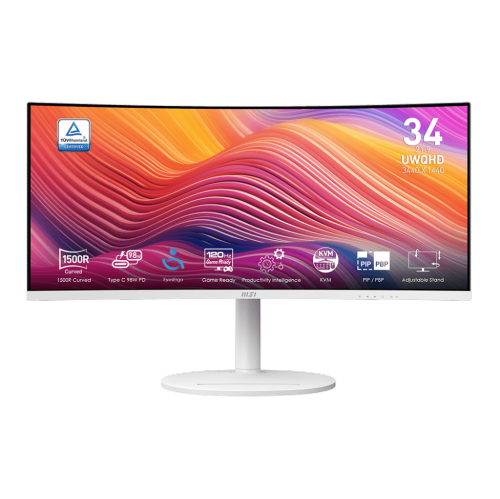
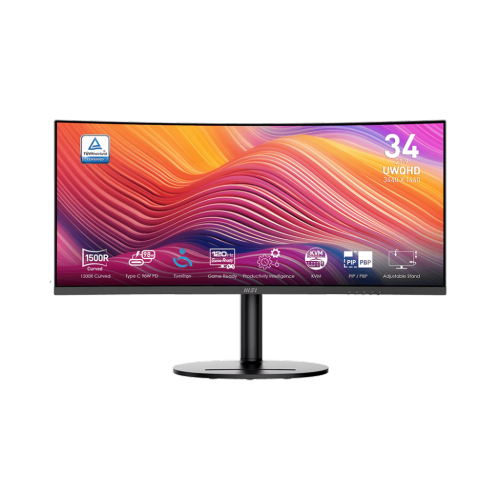
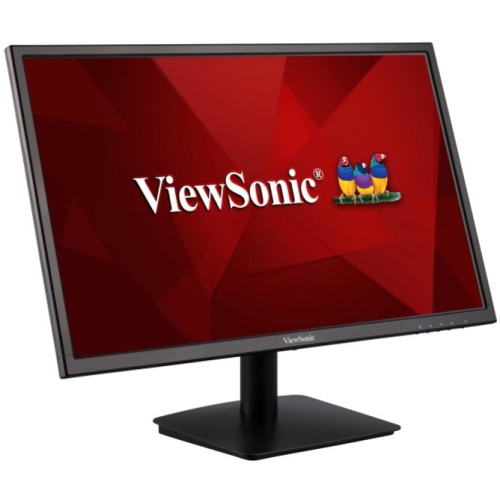
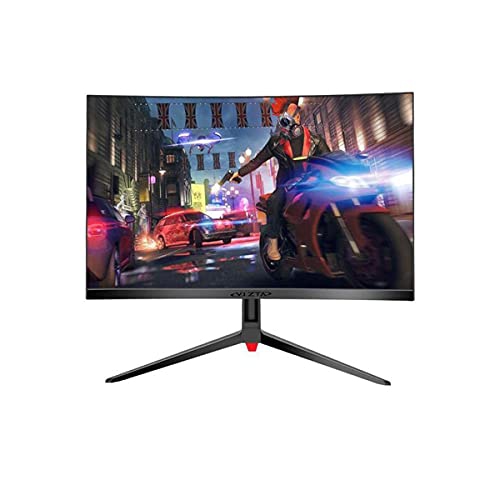
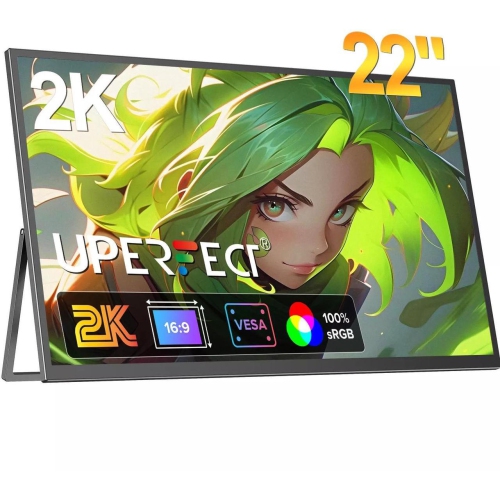
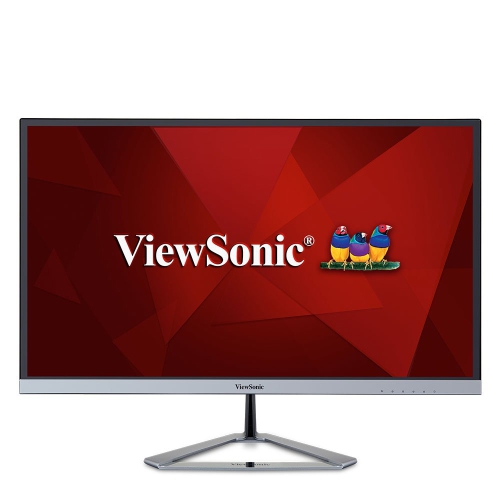
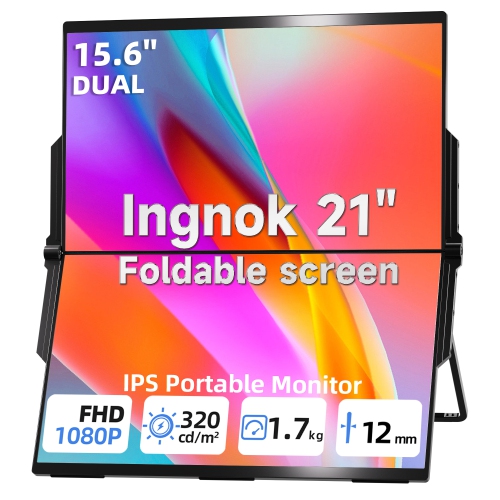
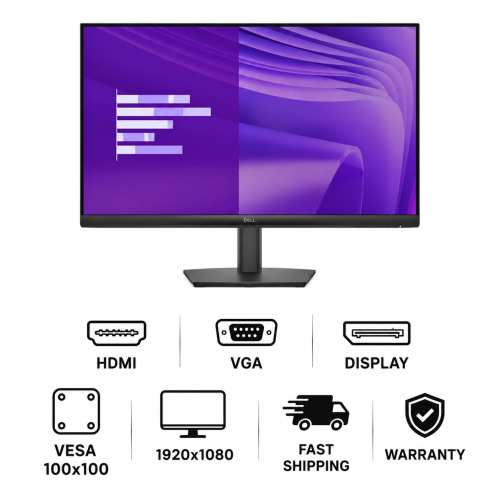
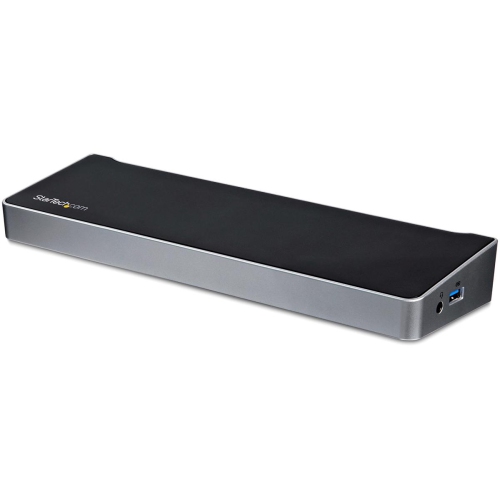
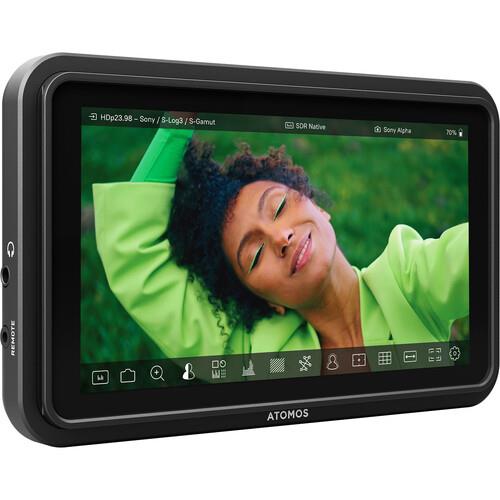
One HDMI connection supports work, play, and everyday computing
HDMI computer monitors offer a straightforward way to connect a screen to a desktop computer, laptop, gaming console, streaming device, or other compatible source. Because HDMI carries both digital video and audio through one cable, it can help keep a desk tidy while making setup simple for work, study, entertainment, and gaming. Before choosing a monitor, consider where it will be used and what you will connect to it most often. A compact screen can suit a smaller desk, dorm room, kitchen workstation, or shared home office, while a larger display can make spreadsheets, timelines, creative projects, and side-by-side windows easier to view. Full HD, also called 1080p, is a practical choice for everyday browsing, documents, video calls, schoolwork, and general entertainment. QHD, or 1440p, provides more detail and workspace for multitasking, gaming, and creative applications, while 4K UHD can deliver especially crisp text, photos, video, and fine graphical details. Screen size and resolution work together, so a larger monitor may benefit from a higher resolution to keep images and text looking sharp at a comfortable viewing distance. Panel type is another useful consideration: IPS displays are often valued for broad viewing angles and consistent colour, while other panel technologies may appeal to shoppers who prioritize contrast or fast response. An adjustable stand, built-in speakers, a headphone jack, and height, tilt, swivel, or pivot controls can also make a noticeable difference during long work sessions. Anyone expanding an existing desktop setup may also want to browse Desktops With HDMI for a computer with a compatible output.
Refresh rate describes how many times per second a monitor updates the image. A 60Hz display is generally well suited to office tasks, online learning, browsing, movies, and everyday computing. Higher refresh rates, such as 120Hz, 144Hz, or more, can make movement look smoother in compatible games and other fast-moving content. Gamers should compare refresh rate with the performance of their computer or console, since a high-refresh monitor can only show its full benefit when the connected device can produce enough frames. Response time, adaptive sync support, and the monitor’s resolution also matter when selecting a display for gaming. HDMI version is worth checking as well, but the version alone does not tell the whole story. HDMI 2.0 can support many common combinations of resolution and refresh rate, including 4K at 60Hz on compatible equipment, while HDMI 2.1 can provide greater bandwidth for certain higher-resolution, higher-refresh-rate configurations and features such as Variable Refresh Rate. The capabilities of the monitor, computer, graphics card, console, and cable all need to work together, so review the specifications for the exact combination you plan to use. A monitor with more than one HDMI input can be convenient when switching between a computer and a console without moving cables. Some displays also include DisplayPort or USB connections, which may be useful for a wider range of devices, but an available port on the monitor does not guarantee compatibility with every computer. Laptops with USB-C, older computers with different video outputs, and devices with limited ports may require a compatible adapter or dock. Check whether the chosen cable is included, and make sure it supports the resolution and refresh rate you intend to use.
Setting up an HDMI computer monitor is usually uncomplicated. Connect the HDMI cable to the active video output on the computer or other source, then connect the other end to an HDMI input on the monitor. After powering on both devices, use the monitor’s control buttons or on-screen menu to select the correct input, such as HDMI 1 or HDMI 2. If the screen remains black, confirm that both ends of the cable are firmly seated, check that the source device is awake, and try another HDMI input or cable if available. On a Windows computer, display settings can be used to choose a preferred resolution, arrange multiple screens, and select duplicate or extended desktop mode. On a Mac, display settings provide similar options for resolution, arrangement, and mirroring. Extended mode is helpful when one screen holds email or reference material while another shows a document, browser window, or creative project; duplicate mode can be useful for presentations or sharing a screen with someone nearby. Position the monitor so the top of the screen is near eye level, keep it at a comfortable arm’s length, and adjust brightness to suit the room. A monitor can be a thoughtful gift for a student preparing a study area, a remote worker improving a home office, a creator editing photos or video, or a gamer building a more immersive setup. During the cooler months, a well-planned desk can become a comfortable place for coursework, hobbies, household planning, and evening entertainment. Whether it is replacing an older display or adding a second screen, an HDMI monitor can make digital tasks feel more spacious, organized, and responsive when its connections and specifications match the devices used with it.
Refresh rate describes how many times per second a monitor updates the image. A 60Hz display is generally well suited to office tasks, online learning, browsing, movies, and everyday computing. Higher refresh rates, such as 120Hz, 144Hz, or more, can make movement look smoother in compatible games and other fast-moving content. Gamers should compare refresh rate with the performance of their computer or console, since a high-refresh monitor can only show its full benefit when the connected device can produce enough frames. Response time, adaptive sync support, and the monitor’s resolution also matter when selecting a display for gaming. HDMI version is worth checking as well, but the version alone does not tell the whole story. HDMI 2.0 can support many common combinations of resolution and refresh rate, including 4K at 60Hz on compatible equipment, while HDMI 2.1 can provide greater bandwidth for certain higher-resolution, higher-refresh-rate configurations and features such as Variable Refresh Rate. The capabilities of the monitor, computer, graphics card, console, and cable all need to work together, so review the specifications for the exact combination you plan to use. A monitor with more than one HDMI input can be convenient when switching between a computer and a console without moving cables. Some displays also include DisplayPort or USB connections, which may be useful for a wider range of devices, but an available port on the monitor does not guarantee compatibility with every computer. Laptops with USB-C, older computers with different video outputs, and devices with limited ports may require a compatible adapter or dock. Check whether the chosen cable is included, and make sure it supports the resolution and refresh rate you intend to use.
Setting up an HDMI computer monitor is usually uncomplicated. Connect the HDMI cable to the active video output on the computer or other source, then connect the other end to an HDMI input on the monitor. After powering on both devices, use the monitor’s control buttons or on-screen menu to select the correct input, such as HDMI 1 or HDMI 2. If the screen remains black, confirm that both ends of the cable are firmly seated, check that the source device is awake, and try another HDMI input or cable if available. On a Windows computer, display settings can be used to choose a preferred resolution, arrange multiple screens, and select duplicate or extended desktop mode. On a Mac, display settings provide similar options for resolution, arrangement, and mirroring. Extended mode is helpful when one screen holds email or reference material while another shows a document, browser window, or creative project; duplicate mode can be useful for presentations or sharing a screen with someone nearby. Position the monitor so the top of the screen is near eye level, keep it at a comfortable arm’s length, and adjust brightness to suit the room. A monitor can be a thoughtful gift for a student preparing a study area, a remote worker improving a home office, a creator editing photos or video, or a gamer building a more immersive setup. During the cooler months, a well-planned desk can become a comfortable place for coursework, hobbies, household planning, and evening entertainment. Whether it is replacing an older display or adding a second screen, an HDMI monitor can make digital tasks feel more spacious, organized, and responsive when its connections and specifications match the devices used with it.
Top selling and popular products
-
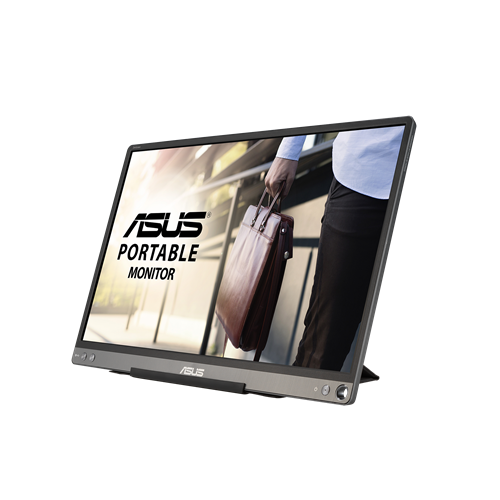 Your price for this item is $299
 -
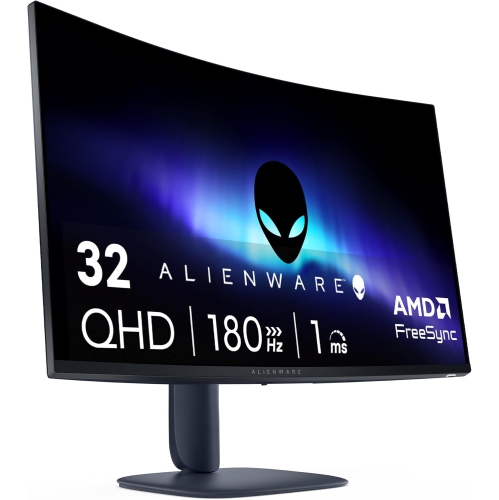 Your price for this item is $599
 -
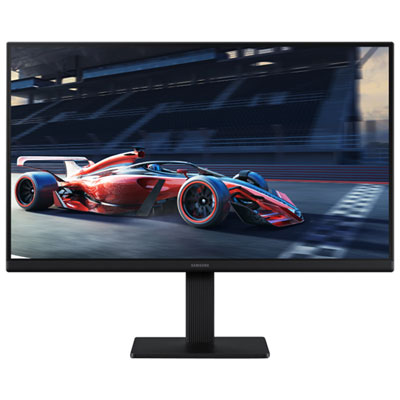 Your price for this item is $94.99
 -
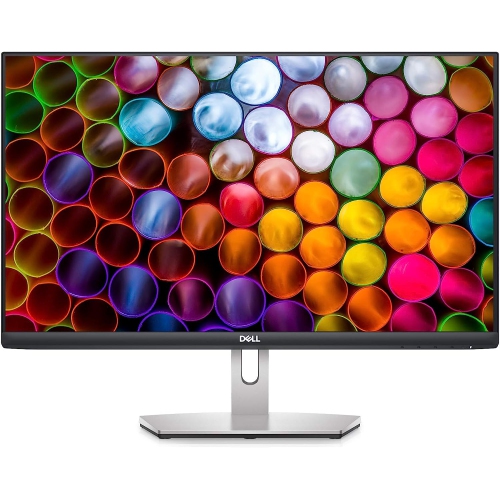 Your price for this item is $329.99
 -
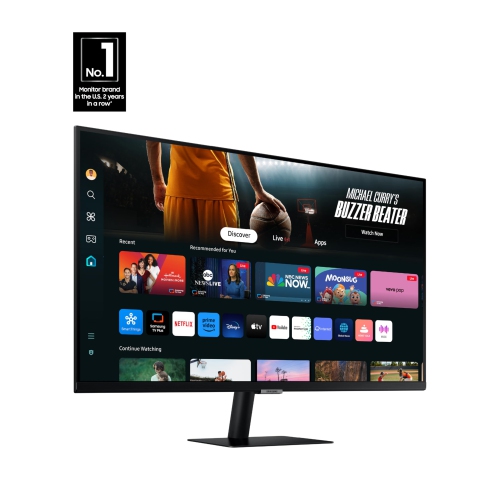 Your price for this item is $499
 -
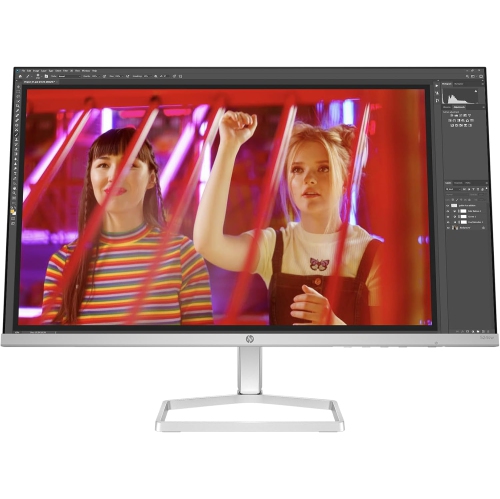 Your price for this item is $265.99
 -
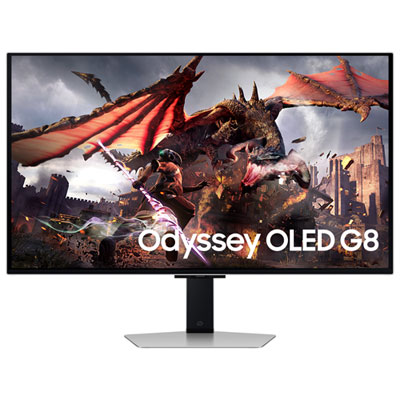 Your price for this item is $1299.97
 -
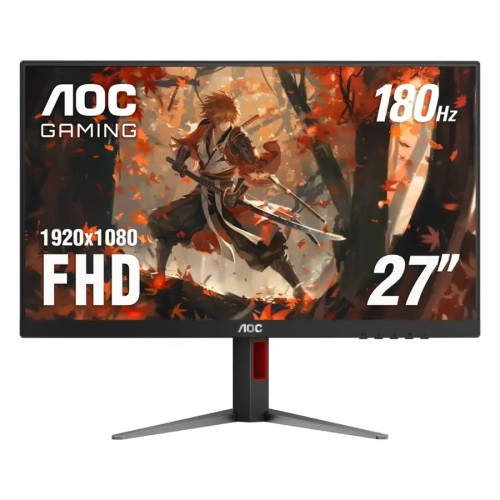 Your price for this item is $249.99
Discover more categories related to HDMI Computer Monitors
Top Collections:
Pokemon Centers, Kindle Devices, Best Budget Office Chairs, Apple iPhones 16, Best Laptops for Writers, iPhone 15 Apple, Canon G7X Cameras, Refurbished Apple Laptops, Alarm Clock, Motorola Razr Phones
Some products may be subject to Environmental Handling Fees
(EHF) depending on your province.
Learn more about EHFs.