Hub Monitors
Hub Monitors offer a streamlined solution for connecting multiple devices and enhancing productivity at your workspace. Designed to simplify your setup, Hub Monitors feature integrated connection options that make it easy to link laptops, peripherals, and accessories. Whether updating your home office or outfitting a professional environment, Hub Monitors help create an organized and efficient workstation. Explore options to find the right fit for your needs and enjoy a seamless experience with advanced connectivity.
Sort
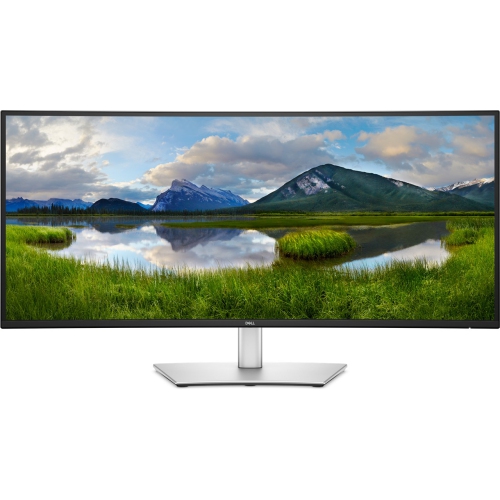
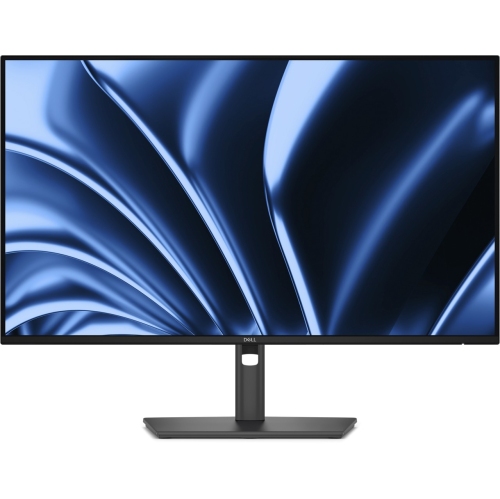
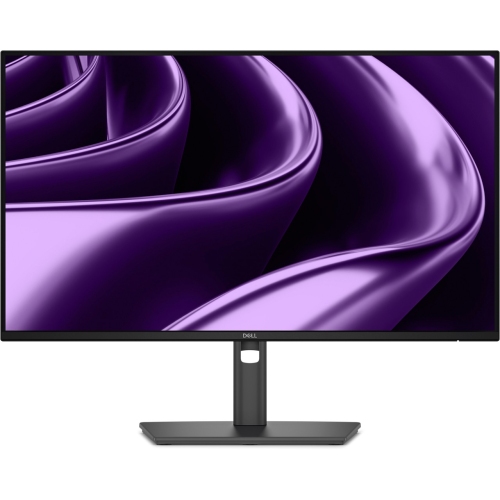
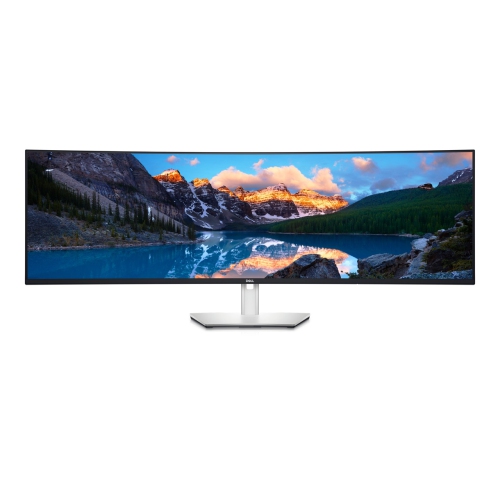
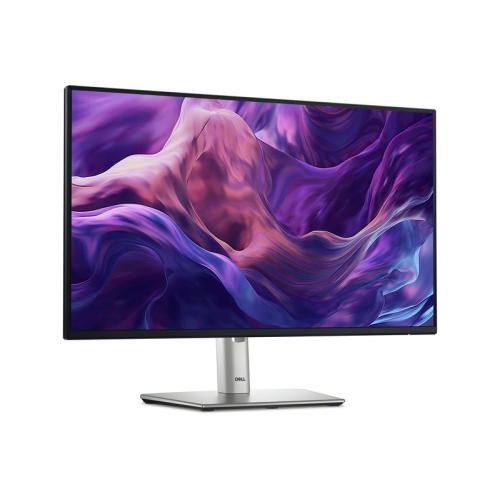
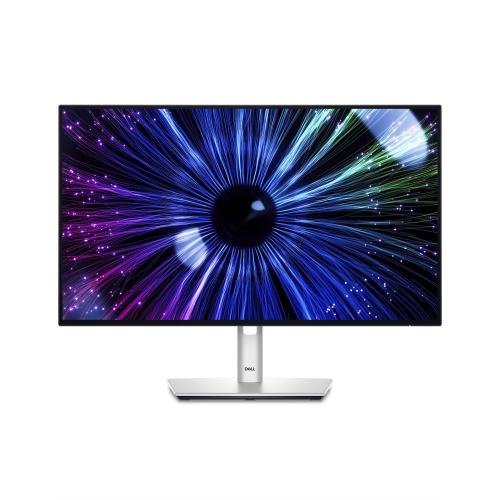
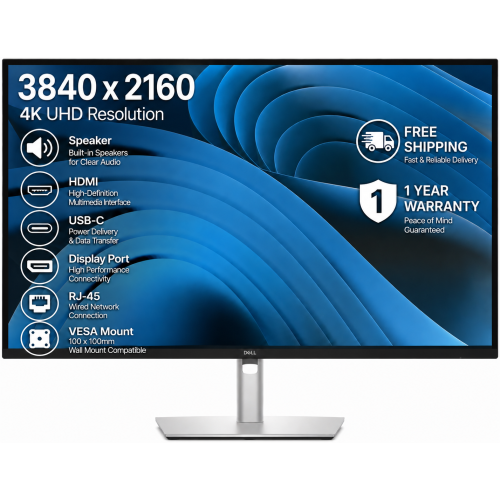
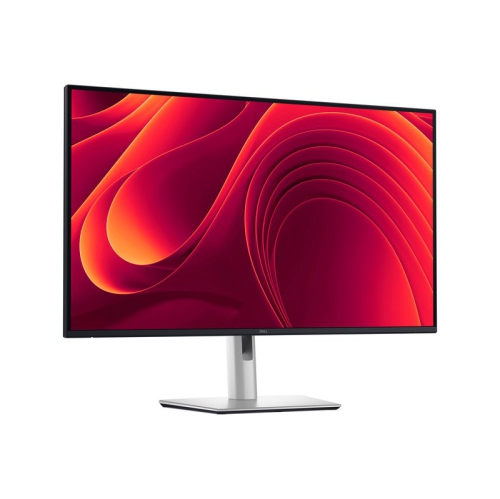
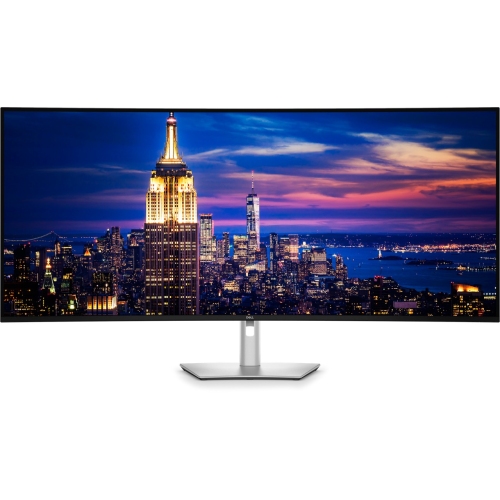
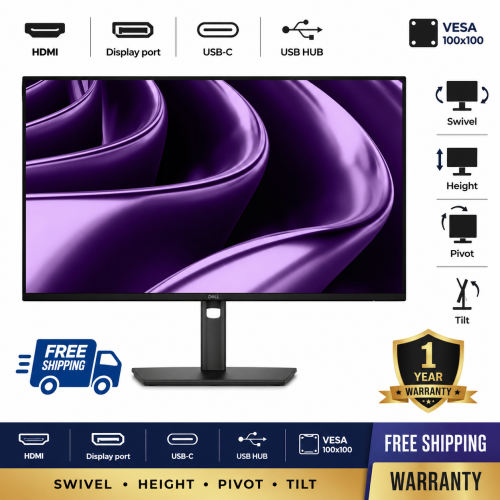
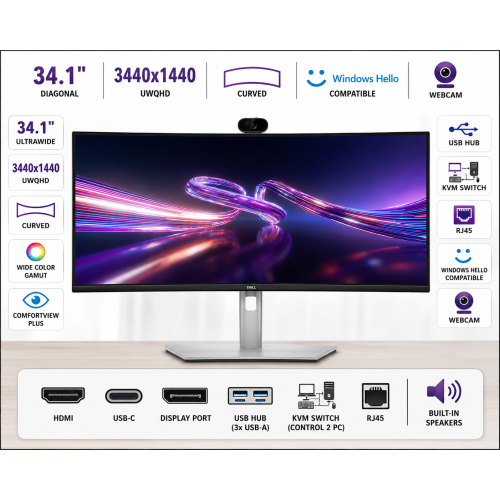
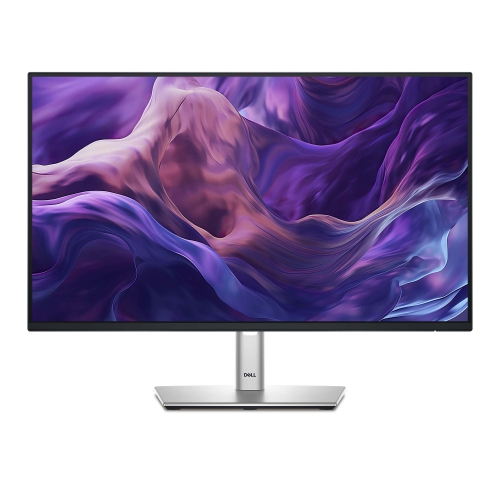
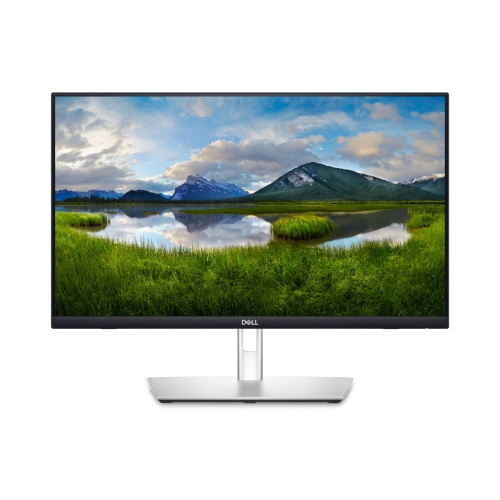
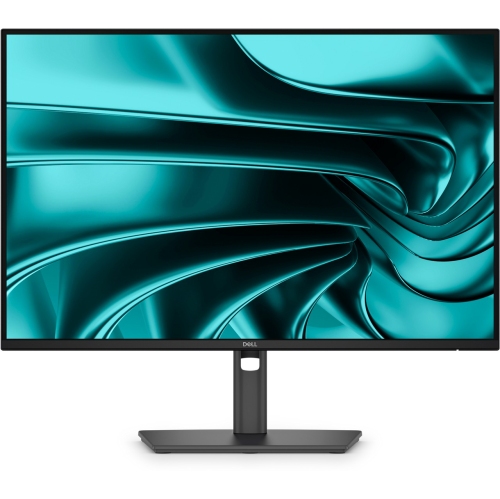
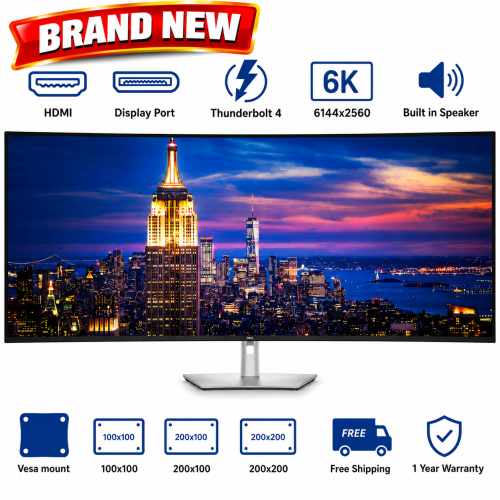
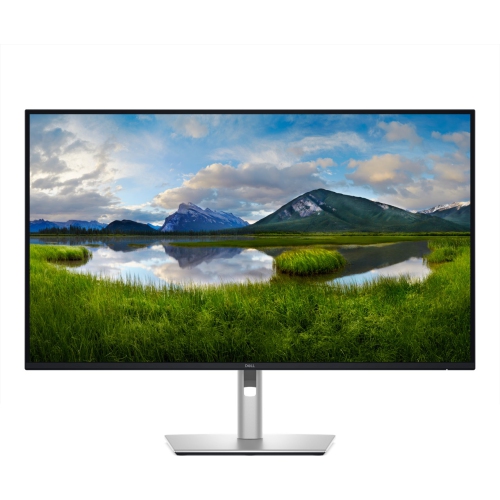

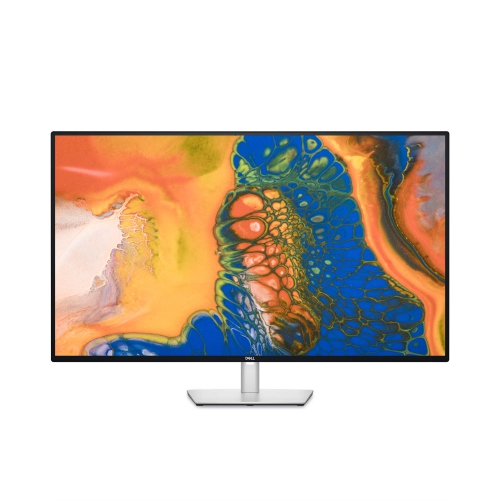
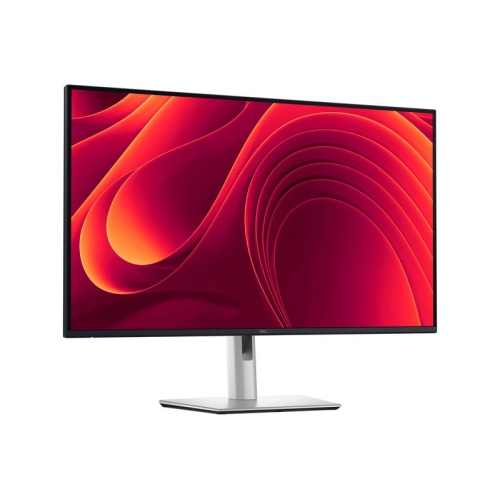
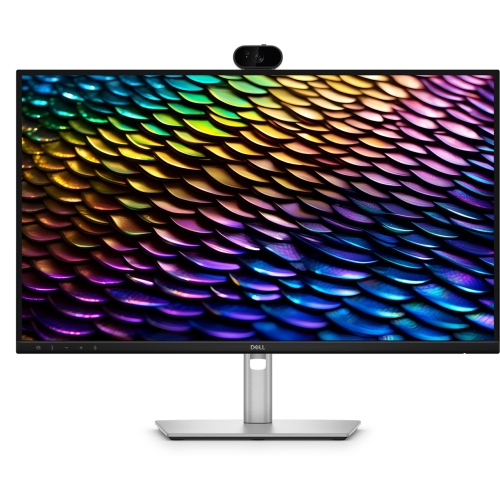
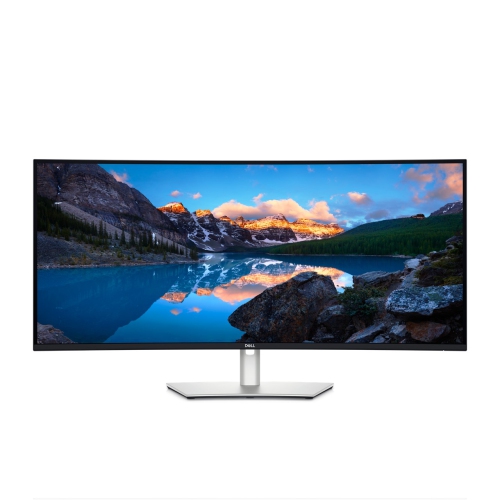
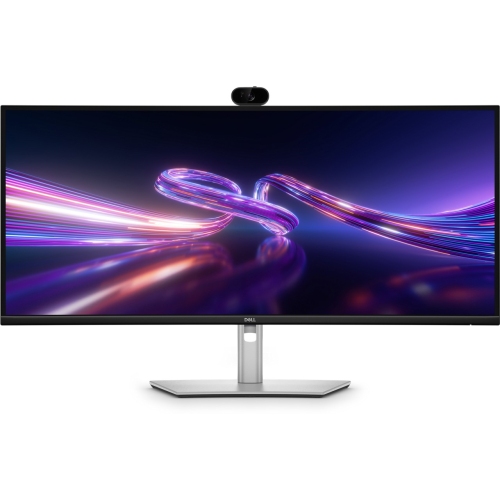
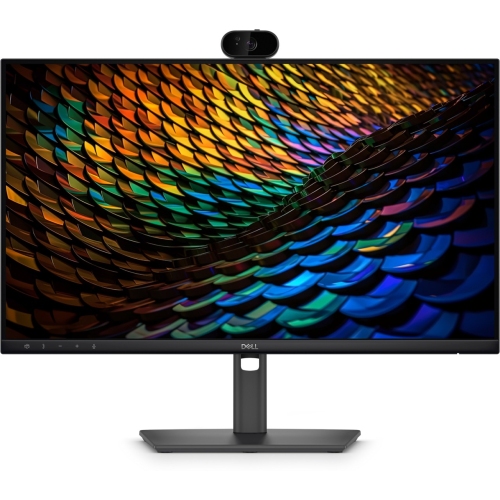
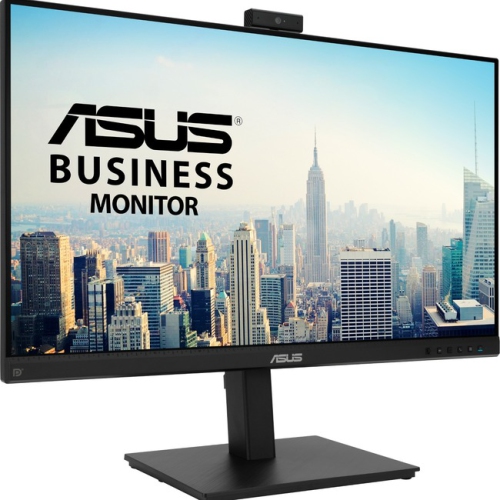
A display that doubles as your desk’s connection centre
Hub monitors combine a computer display with built-in connections for peripherals, allowing the screen to serve as a central connection point for a desk setup. On compatible USB-C or Thunderbolt models, a single cable can carry video, audio, USB data, and power between the monitor and a laptop. A keyboard, mouse, external drive, and other supported accessories can remain plugged into the monitor rather than being disconnected whenever the laptop leaves the desk. This makes hub monitors particularly useful for people who move between a dedicated workstation and other places to work or study. The connection options vary considerably, however. A monitor with a basic USB hub may require a separate video cable and a USB upstream connection, while a USB-C docking monitor may combine those functions and laptop charging. USB-C describes the connector, so the computer port, monitor, and cable must all support the features being used. Video over USB-C commonly requires DisplayPort Alt Mode or a compatible Thunderbolt connection; a charging-only cable cannot replace a suitable video-capable cable. Power delivery also differs between displays. The monitor’s rated charging output needs to meet the laptop’s requirements, particularly for machines handling demanding workloads, and some higher-powered laptops still need their own power adapter. The monitor itself normally requires its own power connection. Downstream USB-A and USB-C ports provide places for accessories, but their data speeds and charging capabilities are not necessarily identical. Built-in Ethernet, where included, adds a wired network connection through the monitor and can be useful for large file transfers or desks where wireless reception is inconsistent. Accessible side or front ports suit devices that are connected frequently, while rear-facing connections help keep permanent cables tucked behind the screen. For a laptop-based workstation, these details determine whether the monitor simply adds a few ports or can take over many of the everyday functions of a separate docking station. Supported behaviour while the display sleeps, including charging and peripheral access, can also differ by model and settings.
Display quality remains just as important as the hub itself, since the screen is where documents, spreadsheets, images, and meetings come together. Screen size, resolution, and viewing distance work together: a larger panel provides more physical space, while a higher resolution adds pixels that can make text and fine details look sharper. A 27-inch QHD display can suit everyday office tasks, while a 4K screen offers greater detail for dense spreadsheets, high-resolution images, and comfortably scaled text. The amount of usable workspace also depends on the computer’s display scaling settings, rather than resolution alone. Ultrawide hub monitors provide a broad canvas for side-by-side documents, editing timelines, and several application windows without a bezel between them. Their wider footprint needs enough desk space and a comfortable viewing distance, and screen sharing may require choosing a single application window so meeting participants can read the content easily. Curved panels can make the edges of a wide display feel more naturally positioned for one seated user, whereas flat panels may suit shared viewing or layouts where straight visual references matter. Panel technology affects viewing angles, contrast, and how consistently colours appear across the screen. Broad viewing angles are useful when reviewing a presentation with someone beside the desk, while stronger contrast can give dark scenes and shadow details more definition. Designers and illustrators comparing Art Monitors may also value a hub monitor that pairs accurate colour with convenient connections for external storage and input devices. Colour gamut coverage and factory calibration are relevant considerations for creative work, although colour-sensitive workflows may still benefit from calibration with dedicated equipment. Matte finishes help diffuse reflections but do not eliminate glare from a window or overhead light. Higher refresh rates can make scrolling and on-screen movement appear smoother, provided the computer and chosen connection support the desired resolution and refresh rate together. High-resolution video and fast USB transfers may also share the connection’s bandwidth, making the supported combination of features more informative than any single headline specification.
A hub monitor also needs to fit the way the desk is used throughout the day. Height adjustment, tilt, and swivel make it easier to position the screen for a comfortable seated posture, while pivot support can be useful for long documents or coding. A sturdy base helps limit movement during typing, but its depth matters on a shallow desk where the keyboard and mouse still need room. VESA mounting compatibility offers an alternative for monitor arms, subject to the display’s mounting pattern and the arm’s weight capacity. Housing materials, stand construction, and hinge quality all contribute to how solid the display feels during regular adjustment. Connection placement matters for durability as well as convenience: cables need enough slack to accommodate height changes without pulling against their ports. For people switching between a work laptop and a personal computer, a built-in KVM switch can allow one keyboard and mouse to control either connected system. The required upstream connections and switching behaviour vary, and picture-by-picture support is a separate feature that can show two sources on the screen at once. Multi-monitor connections also depend on the computer’s graphics capabilities, operating system, and supported connection standard; a video output on the display does not guarantee every computer can extend its desktop through it. Integrated speakers, microphones, or a webcam can reduce the number of separate devices on a desk when those features are included. Students, remote workers, and shared households may appreciate the simpler daily routine of connecting a laptop to an established workspace, while photographers and other creators may place more emphasis on display accuracy and storage connections. Regular care is straightforward: a soft microfibre cloth removes light dust, and any cleaning solution should be suitable for the screen’s coating and applied to the cloth rather than sprayed directly onto the panel. Keeping ventilation openings clear, avoiding pressure on the screen, and routing cables without tight bends help protect both the display and its connections through everyday use.
Top selling and popular products
-
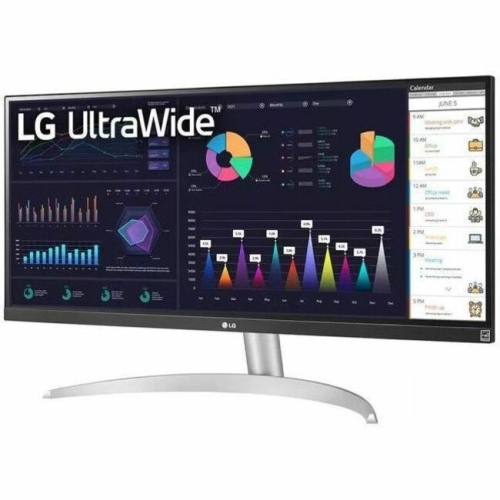 Your price for this item is $783.68
-
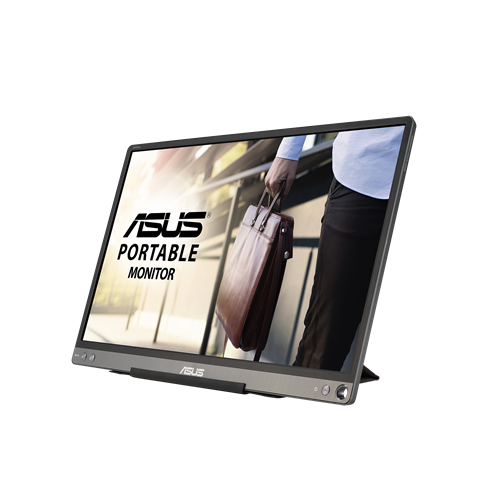 Your price for this item is $299
-
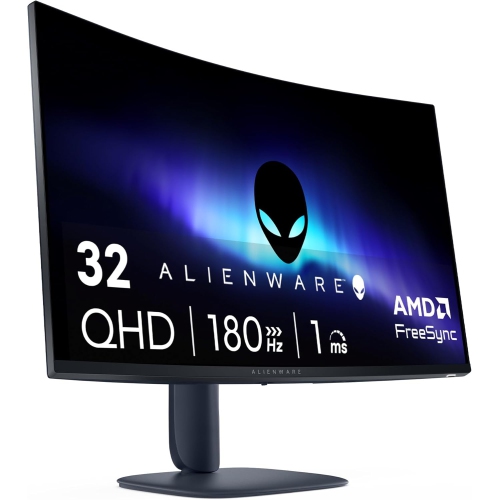 Your price for this item is $469
-
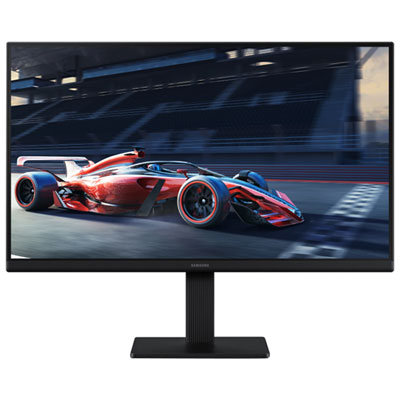 Your price for this item is $94.99
-
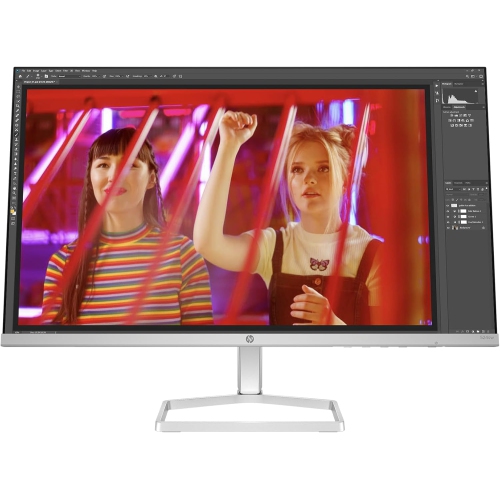 Your price for this item is $177.99
-
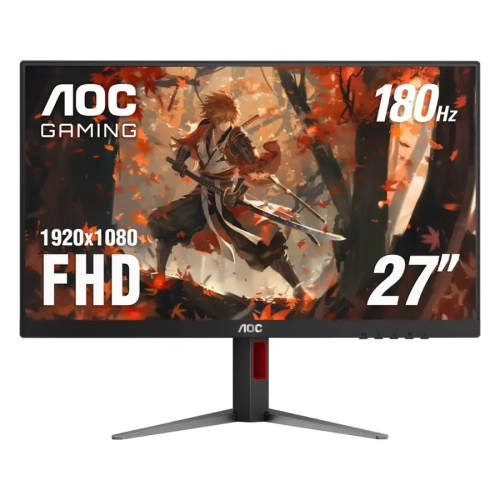 Your price for this item is $229.99
-
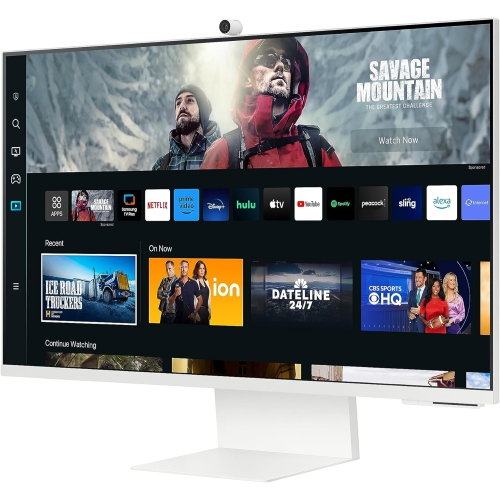 Your price for this item is $1138.68
-
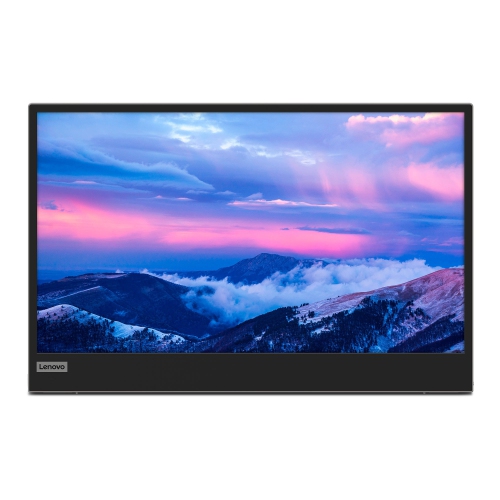 Your price for this item is $355.68
Discover more categories related to Hub Monitors
Top Collections:
Best Black Friday Deals This Year, Best Black Friday Deals On Electronics, Kindle Devices, Best Black Friday Deals On Apple Products, Best Budget Office Chairs, Best Cameras for Sports Photography, Dyson Airwrap, Canon G7X Cameras, Best Laptops for Writers, Samsung Galaxy Phones
Some products may be subject to Environmental Handling Fees
(EHF) depending on your province.
Learn more about EHFs.