Laptop Fan Replacements
Laptop fan replacements are essential components for maintaining the optimal performance and longevity of your device. Over time, laptop fans can wear out due to dust accumulation or extended use, leading to overheating and reduced efficiency. Replacing a faulty fan is a cost-effective solution that helps prevent potential damage to your laptop's internal components. Whether you're a tech enthusiast or simply looking to extend the life of your device, finding the right laptop fan replacement ensures that your computer runs smoothly and quietly. Explore our selection to find high-quality options that suit various laptop models and needs.
Sort
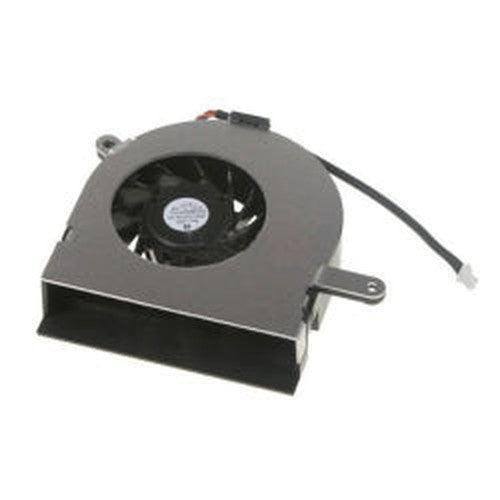
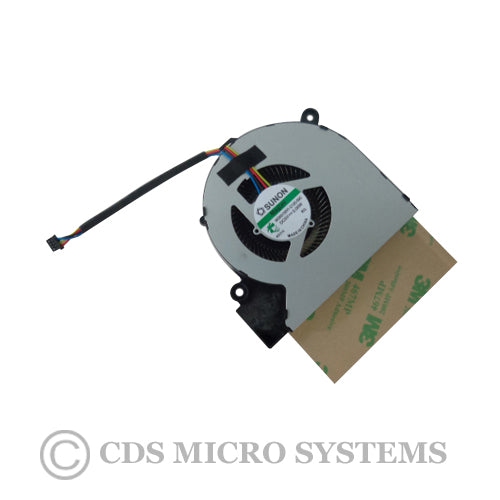
Exact compatibility matters more than appearance or size
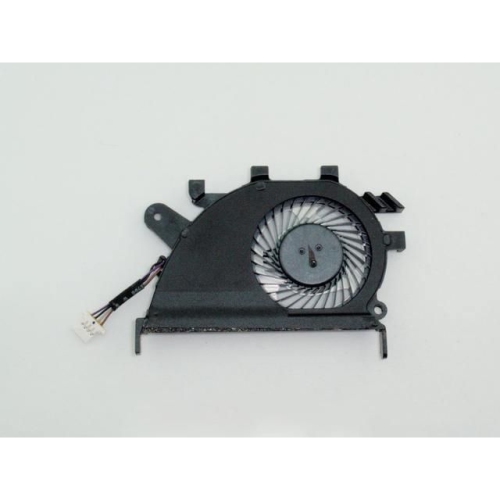
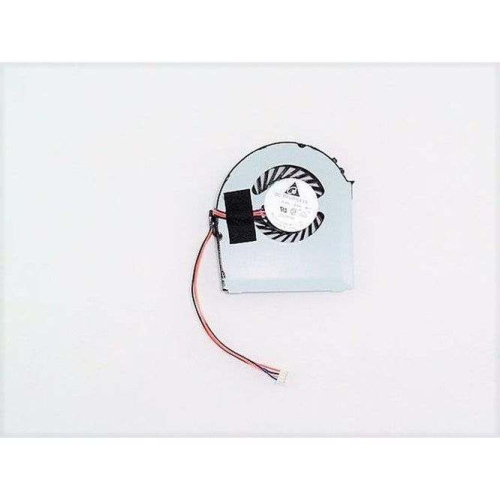
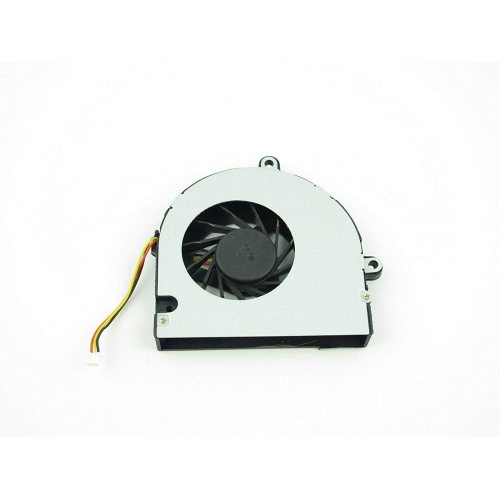
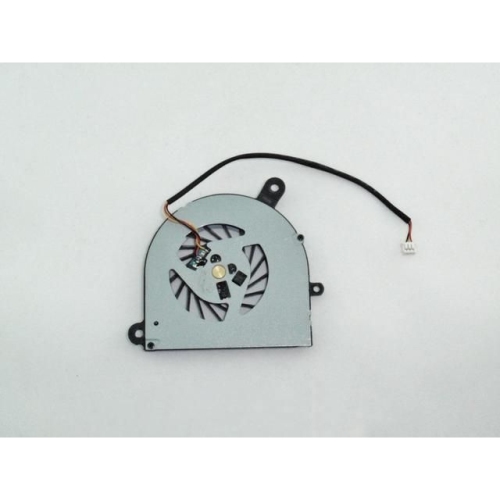
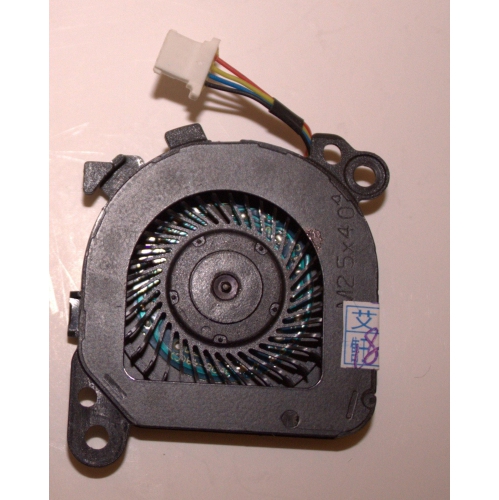
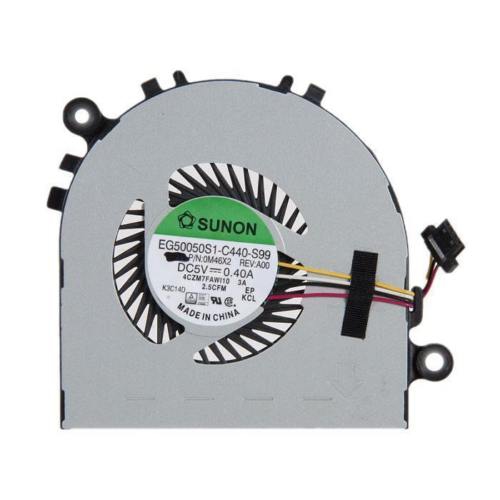
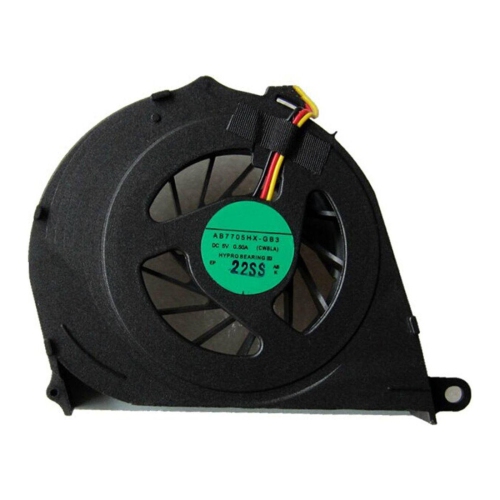
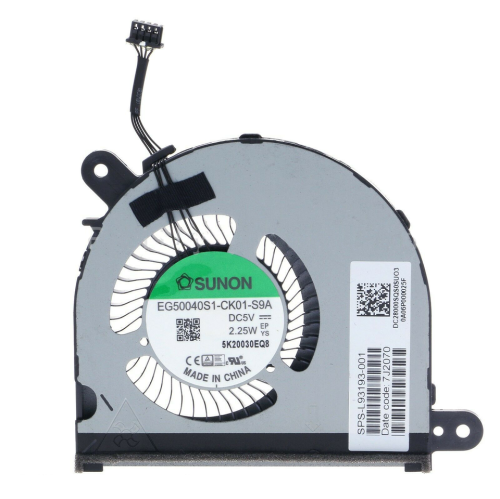
Laptop fan replacements are practical components for restoring airflow and dependable cooling when a laptop fan becomes noisy, intermittent, or stops spinning. Inside a portable computer, the cooling fan draws warm air away from the processor and graphics hardware, helping the system maintain stable operating temperatures during everyday tasks, video calls, creative work, gaming, and other demanding workloads. A worn fan may produce a rattling, grinding, or buzzing sound, while a failing fan may run at full speed more often, cause the laptop to feel unusually warm, trigger performance slowdowns, or lead to unexpected shutdowns. Dust buildup can create similar symptoms, so it is worth checking the vents and fan area before ordering a replacement. If cleaning does not resolve the issue, replacing the fan can be a focused repair that helps extend the useful life of a familiar laptop. These parts are generally chosen by people who are comfortable working inside electronics, technicians servicing customer devices, or anyone trying to avoid replacing an otherwise capable computer. They can also be a thoughtful practical gift for a student, home-office user, hobbyist, or family member who enjoys maintaining their own technology, although compatibility is much more important than appearance or general size.
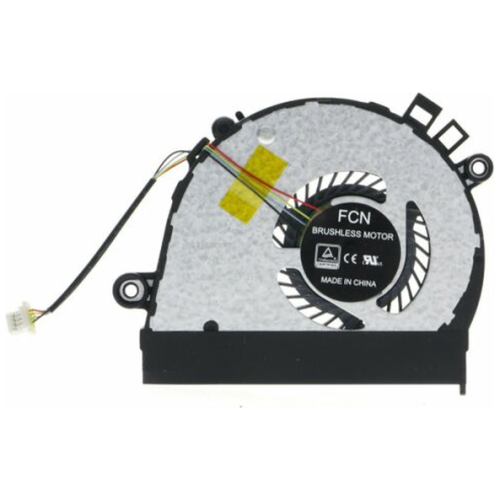
The most important purchase consideration is an exact match for the laptop’s make, model, revision, and internal part number. Laptop fans are not universal, even when two computers look similar or have the same screen size. Check the identification label on the original fan, often found on a small sticker or printed directly on the housing, and compare every letter and number with the replacement listing. The laptop’s model code may be printed on the underside, inside the battery compartment, or in the system information menu, but the fan’s own part number is often the most reliable reference because a single laptop family can use different cooling assemblies. Also check whether the part is designed for the processor side, graphics side, or a combined cooling assembly, and confirm the connector shape, cable position, mounting-hole layout, fan direction, and voltage rating. Some replacement fans are sold on their own, while others are included with a heat pipe or heatsink; these are not always interchangeable. A listing that appears close in photographs may still have a different screw pattern or cable length, and forcing an ill-fitting component can damage the connector or place pressure on the motherboard. Reviewing the product details, comparing photographs with the original part, and confirming the return policy can make the repair much less stressful. For more involved repairs where the fan connector, power circuit, or board itself may be at fault, browse Laptop Motherboard Replacements as another relevant replacement-part category.
Replacing a laptop fan usually involves shutting the computer down completely, disconnecting the charger and other accessories, removing the bottom cover, and disconnecting the internal battery before touching the fan cable. Work on a clean, well-lit, non-carpeted surface, keep track of screws by location, and use a screwdriver that fits properly so the small fasteners are not stripped. After the old fan is disconnected, remove its retaining screws, lift it out carefully, and install the replacement without pinching its cable or obstructing the air channel. A fan that shares a heatsink with the processor may require additional steps, including loosening the heatsink in the correct order and refreshing the thermal compound; this is more delicate because the heatsink must sit evenly for heat to transfer properly. When reassembling, make sure the battery and fan connector are firmly seated, the cover is secure, and no loose screws or cables remain inside. Start the laptop and listen for smooth operation, then check that air is moving through the vent and that the system is not displaying a cooling or fan error. It is normal for a replacement fan to ramp up during startup or heavier workloads, but persistent grinding, scraping, vibration, or a fan that does not spin indicates that the part may be incompatible or incorrectly installed. Anyone who is unsure about opening a slim laptop, working near delicate ribbon cables, or handling a fan mounted beneath the motherboard should consider professional service. During the cooler months, reliable cooling remains important because laptops still generate heat indoors, particularly when used on soft surfaces, in busy home offices, or during long study and entertainment sessions. Choosing the correct replacement and installing it carefully can help a trusted laptop run more quietly and consistently for everyday computing.
The most important purchase consideration is an exact match for the laptop’s make, model, revision, and internal part number. Laptop fans are not universal, even when two computers look similar or have the same screen size. Check the identification label on the original fan, often found on a small sticker or printed directly on the housing, and compare every letter and number with the replacement listing. The laptop’s model code may be printed on the underside, inside the battery compartment, or in the system information menu, but the fan’s own part number is often the most reliable reference because a single laptop family can use different cooling assemblies. Also check whether the part is designed for the processor side, graphics side, or a combined cooling assembly, and confirm the connector shape, cable position, mounting-hole layout, fan direction, and voltage rating. Some replacement fans are sold on their own, while others are included with a heat pipe or heatsink; these are not always interchangeable. A listing that appears close in photographs may still have a different screw pattern or cable length, and forcing an ill-fitting component can damage the connector or place pressure on the motherboard. Reviewing the product details, comparing photographs with the original part, and confirming the return policy can make the repair much less stressful. For more involved repairs where the fan connector, power circuit, or board itself may be at fault, browse Laptop Motherboard Replacements as another relevant replacement-part category.
Replacing a laptop fan usually involves shutting the computer down completely, disconnecting the charger and other accessories, removing the bottom cover, and disconnecting the internal battery before touching the fan cable. Work on a clean, well-lit, non-carpeted surface, keep track of screws by location, and use a screwdriver that fits properly so the small fasteners are not stripped. After the old fan is disconnected, remove its retaining screws, lift it out carefully, and install the replacement without pinching its cable or obstructing the air channel. A fan that shares a heatsink with the processor may require additional steps, including loosening the heatsink in the correct order and refreshing the thermal compound; this is more delicate because the heatsink must sit evenly for heat to transfer properly. When reassembling, make sure the battery and fan connector are firmly seated, the cover is secure, and no loose screws or cables remain inside. Start the laptop and listen for smooth operation, then check that air is moving through the vent and that the system is not displaying a cooling or fan error. It is normal for a replacement fan to ramp up during startup or heavier workloads, but persistent grinding, scraping, vibration, or a fan that does not spin indicates that the part may be incompatible or incorrectly installed. Anyone who is unsure about opening a slim laptop, working near delicate ribbon cables, or handling a fan mounted beneath the motherboard should consider professional service. During the cooler months, reliable cooling remains important because laptops still generate heat indoors, particularly when used on soft surfaces, in busy home offices, or during long study and entertainment sessions. Choosing the correct replacement and installing it carefully can help a trusted laptop run more quietly and consistently for everyday computing.
Top selling and popular products
-
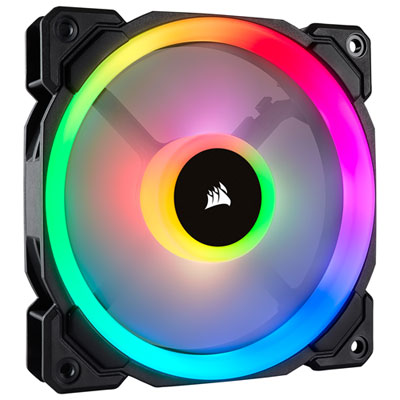 Your price for this item is $44.99
 -
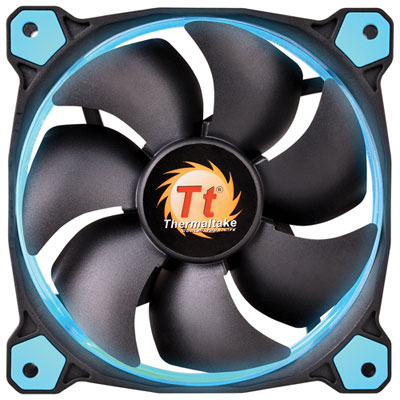 Your price for this item is $19.99
 -
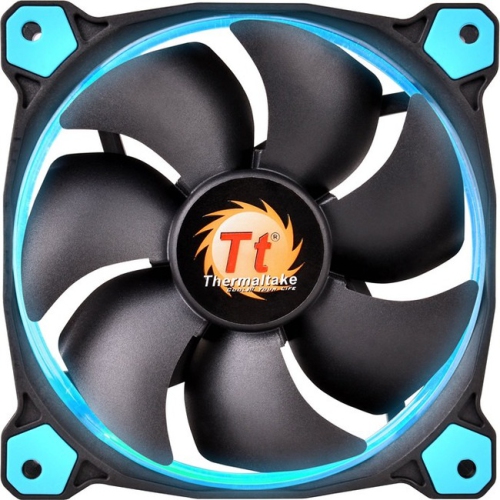 Your price for this item is $45.68
 -
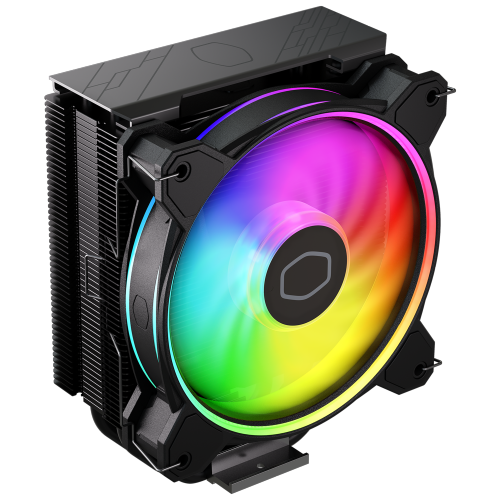 Your price for this item is $43.99
 -
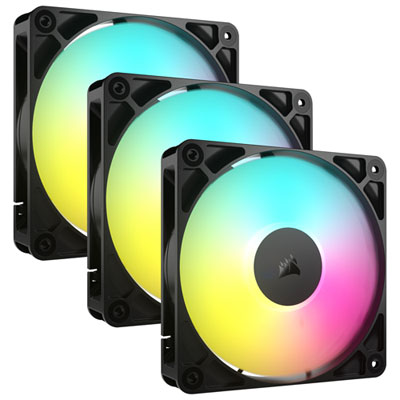 Your price for this item is $74.99
 -
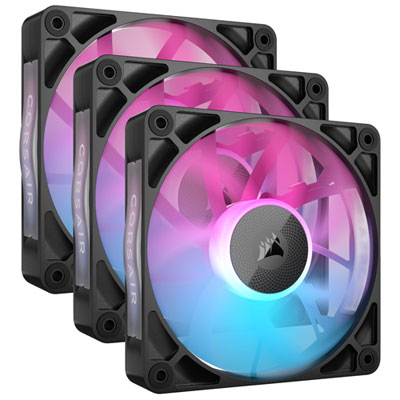 Your price for this item is $139.95
 -
 Your price for this item is $179.95
 -
 Your price for this item is $149.99
Discover more categories related to Laptop Fan Replacements
Top Collections:
Pokemon Centers, Best Budget Office Chairs, Kindle Devices, Best Cameras for Sports Photography, Best Laptops for Writers, Pokémon 30th Celebration Cards, Laptops for Business Work, Samsung Galaxy Phones, Canon G7X Cameras, Best Cell Phones Under $300
Some products may be subject to Environmental Handling Fees
(EHF) depending on your province.
Learn more about EHFs.