Laptop Screen Wipes
Keep your device displays looking clear and smudge-free with Laptop Screen Wipes. Perfect for everyday maintenance, these wipes help you quickly remove fingerprints, dust, and streak marks from your laptop screens. Easy to use at home, in the office, or on the go, Laptop Screen Wipes are a convenient solution for keeping your screens looking their best. Explore a variety of options designed to suit different needs and preferences.
Sort
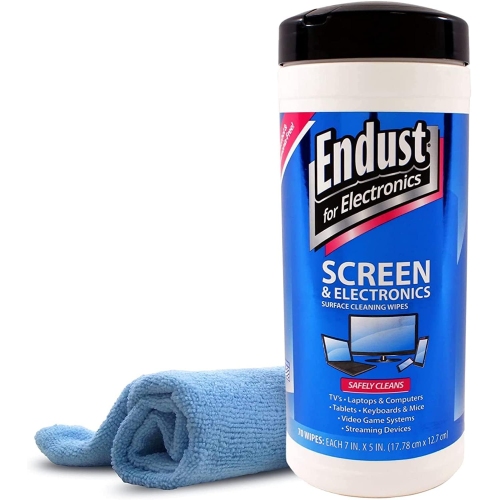
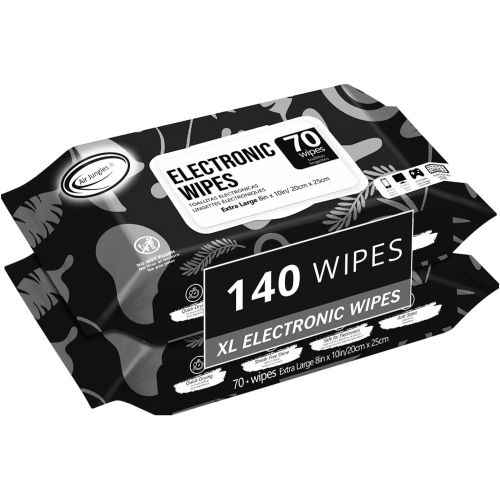
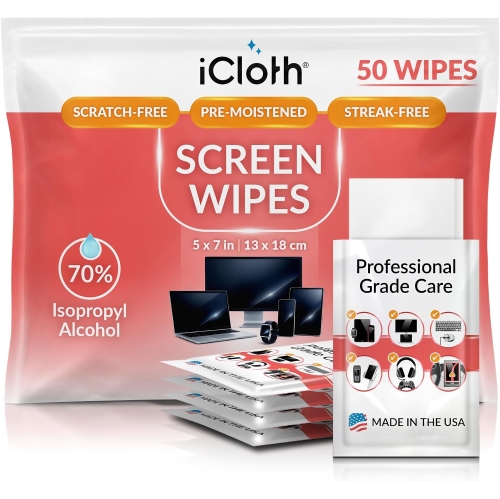
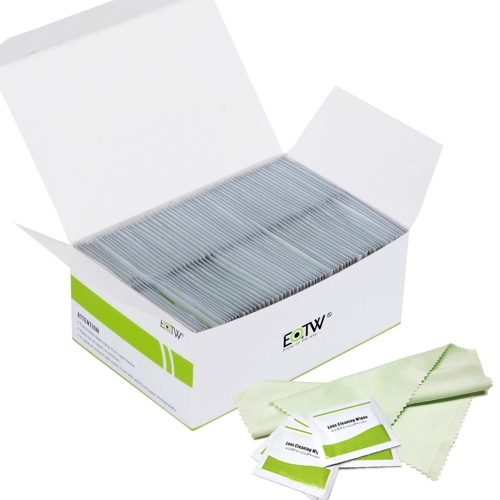
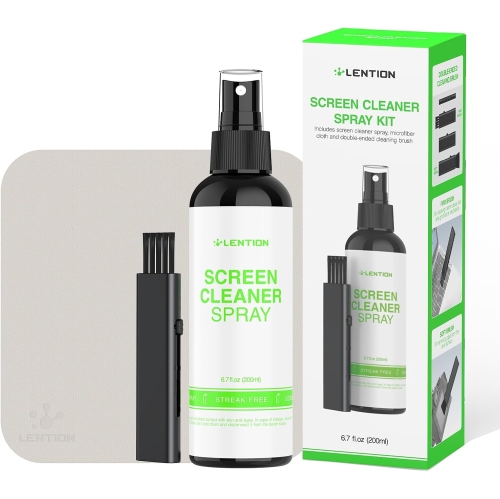
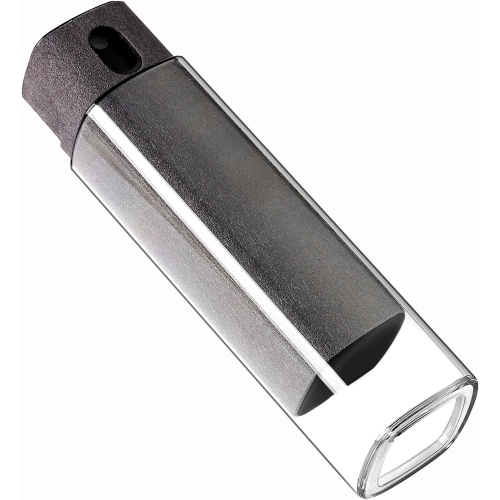
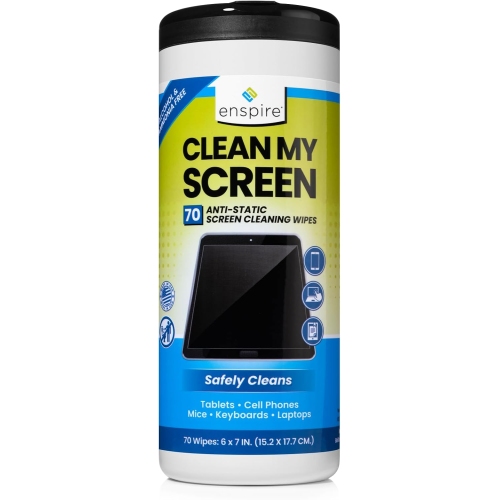
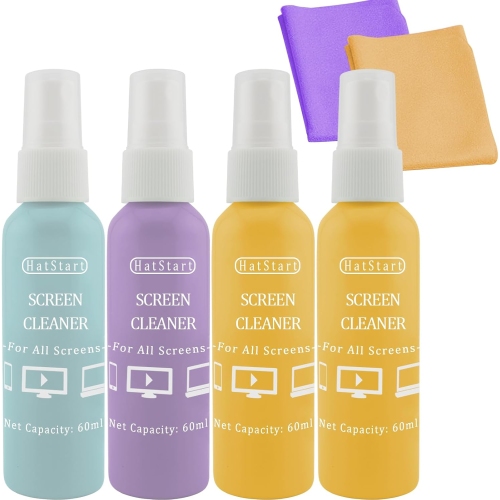
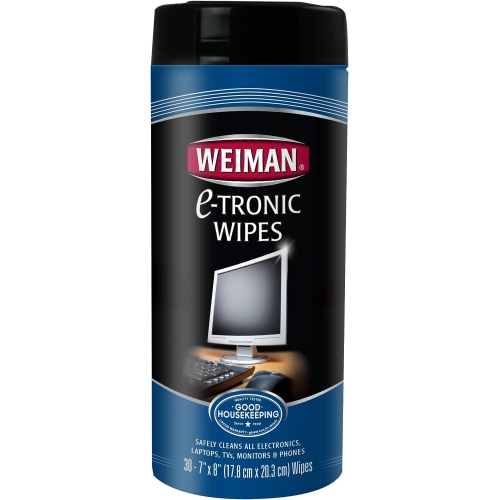
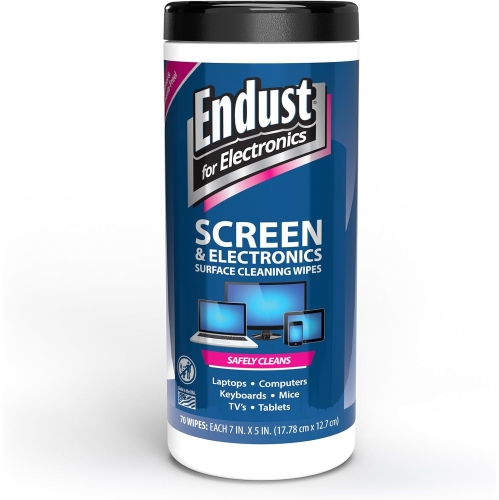
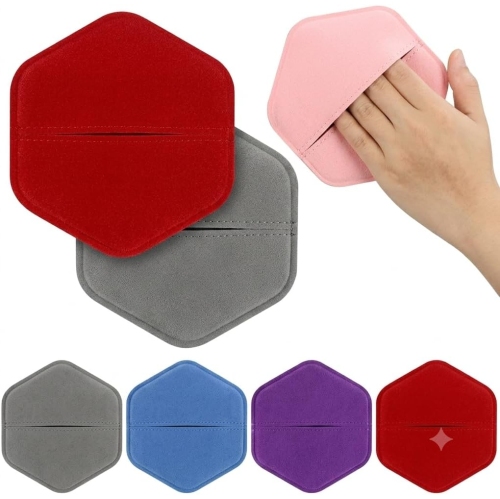
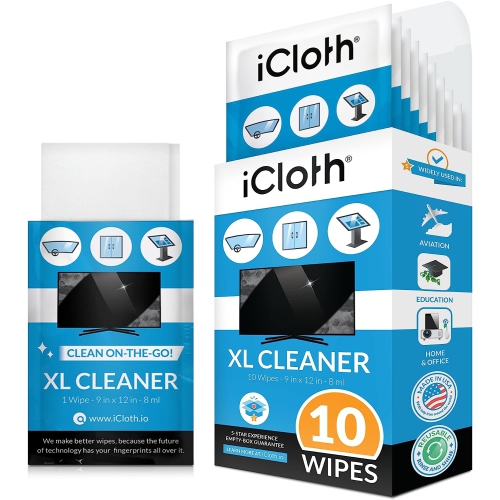
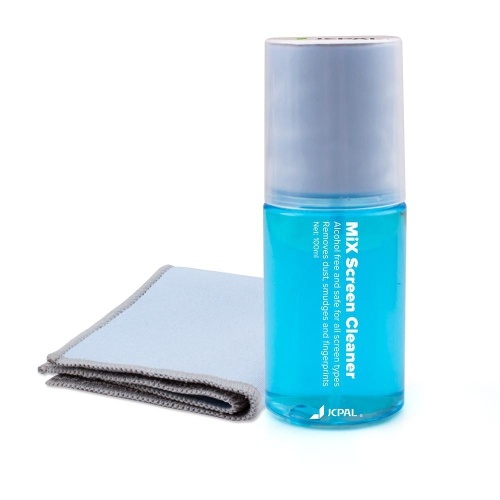
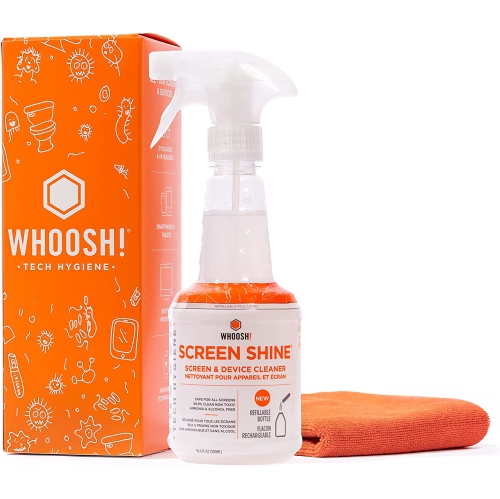
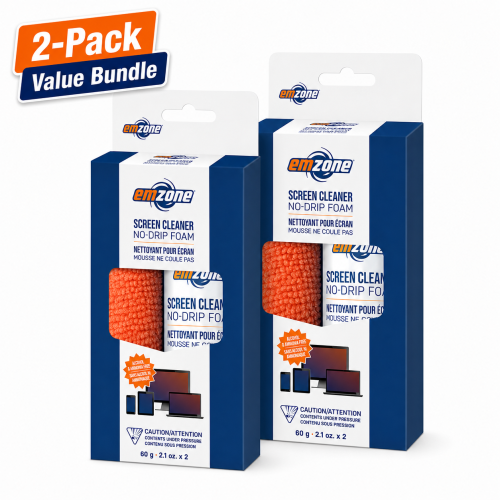
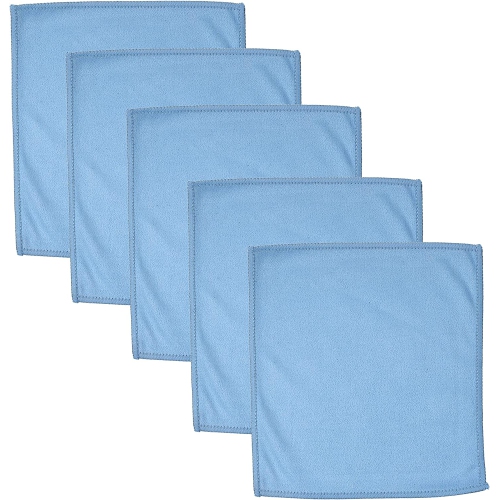
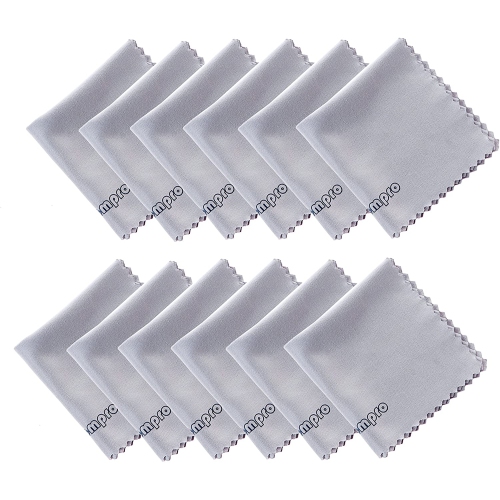
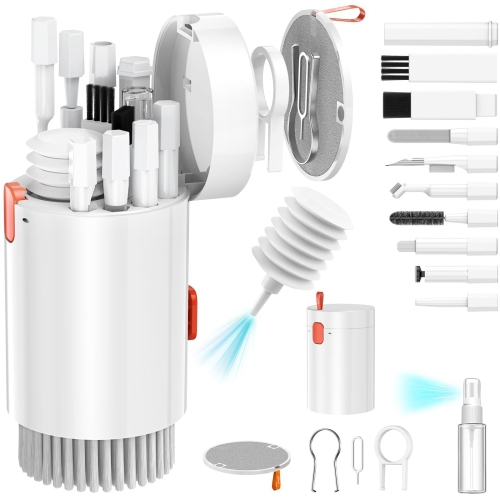

Why the right wipe depends on your screen’s finish
Laptop screen wipes are made to lift fingerprints, dust and light smudges from laptop displays. Pre-moistened wipes combine a soft cloth and a measured amount of cleaning solution, so there’s no need to spray liquid near the screen. A soft, low-lint wipe is useful on a glossy display, where both fingerprints and stray fibres tend to show up when light hits the panel. A matte screen can hide individual prints better, but oils left behind from opening the lid or pointing at the display can still collect in visible patches. Compatibility matters more than whether the laptop has a touchscreen or whether the panel looks like glass. Glossy, matte and touch displays can have different coatings, and even two screens that look alike may call for different care. Look for wipes labelled for laptop displays and check the laptop manufacturer’s cleaning directions, especially for an anti-reflective or specially textured finish. An alcohol-free or ammonia-free label describes the formula, but it doesn’t guarantee that the wipe is suitable for every screen. Some manufacturers permit certain alcohol-based cleaners on particular models, while others recommend only a lightly dampened cloth. Household glass cleaners, general-purpose cleaning wipes and disinfecting wipes aren’t substitutes for a compatible screen wipe. A wipe intended for a display is designed for routine cleaning, and its suitability for a screen doesn’t mean it should also be used on the keyboard, trackpad or laptop lid. Those surfaces may have their own care requirements. For a screen that’s only dusty, a clean, dry microfibre cloth may be all that’s needed. A compatible pre-moistened wipe is more useful for the thumbprint at the top of the screen that a dry cloth tends to spread rather than lift.
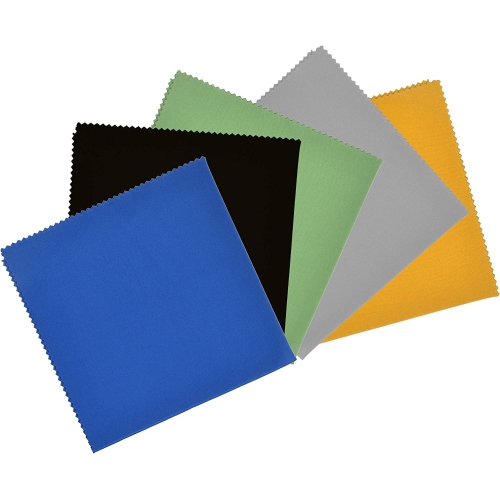
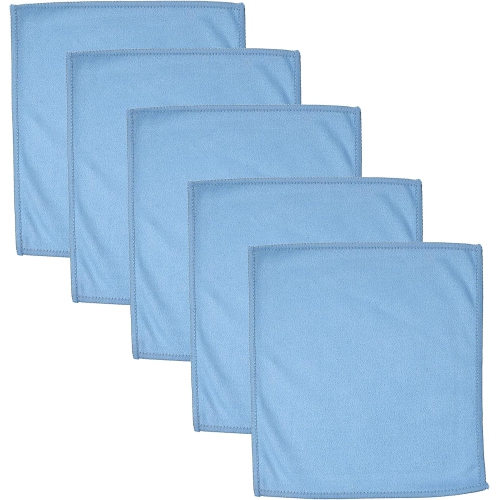
Packaging and wipe size make a difference in how well laptop screen wipes fit into a routine. Individually wrapped wipes slip into a laptop sleeve or work bag without adding much bulk, and each wipe stays sealed until it’s needed. That format makes sense for someone who cleans a laptop only occasionally or notices a smudge just before a presentation away from their desk. A resealable pack or canister is easier to keep near a shared workstation, especially when more than one person uses the same touchscreen. The closure matters: a lid that hasn’t clicked shut can leave the next few wipes too dry to pick up oily marks. Store the pack as directed and seal it promptly after taking out a wipe. For a compact laptop, a smaller wipe is easy to manoeuvre around the corners; on a larger display, a wider sheet leaves more clean surface to work with before the cloth starts to drag or redeposit marks. A wipe that holds together when unfolded is easier to keep flat against the screen than one that bunches or tears, and a low-lint material means less time chasing fibres around the bezel. The wipe should be damp rather than dripping. If it’s intended for one use, discard it once it’s dirty or dry instead of rewetting it. A separate, reusable microfibre cloth can be handy for removing light dust between cleanings or buffing away streaks when the display instructions allow it. Keep that cloth in a clean pouch or drawer rather than loose beside charger plugs and crumbs, and wash it according to its care directions. Screen wipes make a practical addition to a laptop bag for a student, a frequent traveller or someone setting up a home office. As a small gift alongside a sleeve or other laptop accessory, they’re most useful when they match the recipient’s display care instructions.
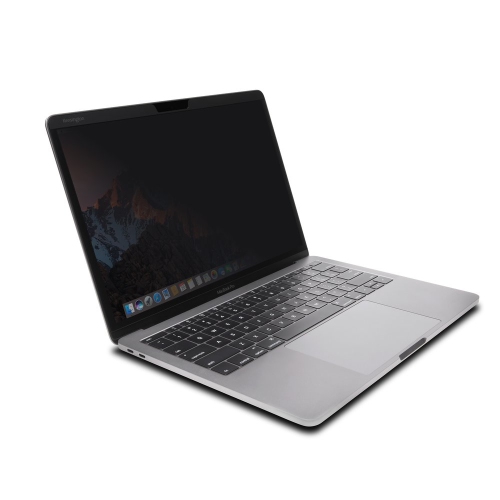
Before cleaning, shut down the laptop and unplug it. A dark screen makes it easier to see the arc of a fingerprint or the tiny spots that disappear against a bright document. Follow the directions for both the display and the wipe, and don’t spray cleaner directly onto the laptop. If there’s loose grit on the display, remove it gently with a clean, soft cloth as directed before using a damp wipe; dragging particles across the panel can leave scratches. Support the lid so it doesn’t wobble, then wipe with light, overlapping strokes rather than pressing on a stubborn spot. Turn the wipe to a clean section if it picks up residue, and take particular care near the bezel, camera and hinges, where moisture can seep into seams or openings. A mark that remains after a gentle pass may need another pass with a fresh wipe, not more pressure. If the screen’s care directions allow it, a clean, dry microfibre cloth can pick up any remaining streaks without adding more liquid. Let the display dry before closing the lid or turning the laptop back on. A privacy filter adds another surface to care for: if a laptop has one fitted, check the filter’s own instructions before using a wipe on it, since what works on the display underneath may not suit the filter. Laptop Screen Privacy Filters serve a separate purpose by limiting what someone seated off to the side can see, while screen wipes deal with the marks visible from directly in front of the laptop. For day-to-day care, the choice comes down to a wipe that suits the display finish, a pack that stays sealed between uses and a sheet large enough to clean the panel without going back over it with a dirty section.
Top selling and popular products
-
 Your price for this item is $9.99
-
 Your price for this item is $54.98
-
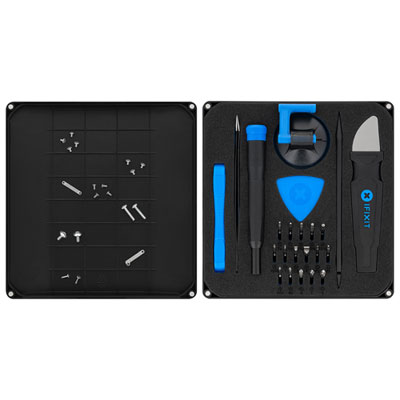 Your price for this item is $43.99
-
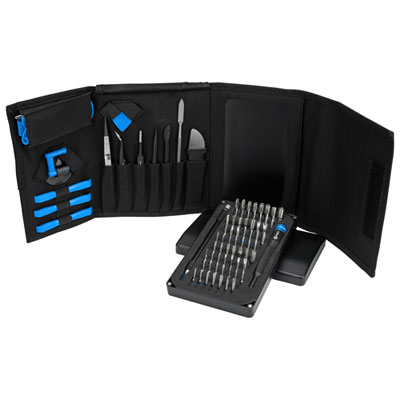 Your price for this item is $108.99
-
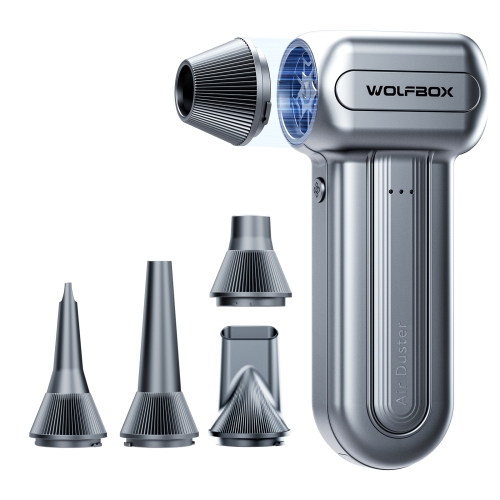 Your price for this item is $59.99
-
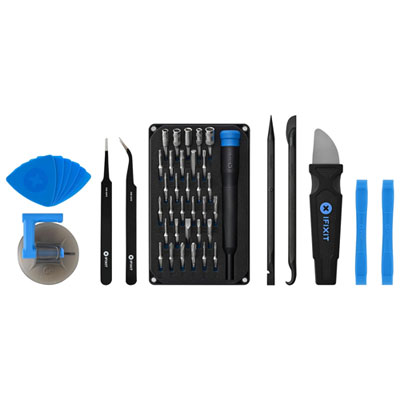 Your price for this item is $67.99
-
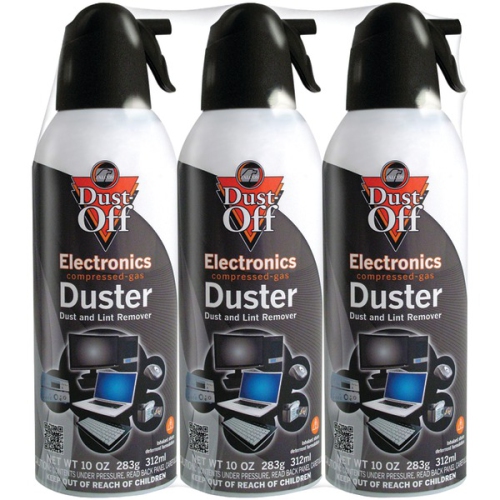 Your price for this item is $33.99
-
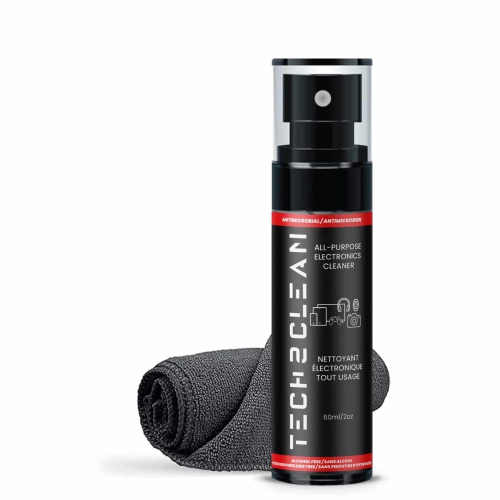 Your price for this item is $19.99
Discover more categories related to Laptop Screen Wipes
Top Collections:
Best Black Friday Deals This Year, Best Black Friday Deals On Electronics, Kindle Devices, Best Black Friday Deals On Apple Products, Best Budget Office Chairs, Best Cameras for Sports Photography, Dyson Airwrap, Canon G7X Cameras, Best Laptops for Writers, Samsung Galaxy Phones
Some products may be subject to Environmental Handling Fees
(EHF) depending on your province.
Learn more about EHFs.