Laptop Screen Fixes
Discovering a cracked or malfunctioning laptop screen can be frustrating, but finding the right solution doesn't have to be. Whether you're dealing with flickering displays, dead pixels, or unexpected dimming, our range of laptop screen fixes is here to help restore your device to its optimal performance. From DIY repair kits to professional services, we offer everything you need to get back to seamless browsing, streaming, and working. Explore options tailored for various issues and find the perfect fix that suits your needs and budget.
Sort
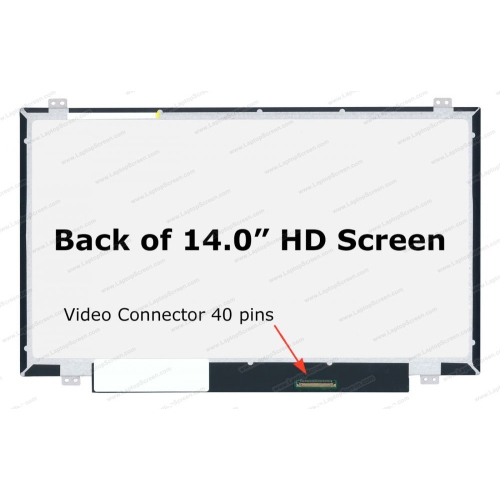
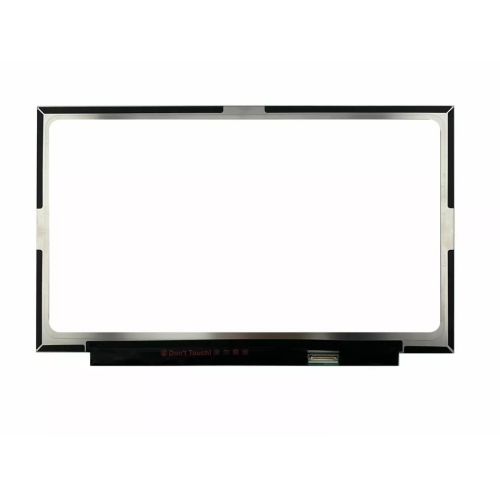
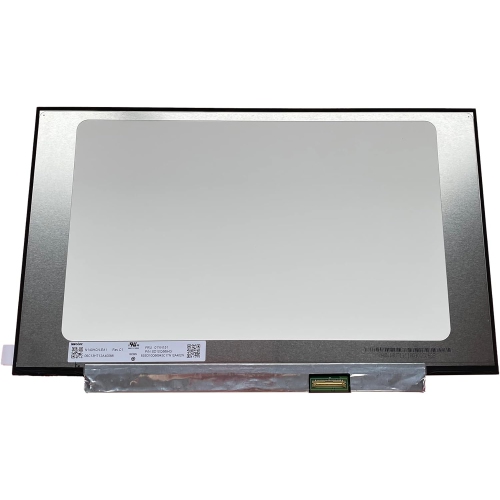
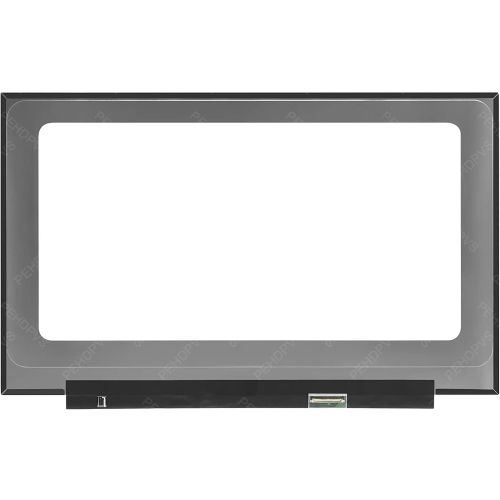
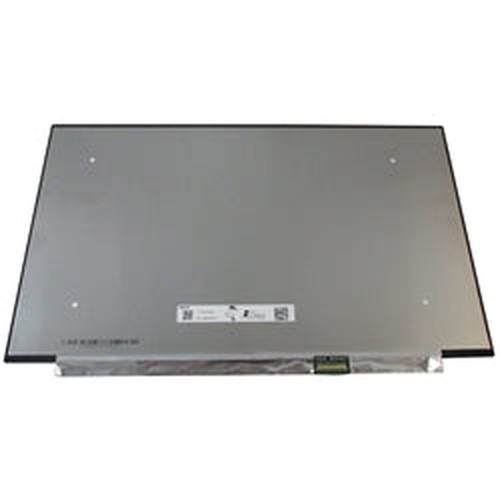

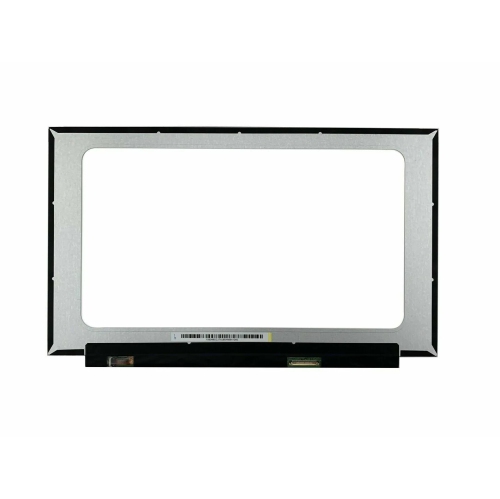
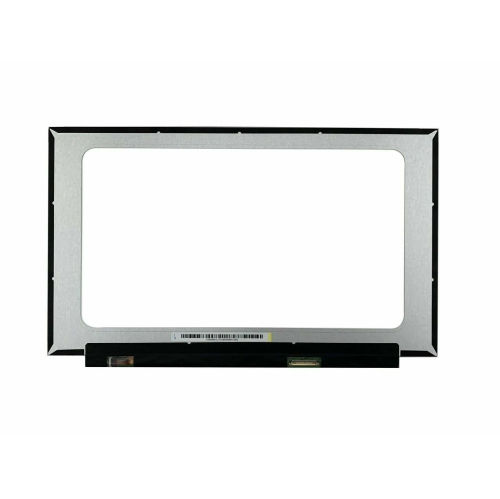
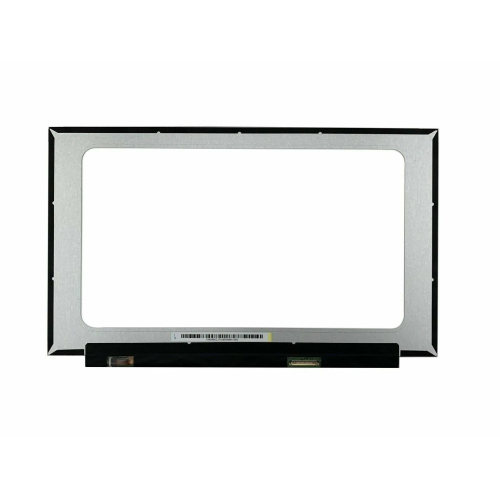
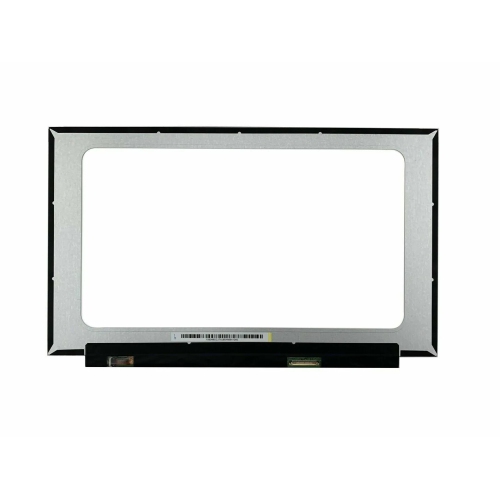
Compatible replacement screens can restore your laptop’s display
Laptop screen fixes can help restore a clearer, more usable display when a notebook develops a blank screen, flickering image, dim backlight, loose connection, cracked panel, dead pixels, or visible marks. The first step is to identify whether the problem comes from the display itself or from another part of the computer. Save your work when possible, shut the laptop down, disconnect the power adapter, and remove the battery if the design allows it. Holding the power button for about 15 to 20 seconds can discharge residual power before restarting. If the laptop remains blank, connect it to an external monitor or television using a compatible video connection. A working image on the external display often indicates that the laptop panel, backlight, display cable, or hinge area needs attention, while no image on either screen may point to a graphics driver, operating system, memory, or motherboard issue. A faint image that is easier to see with a flashlight can suggest a backlight problem, while lines that change when the lid moves may indicate a cable or hinge-related fault. These simple checks can prevent unnecessary purchases and help determine whether a replacement display, cable, cleaning accessory, diagnostic tool, or professional repair is the most suitable next step.
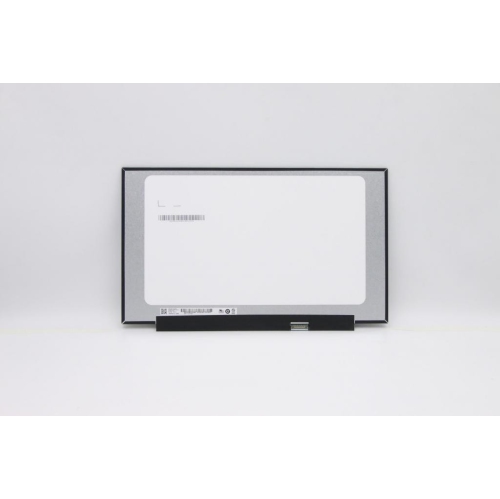
Products in this selection may be useful for careful maintenance, display troubleshooting, or laptop screen replacement projects. Anyone considering a replacement panel should locate the exact laptop model and screen specifications before ordering, since size, resolution, connector type, mounting points, refresh rate, and backlight technology can vary between models that look almost identical. A compatible screwdriver set and non-marring pry tools can help with the small screws and trim pieces around a display bezel, while an anti-static work surface or wrist strap can reduce the risk of static discharge during internal handling. Backing up important files before opening the computer is essential, and the laptop should be fully powered down rather than left in sleep mode. For a do-it-yourself repair, work on a clean, well-lit table and keep screws organized in the order they are removed; a small tray or labelled piece of tape can be surprisingly helpful when several screw lengths are involved. Test the replacement display before fully reattaching the bezel, but avoid touching exposed circuitry or forcing a connector into place. If the screen is cracked, the hinge is bent, the cable is damaged, or the laptop uses a difficult-to-access internal design, a qualified repair technician may be the safer choice. These products can also be practical gifts for a student, remote worker, photographer, traveller, or family member who relies on a laptop for school, communication, creative work, or managing household tasks and would appreciate having the right supplies close at hand when a display problem appears.
Keeping a laptop screen clean can also make everyday viewing more comfortable and help distinguish dust, smudges, and residue from genuine display defects. Use a soft, screen-safe cloth and an appropriate cleaning solution or Laptop Screen Wipes, applying the cleaner to the cloth rather than spraying directly onto the panel. Avoid paper towels, abrasive materials, household glass cleaners, and excess moisture, which can leave fibres behind or work their way into the bezel and keyboard. Gentle maintenance is especially useful for laptops carried between classrooms, offices, cafés, and home workspaces, where fingerprints and fine dust can gather along the edges of the display. Persistent dead pixels, image retention, or burn-in may not respond to cleaning, and rapidly changing colour patterns or a white screen may only help with limited, temporary pixel issues rather than physical damage. A cursor on an otherwise blank screen can sometimes be related to the file manager or display software; restarting the file manager, entering safe mode, or updating the graphics driver may resolve a software fault. If the image continues to disappear, shows spreading dark patches, or has a crack beneath the surface, stop pressing on the panel and arrange professional service or use a correctly matched replacement. During the warmer part of the year and through the cooler months, careful storage in a padded laptop bag, avoiding pressure on the lid, and allowing the computer to return to room temperature before use can help protect repairs and keep the display dependable.
Products in this selection may be useful for careful maintenance, display troubleshooting, or laptop screen replacement projects. Anyone considering a replacement panel should locate the exact laptop model and screen specifications before ordering, since size, resolution, connector type, mounting points, refresh rate, and backlight technology can vary between models that look almost identical. A compatible screwdriver set and non-marring pry tools can help with the small screws and trim pieces around a display bezel, while an anti-static work surface or wrist strap can reduce the risk of static discharge during internal handling. Backing up important files before opening the computer is essential, and the laptop should be fully powered down rather than left in sleep mode. For a do-it-yourself repair, work on a clean, well-lit table and keep screws organized in the order they are removed; a small tray or labelled piece of tape can be surprisingly helpful when several screw lengths are involved. Test the replacement display before fully reattaching the bezel, but avoid touching exposed circuitry or forcing a connector into place. If the screen is cracked, the hinge is bent, the cable is damaged, or the laptop uses a difficult-to-access internal design, a qualified repair technician may be the safer choice. These products can also be practical gifts for a student, remote worker, photographer, traveller, or family member who relies on a laptop for school, communication, creative work, or managing household tasks and would appreciate having the right supplies close at hand when a display problem appears.
Keeping a laptop screen clean can also make everyday viewing more comfortable and help distinguish dust, smudges, and residue from genuine display defects. Use a soft, screen-safe cloth and an appropriate cleaning solution or Laptop Screen Wipes, applying the cleaner to the cloth rather than spraying directly onto the panel. Avoid paper towels, abrasive materials, household glass cleaners, and excess moisture, which can leave fibres behind or work their way into the bezel and keyboard. Gentle maintenance is especially useful for laptops carried between classrooms, offices, cafés, and home workspaces, where fingerprints and fine dust can gather along the edges of the display. Persistent dead pixels, image retention, or burn-in may not respond to cleaning, and rapidly changing colour patterns or a white screen may only help with limited, temporary pixel issues rather than physical damage. A cursor on an otherwise blank screen can sometimes be related to the file manager or display software; restarting the file manager, entering safe mode, or updating the graphics driver may resolve a software fault. If the image continues to disappear, shows spreading dark patches, or has a crack beneath the surface, stop pressing on the panel and arrange professional service or use a correctly matched replacement. During the warmer part of the year and through the cooler months, careful storage in a padded laptop bag, avoiding pressure on the lid, and allowing the computer to return to room temperature before use can help protect repairs and keep the display dependable.
Top selling and popular products
-
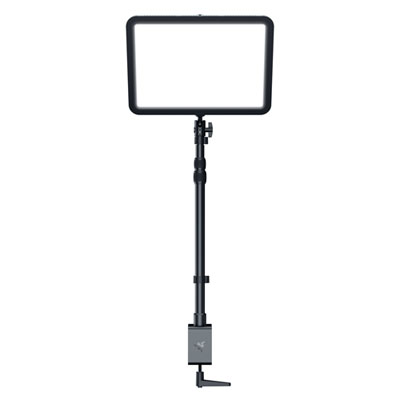 Your price for this item is $429.99
 -
 Your price for this item is $89.99
 -
 Your price for this item is $93.55
 -
 Your price for this item is $169.95
 -
 Your price for this item is $439
 -
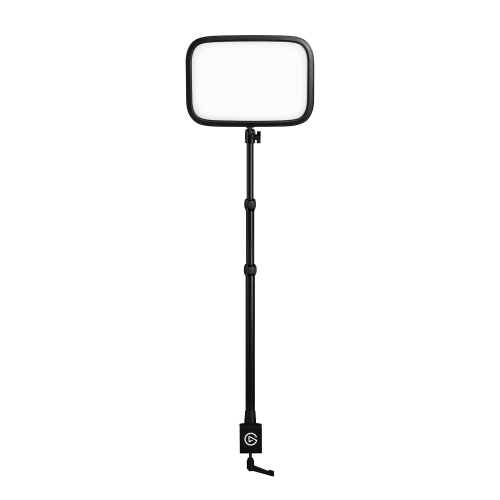 Your price for this item is $265.99
 -
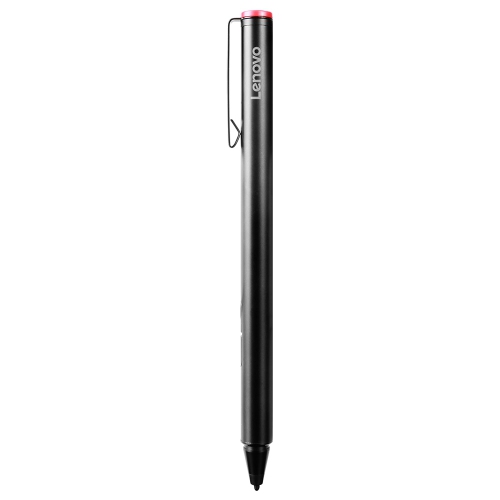 Your price for this item is $112.68
 -
 Your price for this item is $119.68
Discover more categories related to Laptop Screen Fixes


Top Collections:
Pokemon Centers, Kindle Devices, Best Budget Office Chairs, Apple iPhones 16, Canon G7X Cameras, iPhone 15 Apple, Alarm Clock, Refurbished Apple Laptops, Flip Phones, Best Laptops for Writers
Some products may be subject to Environmental Handling Fees
(EHF) depending on your province.
Learn more about EHFs.