MacBook Internal SSDs
A MacBook's flash storage is a good choice for storing your operating system and other frequently used programs, but if you want to free up space, an internal solid-state drive (SSD) is the best option. Here are some of the best SSDs available for the MacBook.
Sort


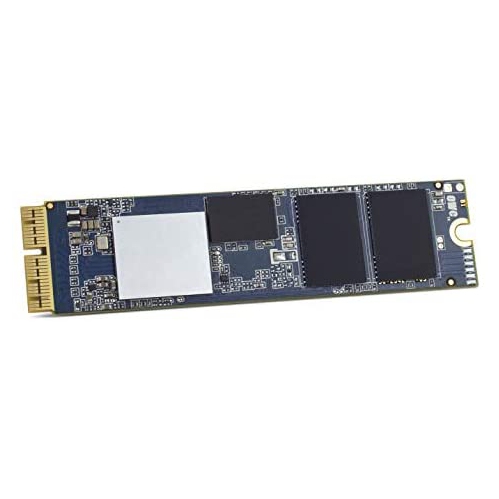
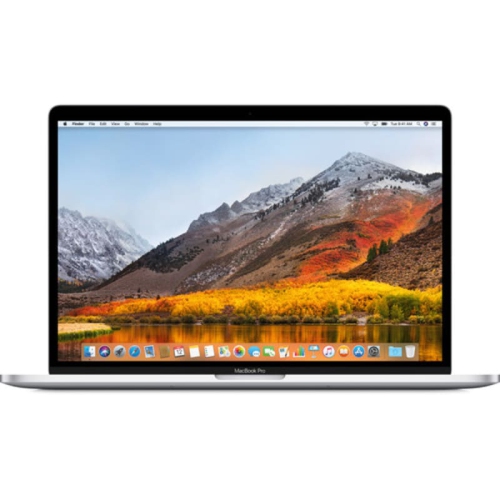
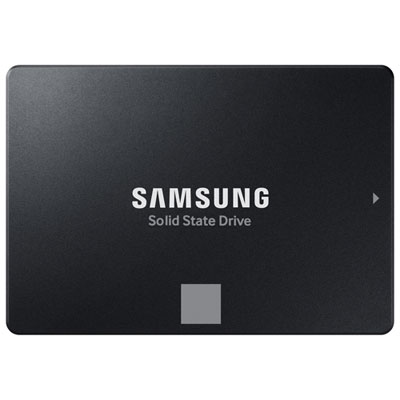
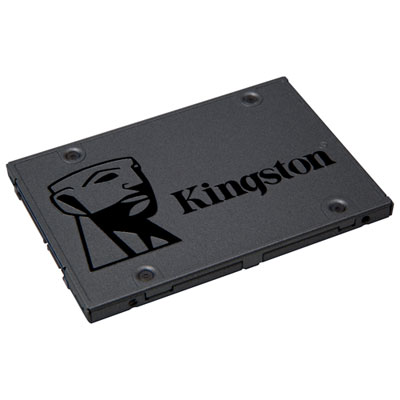
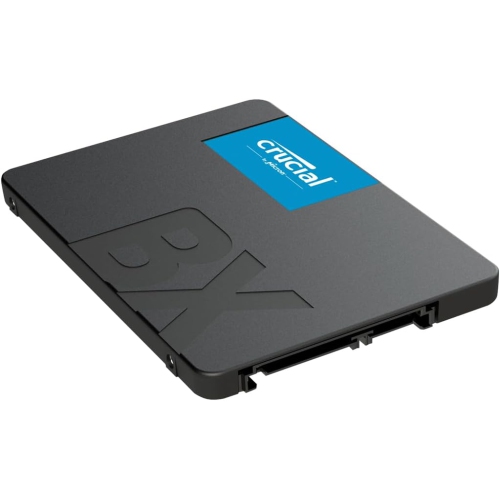
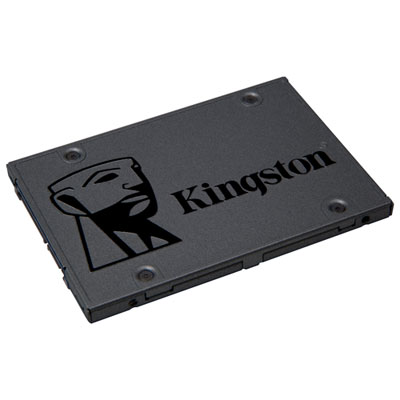
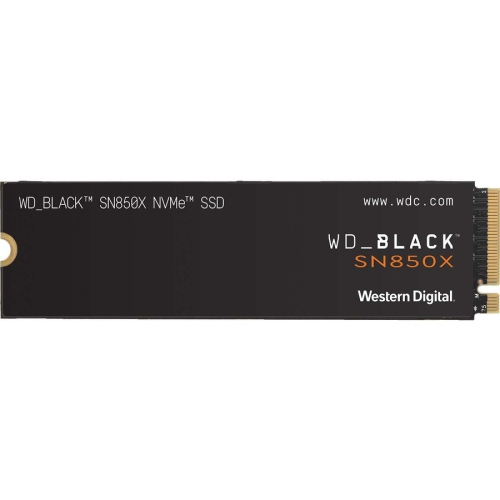
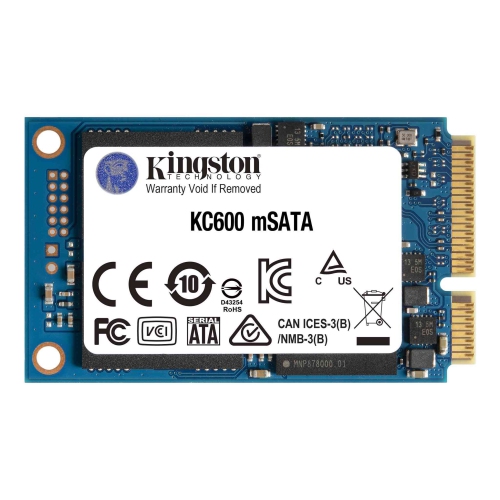

![SAMSUNG 870 Evo 1Tb SATA 2.5" Internal SSD (Mz-77E1T0B/am) [Canada Version] [Open Box]](https://multimedia.bbycastatic.ca/multimedia/products/500x500/161/16164/16164240.jpeg)

More MacBook storage depends on the right fit
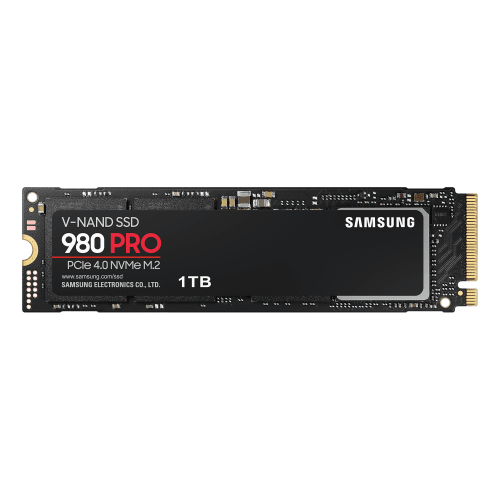
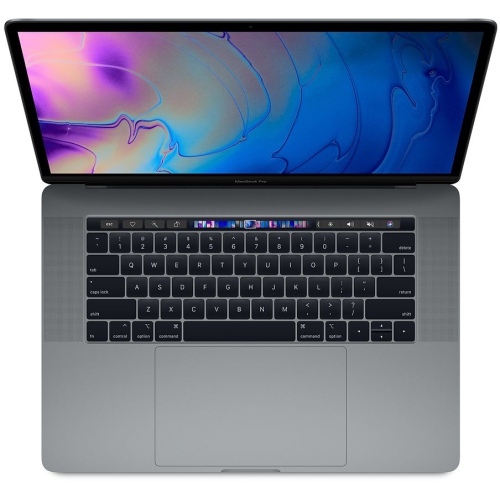
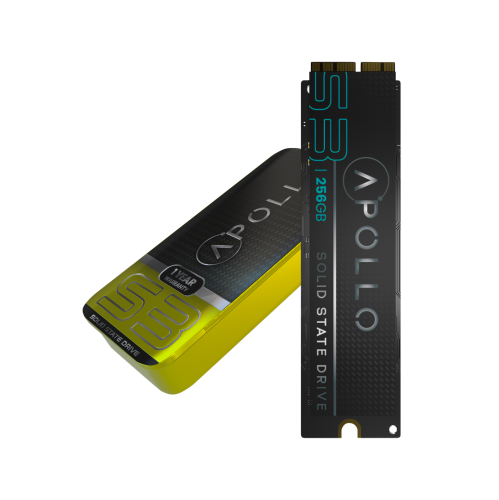
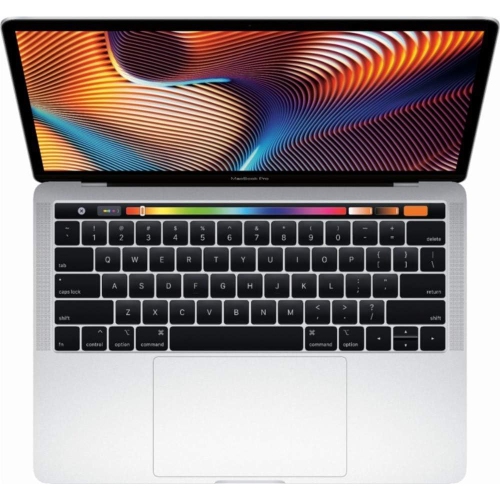
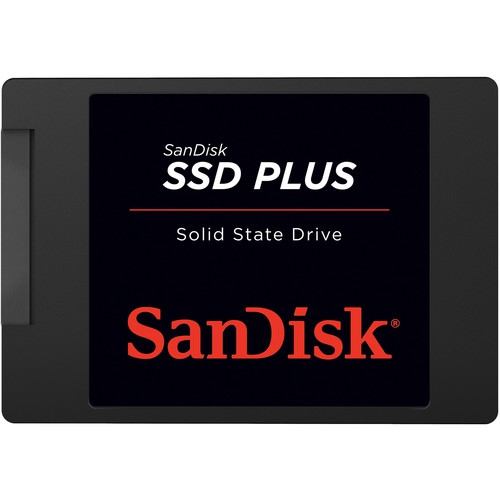
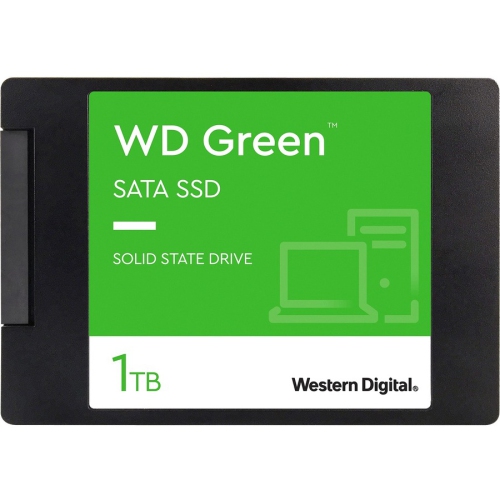
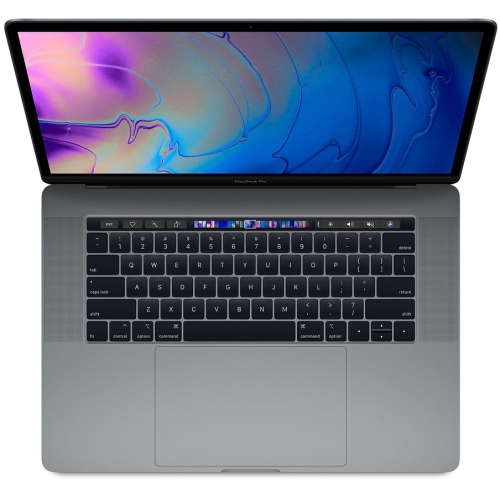
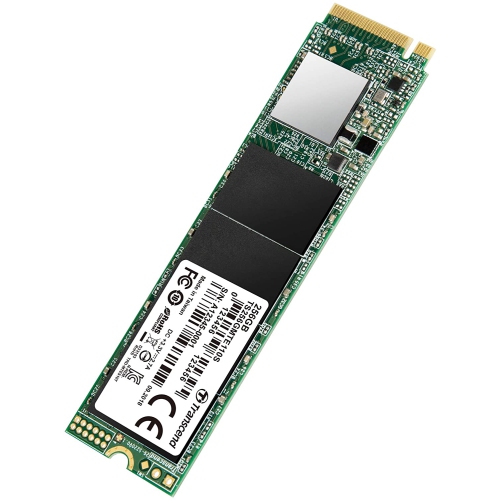
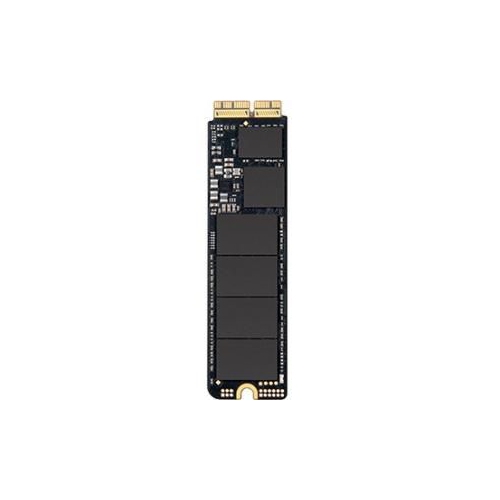
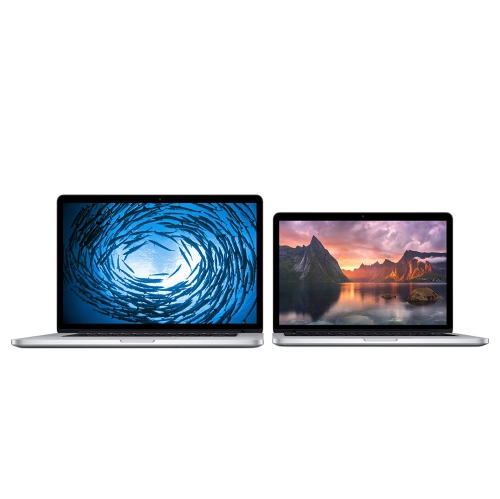
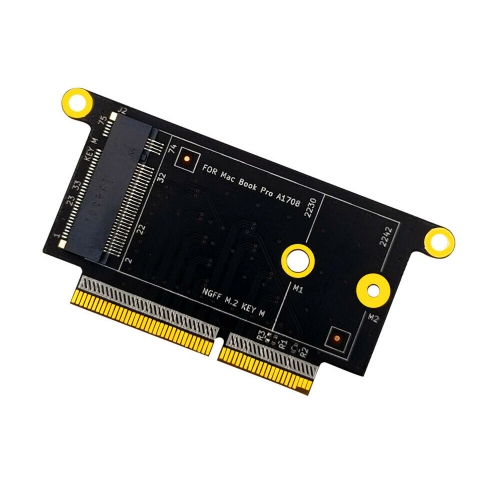
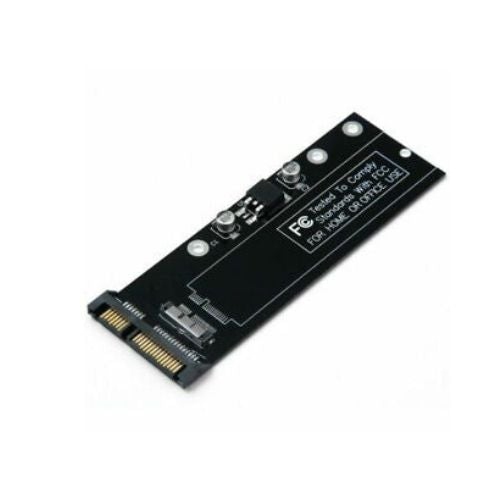
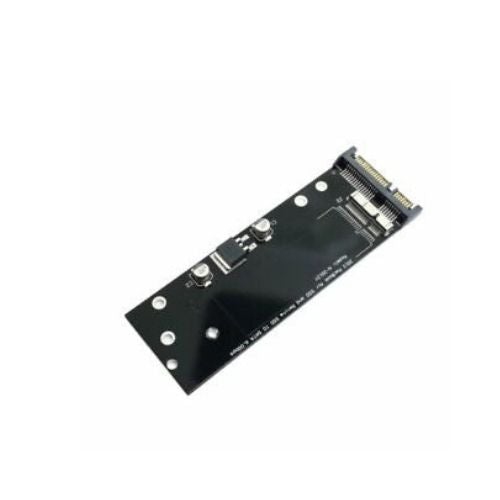
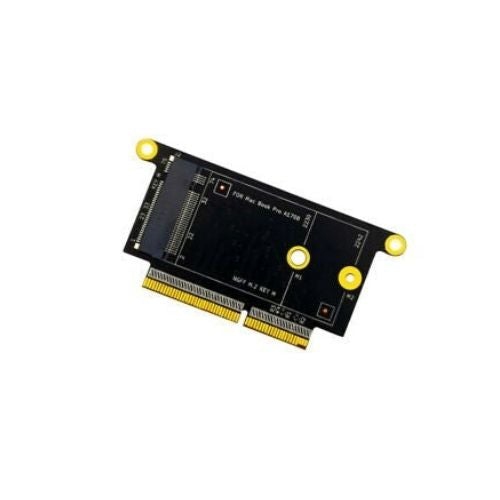
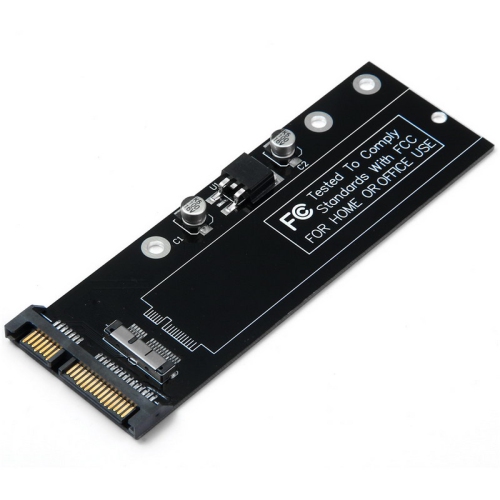
Internal SSDs provide the built-in storage a compatible notebook uses for its operating system, applications, documents, and media. With no moving parts, a solid-state drive offers quiet operation and quick access to files, whether you are opening a large photo library, switching between work projects, or loading software before a class. For a laptop with a replaceable internal drive, an SSD can add room for growing collections or replace storage that is no longer reliable. Compatibility is the most important purchase consideration, however: internal SSDs are not interchangeable across all notebook models, and many thin laptops have storage soldered directly to the logic board. These computers do not accept a conventional internal SSD upgrade. Selected notebooks from 2013–2015 use removable, proprietary blade-style drives, but that date range is neither a complete compatibility list nor a guarantee that a particular SSD will fit. Some earlier notebooks use 2.5-inch SATA drives, while certain later designs also retain removable storage. The exact model identifier, screen size, original drive type, and manufacturer’s compatibility list matter more than appearance or purchase year alone. Two laptops with nearly identical aluminium cases can require entirely different storage hardware. A slim blade drive may look like a standard M.2 SSD without sharing its connector or electrical interface, so physical resemblance is not enough. For shoppers comparing an upgrade with a replacement laptop, Macbook Pro With SSD offers another way to explore built-in solid-state storage. An internal replacement makes the most sense when the existing computer still meets your needs, its storage is serviceable, and a drive is explicitly supported. Students keeping course materials close at hand, photographers carrying working libraries, and households extending the usefulness of a familiar laptop can all benefit from additional internal capacity. The practical appeal is simple: more of what you use can stay inside the computer, without another drive and cable taking up space in a bag or on a desk.
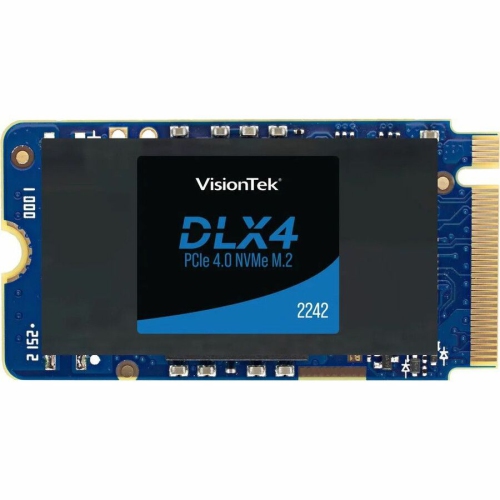
Capacity shapes everyday convenience as much as headline speed. A 500 GB or 512 GB SSD may suit documents, browsing, everyday applications, and a modest photo collection, while 1 TB provides more breathing room for larger libraries and several ongoing projects. A 2 TB drive can be useful for high-resolution photography, audio production, development tools, or video files, provided the computer and replacement drive support that capacity. The amount of storage available after formatting and installing the operating system will be lower than the advertised figure. It also helps to allow room for application updates, temporary files, and the projects you have not started yet. A laptop that feels spacious at the beginning of a term can fill surprisingly quickly once lecture recordings, downloaded readings, and group presentations accumulate. Likewise, a short family video can leave behind source footage, preview files, and multiple exported versions. Buying capacity for that working space, rather than only the files you intend to keep, makes an upgrade more useful over time. Performance deserves a closer look than a single maximum read-speed number. SATA and PCIe drives use different interfaces, and NVMe is a storage protocol commonly used by PCIe SSDs; these terms do not mean every drive bearing them will work in every notebook. The computer’s connection speed, available PCIe lanes, firmware, and operating system can limit the performance of a replacement. A drive advertised with high sequential speeds will not necessarily reach those speeds in an older laptop. Everyday responsiveness also depends on how the drive handles small files and mixed workloads, while long transfers can be affected by heat and the size of its write cache. Power consumption and sleep behaviour matter for a portable computer, too. For someone editing photos at the kitchen table or reviewing files during a commute, reliable waking, steady operation, and reasonable battery use can matter more than the largest number on the specification sheet.
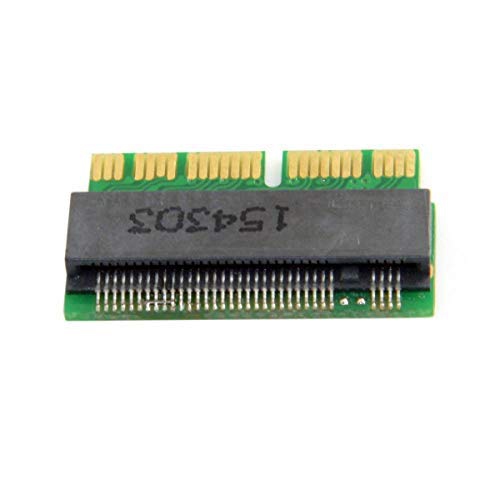
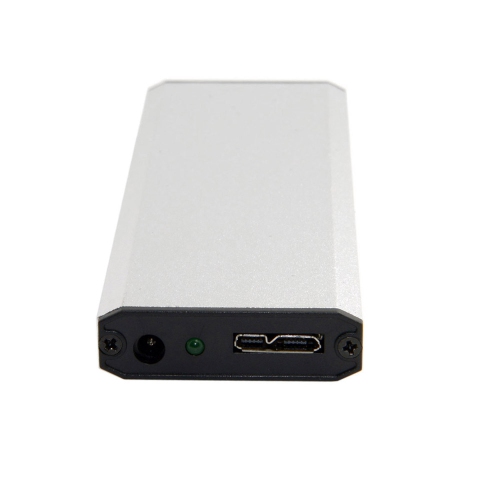
The contents of an internal SSD package can make a meaningful difference to the overall purchase. Some replacements are designed for a particular proprietary connector, while others require a compatible adapter; neither approach removes the need to verify support for the exact computer. An adapter may address the physical connection without resolving firmware requirements, sleep issues, or operating-system compatibility. Certain older notebooks need a supported system and firmware update before they can recognise an NVMe replacement, and some updates may require the original drive to remain installed. Those requirements are worth checking before committing to a drive, particularly when replacing failed storage rather than upgrading a working computer. Installation tools, mounting hardware, and any enclosure included for the original SSD should also match the hardware involved. An enclosure intended for a standard M.2 drive may not accept a proprietary blade drive, even if both are described as SSD enclosures. Data transfer is another purchase consideration: a new internal SSD does not automatically contain your existing files, applications, or operating system. A verified backup, a supported installation method, and any necessary transfer hardware help protect everything from tax documents to years of family photographs. Shoppers who would rather leave the case closed can factor professional installation into the total cost, especially where small screws, battery connections, and delicate sockets are involved. Warranty terms, stated write endurance, and access to compatibility support are useful points of comparison alongside capacity and price. Write endurance, often expressed as terabytes written, describes a rated workload rather than promising a precise lifespan, and no drive replaces the need for backups. As a gift, an internal SSD is best suited to someone whose exact laptop specifications and storage needs are already known; choosing together is often more practical than guessing. For computers with soldered storage, an external SSD can add file space but cannot serve as a drop-in internal replacement. A well-matched internal drive, where supported, keeps a familiar portable computer ready for full folders, larger projects, and everyday use without adding another accessory to carry.
Capacity shapes everyday convenience as much as headline speed. A 500 GB or 512 GB SSD may suit documents, browsing, everyday applications, and a modest photo collection, while 1 TB provides more breathing room for larger libraries and several ongoing projects. A 2 TB drive can be useful for high-resolution photography, audio production, development tools, or video files, provided the computer and replacement drive support that capacity. The amount of storage available after formatting and installing the operating system will be lower than the advertised figure. It also helps to allow room for application updates, temporary files, and the projects you have not started yet. A laptop that feels spacious at the beginning of a term can fill surprisingly quickly once lecture recordings, downloaded readings, and group presentations accumulate. Likewise, a short family video can leave behind source footage, preview files, and multiple exported versions. Buying capacity for that working space, rather than only the files you intend to keep, makes an upgrade more useful over time. Performance deserves a closer look than a single maximum read-speed number. SATA and PCIe drives use different interfaces, and NVMe is a storage protocol commonly used by PCIe SSDs; these terms do not mean every drive bearing them will work in every notebook. The computer’s connection speed, available PCIe lanes, firmware, and operating system can limit the performance of a replacement. A drive advertised with high sequential speeds will not necessarily reach those speeds in an older laptop. Everyday responsiveness also depends on how the drive handles small files and mixed workloads, while long transfers can be affected by heat and the size of its write cache. Power consumption and sleep behaviour matter for a portable computer, too. For someone editing photos at the kitchen table or reviewing files during a commute, reliable waking, steady operation, and reasonable battery use can matter more than the largest number on the specification sheet.
The contents of an internal SSD package can make a meaningful difference to the overall purchase. Some replacements are designed for a particular proprietary connector, while others require a compatible adapter; neither approach removes the need to verify support for the exact computer. An adapter may address the physical connection without resolving firmware requirements, sleep issues, or operating-system compatibility. Certain older notebooks need a supported system and firmware update before they can recognise an NVMe replacement, and some updates may require the original drive to remain installed. Those requirements are worth checking before committing to a drive, particularly when replacing failed storage rather than upgrading a working computer. Installation tools, mounting hardware, and any enclosure included for the original SSD should also match the hardware involved. An enclosure intended for a standard M.2 drive may not accept a proprietary blade drive, even if both are described as SSD enclosures. Data transfer is another purchase consideration: a new internal SSD does not automatically contain your existing files, applications, or operating system. A verified backup, a supported installation method, and any necessary transfer hardware help protect everything from tax documents to years of family photographs. Shoppers who would rather leave the case closed can factor professional installation into the total cost, especially where small screws, battery connections, and delicate sockets are involved. Warranty terms, stated write endurance, and access to compatibility support are useful points of comparison alongside capacity and price. Write endurance, often expressed as terabytes written, describes a rated workload rather than promising a precise lifespan, and no drive replaces the need for backups. As a gift, an internal SSD is best suited to someone whose exact laptop specifications and storage needs are already known; choosing together is often more practical than guessing. For computers with soldered storage, an external SSD can add file space but cannot serve as a drop-in internal replacement. A well-matched internal drive, where supported, keeps a familiar portable computer ready for full folders, larger projects, and everyday use without adding another accessory to carry.
Top selling and popular products
-
 Your price for this item is $554.99
 -
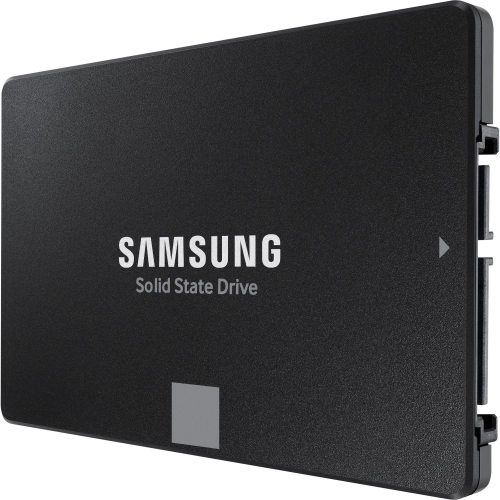 Your price for this item is $649.99
 -
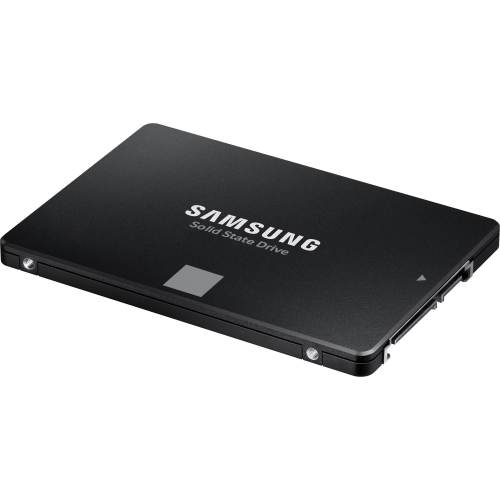 Your price for this item is $394.99
 -
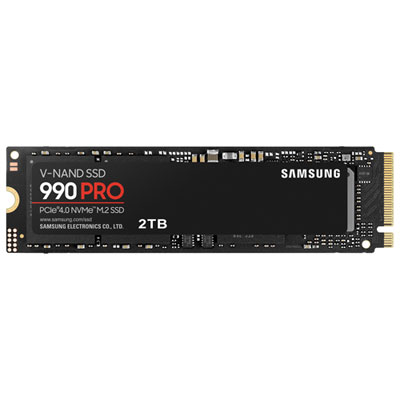 Your price for this item is $649.99
 -
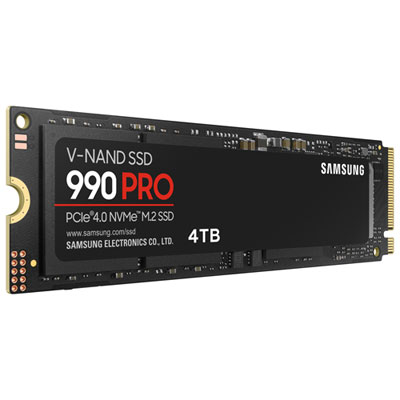 Your price for this item is $1199.97
 -
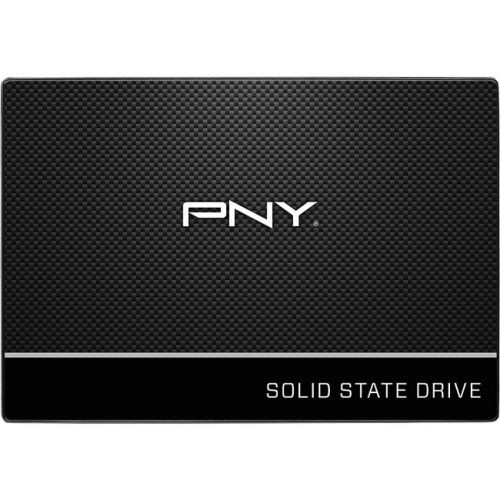 Your price for this item is $106.93
 -
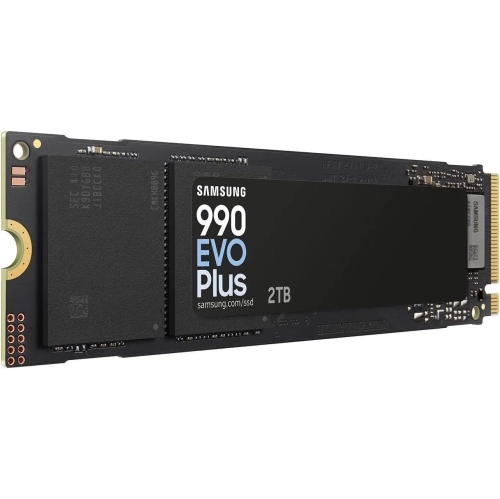 Your price for this item is $639.99
 -
 Your price for this item is $124.99
Discover more categories related to MacBook Internal SSDs
Top Collections:
Pokemon Centers, Kindle Devices, Best Budget Office Chairs, Apple iPhones 16, Best Laptops for Writers, iPhone 15 Apple, Canon G7X Cameras, Refurbished Apple Laptops, Alarm Clock, Motorola Razr Phones
Some products may be subject to Environmental Handling Fees
(EHF) depending on your province.
Learn more about EHFs.