Internal SSDs for MacBook Pro
Internal solid-state drives are one of the most cost-effective ways to improve the performance of your computer. They're also the quietest and most reliable form of storage. Here are some internal SSDs for MacBook Pro.
Sort
























Why your exact MacBook Pro model determines SSD compatibility
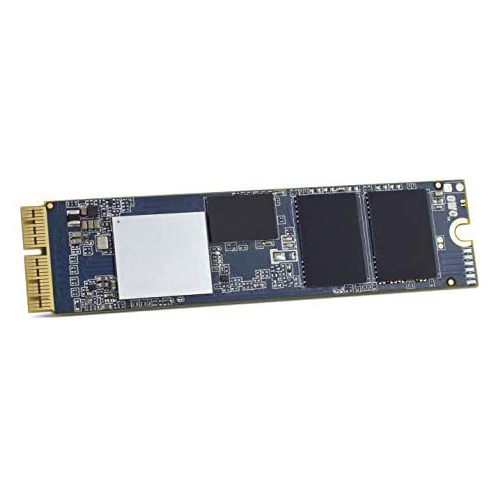
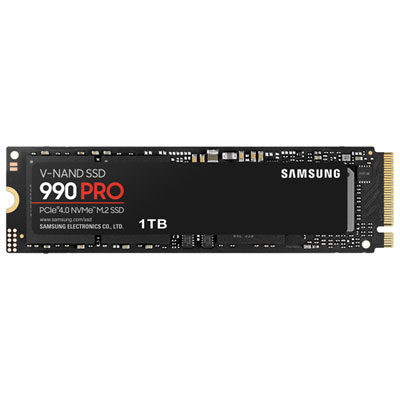
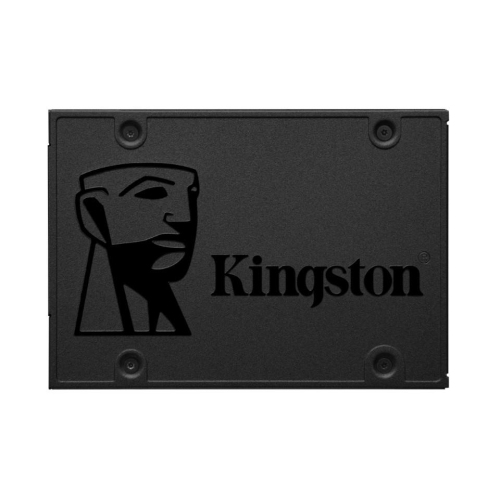
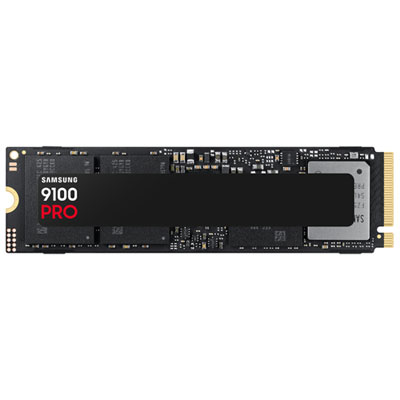
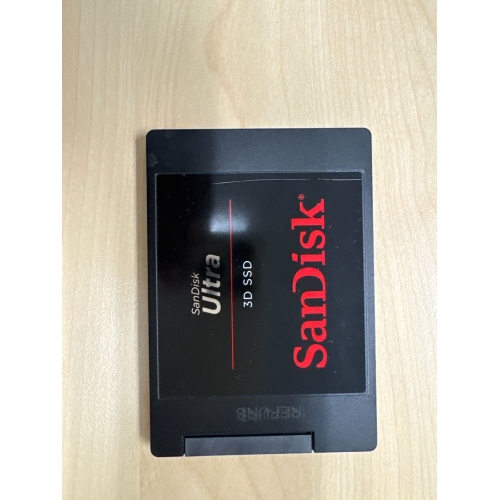
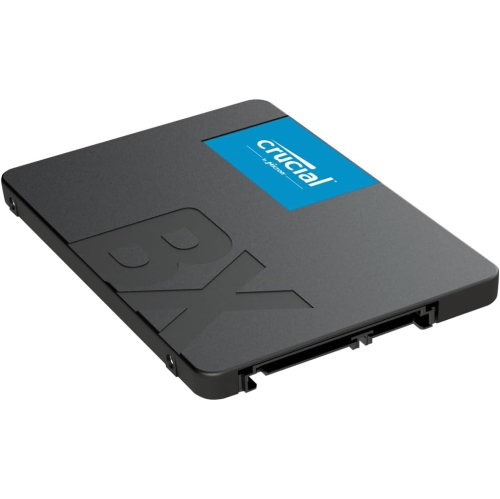
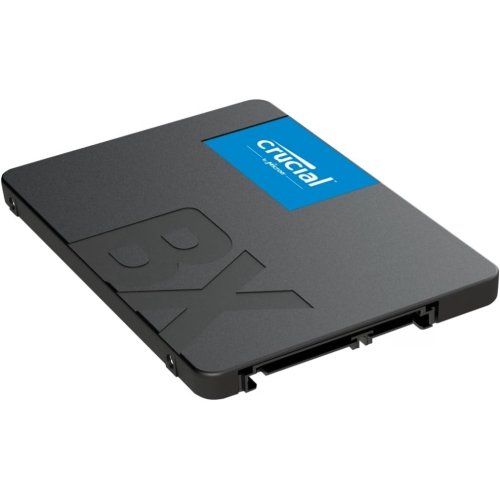
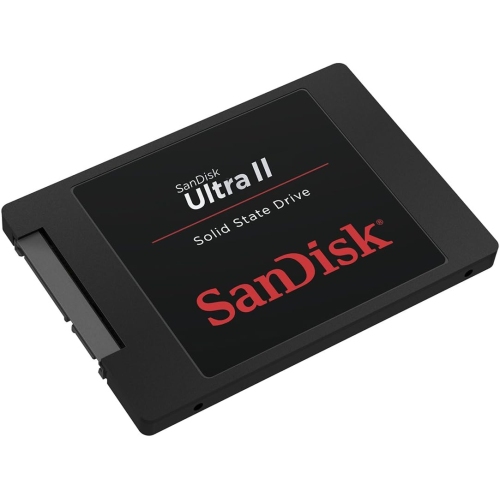
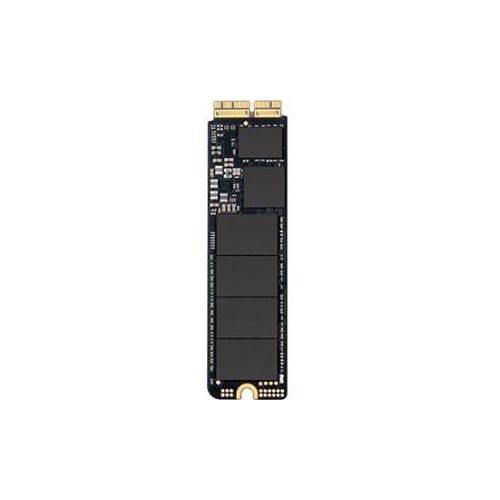
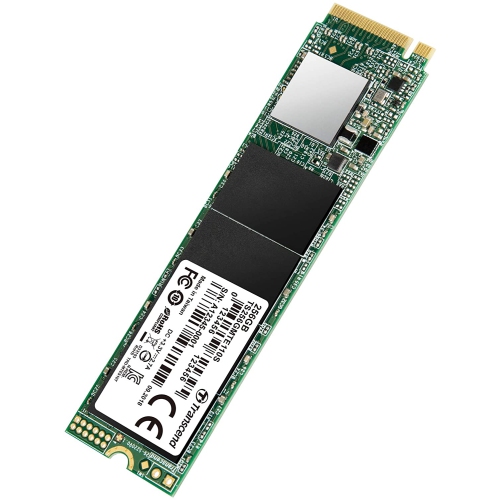
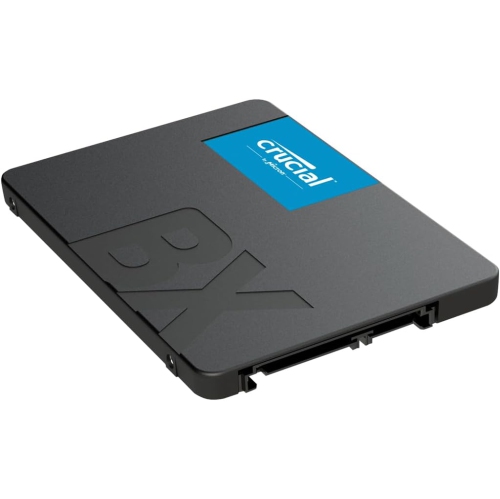
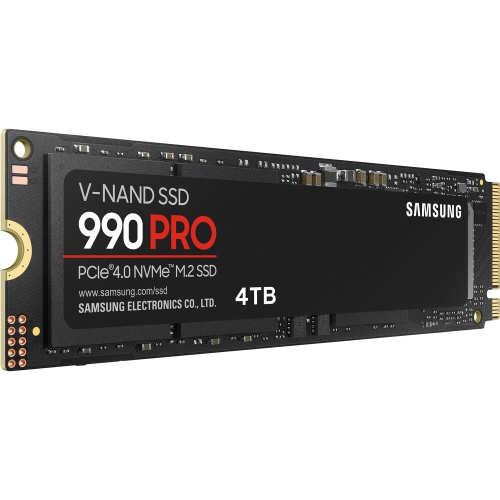
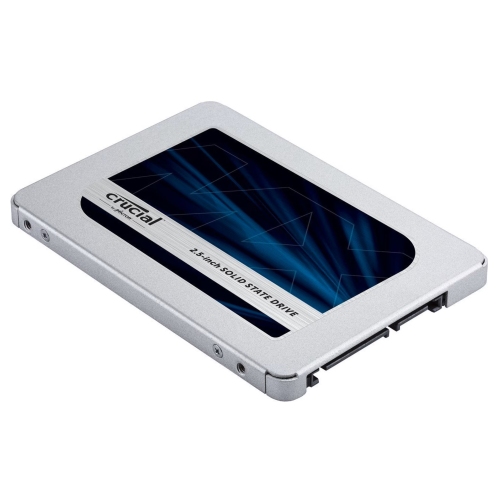
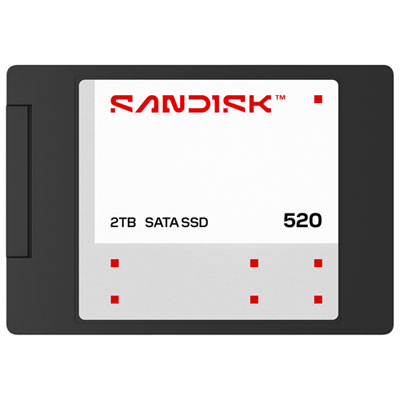
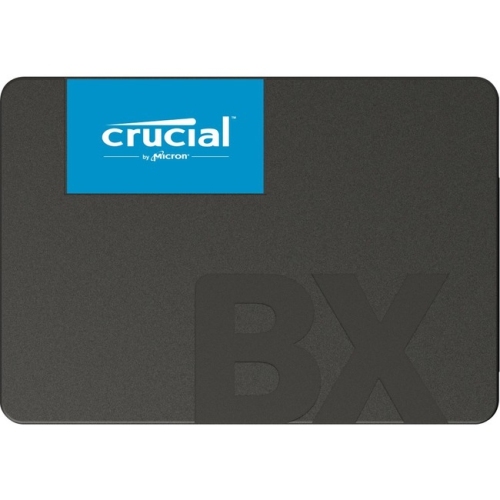
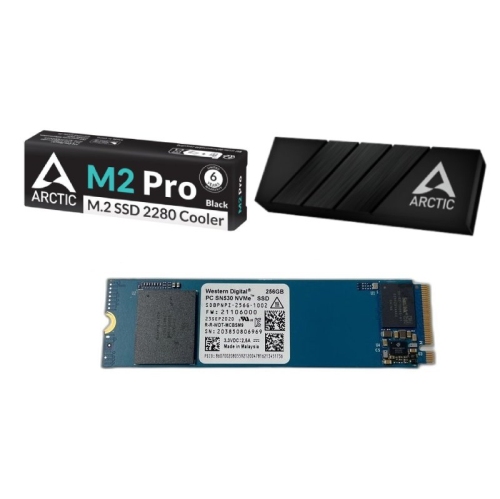
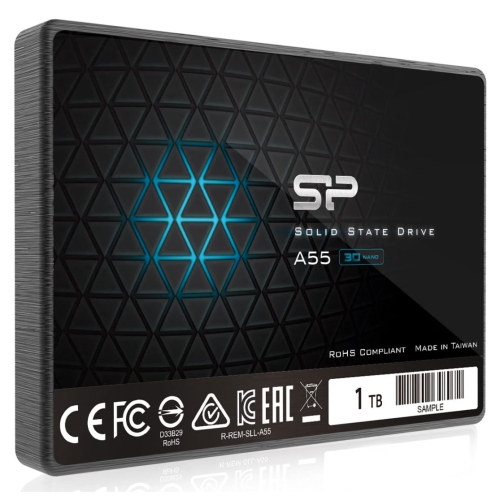
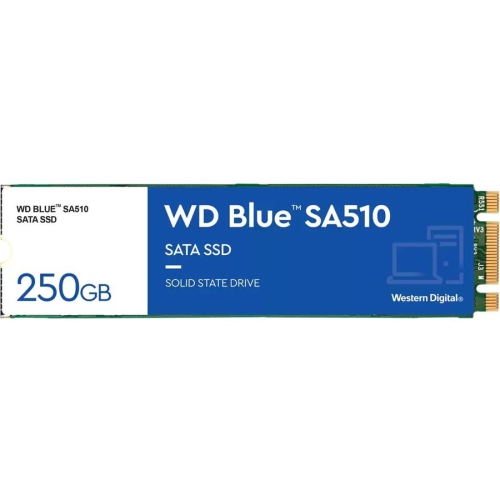
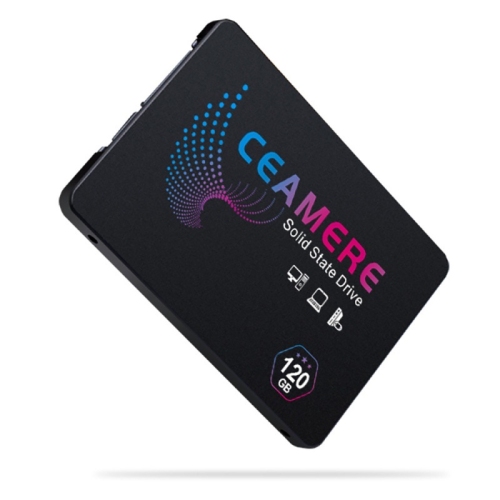
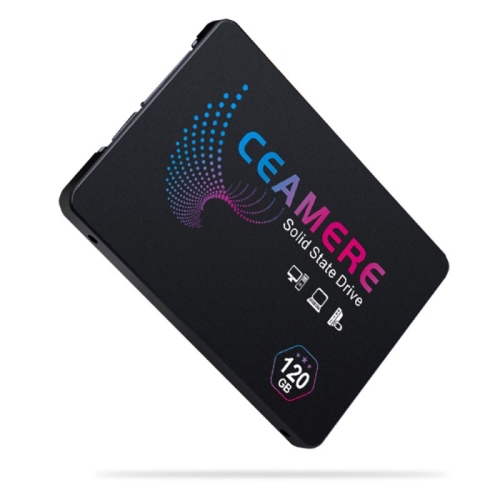
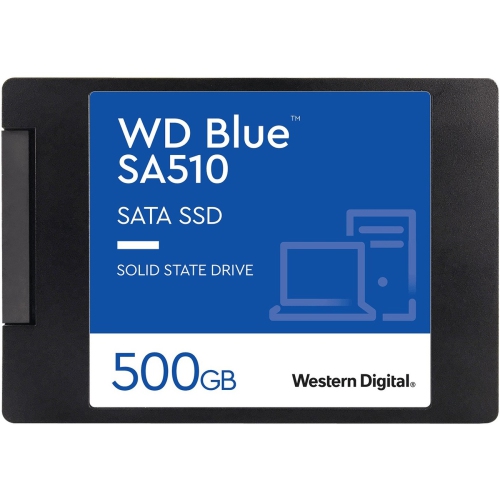
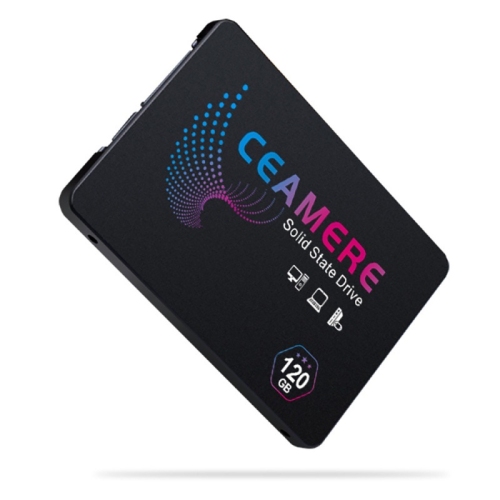
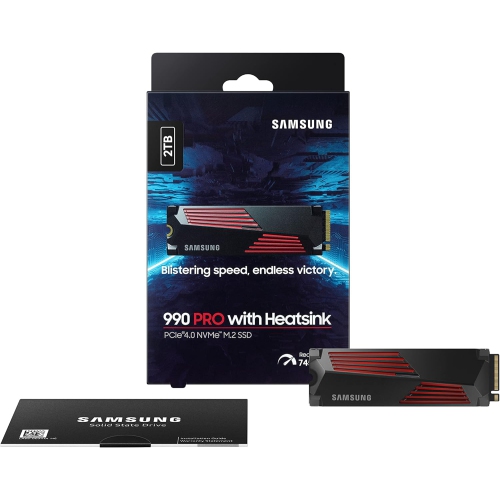
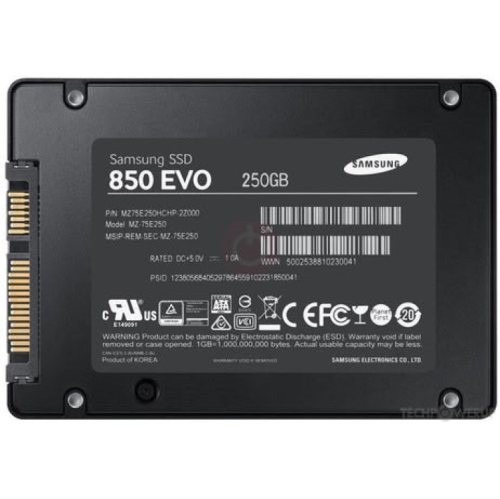
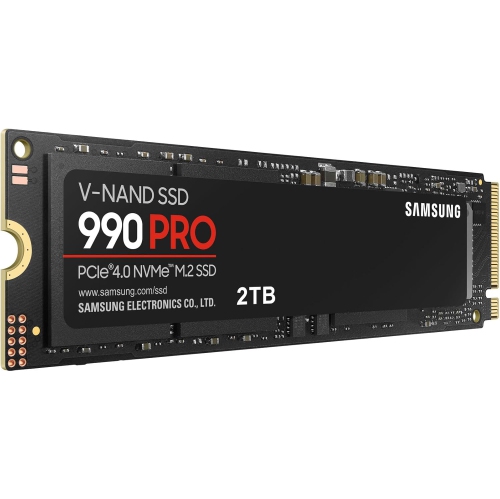
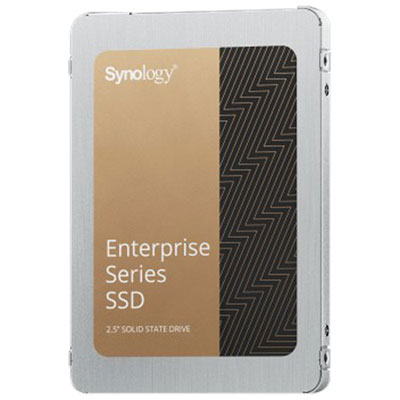
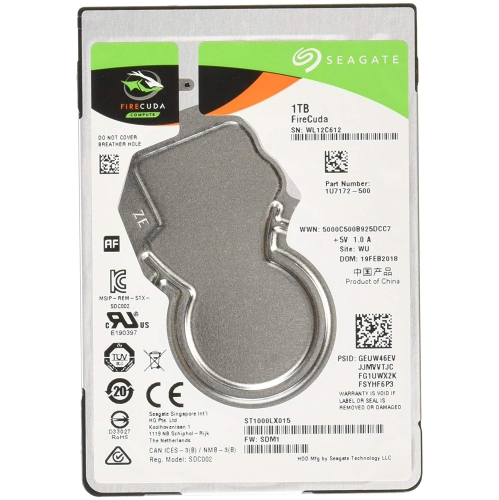
Internal SSDs for MacBook Pro provide replacement storage or additional capacity for compatible models with removable drives. Compatibility depends on the exact laptop model, not simply its screen size or the year it was purchased. Many older non-Retina models use a 2.5-inch SATA drive, while Retina models introduced in 2012 and early 2013 use a different, proprietary SATA blade format. Models from late 2013 through 2015 use proprietary PCIe blade storage, and the 13-inch models without a Touch Bar from 2016 and 2017 have their own removable storage design. Touch Bar models introduced in 2016 and 2017, and models introduced from 2018 onward, have soldered storage rather than a removable internal SSD. A conventional internal drive replacement is therefore not an option for those machines. These distinctions matter because two SSDs can look similar while having different connectors, electrical interfaces, or software requirements. A standard M.2 NVMe drive is not a universal drop-in replacement for a proprietary blade SSD; some compatible combinations require an adapter, suitable firmware, and a supported operating system. Even with an adapter, compatibility should be explicitly documented for the laptop and drive combination. The laptop’s model identifier, original storage interface, and the replacement drive’s compatibility information are more useful than a broad claim that a drive fits a particular generation. Physical fit includes the module’s length, connector position, thickness, and mounting point, as well as clearance for any required adapter. Desktop-oriented SSDs with tall heatsinks generally do not belong inside a slim laptop chassis. For a broader view of storage options across compatible laptop families, MacBook Internal SSDs offers a related selection, although each drive still needs to match the intended machine. The essential distinction is between storage that is merely fast and storage that is actually suitable: connector fit, interface support, firmware requirements, and operating system compatibility all need to line up before capacity or speed becomes meaningful.
Capacity is often the most noticeable reason to replace an internal SSD. A laptop used for documents, email, and a modest photo library has different storage needs from one holding video footage, music projects, software development tools, or several large creative applications. A 500 GB drive may suit lighter local storage needs, while 1 TB or 2 TB can offer more room for larger libraries and active projects, provided that capacity is supported by the specific laptop and replacement solution. Actual usable space will be lower than the advertised capacity after formatting and system files, and room is also needed for application updates, temporary files, and everyday working space. For a photographer, that might mean keeping original image files alongside edited exports; for a musician, it could mean storing sample libraries without constantly moving them to another device. Students and professionals may value having reference material, presentations, and project folders accessible when an internet connection is unavailable. Performance deserves a similarly practical reading. Sequential read and write speeds describe transfers involving large, contiguous files, while responsiveness with many small files depends on other characteristics, including random access performance and latency. Replacing a mechanical hard drive in a compatible older laptop can make startup, application launches, and file access feel substantially quicker. Replacing an existing SSD may deliver a less dramatic change, especially when the main benefit is extra space. A drive’s advertised maximum speed does not override the laptop’s interface limits, and results also vary with workload, free space, and the drive controller. Some SSDs maintain strong write speeds during long transfers, while others slow once a temporary high-speed cache fills. That difference can matter when copying a large video project, but may be less important for writing essays or managing household documents. Storage upgrades also do not add memory or increase processor performance, so they should not be expected to solve every slowdown. The best fit balances supported capacity and dependable everyday behaviour with the tasks the laptop actually handles.
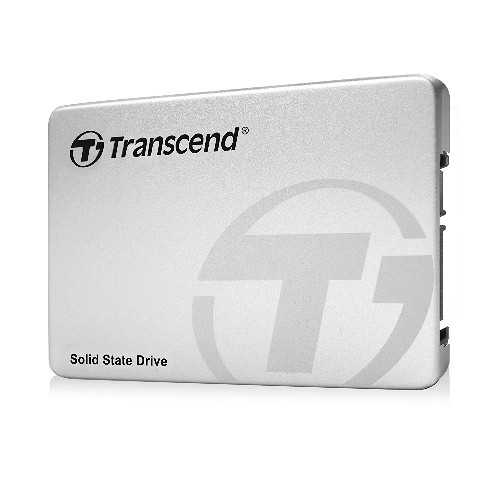
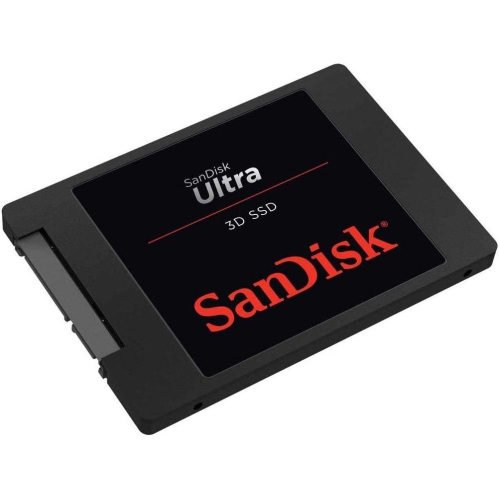
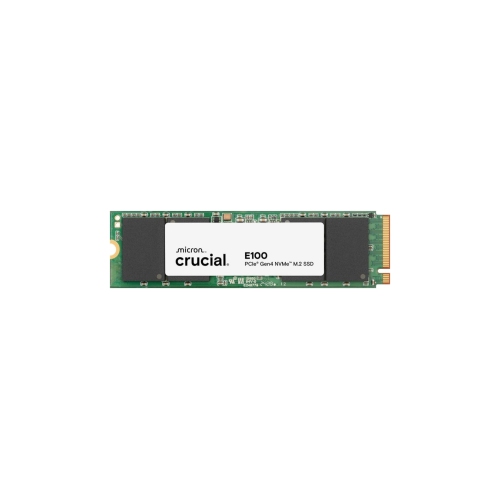
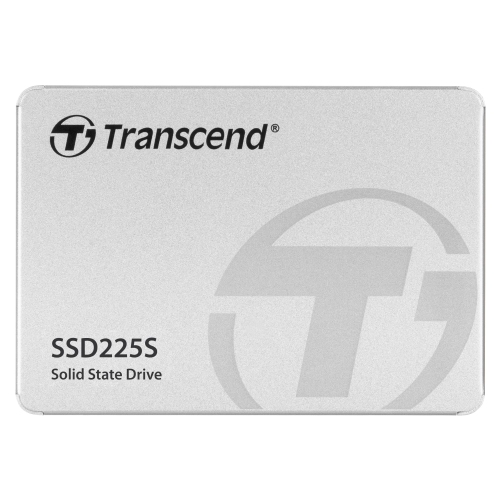
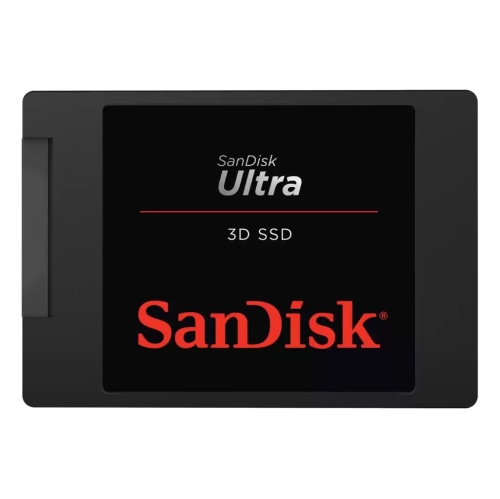
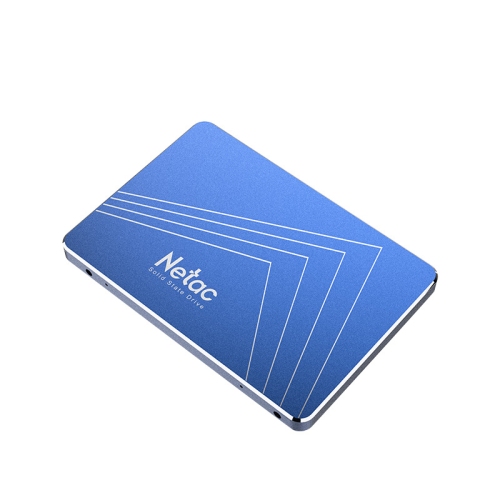
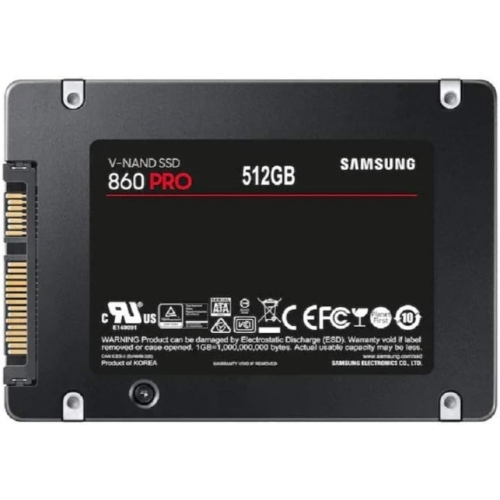
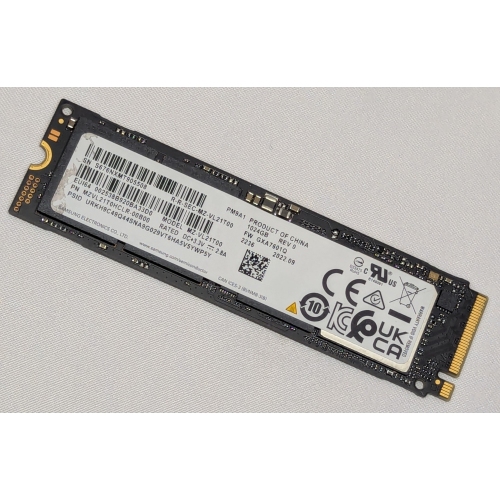
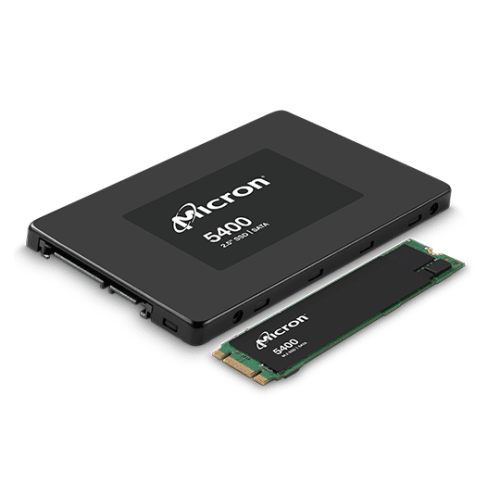
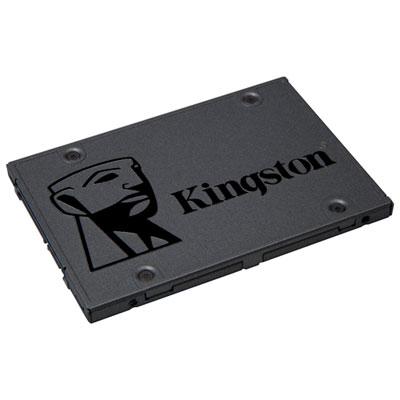
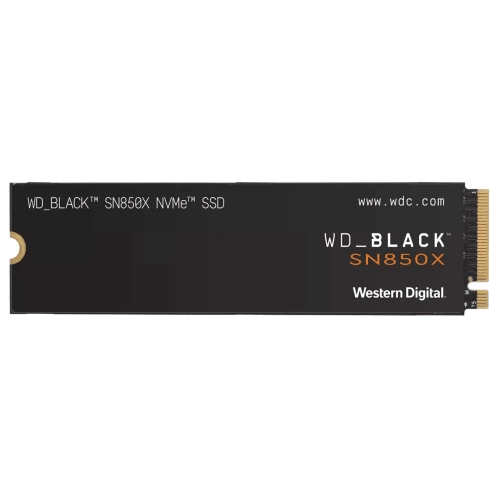
An internal SSD stores data on flash memory chips mounted on a circuit board, with a controller managing how information is read, written, and distributed across that memory. A 2.5-inch model typically encloses these components in a protective casing, while a blade-style module leaves much of the board exposed. Neither design has the spinning platters or moving read heads found in a mechanical hard drive, which helps SSDs tolerate ordinary movement during portable use. That does not make them immune to damage: exposed connectors, delicate components, liquid contact, and electrostatic discharge still warrant care. Once installed correctly, an internal drive requires no routine physical cleaning or lubrication. Dependable use is more closely tied to compatible hardware, appropriate software support, and a sensible backup routine. Flash memory has a finite write lifespan, often described through an endurance rating such as terabytes written, or TBW. That rating helps compare expected write tolerance, but it is not a promise that files will remain safe for a particular number of years. Warranty terms, controller design, memory type, and the demands of the workload also deserve attention. Someone editing large media projects daily may place greater emphasis on sustained performance and write endurance than someone using the laptop mainly for browsing and correspondence. Installation requirements vary by model, and a drive listing may or may not include tools, an adapter, or a suitable enclosure for transferring files from the original storage. A full backup is important before any replacement, and professional installation may be appropriate when small connectors, battery disconnection, or operating system restoration are unfamiliar. Cloning and migration tools can help move applications and personal files, but their suitability depends on the old drive, the new drive, and the software involved. For compatible machines, an internal upgrade keeps storage contained within the laptop, with no separate drive or cable to carry between a desk, classroom, and meeting room. For models with soldered storage, an external SSD is the practical expansion alternative rather than an internal replacement. In either case, a separate backup remains essential: additional storage creates room for important files, but it does not replace another copy of them.
Capacity is often the most noticeable reason to replace an internal SSD. A laptop used for documents, email, and a modest photo library has different storage needs from one holding video footage, music projects, software development tools, or several large creative applications. A 500 GB drive may suit lighter local storage needs, while 1 TB or 2 TB can offer more room for larger libraries and active projects, provided that capacity is supported by the specific laptop and replacement solution. Actual usable space will be lower than the advertised capacity after formatting and system files, and room is also needed for application updates, temporary files, and everyday working space. For a photographer, that might mean keeping original image files alongside edited exports; for a musician, it could mean storing sample libraries without constantly moving them to another device. Students and professionals may value having reference material, presentations, and project folders accessible when an internet connection is unavailable. Performance deserves a similarly practical reading. Sequential read and write speeds describe transfers involving large, contiguous files, while responsiveness with many small files depends on other characteristics, including random access performance and latency. Replacing a mechanical hard drive in a compatible older laptop can make startup, application launches, and file access feel substantially quicker. Replacing an existing SSD may deliver a less dramatic change, especially when the main benefit is extra space. A drive’s advertised maximum speed does not override the laptop’s interface limits, and results also vary with workload, free space, and the drive controller. Some SSDs maintain strong write speeds during long transfers, while others slow once a temporary high-speed cache fills. That difference can matter when copying a large video project, but may be less important for writing essays or managing household documents. Storage upgrades also do not add memory or increase processor performance, so they should not be expected to solve every slowdown. The best fit balances supported capacity and dependable everyday behaviour with the tasks the laptop actually handles.
An internal SSD stores data on flash memory chips mounted on a circuit board, with a controller managing how information is read, written, and distributed across that memory. A 2.5-inch model typically encloses these components in a protective casing, while a blade-style module leaves much of the board exposed. Neither design has the spinning platters or moving read heads found in a mechanical hard drive, which helps SSDs tolerate ordinary movement during portable use. That does not make them immune to damage: exposed connectors, delicate components, liquid contact, and electrostatic discharge still warrant care. Once installed correctly, an internal drive requires no routine physical cleaning or lubrication. Dependable use is more closely tied to compatible hardware, appropriate software support, and a sensible backup routine. Flash memory has a finite write lifespan, often described through an endurance rating such as terabytes written, or TBW. That rating helps compare expected write tolerance, but it is not a promise that files will remain safe for a particular number of years. Warranty terms, controller design, memory type, and the demands of the workload also deserve attention. Someone editing large media projects daily may place greater emphasis on sustained performance and write endurance than someone using the laptop mainly for browsing and correspondence. Installation requirements vary by model, and a drive listing may or may not include tools, an adapter, or a suitable enclosure for transferring files from the original storage. A full backup is important before any replacement, and professional installation may be appropriate when small connectors, battery disconnection, or operating system restoration are unfamiliar. Cloning and migration tools can help move applications and personal files, but their suitability depends on the old drive, the new drive, and the software involved. For compatible machines, an internal upgrade keeps storage contained within the laptop, with no separate drive or cable to carry between a desk, classroom, and meeting room. For models with soldered storage, an external SSD is the practical expansion alternative rather than an internal replacement. In either case, a separate backup remains essential: additional storage creates room for important files, but it does not replace another copy of them.
Top selling and popular products
-
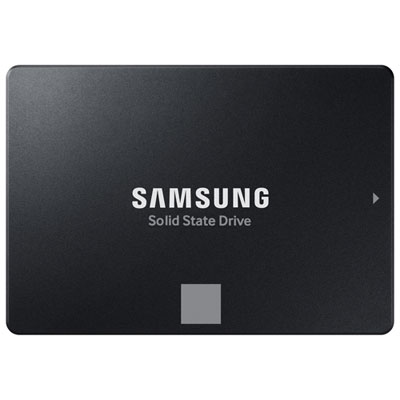 Your price for this item is $469.99
-
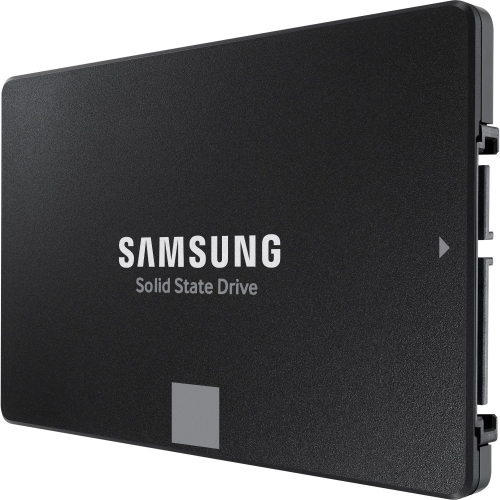 Your price for this item is $699.99
-
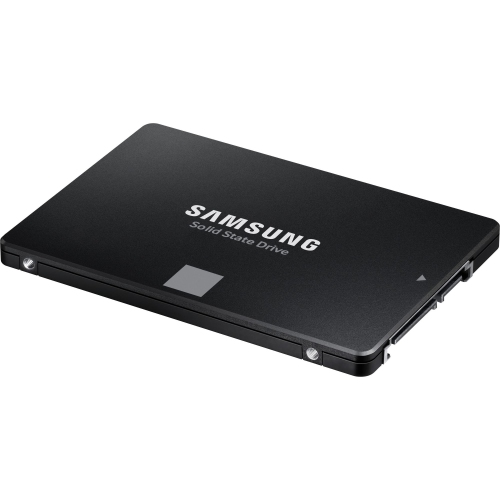 Your price for this item is $394.99
-
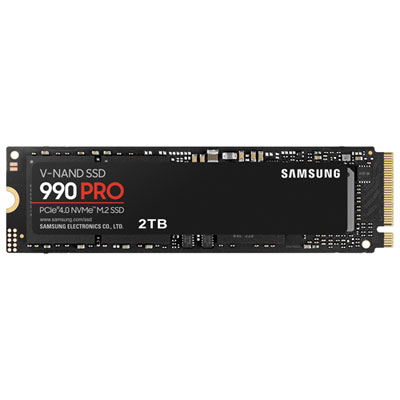 Your price for this item is $874.99
-
 Your price for this item is $1471.99
-
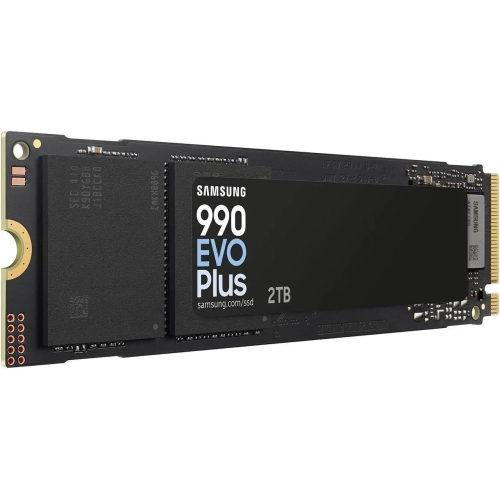 Your price for this item is $639.99
-
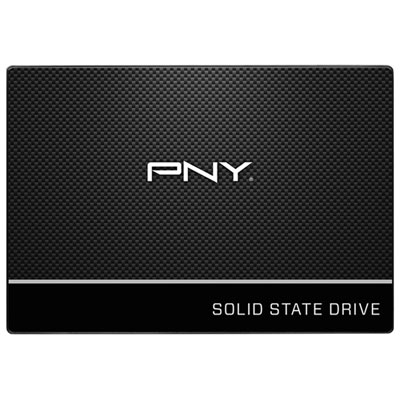 Your price for this item is $124.99
-
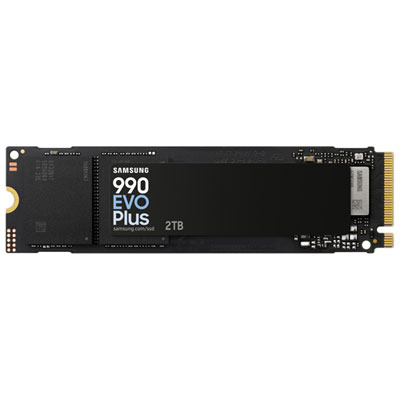 Your price for this item is $789.95
Discover more categories related to Internal SSDs for MacBook Pro

Top Collections:
Pokemon Centers, Best Black Friday Deals This Year, Best Black Friday Deals On Electronics, Kindle Devices, Best Budget Office Chairs, Best Black Friday Deals On Apple Products, Best Cameras for Sports Photography, Pokémon 30th Celebration Cards, Dyson Airwrap, Canon G7X Cameras
Some products may be subject to Environmental Handling Fees
(EHF) depending on your province.
Learn more about EHFs.