MacBook Air SSDs
MacBook Air SSD's are essential for anyone looking to upgrade or replace their laptop’s storage. With the right SSD, you can boost your MacBook Air’s performance and enjoy faster access to files, applications, and media. Whether you need more space for your projects or want to improve overall speed, exploring the range of MacBook Air SSD's available can help you find the ideal solution for your needs. Discover options designed to fit seamlessly with your device and keep your workflow running smoothly.
Sort









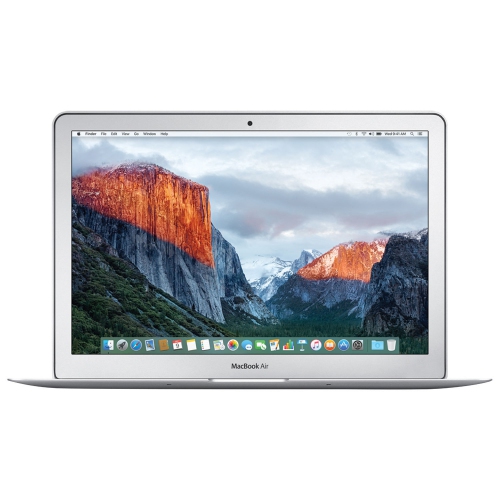

Why your MacBook Air’s model matters for storage upgrades
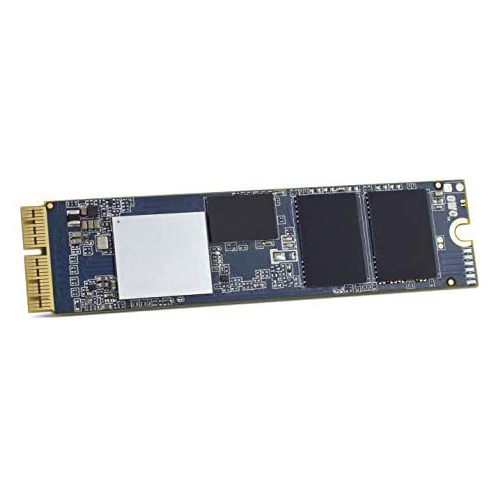
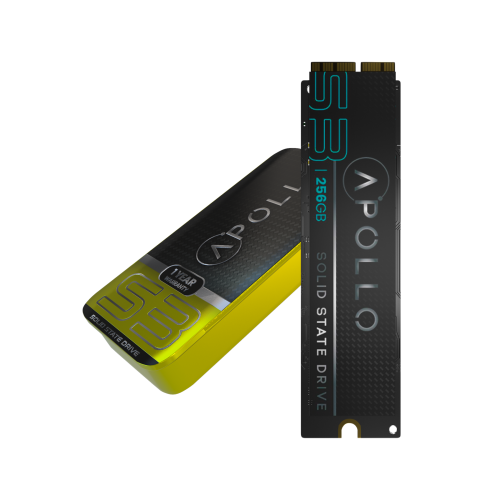
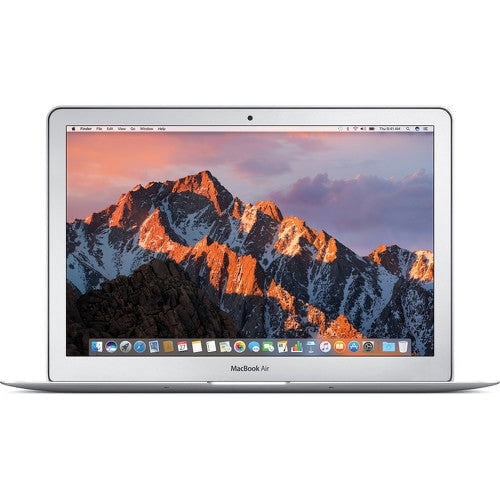
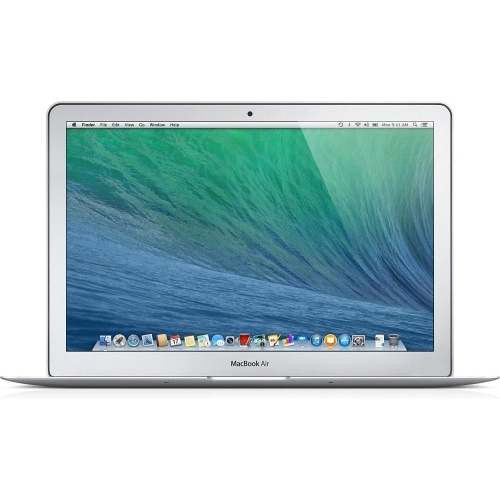
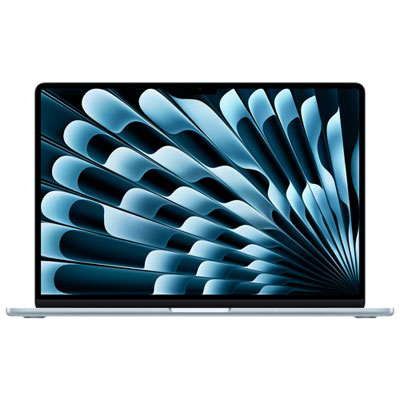
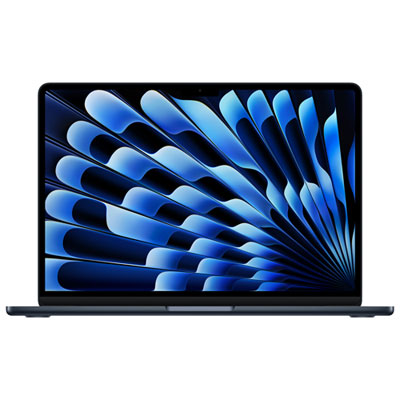
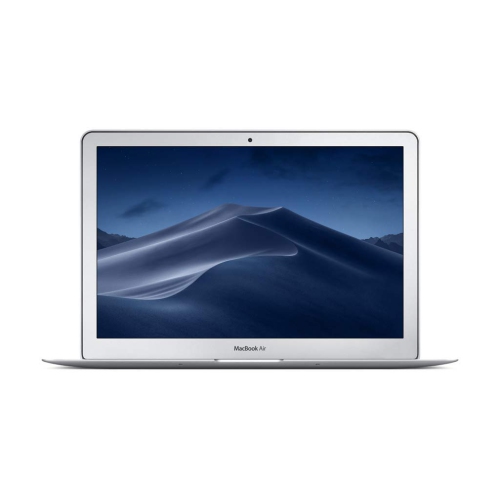
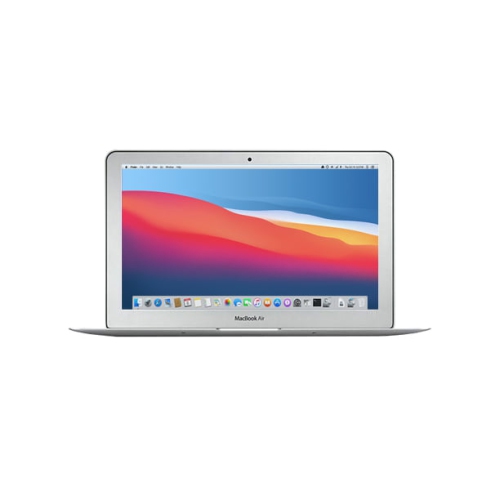
MacBook Air SSDs include model-specific internal replacement drives for older laptops and external solid state drives that connect through a compatible port. MacBook Air models introduced from 2010 through 2017 have removable internal SSDs, while models introduced in 2018 or later have soldered internal storage that cannot be upgraded with a replacement drive. For those newer laptops, an external SSD provides additional space without changing the built-in storage. This distinction matters more than capacity alone: an internal drive must match the computer’s exact model and storage interface, while an external drive needs a compatible connection, cable and file system. Older removable SSDs are not all interchangeable. Different generations use different connectors and storage technologies, including SATA and PCIe, and a standard M.2 drive is not automatically a direct fit. Some configurations require an adapter, with compatibility depending on the laptop, drive, operating system and firmware. The model identifier and introduction year are therefore more useful compatibility details than the screen size or the year the computer was purchased. An internal replacement can be useful when a compatible older laptop still handles everyday tasks well but has limited storage or a failing drive. It preserves the convenience of carrying everything inside the computer, without a cable or separate enclosure. Installation also involves more than physically fitting the drive: transferring files, preparing the replacement storage and confirming operating system support are part of the process. Professional installation may suit anyone uncomfortable opening a laptop or handling small internal components. An external SSD, by comparison, can hold a photo library, coursework, project folders or archived documents while leaving the original internal drive in place. It adds total storage space, but does not increase the capacity of the built-in SSD or add system memory. For a laptop carried between a desk, classroom and meeting room, that difference helps set realistic expectations about what a storage upgrade will change.
Capacity and connection speed shape how useful an SSD feels in daily use. Documents and spreadsheets generally need much less room than high-resolution photographs, large creative projects, virtual machines or video footage. A 512GB drive may accommodate a focused set of working files, while 1TB or 2TB provides more space for growing libraries and larger projects. The capacity printed on a drive is not identical to the free space shown after formatting, and keeping some room available helps accommodate updates, temporary files and changing workloads. A student moving research files between locations may value a compact external SSD, while a photographer may need enough capacity for original images, edited versions and exported copies. Video work places greater emphasis on sustained transfer performance, especially when reading large source files or moving an entire project folder. Advertised maximum speeds describe performance under particular conditions rather than a guaranteed result for every transfer. The laptop’s port, the drive’s interface, the cable, file sizes and the SSD’s sustained write capability all affect actual results. USB-C describes a connector shape, not a single speed standard, so two drives with similar-looking plugs can perform differently. USB and Thunderbolt compatibility should be considered alongside the connection supported by the particular laptop. A faster external SSD cannot exceed the limits of the connection it is using, and a cable intended mainly for charging may not deliver the data speeds expected from the drive. Older laptops may need a different cable or an appropriate adapter to connect an external SSD. Hubs and docks can also share bandwidth between connected devices. For everyday file storage, dependable compatibility and sufficient capacity may matter more than the highest speed rating. For frequent transfers of large media folders, the complete connection path becomes more important. Portable SSDs offer the convenience of finished, enclosed storage, while an SSD paired with a separate compatible enclosure gives more flexibility but requires the drive, enclosure interface and laptop connection to work together.
Physical design matters when storage travels alongside a laptop. External SSDs have no moving mechanical parts, which makes them well suited to portable use, but that does not make every enclosure resistant to drops, water or crushing. Aluminium housings can help disperse heat generated during operation, while plastic housings and protective coverings offer different balances of weight, grip and bulk. Any resistance claims should be assessed against the stated rating rather than appearance alone. A small drive slips easily into a laptop sleeve, although a snug compartment should not bend the connector or put pressure on the port. At a desk, a short cable can reduce clutter; when working on a narrow table, enough slack helps prevent an accidental tug from pulling the drive loose. Keeping the drive on a stable surface and away from spills protects both the enclosure and the connection. Disconnecting it properly before packing up reduces the risk of interrupted writes and damaged files. File-system choice also affects everyday convenience. APFS is generally suited to SSDs used with modern macOS computers, while exFAT can support file sharing between macOS and other common desktop operating systems. Backup software may require a particular format, and reformatting normally erases existing contents, so files need another safe location beforehand. An external SSD used as the only home for a photo collection is storage, not a complete backup strategy; important files benefit from an additional, separate copy. Encryption can help protect personal documents on a portable drive, provided the password or recovery information remains accessible to its owner. For a student, travelling professional or family member with a growing media library, an SSD can be a practical gift when compatibility and intended use are known. Households with another laptop type may also find Solid State Drives for MacBook Pro relevant, though internal compatibility must be checked separately for each computer. The most useful storage choice fits both the laptop’s technical requirements and the way its owner saves, carries and protects files.
Capacity and connection speed shape how useful an SSD feels in daily use. Documents and spreadsheets generally need much less room than high-resolution photographs, large creative projects, virtual machines or video footage. A 512GB drive may accommodate a focused set of working files, while 1TB or 2TB provides more space for growing libraries and larger projects. The capacity printed on a drive is not identical to the free space shown after formatting, and keeping some room available helps accommodate updates, temporary files and changing workloads. A student moving research files between locations may value a compact external SSD, while a photographer may need enough capacity for original images, edited versions and exported copies. Video work places greater emphasis on sustained transfer performance, especially when reading large source files or moving an entire project folder. Advertised maximum speeds describe performance under particular conditions rather than a guaranteed result for every transfer. The laptop’s port, the drive’s interface, the cable, file sizes and the SSD’s sustained write capability all affect actual results. USB-C describes a connector shape, not a single speed standard, so two drives with similar-looking plugs can perform differently. USB and Thunderbolt compatibility should be considered alongside the connection supported by the particular laptop. A faster external SSD cannot exceed the limits of the connection it is using, and a cable intended mainly for charging may not deliver the data speeds expected from the drive. Older laptops may need a different cable or an appropriate adapter to connect an external SSD. Hubs and docks can also share bandwidth between connected devices. For everyday file storage, dependable compatibility and sufficient capacity may matter more than the highest speed rating. For frequent transfers of large media folders, the complete connection path becomes more important. Portable SSDs offer the convenience of finished, enclosed storage, while an SSD paired with a separate compatible enclosure gives more flexibility but requires the drive, enclosure interface and laptop connection to work together.
Physical design matters when storage travels alongside a laptop. External SSDs have no moving mechanical parts, which makes them well suited to portable use, but that does not make every enclosure resistant to drops, water or crushing. Aluminium housings can help disperse heat generated during operation, while plastic housings and protective coverings offer different balances of weight, grip and bulk. Any resistance claims should be assessed against the stated rating rather than appearance alone. A small drive slips easily into a laptop sleeve, although a snug compartment should not bend the connector or put pressure on the port. At a desk, a short cable can reduce clutter; when working on a narrow table, enough slack helps prevent an accidental tug from pulling the drive loose. Keeping the drive on a stable surface and away from spills protects both the enclosure and the connection. Disconnecting it properly before packing up reduces the risk of interrupted writes and damaged files. File-system choice also affects everyday convenience. APFS is generally suited to SSDs used with modern macOS computers, while exFAT can support file sharing between macOS and other common desktop operating systems. Backup software may require a particular format, and reformatting normally erases existing contents, so files need another safe location beforehand. An external SSD used as the only home for a photo collection is storage, not a complete backup strategy; important files benefit from an additional, separate copy. Encryption can help protect personal documents on a portable drive, provided the password or recovery information remains accessible to its owner. For a student, travelling professional or family member with a growing media library, an SSD can be a practical gift when compatibility and intended use are known. Households with another laptop type may also find Solid State Drives for MacBook Pro relevant, though internal compatibility must be checked separately for each computer. The most useful storage choice fits both the laptop’s technical requirements and the way its owner saves, carries and protects files.
Top selling and popular products
-
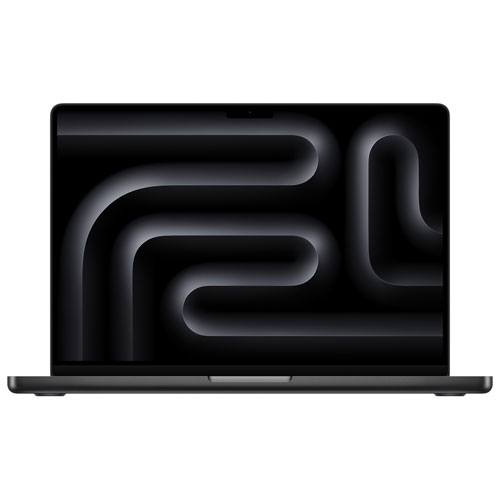 Your price for this item is $2399.99
-
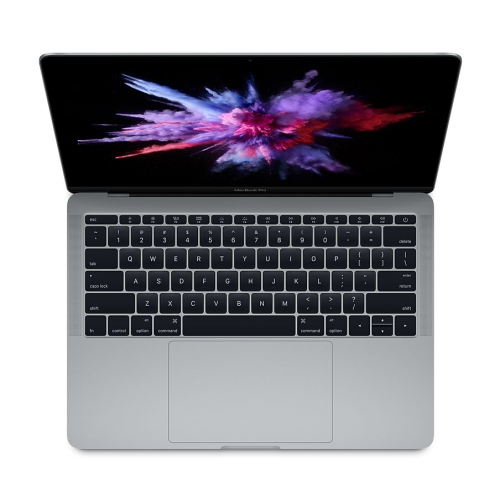 Your price for this item is $499.99
-
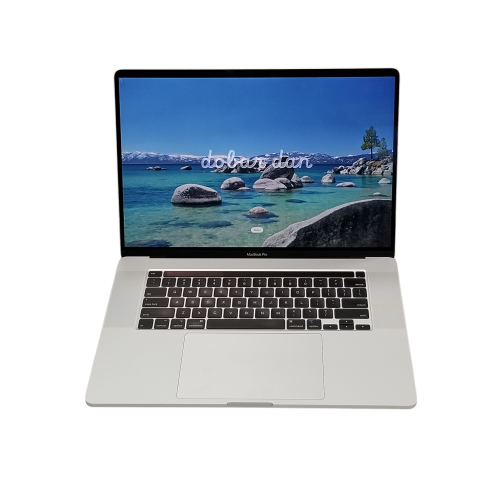 Your price for this item is $699.44
-
 Your price for this item is $929
-
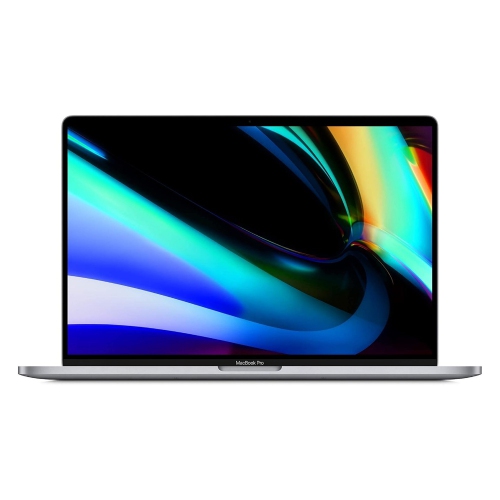 Your price for this item is $799.77
-
 Your price for this item is $379.99
-
 Your price for this item is $3999.99
-
 Your price for this item is $1649.99
Discover more categories related to MacBook Air SSDs
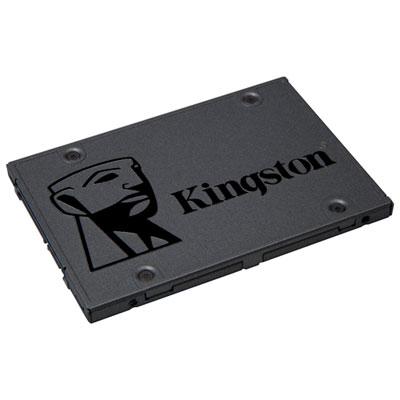
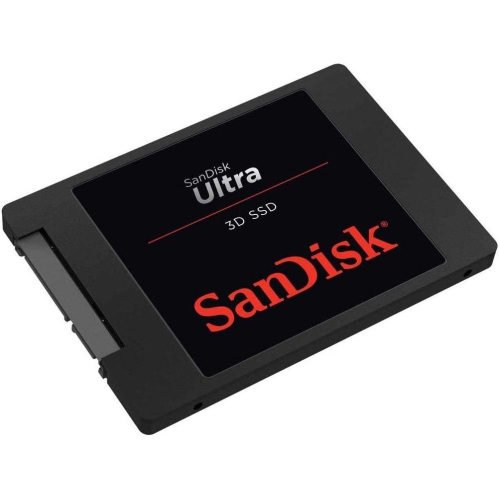
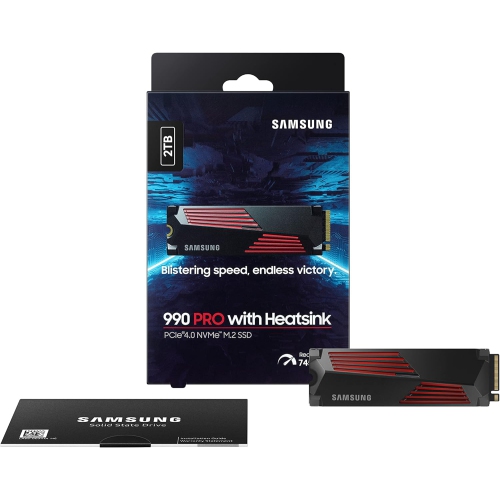

Top Collections:
Pokemon Centers, Best Black Friday Deals This Year, Best Black Friday Deals On Electronics, Kindle Devices, Best Budget Office Chairs, Best Black Friday Deals On Apple Products, Best Cameras for Sports Photography, Pokémon 30th Celebration Cards, Dyson Airwrap, Canon G7X Cameras
Some products may be subject to Environmental Handling Fees
(EHF) depending on your province.
Learn more about EHFs.