Monitor Asus 24
Discover the perfect blend of performance and style with Monitor Asus 24 options at Best Buy. Whether you're setting up a home office, upgrading your gaming setup, or enhancing your entertainment experience, these monitors offer reliable quality for any workspace. Explore a range of models designed to suit your needs, all backed by the convenience and support you expect from Best Buy. Find your ideal Monitor Asus 24 today and elevate your viewing experience.
Sort
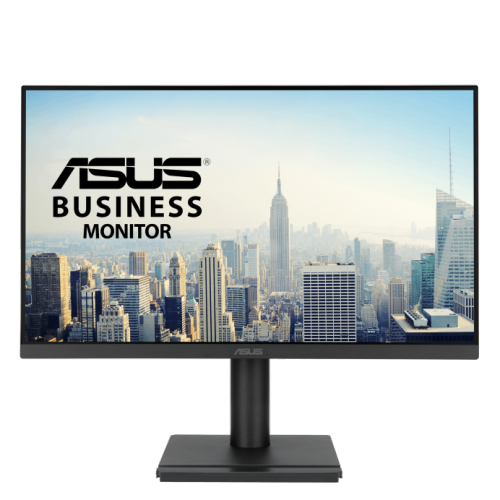
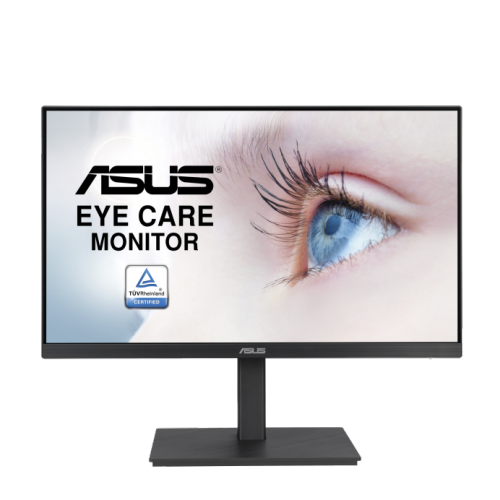
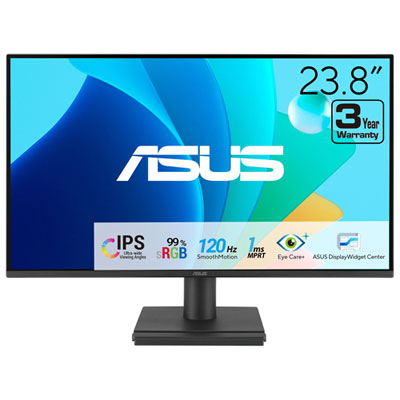
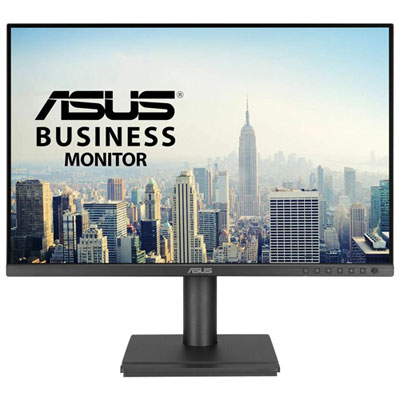
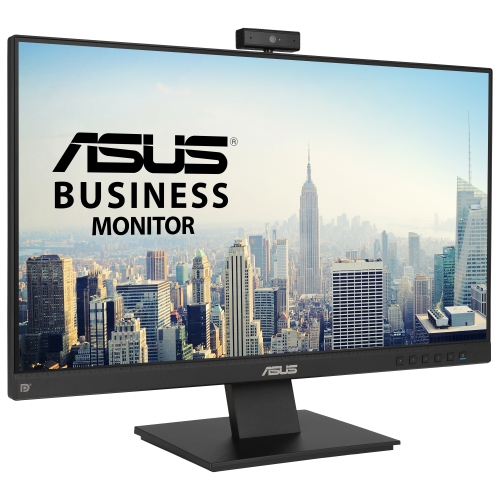
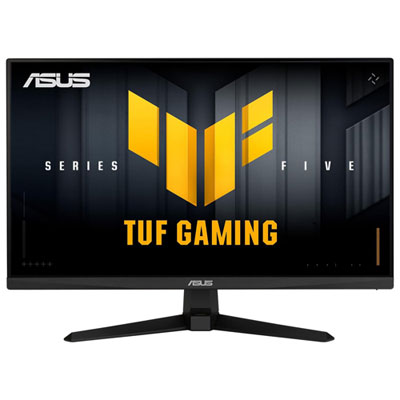
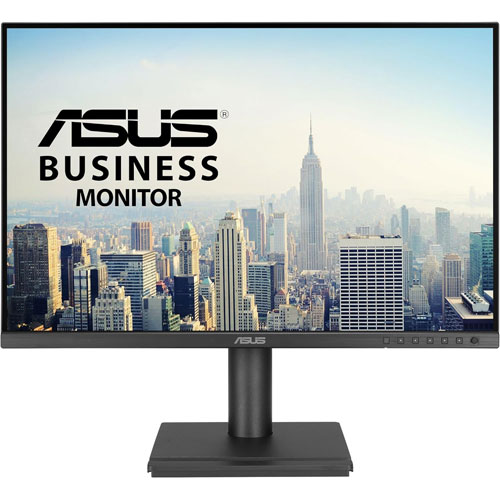
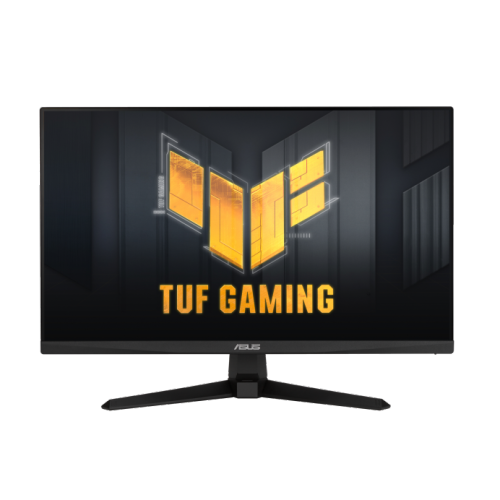
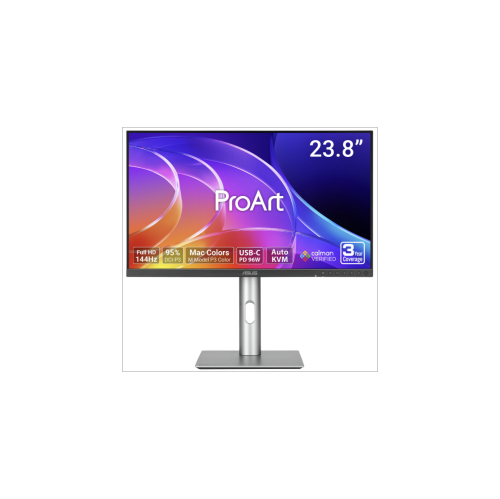
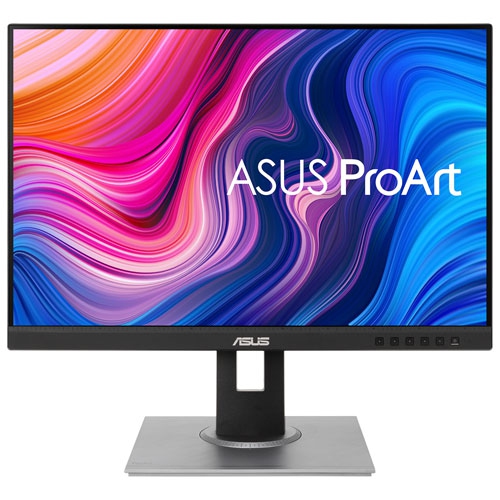
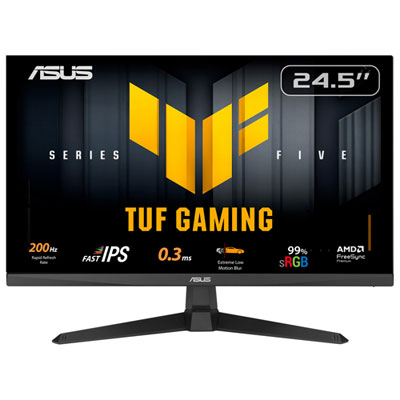
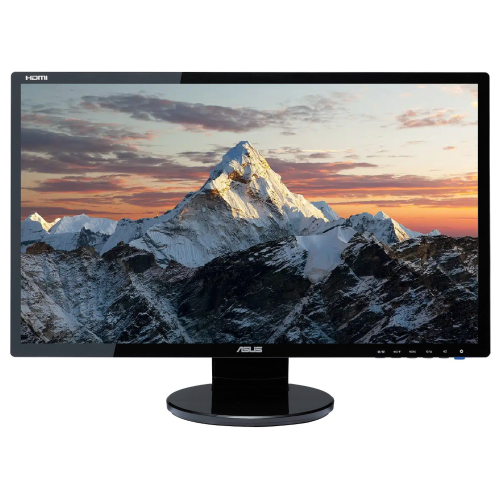
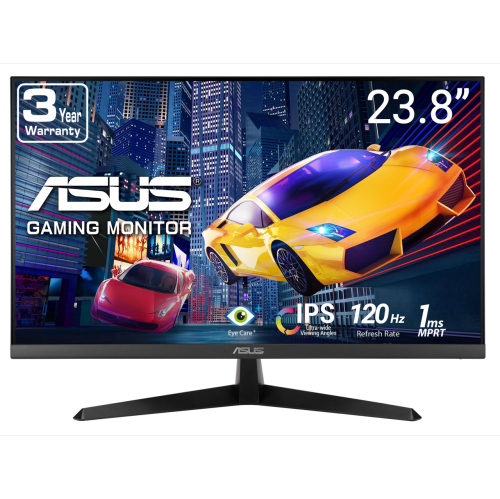
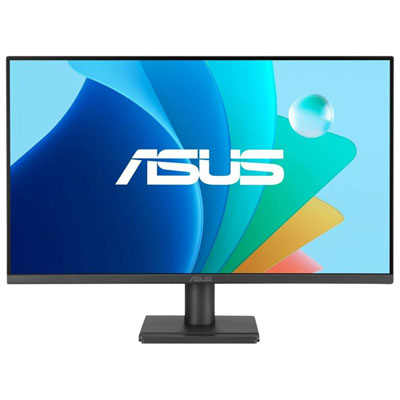
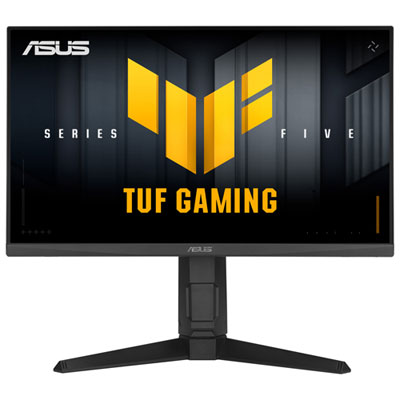
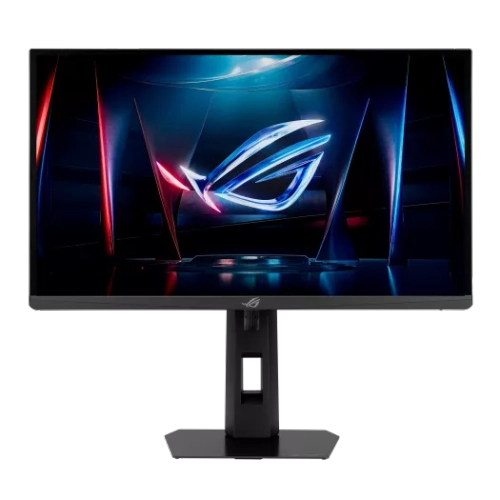

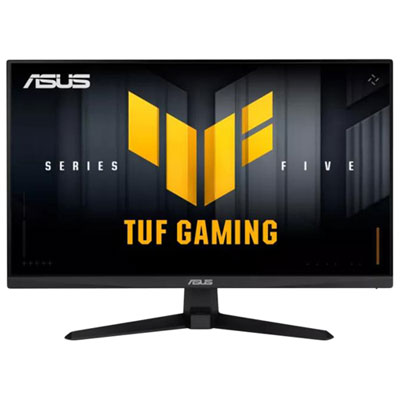
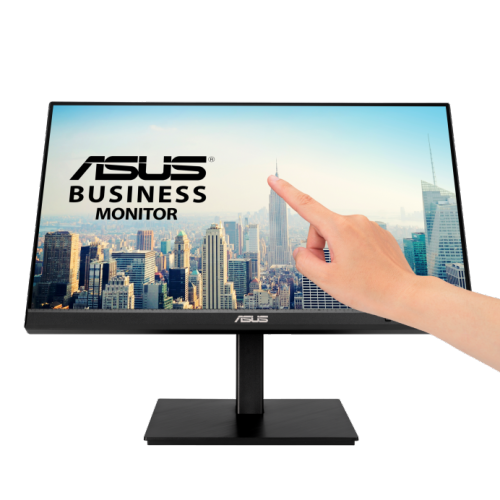
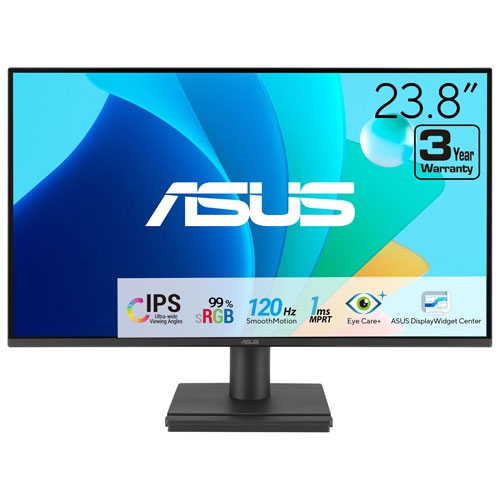
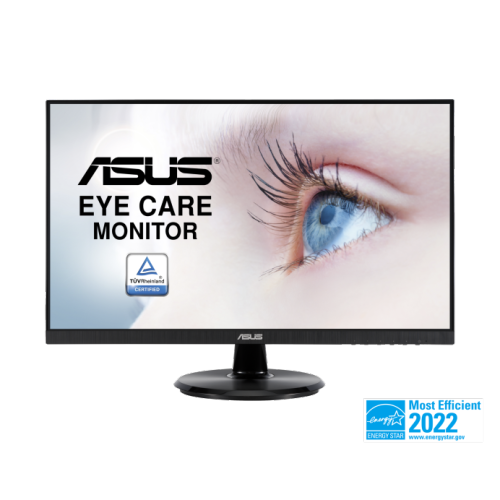
Readable screen space without taking over your desk
A 24-inch monitor offers a practical balance of readable screen space and a manageable footprint for a home office, study area, or gaming desk. Many displays in this size category have a 23.8-inch viewable panel, with Full HD resolution providing 1920 × 1080 pixels in a widescreen 16:9 format. That combination suits everyday tasks such as writing documents, attending video calls, browsing, and watching videos without requiring a particularly deep work surface. Some 24.1-inch displays instead use a 16:10 aspect ratio and 1920 × 1200 resolution, adding vertical space that can show more of a document, spreadsheet, or editing timeline. The difference is noticeable when reading several paragraphs at once or working through rows of figures. Resolution, screen proportions, and text scaling all affect how much information fits comfortably on the display, so diagonal size alone does not tell the whole story. A student moving between research notes and an assignment may appreciate a straightforward widescreen layout, while someone handling long reports may prefer the extra height of a 16:10 screen. Two similarly sized monitors can also create a useful workspace, keeping a reference document open beside the main task rather than constantly switching between windows. Slim bezels help reduce the visual gap between adjacent screens, although the outer dimensions and stand width still determine how neatly the pair fits on a desk. For shared spaces, a 24-inch screen can leave room for a keyboard, notebook, and task light without dominating the room. A matte screen finish can soften distracting reflections from nearby lighting, but placement remains important: a bright window directly behind the user can still interfere with visibility. These monitors suit a wide range of routines, from homework and household administration to customer support, coding, and casual entertainment, with the most useful features depending on the work or play happening on screen.
Panel type, refresh rate, and colour performance help distinguish monitors that otherwise look similar in size. IPS panels are known for wide viewing angles, which can help colours remain more consistent when leaning back, sharing the screen, or using a portrait orientation. VA panels often offer stronger native contrast, giving dark scenes greater depth, although motion handling varies between displays. For everyday office work, a refresh rate above the traditional 60Hz can make scrolling and pointer movement look smoother. Gaming-focused displays may offer rates such as 144Hz, 165Hz, or 180Hz, but the visible benefit also depends on the computer’s performance, the game settings, and the connection being used. A fast screen cannot create frames that the computer is not producing. Adaptive sync can help reduce tearing when supported by both the display and graphics hardware, making movement appear more continuous as frame rates change. Response-time figures describe pixel transitions rather than the entire delay between pressing a key and seeing an action, and different measurement methods are not directly interchangeable. For fast-paced games, clear motion and well-tuned response settings matter alongside the headline number; overly aggressive settings can produce bright or dark trails around moving objects. Creative tasks place different demands on a screen. Photo editing, illustration, and design work benefit from suitable colour coverage and accurate calibration, while consistent brightness across the panel helps when assessing an image. Coverage of the sRGB colour space is relevant to much web-based content, but a colour-gamut percentage by itself does not establish accuracy. Factory calibration can provide a useful starting point where specified, with periodic calibration helping maintain consistency for colour-sensitive work. Built-in speakers can handle basic alerts and calls, though separate speakers or headphones may be more suitable for detailed listening. Eye-comfort features such as flicker reduction and adjustable blue-light settings can make a display more comfortable for some users, but sensible brightness, readable text, and regular breaks remain important during long sessions. A monitor used for daytime spreadsheets and evening games benefits from accessible picture controls that make those adjustments straightforward.
Physical fit and connectivity are just as important as the image on screen. HDMI and DisplayPort are common connections, while USB-C on some monitors can carry video and may also support data or laptop charging; those functions depend on the specifications of both devices and the cable. The refresh rate supported at the intended resolution can differ between inputs, particularly when an adapter or docking station is involved. For a laptop-based workspace, a compatible connection can simplify moving between the desk and another location, while a USB hub can keep a keyboard and mouse connected to the monitor where that feature is included. Height adjustment, tilt, swivel, and pivot offer different ways to position the screen, with portrait mode particularly useful for reading long pages or viewing code. A stand that raises the display to a comfortable position can reduce the need to stack it on improvised supports. Compatible mounting points allow certain monitors to attach to a monitor arm, but the mounting pattern, screen weight, and arm capacity must match. Housings are commonly plastic, with metal used in structural components or mounting hardware; secure assembly and a stable base matter more than a heavy-looking exterior. Leaving space around ventilation openings and routing cables without pulling on the ports helps protect the setup during daily use. Screen care is usually simple: switch off and unplug the display, follow the manufacturer’s cleaning instructions, and use a clean, soft microfibre cloth without pressing hard on the panel. Liquid should never be sprayed directly onto the screen, and abrasive materials or harsh cleaners can damage its surface. A 24-inch monitor can be a thoughtful gift for a student, remote worker, or gamer when the recipient’s computer connections and desk space are known. For setups that need a larger viewing area, Asus 27 Inch Monitors provide a related size category to consider alongside resolution and viewing distance. The right combination of screen dimensions, stand flexibility, and display features makes the monitor feel like a natural part of the workspace rather than something the rest of the desk must accommodate.
Top selling and popular products
-
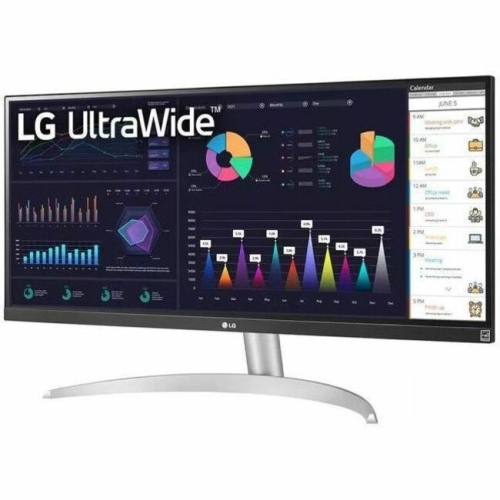 Your price for this item is $783.68
-
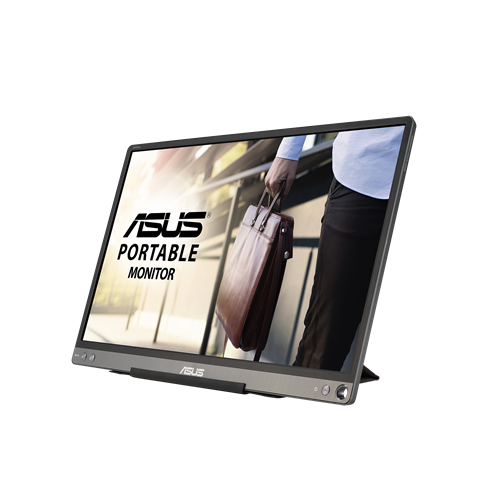 Your price for this item is $299
-
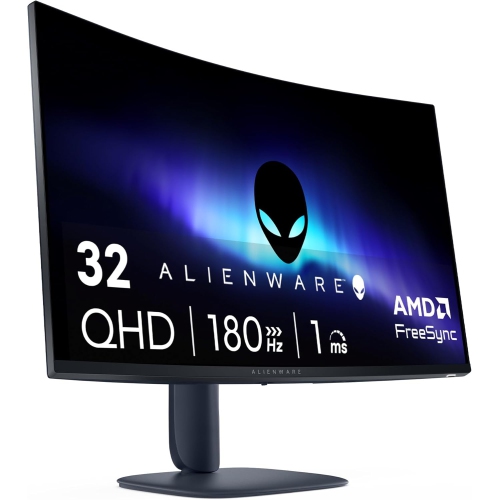 Your price for this item is $469
-
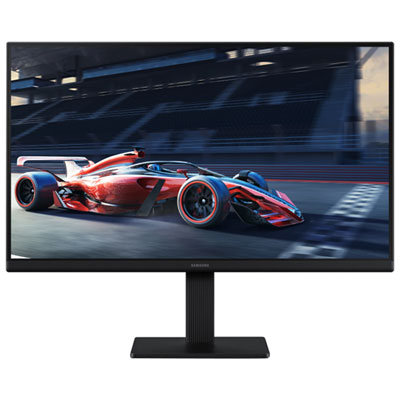 Your price for this item is $94.99
-
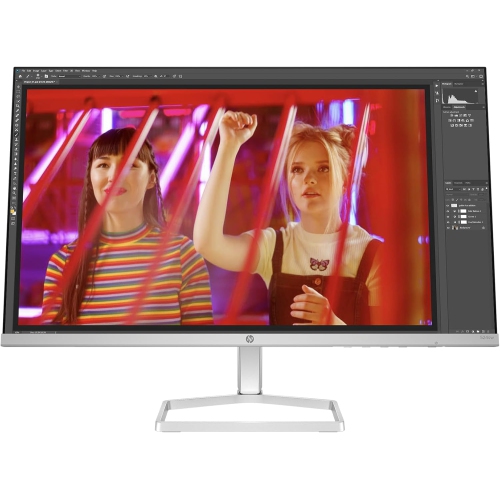 Your price for this item is $177.99
-
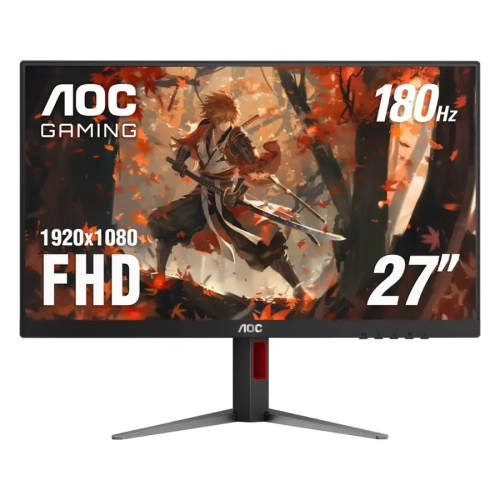 Your price for this item is $229.99
-
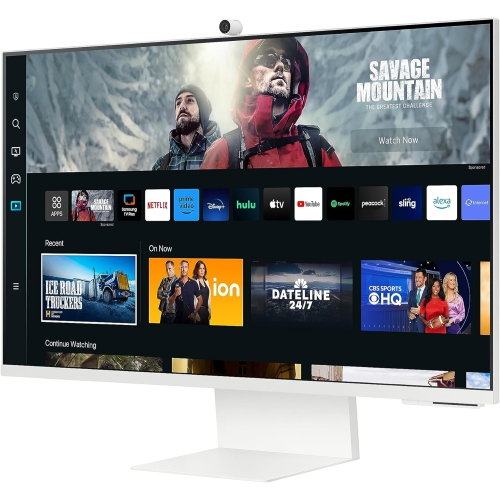 Your price for this item is $1138.68
-
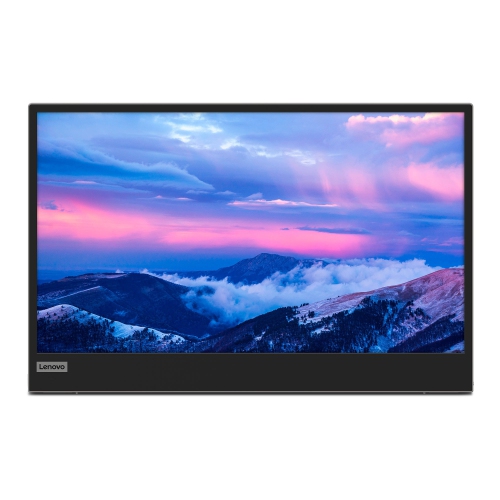 Your price for this item is $355.68
Discover more categories related to Monitor Asus 24
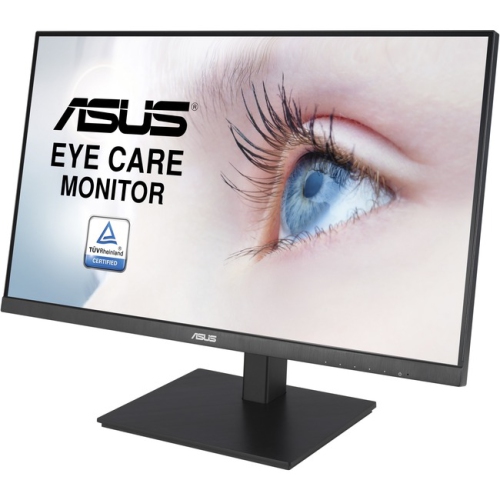
Top Collections:
Best Black Friday Deals This Year, Best Black Friday Deals On Electronics, Kindle Devices, Best Black Friday Deals On Apple Products, Best Budget Office Chairs, Best Cameras for Sports Photography, Dyson Airwrap, Canon G7X Cameras, Best Laptops for Writers, Samsung Galaxy Phones
Some products may be subject to Environmental Handling Fees
(EHF) depending on your province.
Learn more about EHFs.