Mouse Compatible With MacBook Air
Finding the perfect mouse compatible with MacBook Air can make everyday tasks smoother and more enjoyable, whether you’re working, studying, or relaxing at home. Explore a wide range of options designed to complement your MacBook Air, offering reliable connectivity and effortless navigation. Discover mice that suit your style and enhance your productivity, all while ensuring seamless integration with your device.
Sort
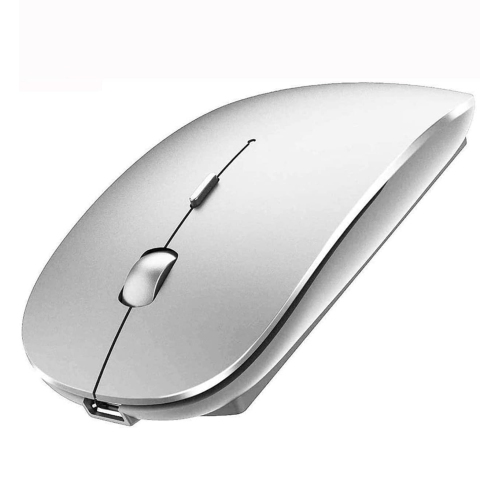
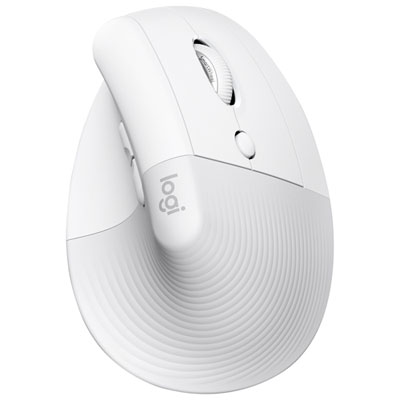
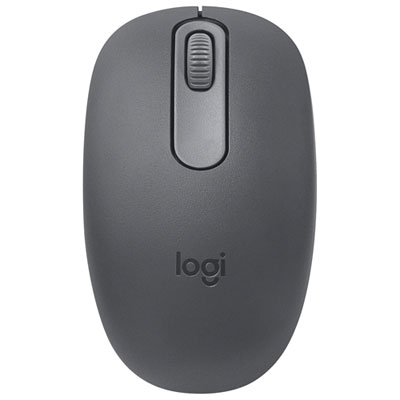
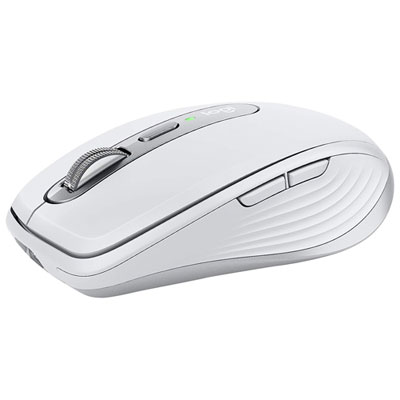
Mouse compatibility goes beyond a working connection
A mouse compatible with MacBook Air can connect through Bluetooth, a USB-C receiver, or a wired USB connection, as long as its connection method and macOS requirements match the laptop. Mice with USB-A receivers or cables can also work through a suitable adapter or hub when there is no matching port on the computer. Bluetooth keeps a USB port free and avoids a separate receiver, making it a convenient option for a laptop that moves between a desk, a meeting room, and a café table. A receiver-based wireless mouse uses a small USB receiver rather than Bluetooth pairing, while a wired mouse draws power through its cable and does not need battery charging. These connection choices are a useful starting point when comparing MacBook Air Mice, but compatibility also extends to the controls used throughout the day. Basic pointer movement, clicking, and scrolling are commonly supported by macOS; extra buttons, customized shortcuts, gesture controls, and advanced scrolling features may depend on the mouse, its software, and the operating system version. A mouse described as compatible with several operating systems may not offer identical features on each one. Clear macOS support is especially important for anyone who wants to assign a side button to a frequently used command or adjust settings beyond the standard pointer controls. Multi-device connectivity can be useful for a desk shared by a MacBook Air and another computer, allowing a supported mouse to switch between paired devices without being paired again each time. For everyday browsing, email, and document editing, straightforward controls may be enough. More involved work, such as navigating a large spreadsheet or arranging objects on a design canvas, can benefit from additional controls when those functions are supported. The best fit is therefore not simply a mouse that connects, but one whose everyday features suit both the computer and the work being done.
Comfort depends on how the mouse fits the hand, how it is held, and how much space is available beside the keyboard. A low-profile mouse slides easily into a laptop sleeve or accessory pouch, while a fuller shape can provide more contact beneath the palm during longer desk sessions. Compact dimensions are helpful for travel, but a small mouse is not automatically the most comfortable choice for every hand. Some people rest most of their palm on the shell; others guide the mouse mainly with their fingertips or hold it with an arched grip. Width, height, button placement, and weight all influence how natural those movements feel. Symmetrical shapes can suit a range of users, although side buttons may still favour one hand. Sculpted and vertical designs are often made for a particular hand and place the wrist and forearm in a different position from a conventional mouse. Their comfort is personal rather than guaranteed by the shape alone. Materials also affect the experience: a smooth plastic shell feels different from a textured surface, rubberized side grips, or metal accents. A secure grip can be helpful when making small adjustments, while accessible buttons reduce the need to reposition the hand for routine commands. Scroll-wheel design matters, too. Defined steps can make it easier to move through a document in small increments, while a free-spinning mode, where offered, suits lengthy pages. Horizontal scrolling can be useful for wide spreadsheets and timelines when supported. Quieter switches may be welcome in a shared study space or during a video call, although quieter does not mean completely silent. Adjustable tracking sensitivity lets the pointer cover more or less screen distance with the same hand movement, which can be useful when moving between the laptop display and a larger external monitor. For detailed selections or repeated text editing, consistent tracking and a comfortable shape are often more meaningful than a high maximum sensitivity figure.
Intended use also shapes the practical details that matter over time. A mouse carried between classes or appointments benefits from a secure place for its receiver, an accessible power switch, and a shape that fits into a bag without pressure on the buttons. At a permanent workstation, cable reach, charging access, and room to move may matter more than the smallest possible size. Rechargeable wireless mice need occasional access to power, while models with replaceable batteries make battery type and compartment access part of routine ownership. A charging connector does not necessarily mean the mouse also works as a wired input device, and some designs cannot be used comfortably while charging. Battery-life estimates vary with usage, settings, and connection mode, so practical details such as a charge indicator can be useful during a busy workday. The tracking surface deserves attention as well. A mouse that performs well on a desk may behave differently on glossy, transparent, or uneven surfaces; glass tracking should only be expected when it is explicitly supported. A mouse pad provides a more consistent surface and can help keep the glide feet away from crumbs and grit. Regular care is generally simple: a soft, dry cloth removes everyday dust, while any deeper cleaning should follow the maker’s directions, with moisture kept away from openings. Smooth movement also depends on keeping the sensor area and underside clear of debris. Durable construction includes more than the outer shell; button feel, scroll-wheel operation, cable strain relief, and receiver storage all contribute to how well a mouse stands up to repeated use and travel. For students, remote workers, and people building a more comfortable home desk, a compatible mouse can complement the built-in trackpad without replacing every gesture-based task. As a gift, it is most useful when the recipient’s preferred hand, connection needs, and usual workspace are known. Those everyday details help make the mouse a natural part of their MacBook Air setup.
Top selling and popular products
-
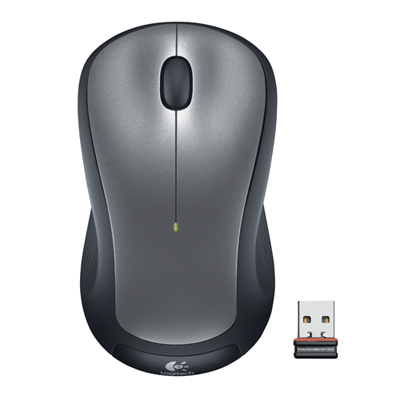 Your price for this item is $29.99
-
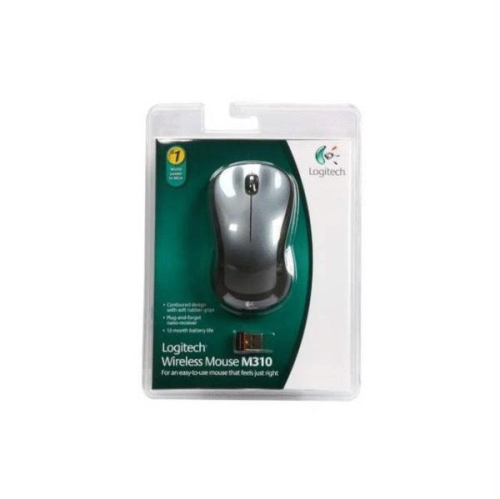 Your price for this item is $50.44
-
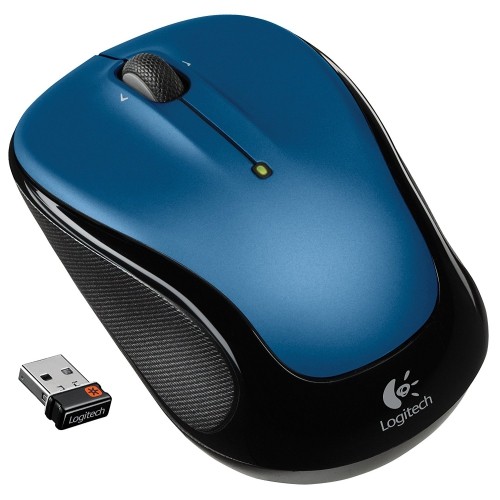 Your price for this item is $39.99
-
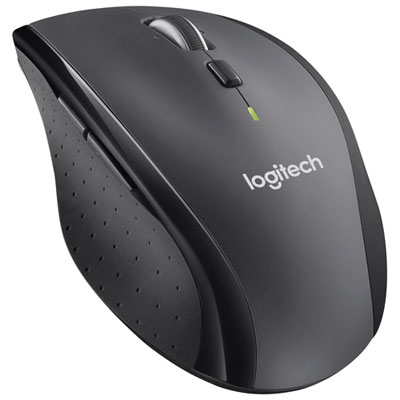 Your price for this item is $49.99
-
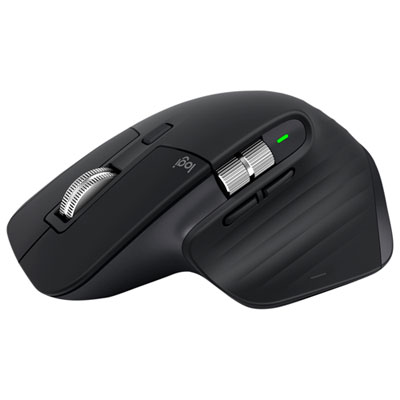 Your price for this item is $159.97
-
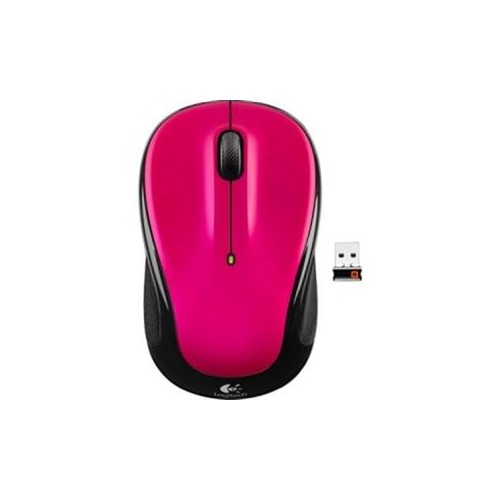 Your price for this item is $64.68
-
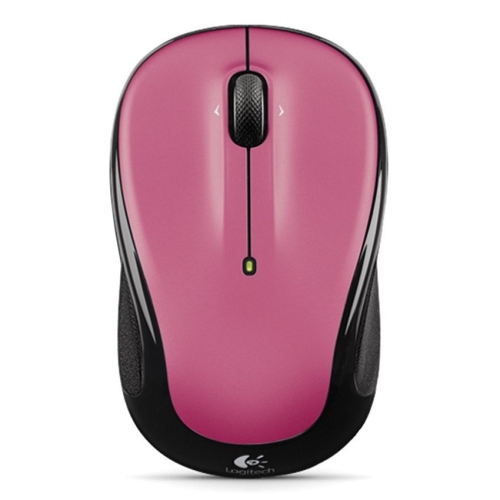 Your price for this item is $48.68
-
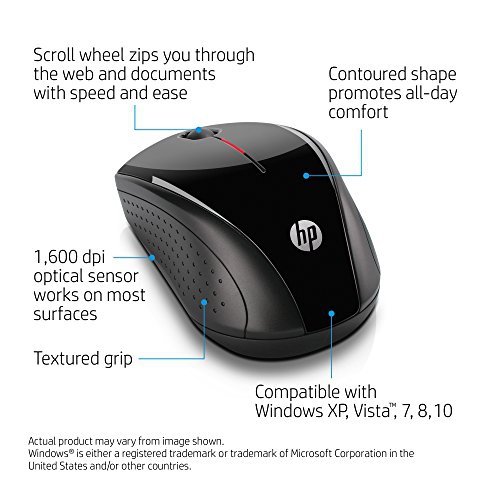 Your price for this item is $31
Discover more categories related to Mouse Compatible With MacBook Air
Top Collections:
Best Black Friday Deals This Year, Best Black Friday Deals On Electronics, Kindle Devices, Pokemon Centers, Best Black Friday Deals On Apple Products, Best Cameras for Sports Photography, Dyson Airwrap, Pokémon 30th Celebration Cards, Apple iPhone 17 Pro, Canon G7X Cameras
Some products may be subject to Environmental Handling Fees
(EHF) depending on your province.
Learn more about EHFs.