Wireless Mice for MacBook Air
A wireless mouse is a great accessory for your MacBook Air. It allows you to work from anywhere in your home or office without being tied down to your desk. Wireless mice are also useful for people who play games and spend hours at a time in front of the computer. With a wireless mouse, you can keep your hands free and move around without having to constantly plug and unplug the mouse. Here are the recommended wireless mice that suit your MacBook Air.
Sort
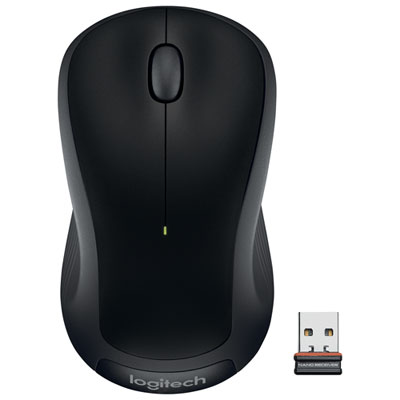
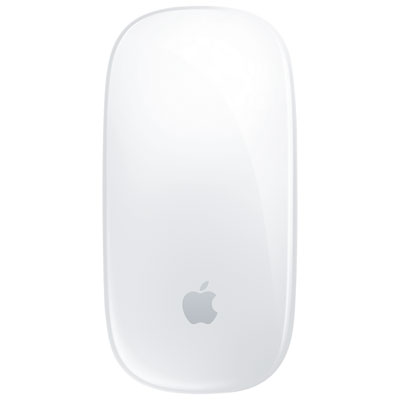
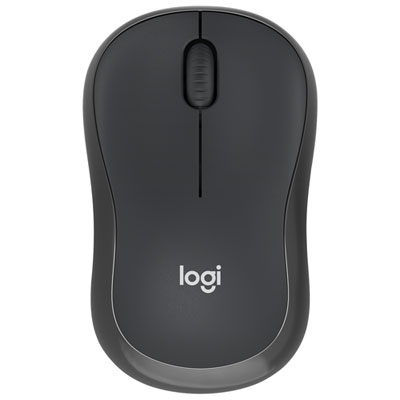
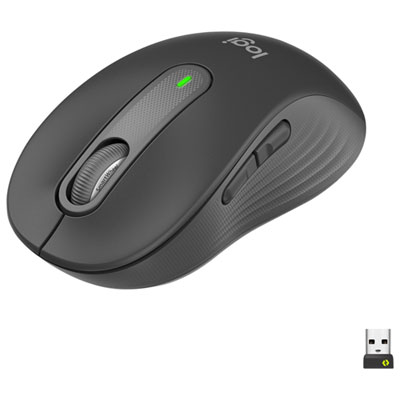
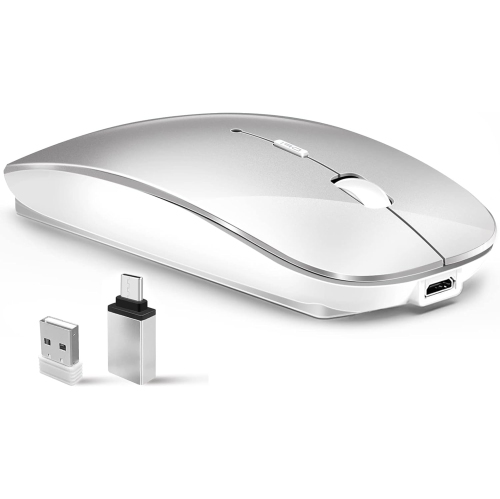
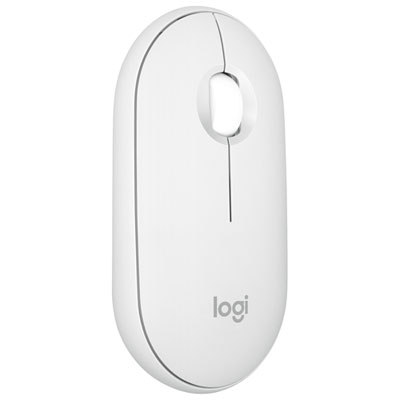
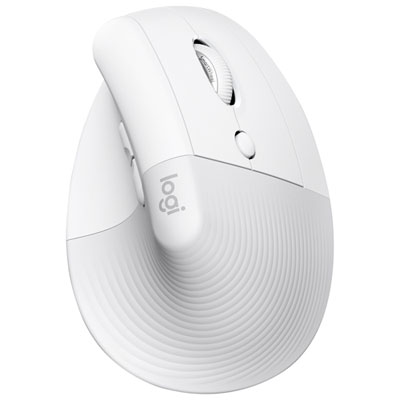
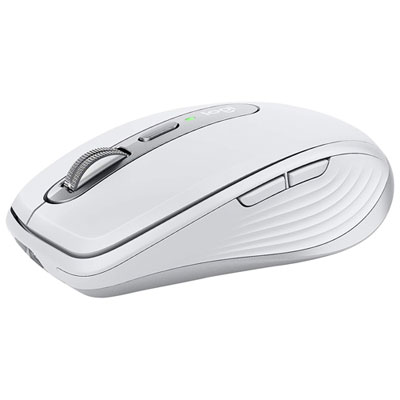
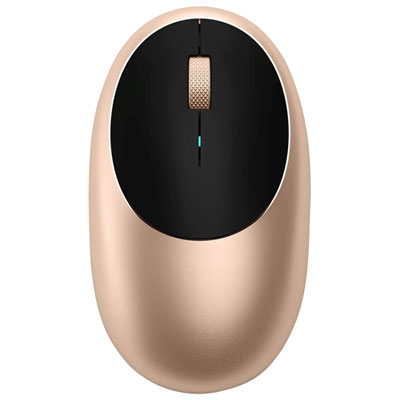
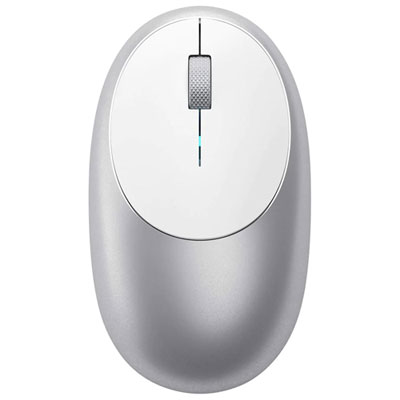
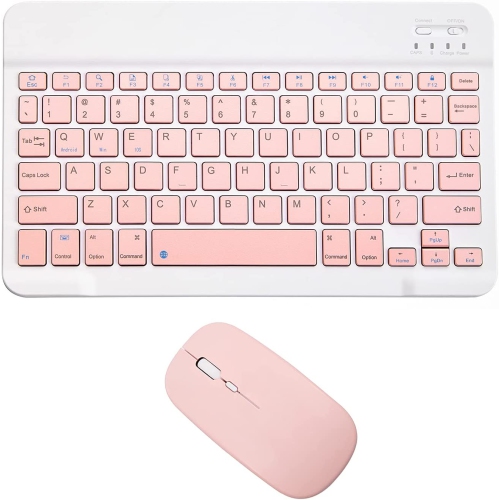
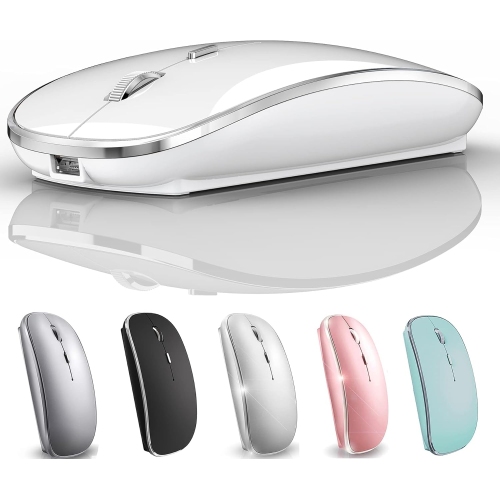
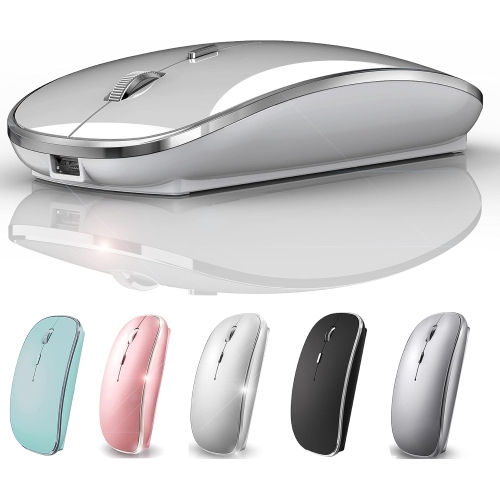
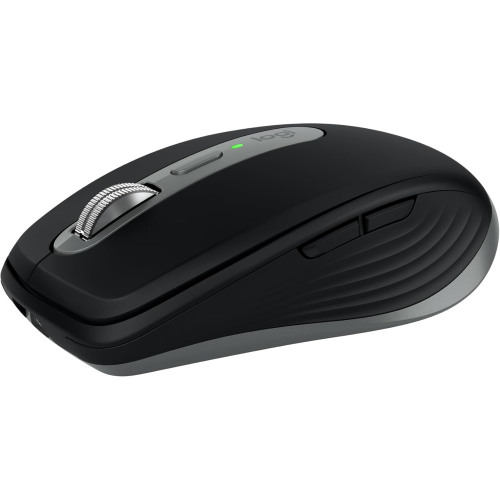
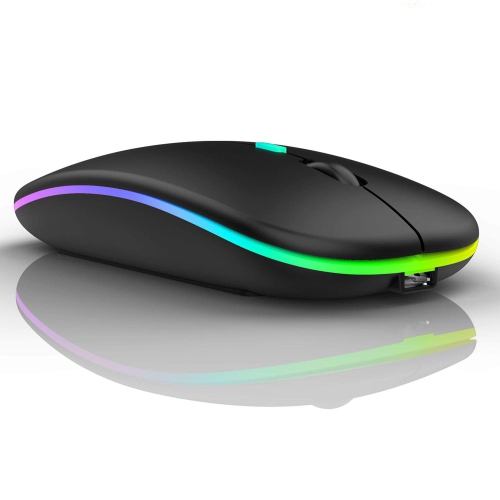
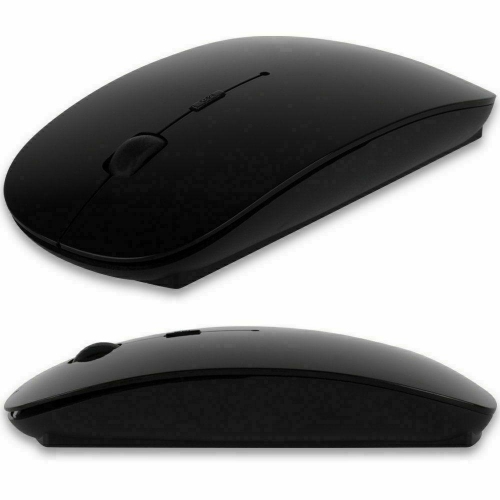
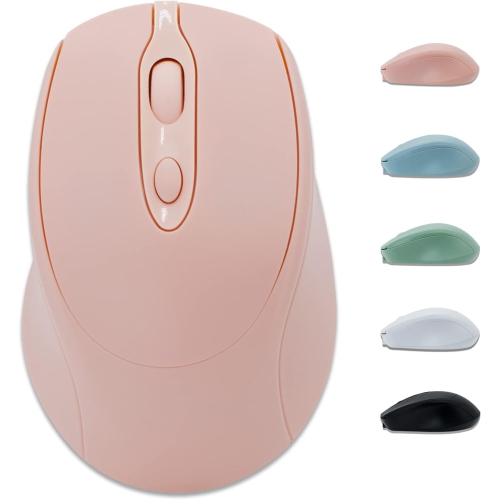
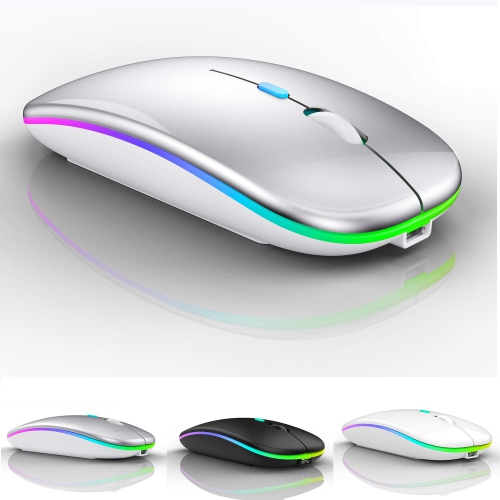

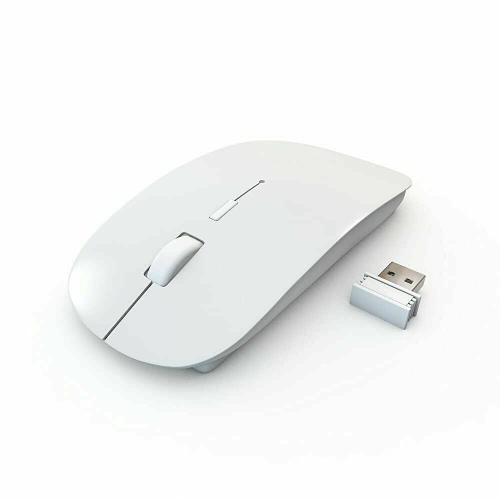
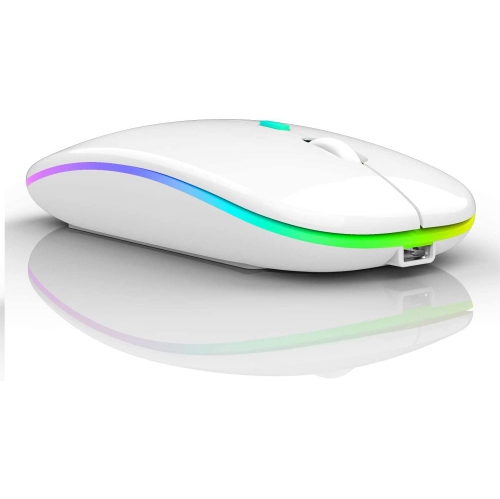
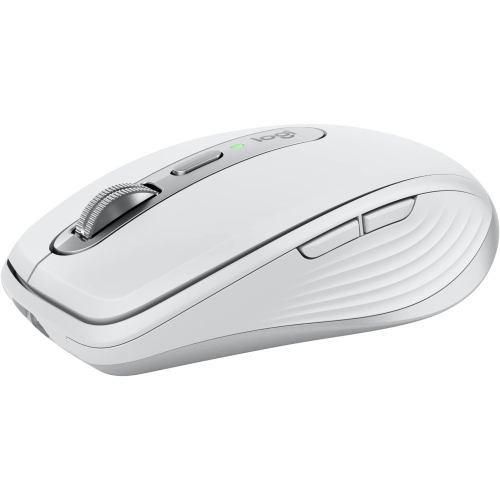
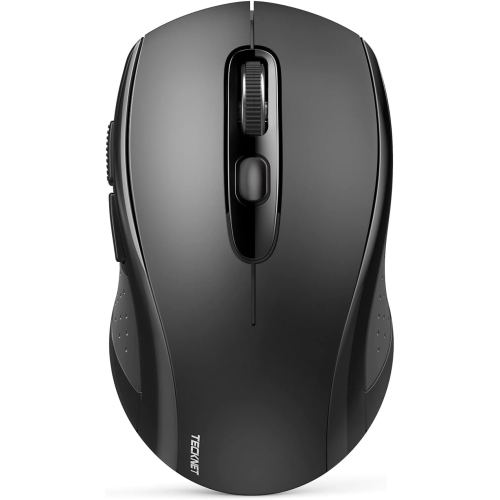
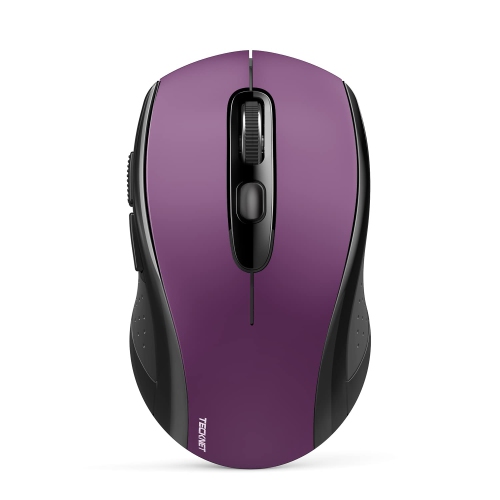
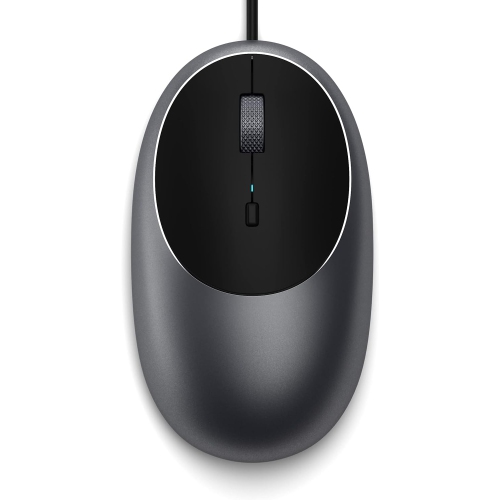
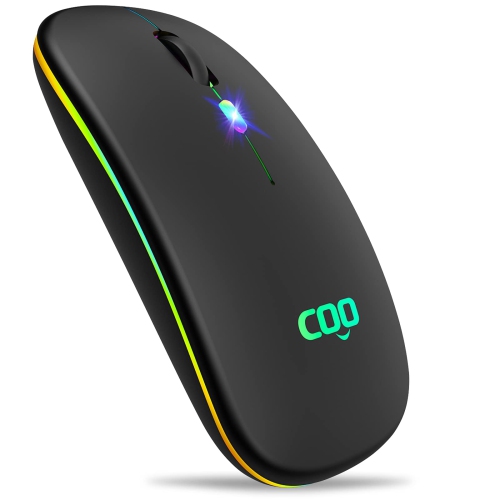
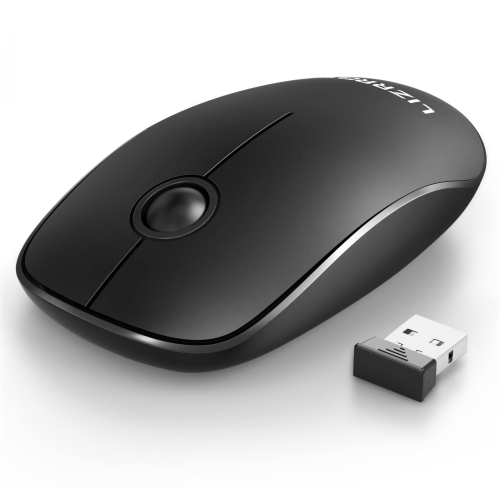
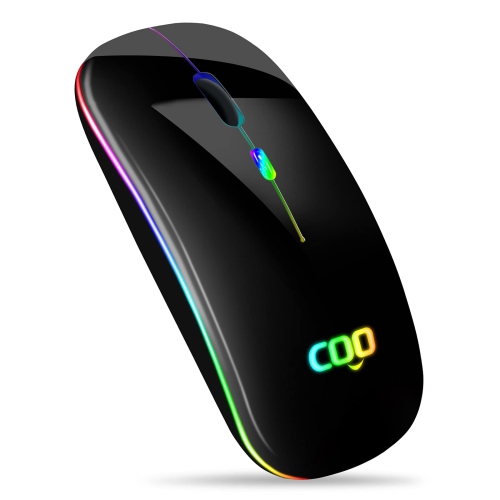
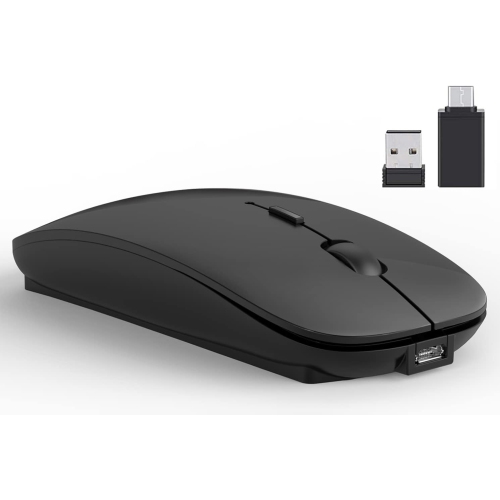
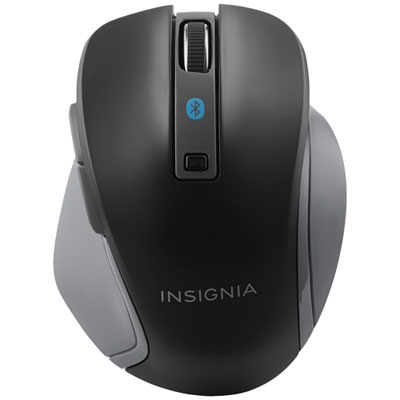
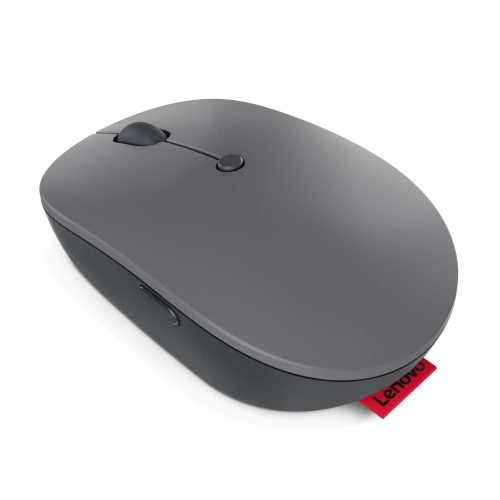
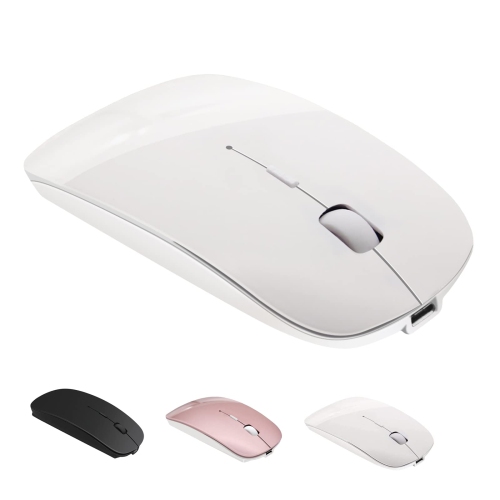
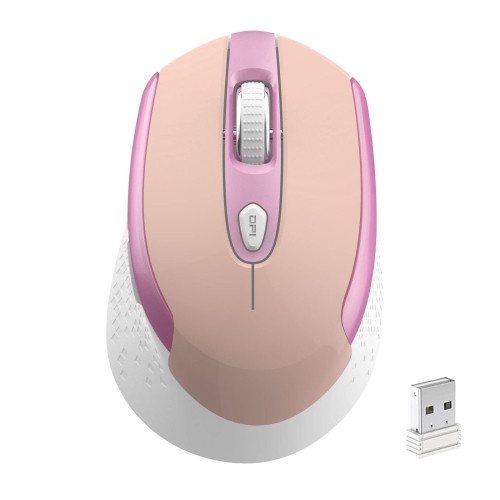


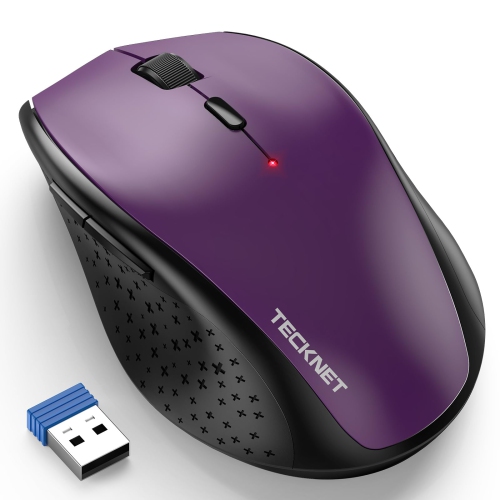
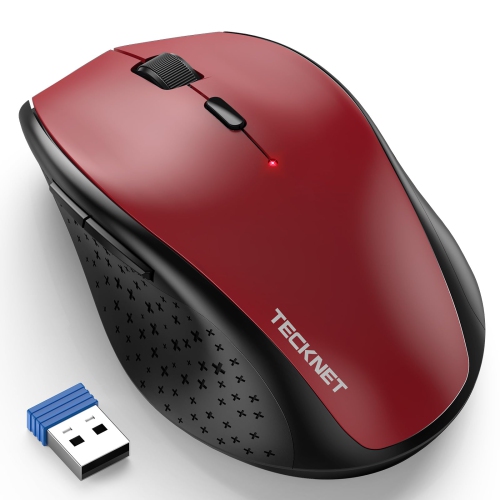
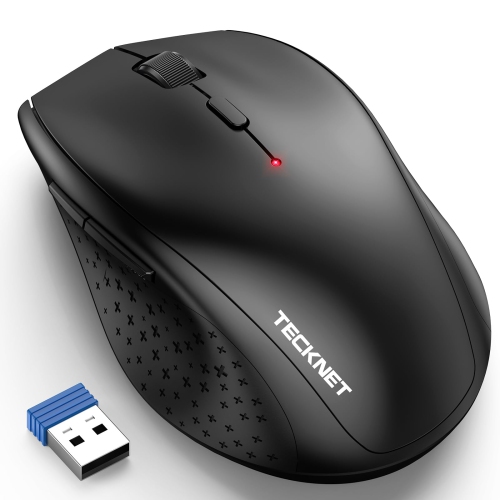
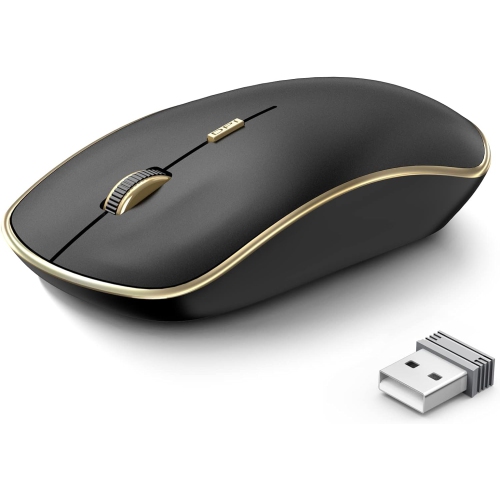
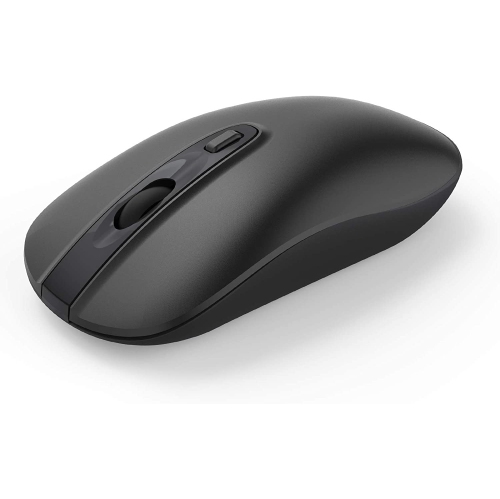

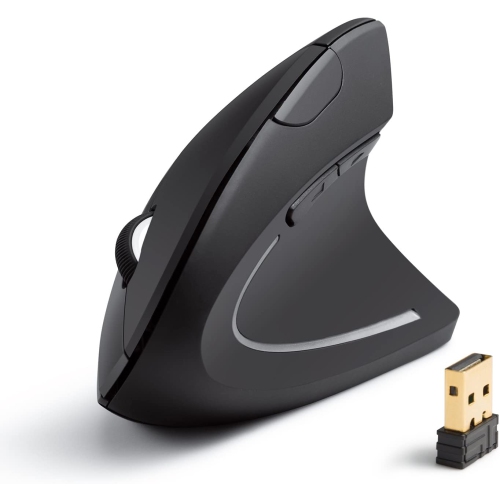
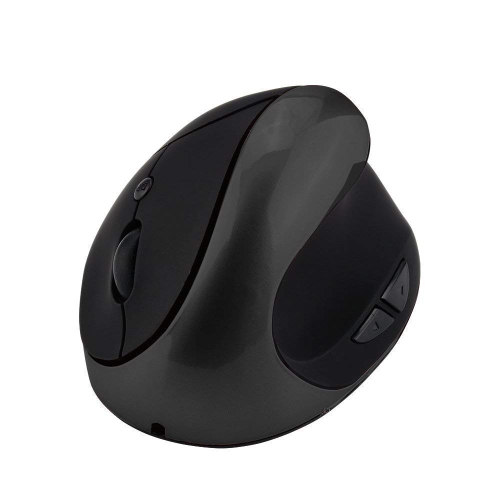
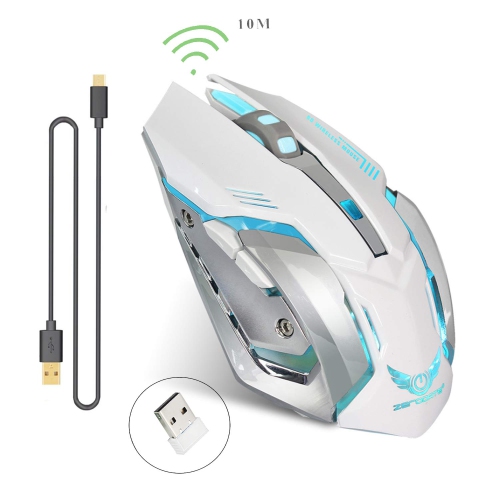
More room to move beyond your built-in trackpad
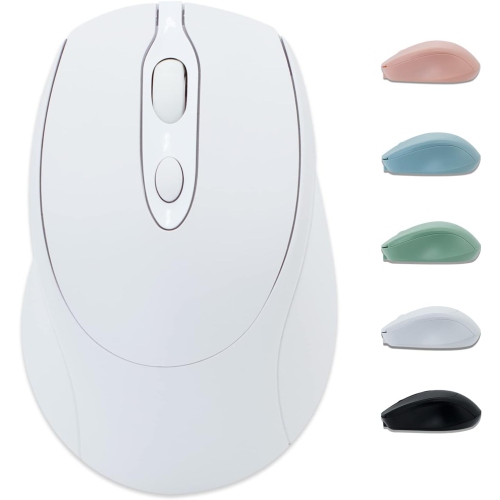
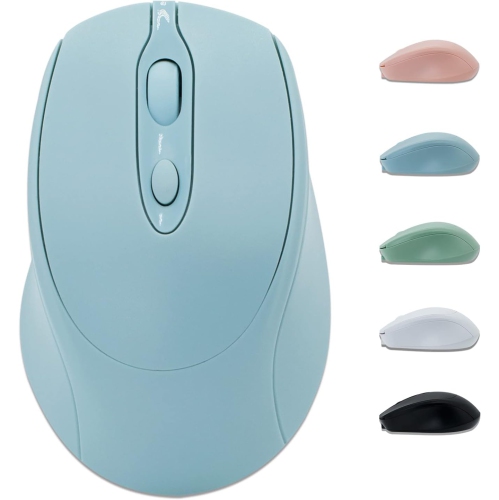
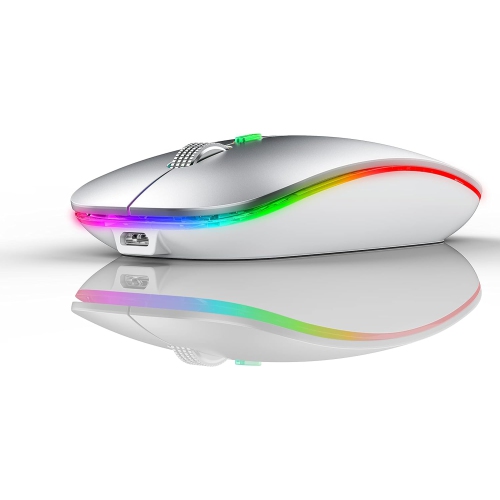
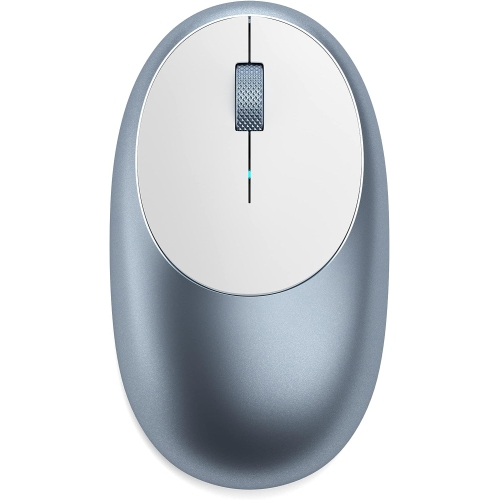
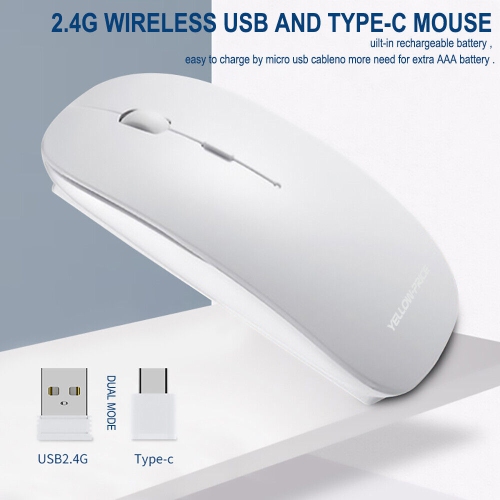
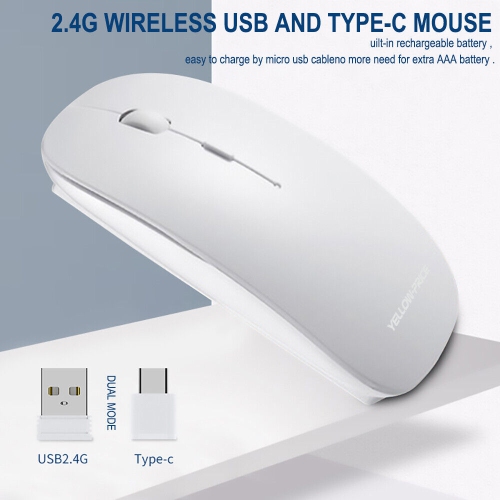
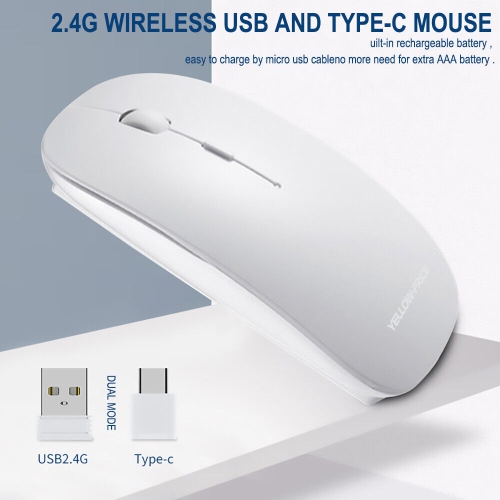
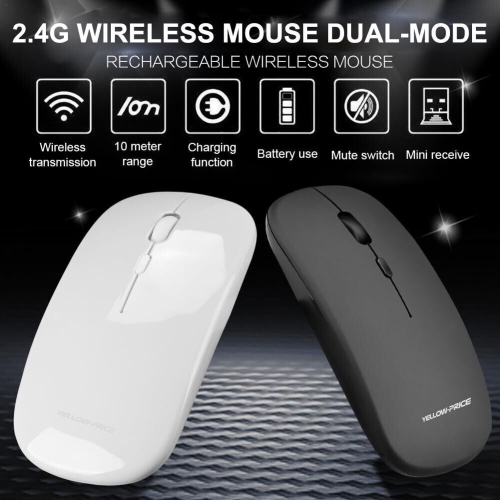
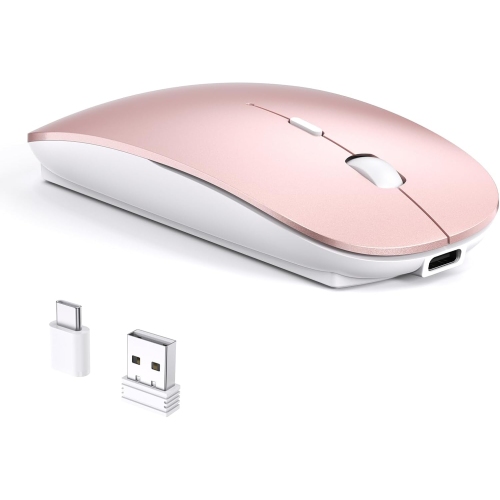
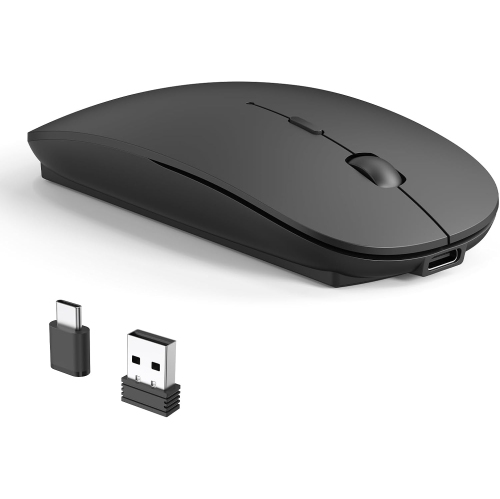
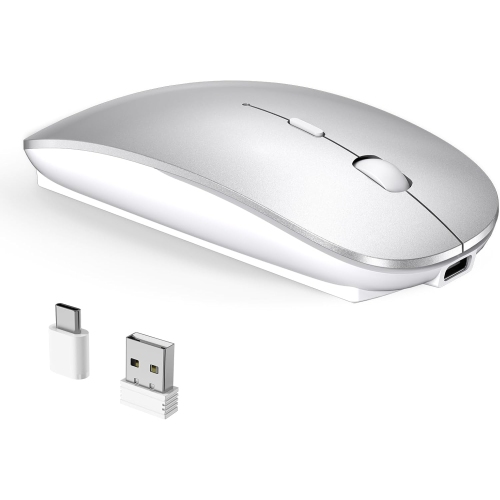
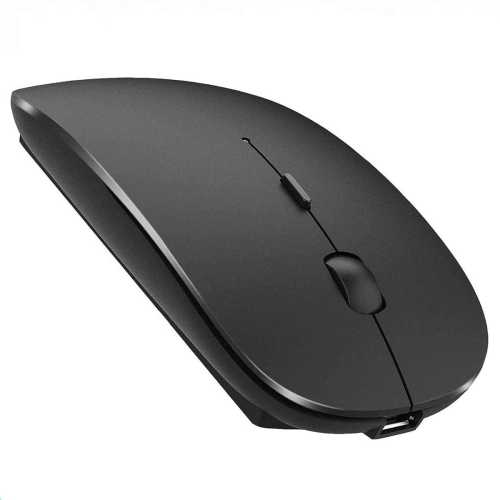
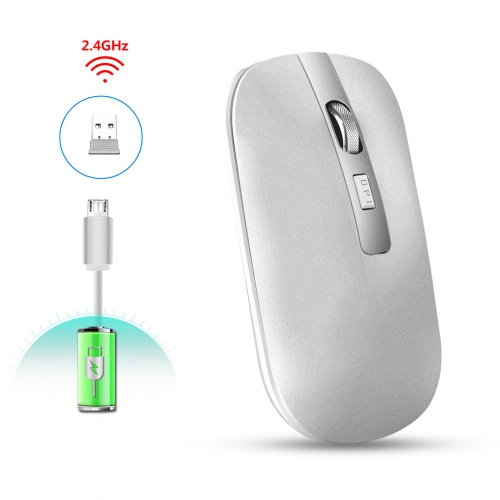
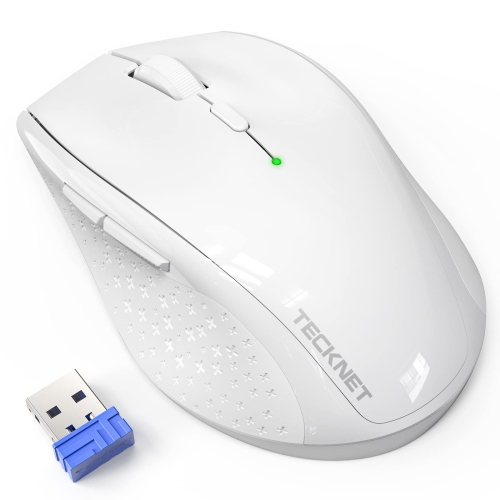
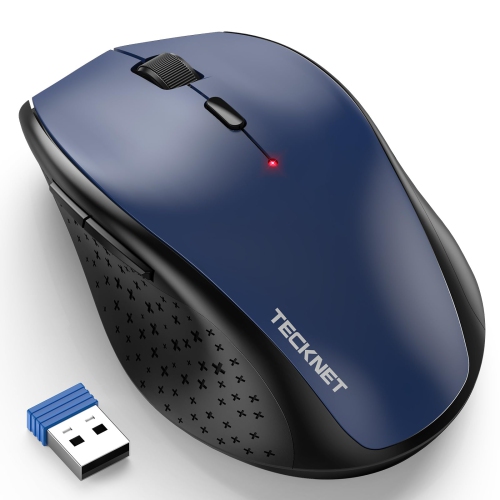
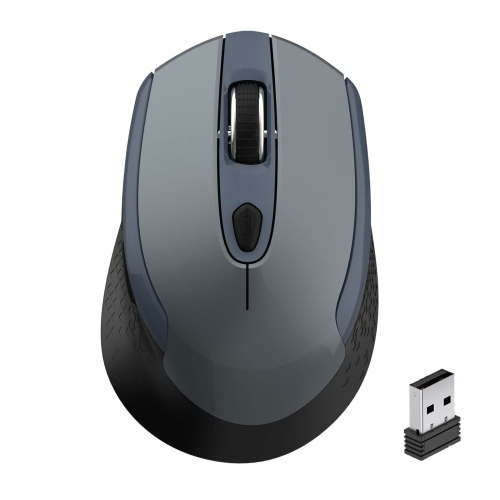
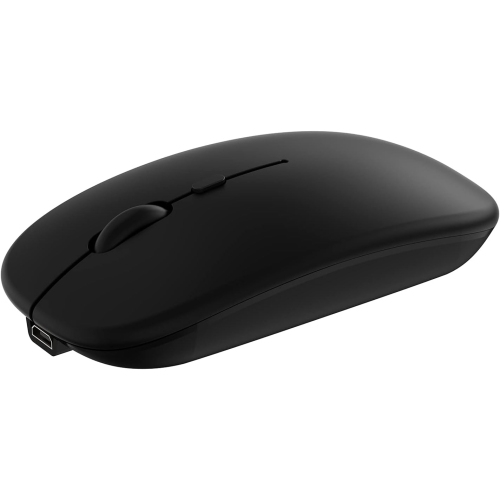
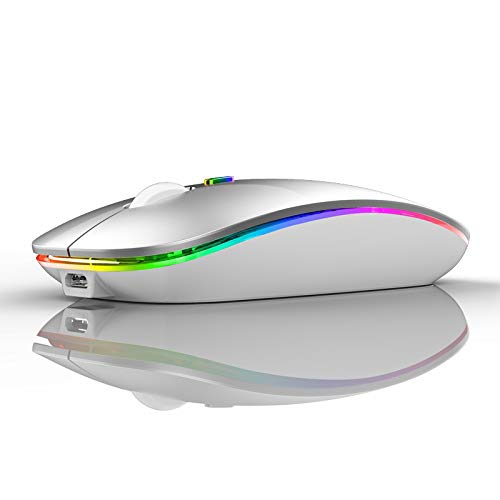
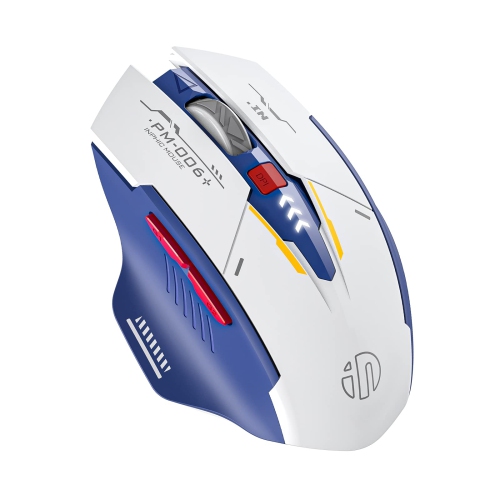
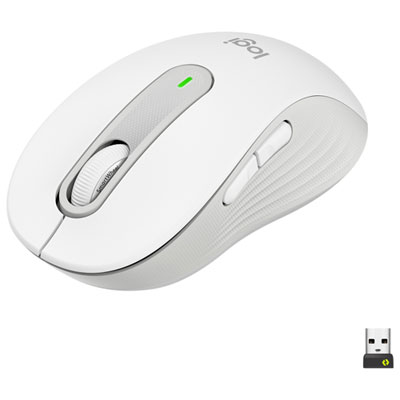
Wireless mice for MacBook Air offer a separate pointing device for everyday browsing, detailed document work, and tasks that benefit from more room to move than a built-in trackpad provides. A mouse can be especially useful when the laptop sits on a stand beside an external keyboard, turning a small desk into a comfortable workspace for writing, studying, or managing spreadsheets. The main connection options are Bluetooth and a dedicated wireless USB receiver. Bluetooth connects directly to a compatible laptop without occupying a USB port, making it a practical choice for a lightweight setup that travels between home, campus, and the office. Receiver-based mice use a small accessory plugged into the computer or a compatible hub; the receiver’s connector needs to match the ports in the setup. A USB-A receiver may require an adapter for a laptop with USB-C ports, while a USB-C receiver can fit a compatible port directly. Some wireless mice support both methods, offering flexibility when moving between computers or working with different desk arrangements. Compatibility involves more than establishing a connection, though. Basic pointing, clicking, and scrolling may work without additional software, while button assignments, gesture controls, and other advanced functions can depend on macOS support and the manufacturer’s application. Published operating system requirements help clarify which features are supported. For shoppers comparing options across several laptop setups, Wireless Mice for Mac Laptop offers a broader category to explore. The most useful features depend on the work involved: straightforward controls suit email and web browsing, while programmable buttons and more flexible scrolling can make navigating large files less cumbersome. For someone who regularly works away from a desk, a compact body, dependable connection, and easy-to-reach power switch may matter more than a long list of extra controls. These distinctions make wireless mice useful additions to both minimal laptop setups and more complete home office arrangements, without requiring every shopper to choose the same shape or feature set.
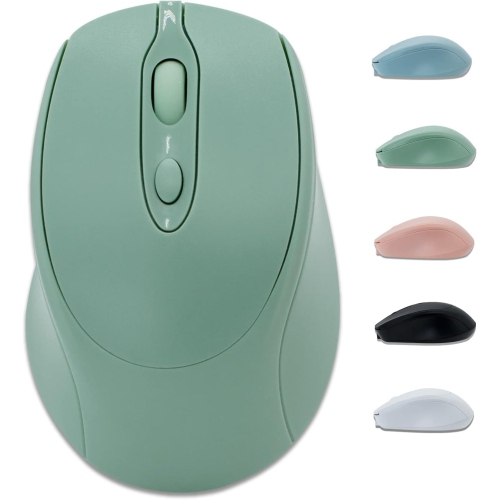
Comfort depends on how the mouse fits the hand as much as how neatly it fits beside a laptop. A low-profile mouse slips easily into a bag pocket and leaves more space on a narrow café table, but its flatter shape may provide less palm support during long work sessions. A fuller, contoured body can give the hand more contact with the shell, particularly for someone who rests much of the palm on the mouse. People who guide the pointer mainly with their fingertips may prefer a smaller shape that moves freely beneath the hand. Neither size is automatically better; hand dimensions, grip style, and the amount of daily use all affect the fit. Button placement matters, too. Side controls should be reachable without repeatedly shifting the hand, and the main buttons should feel manageable rather than requiring an awkward stretch. Symmetrical designs can suit a wider range of users, although side-button placement may still favour one hand. Sculpted and vertical designs are often hand-specific, so left- or right-handed suitability is worth checking. A vertical shape changes the angle of the hand, but comfort remains personal and can take time to assess. Materials influence the feel during use: smooth plastic shells are easy to wipe, textured sides add grip, and soft-touch finishes offer a different feel from a hard surface. Rubberized areas may show wear differently from the main shell, especially where fingers rest every day. Colour and finish can complement a keyboard or desk, but the practical details are often more noticeable after several hours of use. A scroll wheel with distinct steps can help with deliberate navigation, while lighter scrolling can feel more natural through lengthy pages. Quiet-click designs can also suit shared offices, library desks, or video calls where repeated clicking would otherwise be distracting. Keeping the mouse close to the keyboard, with enough clear space for easy movement, can help create a less cramped arrangement whether the workspace is permanent or packed away after each session.
Tracking, scrolling, and power features shape how a wireless mouse handles ordinary tasks. Adjustable sensitivity changes how far the pointer travels in response to hand movement, which can be helpful when switching between the laptop display and a larger monitor. A high maximum sensitivity figure alone does not establish accuracy or comfort; useful adjustment settings and consistent tracking on the intended surface matter more. Many optical sensors work well on a mouse pad or a suitable matte desk, but glass and glossy surfaces can require a sensor specifically designed for them. A slim mouse pad provides a predictable surface when moving between workspaces and helps keep the mouse’s underside away from rough tabletops. For spreadsheet work, horizontal scrolling can make wide documents easier to navigate, while a free-spinning wheel can move quickly through long reports. Touch-sensitive surfaces may support gestures, although the available actions vary by model and software compatibility rather than matching every built-in trackpad function. Multi-device pairing is another useful distinction for people who move between a work laptop and a personal computer: supported mice can store more than one connection and switch between them using a button or selector. Power arrangements deserve equal attention. Rechargeable mice reduce the need to keep spare batteries nearby, while replaceable-battery designs allow a fresh battery to be fitted when needed. Battery life varies with usage, settings, and connection type, and a charging connector does not necessarily mean the mouse supports wired operation. Charging-port placement also affects whether it can be used comfortably while plugged in. Regular care is simple: switch the mouse off before cleaning, wipe the shell with a soft cloth, follow the manufacturer’s cleaning directions, and keep liquid away from openings. Dust around the sensor and wear on the glide feet can affect movement, while a protective pouch helps prevent loose bag contents from scraping the finish. As a gift for a student, remote worker, or frequent traveller, a wireless mouse is most useful when its size, handedness, connection method, and controls match the recipient’s routine.
Comfort depends on how the mouse fits the hand as much as how neatly it fits beside a laptop. A low-profile mouse slips easily into a bag pocket and leaves more space on a narrow café table, but its flatter shape may provide less palm support during long work sessions. A fuller, contoured body can give the hand more contact with the shell, particularly for someone who rests much of the palm on the mouse. People who guide the pointer mainly with their fingertips may prefer a smaller shape that moves freely beneath the hand. Neither size is automatically better; hand dimensions, grip style, and the amount of daily use all affect the fit. Button placement matters, too. Side controls should be reachable without repeatedly shifting the hand, and the main buttons should feel manageable rather than requiring an awkward stretch. Symmetrical designs can suit a wider range of users, although side-button placement may still favour one hand. Sculpted and vertical designs are often hand-specific, so left- or right-handed suitability is worth checking. A vertical shape changes the angle of the hand, but comfort remains personal and can take time to assess. Materials influence the feel during use: smooth plastic shells are easy to wipe, textured sides add grip, and soft-touch finishes offer a different feel from a hard surface. Rubberized areas may show wear differently from the main shell, especially where fingers rest every day. Colour and finish can complement a keyboard or desk, but the practical details are often more noticeable after several hours of use. A scroll wheel with distinct steps can help with deliberate navigation, while lighter scrolling can feel more natural through lengthy pages. Quiet-click designs can also suit shared offices, library desks, or video calls where repeated clicking would otherwise be distracting. Keeping the mouse close to the keyboard, with enough clear space for easy movement, can help create a less cramped arrangement whether the workspace is permanent or packed away after each session.
Tracking, scrolling, and power features shape how a wireless mouse handles ordinary tasks. Adjustable sensitivity changes how far the pointer travels in response to hand movement, which can be helpful when switching between the laptop display and a larger monitor. A high maximum sensitivity figure alone does not establish accuracy or comfort; useful adjustment settings and consistent tracking on the intended surface matter more. Many optical sensors work well on a mouse pad or a suitable matte desk, but glass and glossy surfaces can require a sensor specifically designed for them. A slim mouse pad provides a predictable surface when moving between workspaces and helps keep the mouse’s underside away from rough tabletops. For spreadsheet work, horizontal scrolling can make wide documents easier to navigate, while a free-spinning wheel can move quickly through long reports. Touch-sensitive surfaces may support gestures, although the available actions vary by model and software compatibility rather than matching every built-in trackpad function. Multi-device pairing is another useful distinction for people who move between a work laptop and a personal computer: supported mice can store more than one connection and switch between them using a button or selector. Power arrangements deserve equal attention. Rechargeable mice reduce the need to keep spare batteries nearby, while replaceable-battery designs allow a fresh battery to be fitted when needed. Battery life varies with usage, settings, and connection type, and a charging connector does not necessarily mean the mouse supports wired operation. Charging-port placement also affects whether it can be used comfortably while plugged in. Regular care is simple: switch the mouse off before cleaning, wipe the shell with a soft cloth, follow the manufacturer’s cleaning directions, and keep liquid away from openings. Dust around the sensor and wear on the glide feet can affect movement, while a protective pouch helps prevent loose bag contents from scraping the finish. As a gift for a student, remote worker, or frequent traveller, a wireless mouse is most useful when its size, handedness, connection method, and controls match the recipient’s routine.
Top selling and popular products
-
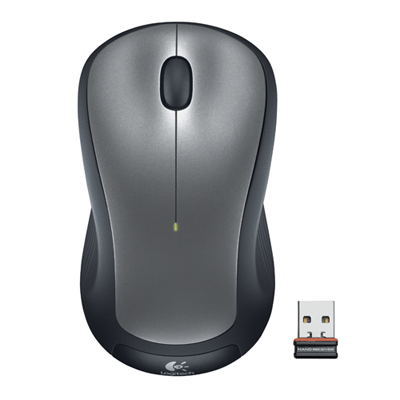 Your price for this item is $29.99
 -
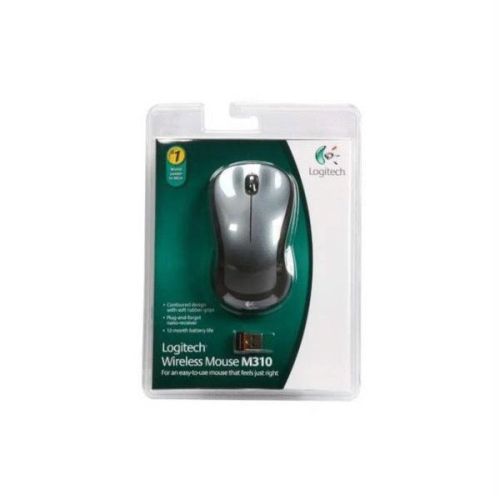 Your price for this item is $50.44
 -
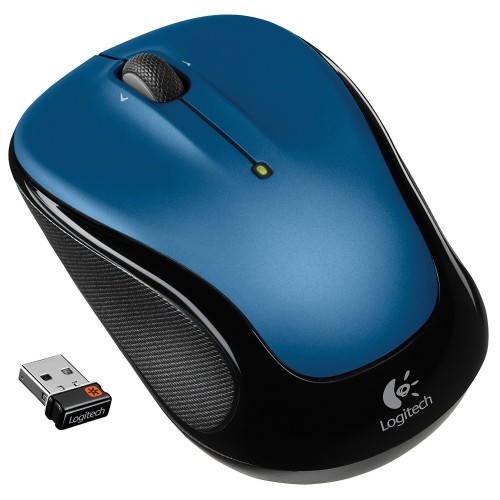 Your price for this item is $39.99
 -
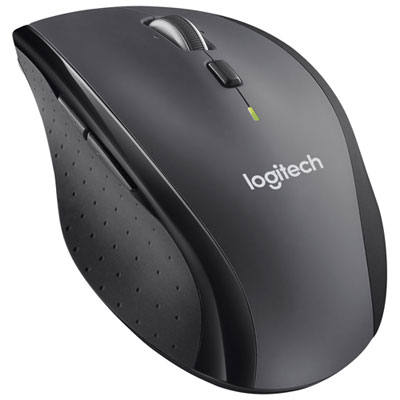 Your price for this item is $49.99
 -
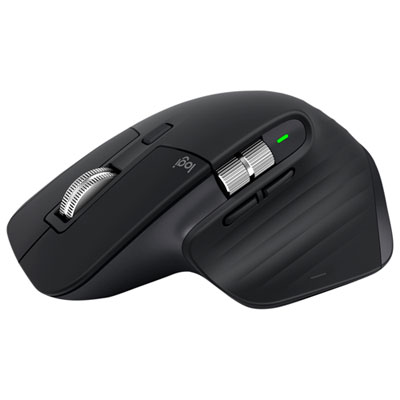 Your price for this item is $159.95
 -
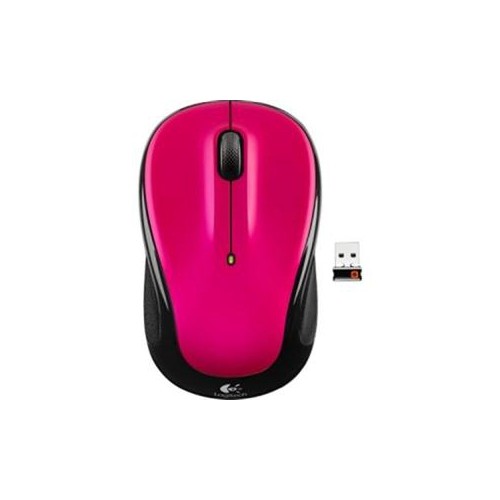 Your price for this item is $44.68
 -
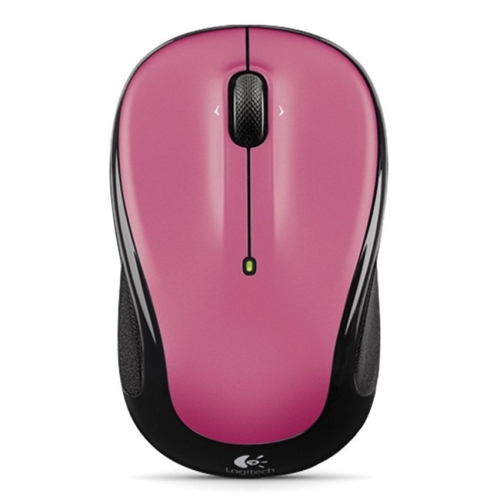 Your price for this item is $44.68
 -
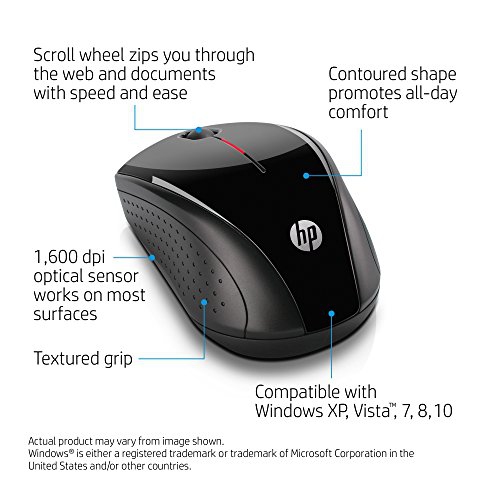 Your price for this item is $31
Discover more categories related to Wireless Mice for MacBook Air
Top Collections:
Pokemon Centers, Kindle Devices, Best Budget Office Chairs, Apple iPhones 16, Best Laptops for Writers, iPhone 15 Apple, Canon G7X Cameras, Refurbished Apple Laptops, Alarm Clock, Motorola Razr Phones
Some products may be subject to Environmental Handling Fees
(EHF) depending on your province.
Learn more about EHFs.