Tablets With MS Word
Tablets with MS Word offer a versatile solution for productivity on the go, making it easy to create, edit, and share documents from virtually anywhere. Whether you're working on school assignments, business reports, or personal projects, these tablets provide convenient access to essential tools for word processing. Explore a wide selection of tablets with MS Word to find the perfect device that fits your lifestyle and enhances your workflow.
Sort
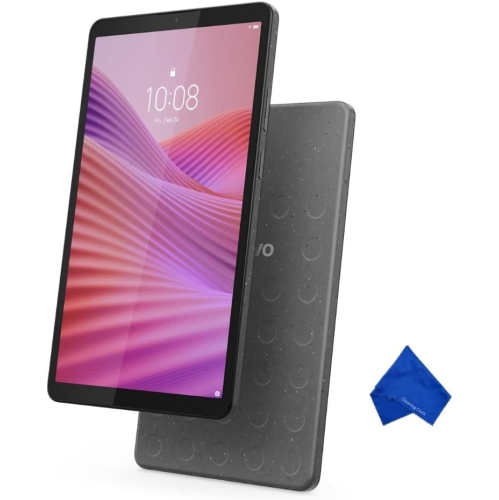
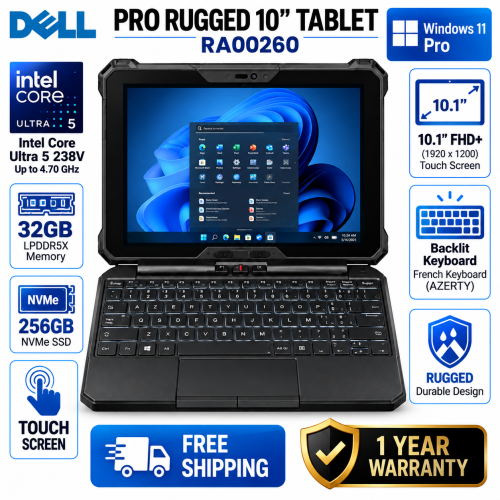


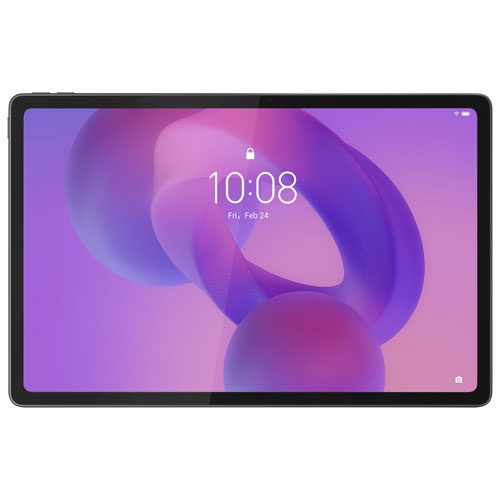


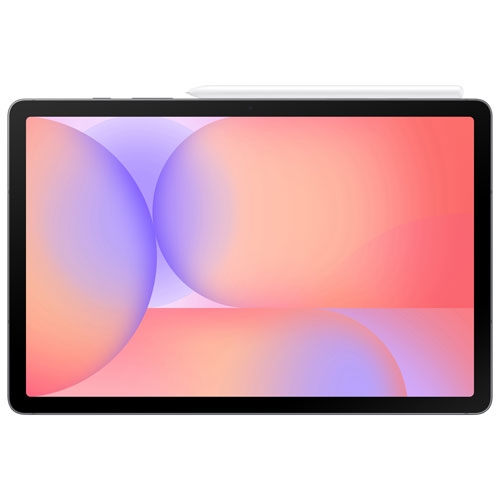








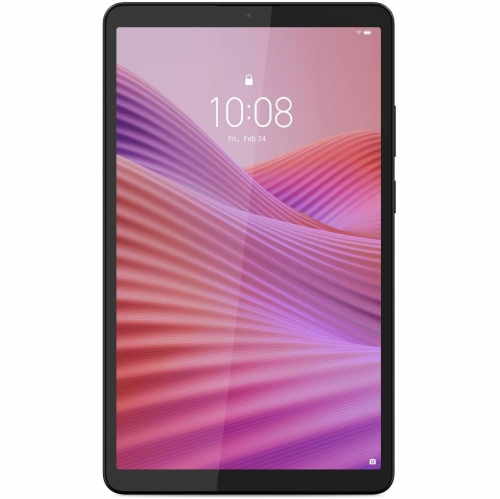
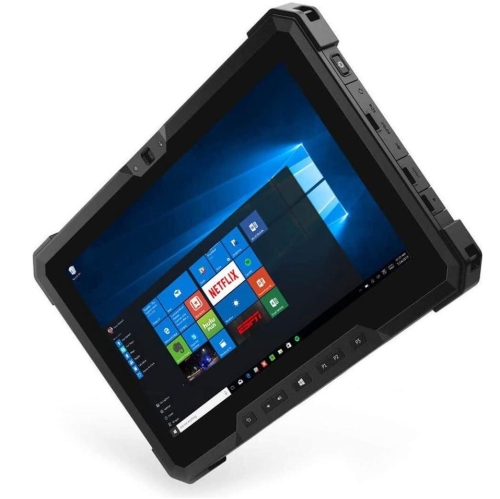

Why Word compatibility means more than opening documents
Tablets with MS Word bring everyday document work to a portable touchscreen, making it easier to draft a report at a kitchen table, review an assignment between classes, or update meeting notes away from a desk. The key distinction is which version of Word a tablet supports. Tablets with a compatible desktop operating system can run the desktop edition, while tablets with mobile operating systems generally use a mobile app or a browser-based version. These options are not interchangeable: desktop software is usually the better match for complex page layouts, detailed references, mail merge, and workflows that depend on specific add-ins. Mobile versions suit many everyday writing, editing, and reviewing tasks, although tools and layout controls vary by operating system, app version, and account. Browser access can be useful for shared documents, but it should not be assumed to offer every desktop feature. A tablet described as compatible with Word does not necessarily include the app, an activated licence, or access to every editing tool. Account and software requirements therefore matter as much as the touchscreen itself. For a student working on essays or someone handling letters and meeting agendas, a mobile app may provide the right balance of portability and familiar formatting. Someone preparing lengthy reports with footnotes, elaborate tables, or specialized templates may need the desktop edition and a keyboard that suits longer sessions. Documents saved in the .docx format can move between compatible devices, but fonts, page breaks, and advanced formatting deserve attention when a file is opened in a different version. Checking the final layout is especially useful before submitting coursework, sending a contract, or printing a document. Word compatibility is consequently about more than being able to open a file; it is also about having the editing tools and document handling needed for the work.
Screen size, keyboard design, and processing capability shape how comfortable a tablet feels once a document grows beyond a few paragraphs. A compact screen is convenient for reading on a commute or making quick corrections while standing, whereas a larger display leaves more room for a full page, formatting controls, and comments. Higher resolution can make small text appear sharper, although comfortable text size and suitable display scaling remain important. Split-screen support is useful for keeping research beside a draft, but its usefulness depends on the operating system, the apps involved, and the available screen space. A physical keyboard can make sustained writing more practical than an onscreen keyboard, particularly when the work involves punctuation, shortcuts, and frequent revisions. Key spacing, travel, and layout affect typing comfort, while a trackpad or compatible mouse helps with selecting text and adjusting tables. Keyboard covers and detachable keyboards also differ in how securely they support the display. A setup that works well on a firm desktop may feel less stable on a lap or a narrow lecture-hall seat. Keyboard language and layout are worth considering for anyone who regularly writes in both English and French. Touch input remains useful for scrolling, selecting comments, and reviewing pages, while a compatible pen can support handwritten notes or annotations where the software allows. Pen support should not be assumed to include automatic handwriting conversion in every app. Memory and processor capability become more noticeable when a large document shares the screen with a video call, several browser tabs, or another productivity app. Storage space also needs to accommodate software, downloaded files, and attachments rather than just the documents themselves. Battery performance varies with screen brightness, wireless activity, video meetings, and connected accessories, so a quoted maximum does not necessarily represent a full day of intensive writing. The most suitable balance is often determined by where the tablet will be used and how much typing, reviewing, and multitasking a typical session involves.
Construction and everyday care matter for a tablet that travels between a classroom, office, and home. Metal housings can feel rigid and substantial, while plastic housings may offer a lighter feel; neither material alone establishes how well a device will withstand a drop. Glass screens benefit from a fitted cover that protects the display inside a bag, and a raised edge or reinforced corner can add useful protection against everyday bumps. Case fit needs to match the tablet’s dimensions, camera position, charging port, and keyboard connection points. A protective cover should also allow the stand or hinge to work properly without blocking ventilation where it is required. Cleaning generally calls for a soft, lint-free cloth and the device maker’s care directions, with liquids kept away from ports and seams. Reliable document access is equally important. Locally stored files can support work away from Wi-Fi when the installed app and account permit offline editing, while cloud storage can help keep documents accessible across compatible devices. Changes made offline may need to synchronize after reconnection, and simultaneous edits can require attention to avoid conflicting copies. Shared tablets benefit from separate user profiles where supported, secure sign-in, and a clear distinction between personal and work files. For households, students, and professionals whose tasks extend beyond documents, Tablets for Microsoft Office offers a broader starting point for writing, spreadsheet, and presentation needs. As a gift, a Word-compatible tablet is most useful when it fits the recipient’s existing account, preferred typing setup, and usual document tasks. A student carrying readings between classes, a volunteer preparing meeting minutes, and a professional reviewing reports may all value portability, but their software and accessory needs can differ considerably. Matching those practical details helps make a tablet useful not just for opening a document, but for comfortably carrying it through drafting, revision, sharing, and final review.
Screen size, keyboard design, and processing capability shape how comfortable a tablet feels once a document grows beyond a few paragraphs. A compact screen is convenient for reading on a commute or making quick corrections while standing, whereas a larger display leaves more room for a full page, formatting controls, and comments. Higher resolution can make small text appear sharper, although comfortable text size and suitable display scaling remain important. Split-screen support is useful for keeping research beside a draft, but its usefulness depends on the operating system, the apps involved, and the available screen space. A physical keyboard can make sustained writing more practical than an onscreen keyboard, particularly when the work involves punctuation, shortcuts, and frequent revisions. Key spacing, travel, and layout affect typing comfort, while a trackpad or compatible mouse helps with selecting text and adjusting tables. Keyboard covers and detachable keyboards also differ in how securely they support the display. A setup that works well on a firm desktop may feel less stable on a lap or a narrow lecture-hall seat. Keyboard language and layout are worth considering for anyone who regularly writes in both English and French. Touch input remains useful for scrolling, selecting comments, and reviewing pages, while a compatible pen can support handwritten notes or annotations where the software allows. Pen support should not be assumed to include automatic handwriting conversion in every app. Memory and processor capability become more noticeable when a large document shares the screen with a video call, several browser tabs, or another productivity app. Storage space also needs to accommodate software, downloaded files, and attachments rather than just the documents themselves. Battery performance varies with screen brightness, wireless activity, video meetings, and connected accessories, so a quoted maximum does not necessarily represent a full day of intensive writing. The most suitable balance is often determined by where the tablet will be used and how much typing, reviewing, and multitasking a typical session involves.
Construction and everyday care matter for a tablet that travels between a classroom, office, and home. Metal housings can feel rigid and substantial, while plastic housings may offer a lighter feel; neither material alone establishes how well a device will withstand a drop. Glass screens benefit from a fitted cover that protects the display inside a bag, and a raised edge or reinforced corner can add useful protection against everyday bumps. Case fit needs to match the tablet’s dimensions, camera position, charging port, and keyboard connection points. A protective cover should also allow the stand or hinge to work properly without blocking ventilation where it is required. Cleaning generally calls for a soft, lint-free cloth and the device maker’s care directions, with liquids kept away from ports and seams. Reliable document access is equally important. Locally stored files can support work away from Wi-Fi when the installed app and account permit offline editing, while cloud storage can help keep documents accessible across compatible devices. Changes made offline may need to synchronize after reconnection, and simultaneous edits can require attention to avoid conflicting copies. Shared tablets benefit from separate user profiles where supported, secure sign-in, and a clear distinction between personal and work files. For households, students, and professionals whose tasks extend beyond documents, Tablets for Microsoft Office offers a broader starting point for writing, spreadsheet, and presentation needs. As a gift, a Word-compatible tablet is most useful when it fits the recipient’s existing account, preferred typing setup, and usual document tasks. A student carrying readings between classes, a volunteer preparing meeting minutes, and a professional reviewing reports may all value portability, but their software and accessory needs can differ considerably. Matching those practical details helps make a tablet useful not just for opening a document, but for comfortably carrying it through drafting, revision, sharing, and final review.
Top selling and popular products
-
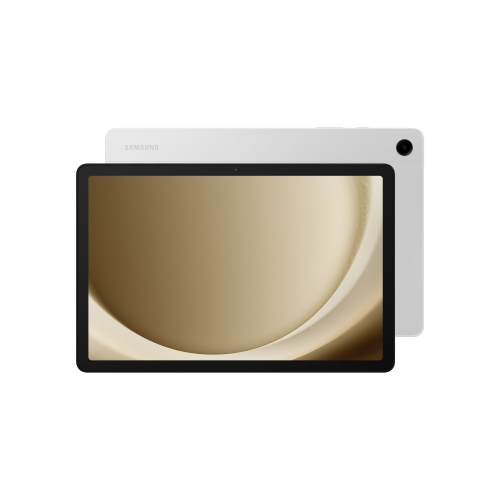 Your price for this item is $499.99
-
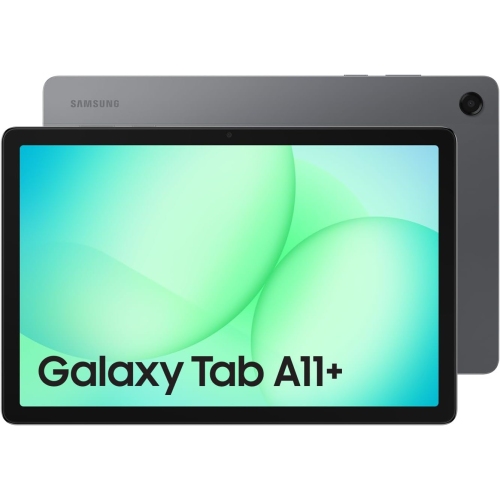 Your price for this item is $350
-
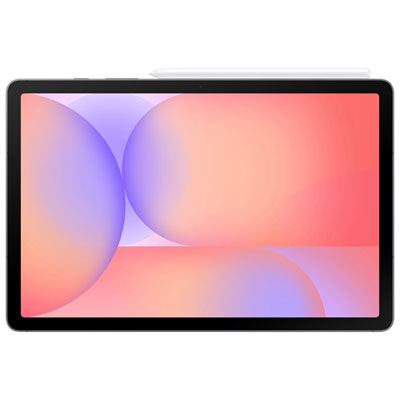 Your price for this item is $579.99
-
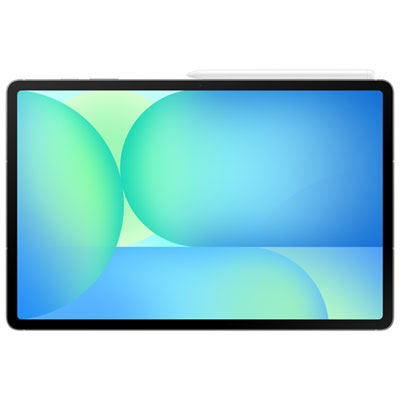 Your price for this item is $979.99
-
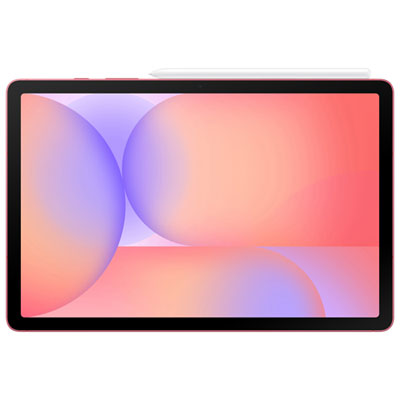 Your price for this item is $579.99
-
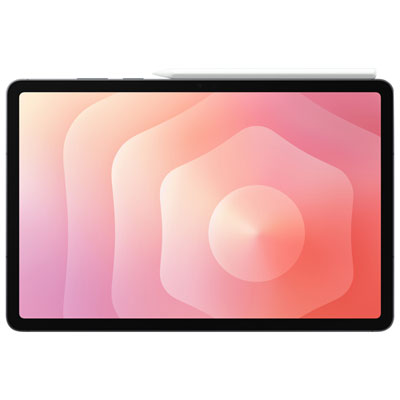 Your price for this item is $1399.99
-
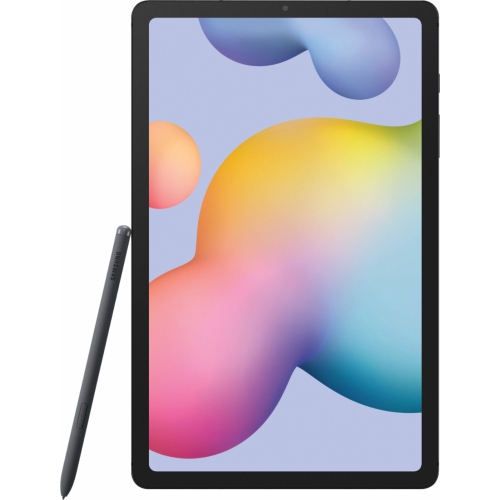 Your price for this item is $699.99
-
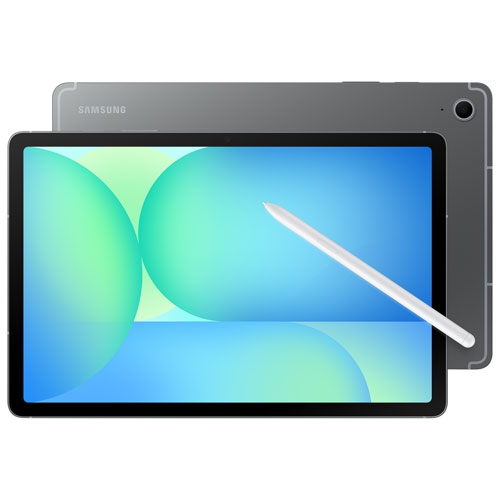 Your price for this item is $624.95
Discover more categories related to Tablets With MS Word

Top Collections:
Pokemon Centers, Kindle Devices, Best Black Friday Deals This Year, Pokémon 30th Celebration Cards, Best Black Friday Deals On Electronics, Best Cameras for Sports Photography, Best Black Friday Deals On Apple Products, Canon G7X Cameras, iPhone 15 Apple, Candle Warmer Lights
Some products may be subject to Environmental Handling Fees
(EHF) depending on your province.
Learn more about EHFs.