Touchscreen Chromebook
Discover the perfect blend of versatility and convenience with a touchscreen Chromebook, ideal for both work and play. These innovative devices offer an intuitive interface that makes navigating apps, browsing the web, and streaming your favorite content a breeze. Whether you're a student, professional, or just someone who loves staying connected on the go, a touchscreen Chromebook provides the flexibility you need to switch seamlessly between tasks. With sleek designs and user-friendly features, these Chromebooks are crafted to enhance your digital experience while keeping things simple and efficient. Explore this selection to find the right fit for your lifestyle.
Sort
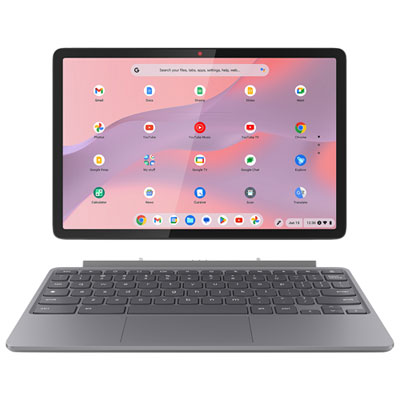
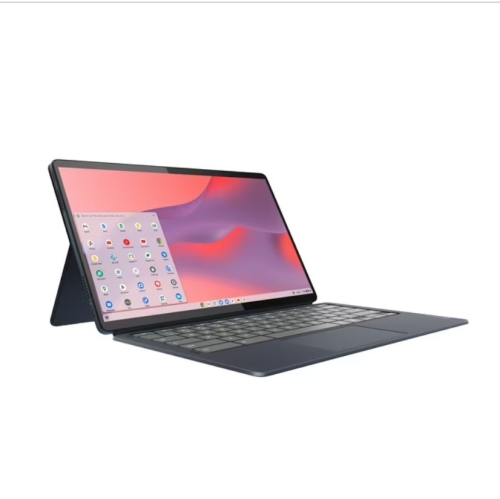
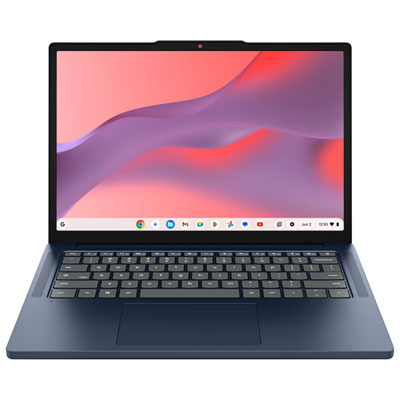
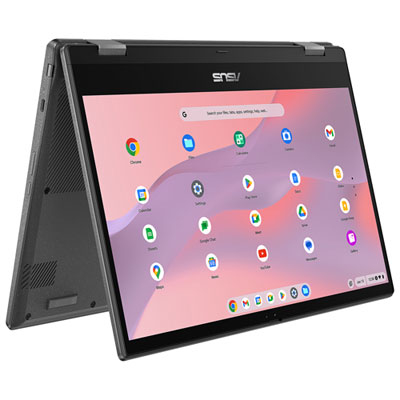
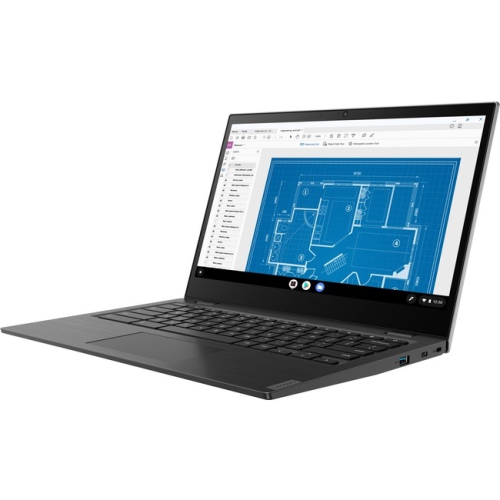
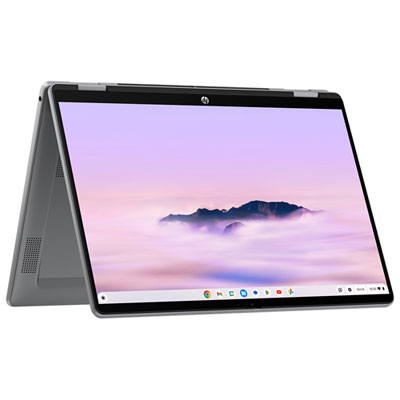
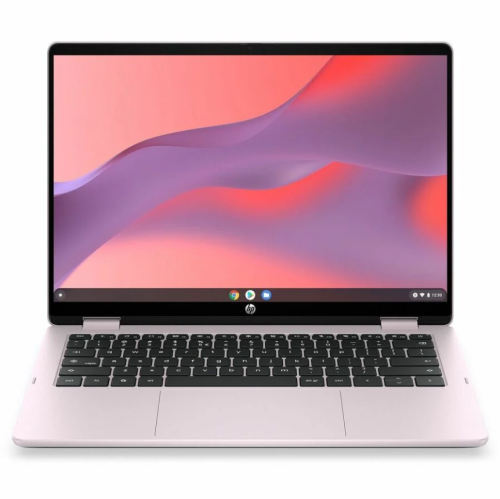
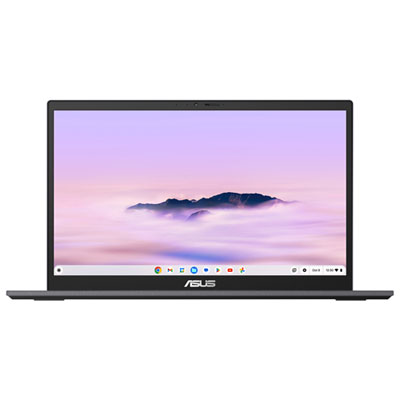
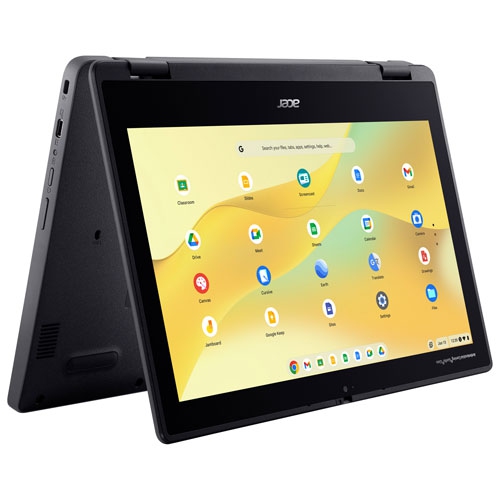
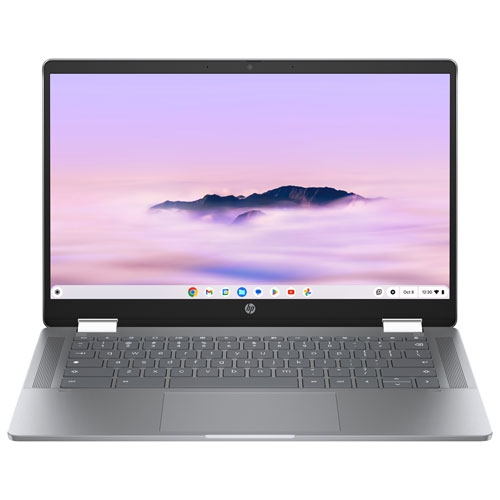
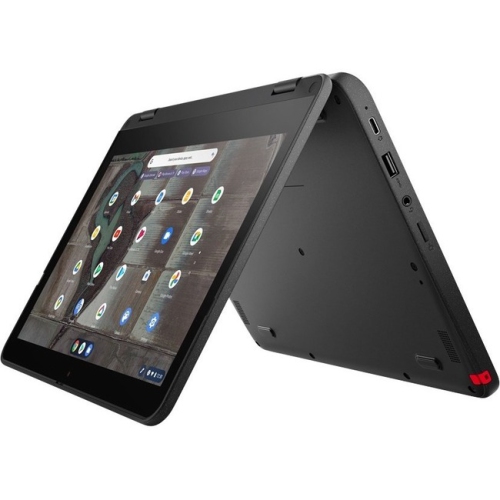
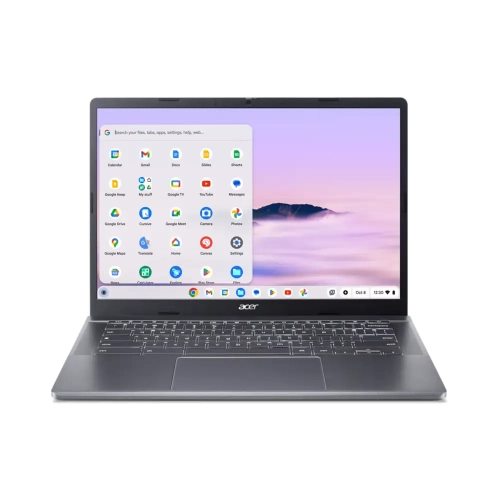
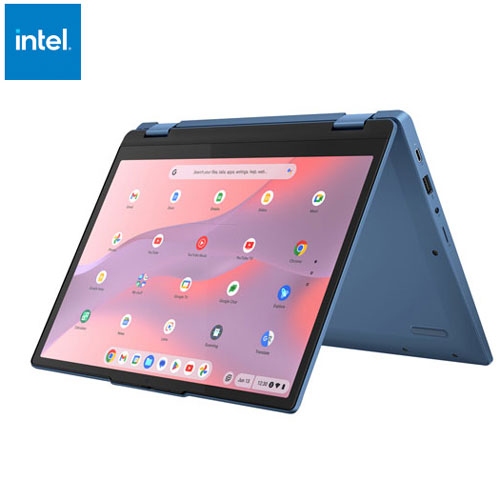
Touch gestures add flexibility to everyday laptop tasks
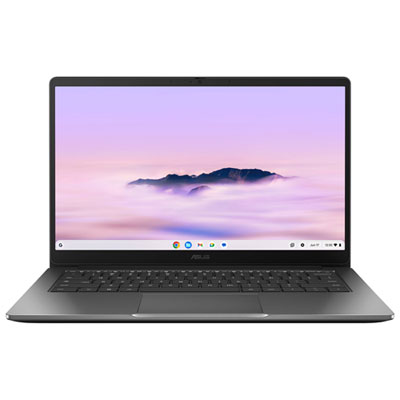
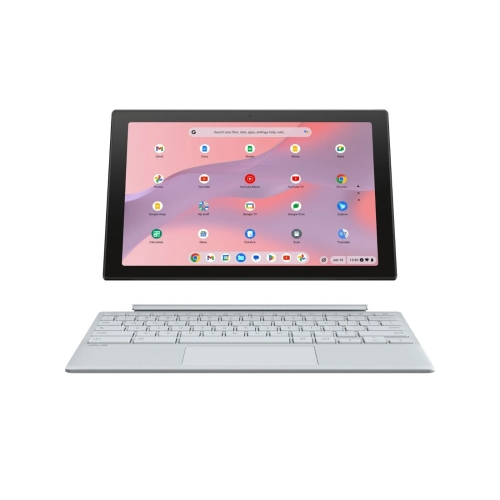
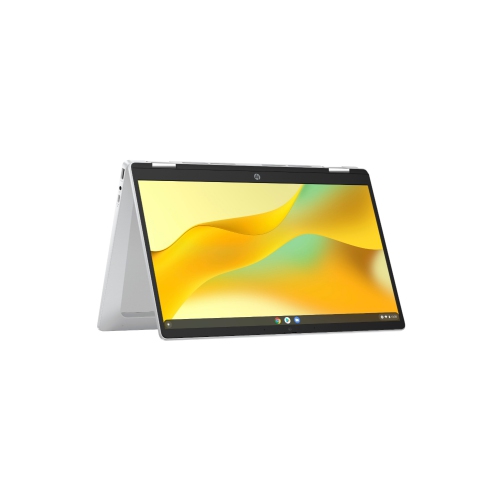
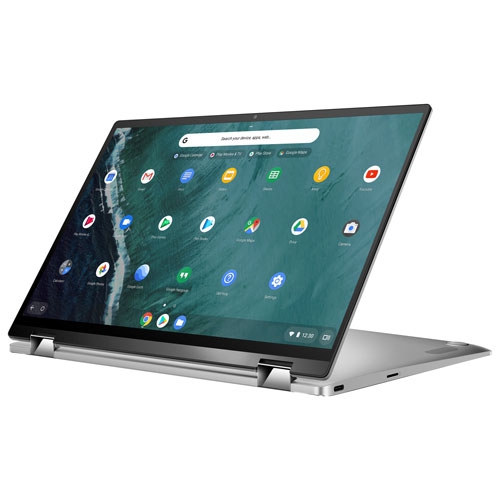
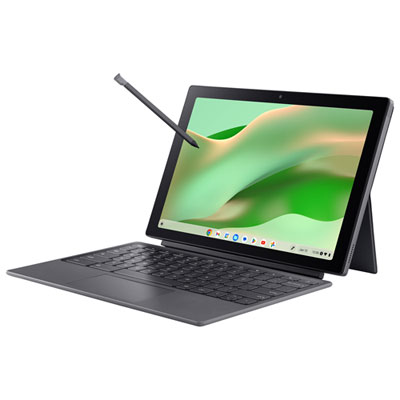
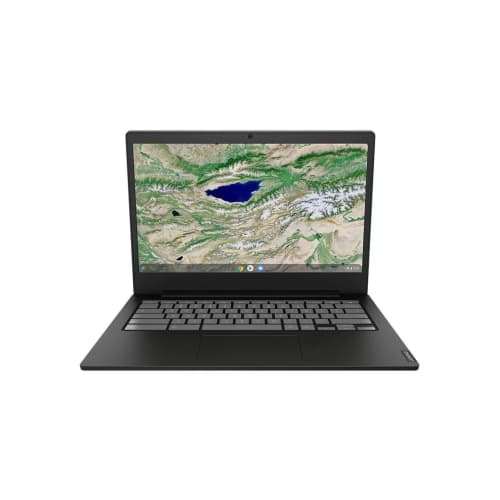
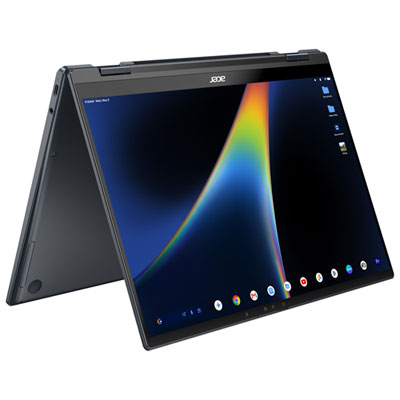
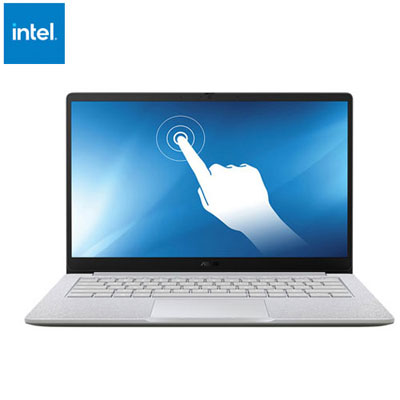
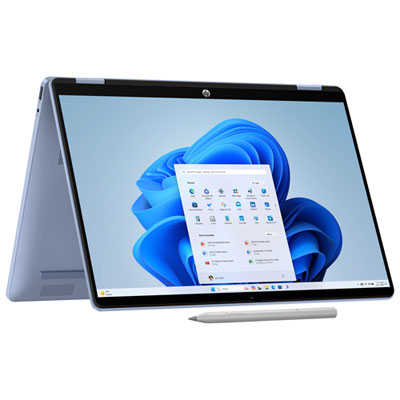
Touchscreen Chromebooks combine the familiar feel of a laptop with a display that responds directly to taps, swipes, and other touch gestures. Running ChromeOS, they suit everyday activities such as browsing, writing assignments, joining video calls, streaming entertainment, and working with online documents. Touch input adds another way to interact with those tasks: scrolling through a recipe on the kitchen counter, enlarging a diagram during homework, or moving through presentation slides without reaching for the trackpad. The touchscreen does not necessarily mean the device converts into a tablet. Conventional laptop designs retain a fixed keyboard position, while convertible 2-in-1 Chromebooks have hinges that allow the screen to fold back into different positions. A tent position can keep the keyboard out of the way during a video, and tablet mode can make reading or drawing feel more natural. Detachable designs separate the screen from a compatible keyboard, although keyboard inclusion and connection methods vary. These differences matter for students moving between note-taking and reading, families sharing a computer, and anyone who wants both touch controls and a physical keyboard. Screen size, resolution, brightness, and viewing angles also shape daily comfort. A smaller display generally makes a device easier to carry, while a larger one gives documents and side-by-side windows more room. Higher resolution can make text and detailed images appear sharper, although scaling settings affect how much content fits on screen. Glossy surfaces may show reflections under overhead lighting, making display positioning worth considering at a desk or dining table. Touch input is especially convenient for navigation and compatible apps, but a keyboard and trackpad remain useful for longer writing sessions and precise spreadsheet work. For handwritten notes or sketches, active stylus support is a separate feature to check; not every touchscreen Chromebook works with every pen, and a stylus may be sold separately. Palm rejection and pressure sensitivity also depend on the device, pen, and app combination, rather than touch capability alone.
Everyday performance depends on more than the touchscreen. The processor, memory, and storage configuration influence how comfortably a Chromebook handles several browser tabs, a video meeting, and a document at the same time. Someone checking messages and watching videos has different needs from a student keeping research articles open beside a presentation. More memory can help with multitasking, while processor capability becomes more noticeable during demanding web apps, larger projects, and calls with screen sharing. Local storage provides space for downloads, photos, offline files, and supported apps; cloud storage serves a different purpose and depends on the service and account being used. Although many Chromebook activities centre on an internet connection, supported documents, downloaded media, and certain apps can work offline when they have been prepared beforehand. That distinction matters during a commute or anywhere a reliable connection is not guaranteed. Software compatibility deserves equal attention. Browser-based tools are central to the Chromebook experience, and many models support Android apps, but app access and behaviour can vary by device and account settings. A touchscreen can make compatible mobile-style apps easier to use, yet it does not guarantee that every app will fit the display neatly or offer the same features as its desktop counterpart. Traditional Windows or macOS software generally does not install directly on ChromeOS, so required school or workplace applications need compatible web versions or another supported option. School-managed accounts may also limit installations and settings. For video calls, camera quality, microphone clarity, speaker placement, and a comfortable screen angle all contribute to the experience. Battery life varies with display brightness, workload, wireless use, and video calling, so a light browsing session is not representative of every day. Automatic update support is another important consideration for longer-term use: its end date depends on the Chromebook model, not simply the purchase date. Together, these details help distinguish a device suited to occasional browsing from one intended for regular study, shared household tasks, or a full day of connected work.
The physical design of a touchscreen Chromebook affects how pleasant it is to carry, type on, and handle away from a desk. Plastic and metal chassis each vary in finish, weight, and construction, so the material name alone does not establish durability. A well-supported keyboard deck, stable screen hinge, and comfortable palm rest can matter more during daily use than a particular exterior finish. Convertible hinges should hold the display securely in the intended positions, while detachable designs need consideration of both tablet weight and keyboard support. A device that feels comfortable on a table may feel different balanced on a lap. Keyboard spacing, trackpad size, and whether backlighting is included are useful details for frequent typing. Connections also affect convenience: USB-C ports may support charging, displays, or data, but capabilities differ between models and ports. USB-A connections, a headphone jack, or a memory card slot may reduce the need for adapters, depending on the accessories being used. External monitor support and printer compatibility should match the intended setup rather than be assumed. For travel between home, school, and work, a padded sleeve protects the screen and casing from contact with keys, charger plugs, and other objects in a bag. A touchscreen benefits from regular, gentle cleaning because fingerprints are more noticeable on a display used for both viewing and input. Powering the device off and using a soft, lint-free cloth, lightly dampened only as permitted by its care instructions, helps avoid unnecessary wear; liquid should never be sprayed directly onto the screen. Excessive pressure, abrasive cleaners, and lifting a convertible by its display can damage components. As a gift, a touchscreen Chromebook is most useful when its software support, keyboard layout, portability, and required accessories fit the recipient’s routine. Finding the Best Chromebook for that routine means looking beyond touch alone to the combination of screen comfort, practical performance, and a design that works wherever the device will be used.
Top selling and popular products
-
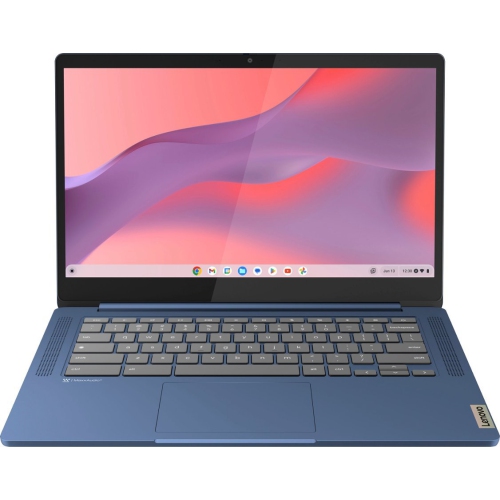 Your price for this item is $449
-
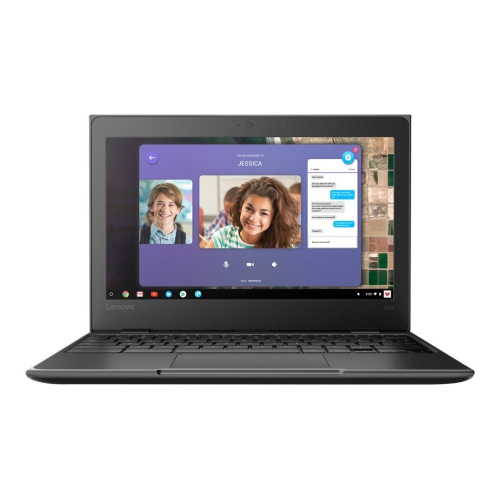 Your price for this item is $499.99
-
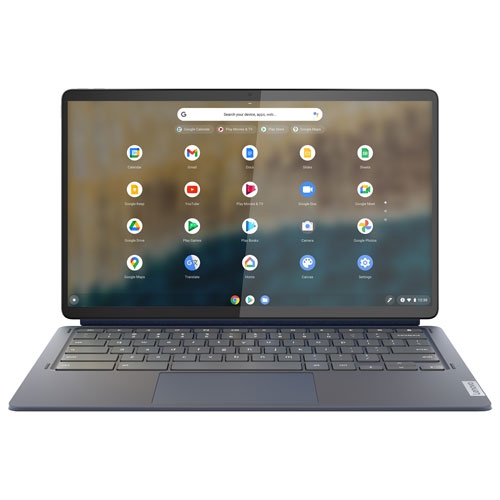 Your price for this item is $549
-
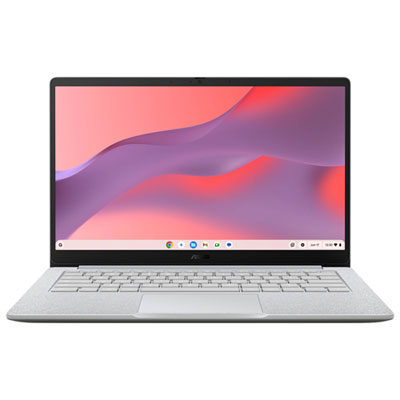 Your price for this item is $279.99
-
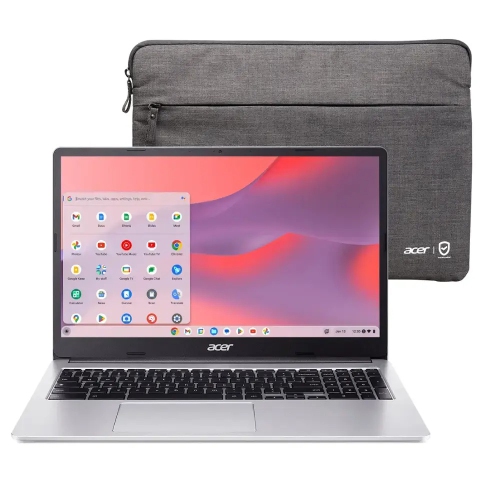 Your price for this item is $349.99
-
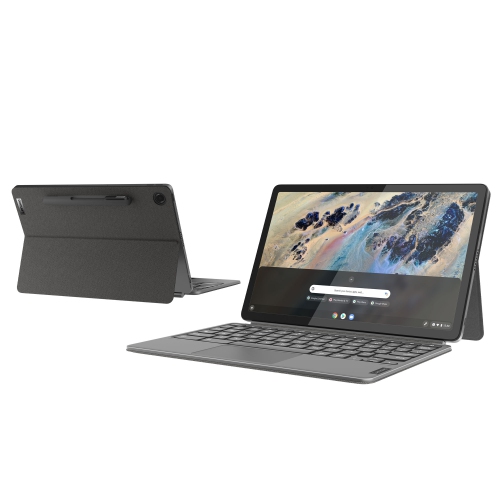 Your price for this item is $649
-
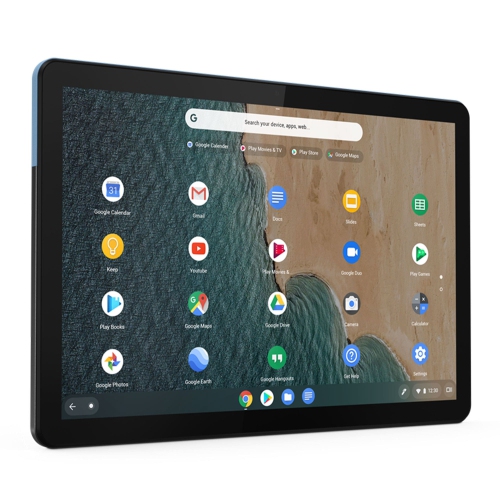 Your price for this item is $672.68
-
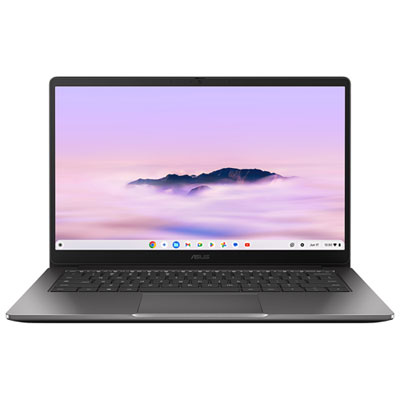 Your price for this item is $899.99
Discover more categories related to Touchscreen Chromebook
Top Collections:
Best Black Friday Deals This Year, Best Black Friday Deals On Electronics, Kindle Devices, Best Black Friday Deals On Apple Products, Best Budget Office Chairs, Best Cameras for Sports Photography, Dyson Airwrap, Canon G7X Cameras, Best Laptops for Writers, Samsung Galaxy Phones
Some products may be subject to Environmental Handling Fees
(EHF) depending on your province.
Learn more about EHFs.