Touchscreen Monitors
Upgrade your workspace or entertainment setup with a touchscreen monitor that brings intuitive control to your fingertips. Perfect for home, office, or creative environments, a touchscreen monitor offers a seamless way to interact with your favourite applications and content. Whether you're looking to boost productivity, enhance collaboration, or simply enjoy a more engaging user experience, discover the possibilities with a wide selection of touchscreen monitors designed to suit every need.
Sort

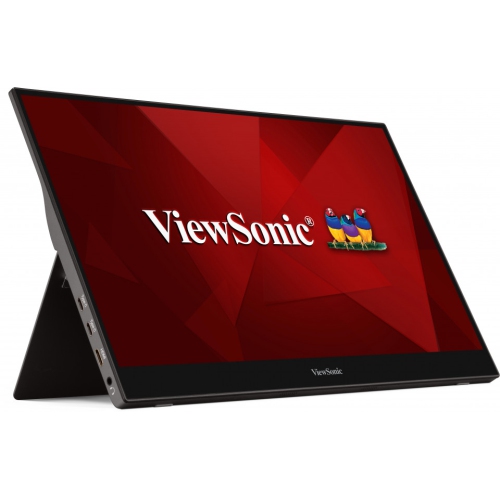
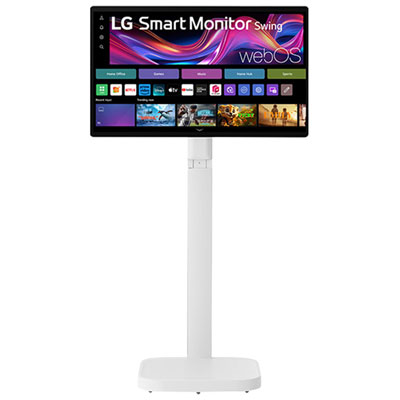
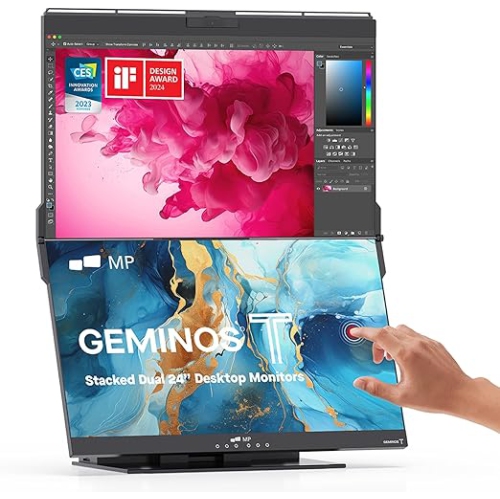
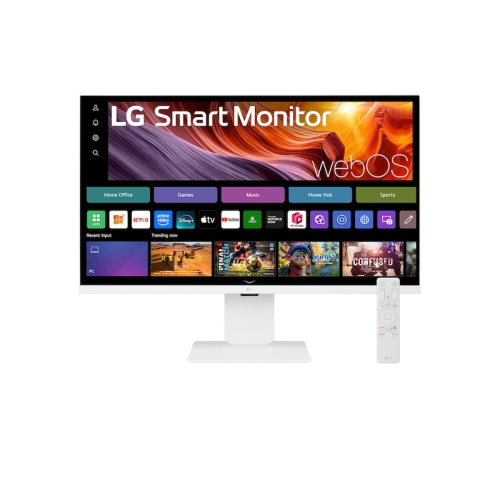

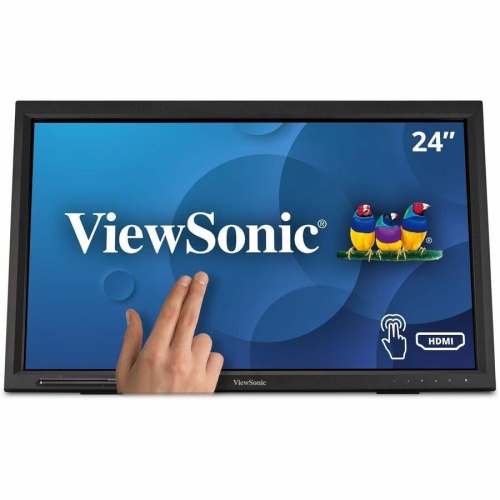
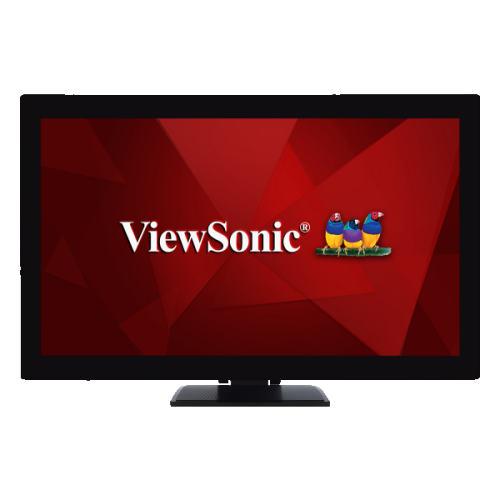
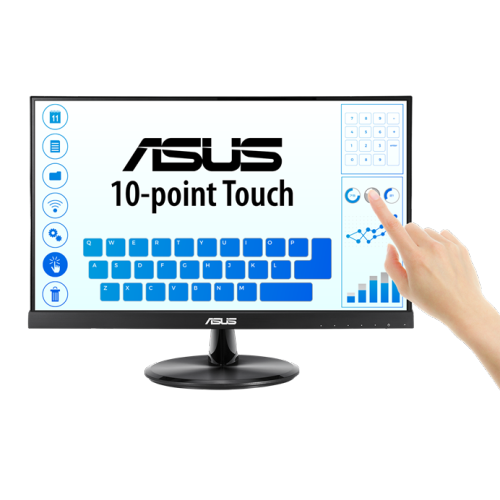
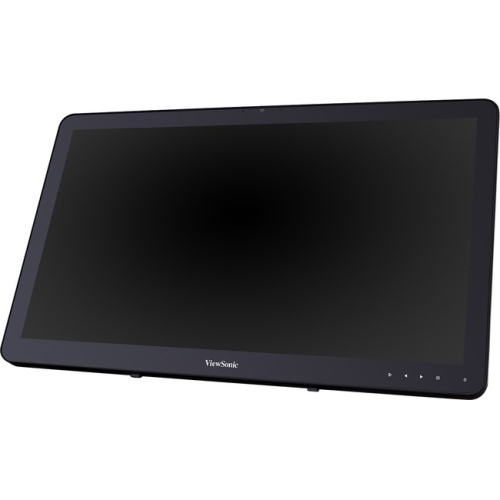
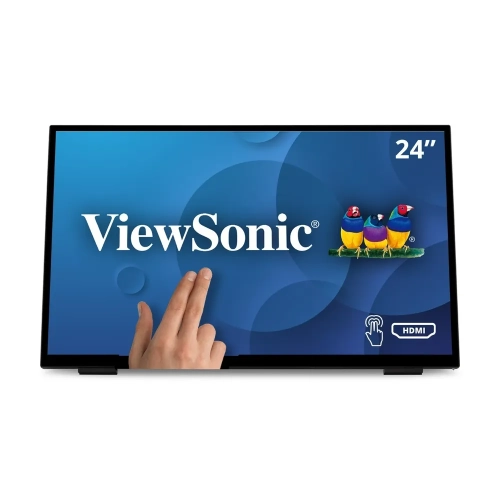
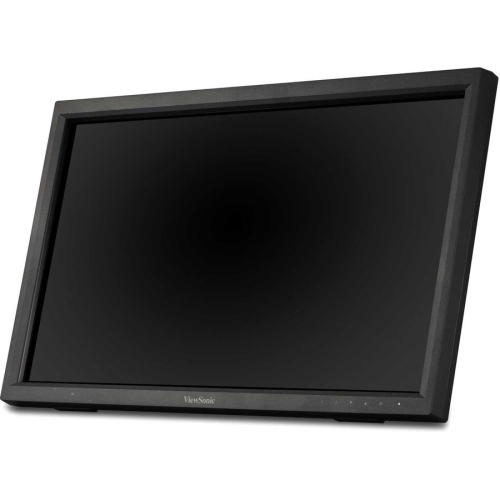
A more hands-on way to use your computer
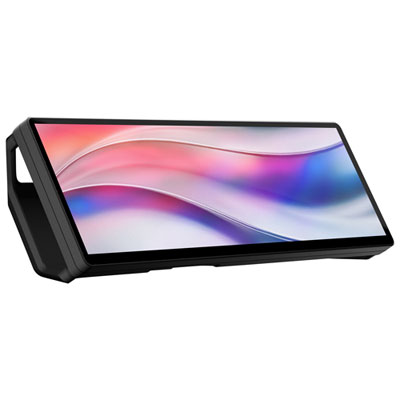
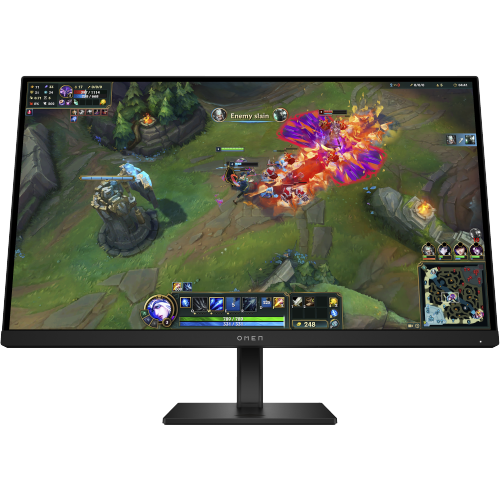
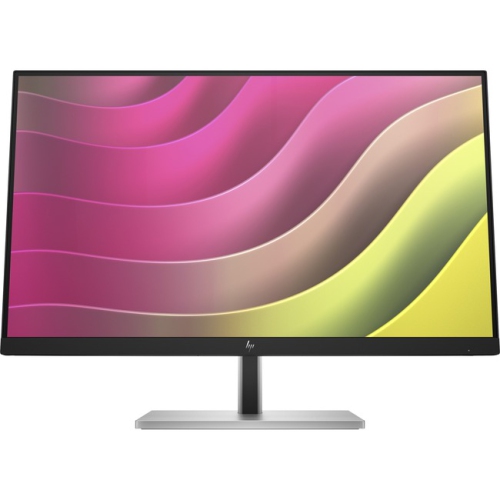
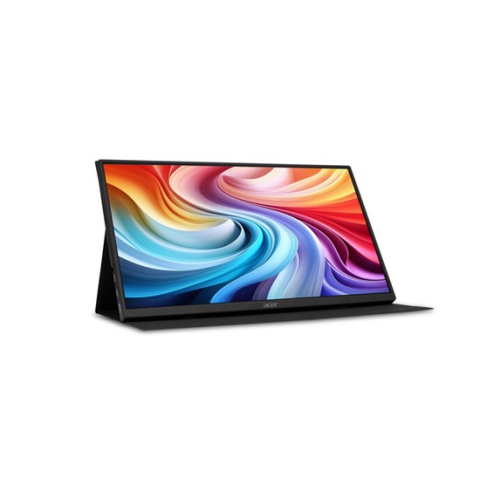
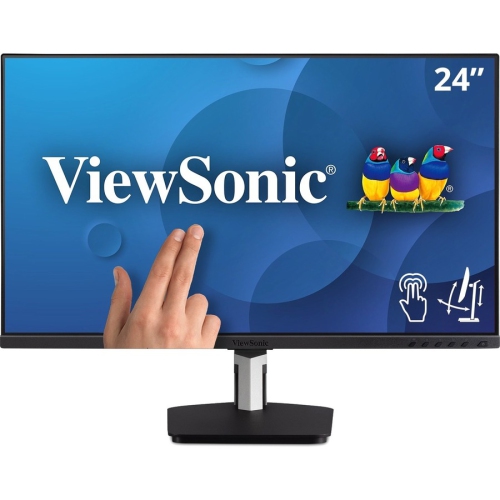
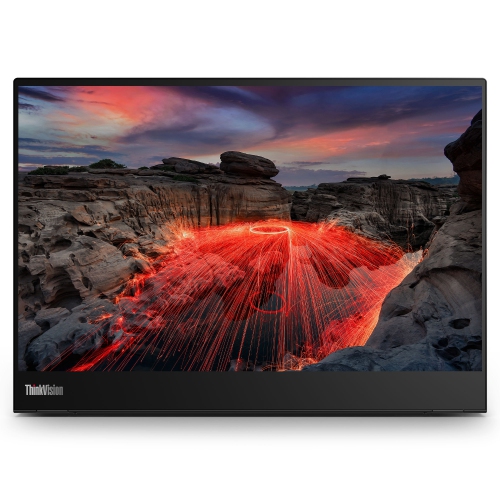
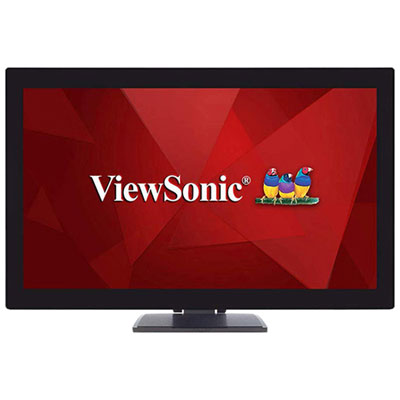
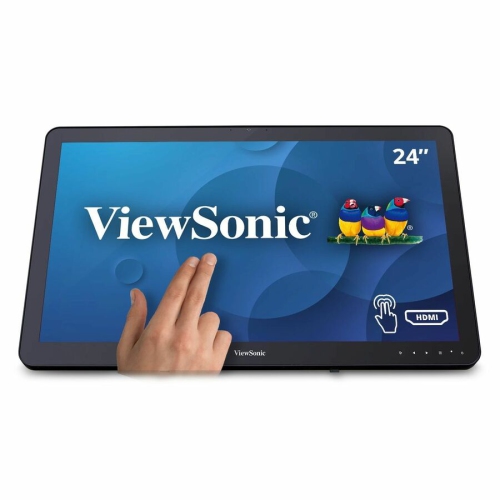
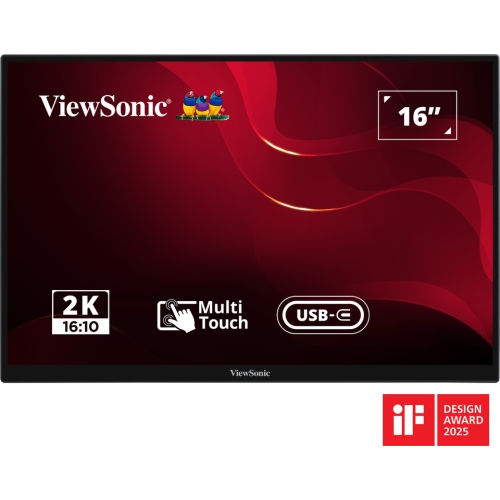
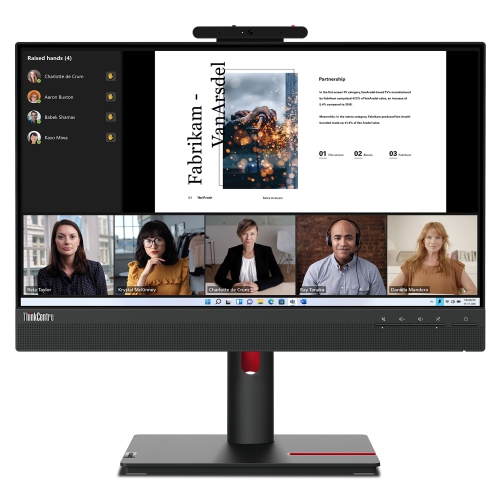
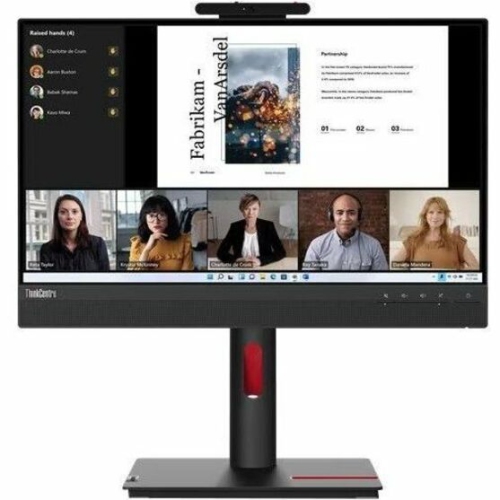
Touchscreen monitors are external displays that combine a computer screen with touch input, allowing people to tap, swipe, scroll, and interact with supported software directly on the display. Two common formats are portable touchscreen monitors for mobile work and desktop touchscreen monitors for a more permanent setup. Portable models often use USB-C connections and slim, lightweight construction, making them practical companions for a compatible laptop at a shared desk, client meeting, or temporary workspace. Desktop designs generally offer a larger viewing area and a sturdier base, with room for spreadsheets, design applications, presentations, and everyday browsing. Unlike an all-in-one computer, a conventional touchscreen monitor usually depends on a connected computer to run applications and store files; the screen adds another way to control that computer rather than replacing it. Touch can feel particularly natural when moving through a photo collection, enlarging a diagram, selecting controls in music software, or marking up a document with compatible tools. It can also complement a keyboard and mouse rather than take over every task. Typing a report may still be more comfortable on a keyboard, while tapping an on-screen control can be quicker during a demonstration. Students can use a touch-enabled display to navigate course materials, educators can share interactive activities, and home office users can keep frequently used applications within easy reach. In customer-facing settings, a touchscreen can support appointment check-ins, ordering, or point-of-sale software when the display and connected system are suited to that use. Screen size matters in each setting: a compact display can sit beside a laptop without taking over the desktop, while a larger screen gives charts and controls more breathing room. Physical dimensions, stand depth, and the space needed to reach the screen comfortably are just as important as the diagonal measurement, especially on a shallow work surface or a desk that already holds several devices.
The quality of a touchscreen monitor depends on both the picture and the way touch input works with the connected device. Resolution determines how much detail the screen can show, while screen size and operating system scaling influence the size of text, icons, and touch targets. A high-resolution display can make documents and photographs look crisp, but very small buttons may need larger interface settings for comfortable finger control. Panel characteristics also matter: broad viewing angles help keep the image consistent when the screen is tilted, and colour accuracy is useful for photography, illustration, and other visual work. Brightness and surface finish affect visibility under overhead lighting or beside a window. Matte finishes can soften reflections, while glossy glass can give images a clear, polished appearance but make fingerprints more noticeable. Many touchscreen monitors use capacitive touch technology, which responds to a finger or a compatible stylus. Multi-touch support allows more than one contact point at a time, enabling gestures such as pinching to zoom when the operating system and application support them. Touch support alone does not guarantee pressure-sensitive drawing, palm rejection, or compatibility with an active pen; those features require matching display hardware, software, and pen support. Connections deserve similar attention. HDMI and DisplayPort commonly carry the image, while a separate USB connection carries touch data back to the computer. A compatible USB-C connection may carry video, touch data, and power through one cable, but the capabilities of the monitor, computer port, and cable must all match. Some setups still need a separate power adapter, particularly when the host device cannot supply enough power. Operating system compatibility is equally important because basic touch, advanced gestures, and driver requirements can differ between platforms. A display that shows a picture from a device will not necessarily provide touch control with that same device. For portable use, cable length, connector placement, and the number of required connections all affect how neatly the screen fits into a working setup.
Comfort and construction make a noticeable difference once a touchscreen becomes part of a daily routine. Reaching across a desk to use an upright screen repeatedly can tire the shoulders, so an adjustable stand that tilts the display towards a lower, more natural working angle can be valuable. A stable base helps prevent movement when tapping near the edges, while height adjustment makes it easier to alternate between touch interaction and ordinary screen viewing. Compatible mounting options can free up desktop space or position the display beside another monitor, provided the mounting pattern, screen weight, and arm capacity are suitable. Portable designs may use a folding cover, kickstand, or separate support, and their stability matters just as much as their packed size. Materials influence how the display handles frequent use: glass touch surfaces offer a smooth feel, metal housings can provide rigidity, and lightweight plastic construction can reduce carrying weight. Durability depends on the whole design, including the stand hinges, exposed edges, ports, and cable strain points, rather than the housing material alone. For a display used by several people, a flat front surface with fewer seams can be easier to wipe down, though water resistance and cleaning-agent compatibility should never be assumed. Routine care generally involves turning off and unplugging the monitor, removing dust with a clean microfibre cloth, and using only a cleaning method approved for its surface. Spraying liquid directly onto the screen can let moisture reach the edges or openings, while abrasive cloths and unsuitable cleaners may damage coatings. A protective sleeve can help prevent scuffs during transport, and cables should be packed without pressing their connectors against the glass. The best fit is a monitor whose size, touch features, connections, and physical support suit the tasks it will handle most often, whether that means reviewing drawings with a colleague or navigating a home office workspace. For additional display options with hands-on control, explore Best Touch Screen Computer Monitors.
Top selling and popular products
-
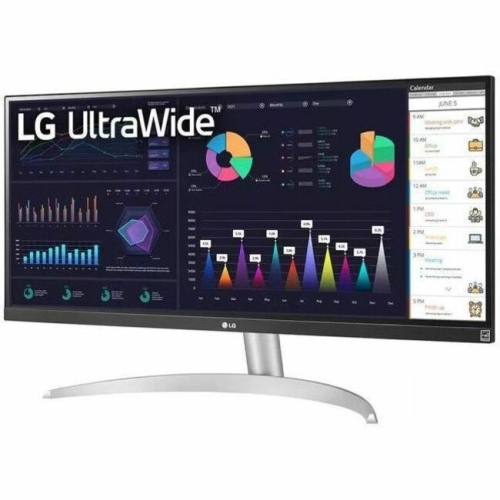 Your price for this item is $2237.68
-
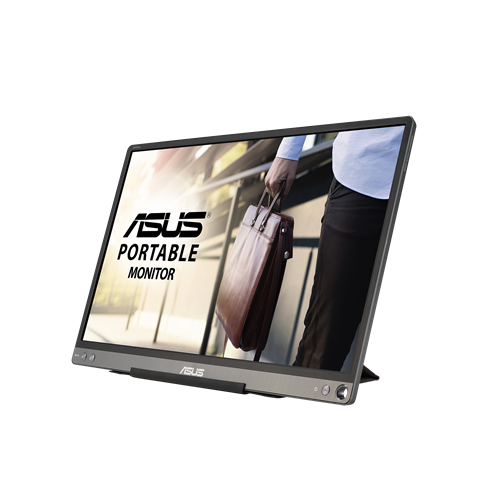 Your price for this item is $320.68
-
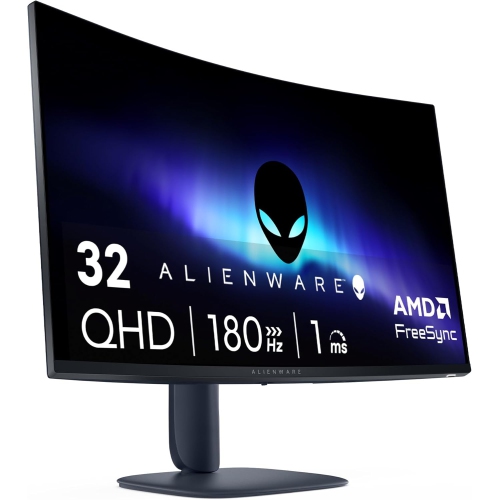 Your price for this item is $469
-
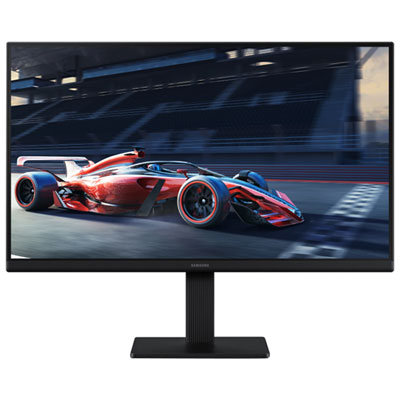 Your price for this item is $149.99
-
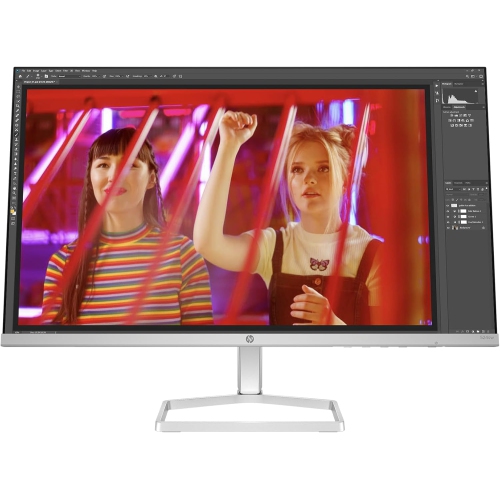 Your price for this item is $265.99
-
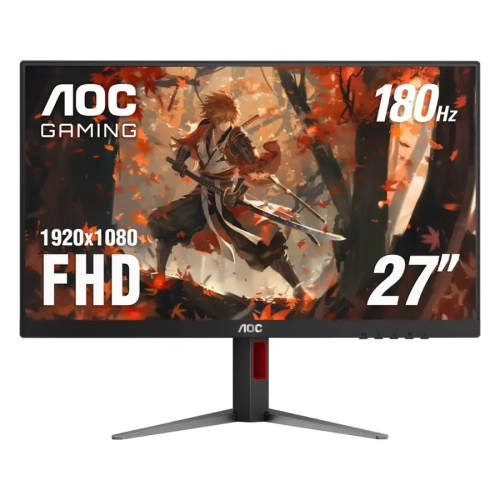 Your price for this item is $229.99
-
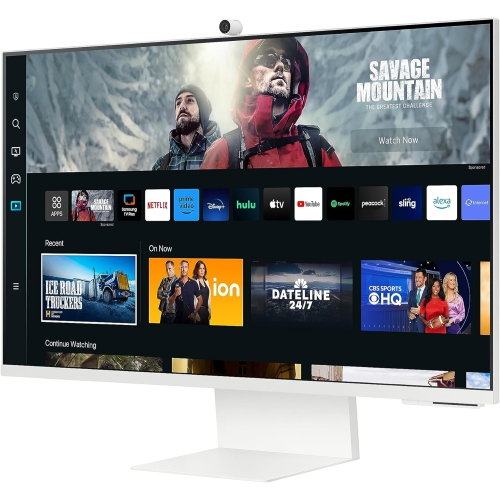 Your price for this item is $1138.68
-
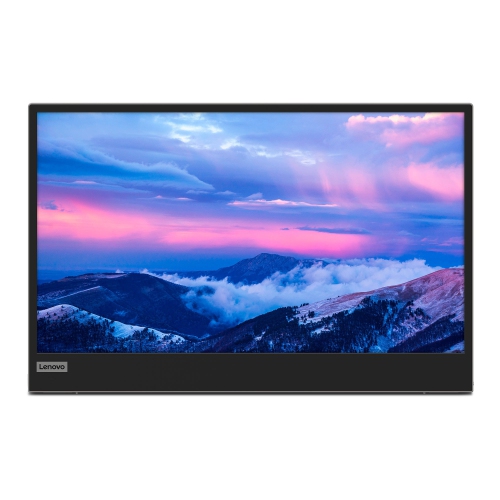 Your price for this item is $355.68
Discover more categories related to Touchscreen Monitors
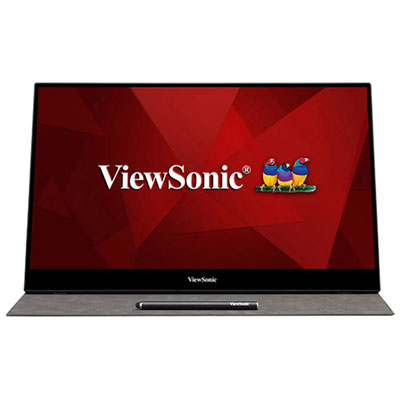
Top Collections:
Best Black Friday Deals This Year, Best Black Friday Deals On Electronics, Kindle Devices, Pokemon Centers, Best Black Friday Deals On Apple Products, Best Cameras for Sports Photography, Dyson Airwrap, Pokémon 30th Celebration Cards, Apple iPhone 17 Pro, Canon G7X Cameras
Some products may be subject to Environmental Handling Fees
(EHF) depending on your province.
Learn more about EHFs.