Wireless Mice for HP Pavilion
If you're looking for a mouse that will help you get your work done quickly and efficiently, consider getting a wireless mouse. Wireless mice are designed to be more convenient and comfortable to use. They don't require any wires, so you can place them anywhere you want on your desk. Here are some of the best options that you can use on your HP Pavilion.
Sort

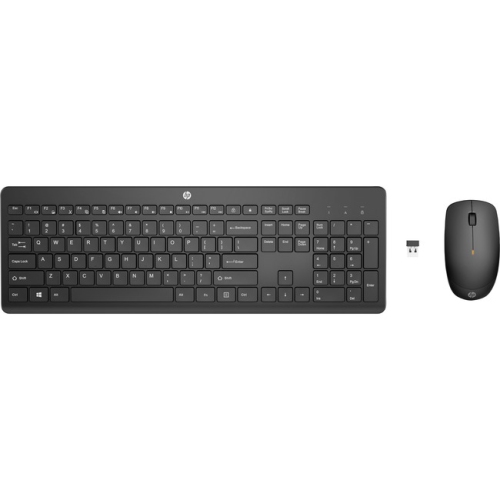
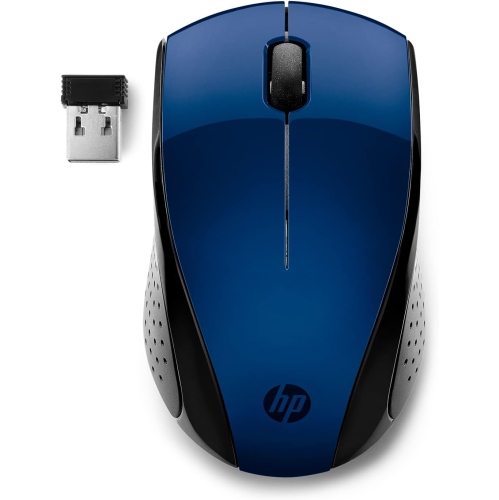
Why mouse connections matter more than matching brands
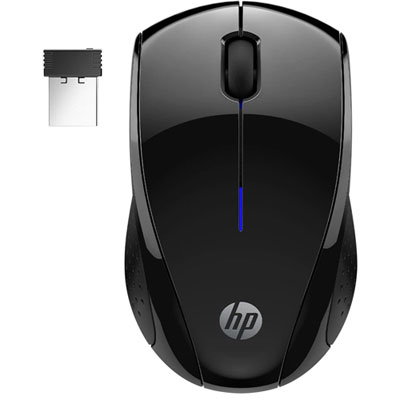
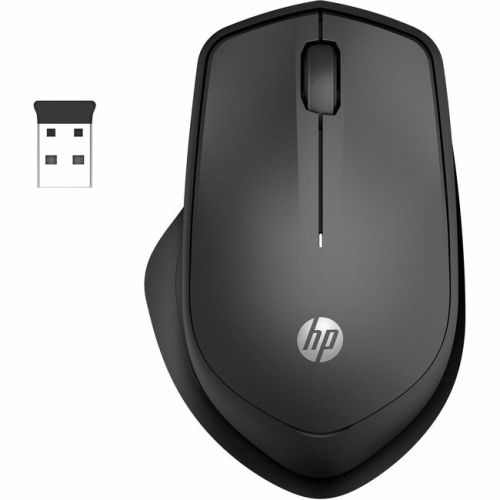
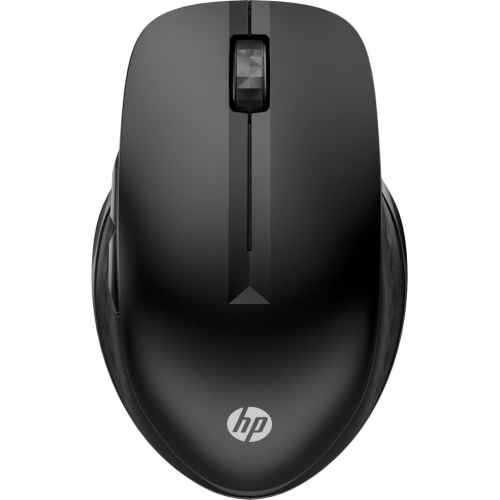
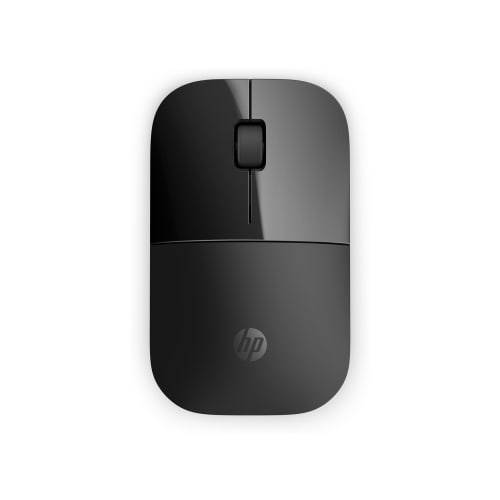
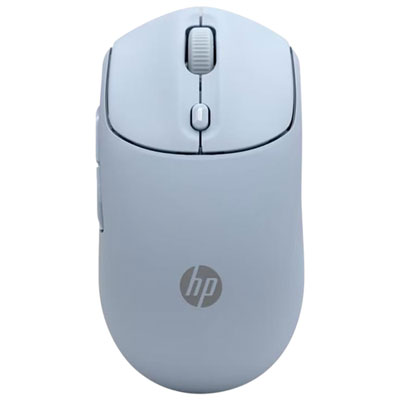
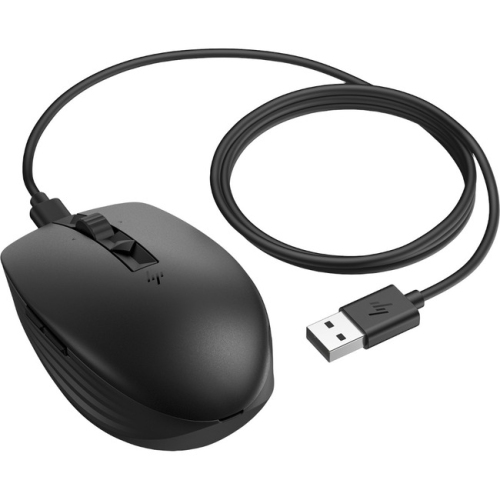
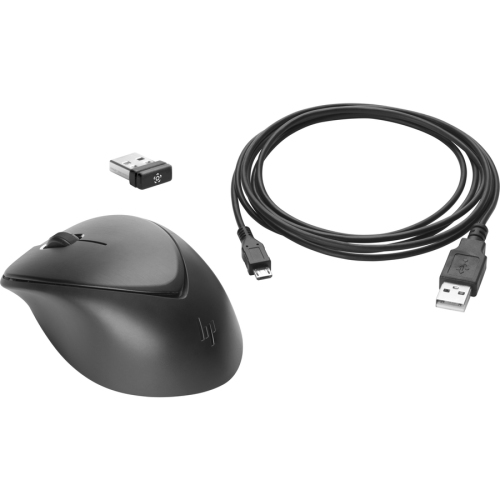
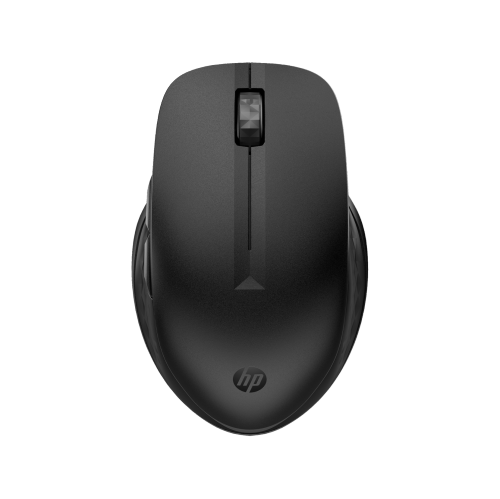
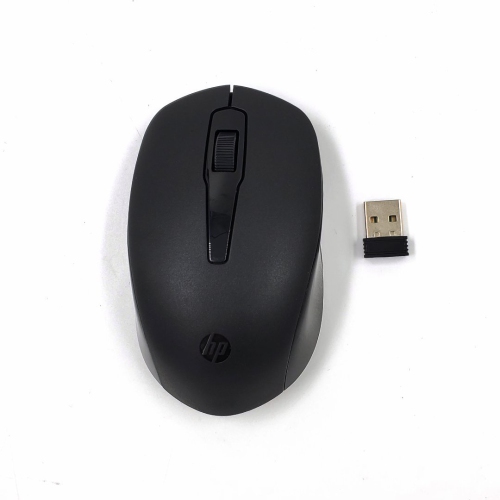
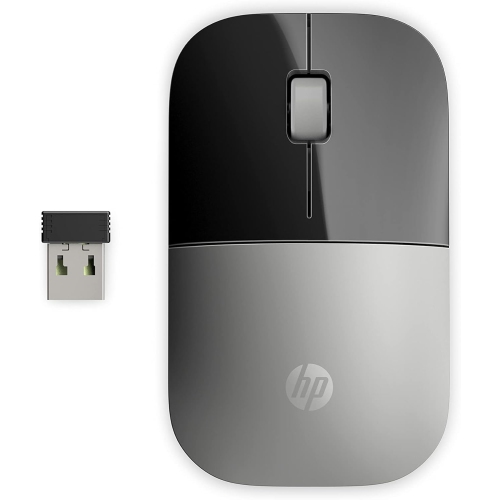
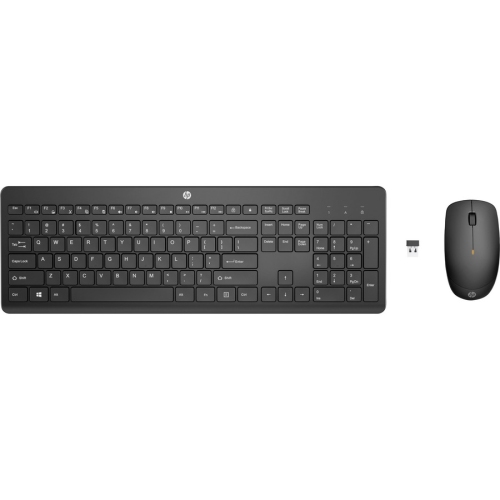
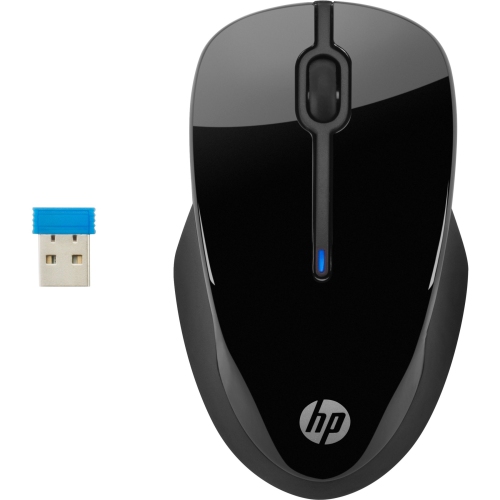
Wireless mice give laptop and desktop users a separate pointing device without a cable stretching across the desk. For everyday browsing, school assignments, spreadsheets, and video calls, they offer an alternative to a built-in touchpad and let the hand sit beside the keyboard rather than directly below it. Compatibility depends primarily on the computer’s connections and operating system, not on matching the mouse and computer manufacturer. Most wireless mice connect through either Bluetooth or a small USB receiver, while some support both methods. A Bluetooth mouse pairs with a computer that has compatible Bluetooth support and leaves its USB ports free for accessories such as external storage or a webcam. A receiver-based mouse communicates with its included receiver, commonly over a 2.4 GHz wireless connection. Basic pointing and clicking generally work once the receiver is connected and the mouse is powered on, although extra controls may require software. The receiver’s connector matters: a USB-A receiver needs a suitable USB-A port or compatible adapter, while a USB-C receiver fits a compatible USB-C port. A laptop’s model specifications help establish which connections it supports, since port layouts and Bluetooth capabilities can vary within the same computer family. Wireless mice do not ordinarily connect through a home Wi-Fi network, so internet access is not what determines whether basic cursor movement works. For setups that include more than one notebook, Cordless Mice for HP Laptop offers a related category to explore. The most useful connection is often the one that suits the rest of the workspace: direct Bluetooth pairing can keep a limited number of ports clear, while a dedicated receiver provides a straightforward connection for a computer that stays at one desk. Mice with device-switching controls can also suit people who alternate between compatible computers, though the number of supported connections varies by design.
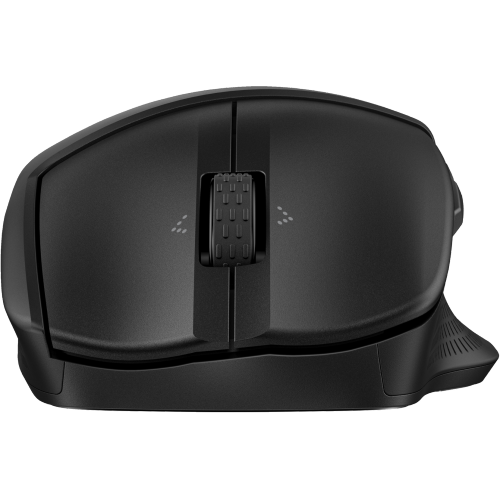
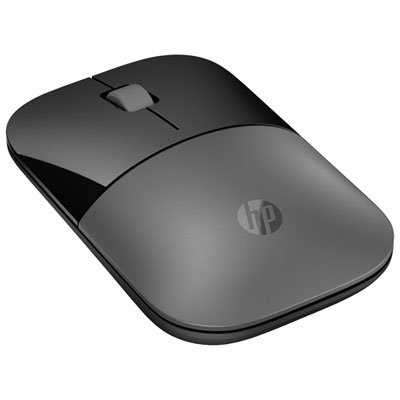
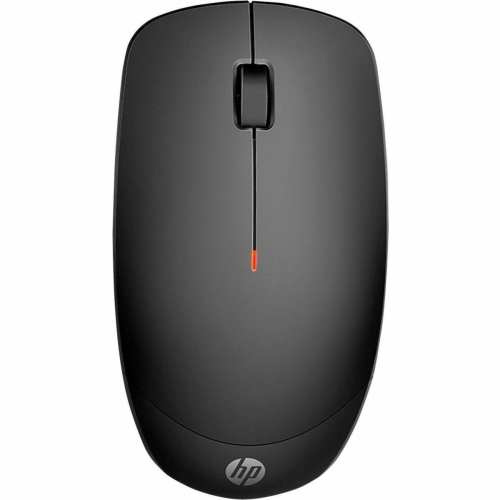
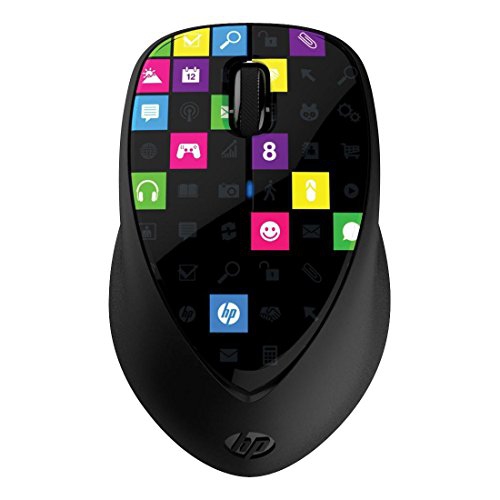
Comfort comes from the relationship between the mouse’s dimensions, shape, weight, and the way the hand rests on it. A slim, compact body slips easily into a laptop bag and can feel natural for someone who steers mainly with their fingertips. A fuller body gives more contact beneath the palm, which some users prefer when spending extended periods editing documents or working through detailed worksheets. Neither size is automatically more comfortable; hand size and grip style matter more than a label alone. Symmetrical shapes can accommodate either hand, but side-button placement may still favour right-handed use. Sculpted designs with a thumb rest are often intended for one hand, and vertical designs change the hand’s position rather than guaranteeing relief from discomfort. A comfortable setup also leaves room for the mouse close to the keyboard, without requiring a long reach across the desk. Common materials include moulded plastic shells, textured side panels, and rubberized grips. Smooth surfaces are easy to wipe, while texture can provide a more secure hold when lifting or repositioning the mouse. Grip coatings and glossy finishes may show wear differently, particularly on a device carried daily between home, class, and the office. Button feel is another practical detail: a light click can suit frequent navigation, while a more pronounced response gives clearer physical feedback. Quiet-click designs reduce the sharp tapping sound that can be noticeable in a shared study space, though quiet does not mean completely silent. Scroll wheels also shape everyday use. Distinct scrolling steps can help with moving through rows in a spreadsheet, while free-spinning or accelerated scrolling, where supported, can make long documents less tedious. Side buttons may provide convenient back and forward navigation, and programmable controls can support repeated tasks when compatible software is available. For students, office workers, and family members who prefer a mouse to a touchpad, these details can make a familiar task feel more natural without adding unnecessary complexity.
Tracking, power, and care determine how well a wireless mouse fits into daily routines beyond its initial setup. Sensor sensitivity, usually expressed in DPI, affects how far the pointer moves in relation to movement of the mouse. Adjustable sensitivity can be helpful when switching between a small laptop display and a larger external monitor, but a higher maximum number does not automatically mean better accuracy or comfort. Document work often benefits from controlled pointer movement, while photo editing can call for finer adjustments around small on-screen controls. Gaming places additional emphasis on connection latency, polling rate, weight, and consistent tracking; a mouse intended for general office use may not offer the same responsiveness or settings as one designed for gaming. Most optical mice work best on a stable, non-reflective surface, and a mouse pad can make movement more consistent across different desks. Glass and highly reflective finishes may require a sensor specifically designed for those surfaces. Power options include replaceable batteries and built-in rechargeable batteries. Battery-life claims depend on use, connection mode, lighting, and power-saving settings, so they are best understood as estimates rather than fixed intervals. Rechargeable designs also differ in whether they can operate while charging. For travel, a power switch and an internal receiver compartment can be useful details, helping prevent accidental activation and keeping a tiny receiver from getting lost in a bag. A protective pocket can reduce scratches and pressure on buttons during transport. Routine care is generally simple: a soft cloth can lift surface dust, and keeping debris away from the sensor opening and glide feet helps maintain smooth movement. Cleaning methods should follow the manufacturer’s directions, with liquids kept out of seams and openings. For a practical gift, a wireless mouse can suit someone setting up a study desk, replacing a worn pointing device, or making a laptop workstation more comfortable. Connection compatibility, hand preference, and intended use are more meaningful considerations than appearance alone, while colour and finish can provide a personal touch.
Comfort comes from the relationship between the mouse’s dimensions, shape, weight, and the way the hand rests on it. A slim, compact body slips easily into a laptop bag and can feel natural for someone who steers mainly with their fingertips. A fuller body gives more contact beneath the palm, which some users prefer when spending extended periods editing documents or working through detailed worksheets. Neither size is automatically more comfortable; hand size and grip style matter more than a label alone. Symmetrical shapes can accommodate either hand, but side-button placement may still favour right-handed use. Sculpted designs with a thumb rest are often intended for one hand, and vertical designs change the hand’s position rather than guaranteeing relief from discomfort. A comfortable setup also leaves room for the mouse close to the keyboard, without requiring a long reach across the desk. Common materials include moulded plastic shells, textured side panels, and rubberized grips. Smooth surfaces are easy to wipe, while texture can provide a more secure hold when lifting or repositioning the mouse. Grip coatings and glossy finishes may show wear differently, particularly on a device carried daily between home, class, and the office. Button feel is another practical detail: a light click can suit frequent navigation, while a more pronounced response gives clearer physical feedback. Quiet-click designs reduce the sharp tapping sound that can be noticeable in a shared study space, though quiet does not mean completely silent. Scroll wheels also shape everyday use. Distinct scrolling steps can help with moving through rows in a spreadsheet, while free-spinning or accelerated scrolling, where supported, can make long documents less tedious. Side buttons may provide convenient back and forward navigation, and programmable controls can support repeated tasks when compatible software is available. For students, office workers, and family members who prefer a mouse to a touchpad, these details can make a familiar task feel more natural without adding unnecessary complexity.
Tracking, power, and care determine how well a wireless mouse fits into daily routines beyond its initial setup. Sensor sensitivity, usually expressed in DPI, affects how far the pointer moves in relation to movement of the mouse. Adjustable sensitivity can be helpful when switching between a small laptop display and a larger external monitor, but a higher maximum number does not automatically mean better accuracy or comfort. Document work often benefits from controlled pointer movement, while photo editing can call for finer adjustments around small on-screen controls. Gaming places additional emphasis on connection latency, polling rate, weight, and consistent tracking; a mouse intended for general office use may not offer the same responsiveness or settings as one designed for gaming. Most optical mice work best on a stable, non-reflective surface, and a mouse pad can make movement more consistent across different desks. Glass and highly reflective finishes may require a sensor specifically designed for those surfaces. Power options include replaceable batteries and built-in rechargeable batteries. Battery-life claims depend on use, connection mode, lighting, and power-saving settings, so they are best understood as estimates rather than fixed intervals. Rechargeable designs also differ in whether they can operate while charging. For travel, a power switch and an internal receiver compartment can be useful details, helping prevent accidental activation and keeping a tiny receiver from getting lost in a bag. A protective pocket can reduce scratches and pressure on buttons during transport. Routine care is generally simple: a soft cloth can lift surface dust, and keeping debris away from the sensor opening and glide feet helps maintain smooth movement. Cleaning methods should follow the manufacturer’s directions, with liquids kept out of seams and openings. For a practical gift, a wireless mouse can suit someone setting up a study desk, replacing a worn pointing device, or making a laptop workstation more comfortable. Connection compatibility, hand preference, and intended use are more meaningful considerations than appearance alone, while colour and finish can provide a personal touch.
Top selling and popular products
-
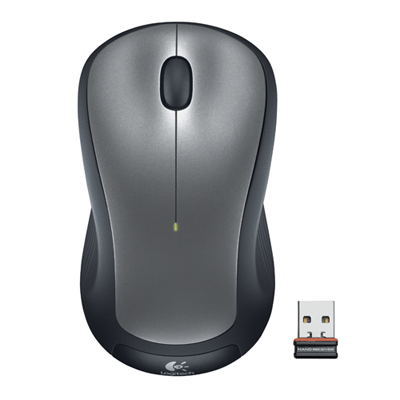 Your price for this item is $29.99
 -
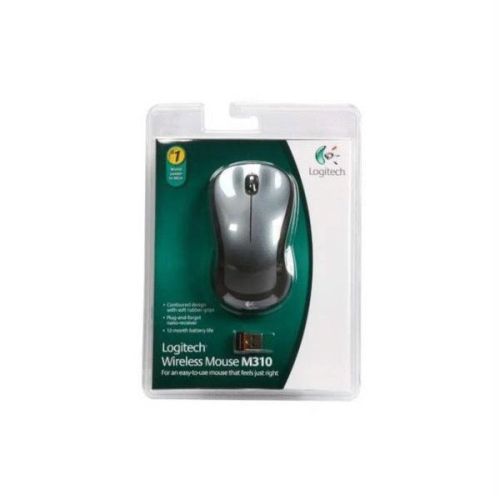 Your price for this item is $50.44
 -
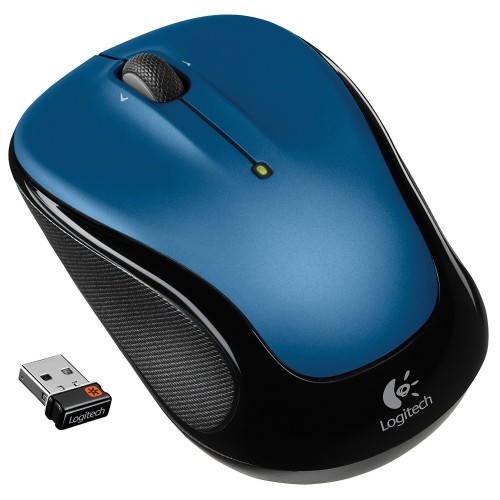 Your price for this item is $39.99
 -
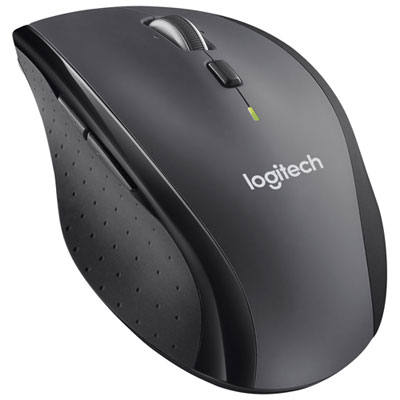 Your price for this item is $49.99
 -
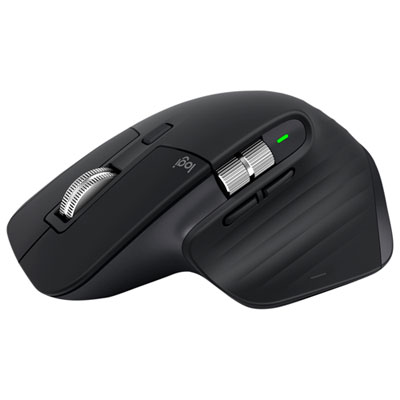 Your price for this item is $159.95
 -
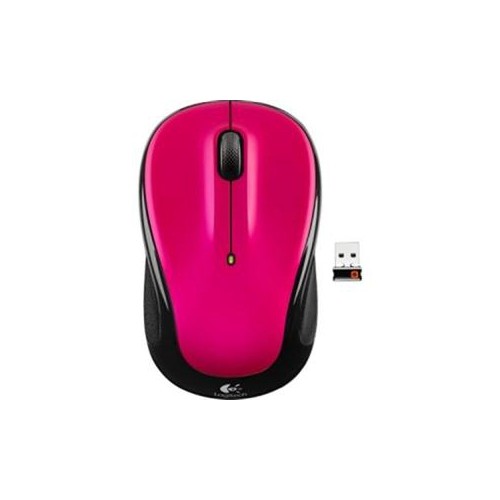 Your price for this item is $44.68
 -
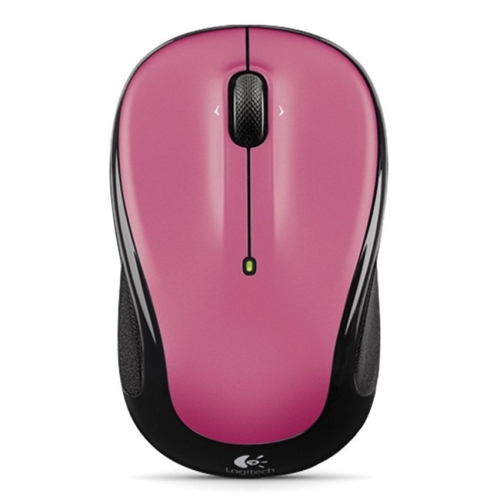 Your price for this item is $44.68
 -
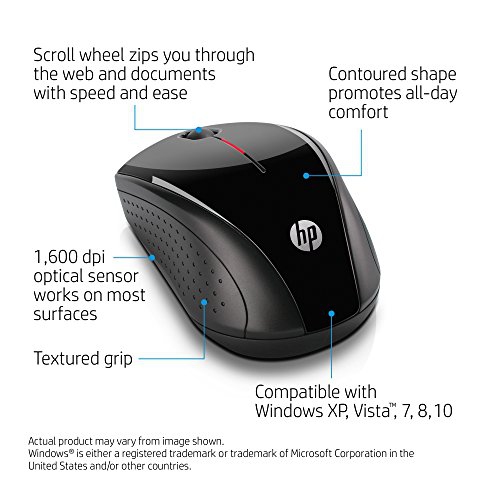 Your price for this item is $31
Discover more categories related to Wireless Mice for HP Pavilion
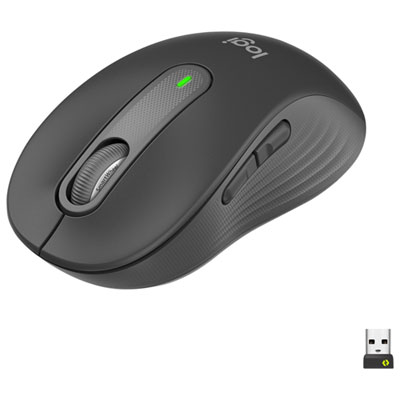
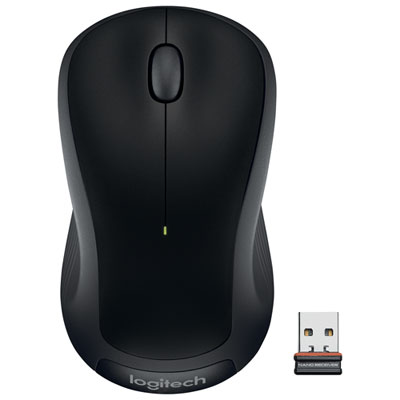
Top Collections:
Pokemon Centers, Kindle Devices, Best Budget Office Chairs, Apple iPhones 16, Best Laptops for Writers, iPhone 15 Apple, Canon G7X Cameras, Refurbished Apple Laptops, Alarm Clock, Motorola Razr Phones
Some products may be subject to Environmental Handling Fees
(EHF) depending on your province.
Learn more about EHFs.