Wireless Mouse Compatible With HP Laptop
A wireless mouse is a great way to cut down on the number of wires you have cluttering your workspace. They also make it easier to move around your desk and adjust your position without worrying about tripping over a cord. Wireless mice are compatible with most computers, but there are certain models that work better with certain computers. If you're looking for a mouse to go with your HP laptop, here are some of the best options available.
Sort
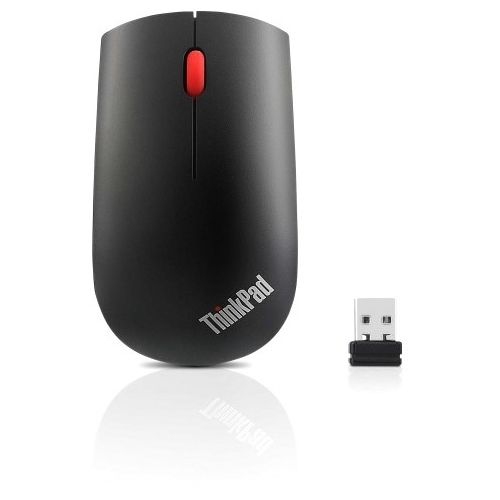
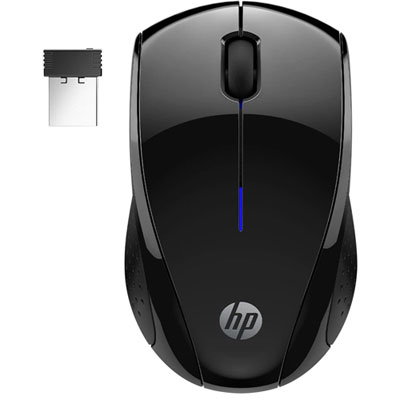
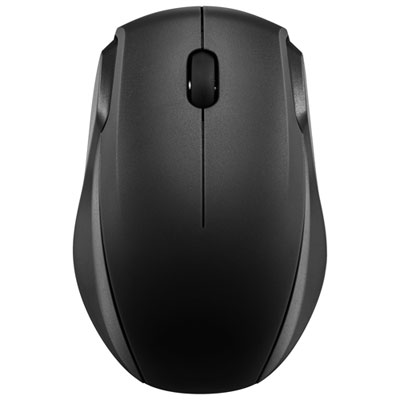
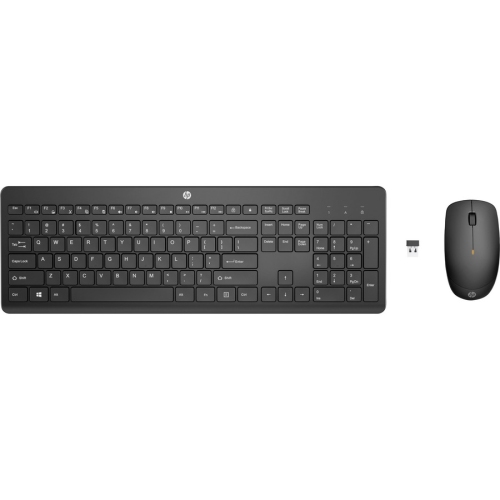


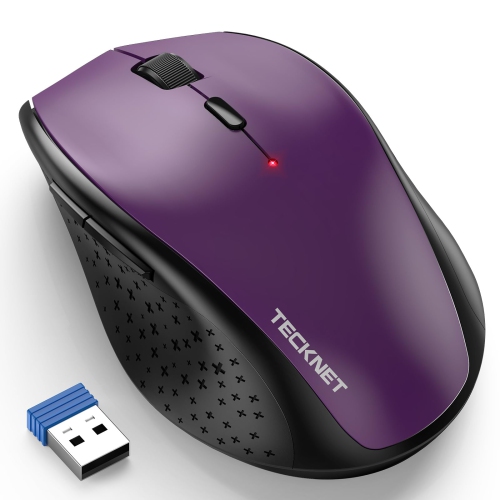
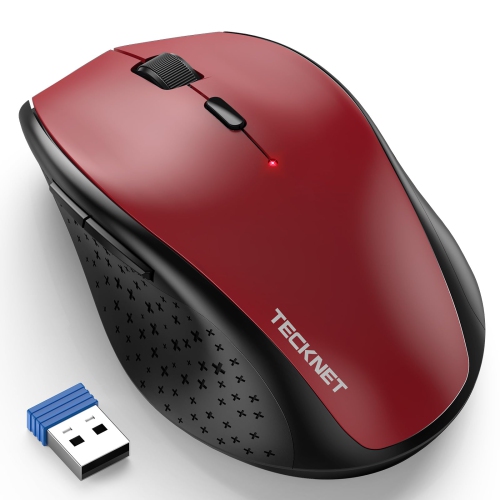
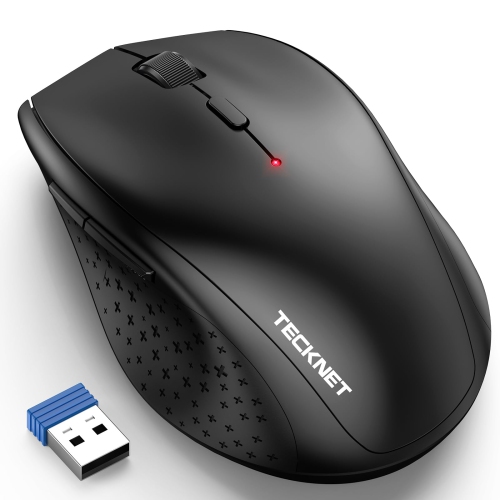
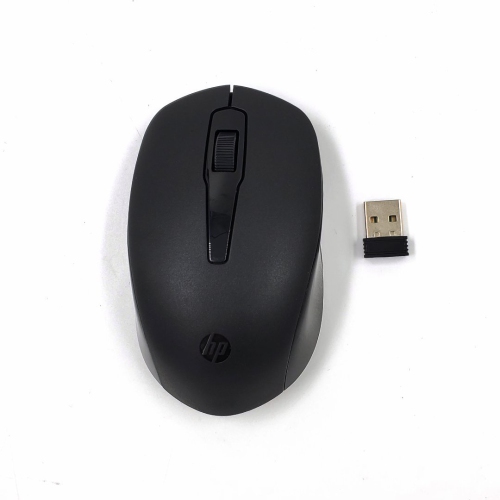

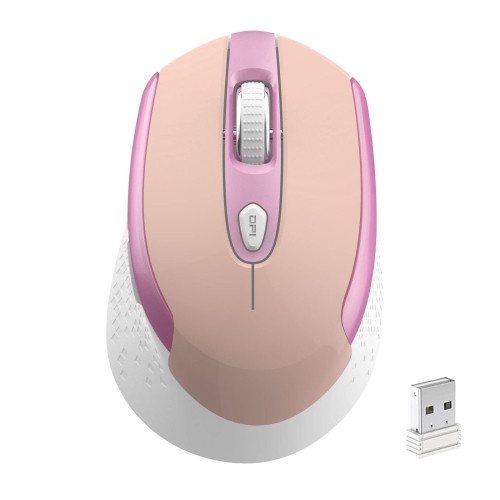
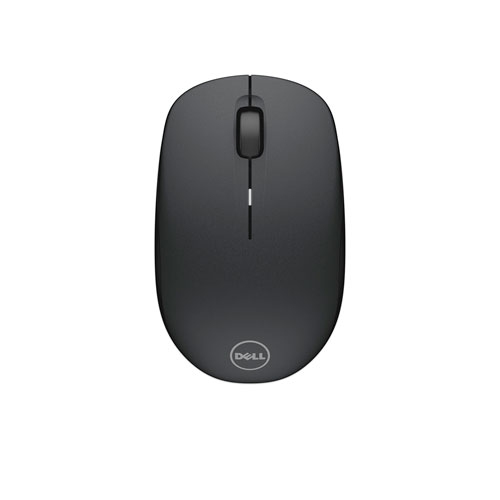
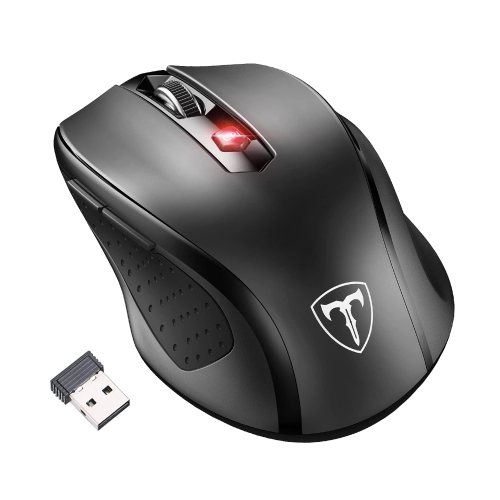
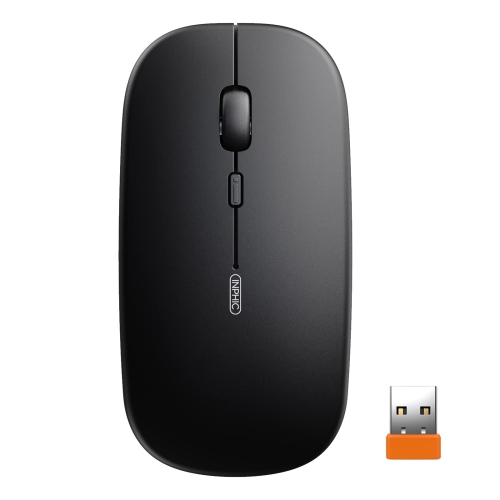

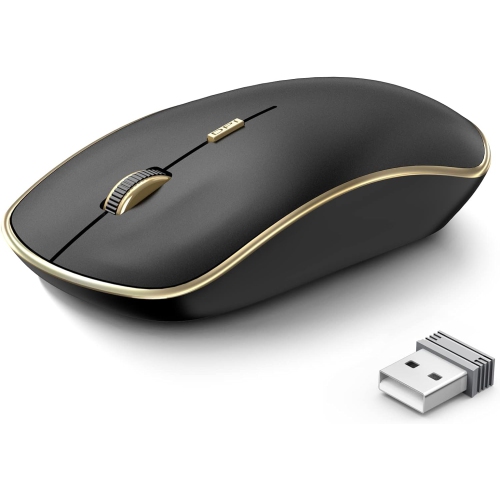
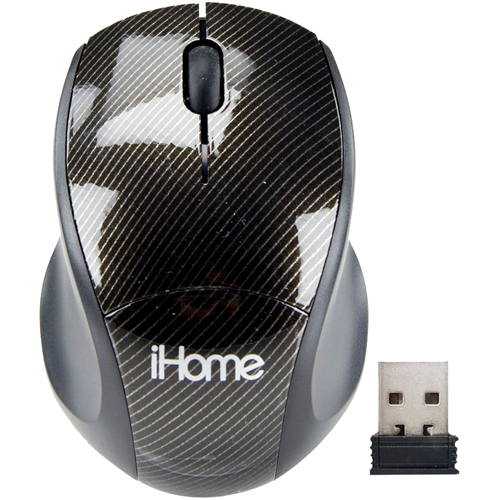
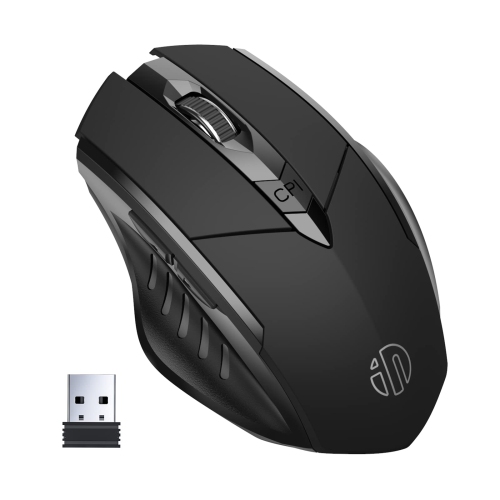
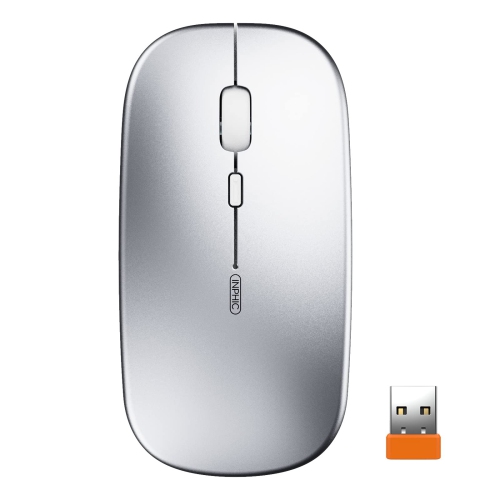
What to consider for comfortable, dependable everyday control
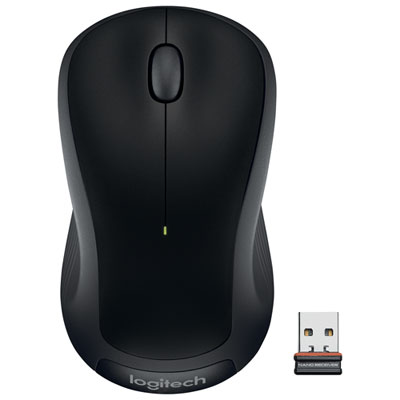
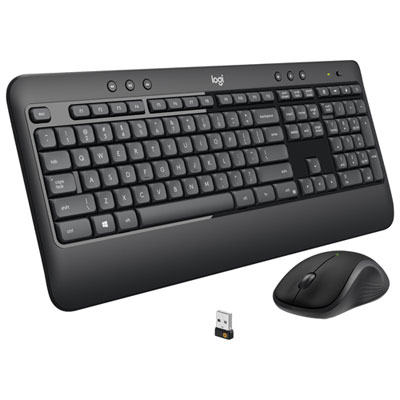
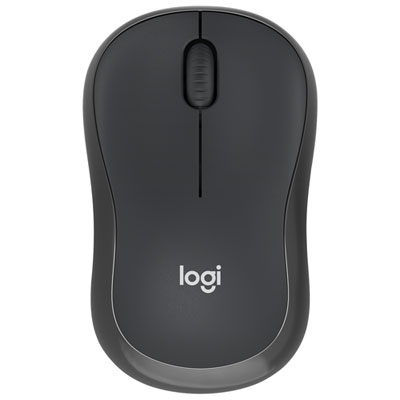
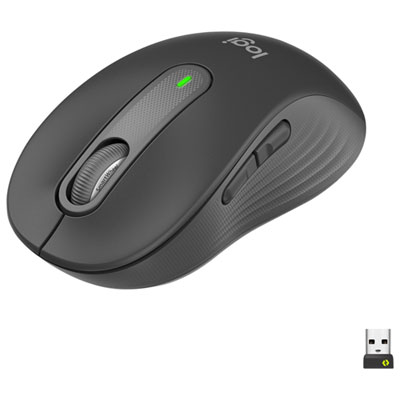
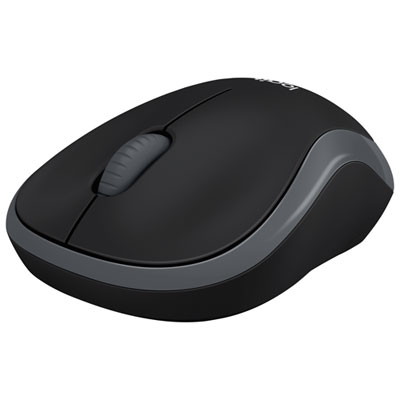
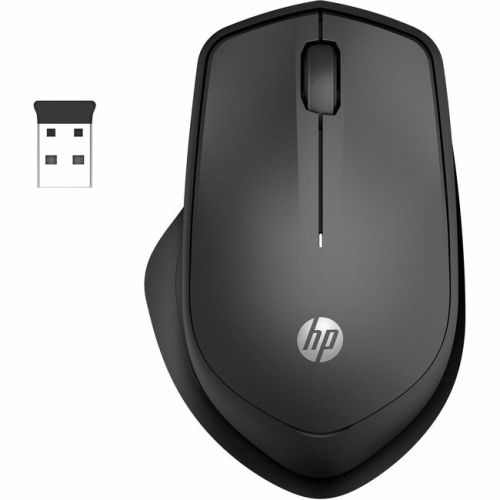
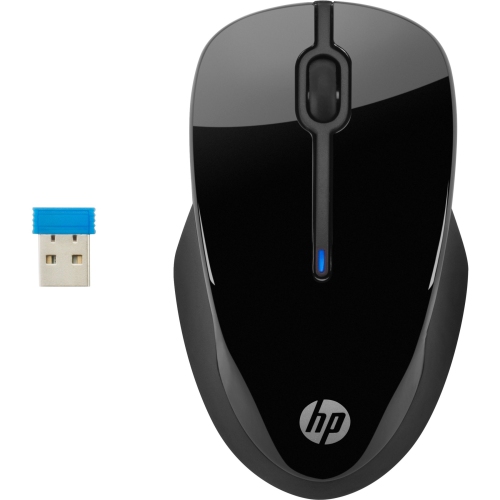
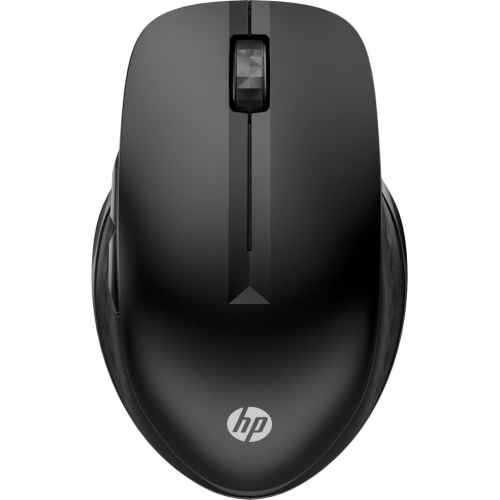
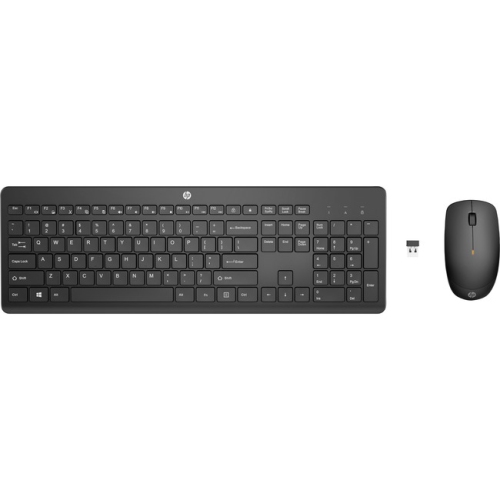
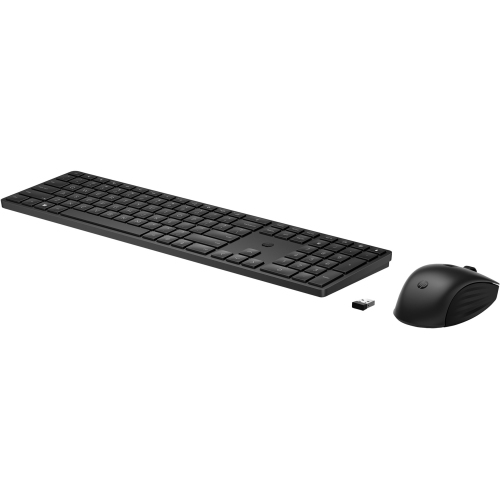
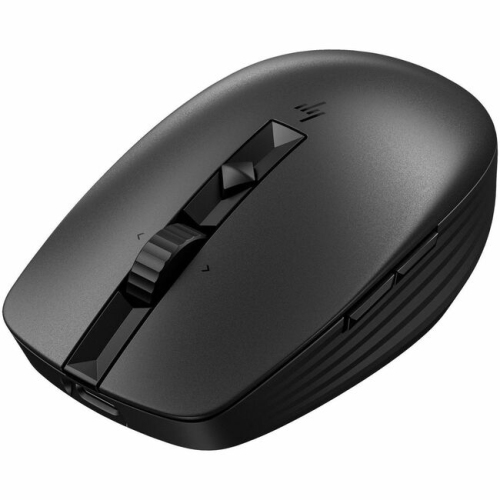
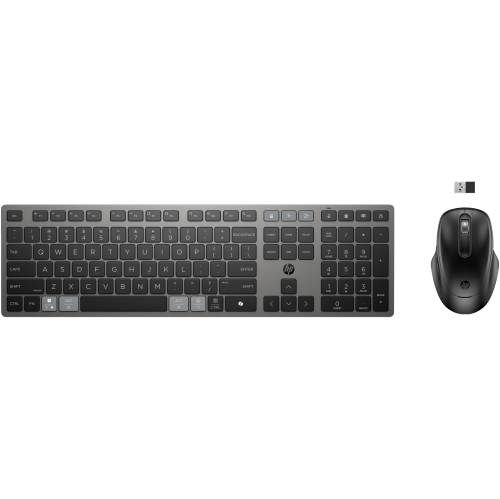
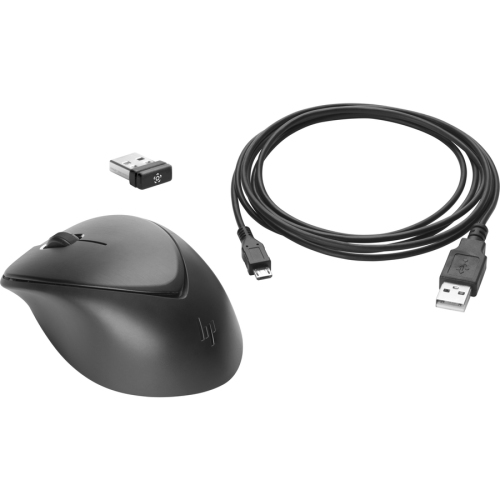
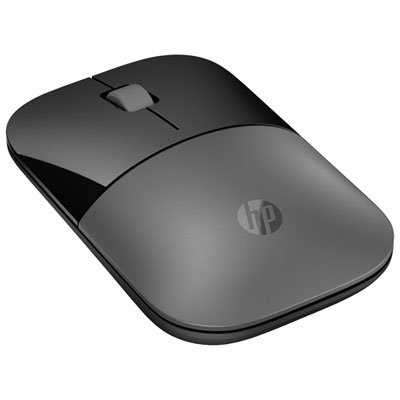
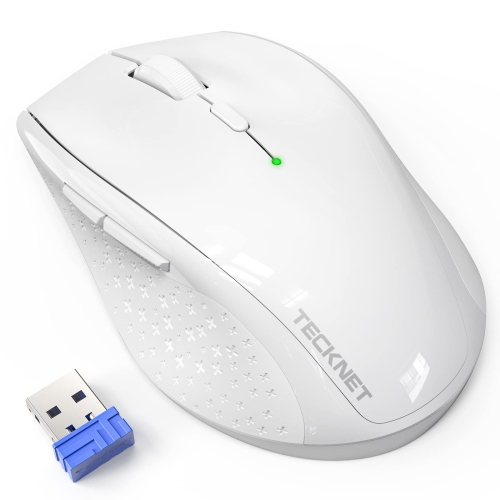
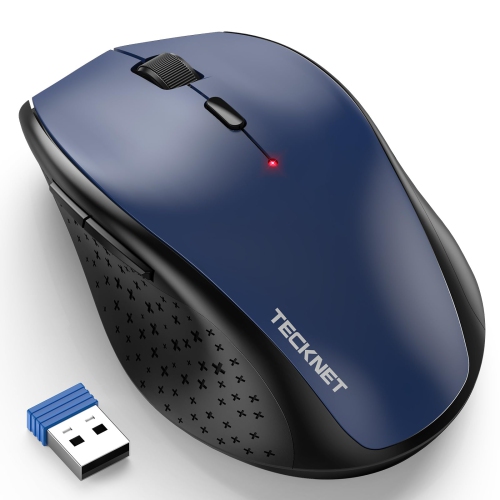
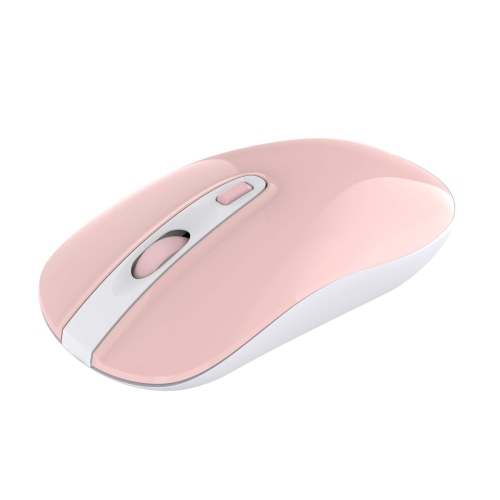
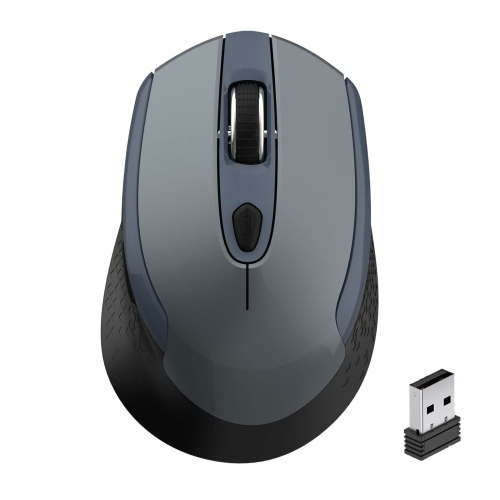
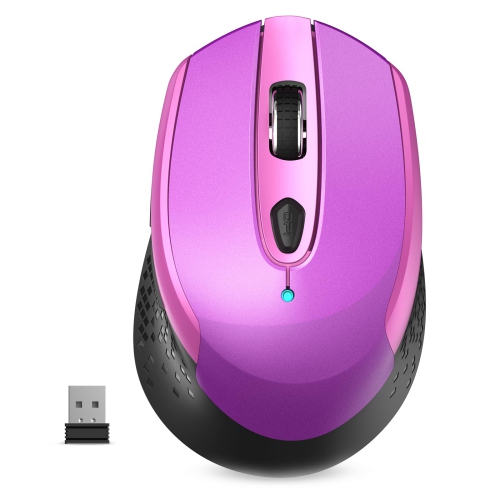
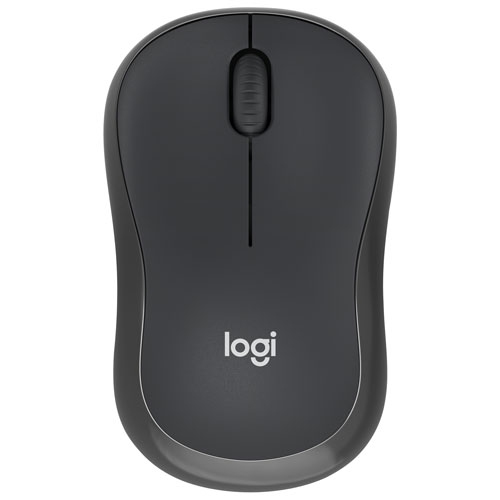
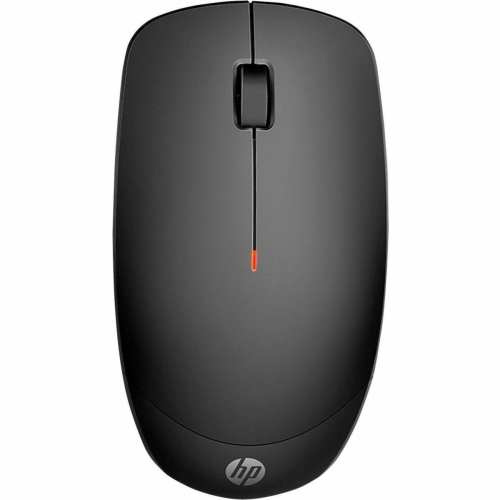
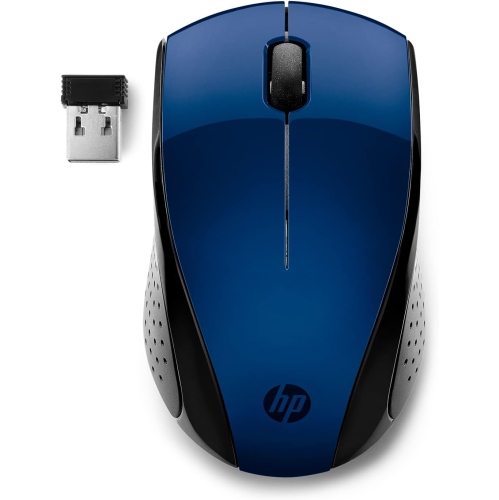
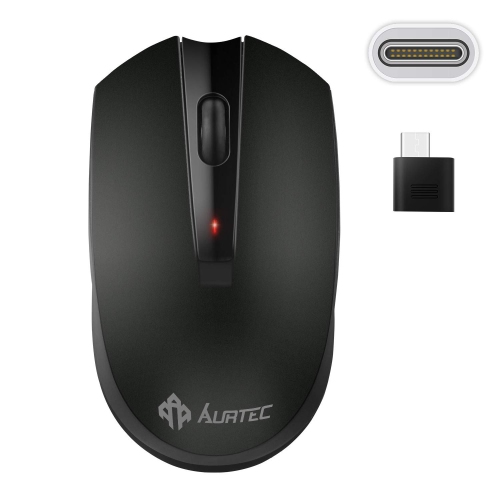
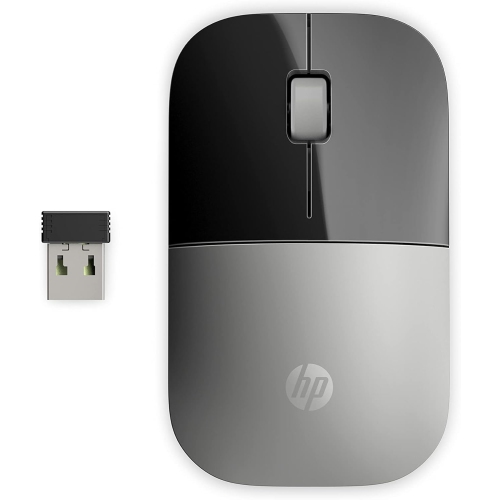
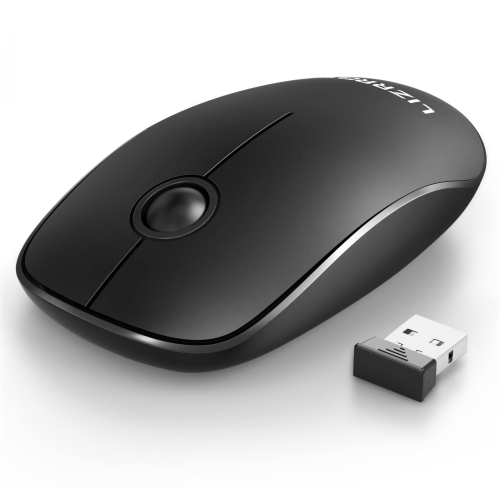
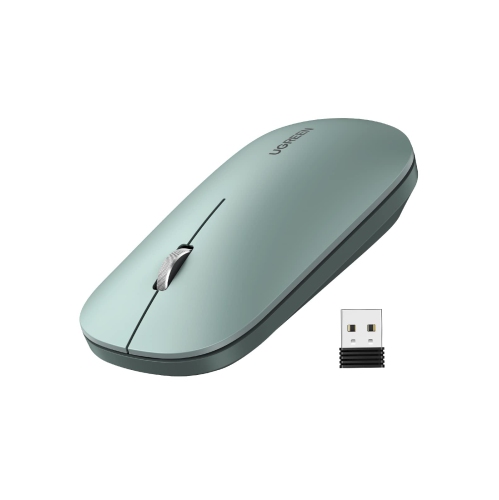
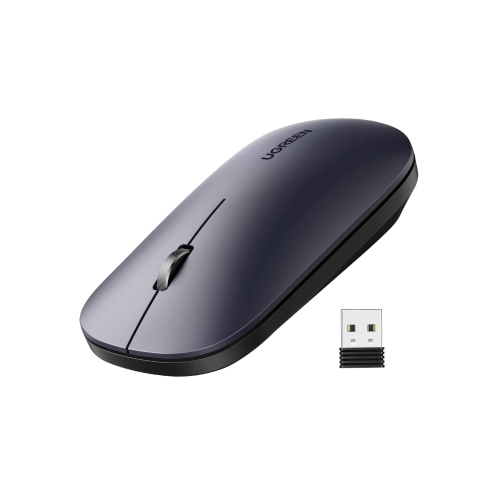
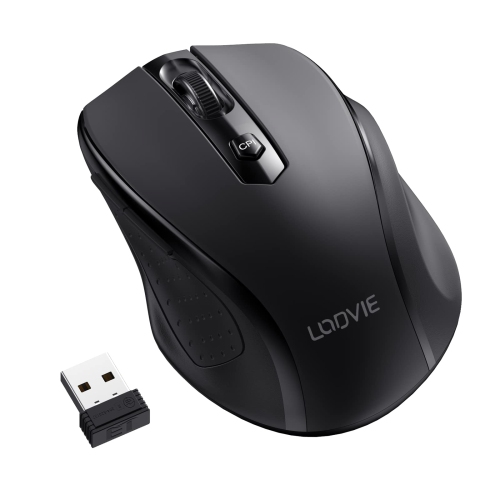
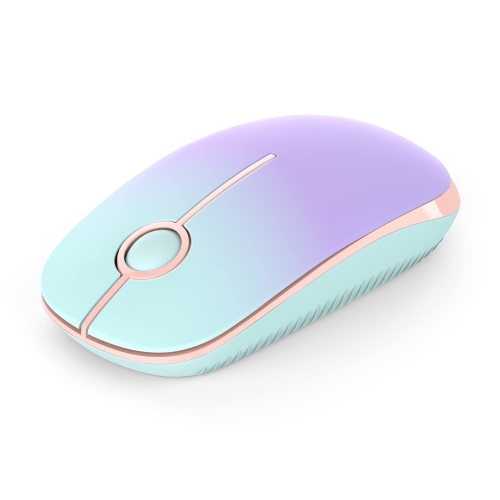
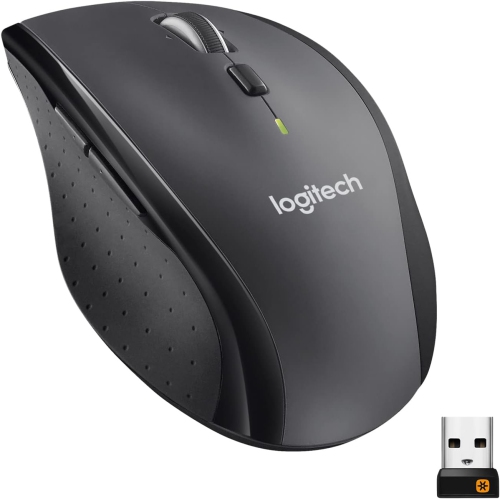
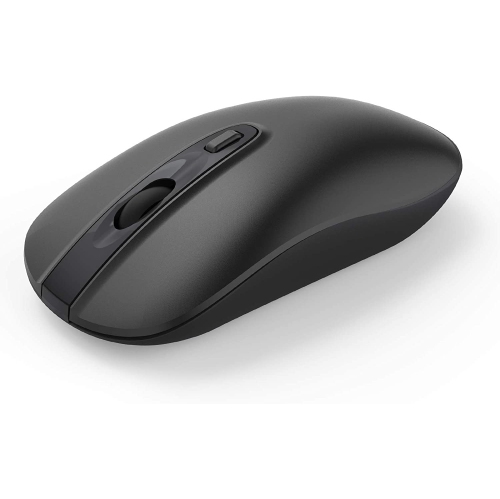
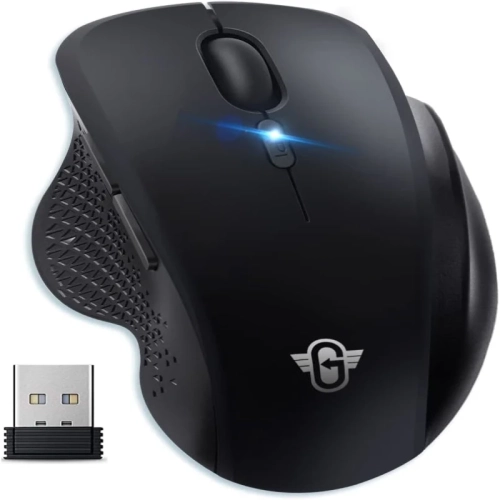
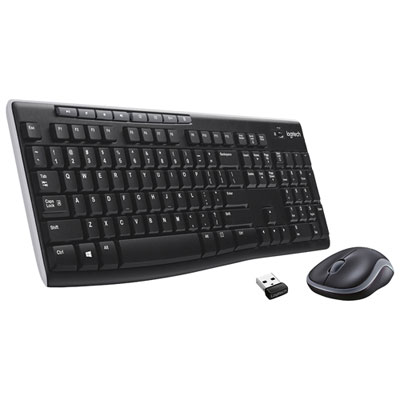
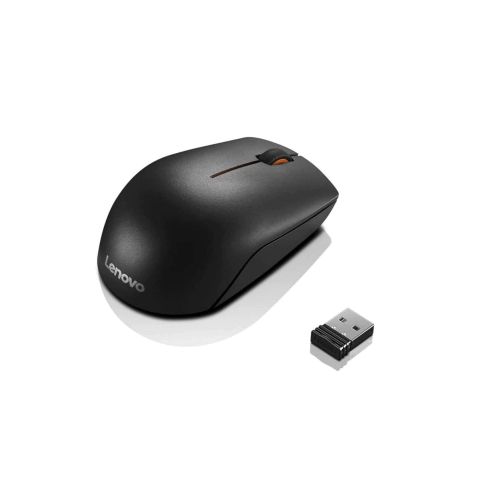
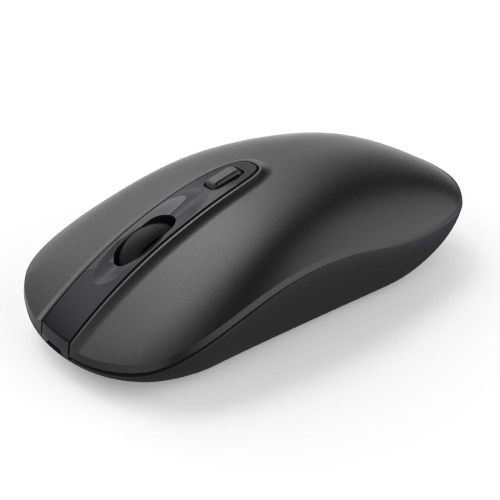
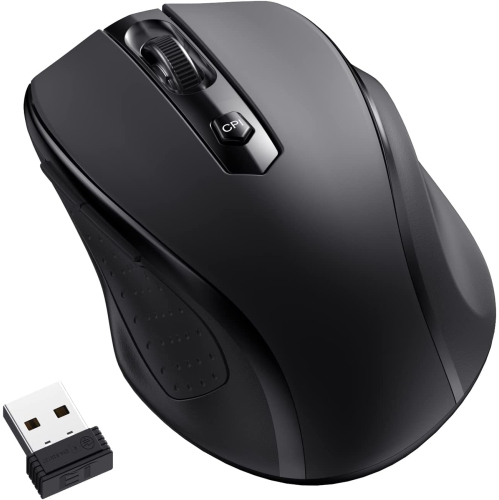
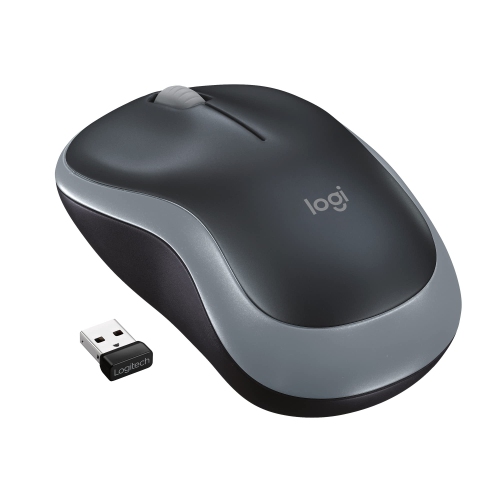
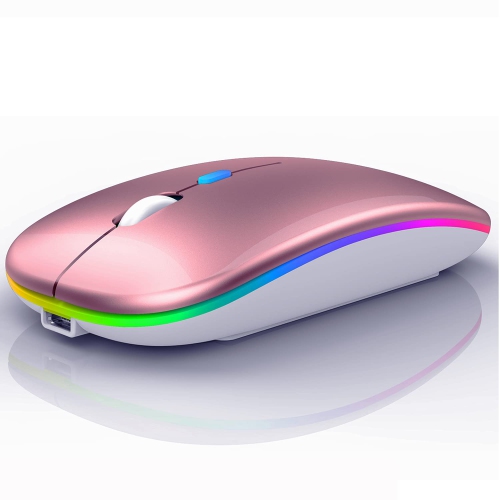
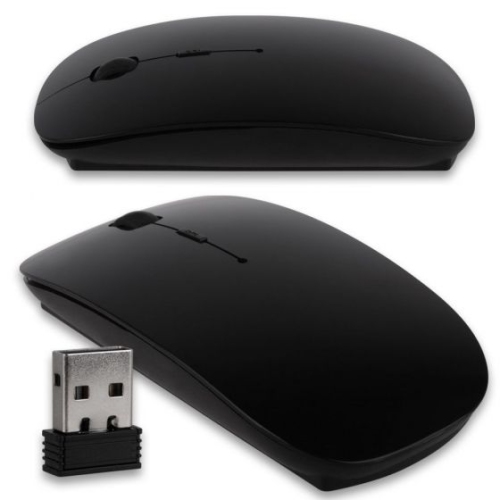
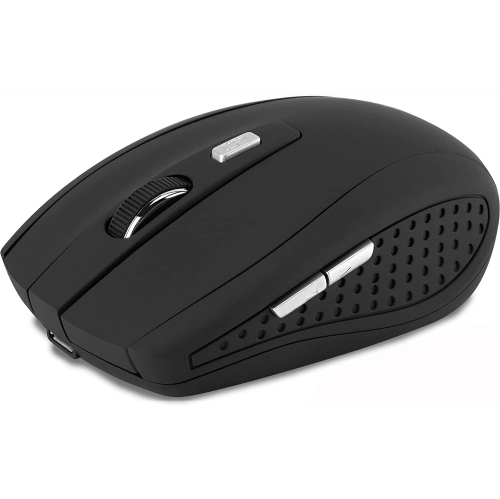
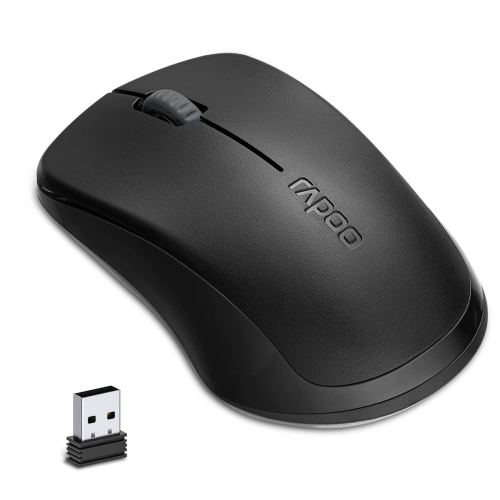
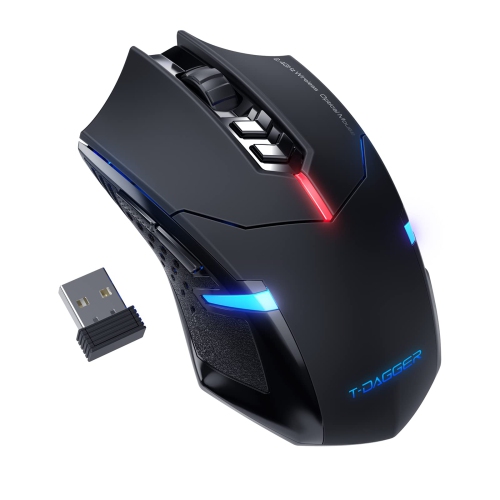
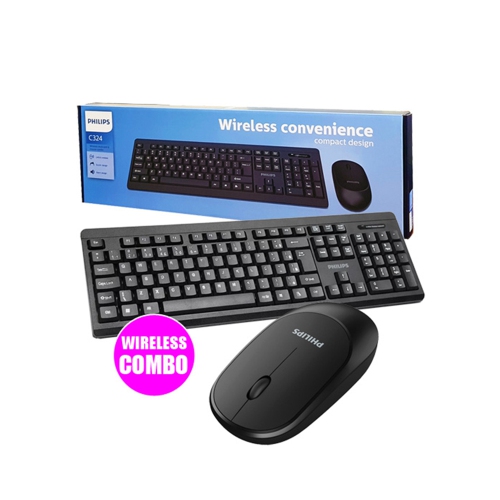
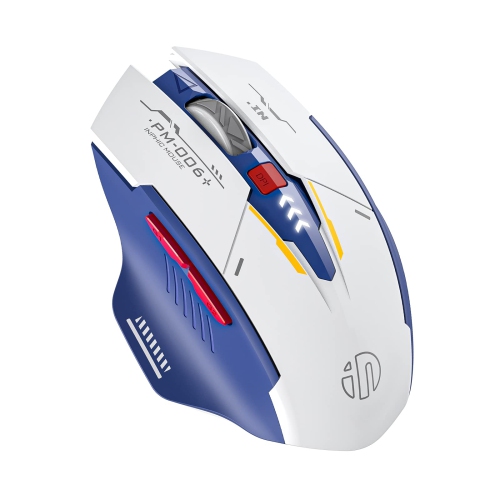
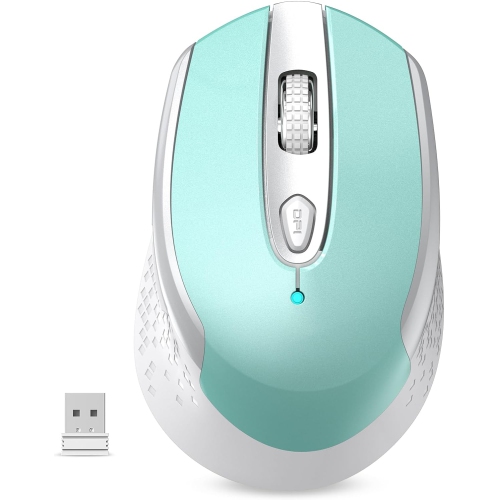
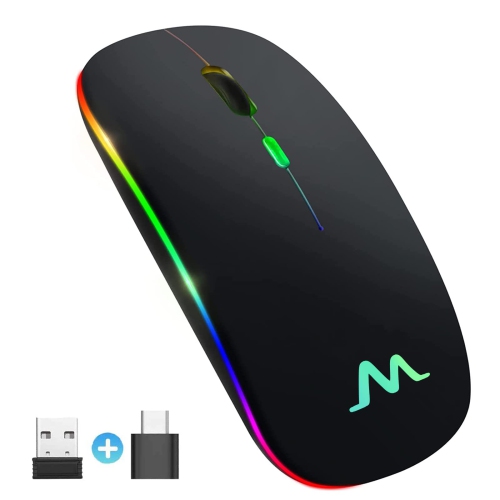
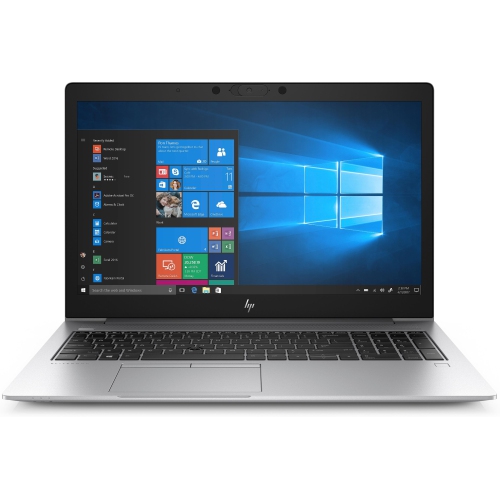
Finding a wireless mouse compatible with an HP laptop can make everyday computing feel more natural, precise, and comfortable. Whether you are replacing a worn-out touchpad routine, setting up a home office, or choosing a practical gift for a student, remote worker, or frequent traveller, a cordless mouse gives you more control without adding another cable to your desk. Most options connect in one of two ways: through a small USB receiver or through Bluetooth. A USB receiver is often the simplest choice for plug-and-play use. Insert the receiver into an available USB port, turn on the mouse, and it will usually be ready within moments. Bluetooth models connect through the laptop’s Bluetooth settings instead, which can be especially useful when you want to keep your USB ports free for storage drives, headsets, or other accessories. Before choosing, check the ports and connection options on your HP laptop, particularly if it is a slimmer model with USB-C ports rather than traditional USB-A ports. If the mouse uses a USB-A receiver, an adapter or hub may be needed. A receiver-storage compartment inside the mouse is also helpful for travel, since the tiny device can otherwise be easy to misplace in a laptop bag. For a broad selection, browse Cordless Mice for HP Laptop and compare connection types, shape, features, and battery requirements in one place.
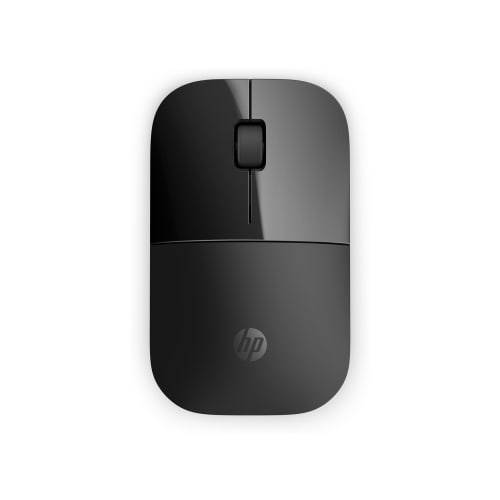
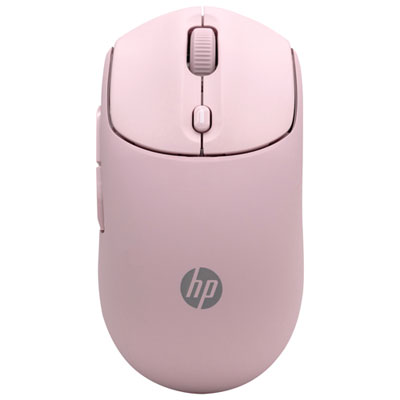
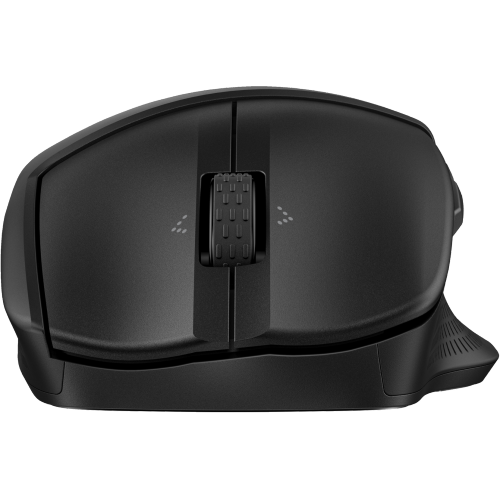
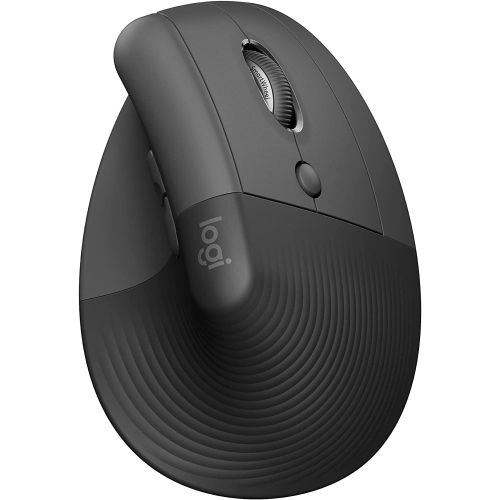
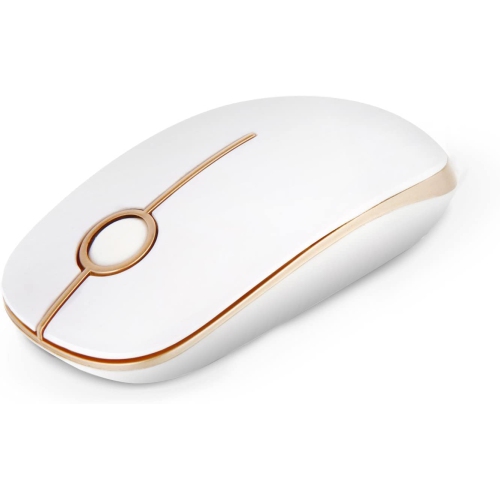
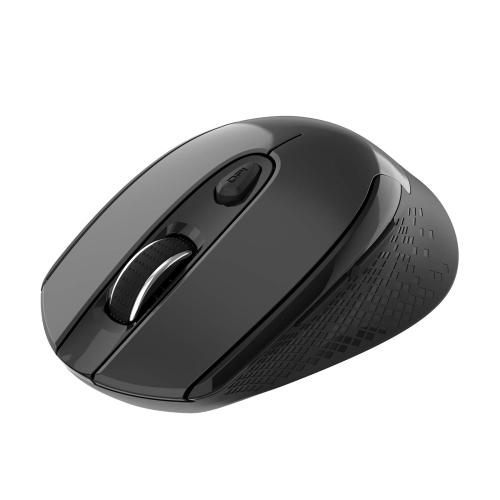
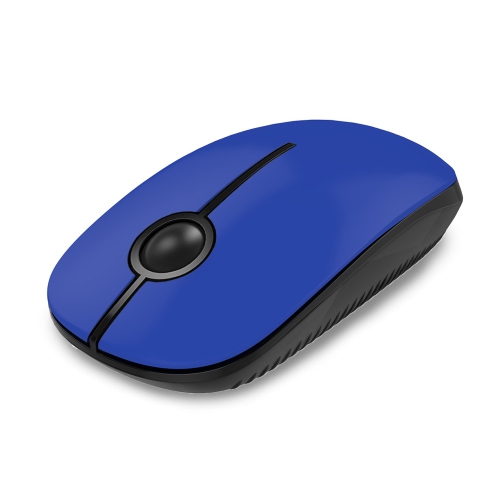
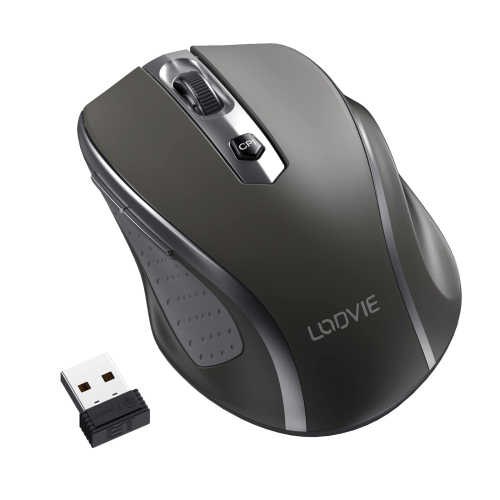
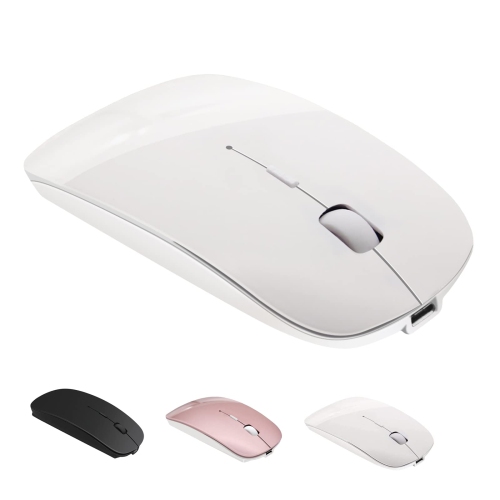
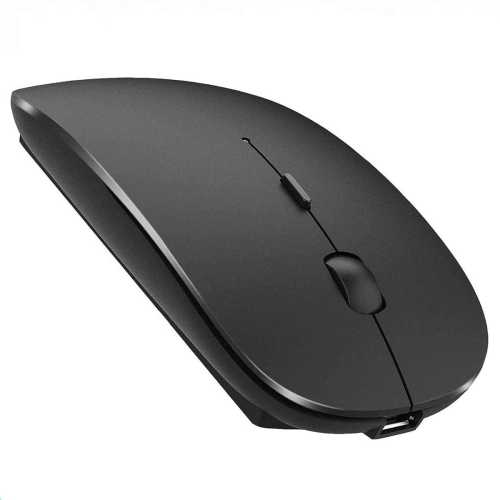
Comfort and control are just as important as compatibility. A slim wireless mouse is convenient for slipping beside an HP laptop in a backpack or briefcase, making it a good fit for commuting, studying in different rooms, or working at a café. A fuller design may better support the palm during long work sessions, especially for anyone who spends hours moving between spreadsheets, documents, browser tabs, and video calls. Look for a shape that lets your hand rest naturally rather than forcing your fingers to curl tightly around the body. Right- and left-handed users may prefer different contours, while an ambidextrous design can be useful in shared workspaces or family homes. Optical tracking is standard on many wireless mice and works well on common desk surfaces, but performance can vary on glass, glossy finishes, or heavily patterned materials. A mouse pad can provide a more consistent glide and help reduce the small skips that become noticeable when selecting fine details. Sensitivity is often expressed in DPI, or dots per inch. Lower settings can feel steady for text selection and general office work, while higher settings allow the pointer to travel farther across a large screen with less physical movement. Some mice include an adjustable DPI button, allowing you to move quickly through a wide display and then switch to more controlled movement for photo editing, design work, or detailed navigation. Extra buttons can also be useful for forward and back navigation, copying and pasting, or assigning frequently used commands, although a simple two-button design may be preferable for someone who values a straightforward setup.
Battery life, portability, and daily habits can help narrow the selection. Battery-powered models are convenient because they can be ready to use without a charging cable, and many offer an automatic sleep mode to conserve power between tasks. Rechargeable options reduce the need to keep spare batteries nearby and can be topped up between work sessions, though it is worth checking whether the mouse can be used while charging. An on/off switch is a small but useful detail when packing the mouse away for a weekend trip or storing it between uses. Quiet-click buttons can make a noticeable difference in a shared office, library, classroom, or bedroom, where sharp clicks may become distracting. A scroll wheel with a firm, consistent feel helps when moving through long web pages, digital textbooks, presentations, or detailed lists. Multi-device models may pair with more than one computer or compatible device, allowing you to move between a personal HP laptop and another workstation without carrying separate mice. Setup is generally uncomplicated: for a USB receiver, connect the receiver, power on the mouse, and allow the laptop a moment to recognize it; for Bluetooth, open the laptop’s Bluetooth controls, place the mouse in pairing mode, and select it from the available devices. If the pointer does not respond, check the battery, confirm that the mouse is switched on, reseat the receiver, and make sure the laptop’s Bluetooth function is enabled. A wireless mouse can be a thoughtful and useful gift for a new student, someone furnishing a home workspace, or anyone who uses an HP laptop for work, school, creative projects, or casual browsing. During the cooler months, it can also make a shared desk or kitchen table setup more comfortable when a laptop is used for recipes, online learning, budgeting, or keeping in touch with family. Choosing the right balance of connection method, hand comfort, tracking control, battery design, and portability helps ensure the mouse feels dependable from the first click and remains practical through everyday use.
Comfort and control are just as important as compatibility. A slim wireless mouse is convenient for slipping beside an HP laptop in a backpack or briefcase, making it a good fit for commuting, studying in different rooms, or working at a café. A fuller design may better support the palm during long work sessions, especially for anyone who spends hours moving between spreadsheets, documents, browser tabs, and video calls. Look for a shape that lets your hand rest naturally rather than forcing your fingers to curl tightly around the body. Right- and left-handed users may prefer different contours, while an ambidextrous design can be useful in shared workspaces or family homes. Optical tracking is standard on many wireless mice and works well on common desk surfaces, but performance can vary on glass, glossy finishes, or heavily patterned materials. A mouse pad can provide a more consistent glide and help reduce the small skips that become noticeable when selecting fine details. Sensitivity is often expressed in DPI, or dots per inch. Lower settings can feel steady for text selection and general office work, while higher settings allow the pointer to travel farther across a large screen with less physical movement. Some mice include an adjustable DPI button, allowing you to move quickly through a wide display and then switch to more controlled movement for photo editing, design work, or detailed navigation. Extra buttons can also be useful for forward and back navigation, copying and pasting, or assigning frequently used commands, although a simple two-button design may be preferable for someone who values a straightforward setup.
Battery life, portability, and daily habits can help narrow the selection. Battery-powered models are convenient because they can be ready to use without a charging cable, and many offer an automatic sleep mode to conserve power between tasks. Rechargeable options reduce the need to keep spare batteries nearby and can be topped up between work sessions, though it is worth checking whether the mouse can be used while charging. An on/off switch is a small but useful detail when packing the mouse away for a weekend trip or storing it between uses. Quiet-click buttons can make a noticeable difference in a shared office, library, classroom, or bedroom, where sharp clicks may become distracting. A scroll wheel with a firm, consistent feel helps when moving through long web pages, digital textbooks, presentations, or detailed lists. Multi-device models may pair with more than one computer or compatible device, allowing you to move between a personal HP laptop and another workstation without carrying separate mice. Setup is generally uncomplicated: for a USB receiver, connect the receiver, power on the mouse, and allow the laptop a moment to recognize it; for Bluetooth, open the laptop’s Bluetooth controls, place the mouse in pairing mode, and select it from the available devices. If the pointer does not respond, check the battery, confirm that the mouse is switched on, reseat the receiver, and make sure the laptop’s Bluetooth function is enabled. A wireless mouse can be a thoughtful and useful gift for a new student, someone furnishing a home workspace, or anyone who uses an HP laptop for work, school, creative projects, or casual browsing. During the cooler months, it can also make a shared desk or kitchen table setup more comfortable when a laptop is used for recipes, online learning, budgeting, or keeping in touch with family. Choosing the right balance of connection method, hand comfort, tracking control, battery design, and portability helps ensure the mouse feels dependable from the first click and remains practical through everyday use.
Top selling and popular products
-
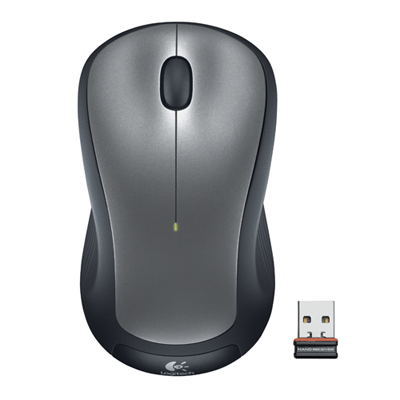 Your price for this item is $29.99
 -
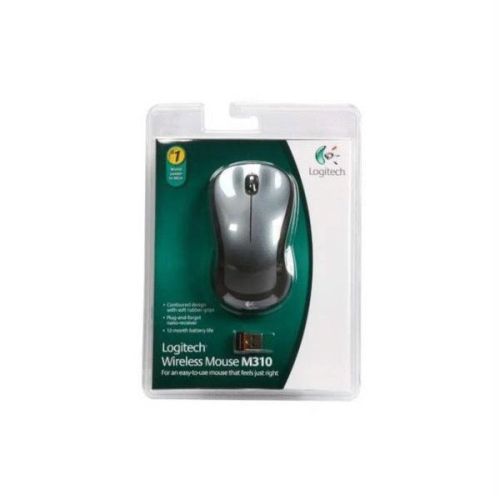 Your price for this item is $50.44
 -
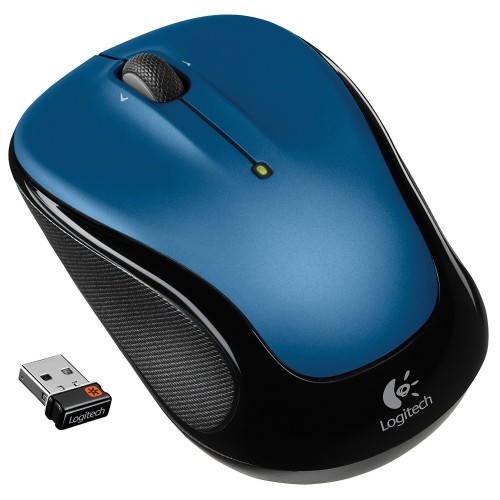 Your price for this item is $39.99
 -
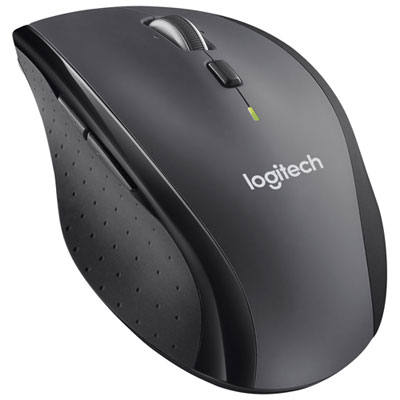 Your price for this item is $49.99
 -
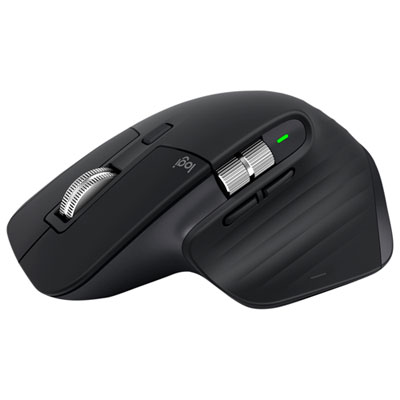 Your price for this item is $159.95
 -
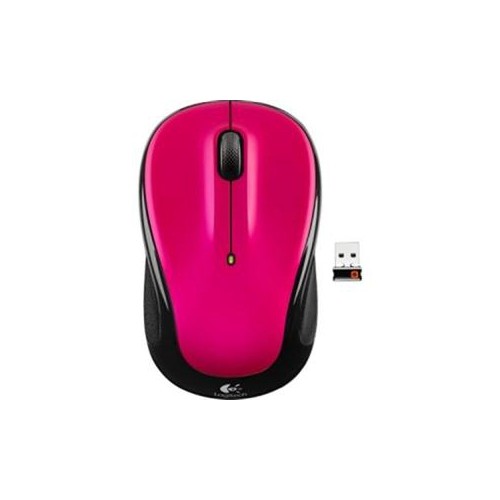 Your price for this item is $44.68
 -
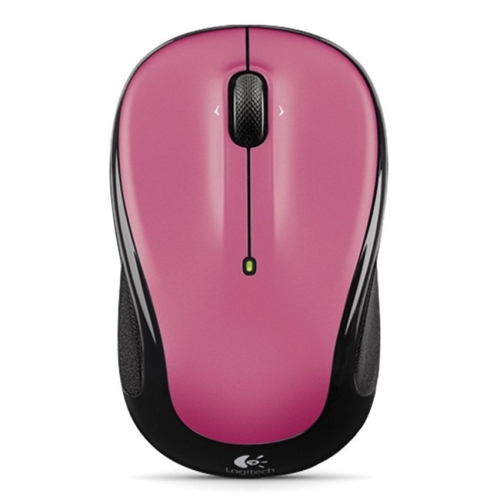 Your price for this item is $44.68
 -
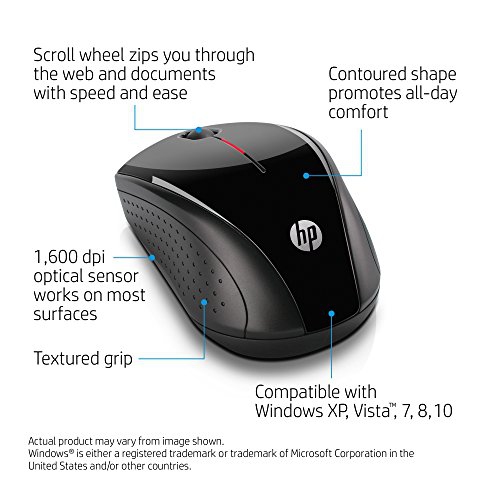 Your price for this item is $31
Discover more categories related to Wireless Mouse Compatible With HP Laptop
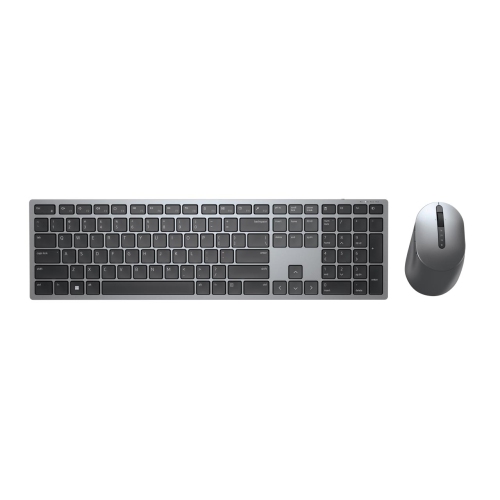
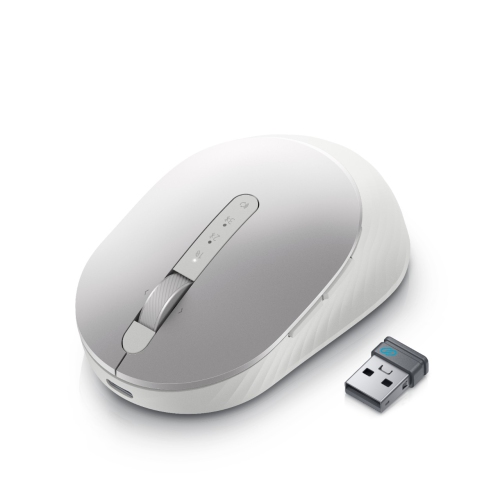
Top Collections:
Pokemon Centers, Kindle Devices, Best Budget Office Chairs, Apple iPhones 16, Best Laptops for Writers, iPhone 15 Apple, Canon G7X Cameras, Refurbished Apple Laptops, Alarm Clock, Motorola Razr Phones
Some products may be subject to Environmental Handling Fees
(EHF) depending on your province.
Learn more about EHFs.