Canon Printer Scan To Computers
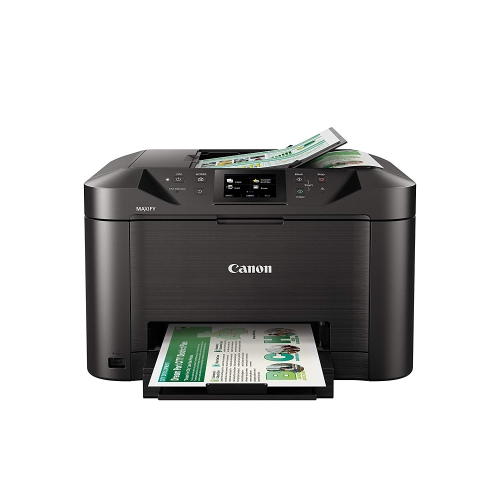
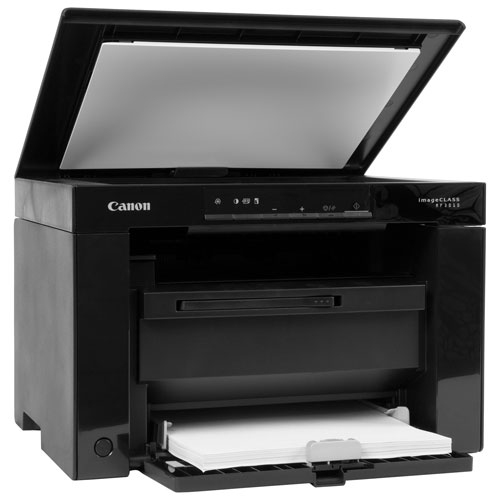
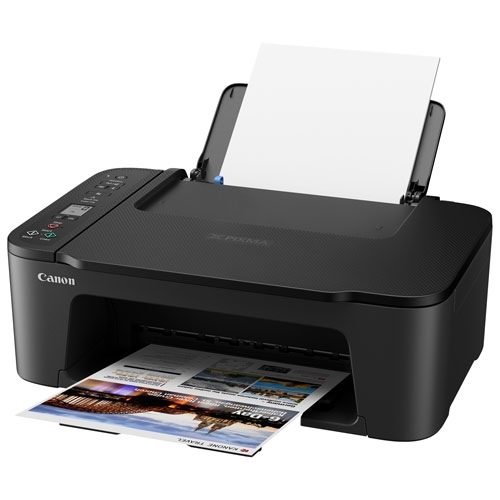
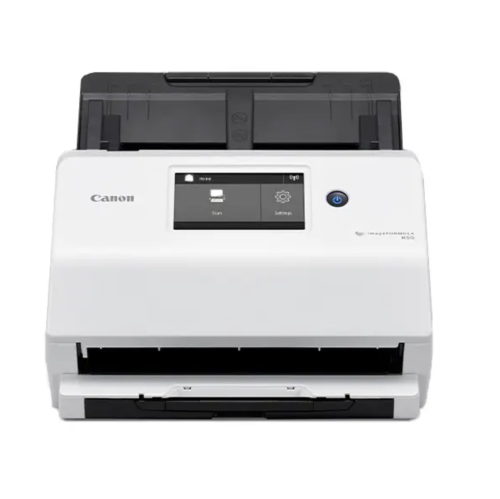
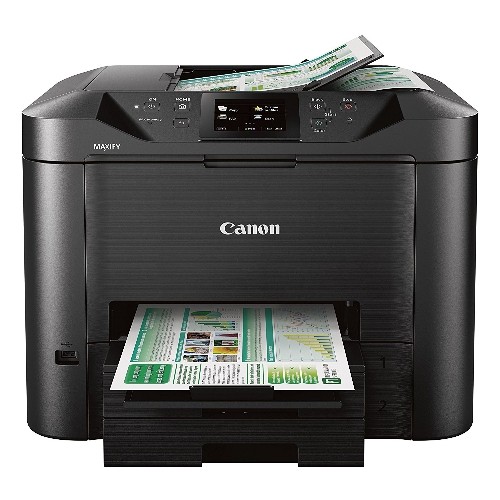
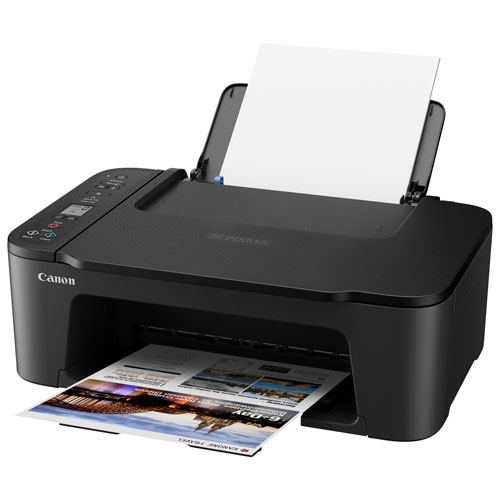
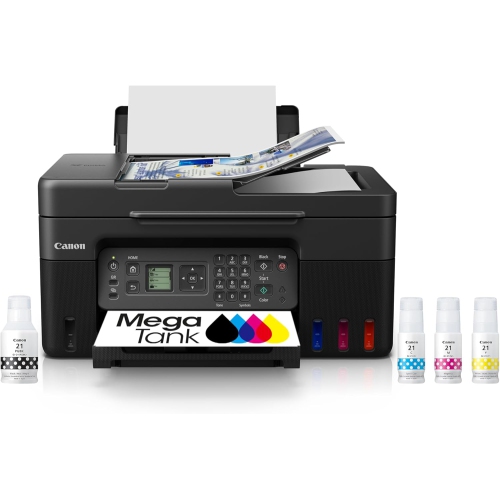
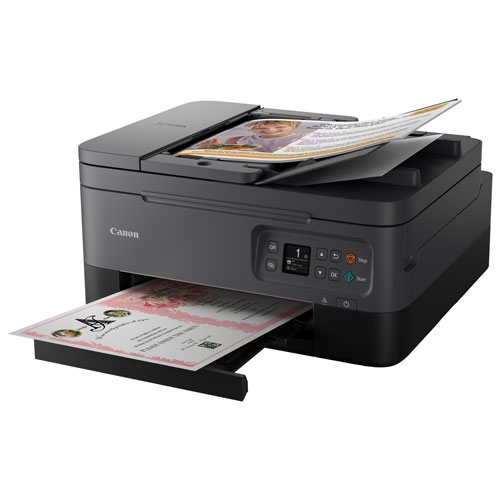
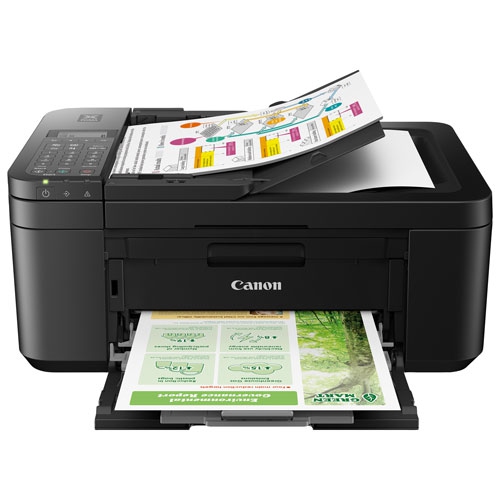
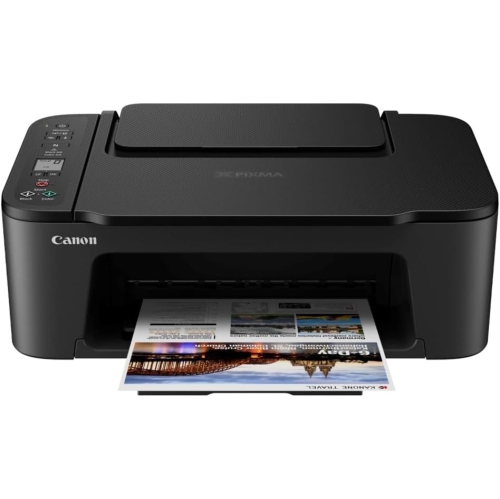
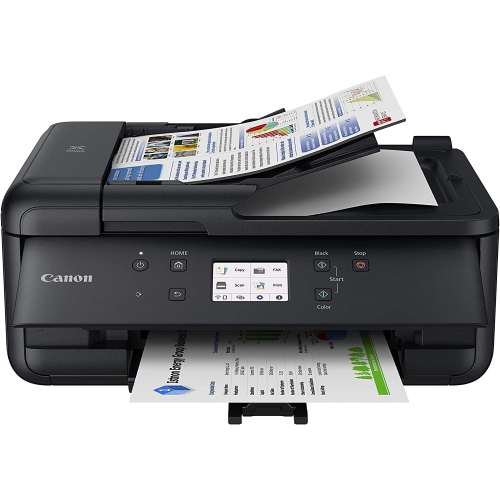
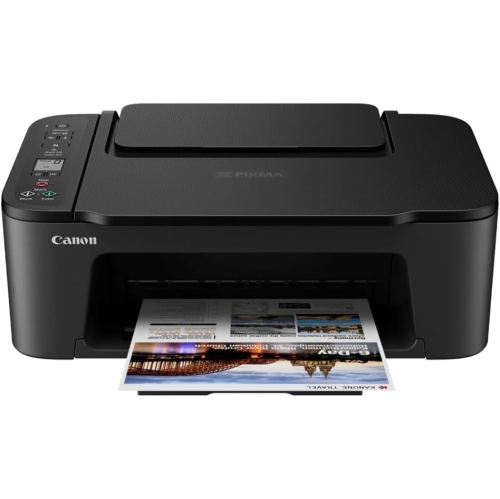
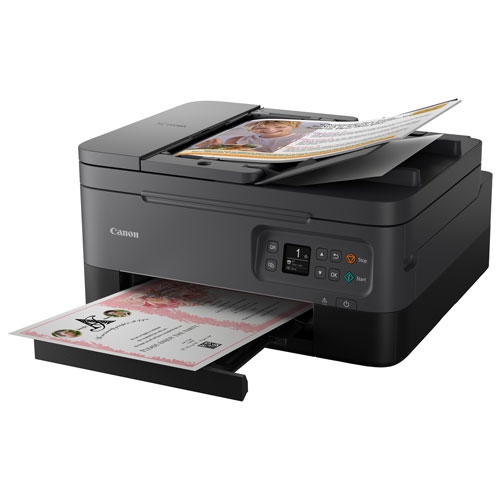
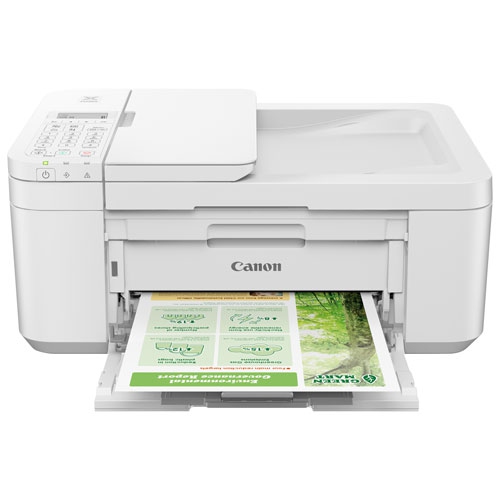
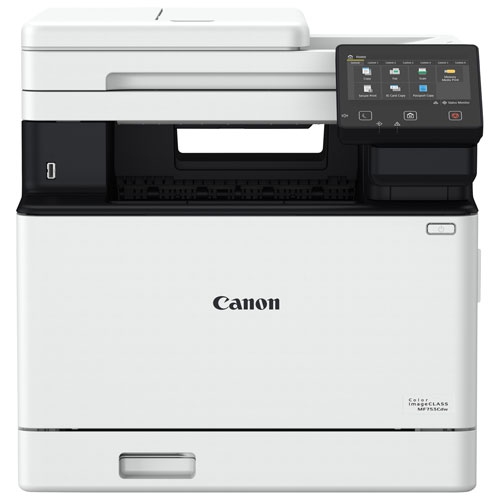
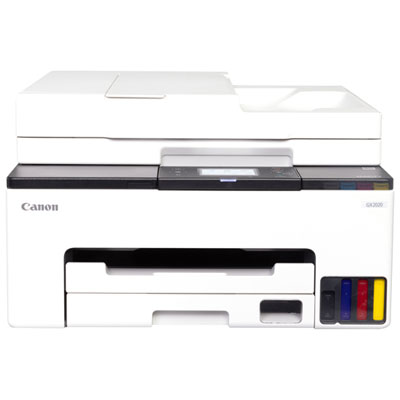
Scanning your photos and documents is one of the easiest ways to back up your data. You can scan them directly into your computer, or you can use a scanner to make digital copies and then transfer them to a storage device. If you have a Canon printer, you can use it to scan items directly into your computer. Here are the recommended printers to scan it to a computer.
Sort
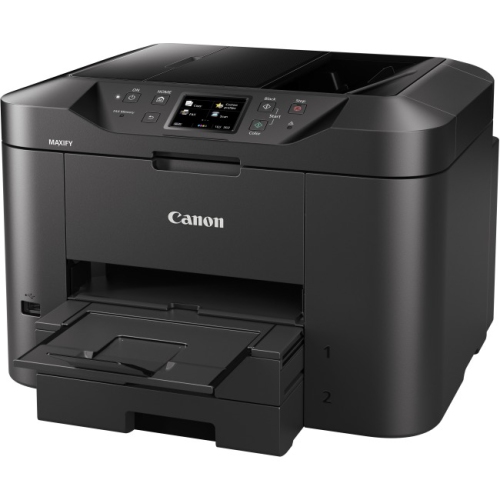
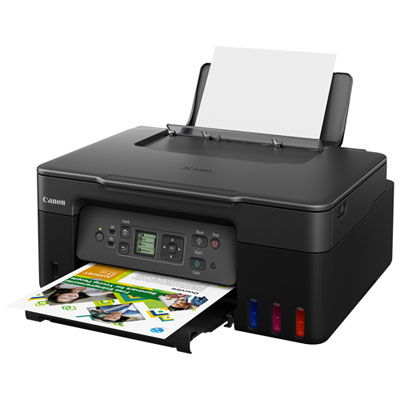
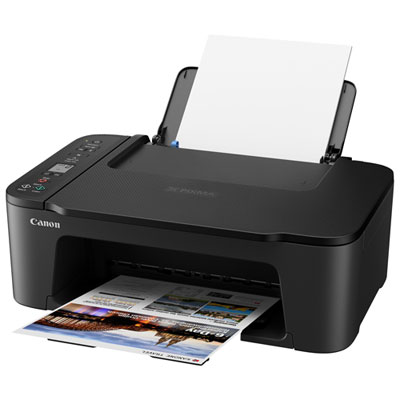
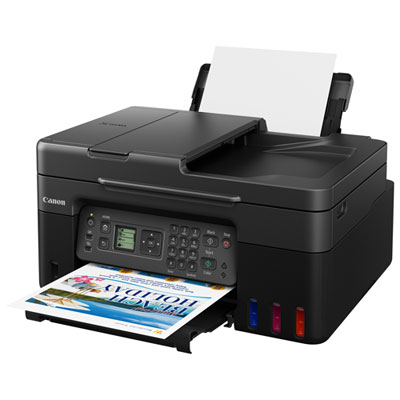
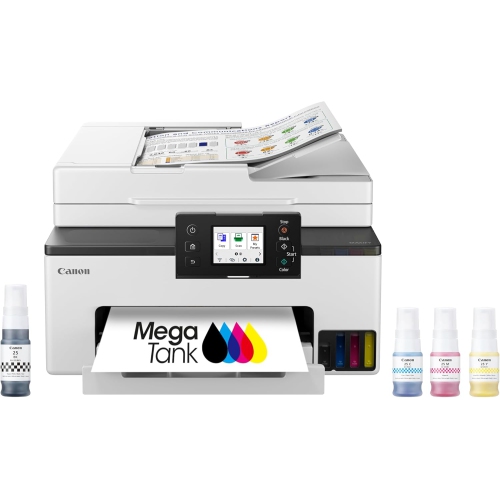
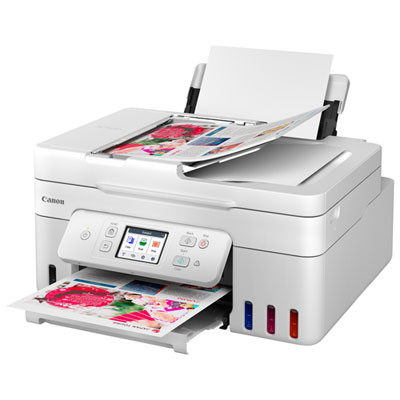
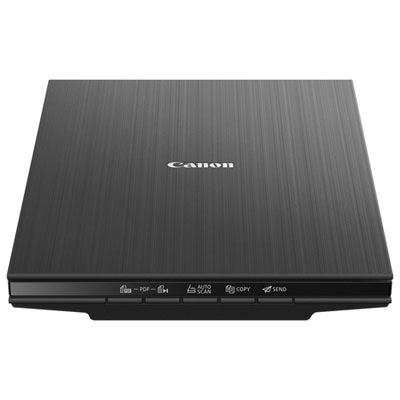
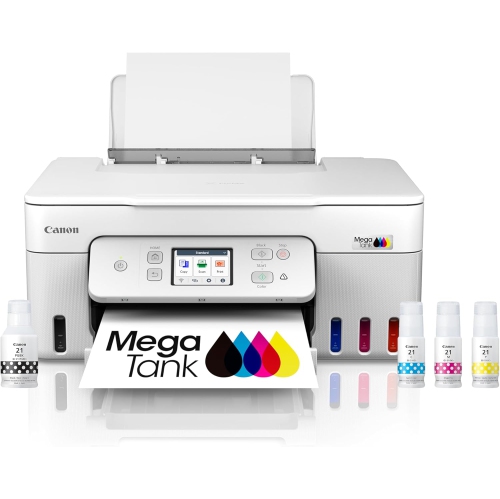
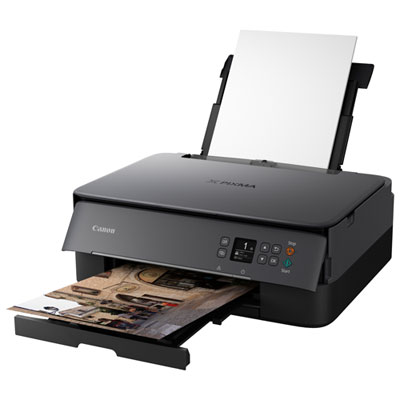
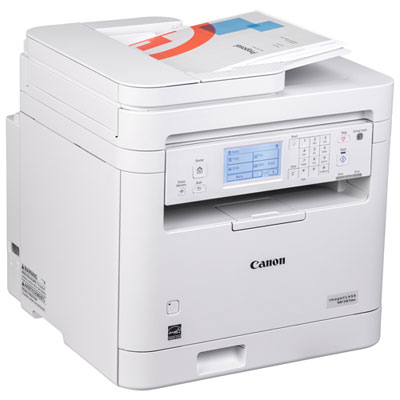
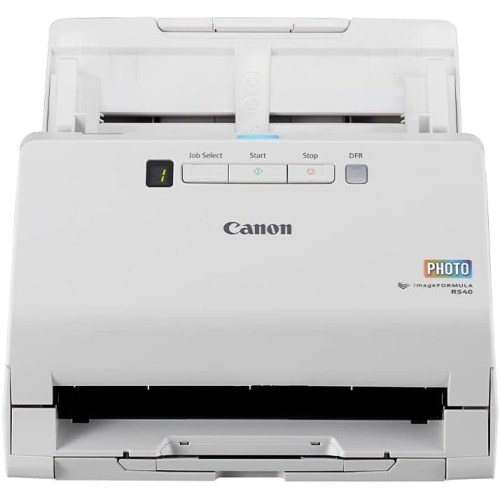
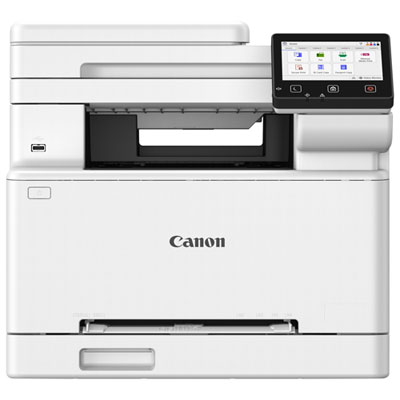
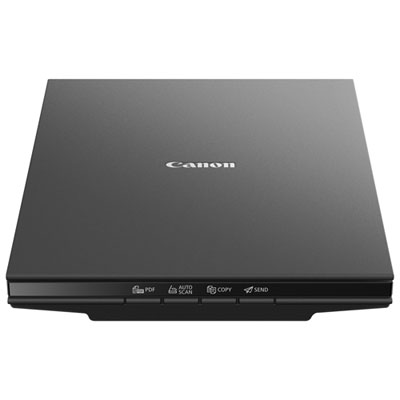
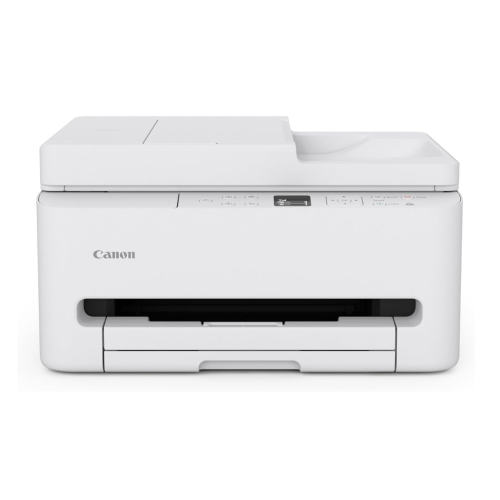
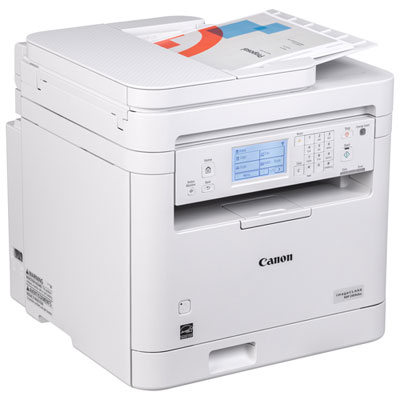
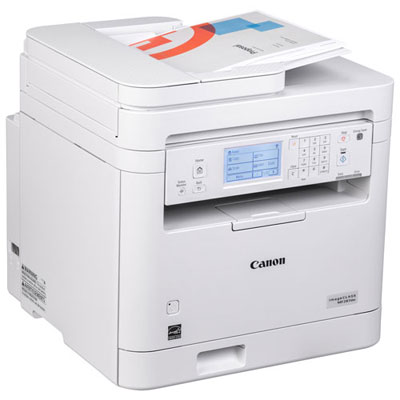
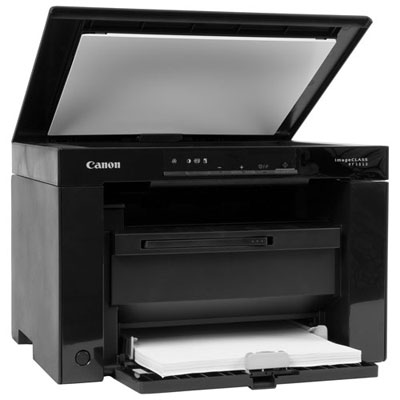
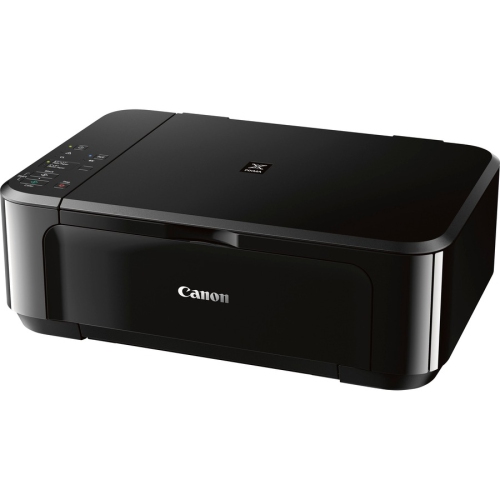
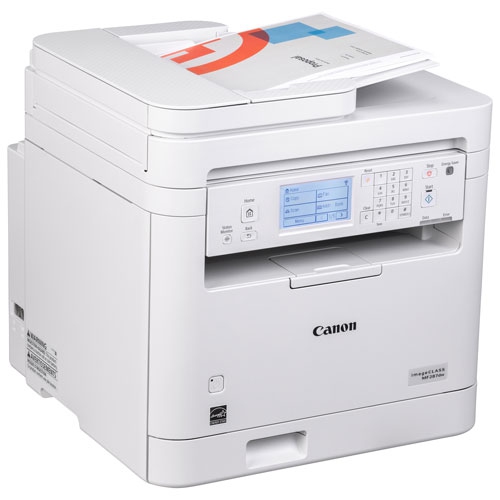
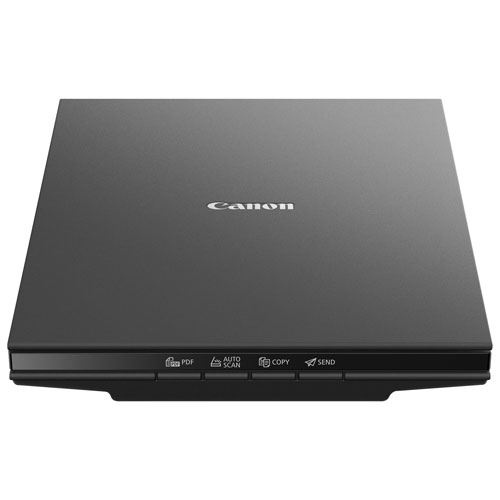
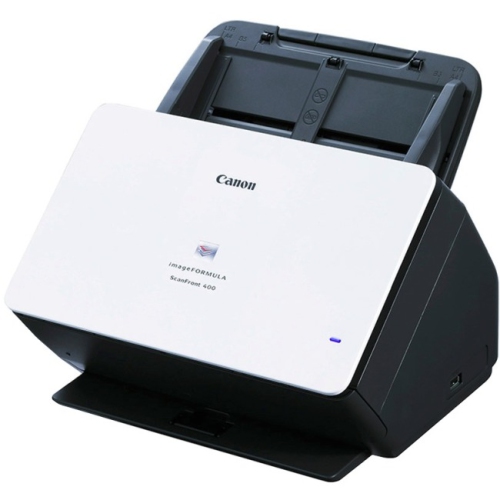
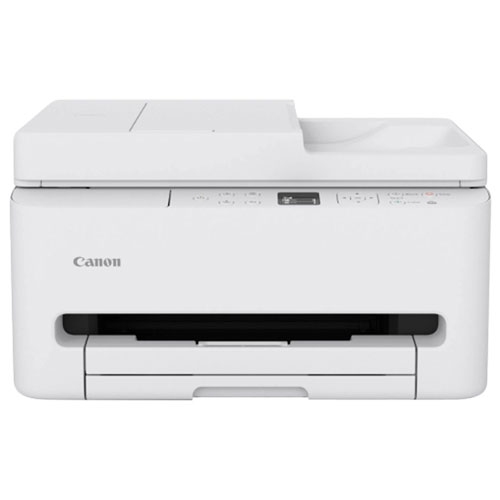

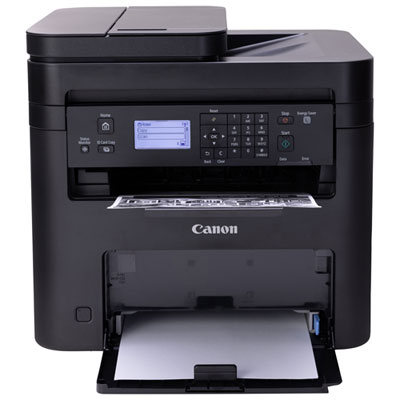

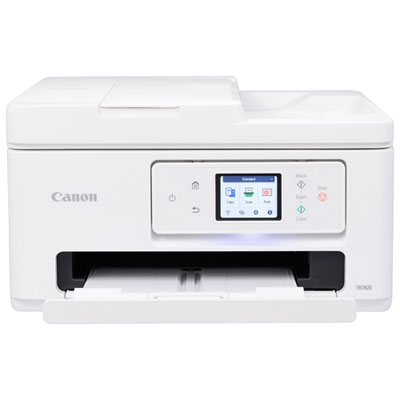
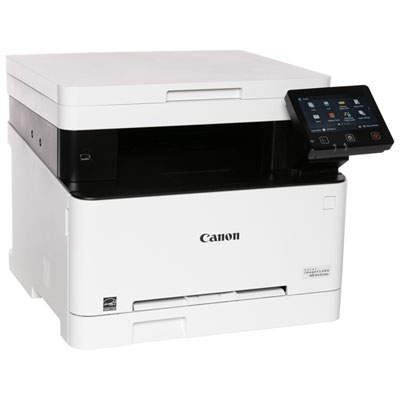
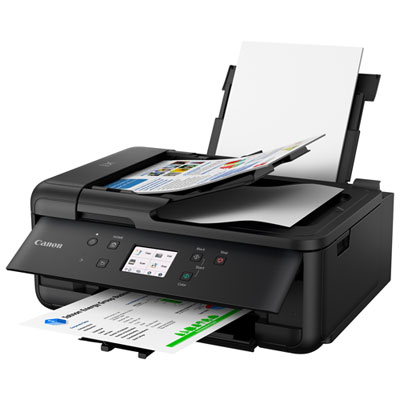
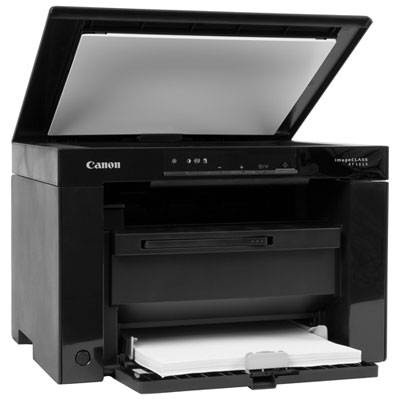
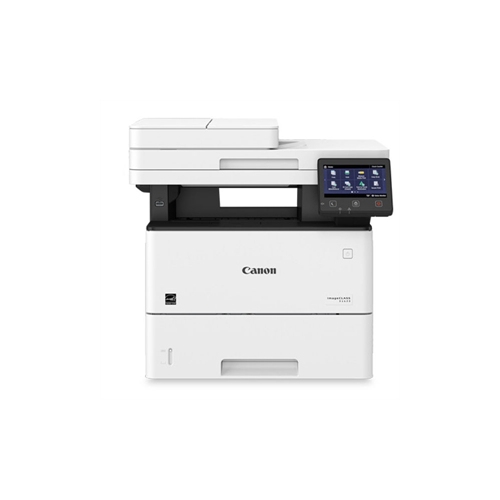
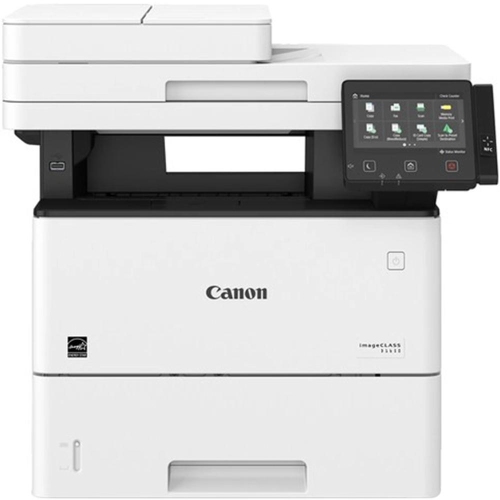
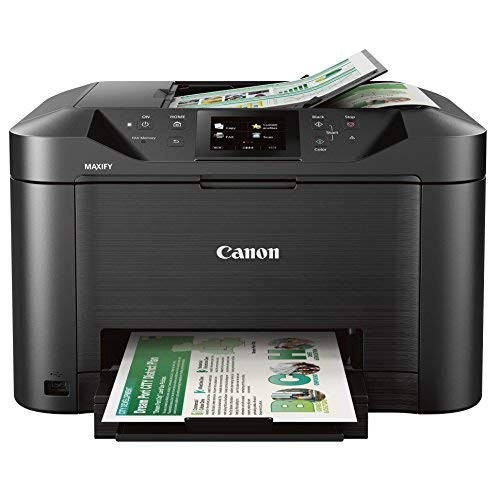

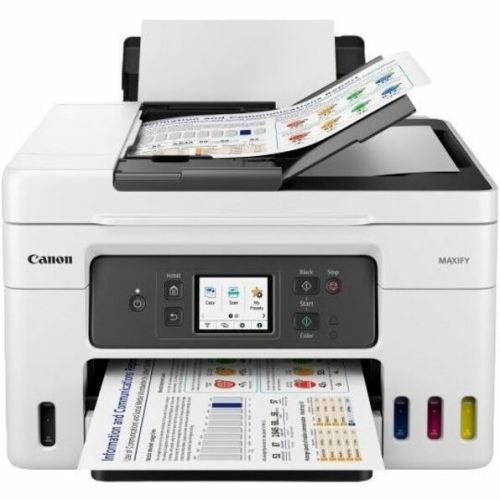
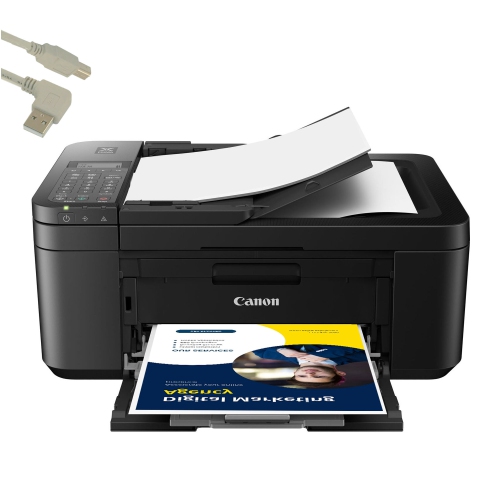
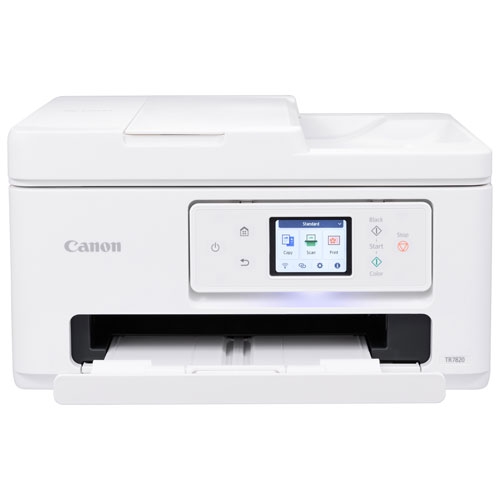
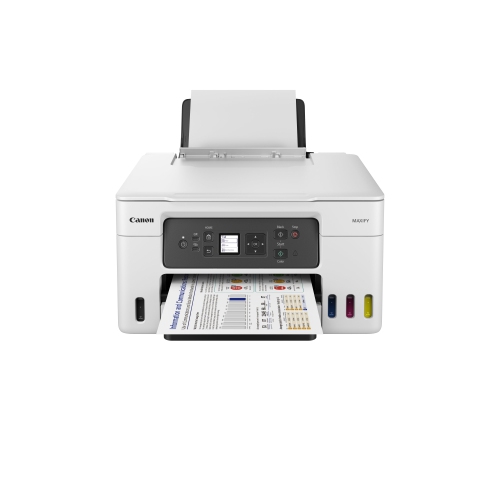
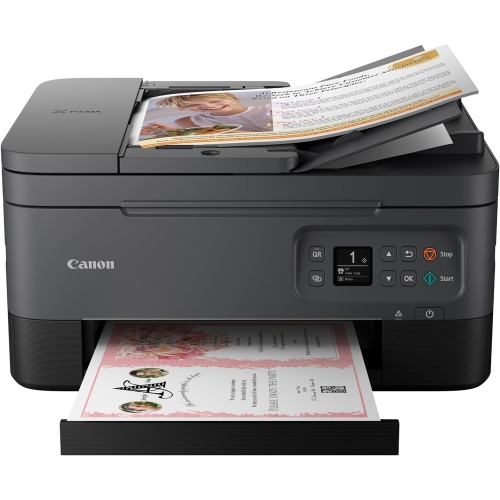
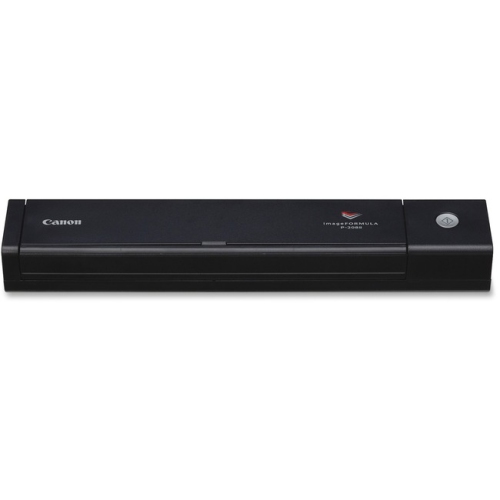
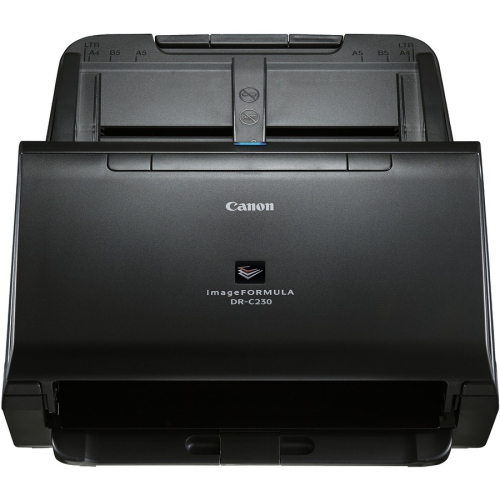
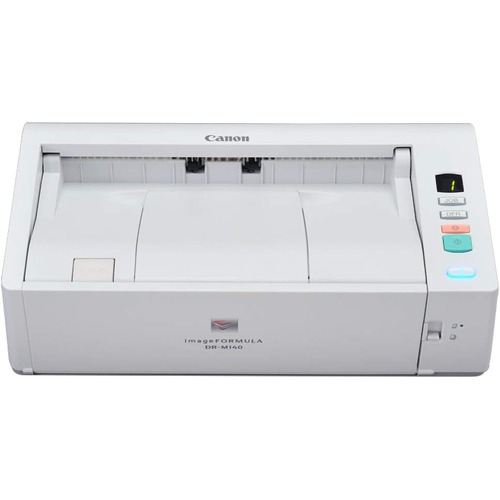
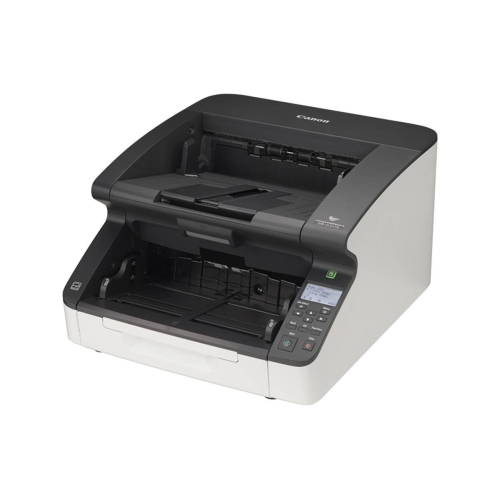

Practical ways to scan paper directly to your computer
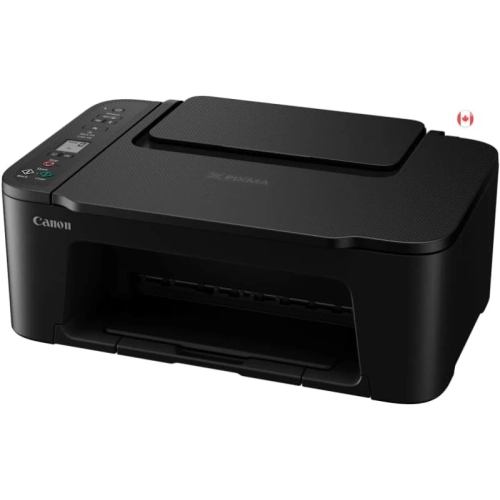
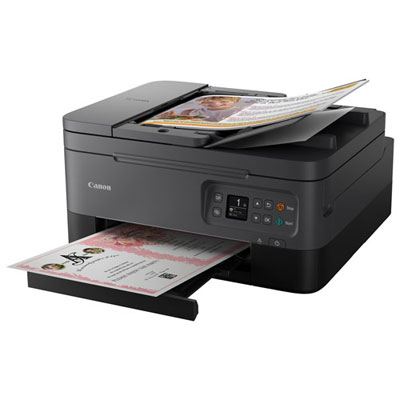
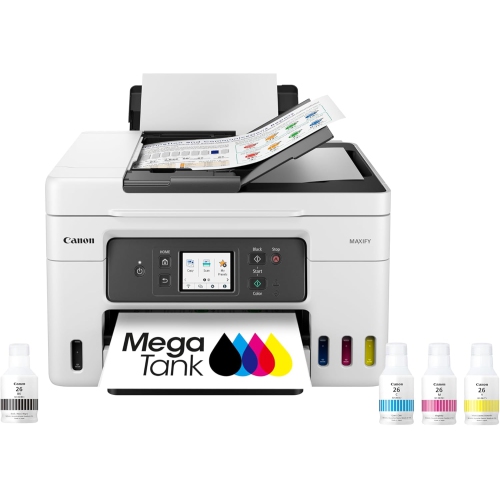
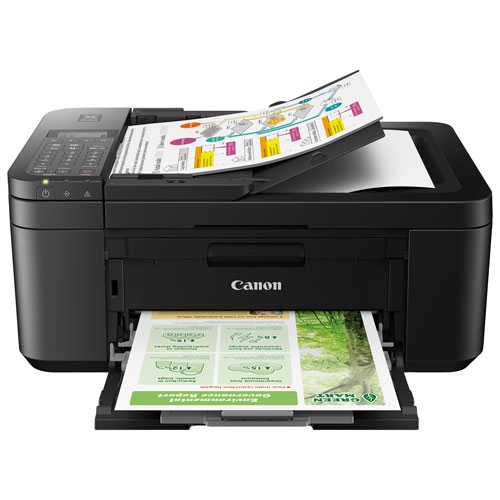
Printers with scanning capabilities make it easier to bring paperwork, photographs, school projects, receipts, and forms into a digital workspace. A printer designed to scan to computers can connect through Wi-Fi or a USB cable, allowing you to create files without relying on a separate scanner. Wireless connection is convenient in a shared home office because a laptop or desktop computer can access the printer from another room, while USB provides a direct connection that can be useful when setting up a new device or working in an area with limited wireless coverage. Before choosing a model, check that it supports the operating system on your computer and that the required printer driver and scanning utility are available. Once the software is installed, add the printer through your computer’s printer and scanner settings, confirm that the device appears as an available scanner, and complete a test scan. Some all-in-one printers also let you begin the process from the control panel: select the scan function, choose the connected computer, adjust the colour and paper settings, and start the scan. Other models begin the scan from an application on the computer. In either case, keeping the printer and computer on the same Wi-Fi network, or connected by USB, helps the devices communicate reliably.
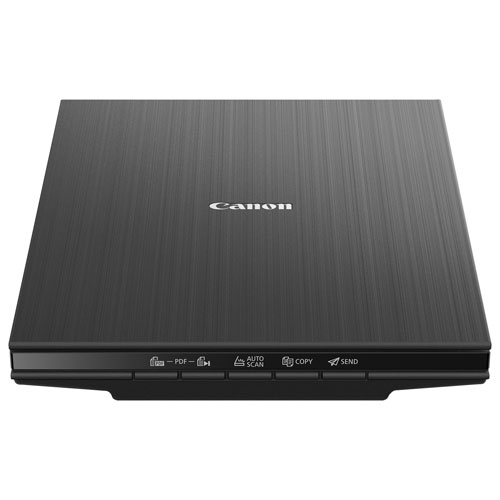
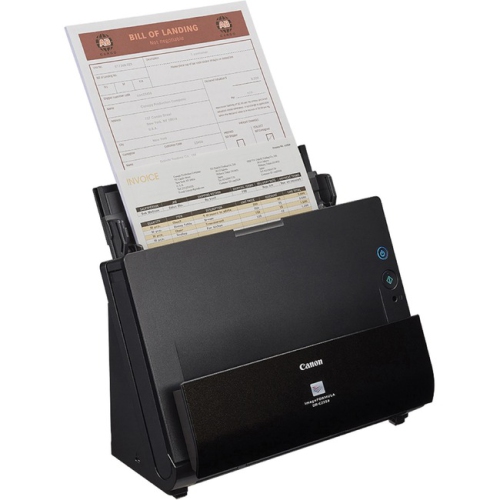
The scanning surface and document-feeding options are important considerations for everyday use. A flatbed scanner is useful for pages that are delicate, bound, unusually shaped, or too small for a feeder. Place the original face down on the glass, align it with the indicated corner or guide, close the lid, and select the paper size and resolution on the computer. A model with an automatic document feeder can save time when scanning several loose pages, such as tax forms, invoices, class notes, or a multi-page application. Depending on the design, documents may need to be placed face up or face down in the feeder, so checking the on-screen instructions or user manual before starting can help avoid upside-down pages. For routine records, PDF is often the most practical file type because multiple pages can be combined into one document and shared or stored easily. JPEG may be better suited to individual photographs, illustrations, or other image-based originals. Colour scanning can preserve handwritten notes, stamps, diagrams, and family photographs, while greyscale or black-and-white settings may produce clearer text files and smaller file sizes. Higher resolution can reveal more detail, although it may also create larger files and take longer to process. It is helpful to choose a dedicated folder before scanning and use descriptive file names that include the document type and date, making digital records easier to find later. If searchable documents are important, look for scanning software with text recognition features that can turn printed words into selectable, searchable text.
A printer that scans to a computer can suit students, remote workers, families, home administrators, and small businesses that regularly move information between paper and digital files. A student might scan signed permission forms, sketches, or reference pages before submitting an assignment, while someone working from home may digitize receipts, contracts, or paperwork that needs to be emailed. Families can use a flatbed scanner to preserve children’s artwork or make copies of important documents, and a small business can benefit from an automatic document feeder when organizing customer records or processing several forms in one sitting. These machines can also make thoughtful gifts for someone setting up a first apartment, refreshing a home office, or preparing a study area during the cooler months, particularly when space is limited and one compact device can print, copy, and scan. When comparing options, consider the amount of scanning you expect to do, the size of the originals, the number of people who will connect to the printer, and whether colour output matters. Look for straightforward controls, easy-to-read prompts, dependable wireless setup, and convenient access to replacement ink or toner. If the printer will sit on a desk or shelf, measure the available area and leave enough room to open the scanner lid, load paper, and replace supplies. Those small details can make the difference between a device that is used occasionally and one that becomes a natural part of daily routines. Shoppers who want to compare another range of multifunction printing and scanning options can also browse HP Printer Scanners.
The scanning surface and document-feeding options are important considerations for everyday use. A flatbed scanner is useful for pages that are delicate, bound, unusually shaped, or too small for a feeder. Place the original face down on the glass, align it with the indicated corner or guide, close the lid, and select the paper size and resolution on the computer. A model with an automatic document feeder can save time when scanning several loose pages, such as tax forms, invoices, class notes, or a multi-page application. Depending on the design, documents may need to be placed face up or face down in the feeder, so checking the on-screen instructions or user manual before starting can help avoid upside-down pages. For routine records, PDF is often the most practical file type because multiple pages can be combined into one document and shared or stored easily. JPEG may be better suited to individual photographs, illustrations, or other image-based originals. Colour scanning can preserve handwritten notes, stamps, diagrams, and family photographs, while greyscale or black-and-white settings may produce clearer text files and smaller file sizes. Higher resolution can reveal more detail, although it may also create larger files and take longer to process. It is helpful to choose a dedicated folder before scanning and use descriptive file names that include the document type and date, making digital records easier to find later. If searchable documents are important, look for scanning software with text recognition features that can turn printed words into selectable, searchable text.
A printer that scans to a computer can suit students, remote workers, families, home administrators, and small businesses that regularly move information between paper and digital files. A student might scan signed permission forms, sketches, or reference pages before submitting an assignment, while someone working from home may digitize receipts, contracts, or paperwork that needs to be emailed. Families can use a flatbed scanner to preserve children’s artwork or make copies of important documents, and a small business can benefit from an automatic document feeder when organizing customer records or processing several forms in one sitting. These machines can also make thoughtful gifts for someone setting up a first apartment, refreshing a home office, or preparing a study area during the cooler months, particularly when space is limited and one compact device can print, copy, and scan. When comparing options, consider the amount of scanning you expect to do, the size of the originals, the number of people who will connect to the printer, and whether colour output matters. Look for straightforward controls, easy-to-read prompts, dependable wireless setup, and convenient access to replacement ink or toner. If the printer will sit on a desk or shelf, measure the available area and leave enough room to open the scanner lid, load paper, and replace supplies. Those small details can make the difference between a device that is used occasionally and one that becomes a natural part of daily routines. Shoppers who want to compare another range of multifunction printing and scanning options can also browse HP Printer Scanners.
Top selling and popular products
-
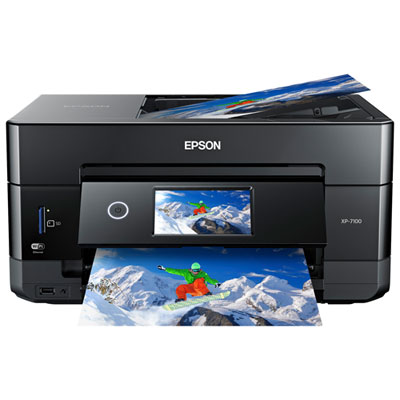 Your price for this item is $249.99
 -
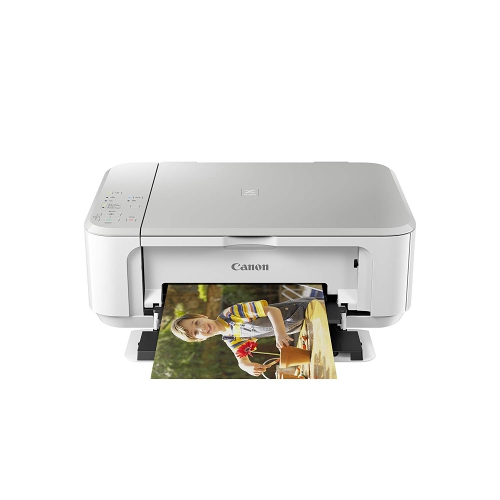 Your price for this item is $188.68
 -
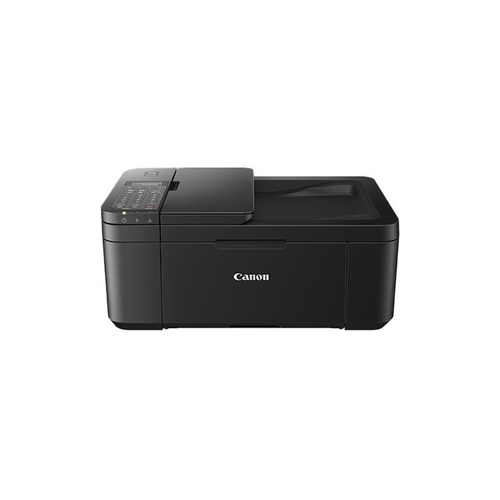 Your price for this item is $247.92
 -
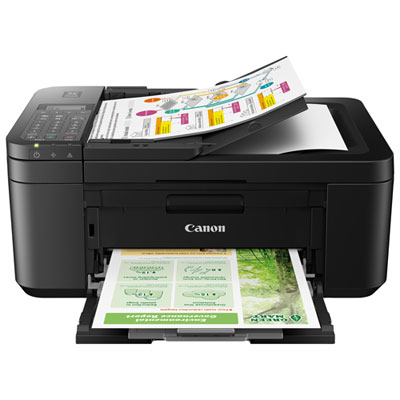 Your price for this item is $79.99
 -
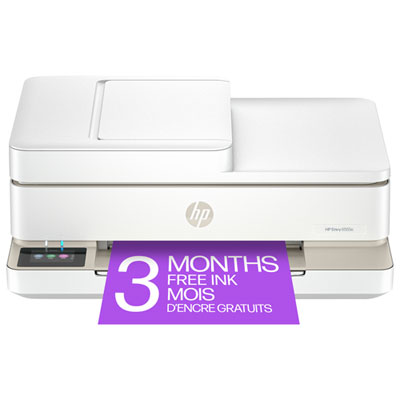 Your price for this item is $99.95
 -
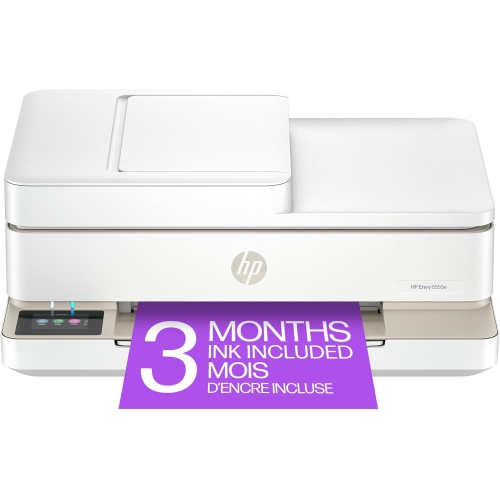 Your price for this item is $214.99
 -
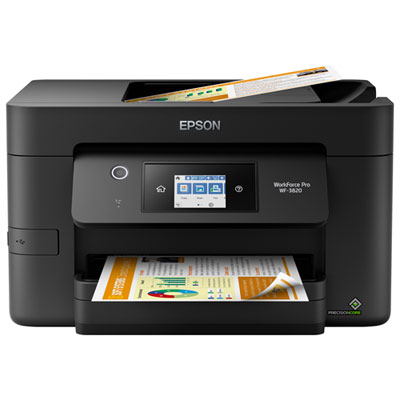 Your price for this item is $199.99
 -
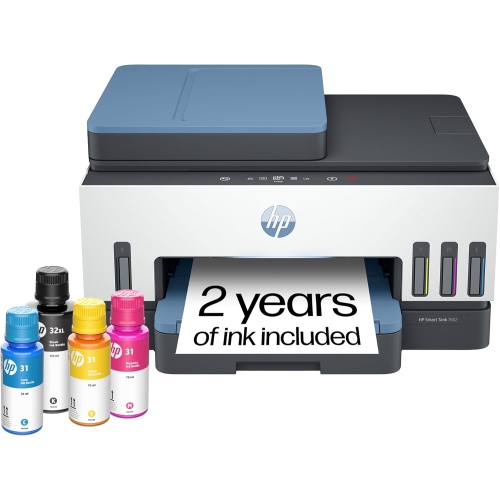 Your price for this item is $569.89
Discover more categories related to Canon Printer Scan To Computers
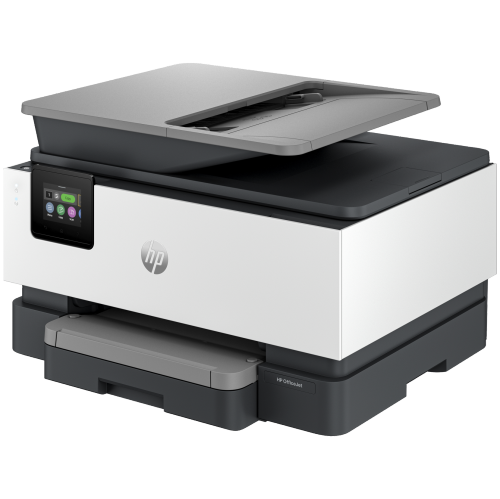
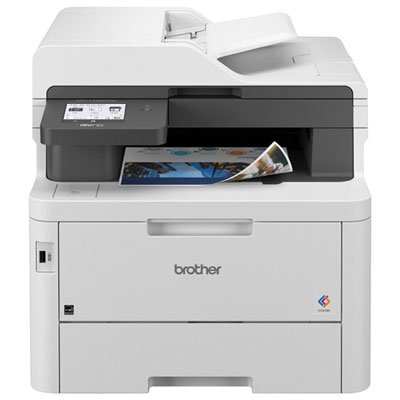
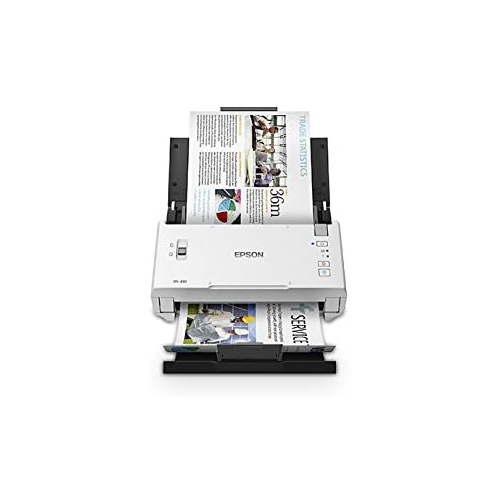
Top Collections:
Pokemon Centers, Kindle Devices, Best Budget Office Chairs, Apple iPhones 16, Canon G7X Cameras, iPhone 15 Apple, Alarm Clock, Refurbished Apple Laptops, Flip Phones, Best Laptops for Writers
Some products may be subject to Environmental Handling Fees
(EHF) depending on your province.
Learn more about EHFs.