Hdmi Cables for Nintendo Switch
Upgrade your gaming setup with HDMI cables for Nintendo Switch, designed to deliver a seamless connection between your console and display. Whether you're playing at home or on the go, finding the right HDMI cable ensures you enjoy smooth visuals and reliable performance during every gaming session. Explore a range of options that make it easy to connect your Nintendo Switch to TVs, monitors, and other compatible screens for an immersive entertainment experience.
Sort
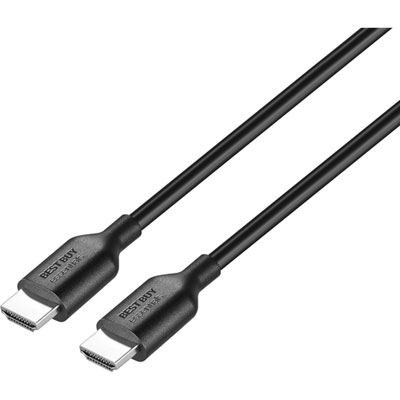
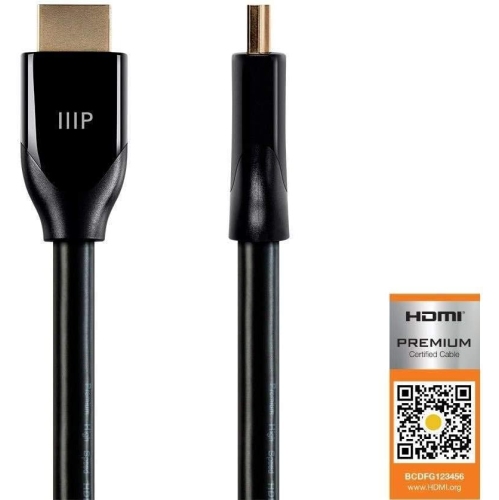
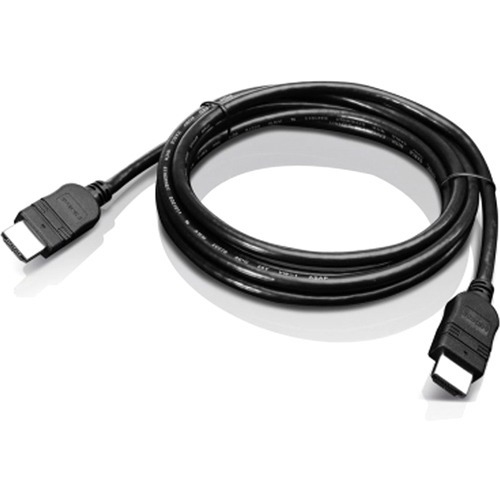
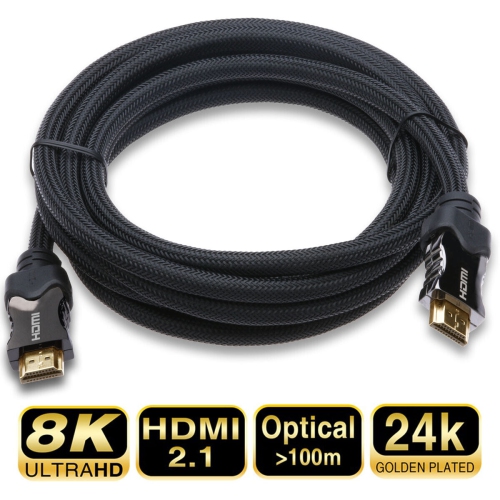
How cable length and dock connections affect TV play
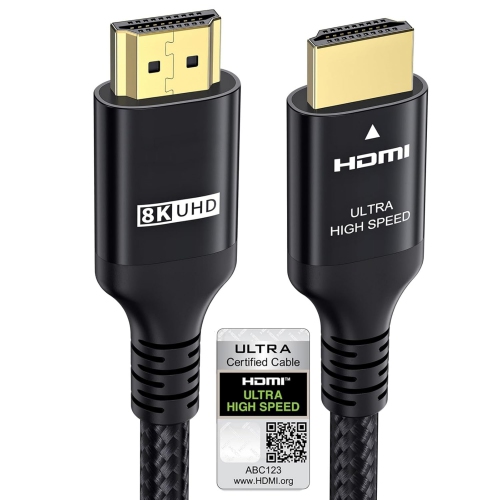
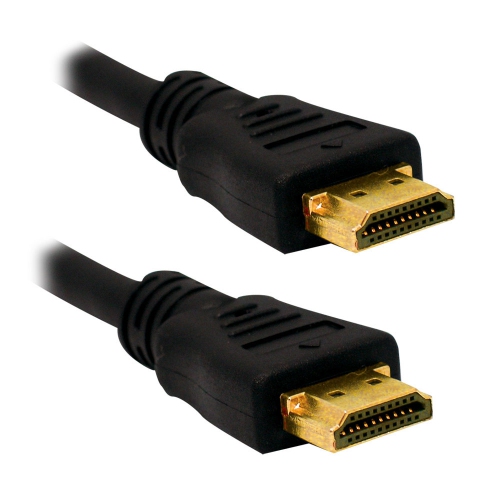
HDMI cables for Nintendo Switch provide the wired connection between a compatible Nintendo Switch dock and a television, monitor, or home theatre receiver. When the console is being used in TV mode, the cable carries the video and audio signal from the dock’s HDMI OUT port to an available HDMI input on the display. The standard Nintendo Switch and Nintendo Switch OLED model can output up to 1080p resolution at up to 60 frames per second when docked, so a reliable high-speed HDMI cable is generally well suited to everyday play. A typical cable length is 1.5 metres, or approximately 4.92 feet, which works well for a dock positioned on a media console near the television. Longer options can be useful when the dock sits inside an entertainment unit, on a side shelf, or farther from a wall-mounted screen, while a shorter cable can help keep a compact gaming setup tidy. The best length depends on the distance between the dock and the display, with a little extra room allowing the cable to bend gently rather than pulling against either port. Look for a sturdy cable with secure connectors and a construction that feels suitable for regular plugging and unplugging. Gold-coloured connector plating, braided jackets, and other design details may appeal to shoppers who prefer a particular look or feel, but the most important considerations are the cable’s length, connector type, stated HDMI compatibility, and fit with the available equipment. HDMI cables use the same standard connector at both ends for this setup, rather than the smaller connectors used by some mobile devices, so checking the ports before ordering helps avoid an inconvenient mismatch. A replacement can be especially useful when an original cable has been misplaced, damaged during a move, left behind at a cottage, or permanently connected to another screen.
Connecting a Nintendo Switch dock is straightforward, although taking a moment to identify each port can prevent confusion. Begin by opening the back cover of the dock. Plug the console’s power adapter into the top port marked AC ADAPTER, then connect the adapter to a wall outlet. Next, insert one end of the HDMI cable into the bottom port marked HDMI OUT on the dock. Connect the other end to an open HDMI input on the television or monitor, such as HDMI 1 or HDMI 2, and use the display’s remote to select that same input. Place the console into the dock with the screen facing the front; the television should then show the Switch interface when the correct input and power connections are in place. If the screen remains blank, check that both HDMI plugs are fully inserted, confirm that the display is set to the matching input, and make sure the dock’s power adapter is connected. Trying another HDMI input can also help identify whether the issue is related to the television rather than the cable. A replacement HDMI cable does not increase the console’s maximum resolution on its own, and choosing an unusually expensive cable will not turn the standard Nintendo Switch into a 4K gaming system. Instead, a suitable high-speed cable should provide a dependable connection for the console’s supported 1080p video and 60fps gameplay. The same approach applies to many everyday display arrangements, whether the dock is connected directly to a bedroom television, a computer monitor in a study, or an AV receiver that sends the signal to a larger screen. If an AV receiver or soundbar is placed between the dock and television, check that it has compatible HDMI inputs and outputs, and consider the extra distance when selecting cable length. Nintendo Switch Lite is designed for handheld play and does not support TV output through a dock, so an HDMI cable is intended for a standard Nintendo Switch or Nintendo Switch OLED docked setup rather than the Switch Lite.
An HDMI cable can be a practical addition for households where gaming spaces change from one room to another. Families may keep the dock in a shared living room for multiplayer sessions, then move it to a den or guest room when someone wants a quieter place to play. Students and apartment dwellers can use a monitor as a flexible screen for both work and docked gaming, while cottage owners may appreciate having a spare cable ready for a television that is not used every day. It can also make a thoughtful gift for a Nintendo Switch owner who enjoys local multiplayer games, brings a console to friends’ homes, or has recently rearranged a media centre. A spare cable is easy to store in a gaming drawer or travel case and can be helpful when the original remains connected behind a television. When selecting one, measure the route from the dock to the display, allow enough slack for gentle bends, and check whether the cable will need to pass through a cable-management opening or around furniture. Avoid sharply folding the cable or placing heavy objects on it, since a clear path helps protect the connectors and makes future troubleshooting easier. Shoppers setting up other streaming or gaming equipment may also want to browse HDMI Cables for NVIDIA Shield for a separate display connection. Whether it is being purchased as a replacement, a spare, or part of a new entertainment setup, the right HDMI cable should offer an appropriate reach, a secure fit, and reliable everyday performance for docked Nintendo Switch play.
Connecting a Nintendo Switch dock is straightforward, although taking a moment to identify each port can prevent confusion. Begin by opening the back cover of the dock. Plug the console’s power adapter into the top port marked AC ADAPTER, then connect the adapter to a wall outlet. Next, insert one end of the HDMI cable into the bottom port marked HDMI OUT on the dock. Connect the other end to an open HDMI input on the television or monitor, such as HDMI 1 or HDMI 2, and use the display’s remote to select that same input. Place the console into the dock with the screen facing the front; the television should then show the Switch interface when the correct input and power connections are in place. If the screen remains blank, check that both HDMI plugs are fully inserted, confirm that the display is set to the matching input, and make sure the dock’s power adapter is connected. Trying another HDMI input can also help identify whether the issue is related to the television rather than the cable. A replacement HDMI cable does not increase the console’s maximum resolution on its own, and choosing an unusually expensive cable will not turn the standard Nintendo Switch into a 4K gaming system. Instead, a suitable high-speed cable should provide a dependable connection for the console’s supported 1080p video and 60fps gameplay. The same approach applies to many everyday display arrangements, whether the dock is connected directly to a bedroom television, a computer monitor in a study, or an AV receiver that sends the signal to a larger screen. If an AV receiver or soundbar is placed between the dock and television, check that it has compatible HDMI inputs and outputs, and consider the extra distance when selecting cable length. Nintendo Switch Lite is designed for handheld play and does not support TV output through a dock, so an HDMI cable is intended for a standard Nintendo Switch or Nintendo Switch OLED docked setup rather than the Switch Lite.
An HDMI cable can be a practical addition for households where gaming spaces change from one room to another. Families may keep the dock in a shared living room for multiplayer sessions, then move it to a den or guest room when someone wants a quieter place to play. Students and apartment dwellers can use a monitor as a flexible screen for both work and docked gaming, while cottage owners may appreciate having a spare cable ready for a television that is not used every day. It can also make a thoughtful gift for a Nintendo Switch owner who enjoys local multiplayer games, brings a console to friends’ homes, or has recently rearranged a media centre. A spare cable is easy to store in a gaming drawer or travel case and can be helpful when the original remains connected behind a television. When selecting one, measure the route from the dock to the display, allow enough slack for gentle bends, and check whether the cable will need to pass through a cable-management opening or around furniture. Avoid sharply folding the cable or placing heavy objects on it, since a clear path helps protect the connectors and makes future troubleshooting easier. Shoppers setting up other streaming or gaming equipment may also want to browse HDMI Cables for NVIDIA Shield for a separate display connection. Whether it is being purchased as a replacement, a spare, or part of a new entertainment setup, the right HDMI cable should offer an appropriate reach, a secure fit, and reliable everyday performance for docked Nintendo Switch play.
Top selling and popular products
-
 Your price for this item is $119.99
 -
 Your price for this item is $9.99
 -
 Your price for this item is $129.99
 -
 Your price for this item is $19.99
 -
 Your price for this item is $29.99
 -
![BDA / POWER A HDMI Cable Ps5 10 Ft [Power A]](https://multimedia.bbycastatic.ca/multimedia/products/500x500/176/17616/17616431.jpeg) Your price for this item is $59.99
Your price for this item is $59.99 -
 Your price for this item is $19.99
 -
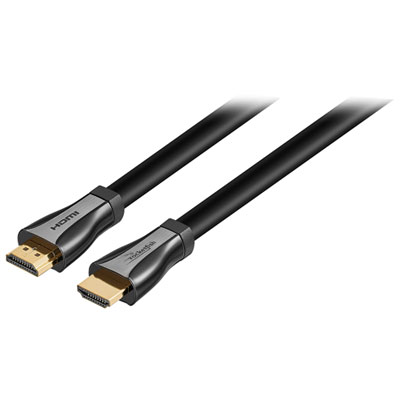 Your price for this item is $119.99
Discover more categories related to Hdmi Cables for Nintendo Switch
Top Collections:
Pokemon Centers, Kindle Devices, Best Budget Office Chairs, Apple iPhones 16, Best Laptops for Writers, iPhone 15 Apple, Canon G7X Cameras, Refurbished Apple Laptops, Alarm Clock, Motorola Razr Phones
Some products may be subject to Environmental Handling Fees
(EHF) depending on your province.
Learn more about EHFs.