Chromecast To TVs
Chromecast is a small device that plugs into the HDMI port on your TV and allows you to stream content from your mobile device or computer to your TV. This means you can watch videos, play games, and listen to music from your mobile device on the big screen. Chromecast is a great way to enjoy your favorite content without having to purchase a separate streaming device. Here are the TVs you can use Chromecast with.
Sort
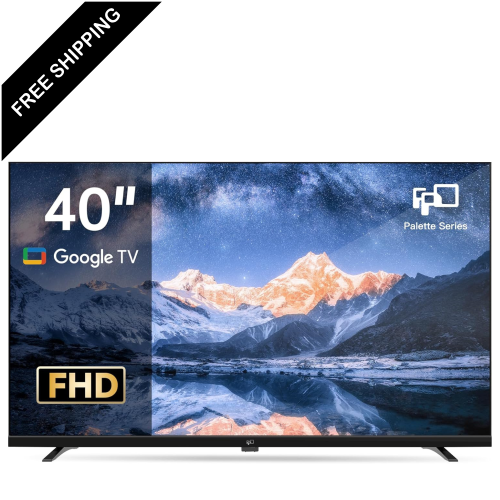
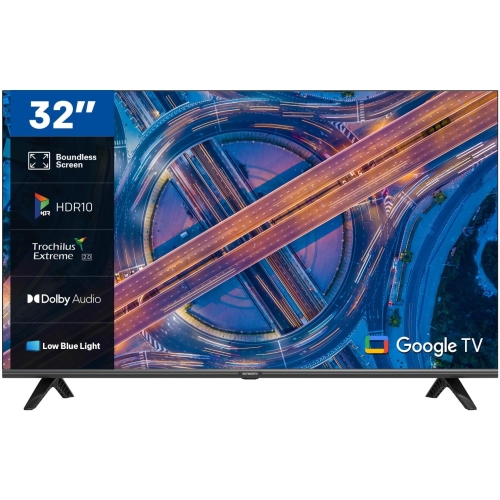
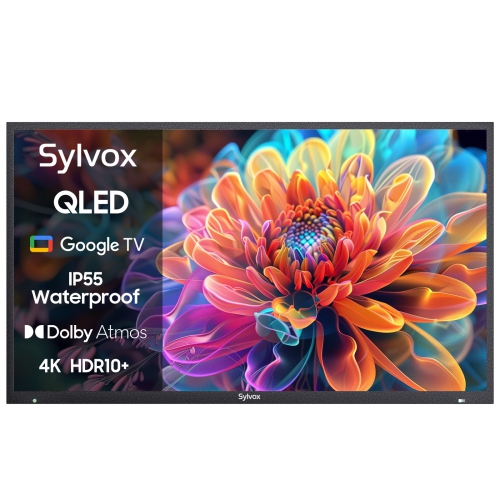
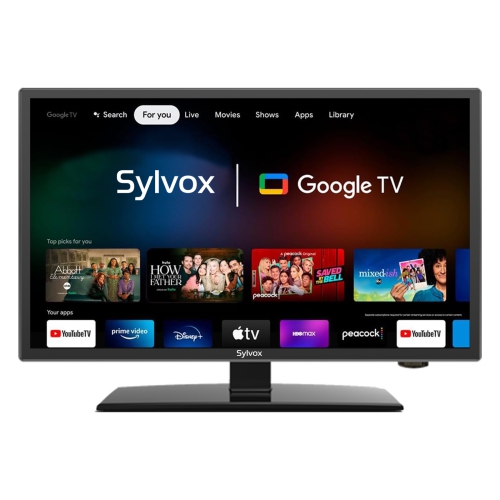
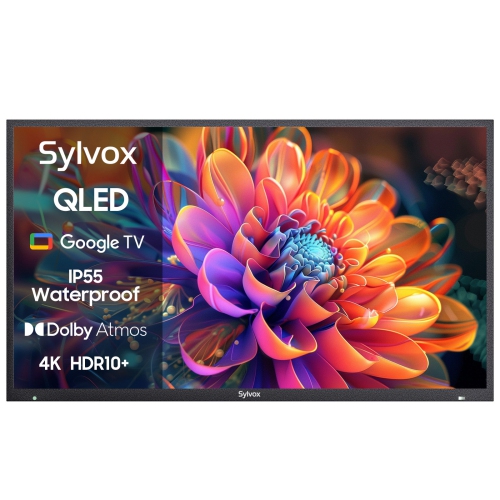
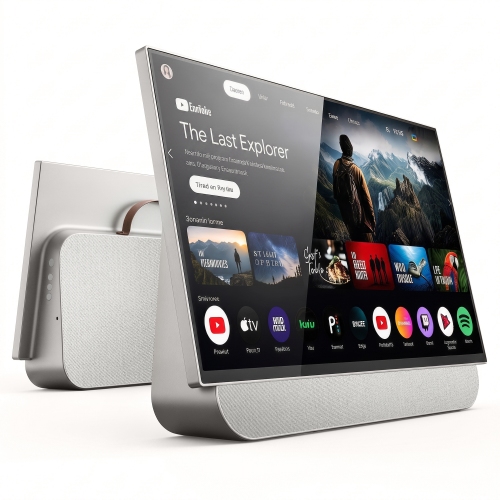
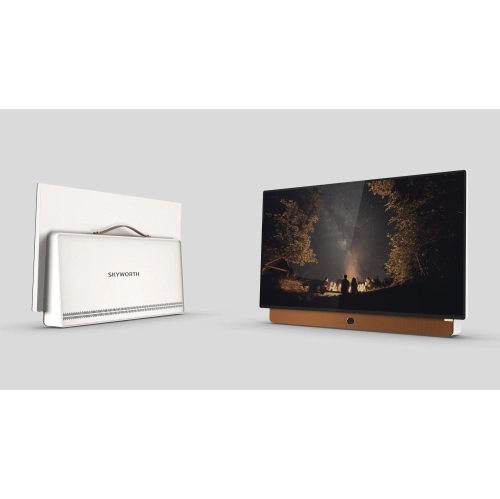
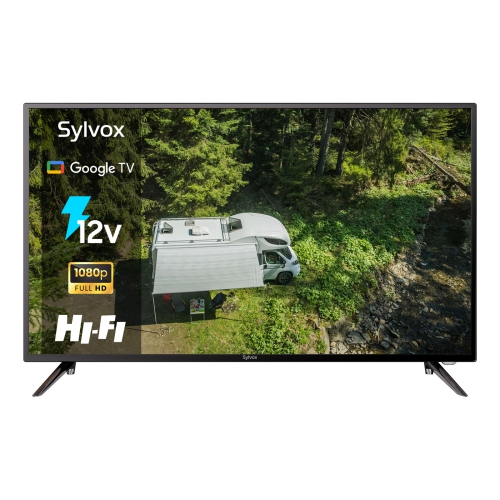
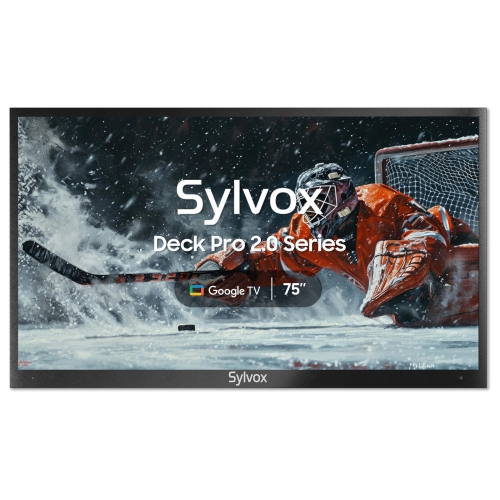
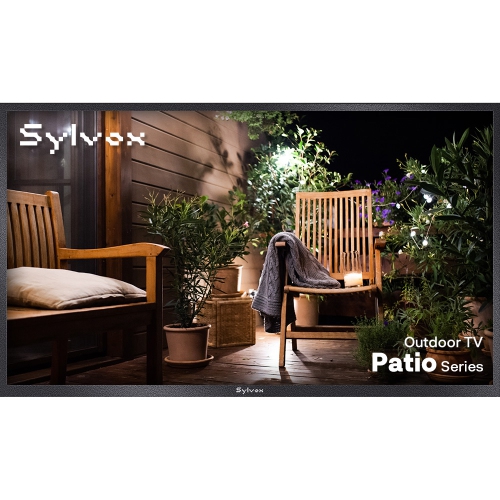
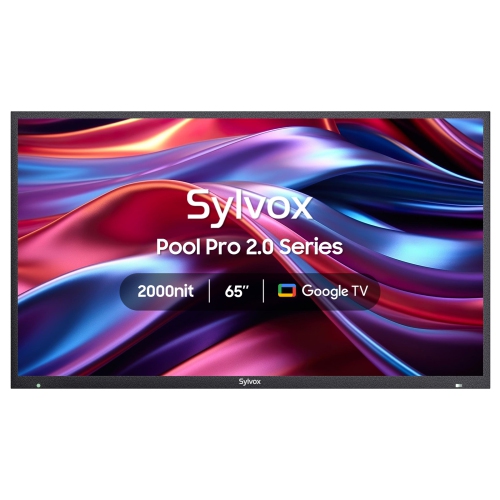
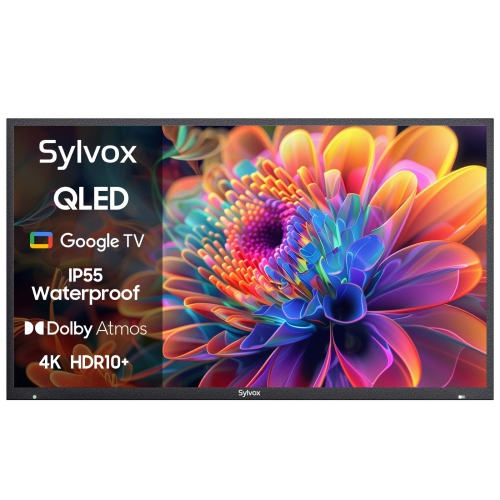
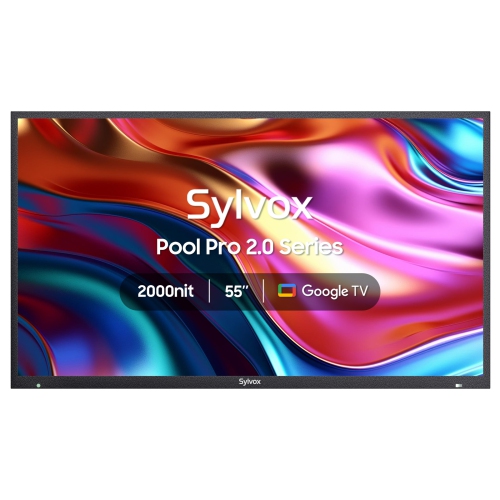
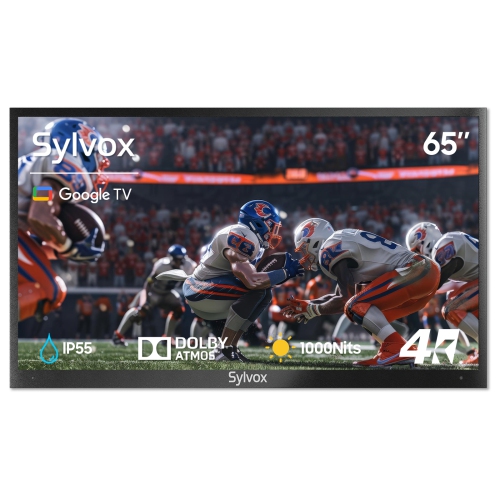
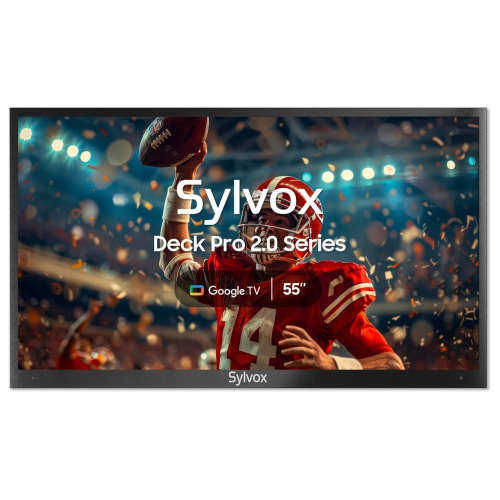
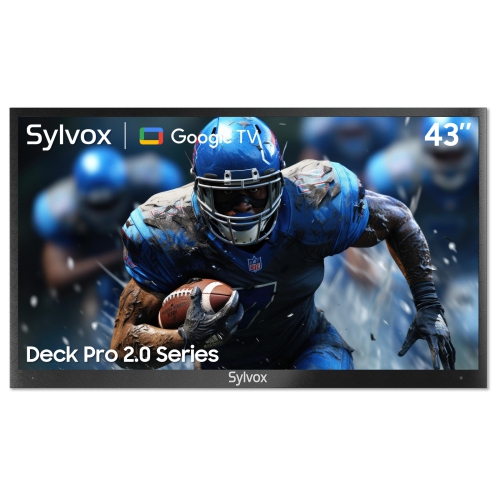
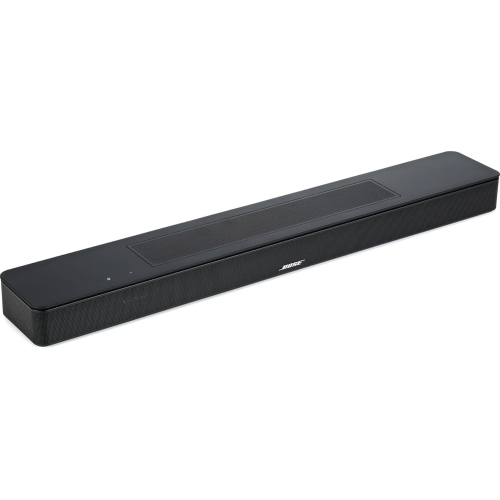
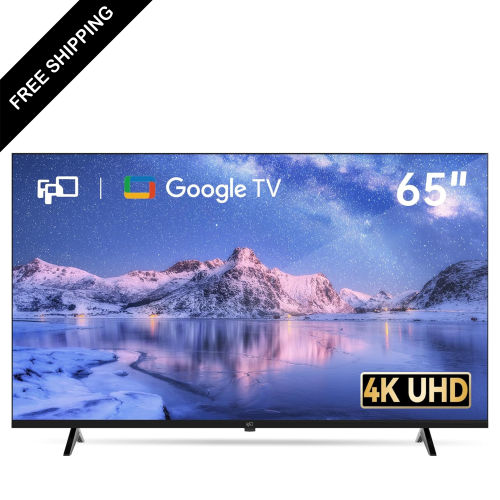
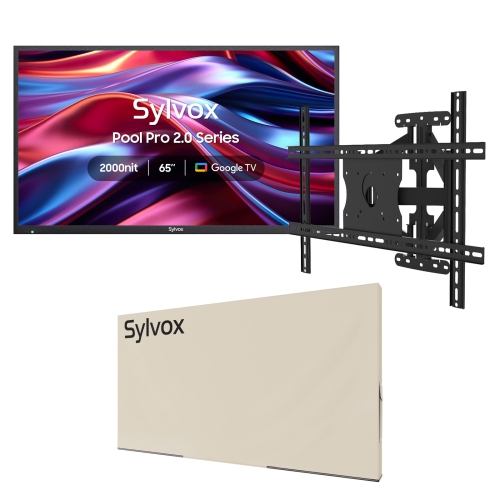
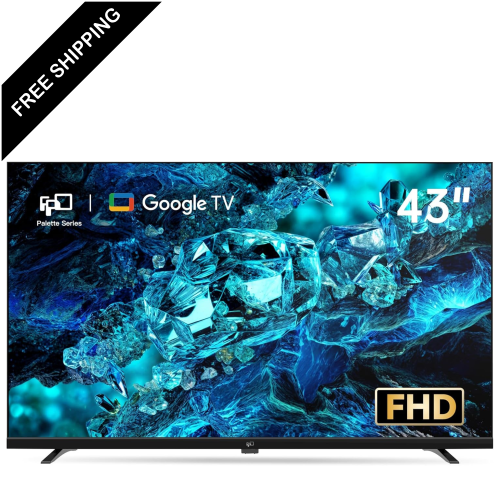
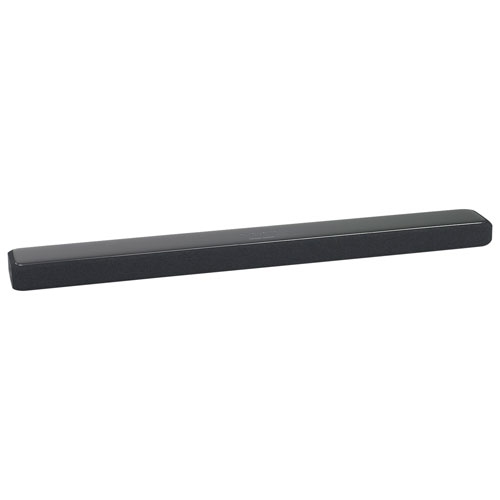
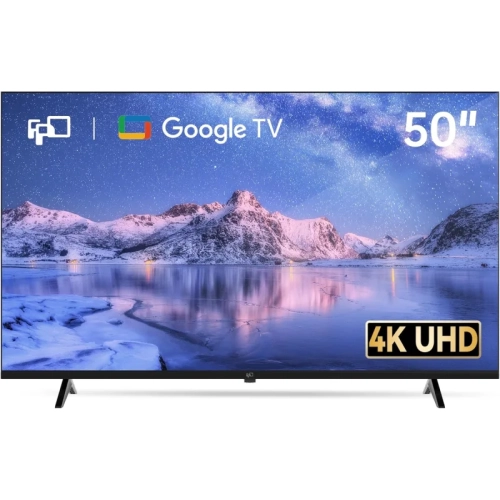
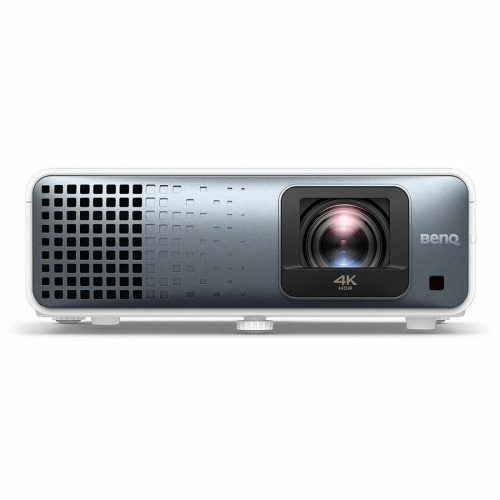
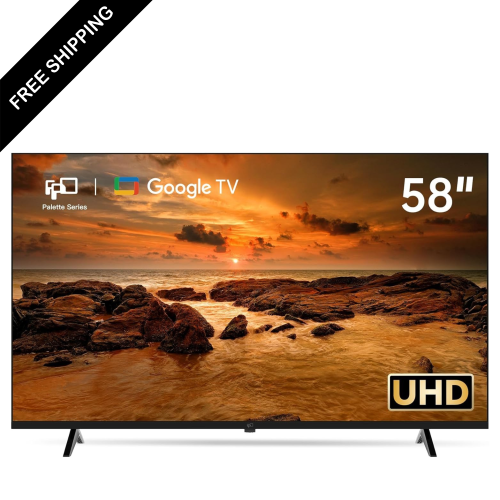
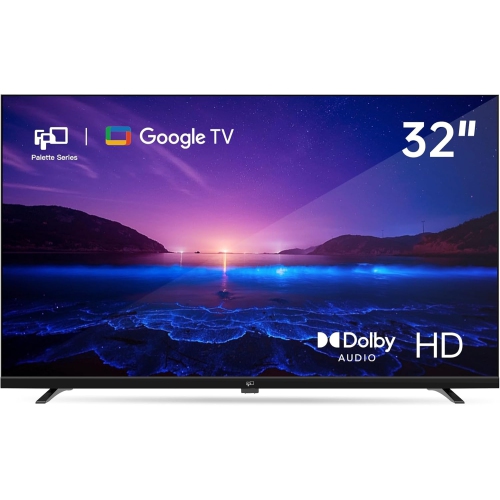
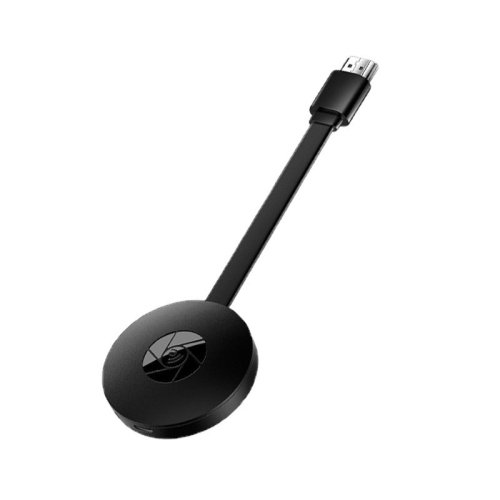
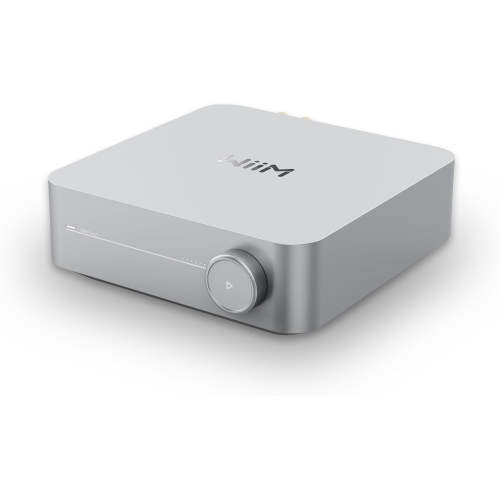

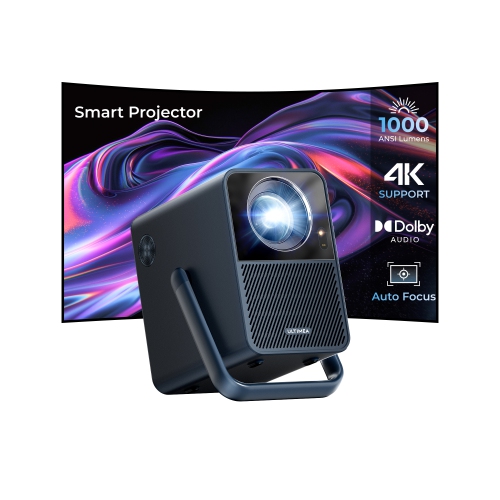
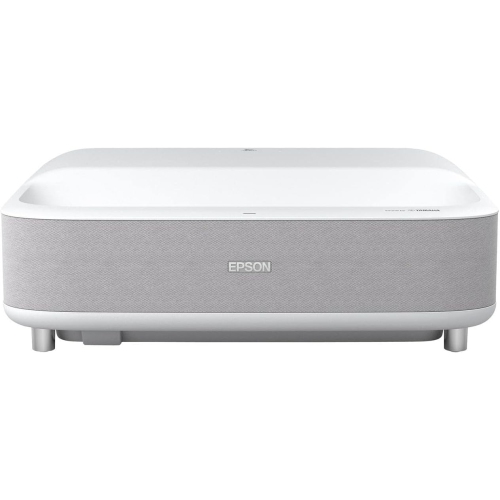
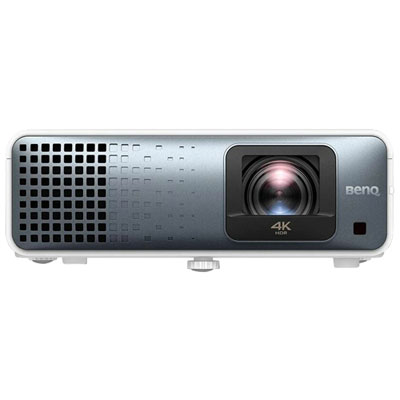
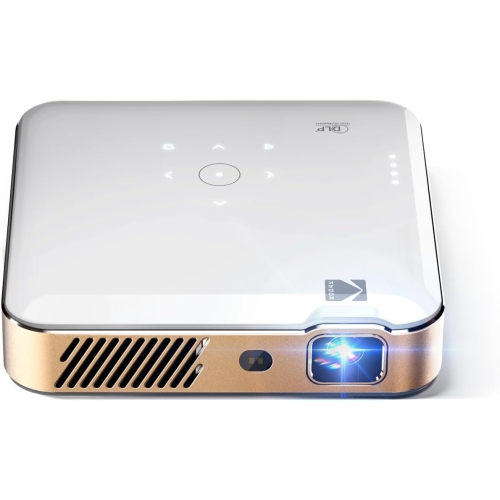
How casting connects your devices to the TV
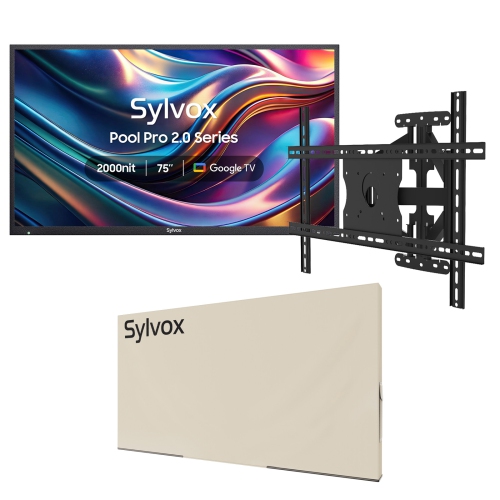
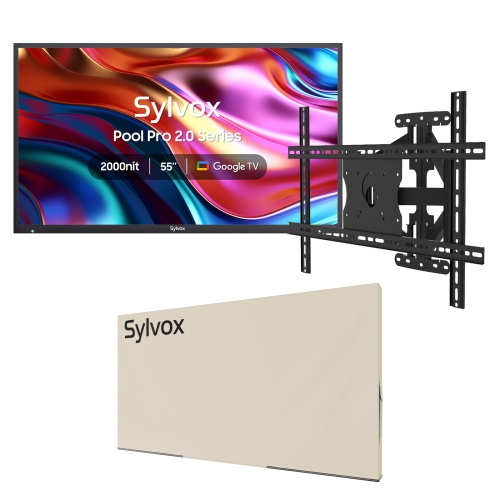
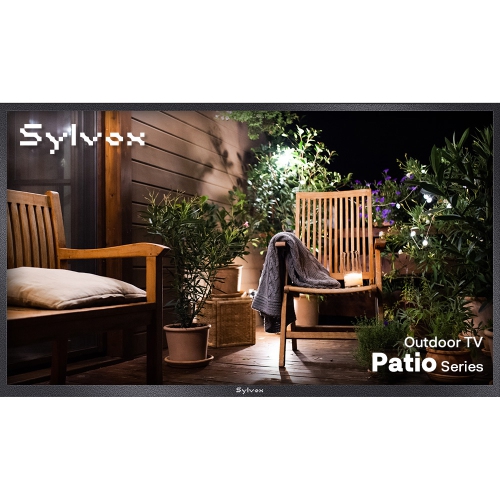
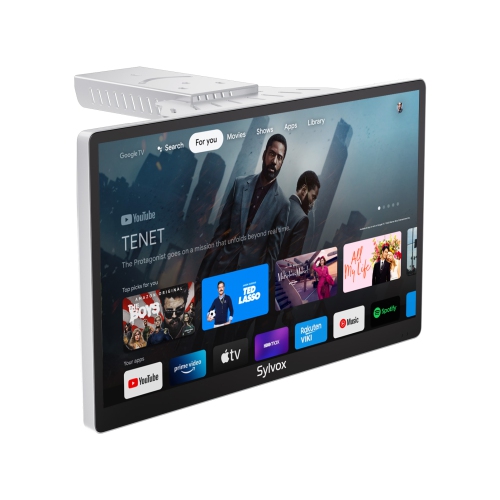
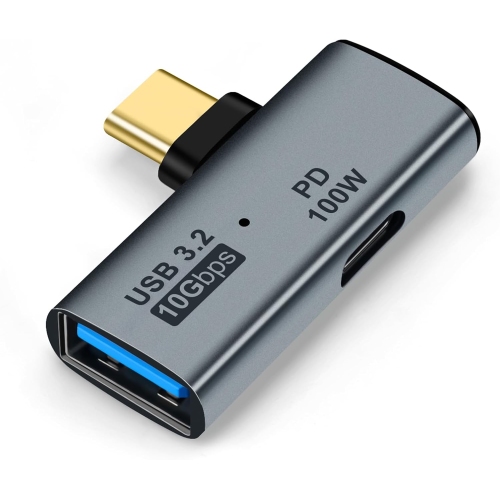
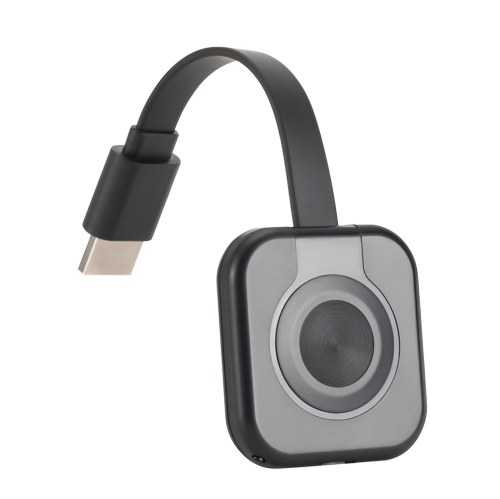
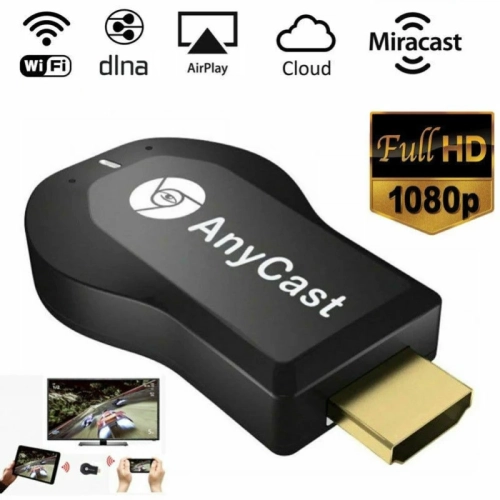
Casting content to your television can make everyday entertainment feel more connected, whether you are sharing a film from a laptop, displaying holiday photos for the family, or following a recipe while preparing dinner. Products in this collection are designed to help you send video, music, photos, presentations, and web content from a compatible device to a TV. Some options are built into the television, while others connect through an available HDMI port and add casting features to a compatible display. When comparing your choices, consider the TV you already own, the type of content you plan to share, and the devices you use most often. A household that relies on a phone for streaming may value simple app-based casting, while someone who works from home may prefer the ability to mirror a browser tab or an entire computer screen. A spare bedroom, basement entertainment area, or cottage TV can also benefit from a casting setup, particularly when you want access to familiar content without moving a cable from room to room. For shoppers exploring compatible displays, Chromecast TVs can provide a convenient way to bring casting features directly into the television experience. These products can also make thoughtful gifts for students, new homeowners, grandparents, or anyone setting up a more flexible viewing space. Before choosing, check the television’s available inputs, the wireless network requirements, supported resolutions, and whether the device works with the operating systems and streaming apps used in your home.
A reliable connection begins with placing the computer, mobile device, and TV or casting device on the same Wi-Fi network. This is one of the most important setup details, and it is easy to overlook when a home has separate networks for guests, smart devices, or different areas of the house. On a computer using Google Chrome, open the browser and select the three-dot More menu in the top-right corner. Choose “Cast, save, and share,” then select “Cast” and choose the TV or casting device from the list. The available sources generally include the current browser tab or the entire screen, giving you control over what appears on the television. Casting a single tab is useful for streaming a video, showing a webpage, or keeping other computer activity private. Selecting the entire screen can be helpful for a presentation, photo slideshow, online class, or software demonstration. Once connected, the television becomes a larger shared canvas, while playback or navigation can often remain under the control of the computer or mobile device. On a phone or tablet, the process may begin from a cast icon within a compatible app. The exact menus can vary, so it is worth reviewing the instructions for the television or casting accessory before installation. Keep the device within a reasonable range of the wireless router when possible, especially in homes with thick walls or several floors. A strong network can help reduce pauses, delayed playback, and interruptions when several people are streaming, gaming, video calling, or browsing at the same time.
The best casting setup depends on how you spend time in front of the TV. Families may use it to bring shared photos, music playlists, and children’s programming to a larger screen, while roommates can cast separate content without relying on a set-top box for every service. During the cooler months, casting can turn a comfortable living room into a flexible space for movie nights, digital workouts, virtual gatherings, or background music while guests visit. It can also be useful in a home office, where a larger display makes it easier to review documents, monitor a video call, or present information to a small group. For a smoother experience, keep the television software, casting device, browser, and mobile apps updated according to the manufacturer’s instructions. If the TV does not appear in the Cast menu, confirm that both devices are connected to the same Wi-Fi network, close and reopen the app or browser, and restart the TV and router if needed. Checking that the casting feature is enabled and that the selected app supports casting can also resolve common connection issues. When playback stutters, reduce network congestion by pausing large downloads, moving the router to a more open location, or bringing the casting device closer to the router. Screen mirroring can require more wireless bandwidth than sending a supported video directly, so the two options may perform differently even on the same network. With the right combination of compatibility, connection strength, and easy controls, casting products can give a familiar TV new flexibility and make it simple to share what is on your phone, tablet, or computer with everyone in the room.
A reliable connection begins with placing the computer, mobile device, and TV or casting device on the same Wi-Fi network. This is one of the most important setup details, and it is easy to overlook when a home has separate networks for guests, smart devices, or different areas of the house. On a computer using Google Chrome, open the browser and select the three-dot More menu in the top-right corner. Choose “Cast, save, and share,” then select “Cast” and choose the TV or casting device from the list. The available sources generally include the current browser tab or the entire screen, giving you control over what appears on the television. Casting a single tab is useful for streaming a video, showing a webpage, or keeping other computer activity private. Selecting the entire screen can be helpful for a presentation, photo slideshow, online class, or software demonstration. Once connected, the television becomes a larger shared canvas, while playback or navigation can often remain under the control of the computer or mobile device. On a phone or tablet, the process may begin from a cast icon within a compatible app. The exact menus can vary, so it is worth reviewing the instructions for the television or casting accessory before installation. Keep the device within a reasonable range of the wireless router when possible, especially in homes with thick walls or several floors. A strong network can help reduce pauses, delayed playback, and interruptions when several people are streaming, gaming, video calling, or browsing at the same time.
The best casting setup depends on how you spend time in front of the TV. Families may use it to bring shared photos, music playlists, and children’s programming to a larger screen, while roommates can cast separate content without relying on a set-top box for every service. During the cooler months, casting can turn a comfortable living room into a flexible space for movie nights, digital workouts, virtual gatherings, or background music while guests visit. It can also be useful in a home office, where a larger display makes it easier to review documents, monitor a video call, or present information to a small group. For a smoother experience, keep the television software, casting device, browser, and mobile apps updated according to the manufacturer’s instructions. If the TV does not appear in the Cast menu, confirm that both devices are connected to the same Wi-Fi network, close and reopen the app or browser, and restart the TV and router if needed. Checking that the casting feature is enabled and that the selected app supports casting can also resolve common connection issues. When playback stutters, reduce network congestion by pausing large downloads, moving the router to a more open location, or bringing the casting device closer to the router. Screen mirroring can require more wireless bandwidth than sending a supported video directly, so the two options may perform differently even on the same network. With the right combination of compatibility, connection strength, and easy controls, casting products can give a familiar TV new flexibility and make it simple to share what is on your phone, tablet, or computer with everyone in the room.
Top selling and popular products
-
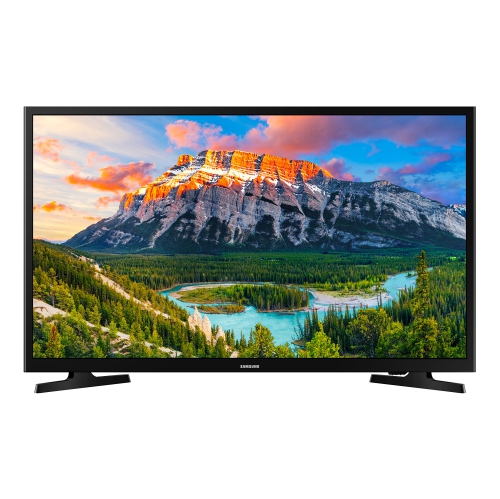 Your price for this item is $379.99
 -
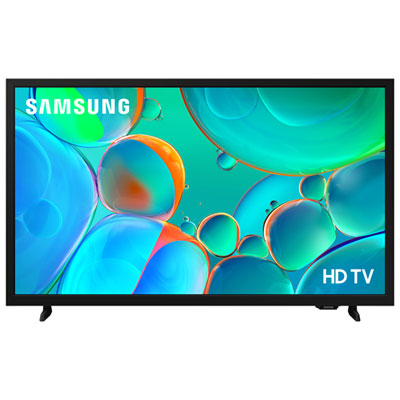 Your price for this item is $229.99
 -
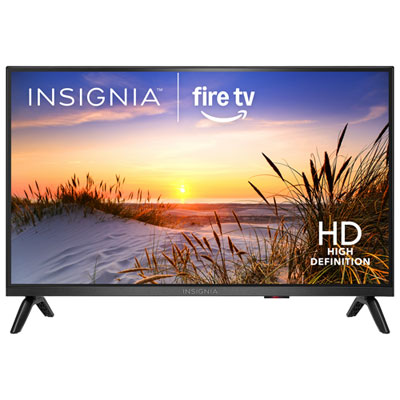 Your price for this item is $129.99
 -
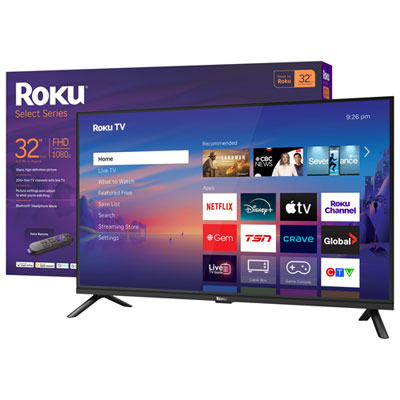 Your price for this item is $159.99
 -
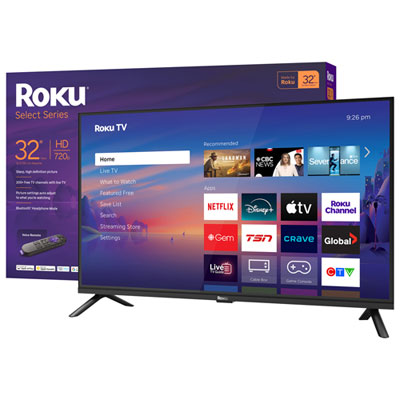 Your price for this item is $199.99
 -
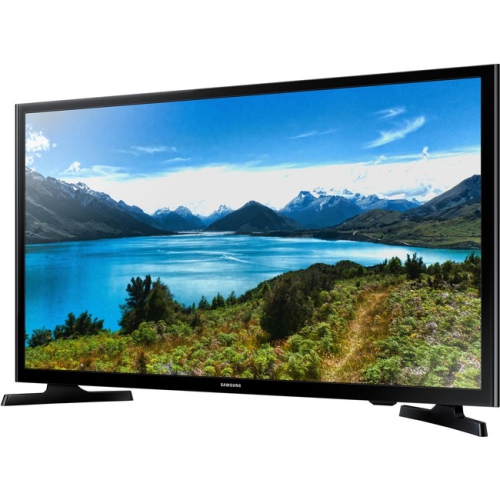 Your price for this item is $349.99
 -
 Your price for this item is $4999.99
 -
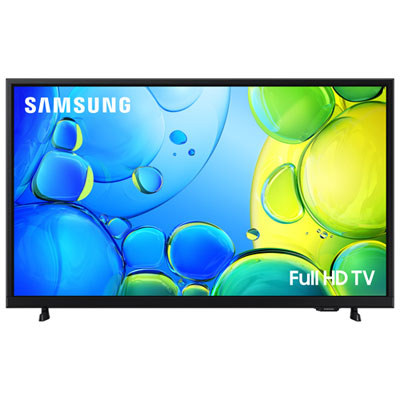 Your price for this item is $279.99
Discover more categories related to Chromecast To TVs
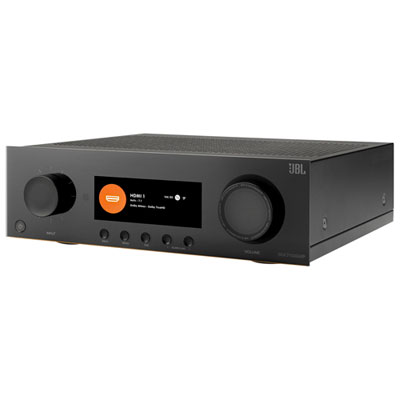
Top Collections:
Pokemon Centers, Kindle Devices, Best Budget Office Chairs, Canon G7X Cameras, Apple iPhones 16, Samsung Galaxy Phones, Refurbished Apple Laptops, Laptops for Students, iPhone 15 Apple, Budget Smartphones
Some products may be subject to Environmental Handling Fees
(EHF) depending on your province.
Learn more about EHFs.