Best Docking Stations

The best docking stations make it easy to connect your laptop to monitors, accessories, and wired networks while keeping your workspace tidy. Explore docking stations ranked by customer review ratings, and compare port options, display support, and charging capabilities to find the right fit for your laptop and setup.

Read More

What to look for in docking stations

1. Device Compatibility

Check that the docking station supports your computer’s operating system and connection type, such as USB-C or Thunderbolt. A matching connector alone does not guarantee support for video output, charging or maximum data speeds.

2. Display Support

Choose a docking station that supports your preferred number of monitors, resolutions and refresh rates. Confirm these capabilities with your specific computer, as some systems limit the number of extended displays or require additional software.

3. Port Selection

Look for the connections you use most, such as HDMI, DisplayPort, USB-A, USB-C, Ethernet and memory card slots. Check individual port speeds if you regularly transfer large files or connect external storage.

4. Charging Power

If you want single-cable charging, confirm that the dock supports USB Power Delivery and supplies enough power to your laptop. Check the wattage delivered to the computer rather than just the power adapter’s total output, and verify whether an adapter is included.
Citrus catapult arrow
  1. 1

    STARTECH Universal Laptop Docking Station - USB-C & USB 3.0 2X4K 60W Pd

    About this product

    A universal docking station enabling dual 4K displays and 60W power delivery via USB-C or USB 3.0.

    (1)
    $383.00
    SAVE $66
    Your price for this item is $383
  2. 2

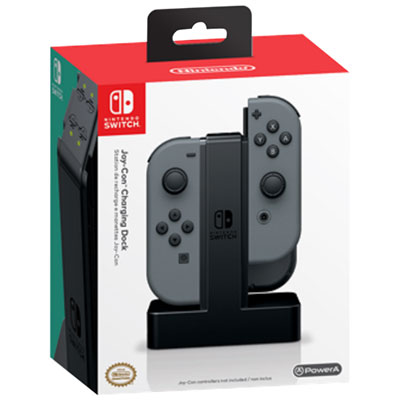
    BD&A Joy-Con Charging Dock for Nintendo Switch Lite - Black

    About this product

    A black charging dock for Nintendo Switch Lite that charges up to 4 Joy-Con controllers simultaneously.

    What customers like

    • Convenient and easy to use
    • Simultaneous charging of up to 4 Joy-Con controllers
    • Clear LED charging indicators
    • Prevents low battery issues and ensures controllers are always charged
    • Compact and well-built design
    (2,270)
    $19.38 Your price for this item is $19.38
  3. 3

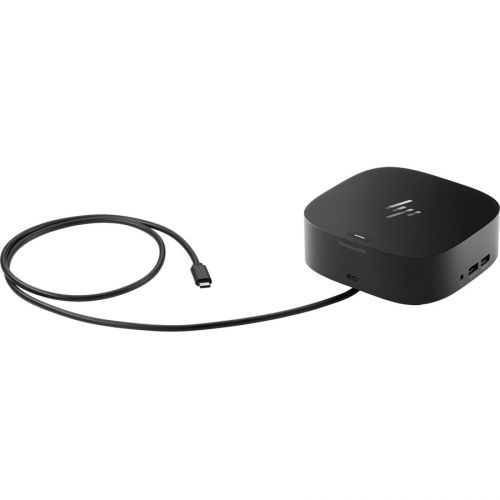
    HP Docking Station

    About this product

    A versatile wired docking station with USB-C, six USB ports, HDMI, DisplayPort, and RJ-45 connectivity.

    What customers like

    • Easy setup and installation
    • Supports dual monitors and multiple displays
    • Compact and space-saving design
    • Universal compatibility with various laptops
    • Multiple connectivity options
    (0)
    $239.68 Your price for this item is $239.68
  4. 4

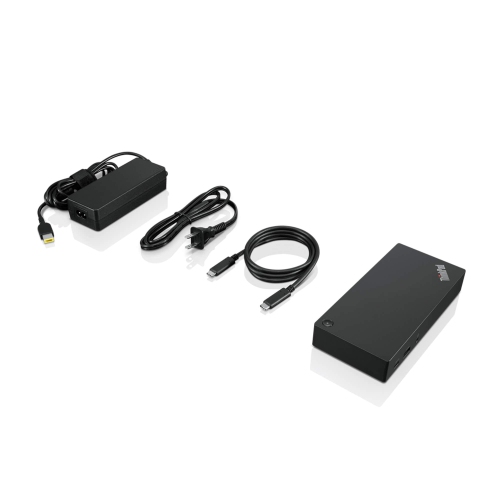
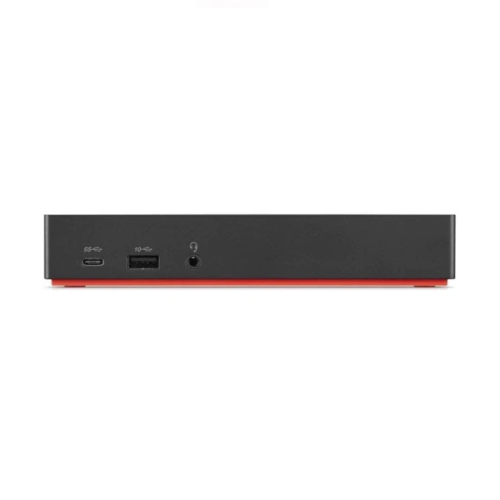
    LENOVO Thinkpad USB-C Dock Gen 2 (40As0090Us) - USB 3.1, USB-C Ethernet, Display Port, HDMI

    About this product

    A versatile USB-C dock offering USB 3.1, Ethernet, DisplayPort, and HDMI connectivity for streamlined workspaces.

    What customers like

    • Supports multiple monitors
    • Compact and sleek design
    • Versatile connectivity options
    • Easy setup and use
    • Compatible with various laptop brands
    (165)
    $159.99
    SAVE $130
    Your price for this item is $159.99
  5. 5

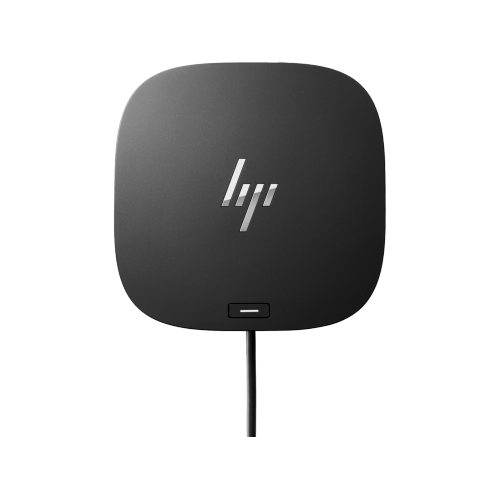
    HP USB-C Business Dock G5 - - (5Tw10Aa#aba) In Black

    About this product

    A versatile USB-C dock that connects your notebook to displays, devices, and wired networks with one cable.

    What customers like

    • Easy and convenient setup
    • Reliable performance and functionality
    • Versatile connectivity options
    • Compact and space-saving design
    • Supports multiple monitors and devices
    (500)
    $154.99
    SAVE $104
    Your price for this item is $154.99
  6. 6

    LENOVO Thinkpad USB-C Dock Gen 2 (40As0090Us)

    About this product

    A versatile USB-C dock enabling lightning-fast data transfer, wired networking, and vivid 4K or multi-display support.

    What customers like

    • Compact and sleek design
    • Convenient single-cable connectivity
    • Multiple high-speed ports
    • Supports dual and triple monitor setups
    • Compatible with various laptop brands
    (161)
    $159.99
    SAVE $130
    Your price for this item is $159.99
  7. 7

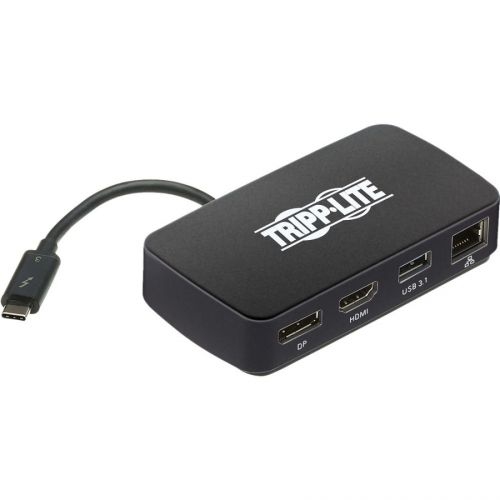
    TRIPPLITE Mtb3-Dock-01 Docking Station

    About this product

    A versatile docking station offering USB-C, HDMI, DisplayPort, Thunderbolt, and RJ-45 connectivity for notebooks.

    $70.68 Your price for this item is $70.68
  8. 8

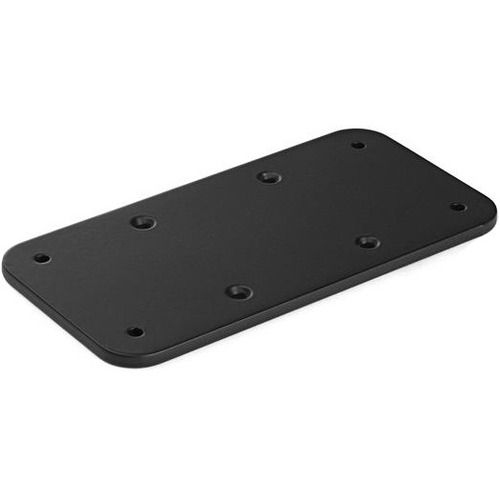
    STARTECH Docking Station Mount - for Compatible Docks / Hubs - Wall Mount Or Under-Desk Dock Mount - Steel

    About this product

    A durable steel mount for securely attaching compatible docks or hubs to a wall or under a desk.

    $61.25
    SAVE $6
    Your price for this item is $61.25
  9. 9

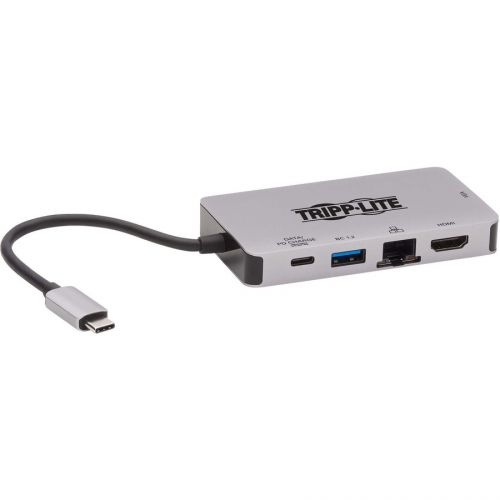
    TRIPPLITE U442-Dock6-Gy Docking Station

    About this product

    A versatile grey docking station with USB-C, HDMI, Thunderbolt, Ethernet, and three USB 3.0 ports.

    $340.68 Your price for this item is $340.68
  10. 10

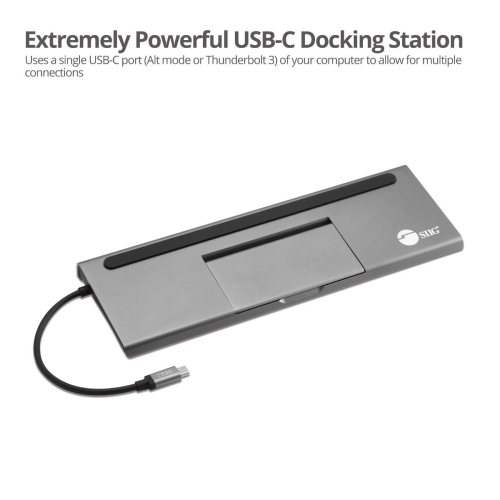
    SIIG Aluminum USB-C Mst Video Docking Station With Pd

    About this product

    An aluminium USB-C docking station offering multiple video outputs, five USB ports, and 100W power delivery.

    $263.68 Your price for this item is $263.68

One cable between your laptop and a full workstation

The best docking stations bring the connections needed for a complete workstation together through a compatible laptop port, making it easier to move between a portable computer and a full desk setup. A monitor, keyboard, mouse, wired network connection, and external storage can stay plugged into the dock while the laptop connects through a single host cable. For someone who takes a computer to meetings or lectures, that means less time reaching behind a desk and fewer cables to attach at the start of a work session. USB-C docking stations suit many everyday workspaces, while Thunderbolt docking stations can offer greater bandwidth for demanding combinations of displays and high-speed accessories. The most suitable choice depends on the computer’s capabilities, the peripherals being connected, and the amount of charging power required—not simply the number of ports on the dock. A USB-C connector describes the physical connection, but it does not guarantee support for video output, laptop charging, or a particular data transfer speed. Those capabilities need to match across the computer, docking station, and cables. For office professionals, a practical assortment might include display outputs, several USB ports, Ethernet, and an audio connection for a wired headset. Students may prefer a compact design that works at a study desk without taking up space needed for books and notes. Photographers and video editors may have more use for accessible memory card readers and fast connections for external drives. A shared household workstation benefits from a clearly positioned host cable and a layout that makes switching between compatible laptops straightforward. Docking stations can also make thoughtful gifts for someone setting up a home office or beginning a course that involves substantial computer work, provided their laptop’s connection requirements are known. Across these uses, the strongest fit is a dock that supports the equipment already on the desk while leaving useful room for an additional accessory or display.

Display support is often the feature that determines whether a docking station fits a particular workspace. A dual-monitor docking station can make room for a spreadsheet on one screen and reference material on another, while a single high-resolution display may be better suited to a compact desk or focused creative work. HDMI and DisplayPort outputs need to correspond with the monitors’ inputs, and the supported resolution and refresh rate should be considered together. A dock described as supporting 4K may deliver that resolution at different refresh rates depending on how many screens are connected and which host connection is used. Likewise, having two video sockets does not automatically mean that every laptop can run two independent external desktops through them. The computer’s graphics hardware, operating system, and supported display technologies all affect the result. Some docking stations use the computer’s native video capabilities, while others rely on USB graphics technology that may require additional software. That distinction can matter on a work-issued laptop where software installation is restricted, or when smooth motion and low latency are priorities. Charging deserves the same attention. USB Power Delivery allows compatible docks to supply power through the host cable, but the power delivered to the laptop can be lower than the rating of the dock’s power adapter because the dock and attached accessories also need power. A thin laptop used for documents may have different requirements from a mobile workstation handling large creative projects. Some higher-power computers still need their original charger during demanding tasks. Powered desktop docks typically use a separate adapter, whereas smaller designs may draw power from the laptop or accept a compatible charger through a pass-through port. Whether a charger is included and how much power reaches the host are useful distinctions. For storage, the stated speed of individual USB ports matters more than their shape alone, and connected devices may share the host connection’s total bandwidth. Ethernet adds a wired networking option, although actual performance also depends on the network equipment and internet service.

Physical design has a noticeable effect on how comfortably a docking station fits into daily use. A substantial desktop model with a separate power supply works well as a permanent connection point beside a monitor, while a slim dock is easier to tuck into a laptop bag for use at different desks. For smaller workspaces and lighter accessory needs, Mini Docking Stations offer a compact format that can keep essential connections within reach. Port placement is worth considering alongside overall dimensions: front-facing USB ports and card slots are convenient for devices that are attached frequently, while rear-facing display and network connections help keep longer cables away from the working area. A host cable needs enough reach to connect without pulling against the laptop’s socket, particularly when the computer sits on a raised stand. Detachable host cables can be easier to replace, but replacements still need to support the dock’s required data, video, and power specifications. Housing materials also influence weight and handling. Aluminium casings can help distribute heat, while plastic housings often keep portable designs light; neither material alone establishes connection quality or long-term durability. Stable feet, well-fitted sockets, and adequate space around each port can be more meaningful in everyday use, especially when wider plugs sit beside one another. Care is generally straightforward: disconnect power before cleaning, use a soft, dry cloth on the exterior, and keep liquids away from ports. Uncovered ventilation openings and clearance around the housing help the dock release heat during operation. Cables last better when they are handled by the plug rather than pulled by the cord, and a portable dock is best packed without sharp bends where its cable meets the casing. Compatibility information, warranty coverage, and access to firmware or driver updates can also contribute to a dependable setup over time. A well-matched docking station becomes an unobtrusive part of the desk: the screen is positioned comfortably, accessories have a consistent place to connect, and the laptop remains easy to take along when work moves elsewhere.
Read More

FAQ

Some products may be subject to Environmental Handling Fees (EHF) depending on your province. Learn more about EHFs.