Budget 4K Monitors
Budget 4K Monitor options offer an impressive way to upgrade your viewing experience without stretching your wallet. Enjoy crisp visuals and clear detail whether you're working, gaming, or streaming your favorite shows. With a range of screen sizes and designs available, finding the right fit for your workspace or home setup is easy. Explore Budget 4K Monitor choices that deliver high-definition clarity at a price that suits your budget.
Sort
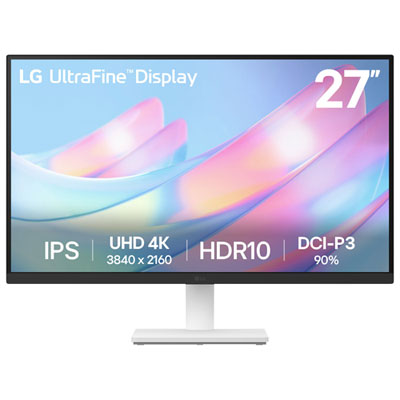

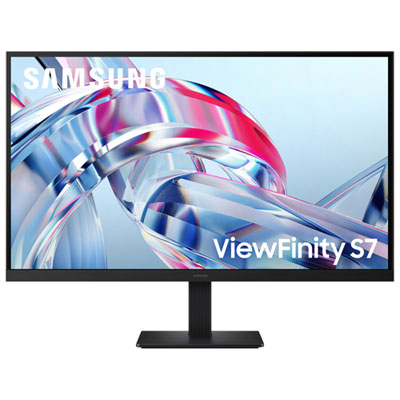
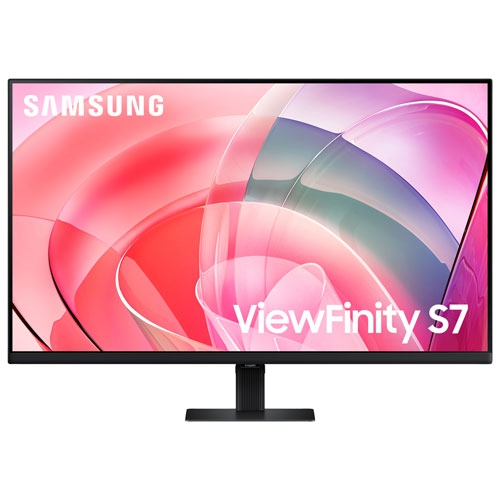
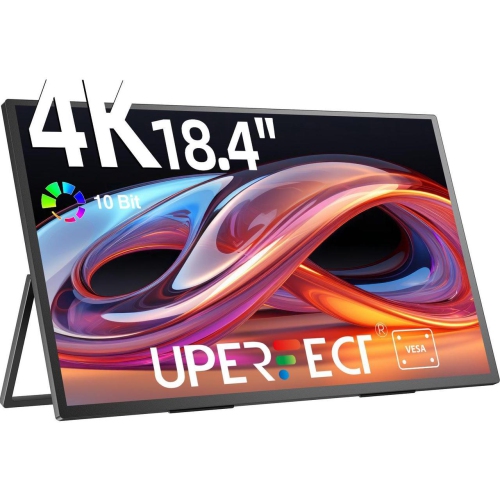


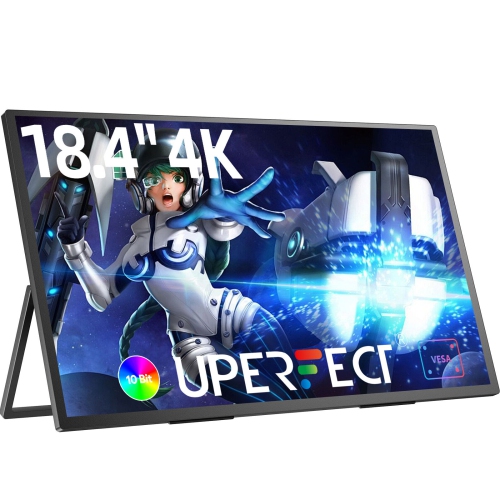
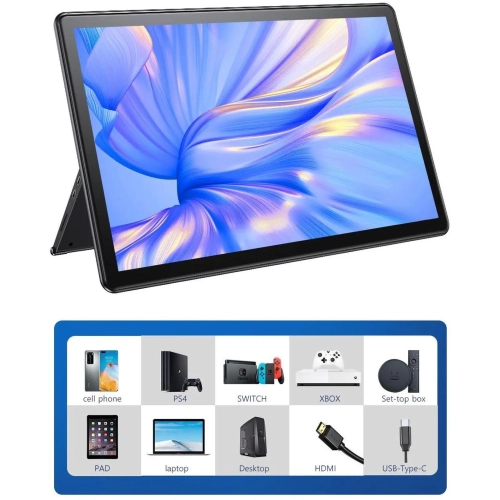
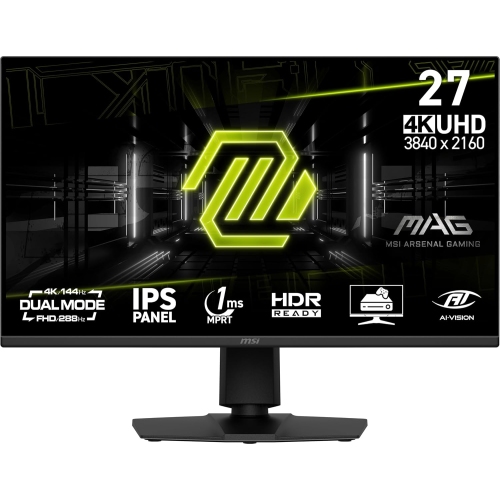
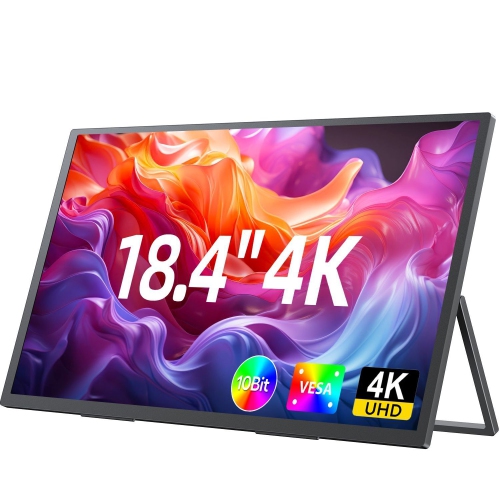


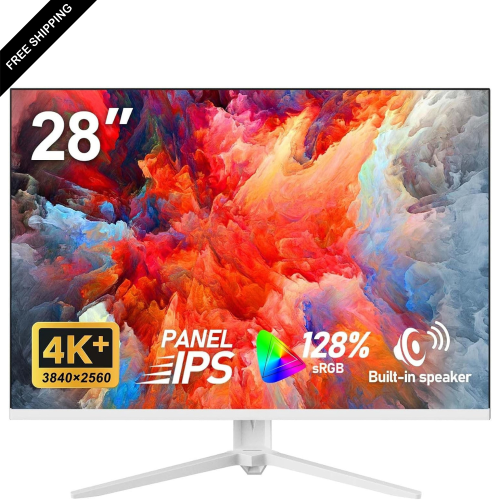
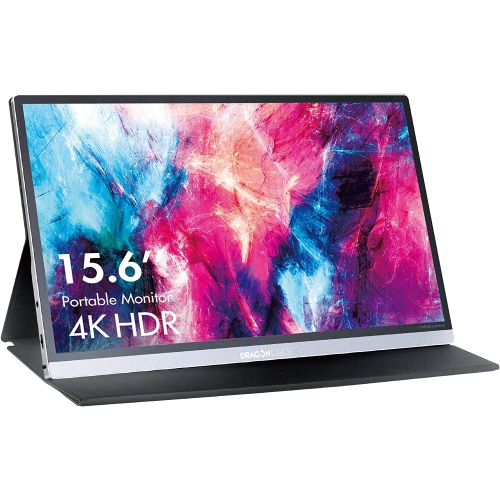
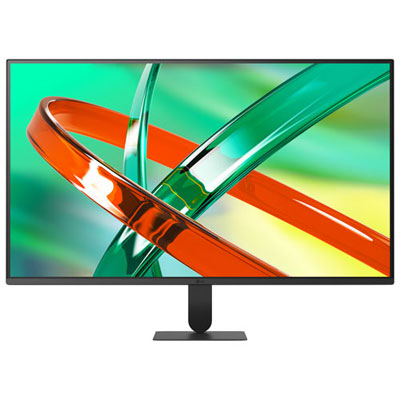
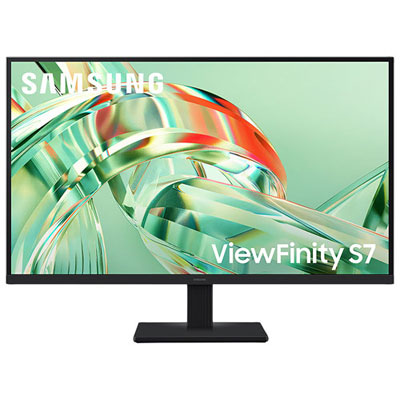

What makes a 4K screen fit your desk
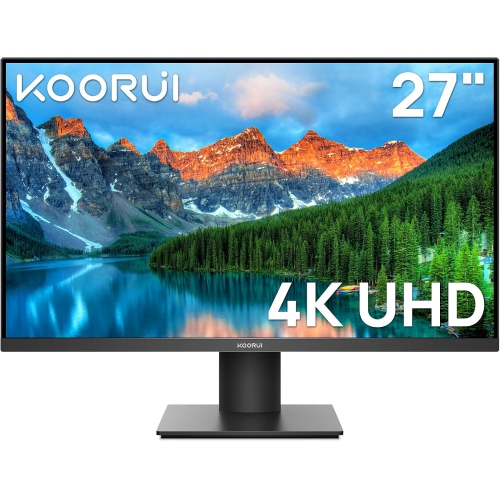
Budget 4K monitors bring a resolution of 3840 × 2160 pixels to a desktop display. That’s four times the pixel count of Full HD, which helps keep small text, fine lines and photo details sharp. At a comfortable scaling setting, there can still be room to keep a spreadsheet and a reference document side by side without squeezing either into a narrow column. A 27-inch 4K monitor packs those pixels into a smaller area, making it a good fit for reading and writing at a desk shared with a laptop or notebook. A 32-inch 4K monitor gives a timeline, drawing canvas or grid of windows more physical space, though it’s worth checking that the desk is deep enough to take in the whole screen without leaning back. Neither size has to run with tiny menus: display scaling in the computer’s settings can make text and icons larger while retaining the panel’s sharpness. Panel type and screen finish also shape what the display looks like from day to day. An IPS panel typically keeps colours more consistent when viewed off-centre, which can help when two people are reviewing a layout or when the display sits at an angle beside a laptop. A VA panel often has stronger contrast, so dark scenes can look less grey, especially when viewed straight on. A matte finish can soften reflections from a desk lamp or nearby window, though moving the lamp may do more for a stubborn reflection than turning up the brightness. For photo editing, check colour coverage and accuracy separately from resolution. A 4K screen can show the texture in fabric or the outline of a leaf clearly without necessarily showing its colour accurately. The same distinction applies to HDR: support for an HDR signal doesn’t guarantee bright highlights or deep shadows. Those depend on what the panel can display, not just the type of signal it accepts.
The connection between the monitor and the computer or console determines which display settings can actually be used. Look for an HDMI or DisplayPort input that supports 4K at the intended refresh rate, and check that the computer, cable and any dock or adapter can handle that same combination. A dock that limits output to 4K at 30 Hz can make the cursor or scrolling feel sluggish even when the monitor supports 60 Hz. USB-C can tidy up a laptop setup by carrying video and charging through one cable, but only when the laptop port supports video output and the monitor delivers enough power for the laptop. A USB-C port alone doesn’t guarantee either feature. For everyday tasks such as writing, browsing and streaming, 60 Hz is generally enough. A higher refresh rate can make fast camera movements in games look smoother, provided the computer or console can output enough frames at 4K and the monitor supports that rate through the input being used. Playing at 4K is also more demanding on a computer’s graphics hardware than playing at a lower resolution. Someone who uses the same screen for coursework and games might keep the desktop at its native resolution for sharp text, then turn down the game’s rendering resolution to keep movement smooth. Variable refresh rate, when supported by both the display and the device, can help reduce tearing as the frame rate changes. For a desk shared by a work laptop and a console, two compatible inputs can save a daily trip behind the screen to swap cables. Check how the monitor handles sound, too. HDMI and DisplayPort can carry audio, but not every display has built-in speakers or a headphone jack. That detail matters when a console is plugged into a monitor rather than a television. For a setup centred on watching from a sofa instead of working or playing at arm’s length, Budget 4K TVs are sized for longer viewing distances and typically have built-in speakers.
The stand can make as much difference to a desk setup as the width of the screen. A base with long feet may leave less room for a keyboard, drawing tablet or notebook than the screen dimensions suggest. Check the stand’s depth and leave space behind the monitor for plugs and gently curved cables, especially if the desk sits against a wall. A height-adjustable stand makes it easier to position the top of the screen at or slightly below eye level, and tilt adjustment helps direct the panel away from glare. If the monitor will go on an arm, match its VESA mounting pattern and its weight without the stand to the arm’s specifications, and make sure the desktop can take the clamp. Plastic is common on monitor housings, while stands may use plastic, metal or both. For a desk that shakes a little when someone types, a firm hinge and a base that doesn’t wobble are more useful signs of stability than a metal finish. If the monitor needs to move, unplug it first and support the housing rather than lifting it by the screen or pulling it across the desk by the stand. For routine cleaning, turn it off and wipe away dust with a clean, soft microfibre cloth. Follow the manufacturer’s directions for fingerprints, avoid pressing on the panel and never spray cleaner directly onto it. A 4K monitor can be a practical gift for a student who works from a laptop, someone setting up a home office or a hobby photographer who wants room to review images at a comfortable size. Knowing how much desktop space the recipient has and which ports their computer uses takes much of the guesswork out of that gift. For a shared workspace, easy input switching and a stand that adjusts to different sitting heights may matter more than features meant for fast-paced games.
Top selling and popular products
-
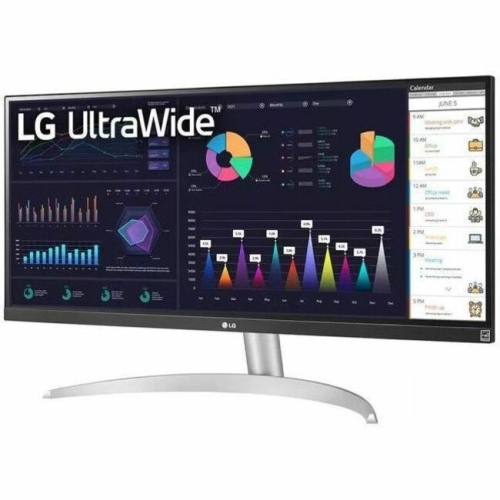 Your price for this item is $2237.68
-
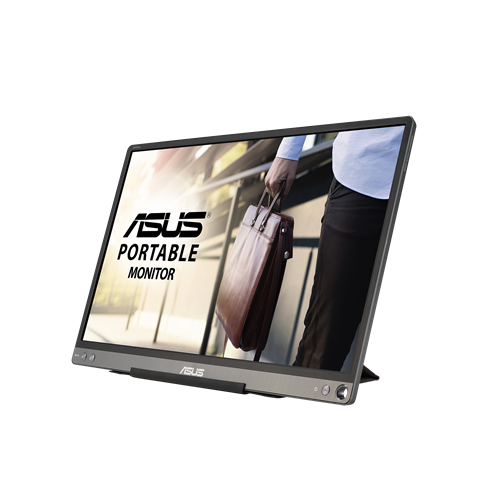 Your price for this item is $320.68
-
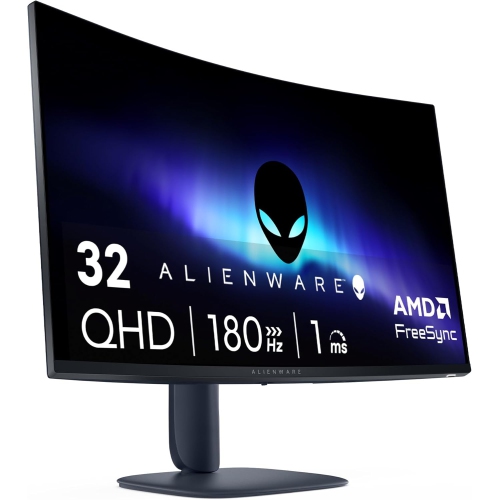 Your price for this item is $469
-
 Your price for this item is $149.99
-
 Your price for this item is $265.99
-
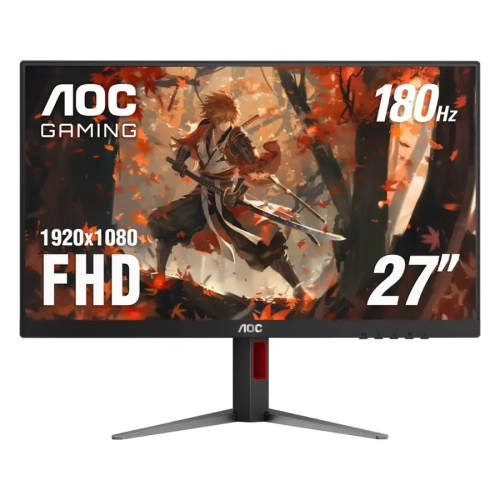 Your price for this item is $229.99
-
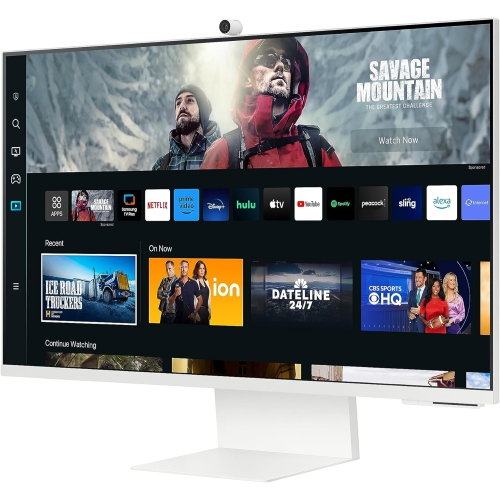 Your price for this item is $1138.68
-
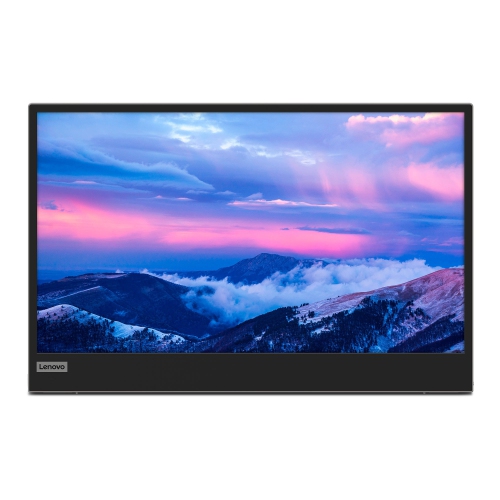 Your price for this item is $355.68
Discover more categories related to Budget 4K Monitors
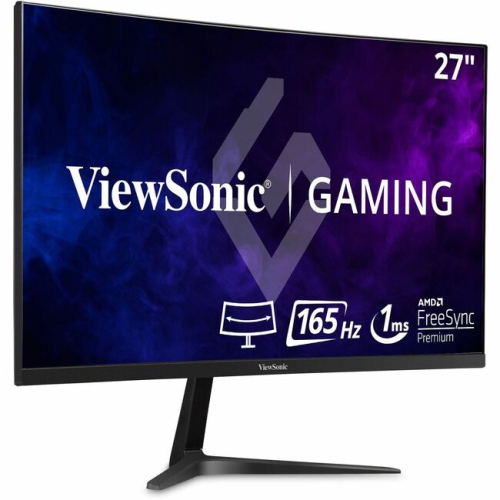
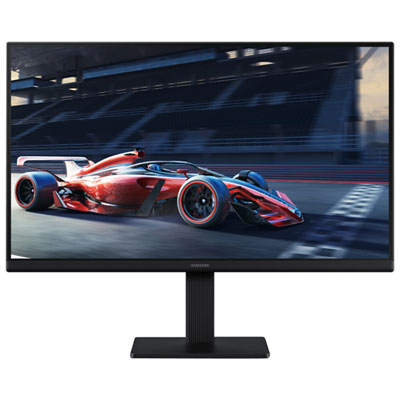
Top Collections:
Best Black Friday Deals This Year, Best Black Friday Deals On Electronics, Kindle Devices, Pokemon Centers, Best Black Friday Deals On Apple Products, Best Cameras for Sports Photography, Dyson Airwrap, Pokémon 30th Celebration Cards, Apple iPhone 17 Pro, Canon G7X Cameras
Some products may be subject to Environmental Handling Fees
(EHF) depending on your province.
Learn more about EHFs.