Computers With Voice Recognition
Computers With Voice Recognition offer a seamless and intuitive way to interact with technology, making everyday tasks more convenient and efficient. Whether you're looking to boost productivity, streamline your workflow, or simply enjoy hands-free control, these computers are designed to respond to your voice commands with ease. Explore a wide selection of Computers With Voice Recognition that cater to various needs, from home offices to creative studios. Discover options that help you stay connected and get more done, all through the power of your voice.
Sort
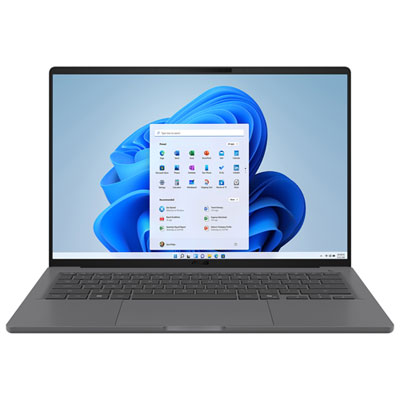
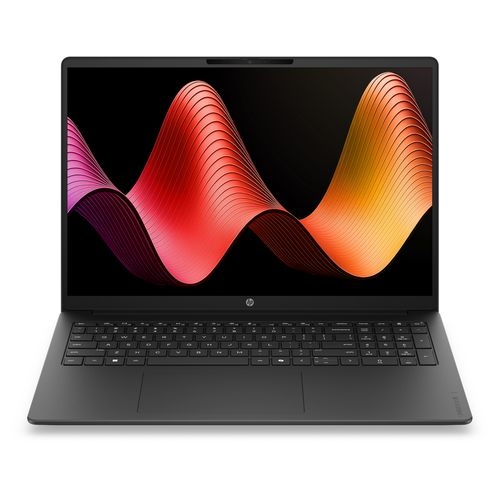
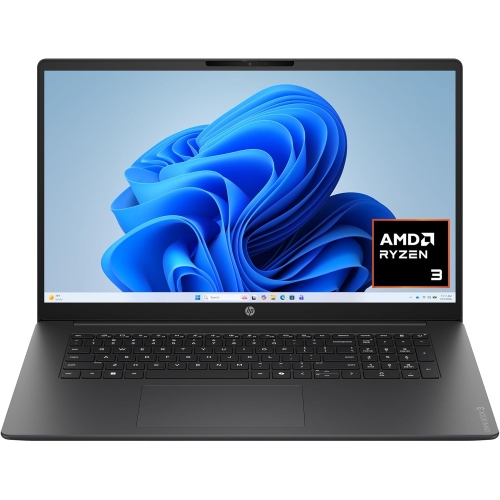
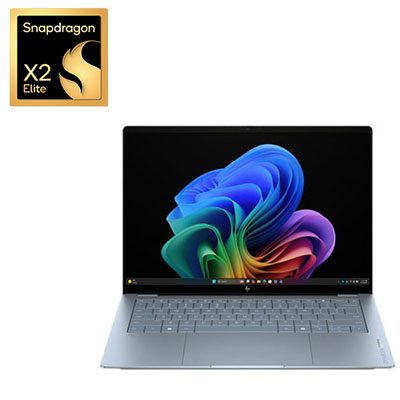
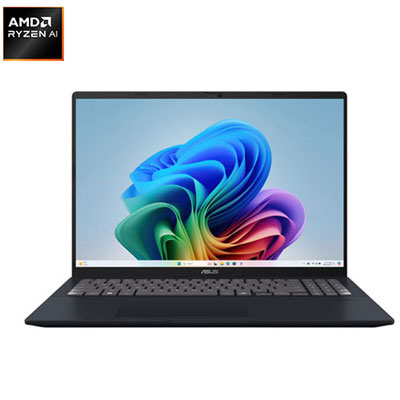
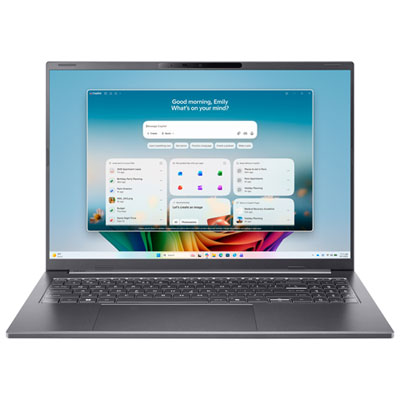
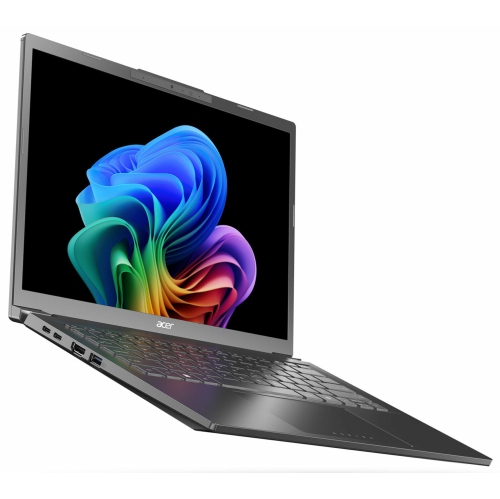
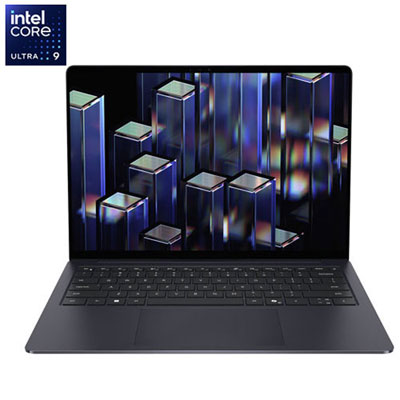
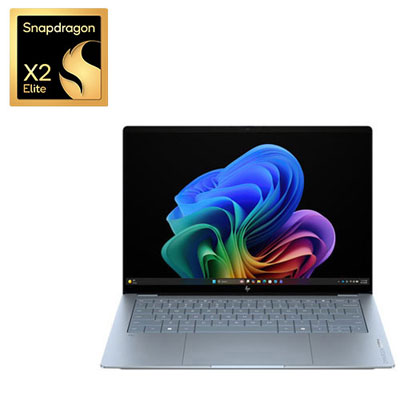
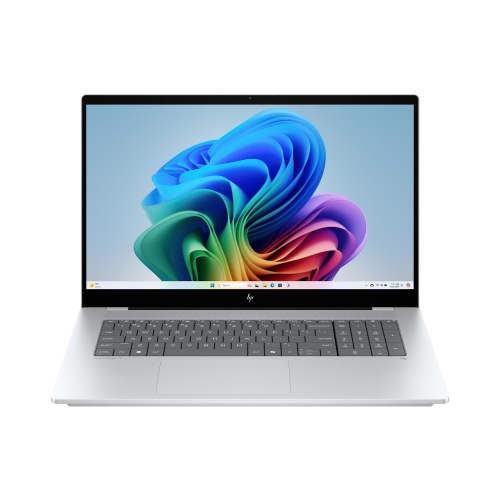
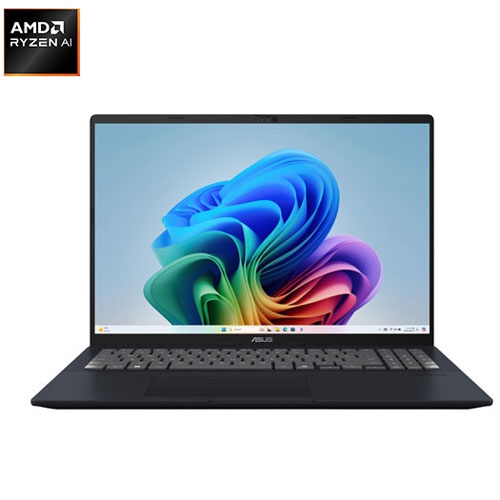
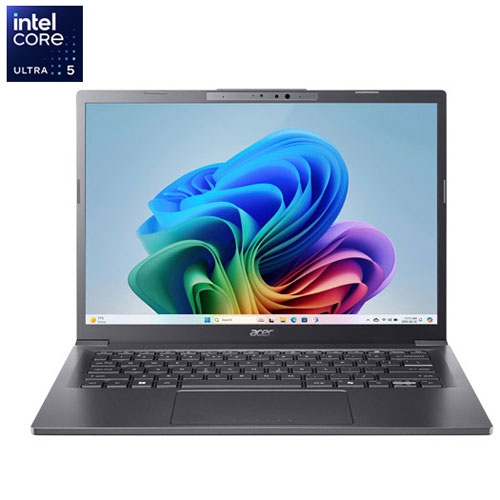
Where dictation ends and voice control begins
Computers with voice recognition let people turn speech into text, use spoken commands to control parts of the computer, or do both. The underlying technology, called automatic speech recognition (ASR), interprets audio picked up by a microphone. In dictation mode, the result goes into a document, message or other compatible text field. With voice control, the same microphone can pick up an instruction to open an app, scroll down a page or select a button. The distinction matters at a desk: dictating the first draft of a report is one task, while switching to a reference document and making corrections without touching the keyboard is another. Many laptop and desktop operating systems include built-in speech-to-text tools, but support for navigation, editing and punctuation commands varies by operating system, app and language. Some tools insert punctuation automatically, while others let the speaker say “new paragraph” to start a new block of text. Voice recognition for these tasks is different from speaker recognition, which tries to identify who is speaking rather than what was said. Basic dictation does not necessarily require dedicated AI hardware. A processor designed to handle AI tasks can help run compatible speech features directly on the computer, but it does not determine which commands an app understands or which languages it supports. Some speech tools process audio on the computer; others need an internet connection to process it through an online service. That difference can shape how a computer fits into the day, especially for someone who dictates on the move, works with confidential material or alternates between English and French. A tool that transcribes both languages may not offer the same voice commands in each, and switching languages for a new document is different from switching mid-sentence. For a household that uses both languages, those details can matter more than how many languages appear in a feature description.
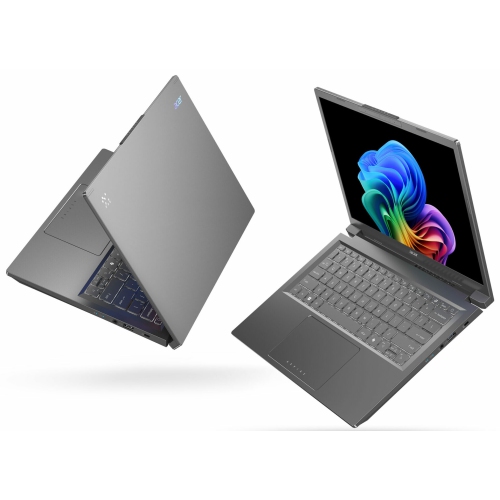
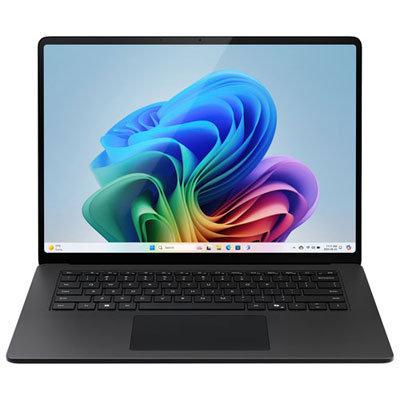
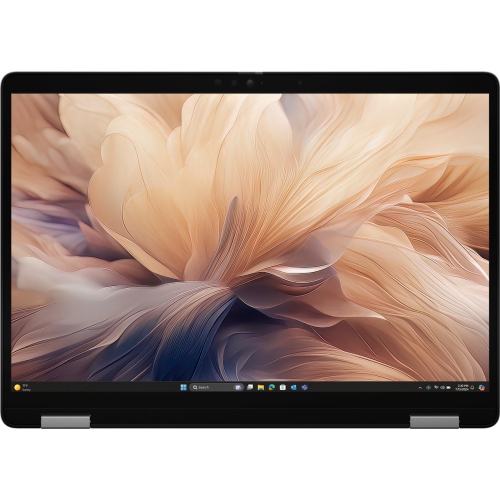
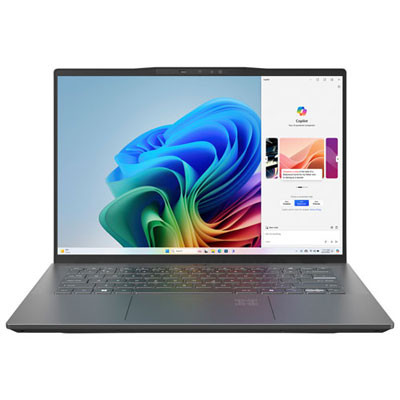
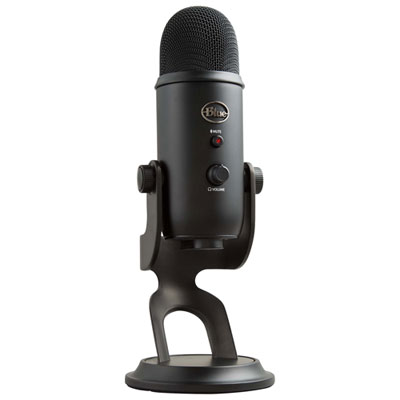
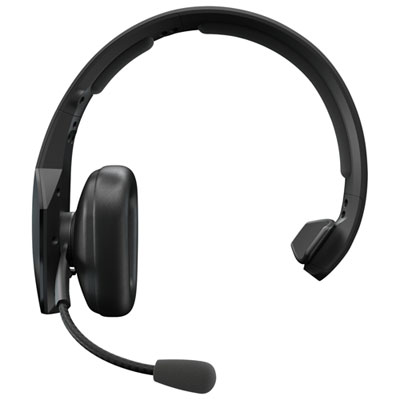
The physical setup can make as much difference to everyday use as the software. A laptop with a built-in microphone keeps the work surface clear and makes it easy to dictate at the kitchen table, then move to another room for a call. A desktop offers more flexibility in where the screen and microphone sit, though the microphone may need to be connected separately. An all-in-one computer can simplify a shared station, particularly if the microphone sits near the display and the person speaking is usually seated in front of it. A headset microphone stays a more consistent distance from the mouth as the speaker turns to look at a second screen or down at a notebook. That can help in a room with competing voices, whereas a built-in microphone may be all that is needed for short notes at a quiet desk. The rest of the computer still has to suit the way it will be used. A student who carries a laptop between classes may put more value on a sturdy hinge and a rigid body than on a wider screen, while someone working at a fixed desk may prefer enough display space to keep a transcript and its source side by side. Metal and rigid plastic are both used in computer housings; how much the body flexes when lifted and how steadily the screen stays in place can tell more about day-to-day handling than the material alone. At a permanent workstation, a microphone cable with a little slack is less likely to tug at its port when the screen or keyboard is moved. Keeping the microphone openings clear of dust and avoiding liquid around them helps preserve clear audio pickup. Placement is worth noticing, too: a stand or case that covers a small opening along the edge of a laptop can muffle speech even when the microphone is working properly.
The most useful speech features depend on where the typing or navigation slows someone down. A student might speak a rough outline into a document, then use the keyboard to organize it. A professional dictating detailed notes may put more value on a tool that handles specialized vocabulary and makes it easy to correct a single word without repeating a whole sentence. In either case, names, abbreviations and numbers are worth checking before a draft is shared. An address dictated correctly except for one digit can cause more trouble than a paragraph with a misplaced comma. Programmers may have a similar experience: speaking a comment in plain language is different from entering code that depends on exact symbols and capitalization. For someone who uses voice access because a mouse or keyboard is difficult to operate, the important details can be different again. It may matter whether spoken commands can move between fields, select text precisely or close a dialogue box in the apps that person uses. If the computer is a gift for someone who prefers speaking to typing, familiar software and a microphone that works well in the recipient’s usual room can make the transition easier. Privacy matters in shared spaces as well. On-device processing can reduce the need to send audio to an online service, but it does not stop anyone nearby from hearing what is spoken. Microphone permissions, the option to start and stop listening deliberately, and clear settings for any saved recordings or transcripts are useful distinctions for home, school and work. A computer is a good fit when voice input needs to sit alongside a full keyboard, a larger display or several apps open at once. For short notes, messages or spoken input on a device that can be held in one hand, Tablets With Voice Recognition offer a more compact format.
Top selling and popular products
-
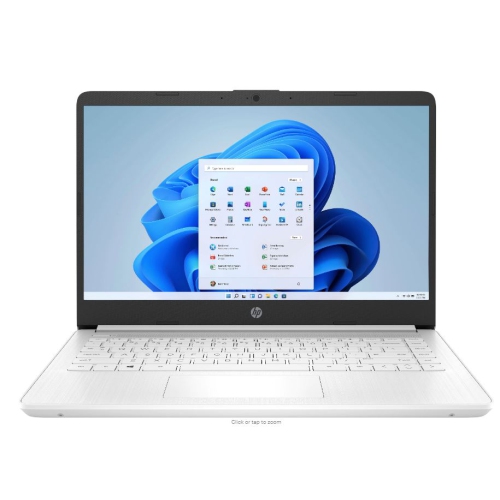 Your price for this item is $449
-
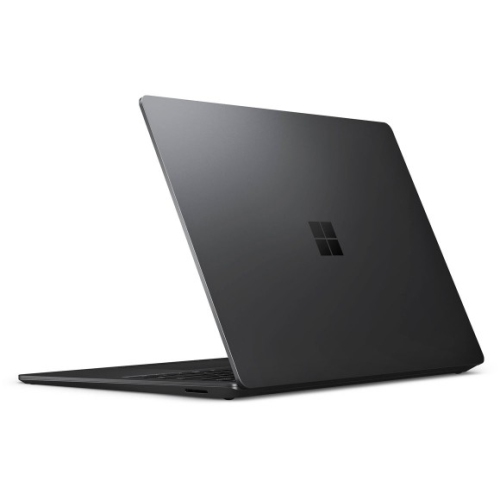 Your price for this item is $3099
-
 Your price for this item is $1800.68
-
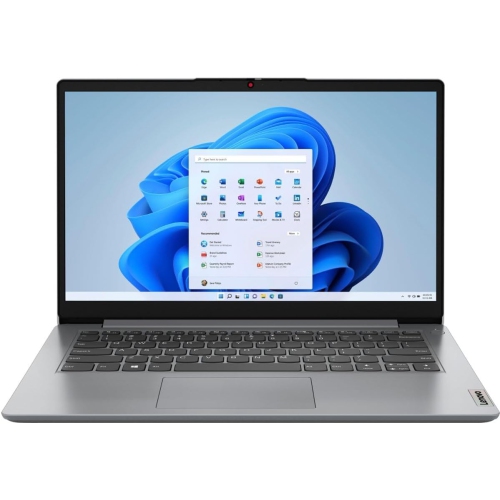 Your price for this item is $664.05
-
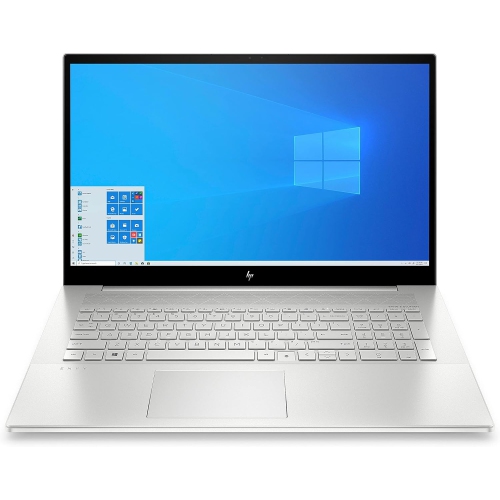 Your price for this item is $869.99
-
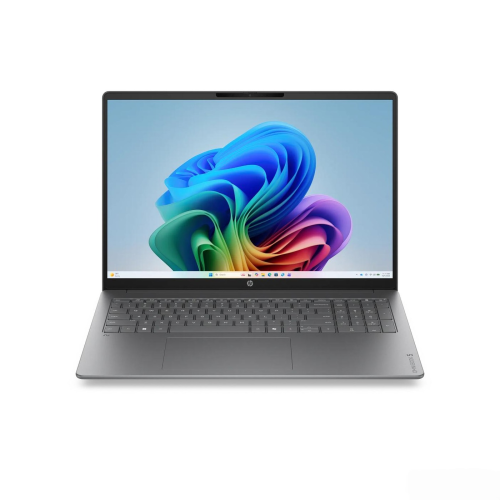 Your price for this item is $2960.48
-
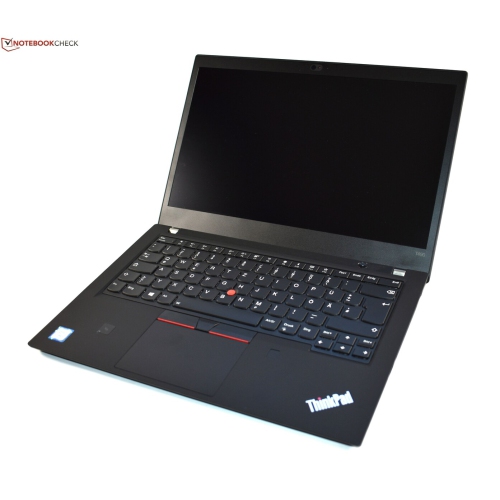 Your price for this item is $499.68
-
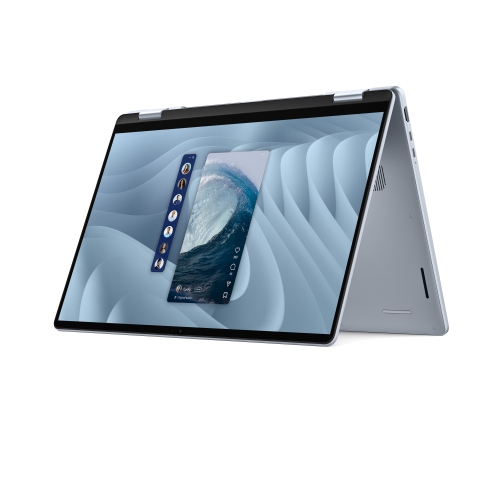 Your price for this item is $1951.79
Discover more categories related to Computers With Voice Recognition
Top Collections:
Best Black Friday Deals This Year, Best Black Friday Deals On Electronics, Kindle Devices, Pokemon Centers, Best Black Friday Deals On Apple Products, Best Cameras for Sports Photography, Dyson Airwrap, Pokémon 30th Celebration Cards, Apple iPhone 17 Pro, Canon G7X Cameras
Some products may be subject to Environmental Handling Fees
(EHF) depending on your province.
Learn more about EHFs.